
ปรับแต่งแผนภูมิวงกลมในงานนำเสนอบน Android
ภาพรวม
บทความนี้อธิบายวิธีการทำงานกับแผนภูมิเวียนใน Aspose.Slides โดยแสดงวิธีการกำหนดค่าตัวเลือกพล็อตรองสำหรับแผนภูมิ Pie of Pie และ Bar of Pie รวมถึงการเปิดใช้งานการระบายสีสไลซ์อัตโนมัติสำหรับแผนภูมิเวียนมาตรฐาน
ตัวอย่างมุ่งเน้นที่งานปรับแต่งแผนภูมิ เช่น การเพิ่มแผนภูมิลงในสไลด์ การปรับเปลี่ยนการตั้งค่าชุดข้อมูลและป้ายกำกับ การเปลี่ยนข้อมูลแผนภูมิเริ่มต้นเป็นประเภทและค่าแบบกำหนดเอง และการบันทึกการนำเสนอที่อัปเดต
ตัวเลือกพล็อตรองสำหรับแผนภูมิ Pie of Pie และ Bar of Pie
Aspose.Slides for Android via Java รองรับตัวเลือกพล็อตรองสำหรับแผนภูมิ Pie of Pie และ Bar of Pie ตัวเลือกเหล่านี้ควบคุมขนาดของพล็อตรองและวิธีการแบ่งจุดข้อมูลระหว่างพล็อตสองส่วน
ตัวอย่างต่อไปนี้สร้างแผนภูมิ Pie of Pie ในการนำเสนอใหม่และแสดงค่าจุดข้อมูลเป็นป้ายกำกับ วิธีการ setSecondPieSize ตั้งค่าขนาดพล็อตรองเป็น 149% ของพล็อตหลัก setPieSplitBy เลือกการแบ่งแบบเปอร์เซ็นต์ และ setPieSplitPosition ตั้งค่าค่าเกณฑ์เป็น 53%.
import com.aspose.slides.*;

Presentation presentation = new Presentation();
try {
    ISlide slide = presentation.getSlides().get_Item(0);

    IChart chart = slide.getShapes().addChart(ChartType.PieOfPie, 50, 50, 500, 400);
    IChartSeries series = chart.getChartData().getSeries().get_Item(0);

    // แสดงค่าและกำหนดค่าพล็อตรอง.
    series.getLabels().getDefaultDataLabelFormat().setShowValue(true);
    IChartSeriesGroup seriesGroup = series.getParentSeriesGroup();
    seriesGroup.setSecondPieSize(149);
    seriesGroup.setPieSplitBy(PieSplitType.ByPercentage);
    seriesGroup.setPieSplitPosition(53);

    presentation.save("pie_of_pie.pptx", SaveFormat.Pptx);
} finally {
    presentation.dispose();
}
เลือกประเภทสำหรับพล็อตรอง
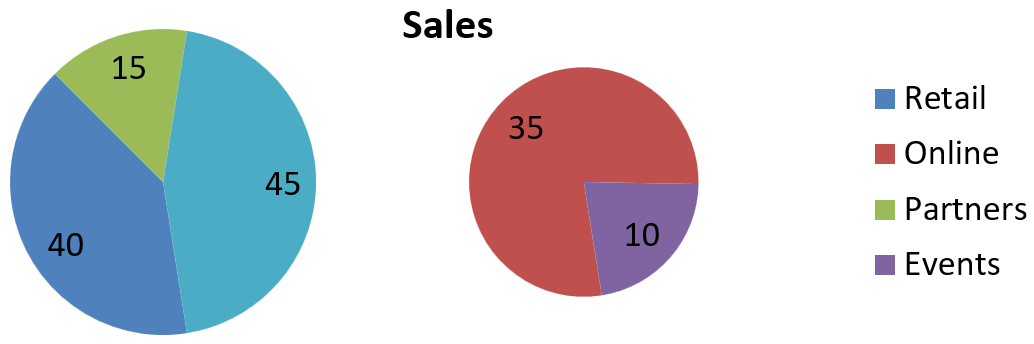
ใช้การแบ่งแบบกำหนดเองเมื่อคุณต้องการจัดกลุ่มประเภทเฉพาะในพล็อตรองโดยไม่คำนึงถึงค่าเปอร์เซ็นต์ของพวกมัน ตัวอย่างเช่น รายงานการขายอาจแสดง Online และ Events ร่วมกันเพื่อให้ผู้อ่านเปรียบเทียบสองช่องทางนี้ แม้ว่าพวกมันจะคิดเป็น 35% และ 10% ของยอดขายทั้งหมด
เรียกใช้ setPieSplitBy พร้อมกับ PieSplitType.Custom และเลือกจุดผ่าน getPieSplitCustomPoints เมธอด add ของคอลเลกชันรับดัชนีฐานศูนย์ในชุดข้อมูล; ใช้ addItem เพื่อเพิ่มออบเจกต์จุดข้อมูล ในตัวอย่างนี้ ดัชนี 1 เลือก Online และจุดที่ดัชนี 3 เลือก Events พาร์ทเนอร์ก็ถูกเพิ่มชั่วคราวแล้วถูกลบออกโดยใช้ removeItem.
import com.aspose.slides.*;

Presentation presentation = new Presentation();
try {
    ISlide slide = presentation.getSlides().get_Item(0);

    IChart chart = slide.getShapes().addChart(ChartType.PieOfPie, 50, 50, 600, 200);

    // แทนที่ข้อมูลเริ่มต้นด้วยยอดขายตามช่องทาง.
    IChartDataWorkbook workbook = chart.getChartData().getChartDataWorkbook();
    chart.getChartData().getSeries().clear();
    chart.getChartData().getCategories().clear();
    String[] categoryNames = { "Retail", "Online", "Partners", "Events" };
    int[] values = { 40, 35, 15, 10 };
    IChartDataCell seriesNameCell = workbook.getCell(0, 0, 1, "Sales");
    IChartSeries series = chart.getChartData().getSeries().add(seriesNameCell, chart.getType());

    for (int i = 0; i < categoryNames.length; i++) {
        IChartDataCell categoryCell = workbook.getCell(0, i + 1, 0, categoryNames[i]);
        chart.getChartData().getCategories().add(categoryCell);

        IChartDataCell valueCell = workbook.getCell(0, i + 1, 1, values[i]);
        series.getDataPoints().addDataPointForPieSeries(valueCell);
    }

    series.getLabels().getDefaultDataLabelFormat().setShowValue(true);
    IChartSeriesGroup seriesGroup = series.getParentSeriesGroup();
    seriesGroup.setPieSplitBy(PieSplitType.Custom);
    seriesGroup.setColorVaried(true);

    // เลือก Online ตามดัชนีฐานศูนย์และ Events ตามออบเจกต์จุดข้อมูล.
    seriesGroup.getPieSplitCustomPoints().add(1);
    seriesGroup.getPieSplitCustomPoints().addItem(series.getDataPoints().get_Item(3));

    // ยกเว้น Partners ออกจากการเลือกโดยไม่ลบข้อมูลต้นฉบับ.
    seriesGroup.getPieSplitCustomPoints().add(2);
    seriesGroup.getPieSplitCustomPoints().removeItem(series.getDataPoints().get_Item(2));

    presentation.save("pie_of_pie_custom.pptx", SaveFormat.Pptx);
} finally {
    presentation.dispose();
}
Online (35) และ Events (10) ปรากฏเป็นสไลซ์แยกในพล็อตรอง ในพล็อตหลัก พวกมันจะแสดงเป็นสไลซ์รวมหนึ่งสไลซ์ที่มีค่า 45 ควบคู่กับ Retail (40) และ Partners (15) การลบ Partners จากการเลือกแบบกำหนดเองทำให้มันยังคงอยู่ในพล็อตหลัก; ไม่ได้ลบประเภทหรือค่าของมันออกจากข้อมูลต้นฉบับของแผนภูมิ
ภาพต่อไปนี้แสดงการนำเสนอที่บันทึกใน PowerPoint:
ตั้งค่าสีสไลซ์อัตโนมัติสำหรับแผนภูมิ Pie Chart
Aspose.Slides for Android via Java สามารถกำหนดสีที่ต่างกันให้กับสไลซ์ของแผนภูมิวงกลมโดยอัตโนมัติ ตัวอย่างต่อไปนี้สร้างแผนภูมิวงกลมที่มีหัวข้ออยู่กลางและแทนข้อมูลเริ่มต้นด้วยสามประเภทไตรมาสพร้อมค่าของพวกมัน วิธีการ setShowValue แสดงค่า 20, 50, และ 30 เป็นป้ายกำกับ ในขณะที่ setColorVaried เปิดใช้งานสีที่แตกต่างกันสำหรับแต่ละสไลซ์
import com.aspose.slides.*;

Presentation presentation = new Presentation();
try {
    ISlide slide = presentation.getSlides().get_Item(0);

    IChart chart = slide.getShapes().addChart(ChartType.Pie, 100, 100, 400, 400);

    // เพิ่มชื่อแผนภูมิที่จัดกึ่งกลาง.
    chart.getChartTitle().addTextFrameForOverriding("Sample Title");
    chart.getChartTitle().getTextFrameForOverriding().getTextFrameFormat().setCenterText(NullableBool.True);
    chart.getChartTitle().setHeight(20);
    chart.setTitle(true);

    // แทนที่ข้อมูลเริ่มต้นด้วยการใช้เวิร์กชีตแรก.
    IChartDataWorkbook workbook = chart.getChartData().getChartDataWorkbook();
    int worksheetIndex = 0;
    chart.getChartData().getSeries().clear();
    chart.getChartData().getCategories().clear();
    String[] categoryNames = { "First Qtr", "2nd Qtr", "3rd Qtr" };
    int[] values = { 20, 50, 30 };
    IChartDataCell seriesNameCell = workbook.getCell(worksheetIndex, 0, 1, "Series 1");
    IChartSeries series = chart.getChartData().getSeries().add(seriesNameCell, chart.getType());

    for (int i = 0; i < categoryNames.length; i++) {
        IChartDataCell categoryCell = workbook.getCell(worksheetIndex, i + 1, 0, categoryNames[i]);
        chart.getChartData().getCategories().add(categoryCell);

        IChartDataCell valueCell = workbook.getCell(worksheetIndex, i + 1, 1, values[i]);
        series.getDataPoints().addDataPointForPieSeries(valueCell);
    }

    // แสดงค่าและกำหนดสีที่แตกต่างให้กับสไลซ์.
    series.getLabels().getDefaultDataLabelFormat().setShowValue(true);
    series.getParentSeriesGroup().setColorVaried(true);

    presentation.save("pie.pptx", SaveFormat.Pptx);
} finally {
    presentation.dispose();
}
คำถามที่พบบ่อย
สนับสนุนรูปแบบ Pie of Pie และ Bar of Pie หรือไม่?
ใช่, ไลบรารี รองรับ พล็อตรองสำหรับแผนภูมิวงกลม รวมถึงประเภท Pie of Pie และ Bar of Pie
ฉันสามารถส่งออกแค่แผนภูมิเป็นภาพ (เช่น PNG) ได้หรือไม่?
ใช่, คุณสามารถ ส่งออกแผนภูมิเป็นภาพ (เช่น PNG) โดยไม่ต้องส่งออกรายการนำเสนอทั้งหมด.