
จัดรูปแบบข้อความการนำเสนอใน C++
ภาพรวม
บทความนี้แสดงวิธีจัดรูปแบบข้อความในงานนำเสนอ PowerPoint และ OpenDocument ด้วย Aspose.Slides สำหรับ C++. ครอบคลุมสีพื้นหลัง, ความโปร่งใส, ระยะห่างระหว่างอักขระ, คุณสมบัติของแบบอักษร, การหมุน, ระยะห่างระหว่างย่อหน้า, พฤติกรรมการปรับอัตโนมัติ, การยึดข้อความ, การตั้งค่าตำแหน่งแท็บ, และการตั้งค่าภาษา.
ยกเว้นที่ระบุไว้เป็นอย่างอื่น ตัวอย่างจะใช้ sample.pptx. รูปทรงแรกบนสไลด์แรกเป็นกล่องข้อความ และย่อยแรกของมันมีข้อความดังแสดงด้านล่าง ทั้งดัชนีสไลด์และรูปทรงเริ่มจากศูนย์ ตัวอย่างที่เลือกส่วนที่เป็นตัวหนาจะใช้การจัดรูปแบบที่มีผลรวมถึงการจัดรูปแบบตัวหนาที่สืบทอดมา:

เพื่อค้นหาและเน้นข้อความตามตัวอักษรหรือผลการจับคู่แบบ regular-expression, ดูที่ ค้นหาและแทนที่ข้อความ.
กำหนดสีพื้นหลังของข้อความ
ใช้ IParagraphFormat::get_DefaultPortionFormat เพื่อกำหนดสีเน้นเริ่มต้นสำหรับย่อหน้า, หรือใช้ IBasePortionFormat::get_HighlightColor สำหรับส่วนข้อความแต่ละส่วน.
ตัวอย่างต่อไปนี้กำหนดสีเน้นสีเทาอ่อนเป็นค่าเริ่มต้นสำหรับย่อหน้าแรก. สีเน้นที่ระบุอย่างชัดเจนบนส่วนข้อความแต่ละส่วนจะมีลำดับความสำคัญเหนือค่าเริ่มต้นนี้:
#include <DOM/IAutoShape.h>
#include <DOM/IColorFormat.h>
#include <DOM/IParagraph.h>
#include <DOM/IParagraphFormat.h>
#include <DOM/IPortionFormat.h>
#include <DOM/ISlide.h>
#include <DOM/ITextFrame.h>
#include <DOM/Presentation.h>
#include <Export/SaveFormat.h>
#include <drawing/color.h>

using namespace Aspose::Slides;
using namespace Aspose::Slides::Export;

auto presentation = System::MakeObject<Presentation>(u"sample.pptx");
auto firstShape = presentation->get_Slide(0)->get_Shape(0);

auto autoShape = System::ExplicitCast<IAutoShape>(firstShape);

auto paragraph = autoShape->get_TextFrame()->get_Paragraph(0);
auto defaultPortionFormat = paragraph->get_ParagraphFormat()->get_DefaultPortionFormat();
auto highlightColor = System::Drawing::Color::get_LightGray();

// ตั้งค่าสีไฮไลท์สำหรับย่อหน้าทั้งหมด.
defaultPortionFormat->get_HighlightColor()->set_Color(highlightColor);

presentation->Save(u"gray_paragraph.pptx", SaveFormat::Pptx);
presentation->Dispose();
ผลลัพธ์:

ตัวอย่างโค้ดด้านล่างแสดงวิธีกำหนดสีพื้นหลังสำหรับ ส่วนข้อความที่ใช้แบบอักษรตัวหนา:
#include <DOM/IAutoShape.h>
#include <DOM/IColorFormat.h>
#include <DOM/IParagraph.h>
#include <DOM/IPortion.h>
#include <DOM/IPortionCollection.h>
#include <DOM/IPortionFormat.h>
#include <DOM/IPortionFormatEffectiveData.h>
#include <DOM/ISlide.h>
#include <DOM/ITextFrame.h>
#include <DOM/Presentation.h>
#include <Export/SaveFormat.h>
#include <drawing/color.h>

using namespace Aspose::Slides;
using namespace Aspose::Slides::Export;

auto presentation = System::MakeObject<Presentation>(u"sample.pptx");
auto firstShape = presentation->get_Slide(0)->get_Shape(0);

auto autoShape = System::ExplicitCast<IAutoShape>(firstShape);

auto paragraph = autoShape->get_TextFrame()->get_Paragraph(0);
auto portions = paragraph->get_Portions();
int portionCount = portions->get_Count();
auto highlightColor = System::Drawing::Color::get_LightGray();

for (int portionIndex = 0; portionIndex < portionCount; portionIndex++)
{
    auto portion = paragraph->get_Portion(portionIndex);
    auto portionFormat = portion->get_PortionFormat();
    if (portionFormat->GetEffective()->get_FontBold())
    {
        // ตั้งค่าสีไฮไลท์สำหรับส่วนข้อความ.
        portionFormat->get_HighlightColor()->set_Color(highlightColor);
    }
}

presentation->Save(u"gray_text_portions.pptx", SaveFormat::Pptx);
presentation->Dispose();
ผลลัพธ์:

จัดตำแหน่งย่อหน้าข้อความ
ใช้ IParagraphFormat::set_Alignment เพื่อกำหนดการจัดตำแหน่งย่อหน้าภายในกรอบข้อความ ค่าอาจเป็นการจัดกึ่งกลาง, จัดซ้าย, จัดขวา, จัดชิดขอบ, ฯลฯ
ตัวอย่างโค้ดต่อไปนี้แสดงวิธีจัดตำแหน่งย่อหน้าให้อยู่ กึ่งกลาง:
#include <DOM/IAutoShape.h>
#include <DOM/IParagraph.h>
#include <DOM/IParagraphFormat.h>
#include <DOM/ISlide.h>
#include <DOM/ITextFrame.h>
#include <DOM/Presentation.h>
#include <DOM/TextAlignment.h>
#include <Export/SaveFormat.h>

using namespace Aspose::Slides;
using namespace Aspose::Slides::Export;

auto presentation = System::MakeObject<Presentation>(u"sample.pptx");
auto firstShape = presentation->get_Slide(0)->get_Shape(0);

auto autoShape = System::ExplicitCast<IAutoShape>(firstShape);
auto paragraph = autoShape->get_TextFrame()->get_Paragraph(0);
// ตั้งค่าการจัดแนวของย่อหน้าเป็นกึ่งกลาง.
paragraph->get_ParagraphFormat()->set_Alignment(TextAlignment::Center);

presentation->Save(u"aligned_paragraph.pptx", SaveFormat::Pptx);
presentation->Dispose();
ผลลัพธ์:

จัดตำแหน่งแบบอักษรภายในบรรทัด
ใช้ IParagraphFormat::set_FontAlignment เพื่อจัดตำแหน่งแนวตั้งของส่วนข้อความที่มีขนาดแบบอักษรต่างกันภายในบรรทัด การตั้งค่านี้ใช้กับย่อหน้าทั้งหมดและควบคุมการจัดตำแหน่งภายในแต่ละบรรทัดของมัน.
ตัวอย่างอิสระต่อไปนี้สร้างกล่องข้อความที่มีป้ายกำกับสี่กล่องบนสไลด์หนึ่ง แต่ละย่อหน้ามีข้อความเดียวกันที่ขนาด 18, 36, และ 54 จุด พร้อมการจัดตำแหน่งแบบอักษรที่ต่างกัน ใช้แบบอักษร Arial, ปิดการปรับอัตโนมัติและการห่อข้อความ, และทำให้กรอบข้อความใหญ่พอสำหรับบรรทัดเดียว.
#include <DOM/FontAlignment.h>
#include <DOM/Fonts/FontData.h>
#include <DOM/IAutoShape.h>
#include <DOM/IColorFormat.h>
#include <DOM/IFillFormat.h>
#include <DOM/ILineFormat.h>
#include <DOM/IParagraph.h>
#include <DOM/IParagraphCollection.h>
#include <DOM/IParagraphFormat.h>
#include <DOM/IPortionCollection.h>
#include <DOM/IPortionFormat.h>
#include <DOM/IShapeCollection.h>
#include <DOM/ISlide.h>
#include <DOM/ITextFrame.h>
#include <DOM/ITextFrameFormat.h>
#include <DOM/FillType.h>
#include <DOM/NullableBool.h>
#include <DOM/Paragraph.h>
#include <DOM/Portion.h>
#include <DOM/Presentation.h>
#include <DOM/ShapeType.h>
#include <DOM/TextAlignment.h>
#include <DOM/TextAnchorType.h>
#include <DOM/TextAutofitType.h>
#include <Export/SaveFormat.h>
#include <drawing/color.h>

using namespace Aspose::Slides;
using namespace Aspose::Slides::Export;
using namespace System;
using namespace System::Drawing;

auto presentation = MakeObject<Presentation>();
auto slide = presentation->get_Slide(0);

FontAlignment alignments[] = { FontAlignment::Baseline, FontAlignment::Top, FontAlignment::Center, FontAlignment::Bottom };
String labels[] = { u"Baseline", u"Top", u"Center", u"Bottom" };
float fontSizes[] = { 18.0f, 36.0f, 54.0f };
auto font = MakeObject<FontData>(u"Arial");

for (auto i = 0; i < 4; i++)
{
    auto shape = slide->get_Shapes()->AddAutoShape(ShapeType::Rectangle, 30, 20 + i * 130, 660, 120);
    shape->get_FillFormat()->set_FillType(FillType::NoFill);
    shape->get_LineFormat()->get_FillFormat()->set_FillType(FillType::NoFill);

    auto textFrame = shape->get_TextFrame();
    textFrame->get_TextFrameFormat()->set_AnchoringType(TextAnchorType::Top);
    textFrame->get_TextFrameFormat()->set_AutofitType(TextAutofitType::None);
    textFrame->get_TextFrameFormat()->set_WrapText(NullableBool::False);

    auto label = textFrame->get_Paragraph(0);
    label->set_Text(labels[i]);
    label->get_ParagraphFormat()->set_Alignment(TextAlignment::Left);
    auto labelFormat = label->get_ParagraphFormat()->get_DefaultPortionFormat();
    labelFormat->set_FontHeight(14);
    labelFormat->set_LatinFont(font);
    labelFormat->get_FillFormat()->set_FillType(FillType::Solid);
    labelFormat->get_FillFormat()->get_SolidFillColor()->set_Color(Color::get_Gray());

    auto paragraph = MakeObject<Paragraph>();
    paragraph->get_ParagraphFormat()->set_FontAlignment(alignments[i]);
    paragraph->get_ParagraphFormat()->set_Alignment(TextAlignment::Left);
    auto portionFormat = paragraph->get_ParagraphFormat()->get_DefaultPortionFormat();
    portionFormat->set_LatinFont(font);
    portionFormat->get_FillFormat()->set_FillType(FillType::Solid);
    portionFormat->get_FillFormat()->get_SolidFillColor()->set_Color(Color::get_Black());

    for (auto fontSize : fontSizes)
    {
        auto portion = MakeObject<Portion>(u"Ag ");
        portion->get_PortionFormat()->set_FontHeight(fontSize);
        paragraph->get_Portions()->Add(portion);
    }

    textFrame->get_Paragraphs()->Add(paragraph);
}

presentation->Save(u"font_alignment.pptx", SaveFormat::Pptx);
presentation->Dispose();
ผลลัพธ์:
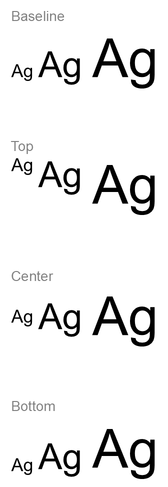
การจัดตำแหน่งแบบอักษรใช้เมตริกของแบบอักษร ดังนั้นขอบที่มองเห็นของตัวอักษรแต่ละตัวอาจไม่ตรงกันอย่างสมบูรณ์ ตัวอย่างนี้รวมทั้งตัวอักษรพิมพ์ใหญ่และตัวลงมือเพื่อช่วยแสดงความแตกต่างระหว่างการจัดตำแหน่ง baseline และ bottom ความพร้อมใช้งานและการแทนที่ของแบบอักษร, ตัวอักษรที่ใช้, และความแตกต่างของขนาดแบบอักษรมีผลต่อผลลัพธ์ มิติของกรอบ, ระยะขอบ, ระยะห่างระหว่างบรรทัด, การห่อ, และการปรับอัตโนมัติก็มีผลต่อการจัดวาง; ใช้แบบอักษรและการตั้งค่าการจัดวางเดียวกันเมื่อเปรียบเทียบโหมดต่าง ๆ.
การตั้งค่านี้แตกต่างจาก IParagraphFormat::set_Alignment, ซึ่งควบคุมการจัดตำแหน่งแนวนอนของย่อหน้า, และ ITextFrameFormat::set_AnchoringType, ซึ่งกำหนดตำแหน่งบล็อกข้อความแนวตั้งภายในรูปร่าง การจัดรูปแบบเชิงบนและเชิงล่างผ่าน IBasePortionFormat::set_Escapement จะเลื่อนส่วนข้อความแต่ละส่วนสัมพันธ์กับ baseline แทนการกำหนดการจัดตำแหน่งแบบอักษรสำหรับบรรทัดของย่อหน้า.
กำหนดความโปร่งใสสำหรับข้อความ
ความโปร่งใสของข้อความถูกควบคุมผ่านส่วนประกอบอัลฟาของสีที่กำหนดผ่าน IBasePortionFormat::get_FillFormat. ในตัวอย่างด้านล่าง, alpha = 50 เป็นค่าช่องอัลฟา ARGB ระดับ 0–255, ไม่ใช่เปอร์เซ็นต์ความโปร่งใส.
ตัวอย่างโค้ดด้านล่างแสดงวิธีใช้ความโปร่งใสกับ ย่อหน้าทั้งหมด:
#include <DOM/FillType.h>
#include <DOM/IAutoShape.h>
#include <DOM/IColorFormat.h>
#include <DOM/IFillFormat.h>
#include <DOM/IParagraph.h>
#include <DOM/IParagraphFormat.h>
#include <DOM/IPortionFormat.h>
#include <DOM/ISlide.h>
#include <DOM/ITextFrame.h>
#include <DOM/Presentation.h>
#include <Export/SaveFormat.h>
#include <drawing/color.h>

using namespace Aspose::Slides;
using namespace Aspose::Slides::Export;

int alpha = 50;

auto presentation = System::MakeObject<Presentation>(u"sample.pptx");
auto firstShape = presentation->get_Slide(0)->get_Shape(0);

auto autoShape = System::ExplicitCast<IAutoShape>(firstShape);

auto paragraph = autoShape->get_TextFrame()->get_Paragraph(0);
auto defaultPortionFormat = paragraph->get_ParagraphFormat()->get_DefaultPortionFormat();

// ตั้งค่าสีเติมของข้อความเป็นสีโปร่งใส.
defaultPortionFormat->get_FillFormat()->set_FillType(FillType::Solid);
auto baseColor = System::Drawing::Color::get_Black();
auto transparentColor = System::Drawing::Color::FromArgb(alpha, baseColor);
defaultPortionFormat->get_FillFormat()->get_SolidFillColor()->set_Color(transparentColor);

presentation->Save(u"transparent_paragraph.pptx", SaveFormat::Pptx);
presentation->Dispose();
ผลลัพธ์:

ตัวอย่างโค้ดต่อไปนี้แสดงวิธีใช้ความโปร่งใสกับ ส่วนข้อความที่ใช้แบบอักษรตัวหนา:
#include <DOM/FillType.h>
#include <DOM/IAutoShape.h>
#include <DOM/IColorFormat.h>
#include <DOM/IFillFormat.h>
#include <DOM/IParagraph.h>
#include <DOM/IPortion.h>
#include <DOM/IPortionCollection.h>
#include <DOM/IPortionFormat.h>
#include <DOM/IPortionFormatEffectiveData.h>
#include <DOM/ISlide.h>
#include <DOM/ITextFrame.h>
#include <DOM/Presentation.h>
#include <Export/SaveFormat.h>
#include <drawing/color.h>

using namespace Aspose::Slides;
using namespace Aspose::Slides::Export;

int alpha = 50;

auto presentation = System::MakeObject<Presentation>(u"sample.pptx");
auto firstShape = presentation->get_Slide(0)->get_Shape(0);

auto autoShape = System::ExplicitCast<IAutoShape>(firstShape);

auto paragraph = autoShape->get_TextFrame()->get_Paragraph(0);
auto portions = paragraph->get_Portions();
int portionCount = portions->get_Count();

for (int portionIndex = 0; portionIndex < portionCount; portionIndex++)
{
    auto portion = paragraph->get_Portion(portionIndex);
    auto portionFormat = portion->get_PortionFormat();
    if (portionFormat->GetEffective()->get_FontBold())
    {
        // ตั้งค่าความโปร่งใสของส่วนข้อความ.
        portionFormat->get_FillFormat()->set_FillType(FillType::Solid);
        auto baseColor = System::Drawing::Color::get_Black();
        auto transparentColor = System::Drawing::Color::FromArgb(alpha, baseColor);
        portionFormat->get_FillFormat()->get_SolidFillColor()->set_Color(transparentColor);
    }
}

presentation->Save(u"transparent_text_portions.pptx", SaveFormat::Pptx);
presentation->Dispose();
ผลลัพธ์:

กำหนดระยะห่างระหว่างอักขระสำหรับข้อความ
ใช้ IBasePortionFormat::set_Spacing เพื่อขยายหรือบีบอัดระยะห่างระหว่างอักขระในกล่องข้อความ ตัวอย่างเพิ่มระยะห่าง 3 จุด; ค่าลบจะบีบอัดข้อความ.
โค้ด C++ ต่อไปนี้แสดงวิธีขยายระยะห่างอักขระใน ย่อหน้าทั้งหมด:
#include <DOM/IAutoShape.h>
#include <DOM/IParagraph.h>
#include <DOM/IParagraphFormat.h>
#include <DOM/IPortionFormat.h>
#include <DOM/ISlide.h>
#include <DOM/ITextFrame.h>
#include <DOM/Presentation.h>
#include <Export/SaveFormat.h>

using namespace Aspose::Slides;
using namespace Aspose::Slides::Export;

auto presentation = System::MakeObject<Presentation>(u"sample.pptx");
auto firstShape = presentation->get_Slide(0)->get_Shape(0);

auto autoShape = System::ExplicitCast<IAutoShape>(firstShape);
auto paragraph = autoShape->get_TextFrame()->get_Paragraph(0);
// หมายเหตุ: ใช้ค่าลบเพื่อบีบระยะห่างระหว่างอักขระ.
paragraph->get_ParagraphFormat()->get_DefaultPortionFormat()->set_Spacing(3.0f); // ขยายระยะห่างระหว่างอักขระ.

presentation->Save(u"character_spacing_in_paragraph.pptx", SaveFormat::Pptx);
presentation->Dispose();
ผลลัพธ์:

ตัวอย่างโค้ดด้านล่างแสดงวิธีขยายระยะห่างอักขระใน ส่วนข้อความที่ใช้แบบอักษรตัวหนา:
#include <DOM/IAutoShape.h>
#include <DOM/IParagraph.h>
#include <DOM/IPortion.h>
#include <DOM/IPortionCollection.h>
#include <DOM/IPortionFormat.h>
#include <DOM/IPortionFormatEffectiveData.h>
#include <DOM/ISlide.h>
#include <DOM/ITextFrame.h>
#include <DOM/Presentation.h>
#include <Export/SaveFormat.h>

using namespace Aspose::Slides;
using namespace Aspose::Slides::Export;

auto presentation = System::MakeObject<Presentation>(u"sample.pptx");
auto firstShape = presentation->get_Slide(0)->get_Shape(0);

auto autoShape = System::ExplicitCast<IAutoShape>(firstShape);

auto paragraph = autoShape->get_TextFrame()->get_Paragraph(0);
auto portions = paragraph->get_Portions();
int portionCount = portions->get_Count();

for (int portionIndex = 0; portionIndex < portionCount; portionIndex++)
{
    auto portion = paragraph->get_Portion(portionIndex);
    auto portionFormat = portion->get_PortionFormat();
    if (portionFormat->GetEffective()->get_FontBold())
    {
        // หมายเหตุ: ใช้ค่าติดลบเพื่อบีบระยะห่างระหว่างอักขระ.
        portionFormat->set_Spacing(3.0f); // ขยายระยะห่างระหว่างอักขระ.
    }
}

presentation->Save(u"character_spacing_in_text_portions.pptx", SaveFormat::Pptx);
presentation->Dispose();
ผลลัพธ์:

ปิดการใช้งาน Kerning สำหรับแบบอักษรเฉพาะ
ในบางกรณี ข้อความที่แสดงโดย Aspose.Slides อาจดูแน่นกว่าข้อความเดียวกันที่แสดงใน PowerPoint สิ่งนี้อาจเกิดจาก PowerPoint เพิกเฉยต่อข้อมูล kerning ของแบบอักษรบางตัว แม้ว่าจะมีข้อมูล kerning ที่ถูกต้องและเปิดใช้งาน kerning ในการตั้งค่า PowerPoint ก็ตาม.
เพื่อให้ผลลัพธ์ที่แสดงใกล้เคียงกับ PowerPoint มากขึ้นในกรณีเช่นนี้ คุณสามารถปิดการใช้งาน kerning สำหรับส่วนข้อความที่ใช้แบบอักษรที่ได้รับผลกระทบ ใช้ IBasePortionFormat::set_KerningMinimalSize เพื่อตั้งค่าที่ใหญ่กว่าขนาดแบบอักษรจริง ตัวอย่างนี้ต้องใช้ไฟล์ “presentation.pptx” ที่มีกล่องข้อความเป็นรูปทรงแรกบนสไลด์แรก ตรวจสอบชื่อแบบอักษรที่มีผลรวมถึงแบบอักษรที่สืบทอด และตั้งค่าเกณฑ์ 100 จุดสำหรับส่วนที่ใช้ Roboto ซึ่งจะปิดการใช้งาน kerning สำหรับส่วนที่มีขนาดแบบอักษรต่ำกว่า 100 จุด:
#include <DOM/IAutoShape.h>
#include <DOM/IFontData.h>
#include <DOM/IPortionFormatEffectiveData.h>
#include <DOM/IParagraph.h>
#include <DOM/IParagraphCollection.h>
#include <DOM/IPortion.h>
#include <DOM/IPortionCollection.h>
#include <DOM/IPortionFormat.h>
#include <DOM/ISlide.h>
#include <DOM/ITextFrame.h>
#include <DOM/Presentation.h>
#include <Export/SaveFormat.h>

using namespace Aspose::Slides;
using namespace Aspose::Slides::Export;

auto presentation = System::MakeObject<Presentation>(u"presentation.pptx");
auto firstShape = presentation->get_Slide(0)->get_Shape(0);

auto autoShape = System::ExplicitCast<IAutoShape>(firstShape);
System::String targetFont = u"Roboto";
auto textFrame = autoShape->get_TextFrame();
auto paragraphs = textFrame->get_Paragraphs();
int paragraphCount = paragraphs->get_Count();

for (int paragraphIndex = 0; paragraphIndex < paragraphCount; paragraphIndex++)
{
    auto paragraph = textFrame->get_Paragraph(paragraphIndex);
    auto portions = paragraph->get_Portions();
    int portionCount = portions->get_Count();

    for (int portionIndex = 0; portionIndex < portionCount; portionIndex++)
    {
        auto portion = paragraph->get_Portion(portionIndex);
        auto portionFormat = portion->get_PortionFormat();
        auto textFormat = portionFormat->GetEffective();
        auto latinFont = textFormat->get_LatinFont();
        auto eastAsianFont = textFormat->get_EastAsianFont();
        auto complexScriptFont = textFormat->get_ComplexScriptFont();

        bool isLatinFont = latinFont != nullptr && latinFont->get_FontName() == targetFont;
        bool isEastAsianFont = eastAsianFont != nullptr && eastAsianFont->get_FontName() == targetFont;
        bool isComplexScriptFont = complexScriptFont != nullptr && complexScriptFont->get_FontName() == targetFont;

        if (isLatinFont || isEastAsianFont || isComplexScriptFont)
        {
            portionFormat->set_KerningMinimalSize(100.0f);
        }
    }
}

presentation->Save(u"output.pptx", SaveFormat::Pptx);
presentation->Dispose();
สำหรับข้อความที่ตรงกับเกณฑ์ด้านล่าง การตั้งค่านี้จะป้องกัน kerning และช่วยให้การแสดงผลของ Aspose.Slides สอดคล้องกับผลลัพธ์ภาพของ PowerPoint สำหรับแบบอักษรที่ได้รับผลกระทบจากพฤติกรรมเฉพาะของ PowerPoint นี้.
จัดการคุณสมบัติแบบอักษรของข้อความ
คุณสมบัติแบบอักษรสามารถตั้งค่าที่ระดับย่อหน้าผ่าน IParagraphFormat::get_DefaultPortionFormat หรือบนส่วนแต่ละส่วนผ่าน IPortionFormat.
ตัวอย่างต่อไปนี้กำหนดแบบอักษรเริ่มต้นของย่อหน้าแรกเป็น Times New Roman ขนาด 12 จุด พร้อมตัวหนา, ตัวเอียง, และขีดเส้นประ. การจัดรูปแบบอย่างชัดเจนบนส่วนแต่ละส่วนจะมีลำดับความสำคัญเหนือค่าเริ่มต้นเหล่านี้:
#include <DOM/Fonts/FontData.h>
#include <DOM/IAutoShape.h>
#include <DOM/IParagraph.h>
#include <DOM/IParagraphFormat.h>
#include <DOM/IPortionFormat.h>
#include <DOM/ISlide.h>
#include <DOM/ITextFrame.h>
#include <DOM/NullableBool.h>
#include <DOM/Presentation.h>
#include <DOM/TextUnderlineType.h>
#include <Export/SaveFormat.h>

using namespace Aspose::Slides;
using namespace Aspose::Slides::Export;

auto presentation = System::MakeObject<Presentation>(u"sample.pptx");
auto firstShape = presentation->get_Slide(0)->get_Shape(0);

auto autoShape = System::ExplicitCast<IAutoShape>(firstShape);
auto paragraph = autoShape->get_TextFrame()->get_Paragraph(0);
auto defaultPortionFormat = paragraph->get_ParagraphFormat()->get_DefaultPortionFormat();

// ตั้งค่าคุณสมบัติแบบอักษรสำหรับย่อหน้า.
defaultPortionFormat->set_FontHeight(12.0f);
defaultPortionFormat->set_FontBold(NullableBool::True);
defaultPortionFormat->set_FontItalic(NullableBool::True);
defaultPortionFormat->set_FontUnderline(TextUnderlineType::Dotted);
auto font = System::MakeObject<FontData>(u"Times New Roman");
defaultPortionFormat->set_LatinFont(font);

presentation->Save(u"font_properties_for_paragraph.pptx", SaveFormat::Pptx);
presentation->Dispose();
ผลลัพธ์:

ตัวอย่างต่อไปนี้ใช้ Times New Roman ขนาด 13 จุด, การจัดรูปแบบตัวเอียง, และขีดเส้นประกับส่วนที่การจัดรูปแบบมีผลรวมเป็นตัวหนา:
#include <DOM/Fonts/FontData.h>
#include <DOM/IAutoShape.h>
#include <DOM/IParagraph.h>
#include <DOM/IPortion.h>
#include <DOM/IPortionCollection.h>
#include <DOM/IPortionFormat.h>
#include <DOM/IPortionFormatEffectiveData.h>
#include <DOM/ISlide.h>
#include <DOM/ITextFrame.h>
#include <DOM/NullableBool.h>
#include <DOM/Presentation.h>
#include <DOM/TextUnderlineType.h>
#include <Export/SaveFormat.h>

using namespace Aspose::Slides;
using namespace Aspose::Slides::Export;

auto presentation = System::MakeObject<Presentation>(u"sample.pptx");
auto firstShape = presentation->get_Slide(0)->get_Shape(0);

auto autoShape = System::ExplicitCast<IAutoShape>(firstShape);
auto paragraph = autoShape->get_TextFrame()->get_Paragraph(0);
auto portions = paragraph->get_Portions();
int portionCount = portions->get_Count();
auto font = System::MakeObject<FontData>(u"Times New Roman");

for (int portionIndex = 0; portionIndex < portionCount; portionIndex++)
{
    auto portion = paragraph->get_Portion(portionIndex);
    auto portionFormat = portion->get_PortionFormat();
    if (portionFormat->GetEffective()->get_FontBold())
    {
        // ตั้งค่าคุณสมบัติแบบอักษรสำหรับส่วนข้อความ.
        portionFormat->set_FontHeight(13.0f);
        portionFormat->set_FontItalic(NullableBool::True);
        portionFormat->set_FontUnderline(TextUnderlineType::Dotted);
        portionFormat->set_LatinFont(font);
    }
}

presentation->Save(u"font_properties_for_text_portions.pptx", SaveFormat::Pptx);
presentation->Dispose();
ผลลัพธ์:

กำหนดการหมุนข้อความ
ใช้ ITextFrameFormat::set_TextVerticalType เพื่อกำหนดการกำหนดทิศทางข้อความที่กำหนดไว้ล่วงหน้าในรูปร่าง.
ตัวอย่างโค้ดต่อไปนี้กำหนดการกำหนดทิศทางข้อความในรูปร่างเป็น TextVerticalType::Vertical270, ซึ่งหมุนข้อความ 90 องศาตรงกันข้ามเข็มนาฬิกา:
#include <DOM/IAutoShape.h>
#include <DOM/ISlide.h>
#include <DOM/ITextFrame.h>
#include <DOM/ITextFrameFormat.h>
#include <DOM/Presentation.h>
#include <DOM/TextVerticalType.h>
#include <Export/SaveFormat.h>

using namespace Aspose::Slides;
using namespace Aspose::Slides::Export;

auto presentation = System::MakeObject<Presentation>(u"sample.pptx");
auto firstShape = presentation->get_Slide(0)->get_Shape(0);

auto autoShape = System::ExplicitCast<IAutoShape>(firstShape);
autoShape->get_TextFrame()->get_TextFrameFormat()->set_TextVerticalType(TextVerticalType::Vertical270);

presentation->Save(u"text_rotation.pptx", SaveFormat::Pptx);
presentation->Dispose();
ผลลัพธ์:

กำหนดการหมุนแบบกำหนดเองสำหรับกรอบข้อความ
ใช้ ITextFrameFormat::set_RotationAngle เพื่อกำหนดมุมการหมุนแบบกำหนดเองสำหรับ ITextFrame.
โค้ดตัวอย่างด้านล่างหมุนกรอบข้อความ 3 องศาตามเข็มนาฬิกาในรูปร่าง:
#include <DOM/IAutoShape.h>
#include <DOM/ISlide.h>
#include <DOM/ITextFrame.h>
#include <DOM/ITextFrameFormat.h>
#include <DOM/Presentation.h>
#include <Export/SaveFormat.h>

using namespace Aspose::Slides;
using namespace Aspose::Slides::Export;

auto presentation = System::MakeObject<Presentation>(u"sample.pptx");
auto firstShape = presentation->get_Slide(0)->get_Shape(0);

auto autoShape = System::ExplicitCast<IAutoShape>(firstShape);
autoShape->get_TextFrame()->get_TextFrameFormat()->set_RotationAngle(3.0f);

presentation->Save(u"custom_text_rotation.pptx", SaveFormat::Pptx);
presentation->Dispose();
ผลลัพธ์:

กำหนดระยะห่างบรรทัดของย่อหน้า
Aspose.Slides มีวิธี IParagraphFormat::set_SpaceAfter, IParagraphFormat::set_SpaceBefore, และ IParagraphFormat::set_SpaceWithin เพื่อควบคุมระยะห่างของย่อหน้า วิธีเหล่านี้ใช้ได้ดังนี้:
- ใช้ค่าบวกเพื่อระบุระยะห่างบรรทัดเป็นเปอร์เซ็นต์ของความสูงบรรทัด.
- ใช้ค่าลบเพื่อระบุระยะห่างบรรทัดเป็นจุด.
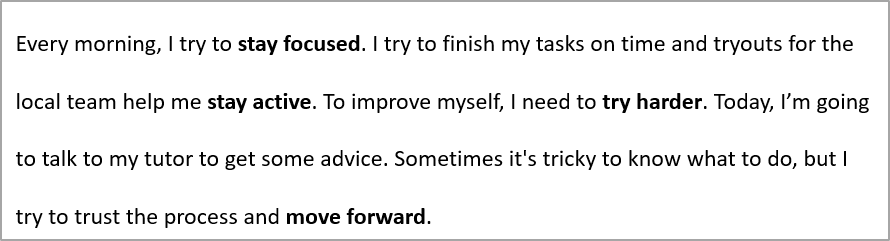
ตัวอย่างต่อไปนี้กำหนดระยะห่างภายในย่อหน้าแรกเป็น 200% ของความสูงบรรทัด (ระยะห่างสองเท่า):
#include <DOM/IAutoShape.h>
#include <DOM/IParagraph.h>
#include <DOM/IParagraphFormat.h>
#include <DOM/ISlide.h>
#include <DOM/ITextFrame.h>
#include <DOM/Presentation.h>
#include <Export/SaveFormat.h>

using namespace Aspose::Slides;
using namespace Aspose::Slides::Export;

auto presentation = System::MakeObject<Presentation>(u"sample.pptx");
auto firstShape = presentation->get_Slide(0)->get_Shape(0);

auto autoShape = System::ExplicitCast<IAutoShape>(firstShape);

auto paragraph = autoShape->get_TextFrame()->get_Paragraph(0);
paragraph->get_ParagraphFormat()->set_SpaceWithin(200.0f);

presentation->Save(u"line_spacing.pptx", SaveFormat::Pptx);
presentation->Dispose();
ผลลัพธ์:
ควบคุมการตัดบรรทัด
กฎการตัดบรรทัดของย่อหน้าเป็นประโยชน์ในบล็อกข้อความแคบและการนำเสนอที่ผสมข้อความละตินและเอเชียตะวันออก ตัวอย่างวิธีเหล่านี้เป็นของ IParagraphFormat, ดังนั้นจึงใช้กับย่อหน้าทั้งหมด:
- IParagraphFormat::set_LatinLineBreak ควบคุมกฎการตัดบรรทัดของละติน. ในข้อความผสม การเปลี่ยนค่านี้อาจทำให้ตำแหน่งการตัดของข้อความเอเชียตะวันออกและเครื่องหมายวรรคตอนที่อยู่ใกล้เคียงเปลี่ยนไป.
- IParagraphFormat::set_EastAsianLineBreak ควบคุมกฎการตัดบรรทัดของเอเชียตะวันออก, รวมถึงการจำกัดอักขระที่ตำแหน่งเริ่มต้นและท้ายบรรทัด.
กฎเหล่านี้ไม่แทนที่ ITextFrameFormat::set_WrapText, ซึ่งเปิดใช้งานการห่ออัตโนมัติภายในกรอบข้อความ. พวกมันมีผลต่อการจัดวางเมื่อการห่อเกิดขึ้น; พวกมันไม่ได้แทรกอักขระการตัดบรรทัด. การตัดบรรทัดอย่างชัดเจนบังคับให้เกิดบรรทัดใหม่ภายในย่อหน้าโดยไม่คำนึงถึงความกว้างที่ใช้ได้.
ตัวอย่างอิสระต่อไปนี้สร้างบล็อกข้อความแคบที่มีทั้งข้อความจีนและละติน. มันกำหนดกฎการตัดบรรทัดทั้งสองอย่างชัดเจนและบันทึกเป็น “line_breaking.pptx”. เพื่อทดลองกับกฎใดกฎหนึ่ง ให้เปลี่ยนค่าที่ส่งให้กับเมธ็อดนั้นในขณะที่คงการตั้งค่าอื่นไว้คงเดิม. ตัวอย่างใช้ Arial ขนาด 24 จุดและ SimSun พร้อมความกว้างกรอบ 160 จุดและระยะขอบแนวนอนเป็นศูนย์. ITextFrameFormat::set_AutofitType ถูกเรียกด้วย TextAutofitType::None เพื่อให้ขนาดข้อความและมิติของกรอบคงที่.
#include <DOM/Fonts/FontData.h>
#include <DOM/IAutoShape.h>
#include <DOM/IColorFormat.h>
#include <DOM/IFillFormat.h>
#include <DOM/IParagraph.h>
#include <DOM/IParagraphFormat.h>
#include <DOM/IPortionFormat.h>
#include <DOM/IShapeCollection.h>
#include <DOM/ISlide.h>
#include <DOM/ITextFrame.h>
#include <DOM/ITextFrameFormat.h>
#include <DOM/FillType.h>
#include <DOM/NullableBool.h>
#include <DOM/Presentation.h>
#include <DOM/ShapeType.h>
#include <DOM/TextAlignment.h>
#include <DOM/TextAutofitType.h>
#include <Export/SaveFormat.h>
#include <drawing/color.h>

using namespace Aspose::Slides;
using namespace Aspose::Slides::Export;

auto presentation = System::MakeObject<Presentation>();
auto slide = presentation->get_Slide(0);

auto shape = slide->get_Shapes()->AddAutoShape(ShapeType::Rectangle, 50.0f, 50.0f, 160.0f, 300.0f);
shape->get_FillFormat()->set_FillType(FillType::NoFill);

auto textFrame = shape->get_TextFrame();
textFrame->get_TextFrameFormat()->set_WrapText(NullableBool::True);
textFrame->get_TextFrameFormat()->set_AutofitType(TextAutofitType::None);
textFrame->get_TextFrameFormat()->set_MarginLeft(0);
textFrame->get_TextFrameFormat()->set_MarginRight(0);

auto paragraph = textFrame->get_Paragraph(0);
paragraph->set_Text(u"中文排版测试,PowerPoint 中文演示。");

auto format = paragraph->get_ParagraphFormat();
format->set_Alignment(TextAlignment::Left);
auto portionFormat = format->get_DefaultPortionFormat();
portionFormat->set_FontHeight(24.0f);
auto latinFont = System::MakeObject<FontData>(u"Arial");
portionFormat->set_LatinFont(latinFont);
auto eastAsianFont = System::MakeObject<FontData>(u"SimSun");
portionFormat->set_EastAsianFont(eastAsianFont);
portionFormat->get_FillFormat()->set_FillType(FillType::Solid);
portionFormat->get_FillFormat()->get_SolidFillColor()->set_Color(System::Drawing::Color::get_Black());
format->set_LatinLineBreak(NullableBool::False);
format->set_EastAsianLineBreak(NullableBool::True);

presentation->Save(u"line_breaking.pptx", SaveFormat::Pptx);
presentation->Dispose();
ควบคุมเครื่องหมายวรรคตอนห้อย
IParagraphFormat::set_HangingPunctuation ทำให้เครื่องหมายวรรคตอนที่มีคุณสมบัติเหมาะสมต่อเติมออกไปเหนือขอบขวาของบรรทัดข้อความแทนที่จะอยู่ในบรรทัดต่อไป. มันใช้กับย่อหน้าทั้งหมดและแตกต่างจากการย่อหน้าแบบห้อย.
ตัวอย่างอิสระต่อไปนี้เปิดใช้งานเครื่องหมายวรรคตอนห้อยในกรอบข้อความกว้าง 100 จุดและบันทึกเป็น “hanging_punctuation.pptx”. ด้วย Arial ขนาด 24 จุดและระยะขอบแนวนอนศูนย์ จุดเต็มสุดท้ายจะอยู่หลังคำ “sentence” และต่อออกไปเหนือขอบขวาของข้อความ. ส่งค่า NullableBool::False ไปยังเมธ็อดเพื่อเปรียบเทียบ: กับการตั้งค่านี้ จุดเต็มจะอยู่ในบรรทัดแยกต่างหาก. การห่อเปิดใช้งานและการปรับอัตโนมัติปิดเพื่อให้ความกว้างที่ใช้ได้คงที่.
#include <DOM/Fonts/FontData.h>
#include <DOM/IAutoShape.h>
#include <DOM/IColorFormat.h>
#include <DOM/IFillFormat.h>
#include <DOM/IParagraph.h>
#include <DOM/IParagraphFormat.h>
#include <DOM/IPortionFormat.h>
#include <DOM/IShapeCollection.h>
#include <DOM/ISlide.h>
#include <DOM/ITextFrame.h>
#include <DOM/ITextFrameFormat.h>
#include <DOM/FillType.h>
#include <DOM/NullableBool.h>
#include <DOM/Presentation.h>
#include <DOM/ShapeType.h>
#include <DOM/TextAlignment.h>
#include <DOM/TextAutofitType.h>
#include <Export/SaveFormat.h>
#include <drawing/color.h>

using namespace Aspose::Slides;
using namespace Aspose::Slides::Export;

auto presentation = System::MakeObject<Presentation>();
auto slide = presentation->get_Slide(0);

auto shape = slide->get_Shapes()->AddAutoShape(ShapeType::Rectangle, 50.0f, 50.0f, 100.0f, 200.0f);
shape->get_FillFormat()->set_FillType(FillType::NoFill);

auto textFrame = shape->get_TextFrame();
textFrame->get_TextFrameFormat()->set_WrapText(NullableBool::True);
textFrame->get_TextFrameFormat()->set_AutofitType(TextAutofitType::None);
textFrame->get_TextFrameFormat()->set_MarginLeft(0);
textFrame->get_TextFrameFormat()->set_MarginRight(0);

auto paragraph = textFrame->get_Paragraph(0);
paragraph->set_Text(u"Simple text, next sentence.");

auto format = paragraph->get_ParagraphFormat();
format->set_Alignment(TextAlignment::Left);
auto portionFormat = format->get_DefaultPortionFormat();
portionFormat->set_FontHeight(24.0f);
auto latinFont = System::MakeObject<FontData>(u"Arial");
portionFormat->set_LatinFont(latinFont);
portionFormat->get_FillFormat()->set_FillType(FillType::Solid);
portionFormat->get_FillFormat()->get_SolidFillColor()->set_Color(System::Drawing::Color::get_Black());
format->set_HangingPunctuation(NullableBool::True);

presentation->Save(u"hanging_punctuation.pptx", SaveFormat::Pptx);
presentation->Dispose();
ไม่ใช่ทุกเครื่องหมายวรรคตอนจะสามารถห้อยได้. เงื่อนไขของแบบอักษรและการจัดวางที่อธิบายไว้ข้างต้น (#control-line-breaking) ยังใช้กับการเปรียบเทียบนี้: การเปลี่ยนแบบอักษร, ความกว้างที่ใช้ได้, ระยะขอบ, หรือการตั้งค่า Autofit สามารถทำให้ความแตกต่างที่มองเห็นหายไปได้.
กำหนดประเภท Autofit สำหรับกรอบข้อความ
ITextFrameFormat::set_AutofitType กำหนดว่าข้อความทำงานอย่างไรเมื่อเกินขอบเขตของคอนเทนเนอร์ ใช้มันเพื่อควบคุมว่าข้อความจะหด, ล้น, หรือปรับขนาดรูปร่างโดยอัตโนมัติ ตัวอย่างต่อไปนี้ตั้งค่ารูปร่างให้ปรับขนาดเพื่อพอดีกับข้อความและบันทึกผลลัพธ์เป็น “autofit_type.pptx”.
#include <DOM/IAutoShape.h>
#include <DOM/ISlide.h>
#include <DOM/ITextFrame.h>
#include <DOM/ITextFrameFormat.h>
#include <DOM/Presentation.h>
#include <DOM/TextAutofitType.h>
#include <Export/SaveFormat.h>

using namespace Aspose::Slides;
using namespace Aspose::Slides::Export;

auto presentation = System::MakeObject<Presentation>(u"sample.pptx");
auto firstShape = presentation->get_Slide(0)->get_Shape(0);

auto autoShape = System::ExplicitCast<IAutoShape>(firstShape);
autoShape->get_TextFrame()->get_TextFrameFormat()->set_AutofitType(TextAutofitType::Shape);

presentation->Save(u"autofit_type.pptx", SaveFormat::Pptx);
presentation->Dispose();
เพื่อจำนวนบรรทัดหลังจากการห่ออัตโนมัติและดูว่าขนาดข้อความหรือรูปร่างเปลี่ยนผลลัพธ์อย่างไร, ดูที่ Count Rendered Lines. จำนวนบรรทัดเพียงอย่างเดียวไม่ได้บ่งบอกว่าข้อความล้นจากคอนเทนเนอร์หรือไม่.
กำหนดจุดยึดของกรอบข้อความ
ITextFrameFormat::set_AnchoringType กำหนดว่าข้อความถูกจัดตำแหน่งแนวตั้งภายในรูปร่างอย่างไร, เช่น ด้านบน, กลาง, หรือด้านล่าง. ตัวอย่างต่อไปนี้ยึดข้อความไว้ที่ด้านล่างของรูปทรงแรกและบันทึกผลลัพธ์เป็น “text_anchor.pptx”.
#include <DOM/IAutoShape.h>
#include <DOM/ISlide.h>
#include <DOM/ITextFrame.h>
#include <DOM/ITextFrameFormat.h>
#include <DOM/Presentation.h>
#include <DOM/TextAnchorType.h>
#include <Export/SaveFormat.h>

using namespace Aspose::Slides;
using namespace Aspose::Slides::Export;

auto presentation = System::MakeObject<Presentation>(u"sample.pptx");
auto firstShape = presentation->get_Slide(0)->get_Shape(0);

auto autoShape = System::ExplicitCast<IAutoShape>(firstShape);
autoShape->get_TextFrame()->get_TextFrameFormat()->set_AnchoringType(TextAnchorType::Bottom);

presentation->Save(u"text_anchor.pptx", SaveFormat::Pptx);
presentation->Dispose();
กำหนดการตั้งค่าตารางแท็บของข้อความ
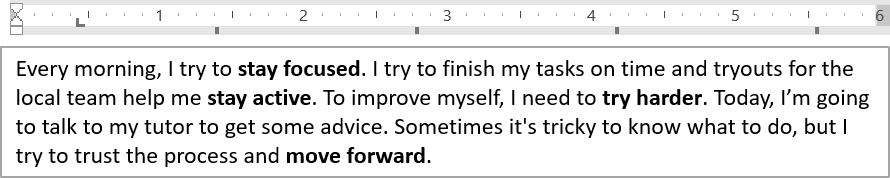
ใช้ IParagraphFormat::set_DefaultTabSize และ IParagraphFormat::get_Tabs เพื่อกำหนดตำแหน่งแท็บในย่อหน้า. ตัวอย่างต่อไปนี้ตั้งค่าช่วงแท็บเริ่มต้นเป็น 100 จุดและเพิ่มตำแหน่งแท็บซ้ายที่ 30 จุด. การตั้งค่าเหล่านี้มีผลต่อข้อความที่มีอักขระแท็บ.
#include <DOM/IAutoShape.h>
#include <DOM/IParagraph.h>
#include <DOM/IParagraphFormat.h>
#include <DOM/ISlide.h>
#include <DOM/ITabCollection.h>
#include <DOM/ITextFrame.h>
#include <DOM/Presentation.h>
#include <DOM/TabAlignment.h>
#include <Export/SaveFormat.h>

using namespace Aspose::Slides;
using namespace Aspose::Slides::Export;

auto presentation = System::MakeObject<Presentation>(u"sample.pptx");
auto firstShape = presentation->get_Slide(0)->get_Shape(0);

auto autoShape = System::ExplicitCast<IAutoShape>(firstShape);

auto paragraph = autoShape->get_TextFrame()->get_Paragraph(0);
paragraph->get_ParagraphFormat()->set_DefaultTabSize(100.0f);
paragraph->get_ParagraphFormat()->get_Tabs()->Add(30.0f, TabAlignment::Left);

presentation->Save(u"paragraph_tabs.pptx", SaveFormat::Pptx);
presentation->Dispose();
ผลลัพธ์:
กำหนดภาษาการตรวจสอบการพิมพ์
Aspose.Slides มี IBasePortionFormat::set_LanguageId, ซึ่งให้คุณกำหนดภาษาการตรวจสอบการพิมพ์สำหรับส่วนข้อความ. ภาษาการตรวจสอบการพิมพ์กำหนดภาษาที่ใช้สำหรับการตรวจสอบการสะกดและไวยากรณ์ใน PowerPoint.
ตัวอย่างต่อไปนี้ต้องใช้ไฟล์ “presentation.pptx” ที่มีกล่องข้อความเป็นรูปทรงแรกบนสไลด์แรกและอย่างน้อยหนึ่งย่อหน้า. มันแทนที่เนื้อหาของย่อหน้าแรกด้วย “1。”, ตั้งแบบอักษรเป็น SimSun, และกำหนดภาษาการตรวจสอบการพิมพ์เป็นภาษาจีนแบบง่าย (zh-CN). บันทึกผลลัพธ์เป็น “proofing_language.pptx”:
#include <DOM/Fonts/FontData.h>
#include <DOM/IAutoShape.h>
#include <DOM/IParagraph.h>
#include <DOM/IPortionCollection.h>
#include <DOM/IPortionFormat.h>
#include <DOM/ISlide.h>
#include <DOM/ITextFrame.h>
#include <DOM/Portion.h>
#include <DOM/Presentation.h>
#include <Export/SaveFormat.h>

using namespace Aspose::Slides;
using namespace Aspose::Slides::Export;

auto presentation = System::MakeObject<Presentation>(u"presentation.pptx");
auto firstShape = presentation->get_Slide(0)->get_Shape(0);

auto autoShape = System::ExplicitCast<IAutoShape>(firstShape);

auto paragraph = autoShape->get_TextFrame()->get_Paragraph(0);
paragraph->get_Portions()->Clear();

auto font = System::MakeObject<FontData>(u"SimSun");

auto textPortion = System::MakeObject<Portion>();
auto portionFormat = textPortion->get_PortionFormat();
portionFormat->set_ComplexScriptFont(font);
portionFormat->set_EastAsianFont(font);
portionFormat->set_LatinFont(font);

// ตั้งค่าภาษาการตรวจสอบเป็นภาษาจีนแบบง่าย.
portionFormat->set_LanguageId(u"zh-CN");

textPortion->set_Text(u"1。");
paragraph->get_Portions()->Add(textPortion);

presentation->Save(u"proofing_language.pptx", SaveFormat::Pptx);
presentation->Dispose();
กำหนดภาษาดีฟอลต์
ใช้ LoadOptions::set_DefaultTextLanguage เพื่อกำหนดภาษาดีฟอลต์สำหรับข้อความที่สร้างขณะโหลดหรือสร้างงานนำเสนอ. ตัวอย่างต่อไปนี้สร้างงานนำเสนอที่ใช้ภาษาอังกฤษสหรัฐเป็นภาษาข้อความดีฟอลต์, เพิ่มกล่องข้อความ, และพิมพ์ en-US สำหรับส่วนข้อความแรกของมัน.
#include <DOM/IAutoShape.h>
#include <DOM/IParagraph.h>
#include <DOM/IPortion.h>
#include <DOM/IPortionFormat.h>
#include <DOM/IShapeCollection.h>
#include <DOM/ISlide.h>
#include <DOM/ITextFrame.h>
#include <DOM/LoadOptions.h>
#include <DOM/Presentation.h>
#include <DOM/ShapeType.h>
#include <system/console.h>

using namespace Aspose::Slides;

auto loadOptions = System::MakeObject<LoadOptions>();
loadOptions->set_DefaultTextLanguage(u"en-US");

auto presentation = System::MakeObject<Presentation>(loadOptions);
auto slide = presentation->get_Slide(0);

// เพิ่มรูปสี่เหลี่ยมผืนผ้าใหม่พร้อมข้อความ.
auto shape = slide->get_Shapes()->AddAutoShape(ShapeType::Rectangle, 20.0f, 20.0f, 150.0f, 50.0f);
shape->get_TextFrame()->set_Text(u"Sample text");

// ตรวจสอบภาษาของส่วนข้อความแรก.
auto portion = shape->get_TextFrame()->get_Paragraph(0)->get_Portion(0);
auto languageId = portion->get_PortionFormat()->get_LanguageId();
System::Console::WriteLine(languageId);

presentation->Dispose();
กำหนดสไตล์ข้อความดีฟอลต์
เพื่อใช้การจัดรูปแบบข้อความดีฟอลต์ในระดับงานนำเสนอ, ใช้ IPresentation::get_DefaultTextStyle.
ตัวอย่างต่อไปนี้ตั้งแบบอักษรตัวหนาขนาด 14 จุดเป็นค่าเริ่มต้นสำหรับย่อหน้าในระดับบนของงานนำเสนอใหม่และบันทึกเป็น “default_text_style.pptx”. ข้อความสามารถสืบทอดค่าเริ่มต้นเหล่านี้ได้ เว้นแต่การจัดรูปแบบที่เจาะจงมากกว่าจะทับซ้อน.
#include <DOM/IParagraphFormat.h>
#include <DOM/IPortionFormat.h>
#include <DOM/ITextStyle.h>
#include <DOM/NullableBool.h>
#include <DOM/Presentation.h>
#include <Export/SaveFormat.h>

using namespace Aspose::Slides;
using namespace Aspose::Slides::Export;

auto presentation = System::MakeObject<Presentation>();

// ดึงรูปแบบย่อหน้าระดับบน.
auto paragraphFormat = presentation->get_DefaultTextStyle()->GetLevel(0);

if (paragraphFormat != nullptr)
{
    auto defaultPortionFormat = paragraphFormat->get_DefaultPortionFormat();
    defaultPortionFormat->set_FontHeight(14.0f);
    defaultPortionFormat->set_FontBold(NullableBool::True);
}

presentation->Save(u"default_text_style.pptx", SaveFormat::Pptx);
presentation->Dispose();
สกัดข้อความด้วยเอฟเฟกต์ตัวพิมพ์ใหญ่ทั้งหมด
ใน PowerPoint, การใช้เอฟเฟกต์แบบอักษร All Caps ทำให้ข้อความปรากฏเป็นพิมพ์ใหญ่บนสไลด์แม้ว่าจะพิมพ์เป็นพิมพ์เล็กเดิม. เมื่อคุณดึงส่วนข้อความเช่นนี้ด้วย Aspose.Slides, ไลบรารีจะคืนค่าข้อความตามที่ป้อนจริง. เพื่อให้ตรงกับข้อความที่แสดง, ตรวจสอบ TextCapType และแปลงสตริงที่คืนค่าเป็นพิมพ์ใหญ่เมื่อค่าคือ TextCapType::All.
ตัวอย่างนี้ต้องใช้ไฟล์ “sample2.pptx” ที่มีกล่องข้อความเป็นรูปทรงแรกบนสไลด์แรก. ส่วนแรกของย่อหน้าแรกมีข้อความ “Hello, Aspose!” พร้อมเอฟเฟกต์ All Caps, ดังที่แสดงด้านล่าง.

ตัวอย่างโค้ดด้านล่างแสดงวิธีสกัดข้อความโดยมีเอฟเฟกต์ All Caps ถูกใช้:
#include <DOM/IAutoShape.h>
#include <DOM/IParagraph.h>
#include <DOM/IPortion.h>
#include <DOM/IPortionFormat.h>
#include <DOM/IPortionFormatEffectiveData.h>
#include <DOM/ISlide.h>
#include <DOM/ITextFrame.h>
#include <DOM/Presentation.h>
#include <DOM/TextCapType.h>
#include <system/console.h>

using namespace Aspose::Slides;

auto presentation = System::MakeObject<Presentation>(u"sample2.pptx");
auto firstShape = presentation->get_Slide(0)->get_Shape(0);

auto autoShape = System::ExplicitCast<IAutoShape>(firstShape);
auto textPortion = autoShape->get_TextFrame()->get_Paragraph(0)->get_Portion(0);

auto originalText = textPortion->get_Text();
System::Console::WriteLine(u"Original text: " + originalText);

auto textFormat = textPortion->get_PortionFormat()->GetEffective();
if (textFormat->get_TextCapType() == TextCapType::All)
{
    auto uppercaseText = originalText.ToUpper();
    System::Console::WriteLine(u"All-Caps effect: " + uppercaseText);
}

presentation->Dispose();
ผลลัพธ์:
Original text: Hello, Aspose!
All-Caps effect: HELLO, ASPOSE!
คำถามที่พบบ่อย
ฉันจะแก้ไขข้อความในตารางบนสไลด์ได้อย่างไร?
เพื่อแก้ไขข้อความในตารางบนสไลด์, ใช้ ITable. เคลียร์ผ่านเซลล์และอัปเดตแต่ละเซลล์ผ่าน ICell::get_TextFrame และการจัดรูปแบบย่อหน้าผ่าน IParagraph::get_ParagraphFormat.
ฉันจะใช้สีไล่ระดับบนข้อความในสไลด์ PowerPoint อย่างไร?
เพื่อใช้สีไล่ระดับบนข้อความ, ใช้ IBasePortionFormat::get_FillFormat. ตั้งค่า IFillFormat::set_FillType เป็น FillType::Gradient และกำหนดจุดไล่ระดับ, ทิศทาง, และความโปร่งใส.