
เพิ่มประสิทธิภาพการนำเสนอของคุณด้วย AutoFit ใน Java
บทนำ
ตามค่าเริ่มต้น เมื่อคุณเพิ่มกล่องข้อความ Microsoft PowerPoint จะใช้การตั้งค่า Resize shape to fix text สำหรับกล่องข้อความ—โดยอัตโนมัติปรับขนาดกล่องข้อความเพื่อให้ข้อความทั้งหมดพอดีเสมอ
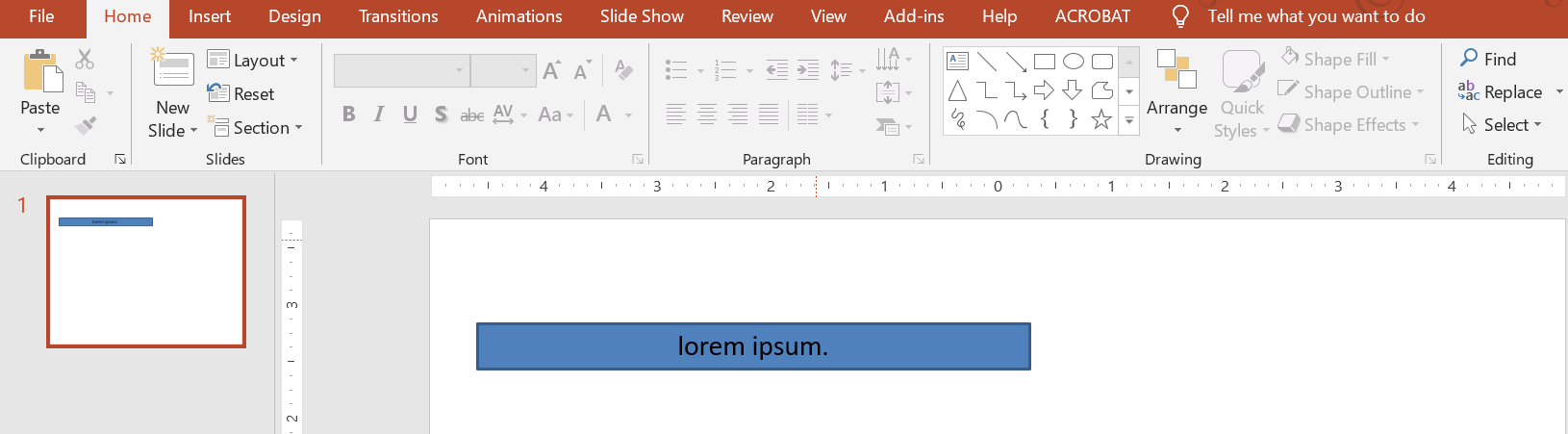
- เมื่อข้อความในกล่องข้อความยาวหรือใหญ่ขึ้น PowerPoint จะขยายกล่องข้อความโดยอัตโนมัติ—เพิ่มความสูง—to ให้สามารถเก็บข้อความได้มากขึ้น
- เมื่อข้อความในกล่องข้อความสั้นหรือเล็กลง PowerPoint จะลดขนาดกล่องข้อความโดยอัตโนมัติ—ลดความสูง—to ทำให้พื้นที่เหลือเกินหายไป
ใน PowerPoint มีพารามิเตอร์หรือ 옵션สำคัญ 4 รายการที่ควบคุมพฤติกรรม Autofit สำหรับกล่องข้อความ:
- ไม่ทำ Autofit
- ย่อข้อความเมื่อเต็ม
- Resize shape to fit text
- ห่อข้อความในรูปร่าง
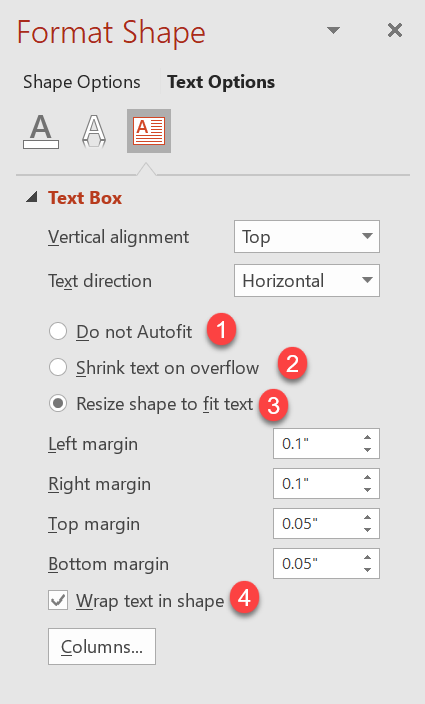
Aspose.Slides for Java มีตัวเลือกคล้ายกัน—บางคุณสมบัติภายใต้คลาส TextFrameFormat ที่ช่วยให้คุณควบคุมพฤติกรรม Autofit สำหรับกล่องข้อความในงานนำเสนอ
ปรับขนาดรูปร่างให้พอดีกับข้อความ
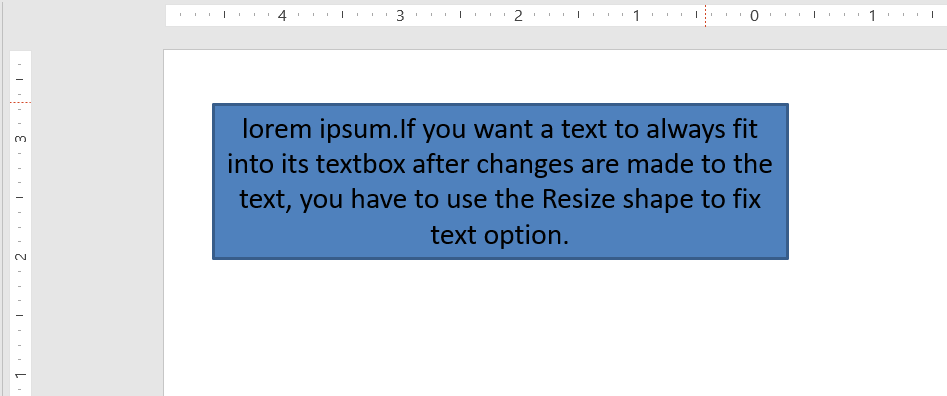
หากคุณต้องการให้ข้อความในกล่องพอดีกับกล่องเสมอหลังจากมีการเปลี่ยนแปลงข้อความ คุณต้องใช้ตัวเลือก Resize shape to fix text เพื่อระบุการตั้งค้านี้ ให้ตั้งค่า AutofitType (จากคลาส TextFrameFormat) เป็น Shape
Presentation pres = new Presentation();
try {
    ISlide slide = pres.getSlides().get_Item(0);
    IAutoShape autoShape = slide.getShapes().addAutoShape(ShapeType.Rectangle, 30, 30, 350, 100);

    Portion portion = new Portion("lorem ipsum...");
    portion.getPortionFormat().getFillFormat().getSolidFillColor().setColor(Color.BLACK);
    portion.getPortionFormat().getFillFormat().setFillType(FillType.Solid);
    autoShape.getTextFrame().getParagraphs().get_Item(0).getPortions().add(portion);

    ITextFrameFormat textFrameFormat = autoShape.getTextFrame().getTextFrameFormat();
    textFrameFormat.setAutofitType(TextAutofitType.Shape);

    pres.save("Output-presentation.pptx", SaveFormat.Pptx);
} finally {
    if (pres != null) pres.dispose();
}
หากข้อความยาวหรือใหญ่ขึ้น กล่องข้อความจะถูกปรับขนาดโดยอัตโนมัติ (เพิ่มความสูง) เพื่อให้ข้อความทั้งหมดพอดี หากข้อความสั้นลง การทำงานจะเป็นกลับกัน
ไม่ทำ Autofit
หากคุณต้องการให้กล่องข้อความหรือรูปร่างคงขนาดเดิมไม่ว่าข้อความจะเปลี่ยนแปลงอย่างไร คุณต้องใช้ตัวเลือก Do not Autofit เพื่อตั้งค่าให้ AutofitType (จากคลาส TextFrameFormat) เป็น None

Presentation pres = new Presentation();
try {
    ISlide slide = pres.getSlides().get_Item(0);
    IAutoShape autoShape = slide.getShapes().addAutoShape(ShapeType.Rectangle, 30, 30, 350, 100);

    Portion portion = new Portion("lorem ipsum...");
    portion.getPortionFormat().getFillFormat().getSolidFillColor().setColor(Color.BLACK);
    portion.getPortionFormat().getFillFormat().setFillType(FillType.Solid);
    autoShape.getTextFrame().getParagraphs().get_Item(0).getPortions().add(portion);

    ITextFrameFormat textFrameFormat = autoShape.getTextFrame().getTextFrameFormat();
    textFrameFormat.setAutofitType(TextAutofitType.None);

    pres.save("Output-presentation.pptx", SaveFormat.Pptx);
} finally {
    if (pres != null) pres.dispose();
}
เมื่อข้อความยาวเกินขอบกล่อง มันจะล้นออกมานอกกล่อง
ย่อข้อความเมื่อเต็ม
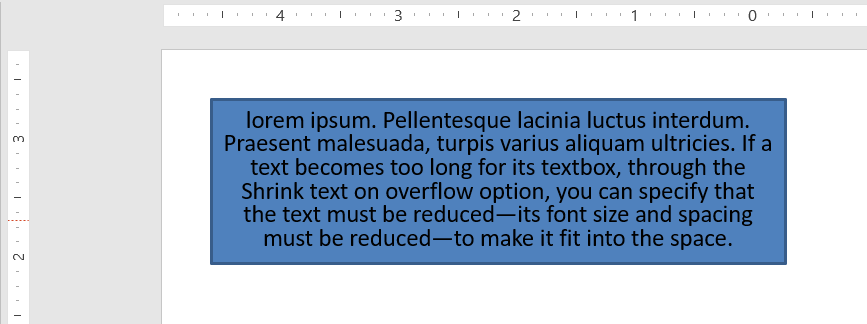
หากข้อความยาวเกินขอบกล่อง คุณสามารถใช้ตัวเลือก Shrink text on overflow เพื่อบังคับให้ขนาดและช่องว่างของข้อความลดลงให้พอดีกับกล่องได้ โดยตั้งค่า AutofitType (จากคลาส TextFrameFormat) เป็น Normal
Presentation pres = new Presentation();
try {
    ISlide slide = pres.getSlides().get_Item(0);
    IAutoShape autoShape = slide.getShapes().addAutoShape(ShapeType.Rectangle, 30, 30, 350, 100);

    Portion portion = new Portion("lorem ipsum...");
    portion.getPortionFormat().getFillFormat().getSolidFillColor().setColor(Color.BLACK);
    portion.getPortionFormat().getFillFormat().setFillType(FillType.Solid);
    autoShape.getTextFrame().getParagraphs().get_Item(0).getPortions().add(portion);

    ITextFrameFormat textFrameFormat = autoShape.getTextFrame().getTextFrameFormat();
    textFrameFormat.setAutofitType(TextAutofitType.Normal);

    pres.save("Output-presentation.pptx", SaveFormat.Pptx);
} finally {
    if (pres != null) pres.dispose();
}
Info
เมื่อใช้ตัวเลือก Shrink text on overflow การตั้งค่าจะถูกนำไปใช้เฉพาะเมื่อข้อความยาวเกินขอบกล่องเท่านั้นห่อข้อความ
หากต้องการให้ข้อความในรูปร่างห่อภายในรูปร่างเมื่อข้อความเกินขอบ (กว้าง) คุณต้องใช้พารามิเตอร์ Wrap text in shape เพื่อตั้งค่าให้ WrapText (จากคลาส TextFrameFormat) เป็น true
Presentation pres = new Presentation();
try {
    ISlide slide = pres.getSlides().get_Item(0);
    IAutoShape autoShape = slide.getShapes().addAutoShape(ShapeType.Rectangle, 30, 30, 350, 100);

    Portion portion = new Portion("lorem ipsum...");
    portion.getPortionFormat().getFillFormat().getSolidFillColor().setColor(Color.BLACK);
    portion.getPortionFormat().getFillFormat().setFillType(FillType.Solid);
    autoShape.getTextFrame().getParagraphs().get_Item(0).getPortions().add(portion);

    ITextFrameFormat textFrameFormat = autoShape.getTextFrame().getTextFrameFormat();
    textFrameFormat.setWrapText(NullableBool.True);

    pres.save("Output-presentation.pptx", SaveFormat.Pptx);
} finally {
    if (pres != null) pres.dispose();
}
Note
หากคุณตั้งค่าWrapText เป็น False สำหรับรูปร่าง เมื่อข้อความภายในรูปร่างยาวเกินกว่าความกว้างของรูปร่าง ข้อความจะต่อออกไปนอกขอบของรูปร่างในบรรทัดเดียว
FAQ
ขอบเขตภายในของ Text Frame มีผลต่อ AutoFit หรือไม่?
ใช่ — Padding (ขอบเขตภายใน) จะลดพื้นที่ที่ใช้ได้สำหรับข้อความ ทำให้ AutoFit ทำงานเร็วขึ้น—ย่อฟอนต์หรือปรับขนาดรูปร่างเร็วขึ้น ตรวจสอบและปรับขอบเขตก่อนปรับค่า AutoFit
AutoFit ทำงานอย่างไรกับการขึ้นบรรทัดใหม่แบบ Manual และ Soft Break?
การขึ้นบรรทัดที่บังคับไว้จะคงอยู่ และ AutoFit จะปรับขนาดฟอนต์และช่องว่างรอบ ๆ มัน การลบการขึ้นบรรทัดที่ไม่จำเป็นมักช่วยลดความรุนแรงของการย่อข้อความโดย AutoFit
การเปลี่ยนฟอนต์ธีมหรือการแทนที่ฟอนต์มีผลต่อผลลัพธ์ของ AutoFit หรือไม่?
ใช่ — การแทนที่ด้วยฟอนต์ที่มีเมตริกซ์ glyph แตกต่างกันจะเปลี่ยนความกว้าง/ความสูงของข้อความ ซึ่งอาจทำให้ขนาดฟอนต์สุดท้ายและการห่อบรรทัดเปลี่ยนไป หลังจากเปลี่ยนหรือแทนที่ฟอนต์ ควรตรวจสอบสไลด์อีกครั้ง