
จัดการรายการแบบหัวข้อและลำดับเลขในงานนำเสนอด้วย .NET
ภาพรวม
Aspose.Slides for .NET ให้คุณสร้างและกำหนดรูปแบบรายการแบบหัวข้อและลำดับเลขในงานนำเสนอ PowerPoint และ OpenDocument รายการแต่ละรายการคือย่อหน้าที่การตั้งค่าหัวข้อถูกควบคุมผ่านรูปแบบย่อหน้า
ใช้คุณสมบัติ IParagraph.ParagraphFormat เพื่อเข้าถึงการตั้งค่ารายการระดับย่อหน้า จุดเริ่มต้นหลักคือ IParagraphFormat.Bullet ซึ่งจะคืนค่าอ็อบเจกต์ IBulletFormat ด้วยอ็อบเจกต์นี้คุณสามารถตั้งค่าชนิดหัวข้อ สัญลักษณ์ รูปภาพ สี ขนาด รูปแบบการลำดับเลข และหมายเลขเริ่มต้นได้
บทความนี้แสดงวิธี:
- สร้างรายการแบบหัวข้อด้วยสัญลักษณ์กำหนดเอง
- สร้างหัวข้อรูปภาพ
- สร้างรายการหลายระดับโดยตั้งค่าความลึกของย่อหน้า
- สร้างรายการแบบลำดับเลข
- ตรวจสอบและเปลี่ยนรูปแบบรายการในงานนำเสนอที่มีอยู่
สร้างรายการแบบหัวข้อ
เพื่อสร้างรายการแบบหัวข้อ ให้เพิ่มอ็อบเจกต์ IParagraph ไปยัง ITextFrame และตั้งค่า IBulletFormat.Type เป็น BulletType.Symbol จากนั้นคุณสามารถตั้งค่า IBulletFormat.Char, IBulletFormat.Color, และ IBulletFormat.Height เพื่อควบคุมลักษณะของหัวข้อได้
โค้ด C# ต่อไปนี้แสดงวิธีสร้างรายการแบบหัวข้อในสไลด์:
static Paragraph CreateParagraph(string text)
{
    var paragraph = new Paragraph();
    paragraph.ParagraphFormat.Bullet.Type = BulletType.Symbol;
    paragraph.ParagraphFormat.Bullet.Char = '*';
    paragraph.ParagraphFormat.Indent = 15;
    paragraph.ParagraphFormat.Bullet.IsBulletHardColor = NullableBool.True;
    paragraph.ParagraphFormat.Bullet.Color.Color = Color.IndianRed;
    paragraph.ParagraphFormat.Bullet.Height = 100;
    paragraph.Text = text;
    return paragraph;
}

using var presentation = new Presentation();

var slide = presentation.Slides[0];
var autoShape = slide.Shapes.AddAutoShape(ShapeType.Rectangle, 20, 20, 200, 50);

var textFrame = autoShape.TextFrame;
textFrame.Paragraphs.Clear();

var paragraph1 = CreateParagraph("The first paragraph");
textFrame.Paragraphs.Add(paragraph1);

var paragraph2 = CreateParagraph("The second paragraph");
textFrame.Paragraphs.Add(paragraph2);

presentation.Save("symbol_bullets.pptx", SaveFormat.Pptx);
ผลลัพธ์:

สร้างรายการแบบลำดับเลข
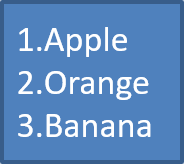
ใช้รายการแบบลำดับเลขเมื่ออันดับของรายการมีความสำคัญ ตั้งค่า IBulletFormat.Type เป็น BulletType.Numbered คุณยังสามารถเลือกรูปแบบการลำดับเลขด้วย IBulletFormat.NumberedBulletStyle หรือกำหนดค่าเริ่มต้นด้วย IBulletFormat.NumberedBulletStartWith เมื่อรายการควรเริ่มจากค่าที่ไม่ใช่ 1
โค้ด C# ต่อไปนี้แสดงวิธีสร้างรายการแบบลำดับเลขในสไลด์:
using var presentation = new Presentation();

var slide = presentation.Slides[0];
var autoShape = slide.Shapes.AddAutoShape(ShapeType.Rectangle, 20, 20, 90, 80);

var textFrame = autoShape.TextFrame;
textFrame.Paragraphs.Clear();

var paragraph1 = new Paragraph();
paragraph1.ParagraphFormat.Bullet.Type = BulletType.Numbered;
paragraph1.Text = "Apple";
textFrame.Paragraphs.Add(paragraph1);

var paragraph2 = new Paragraph();
paragraph2.ParagraphFormat.Bullet.Type = BulletType.Numbered;
paragraph2.Text = "Orange";
textFrame.Paragraphs.Add(paragraph2);

var paragraph3 = new Paragraph();
paragraph3.ParagraphFormat.Bullet.Type = BulletType.Numbered;
paragraph3.Text = "Banana";
textFrame.Paragraphs.Add(paragraph3);

presentation.Save("numbered_bullets.pptx", SaveFormat.Pptx);
ผลลัพธ์:
สร้างหัวข้อรูปภาพ
Aspose.Slides ให้คุณแทนที่สัญลักษณ์หัวข้อปกติกับรูปภาพ หัวข้อรูปภาพทำงานได้ดีที่สุดกับภาพที่เรียบง่ายและยังคงอ่านได้เมื่อขนาดเล็ก เช่น ไอคอนหรือไฟล์ PNG โปร่งใสขนาดเล็ก
โดยทั่วไป หากคุณต้องการแทนที่สัญลักษณ์หัวข้อปกติกับภาพ ควรเลือกกราฟิกที่เรียบง่ายพร้อมพื้นหลังโปร่งใส ภาพเช่นนี้ทำงานได้ดีเป็นสัญลักษณ์หัวข้อกำหนดเอง
ควรจำไว้ว่าภาพจะถูกย่อขนาดลงเป็นขนาดเล็กมาก ด้วยเหตุนี้เราขอแนะนำให้เลือกภาพที่ยังคงชัดเจนและมีประสิทธิภาพในการมองเห็นเมื่อใช้เป็นหัวข้อในรายการ
เพื่อสร้างหัวข้อรูปภาพ ให้เพิ่มรูปภาพใน Presentation.Images และกำหนดอ็อบเจกต์ภาพที่คืนค่ามาให้กับ IBulletFormat.Picture ตั้งค่า IBulletFormat.Type เป็น BulletType.Picture ก่อนกำหนดภาพ
สมมติว่าเรามีไฟล์ “image.png”:

โค้ด C# ต่อไปนี้แสดงวิธีสร้างหัวข้อรูปภาพในสไลด์:
static Paragraph CreateParagraph(string text, IPPImage image)
{
    var paragraph = new Paragraph();
    paragraph.ParagraphFormat.Bullet.Type = BulletType.Picture;
    paragraph.ParagraphFormat.Bullet.Picture.Image = image;
    paragraph.ParagraphFormat.Indent = 15;
    paragraph.ParagraphFormat.Bullet.Height = 100;
    paragraph.Text = text;
    return paragraph;
}

using var presentation = new Presentation();

var slide = presentation.Slides[0];
var autoShape = slide.Shapes.AddAutoShape(ShapeType.Rectangle, 20, 20, 200, 50);

var textFrame = autoShape.TextFrame;
textFrame.Paragraphs.Clear();

var imageBytes = File.ReadAllBytes("image.png");
var bulletImage = presentation.Images.AddImage(imageBytes);

var paragraph1 = CreateParagraph("The first paragraph", bulletImage);
textFrame.Paragraphs.Add(paragraph1);

var paragraph2 = CreateParagraph("The second paragraph", bulletImage);
textFrame.Paragraphs.Add(paragraph2);

presentation.Save("picture_bullets.pptx", SaveFormat.Pptx);
ผลลัพธ์:

สร้างรายการหลายระดับ
ใช้ IParagraphFormat.Depth เพื่อวางรายการในระดับที่ต่างกัน ระดับ 0 คือระดับบนสุด ระดับ 1 อยู่ด้านในของระดับ 0 เป็นต้น
โค้ด C# ต่อไปนี้แสดงวิธีสร้างรายการแบบหัวข้อหลายระดับ:
using var presentation = new Presentation();

var slide = presentation.Slides[0];
var autoShape = slide.Shapes.AddAutoShape(ShapeType.Rectangle, 20, 20, 260, 110);

var textFrame = autoShape.TextFrame;
textFrame.Paragraphs.Clear();

var paragraph1 = new Paragraph();
paragraph1.ParagraphFormat.Depth = 0;
paragraph1.Text = "My text - Depth 0";
textFrame.Paragraphs.Add(paragraph1);

var paragraph2 = new Paragraph();
paragraph2.ParagraphFormat.Depth = 1;
paragraph2.Text = "My text - Depth 1";
textFrame.Paragraphs.Add(paragraph2);

var paragraph3 = new Paragraph();
paragraph3.ParagraphFormat.Depth = 2;
paragraph3.Text = "My text - Depth 2";
textFrame.Paragraphs.Add(paragraph3);

var paragraph4 = new Paragraph();
paragraph4.ParagraphFormat.Depth = 3;
paragraph4.Text = "My text - Depth 3";
textFrame.Paragraphs.Add(paragraph4);

presentation.Save("multilevel_bullets.pptx", SaveFormat.Pptx);
ผลลัพธ์:

เปลี่ยนรายการที่มีอยู่
เพื่อเปลี่ยนรูปแบบรายการในงานนำเสนอที่มีอยู่ ให้เข้าถึงย่อหน้าที่ต้องการและอัปเดตการตั้งค่า IParagraphFormat.Bullet คุณสามารถใช้คุณสมบัติเช่นเดียวกับที่ใช้สร้างรายการเพื่อสำรวจหรือแก้ไขรายการที่โหลดจากไฟล์ PPT, PPTX หรือ ODP
โค้ด C# ต่อไปนี้เปลี่ยนย่อหน้าแรกในกรอบข้อความให้ใช้สไตล์รายการแบบลำดับเลข:
using var presentation = new Presentation("input.pptx");

var slide = presentation.Slides[0];
var autoShape = (IAutoShape)slide.Shapes[0];
var paragraph = autoShape.TextFrame.Paragraphs[0];

paragraph.ParagraphFormat.Bullet.Type = BulletType.Numbered;
paragraph.ParagraphFormat.Bullet.NumberedBulletStyle = NumberedBulletStyle.BulletRomanUCPeriod;
paragraph.ParagraphFormat.Bullet.NumberedBulletStartWith = 1;
paragraph.ParagraphFormat.MarginLeft = 30;
paragraph.ParagraphFormat.Indent = -20;

presentation.Save("updated_list.pptx", SaveFormat.Pptx);
FAQ
สามารถส่งออกรายการแบบหัวข้อและลำดับเลขเป็น PDF หรือรูปภาพได้หรือไม่?
ได้ Aspose.Slides จะคงรูปแบบรายการไว้เมื่อรูปแบบเป้าหมายรองรับการจัดวางข้อความและคุณลักษณะหัวข้อที่สอดคล้องกัน
ฉันสามารถแก้ไขรายการในงานนำเสนอที่มีอยู่ได้หรือไม่?
ได้ โหลดงานนำเสนอ, เข้าถึงย่อหน้าที่ต้องการ, ตรวจสอบหรืออัปเดตการตั้งค่า IParagraphFormat.Bullet แล้วบันทึกงานนำเสนอ
รายการสามารถมีข้อความที่ไม่ใช่ละตินได้หรือไม่?
ได้ ข้อความของรายการสามารถมีอักขระ Unicode ได้ ดังนั้นคุณสามารถสร้างรายการในงานนำเสนอหลายภาษา ตรวจสอบให้แน่ใจว่าแบบอักษรที่ใช้ในงานนำเสนอรองรับอักขระที่คุณต้องการ