
使用 Python via Java 管理演示文稿中的项目符号和编号列表
概述
Aspose.Slides for Python via Java 让您在 PowerPoint 和 OpenDocument 演示文稿中创建和格式化项目符号和编号列表。列表项是段落,其项目符号设置通过段落格式进行控制。
使用 Paragraph.getParagraphFormat 方法访问段落级别的列表设置。主要入口是 ParagraphFormat.getBullet,它返回一个 BulletFormat 对象。通过该对象,您可以设置项目符号类型、符号、图片、颜色、大小、编号样式以及起始编号。
本文展示了如何:
- 使用自定义符号创建项目符号列表
- 创建图片项目符号
- 通过设置段落深度创建多级列表
- 创建编号列表
- 检查并更改现有演示文稿中的列表格式
创建项目符号列表
要创建项目符号列表,向 TextFrame 添加 Paragraph 对象,并将 BulletFormat.setType 设置为 BulletType.Symbol。随后可以使用 BulletFormat.setChar、BulletFormat.getColor 和 BulletFormat.setHeight 来控制项目符号的外观。
以下 Python 代码演示了如何在幻灯片上创建项目符号列表:
import jpype
import asposeslides

if not jpype.isJVMStarted():
    jpype.startJVM()

from asposeslides.api import BulletType, NullableBool, Paragraph, Presentation, SaveFormat, ShapeType
from java.awt import Color

presentation = Presentation()
try:
    slide = presentation.getSlides().get_Item(0)
    auto_shape = slide.getShapes().addAutoShape(ShapeType.Rectangle, 20, 20, 200, 50)

    text_frame = auto_shape.getTextFrame()
    text_frame.getParagraphs().clear()

    bullet_color = Color(205, 92, 92)

    first_paragraph = Paragraph()
    first_paragraph.getParagraphFormat().getBullet().setType(BulletType.Symbol)
    first_paragraph.getParagraphFormat().getBullet().setChar('*')
    first_paragraph.getParagraphFormat().setIndent(15)
    first_paragraph.getParagraphFormat().getBullet().setBulletHardColor(NullableBool.True_)
    first_paragraph.getParagraphFormat().getBullet().getColor().setColor(bullet_color)
    first_paragraph.getParagraphFormat().getBullet().setHeight(100)
    first_paragraph.setText("The first paragraph")
    text_frame.getParagraphs().add(first_paragraph)

    second_paragraph = Paragraph()
    second_paragraph.getParagraphFormat().getBullet().setType(BulletType.Symbol)
    second_paragraph.getParagraphFormat().getBullet().setChar('*')
    second_paragraph.getParagraphFormat().setIndent(15)
    second_paragraph.getParagraphFormat().getBullet().setBulletHardColor(NullableBool.True_)
    second_paragraph.getParagraphFormat().getBullet().getColor().setColor(bullet_color)
    second_paragraph.getParagraphFormat().getBullet().setHeight(100)
    second_paragraph.setText("The second paragraph")
    text_frame.getParagraphs().add(second_paragraph)

    presentation.save("symbol_bullets.pptx", SaveFormat.Pptx)
finally:
    presentation.dispose()
结果:

创建编号列表
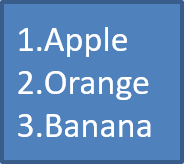
当项目顺序重要时使用编号列表。将 BulletFormat.setType 设置为 BulletType.Numbered。您还可以使用 BulletFormat.setNumberedBulletStyle 选择编号格式,或使用 BulletFormat.setNumberedBulletStartWith 在列表不以 1 开始时指定起始值。
以下 Python 代码展示了如何在幻灯片上创建编号列表:
import jpype
import asposeslides

if not jpype.isJVMStarted():
    jpype.startJVM()

from asposeslides.api import BulletType, Paragraph, Presentation, SaveFormat, ShapeType

presentation = Presentation()
try:
    slide = presentation.getSlides().get_Item(0)
    auto_shape = slide.getShapes().addAutoShape(ShapeType.Rectangle, 20, 20, 90, 80)

    text_frame = auto_shape.getTextFrame()
    text_frame.getParagraphs().clear()

    first_paragraph = Paragraph()
    first_paragraph.getParagraphFormat().getBullet().setType(BulletType.Numbered)
    first_paragraph.setText("Apple")
    text_frame.getParagraphs().add(first_paragraph)

    second_paragraph = Paragraph()
    second_paragraph.getParagraphFormat().getBullet().setType(BulletType.Numbered)
    second_paragraph.setText("Orange")
    text_frame.getParagraphs().add(second_paragraph)

    third_paragraph = Paragraph()
    third_paragraph.getParagraphFormat().getBullet().setType(BulletType.Numbered)
    third_paragraph.setText("Banana")
    text_frame.getParagraphs().add(third_paragraph)

    presentation.save("numbered_bullets.pptx", SaveFormat.Pptx)
finally:
    presentation.dispose()
结果:
创建图片项目符号
Aspose.Slides 允许您用图像替换常规的项目符号符号。图片项目符号最适合使用在小尺寸仍然可读的简单图像,例如图标或小的透明 PNG 文件。
Note
如果您计划用图像替换常规的项目符号符号,请选择具有透明背景的简洁图形。此类图像非常适合作为自定义项目符号。要创建图片项目符号,向 Presentation.getImages 添加图像,并将返回的图像对象分配给 BulletFormat.getPicture。在分配图像之前,将 BulletFormat.setType 设置为 BulletType.Picture。
假设我们有一张名为 “image.png” 的图片:

以下 Python 代码展示了如何在幻灯片上创建图片项目符号:
import jpype
import asposeslides

if not jpype.isJVMStarted():
    jpype.startJVM()

from asposeslides.api import BulletType, Images, Paragraph, Presentation, SaveFormat, ShapeType

presentation = Presentation()
try:
    slide = presentation.getSlides().get_Item(0)
    auto_shape = slide.getShapes().addAutoShape(ShapeType.Rectangle, 20, 20, 200, 50)

    text_frame = auto_shape.getTextFrame()
    text_frame.getParagraphs().clear()

    image = Images.fromFile("image.png")
    try:
        bullet_image = presentation.getImages().addImage(image)
    finally:
        image.dispose()

    first_paragraph = Paragraph()
    first_paragraph.getParagraphFormat().getBullet().setType(BulletType.Picture)
    first_paragraph.getParagraphFormat().getBullet().getPicture().setImage(bullet_image)
    first_paragraph.getParagraphFormat().setIndent(15)
    first_paragraph.getParagraphFormat().getBullet().setHeight(100)
    first_paragraph.setText("The first paragraph")
    text_frame.getParagraphs().add(first_paragraph)

    second_paragraph = Paragraph()
    second_paragraph.getParagraphFormat().getBullet().setType(BulletType.Picture)
    second_paragraph.getParagraphFormat().getBullet().getPicture().setImage(bullet_image)
    second_paragraph.getParagraphFormat().setIndent(15)
    second_paragraph.getParagraphFormat().getBullet().setHeight(100)
    second_paragraph.setText("The second paragraph")
    text_frame.getParagraphs().add(second_paragraph)

    presentation.save("picture_bullets.pptx", SaveFormat.Pptx)
finally:
    presentation.dispose()
结果:

创建多级列表
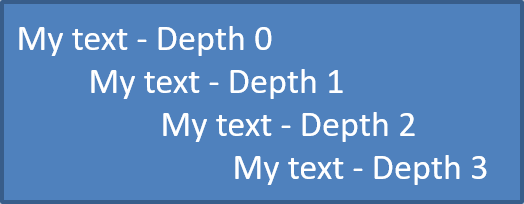
使用 ParagraphFormat.setDepth 将列表项放置在不同级别。级别 0 为顶层,级别 1 为其下的嵌套,依此类推。
以下 Python 代码展示了如何创建多级项目符号列表:
import jpype
import asposeslides

if not jpype.isJVMStarted():
    jpype.startJVM()

from asposeslides.api import Paragraph, Presentation, SaveFormat, ShapeType

presentation = Presentation()
try:
    slide = presentation.getSlides().get_Item(0)
    auto_shape = slide.getShapes().addAutoShape(ShapeType.Rectangle, 20, 20, 260, 110)

    text_frame = auto_shape.getTextFrame()
    text_frame.getParagraphs().clear()

    first_paragraph = Paragraph()
    first_paragraph.getParagraphFormat().setDepth(0)
    first_paragraph.setText("My text - Depth 0")
    text_frame.getParagraphs().add(first_paragraph)

    second_paragraph = Paragraph()
    second_paragraph.getParagraphFormat().setDepth(1)
    second_paragraph.setText("My text - Depth 1")
    text_frame.getParagraphs().add(second_paragraph)

    third_paragraph = Paragraph()
    third_paragraph.getParagraphFormat().setDepth(2)
    third_paragraph.setText("My text - Depth 2")
    text_frame.getParagraphs().add(third_paragraph)

    fourth_paragraph = Paragraph()
    fourth_paragraph.getParagraphFormat().setDepth(3)
    fourth_paragraph.setText("My text - Depth 3")
    text_frame.getParagraphs().add(fourth_paragraph)

    presentation.save("multilevel_bullets.pptx", SaveFormat.Pptx)
finally:
    presentation.dispose()
结果:
更改现有列表
要更改现有演示文稿中的列表格式,访问目标段落并更新其 ParagraphFormat.getBullet 设置。创建列表时使用的相同属性也可用于检查或修改从 PPT、PPTX 或 ODP 文件加载的列表。
以下 Python 代码将文本框中的第一个段落更改为使用编号列表样式:
import jpype
import asposeslides

if not jpype.isJVMStarted():
    jpype.startJVM()

from asposeslides.api import BulletType, NumberedBulletStyle, Presentation, SaveFormat

presentation = Presentation("input.pptx")
try:
    slide = presentation.getSlides().get_Item(0)
    auto_shape = slide.getShapes().get_Item(0)
    paragraph = auto_shape.getTextFrame().getParagraphs().get_Item(0)

    paragraph.getParagraphFormat().getBullet().setType(BulletType.Numbered)
    paragraph.getParagraphFormat().getBullet().setNumberedBulletStyle(NumberedBulletStyle.BulletRomanUCPeriod)
    paragraph.getParagraphFormat().getBullet().setNumberedBulletStartWith(1)
    paragraph.getParagraphFormat().setMarginLeft(30)
    paragraph.getParagraphFormat().setIndent(-20)

    presentation.save("updated_list.pptx", SaveFormat.Pptx)
finally:
    presentation.dispose()
常见问题
项目符号和编号列表可以导出为 PDF 或图片吗?
可以。Aspose.Slides 在目标格式支持相应的文本布局和项目符号特性时,会保留列表格式。
我可以编辑现有演示文稿中的列表吗?
可以。加载演示文稿,访问目标段落,检查或更新其 ParagraphFormat.getBullet 设置,然后保存演示文稿。
列表可以包含非拉丁文字吗?
可以。列表项文本可以包含 Unicode 字符,因此您可以在多语言演示文稿中创建列表。请确保演示文稿使用的字体支持您需要的字符。