
تنسيق نص العرض التقديمي في Python عبر Java
نظرة عامة
توضح هذه المقالة كيفية تنسيق النص في عروض PowerPoint وOpenDocument باستخدام Aspose.Slides للـ Python عبر Java. تغطي ألوان الخلفية، الشفافية، تباعد الأحرف، خصائص الخط، الدوران، تباعد الفقرات، سلوك الملاءمة التلقائية، تثبيت النص، مواضع الفواصل، وإعدادات اللغة.
ما لم يُذكر خلاف ذلك، تستخدم الأمثلة الملف sample.pptx. الشكل الأول في الشريحة الأولى هو مربع نص، ويحتوي الفقر الأول على النص المعروض أدناه. كلا من فهارس الشريحة والشكل تبدأ من الصفر. تستخدم الأمثلة التي تحدد أجزاءً غامقة تنسيقًا فعالًا، بما في ذلك تنسيق الغامق الموروث:

للعثور على النص الحرفي أو مطابقات التعبير النمطي وتظليلهما، راجع بحث واستبدال النص.
ضبط لون خلفية النص
استخدم ParagraphFormat.getDefaultPortionFormat لتعيين لون التظليل الافتراضي لفقرة، أو استخدم BasePortionFormat.getHighlightColor لأجزاء النص الفردية.
المثال التالي يحدد تظليل رمادي فاتح كقيمة افتراضية للفقرة الأولى. الألوان الصريحة للتظليل على الأجزاء الفردية لها أولوية أعلى من هذا الافتراضي:
import jpype
import asposeslides

if not jpype.isJVMStarted():
    jpype.startJVM()

from asposeslides.api import Presentation, SaveFormat
from java.awt import Color

presentation = Presentation("sample.pptx")
try:
    slide = presentation.getSlides().get_Item(0)

    auto_shape = slide.getShapes().get_Item(0)
    paragraph = auto_shape.getTextFrame().getParagraphs().get_Item(0)

    # قم بتعيين لون التظليل للفقرة بأكملها.
    paragraph.getParagraphFormat().getDefaultPortionFormat().getHighlightColor().setColor(Color.LIGHT_GRAY)

    presentation.save("gray_paragraph.pptx", SaveFormat.Pptx)
finally:
    presentation.dispose()
النتيجة:

يوضح المثال البرمجي أدناه كيفية ضبط لون الخلفية لأجزاء النص ذات الخط الغامق:
import jpype
import asposeslides

if not jpype.isJVMStarted():
    jpype.startJVM()

from asposeslides.api import Presentation, SaveFormat
from java.awt import Color

presentation = Presentation("sample.pptx")
try:
    slide = presentation.getSlides().get_Item(0)

    auto_shape = slide.getShapes().get_Item(0)
    paragraph = auto_shape.getTextFrame().getParagraphs().get_Item(0)

    for portion in paragraph.getPortions():
        if portion.getPortionFormat().getEffective().getFontBold():
            # حدد لون التظليل لجزء النص.
            portion.getPortionFormat().getHighlightColor().setColor(Color.LIGHT_GRAY)

    presentation.save("gray_text_portions.pptx", SaveFormat.Pptx)
finally:
    presentation.dispose()
النتيجة:

محاذاة فقرات النص
استخدم ParagraphFormat.setAlignment لضبط محاذاة الفقرة داخل إطار النص. يمكن أن تكون القيمة محاذية للوسط، إلى اليسار، إلى اليمين، مبررة، وما إلى ذلك.
المثال البرمجي التالي يوضح كيفية محاذاة الفقرة إلى الوسط:
import jpype
import asposeslides

if not jpype.isJVMStarted():
    jpime.startJVM()

from asposeslides.api import Presentation, SaveFormat, TextAlignment

presentation = Presentation("sample.pptx")
try:
    slide = presentation.getSlides().get_Item(0)

    auto_shape = slide.getShapes().get_Item(0)
    paragraph = auto_shape.getTextFrame().getParagraphs().get_Item(0)

    # اضبط محاذاة الفقرة إلى المركز.
    paragraph.getParagraphFormat().setAlignment(TextAlignment.Center)

    presentation.save("aligned_paragraph.pptx", SaveFormat.Pptx)
finally:
    presentation.dispose()
النتيجة:

محاذاة الخطوط داخل السطر
استخدم ParagraphFormat.setFontAlignment لمحاذاة أجزاء النص ذات أحجام الخط المختلفة عموديًا ضمن سطر. ينطبق هذا الإعداد على الفقرة بأكملها ويتحكم في المحاذاة داخل كل سطر منها.
المثال المستقل التالي ينشئ أربع مربعات نص مُعنونة على شريحة واحدة. يحتوي كل فقرة على نفس النص بأحجام 18 و36 و54 نقطة، مع محاذاة خط مختلفة. يستخدم الخط Arial، ويعطل الملاءمة التلقائية والالتفاف، ويحافظ على أطر النص كبيرة بما يكفي لسطر واحد.
import jpype
import asposeslides

if not jpype.isJVMStarted():
    jpype.startJVM()

from asposeslides.api import FillType, FontAlignment, FontData, NullableBool, Paragraph, Portion, Presentation, SaveFormat, ShapeType, TextAlignment, TextAnchorType, TextAutofitType
from java.awt import Color

presentation = Presentation()
try:
    slide = presentation.getSlides().get_Item(0)

    alignments = [FontAlignment.Baseline, FontAlignment.Top, FontAlignment.Center, FontAlignment.Bottom]
    alignment_names = ["Baseline", "Top", "Center", "Bottom"]
    font_sizes = [18.0, 36.0, 54.0]
    font = FontData("Arial")

    for i, alignment in enumerate(alignments):
        shape = slide.getShapes().addAutoShape(ShapeType.Rectangle, 30, 20 + i * 130, 660, 120)
        shape.getFillFormat().setFillType(FillType.NoFill)
        shape.getLineFormat().getFillFormat().setFillType(FillType.NoFill)

        text_frame = shape.getTextFrame()
        text_frame.getTextFrameFormat().setAnchoringType(TextAnchorType.Top)
        text_frame.getTextFrameFormat().setAutofitType(TextAutofitType.None_)
        text_frame.getTextFrameFormat().setWrapText(NullableBool.False_)

        label = text_frame.getParagraphs().get_Item(0)
        label.setText(alignment_names[i])
        label.getParagraphFormat().setAlignment(TextAlignment.Left)
        label.getParagraphFormat().getDefaultPortionFormat().setFontHeight(14)
        label.getParagraphFormat().getDefaultPortionFormat().setLatinFont(font)
        label.getParagraphFormat().getDefaultPortionFormat().getFillFormat().setFillType(FillType.Solid)
        label.getParagraphFormat().getDefaultPortionFormat().getFillFormat().getSolidFillColor().setColor(Color.GRAY)

        paragraph = Paragraph()
        paragraph.getParagraphFormat().setFontAlignment(alignment)
        paragraph.getParagraphFormat().setAlignment(TextAlignment.Left)
        paragraph.getParagraphFormat().getDefaultPortionFormat().setLatinFont(font)
        paragraph.getParagraphFormat().getDefaultPortionFormat().getFillFormat().setFillType(FillType.Solid)
        paragraph.getParagraphFormat().getDefaultPortionFormat().getFillFormat().getSolidFillColor().setColor(Color.BLACK)

        for font_size in font_sizes:
            portion = Portion("Ag ")
            portion.getPortionFormat().setFontHeight(font_size)
            paragraph.getPortions().add(portion)

        text_frame.getParagraphs().add(paragraph)

    presentation.save("font_alignment.pptx", SaveFormat.Pptx)
finally:
    presentation.dispose()
النتيجة:
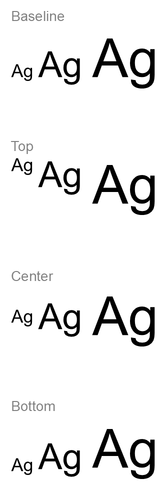
تستخدم محاذاة الخط مقاييس الخط، لذا قد لا تتطابق الحواف المرئية للأحرف الفردية تمامًا. يتضمن المثال حرفًا كبيرًا وحرفًا هابطًا لإظهار الفرق بين محاذاة القاعدة والسفلي. توافر الخط والاستبدال، الأحرف المستخدمة، والفرق في أحجام الخط يؤثر على النتيجة. أبعاد الإطار والهوامش وتباعد الأسطر والالتفاف والملاءمة التلقائية تؤثر أيضًا على التخطيط؛ استخدم نفس الخطوط وإعدادات التخطيط عند مقارنة الأوضاع.
يختلف هذا الإعداد عن ParagraphFormat.setAlignment، الذي يتحكم في محاذاة الفقرة أفقياً، وعن TextFrameFormat.setAnchoringType، الذي يضع كتلة النص رأسياً داخل الشكل. يغير تنسيق الفوقية والسطري عبر BasePortionFormat.setEscapement مواضع الأجزاء الفردية بالنسبة للقاعدة بدلاً من ضبط محاذاة الخط لأسطر الفقرة.
ضبط شفافية النص
تتحكم شفافية النص من خلال مكوّن ألفا للون المعين إلى BasePortionFormat.getFillFormat. في الأمثلة أدناه، alpha = 50 هو قيمة قناة ألفا بنظام ARGB على مقياس 0–255، وليس نسبة شفافية.
يوضح المثال البرمجي أدناه كيفية تطبيق الشفافية على الفقرة بأكملها:
import jpime
import asposeslides

if not jpime.isJVMStarted():
    jpime.startJVM()

from asposeslides.api import FillType, Presentation, SaveFormat
from java.awt import Color

alpha = 50
text_color = Color(0, 0, 0, alpha)

presentation = Presentation("sample.pptx")
try:
    slide = presentation.getSlides().get_Item(0)

    auto_shape = slide.getShapes().get_Item(0)
    paragraph = auto_shape.getTextFrame().getParagraphs().get_Item(0)

    # تعيين لون تعبئة النص إلى لون شفاف.
    paragraph.getParagraphFormat().getDefaultPortionFormat().getFillFormat().setFillType(FillType.Solid)
    paragraph.getParagraphFormat().getDefaultPortionFormat().getFillFormat().getSolidFillColor().setColor(text_color)

    presentation.save("transparent_paragraph.pptx", SaveFormat.Pptx)
finally:
    presentation.dispose()
النتيجة:

المثال البرمجي التالي يوضح كيفية تطبيق الشفافية على أجزاء النص ذات الخط الغامق:
import jpype
import asposeslides

if not jpype.isJVMStarted():
    jpype.startJVM()

from asposeslides.api import FillType, Presentation, SaveFormat
from java.awt import Color

alpha = 50
text_color = Color(0, 0, 0, alpha)

presentation = Presentation("sample.pptx")
try:
    slide = presentation.getSlides().get_Item(0)

    auto_shape = slide.getShapes().get_Item(0)
    paragraph = auto_shape.getTextFrame().getParagraphs().get_Item(0)

    for portion in paragraph.getPortions():
        if portion.getPortionFormat().getEffective().getFontBold():
            # تعيين شفافية جزء النص.
            portion.getPortionFormat().getFillFormat().setFillType(FillType.Solid)
            portion.getPortionFormat().getFillFormat().getSolidFillColor().setColor(text_color)

    presentation.save("transparent_text_portions.pptx", SaveFormat.Pptx)
finally:
    presentation.dispose()
النتيجة:

ضبط تباعد الأحرف للنص
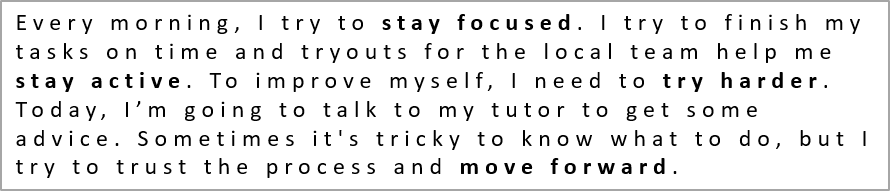
استخدم BasePortionFormat.setSpacing لتوسيع أو تقليص التباعد بين الأحرف في مربع نص. تضيف الأمثلة 3 نقاط من التباعد؛ القيم السالبة تقمّص النص.
يوضح كود Python التالي كيفية توسيع تباعد الأحرف في الفقرة بأكملها:
import jpype
import asposeslides

if not jpype.isJVMStarted():
    jpype.startJVM()

from asposeslides.api import Presentation, SaveFormat

presentation = Presentation("sample.pptx")
try:
    slide = presentation.getSlides().get_Item(0)

    auto_shape = slide.getShapes().get_Item(0)
    paragraph = auto_shape.getTextFrame().getParagraphs().get_Item(0)

    # ملاحظة: استخدم قيمًا سلبية لضغط تباعد الأحرف.
    paragraph.getParagraphFormat().getDefaultPortionFormat().setSpacing(3) # توسيع تباعد الأحرف.

    presentation.save("character_spacing_in_paragraph.pptx", SaveFormat.Pptx)
finally:
    presentation.dispose()
النتيجة:
يوضح المثال البرمجي أدناه كيفية توسيع تباعد الأحرف في أجزاء النص ذات الخط الغامق:
import jpype
import asposeslides

if not jpype.isJVMStarted():
    jpype.startJVM()

from asposeslides.api import Presentation, SaveFormat

presentation = Presentation("sample.pptx")
try:
    slide = presentation.getSlides().get_Item(0)

    auto_shape = slide.getShapes().get_Item(0)
    paragraph = auto_shape.getTextFrame().getParagraphs().get_Item(0)

    for portion in paragraph.getPortions():
        if portion.getPortionFormat().getEffective().getFontBold():
            # ملاحظة: استخدم قيمًا سلبية لضغط تباعد الأحرف.
            portion.getPortionFormat().setSpacing(3) # توسيع تباعد الأحرف.

    presentation.save("character_spacing_in_text_portions.pptx", SaveFormat.Pptx)
finally:
    presentation.dispose()
النتيجة:

تعطيل التباعد الحرفي للخطوط المحددة
في بعض الحالات، قد يبدو النص المُصوَّر بواسطة Aspose.Slides أقرب قليلاً من النص نفسه المعروض في PowerPoint. يمكن أن يحدث ذلك لأن PowerPoint قد يتجاهل بيانات التباعد الحرفي (Kerning) لبعض الخطوط، حتى عندما يحتوي الخط على معلومات تباعد صحيحة ويكون التباعد مفعَّلًا في إعدادات PowerPoint.
لجعل الناتج المصور أقرب إلى PowerPoint في مثل هذه الحالات، يمكنك تعطيل التباعد الحرفي لأجزاء النص التي تستخدم الخط المتأثر. اضبط BasePortionFormat.setKerningMinimalSize إلى قيمة أعلى من حجم الخط الفعلي. يتطلب هذا المثال الملف “presentation.pptx” مع مربع نص كشكل أول في الشريحة الأولى. يتحقق من أسماء الخطوط الفعالة، بما في ذلك الخطوط الموروثة، ويضبط عتبة 100 نقطة للأجزاء التي تستخدم Roboto. هذا يعطل التباعد للأجزاء المتطابقة التي يكون حجم الخط أقل من 100 نقطة:
import jpype
import asposeslides

if not jpype.isJVMStarted():
    jpype.startJVM()

from asposeslides.api import Presentation, SaveFormat

presentation = Presentation("presentation.pptx")
try:
    slide = presentation.getSlides().get_Item(0)

    auto_shape = slide.getShapes().get_Item(0)
    target_font = "Roboto"

    for paragraph in auto_shape.getTextFrame().getParagraphs():
        for portion in paragraph.getPortions():
            portion_format = portion.getPortionFormat().getEffective()
            fonts = (portion_format.getLatinFont(), portion_format.getEastAsianFont(), portion_format.getComplexScriptFont())
            if any(font is not None and font.getFontName() == target_font for font in fonts):
                portion.getPortionFormat().setKerningMinimalSize(100)

    presentation.save("output.pptx", SaveFormat.Pptx)
finally:
    presentation.dispose()
بالنسبة للنص المتطابق أقل من العتبة، يمنع هذا الإعداد التباعد الحرفي ويمكن أن يساعد في مطابقة عرض Aspose.Slides مع المظهر البصري في PowerPoint للخطوط المتأثرة بهذا السلوك الخاص بـ PowerPoint.
إدارة خصائص خط النص
يمكن تعيين خصائص الخط على مستوى الفقرة عبر ParagraphFormat.getDefaultPortionFormat أو على الأجزاء الفردية عبر PortionFormat.
المثال التالي يضبط الخط الافتراضي للفقرة الأولى إلى Times New Roman بحجم 12 نقطة مع تنسيق غامق ومائل وتسطير منقط. التنسيق الصريح على الأجزاء الفردية يتجاوز هذه القيم الافتراضية:
import jpype
import asposeslides

if not jpype.isJVMStarted():
    jpype.startJVM()

from asposeslides.api import FontData, NullableBool, Presentation, SaveFormat, TextUnderlineType

presentation = Presentation("sample.pptx")
try:
    slide = presentation.getSlides().get_Item(0)

    auto_shape = slide.getShapes().get_Item(0)
    paragraph = auto_shape.getTextFrame().getParagraphs().get_Item(0)

    # ضبط خصائص الخط للفقرة.
    paragraph.getParagraphFormat().getDefaultPortionFormat().setFontHeight(12)
    paragraph.getParagraphFormat().getDefaultPortionFormat().setFontBold(NullableBool.True_)
    paragraph.getParagraphFormat().getDefaultPortionFormat().setFontItalic(NullableBool.True_)
    paragraph.getParagraphFormat().getDefaultPortionFormat().setFontUnderline(TextUnderlineType.Dotted)
    font = FontData("Times New Roman")
    paragraph.getParagraphFormat().getDefaultPortionFormat().setLatinFont(font)

    presentation.save("font_properties_for_paragraph.pptx", SaveFormat.Pptx)
finally:
    presentation.dispose()
النتيجة:

المثال التالي يطبق Times New Roman بحجم 13 نقطة، تنسيق مائل، وتسطير منقط على الأجزاء التي يكون تنسيقها الفعَّال غامقًا:
import jpype
import asposeslides

if not jpype.isJVMStarted():
    jpype.startJVM()

from asposeslides.api import FontData, NullableBool, Presentation, SaveFormat, TextUnderlineType

presentation = Presentation("sample.pptx")
try:
    slide = presentation.getSlides().get_Item(0)

    auto_shape = slide.getShapes().get_Item(0)
    paragraph = auto_shape.getTextFrame().getParagraphs().get_Item(0)

    for portion in paragraph.getPortions():
        if portion.getPortionFormat().getEffective().getFontBold():
            # ضبط خصائص الخط لجزء النص.
            portion.getPortionFormat().setFontHeight(13)
            portion.getPortionFormat().setFontItalic(NullableBool.True_)
            portion.getPortionFormat().setFontUnderline(TextUnderlineType.Dotted)
            font = FontData("Times New Roman")
            portion.getPortionFormat().setLatinFont(font)

    presentation.save("font_properties_for_text_portions.pptx", SaveFormat.Pptx)
finally:
    presentation.dispose()
النتيجة:

ضبط دوران النص
استخدم TextFrameFormat.setTextVerticalType لتعيين اتجاه نص محدد مسبقًا داخل الشكل.
المثال البرمجي التالي يضبط اتجاه النص في الشكل إلى TextVerticalType.Vertical270، والذي يدور النص 90 درجة عكس عقارب الساعة:
import jpype
import asposeslides

if not jpype.isJVMStarted():
    jpype.startJVM()

from asposeslides.api import Presentation, SaveFormat, TextVerticalType

presentation = Presentation("sample.pptx")
try:
    slide = presentation.getSlides().get_Item(0)

    auto_shape = slide.getShapes().get_Item(0)
    auto_shape.getTextFrame().getTextFrameFormat().setTextVerticalType(TextVerticalType.Vertical270)

    presentation.save("text_rotation.pptx", SaveFormat.Pptx)
finally:
    presentation.dispose()
النتيجة:

ضبط دوران مخصص لإطارات النص
استخدم TextFrameFormat.setRotationAngle لتعيين زاوية دوران مخصصة لـ TextFrame.
المثال البرمجي التالي يدور إطار النص بمقدار 3 درجات مع عقارب الساعة داخل الشكل:
import jpype
import asposeslides

if not jpype.isJVMStarted():
    jpype.startJVM()

from asposeslides.api import Presentation, SaveFormat

presentation = Presentation("sample.pptx")
try:
    slide = presentation.getSlides().get_Item(0)

    auto_shape = slide.getShapes().get_Item(0)
    auto_shape.getTextFrame().getTextFrameFormat().setRotationAngle(3)

    presentation.save("custom_text_rotation.pptx", SaveFormat.Pptx)
finally:
    presentation.dispose()
النتيجة:

ضبط تباعد الأسطر للفقرات
توفر Aspose.Slides الخصائص ParagraphFormat.setSpaceAfter، ParagraphFormat.setSpaceBefore، وParagraphFormat.setSpaceWithin للتحكم في تباعد الفقرات. تُستخدم هذه الخصائص كالتالي:
- استخدم قيمة موجبة لتحديد تباعد السطر كنسبة مئوية من ارتفاع السطر.
- استخدم قيمة سالبة لتحديد تباعد السطر بوحدة النقاط.
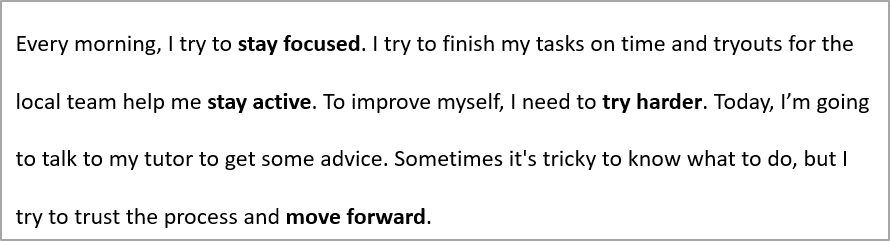
المثال التالي يضبط التباعد داخل الفقرة الأولى إلى 200% من ارتفاع السطر (تباعد مزدوج):
import jpype
import asposeslides

if not jpype.isJVMStarted():
    jpype.startJVM()

from asposeslides.api import Presentation, SaveFormat

presentation = Presentation("sample.pptx")
try:
    slide = presentation.getSlides().get_Item(0)

    auto_shape = slide.getShapes().get_Item(0)

    paragraph = auto_shape.getTextFrame().getParagraphs().get_Item(0)
    paragraph.getParagraphFormat().setSpaceWithin(200)

    presentation.save("line_spacing.pptx", SaveFormat.Pptx)
finally:
    presentation.dispose()
النتيجة:
التحكم في فواصل الأسطر
قواعد كسر سطر الفقرة مفيدة في كتل نص ضيقة وعروض دمج النص اللاتيني والآسيوي الشرقي. تتبع الطرائق التالية إلى ParagraphFormat، لذا تنطبق على الفقرة كاملة:
- setLatinLineBreak يتحكم في قواعد كسر سطر اللاتينية. في النص المختلط، قد يغيّر ذلك موضع التفاف النص الآسيوي الشرقي وعلامات الترقيم المجاورة.
- setEastAsianLineBreak يتحكم في قواعد كسر سطر الآسيوي الشرقي، بما في ذلك القيود على الأحرف في بداية ونهاية السطر.
هذه القواعد لا تحل محل TextFrameFormat.setWrapText، الذي يفعّل الالتفاف التلقائي داخل إطار النص. إنها تؤثر على التخطيط عند حدوث الالتفاف؛ لا تُدرج أحرف كسر السطر. كسر سطر صريح يجبر إنشاء سطر جديد داخل الفقرة بغض النظر عن العرض المتاح.
المثال المستقل التالي ينشئ كتلة نص ضيقة تحتوي على نص صيني ولاتيني. يضبط كلا خيارَي كسر السطر صراحةً ويحفظ الملف “line_breaking.pptx”. لتجربة أي قاعدة، غير القيمة المقابلة مع الحفاظ على الإعدادات الأخرى ثابتة. يستخدم المثال خط Arial وSimSun بحجم 24 نقطة مع عرض إطار 160 نقطة وصفر هوامش أفقية لإطار النص. يتم استدعاء TextFrameFormat.setAutofitType مع TextAutofitType.None_ بحيث يبقى حجم النص وأبعاد الإطار ثابتين.
import jpype
import asposeslides

if not jpype.isJVMStarted():
    jpype.startJVM()

from asposeslides.api import FillType, FontData, NullableBool, Presentation, SaveFormat, ShapeType, TextAlignment, TextAutofitType
from java.awt import Color

presentation = Presentation()
try:
    slide = presentation.getSlides().get_Item(0)

    shape = slide.getShapes().addAutoShape(ShapeType.Rectangle, 50, 50, 160, 300)
    shape.getFillFormat().setFillType(FillType.NoFill)

    text_frame = shape.getTextFrame()
    text_frame.getTextFrameFormat().setWrapText(NullableBool.True_)
    text_frame.getTextFrameFormat().setAutofitType(TextAutofitType.None_)
    text_frame.getTextFrameFormat().setMarginLeft(0)
    text_frame.getTextFrameFormat().setMarginRight(0)

    paragraph = text_frame.getParagraphs().get_Item(0)
    paragraph.setText("中文排版测试,PowerPoint 中文演示。")

    paragraph_format = paragraph.getParagraphFormat()
    paragraph_format.setAlignment(TextAlignment.Left)
    paragraph_format.getDefaultPortionFormat().setFontHeight(24)
    latin_font = FontData("Arial")
    paragraph_format.getDefaultPortionFormat().setLatinFont(latin_font)
    east_asian_font = FontData("SimSun")
    paragraph_format.getDefaultPortionFormat().setEastAsianFont(east_asian_font)
    paragraph_format.getDefaultPortionFormat().getFillFormat().setFillType(FillType.Solid)
    paragraph_format.getDefaultPortionFormat().getFillFormat().getSolidFillColor().setColor(Color.BLACK)
    paragraph_format.setLatinLineBreak(NullableBool.False_)
    paragraph_format.setEastAsianLineBreak(NullableBool.True_)

    presentation.save("line_breaking.pptx", SaveFormat.Pptx)
finally:
    presentation.dispose()
التحكم في علامات الترقيم المتدلية
ParagraphFormat.setHangingPunctuation يسمح لعلامات الترقيم المؤهلة بالامتداد خارج الحافة اليمنى لسطر النص بدلاً من احتلال السطر التالي. ينطبق على الفقرة بأكملها وهو مختلف عن المسافة المتدلية.
المثال المستقل التالي يفعّل علامات الترقيم المتدلية في إطار نص بعرض 100 نقطة ويحفظ الملف “hanging_punctuation.pptx”. باستخدام خط Arial بحجم 24 نقطة وصفر هوامش أفقية لإطار النص، يبقى النقطة النهائية بعد “sentence” وتمتد خارج الحافة اليمنى للنص. اضبط الخاصية إلى NullableBool.False_ للمقارنة: مع هذه الإعدادات، تشغل النقطة سطرًا منفصلًا. تم تمكين الالتفاف وتعطيل الملاءمة التلقائية للحفاظ على عرض ثابت.
import jpype
import asposeslides

if not jpype.isJVMStarted():
    jpype.startJVM()

from asposeslides.api import FillType, FontData, NullableBool, Presentation, SaveFormat, ShapeType, TextAlignment, TextAutofitType
from java.awt import Color

presentation = Presentation()
try:
    slide = presentation.getSlides().get_Item(0)

    shape = slide.getShapes().addAutoShape(ShapeType.Rectangle, 50, 50, 100, 200)
    shape.getFillFormat().setFillType(FillType.NoFill)

    text_frame = shape.getTextFrame()
    text_frame.getTextFrameFormat().setWrapText(NullableBool.True_)
    text_frame.getTextFrameFormat().setAutofitType(TextAutofitType.None_)
    text_frame.getTextFrameFormat().setMarginLeft(0)
    text_frame.getTextFrameFormat().setMarginRight(0)

    paragraph = text_frame.getParagraphs().get_Item(0)
    paragraph.setText("Simple text, next sentence.")

    paragraph_format = paragraph.getParagraphFormat()
    paragraph_format.setAlignment(TextAlignment.Left)
    paragraph_format.getDefaultPortionFormat().setFontHeight(24)
    latin_font = FontData("Arial")
    paragraph_format.getDefaultPortionFormat().setLatinFont(latin_font)
    paragraph_format.getDefaultPortionFormat().getFillFormat().setFillType(FillType.Solid)
    paragraph_format.getDefaultPortionFormat().getFillFormat().getSolidFillColor().setColor(Color.BLACK)
    paragraph_format.setHangingPunctuation(NullableBool.True_)

    presentation.save("hanging_punctuation.pptx", SaveFormat.Pptx)
finally:
    presentation.dispose()
ليس كل علامة ترقيم يمكنها أن تتدلى. تنطبق شروط الخط والتخطيط الموصوفة أعلاه أيضًا على هذه المقارنة: قد يؤدي تغيير الخط أو العرض المتاح أو الهوامش أو إعدادات الملاءمة التلقائية إلى إزالة الفرق المرئي.
ضبط نوع الملاءمة التلقائية لإطارات النص
TextFrameFormat.setAutofitType يحدد سلوك النص عندما يتجاوز حدود حاويته. استخدمه للتحكم فيما إذا كان النص يتقلص أو يتجاوز أو يغير حجم الشكل تلقائيًا. المثال التالي يضبط الشكل لتغيير حجمه ليتناسب مع نصه ويحفظ النتيجة في “autofit_type.pptx”.
import jpype
import asposeslides

if not jpype.isJVMStarted():
    jpype.startJVM()

from asposeslides.api import Presentation, SaveFormat, TextAutofitType

presentation = Presentation("sample.pptx")
try:
    slide = presentation.getSlides().get_Item(0)

    auto_shape = slide.getShapes().get_Item(0)
    auto_shape.getTextFrame().getTextFrameFormat().setAutofitType(TextAutofitType.Shape)

    presentation.save("autofit_type.pptx", SaveFormat.Pptx)
finally:
    presentation.dispose()
لعد الأسطر بعد الالتفاف التلقائي ورؤية كيف يؤثر تغيير عرض النص أو الشكل على النتيجة، راجع Count Rendered Lines. عدد الأسطر وحده لا يشير إلى ما إذا كان النص يتجاوز حاويته.
ضبط نقطة تثبيت إطارات النص
TextFrameFormat.setAnchoringType يحدد كيفية وضع النص عموديًا داخل الشكل، مثلًا في الأعلى أو الوسط أو الأسفل. المثال التالي يثبت النص في أسفل الشكل الأول ويحفظ النتيجة في “text_anchor.pptx”.
import jpype
import asposeslides

if not jpype.isJVMStarted():
    jpype.startJVM()

from asposeslides.api import Presentation, SaveFormat, TextAnchorType

presentation = Presentation("sample.pptx")
try:
    slide = presentation.getSlides().get_Item(0)

    auto_shape = slide.getShapes().get_Item(0)
    auto_shape.getTextFrame().getTextFrameFormat().setAnchoringType(TextAnchorType.Bottom)

    presentation.save("text_anchor.pptx", SaveFormat.Pptx)
finally:
    presentation.dispose()
ضبط تبويب النص
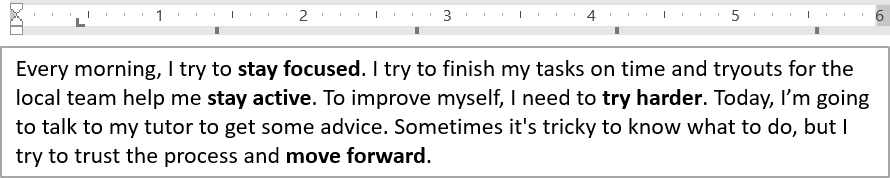
استخدم ParagraphFormat.setDefaultTabSize وParagraphFormat.getTabs لتكوين مواضع الفواصل (التبويبات) في الفقرة. المثال التالي يضبط الفاصل الافتراضي إلى 100 نقطة ويضيف فاصلًا محاذيًا لليسار عند 30 نقطة. تؤثر هذه الإعدادات على النص الذي يحتوي على أحرف تبويب.
import jpype
import asposeslides

if not jpype.isJVMStarted():
    jpype.startJVM()

from asposeslides.api import Presentation, SaveFormat, TabAlignment

presentation = Presentation("sample.pptx")
try:
    slide = presentation.getSlides().get_Item(0)

    auto_shape = slide.getShapes().get_Item(0)

    paragraph = auto_shape.getTextFrame().getParagraphs().get_Item(0)
    paragraph.getParagraphFormat().setDefaultTabSize(100)
    paragraph.getParagraphFormat().getTabs().add(30, TabAlignment.Left)

    presentation.save("paragraph_tabs.pptx", SaveFormat.Pptx)
finally:
    presentation.dispose()
النتيجة:
ضبط لغة التدقيق
توفر Aspose.Slides الخاصية BasePortionFormat.setLanguageId، التي تسمح لك بتحديد لغة التدقيق لقسم من النص. تحدد لغة التدقيق اللغة المستخدمة لتصحيح الإملاء والقواعد في PowerPoint.
المثال التالي يتطلب ملف “presentation.pptx” مع مربع نص كشكل أول في الشريحة الأولى وعلى الأقل فقرة واحدة. يستبدل محتويات الفقرة الأولى بـ “1。"، يضبط SimSun كخط لها، ويعين لغة التدقيق الصينية المبسطة (zh-CN). يحفظ النتيجة في “proofing_language.pptx”:
import jpype
import asposeslides

if not jpype.isJVMStarted():
    jpype.startJVM()

from asposeslides.api import FontData, Portion, Presentation, SaveFormat

presentation = Presentation("presentation.pptx")
try:
    slide = presentation.getSlides().get_Item(0)

    auto_shape = slide.getShapes().get_Item(0)

    paragraph = auto_shape.getTextFrame().getParagraphs().get_Item(0)
    paragraph.getPortions().clear()

    font = FontData("SimSun")

    text_portion = Portion()
    text_portion.getPortionFormat().setComplexScriptFont(font)
    text_portion.getPortionFormat().setEastAsianFont(font)
    text_portion.getPortionFormat().setLatinFont(font)

    # ضبط معرف لغة التدقيق.
    text_portion.getPortionFormat().setLanguageId("zh-CN")

    text_portion.setText("1。")
    paragraph.getPortions().add(text_portion)

    presentation.save("proofing_language.pptx", SaveFormat.Pptx)
finally:
    presentation.dispose()
ضبط اللغة الافتراضية
استخدم LoadOptions.setDefaultTextLanguage لتحديد اللغة الافتراضية للنص المُنشأ أثناء تحميل أو إنشاء عرض تقديمي. المثال التالي ينشئ عرضًا تقديميًا باللغة الإنجليزية الأمريكية كلغة نص افتراضية، يضيف مربع نص، ويطبع en-US للجزء النصي الأول.
import jpype
import asposeslides

if not jpype.isJVMStarted():
    jpype.startJVM()

from asposeslides.api import LoadOptions, Presentation, ShapeType

load_options = LoadOptions()
load_options.setDefaultTextLanguage("en-US")

presentation = Presentation(load_options)
try:
    slide = presentation.getSlides().get_Item(0)

    # أضف شكلًا مستطيلًا يحتوي على نص.
    shape = slide.getShapes().addAutoShape(ShapeType.Rectangle, 20, 20, 150, 50)
    shape.getTextFrame().setText("Sample text")

    # تحقق من لغة الجزء الأول.
    portion = shape.getTextFrame().getParagraphs().get_Item(0).getPortions().get_Item(0)
    print(portion.getPortionFormat().getLanguageId())
finally:
    presentation.dispose()
ضبط نمط النص الافتراضي
لتطبيق تنسيق النص الافتراضي على مستوى العرض التقديمي، استخدم Presentation.getDefaultTextStyle.
المثال التالي يضبط خطًا غامقًا بحجم 14 نقطة كقيمة افتراضية للفقرات العليا في عرض تقديمي جديد ويحفظه في “default_text_style.pptx”. يمكن للنص أن يرث هذه القيم الافتراضية ما لم يتجاوزها تنسيق أكثر تحديدًا.
import jpype
import asposeslides

if not jpype.isJVMStarted():
    jpype.startJVM()

from asposeslides.api import NullableBool, Presentation, SaveFormat

presentation = Presentation()
try:
    # احصل على تنسيق الفقرة من المستوى الأعلى.
    paragraph_format = presentation.getDefaultTextStyle().getLevel(0)

    if paragraph_format is not None:
        paragraph_format.getDefaultPortionFormat().setFontHeight(14)
        paragraph_format.getDefaultPortionFormat().setFontBold(NullableBool.True_)

    presentation.save("default_text_style.pptx", SaveFormat.Pptx)
finally:
    presentation.dispose()
استخراج النص مع تأثير الأحرف الكبيرة
في PowerPoint، تطبيق تأثير الخط All Caps يجعل النص يظهر بأحرف كبيرة على الشريحة حتى لو كُتب أصلاً بأحرف صغيرة. عند استرجاع مثل هذا الجزء النصي باستخدام Aspose.Slides، تُعيد المكتبة النص كما تم إدخاله بالضبط. لمطابقة النص المعروض، تحقق من TextCapType وحوِّل السلسلة المسترجعة إلى أحرف كبيرة عندما تكون القيمة All.
هذا المثال يتطلب ملف “sample2.pptx” مع مربع نص كشكل أول في الشريحة الأولى. يحتوي الجزء الأول من الفقرة الأولى على “Hello, Aspose!” مع تطبيق تأثير All Caps، كما هو موضح أدناه.
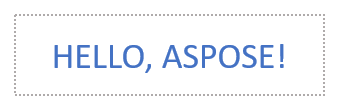
المثال البرمجي التالي يوضح كيفية استخراج النص مع تطبيق تأثير All Caps:
import jpype
import asposeslides

if not jpype.isJVMStarted():
    jpype.startJVM()

from asposeslides.api import Presentation, TextCapType

presentation = Presentation("sample2.pptx")
try:
    slide = presentation.getSlides().get_Item(0)

    auto_shape = slide.getShapes().get_Item(0)
    text_portion = auto_shape.getTextFrame().getParagraphs().get_Item(0).getPortions().get_Item(0)

    print("Original text: " + str(text_portion.getText()))

    text_format = text_portion.getPortionFormat().getEffective()
    if text_format.getTextCapType() == TextCapType.All:
        text = str(text_portion.getText()).upper()
        print("All-Caps effect: " + text)
finally:
    presentation.dispose()
الناتج:
Original text: Hello, Aspose!
All-Caps effect: HELLO, ASPOSE!
FAQ
كيف يمكنني تعديل النص في جدول على شريحة؟
لتعديل النص في جدول على شريحة، استخدم Table. قم بالتكرار عبر الخلايا وحدث كل خلية عبر Cell.getTextFrame وتنسيق الفقرة عبر Paragraph.getParagraphFormat.
كيف يمكنني تطبيق لون متدرج للنص على شريحة PowerPoint؟
لتطبيق لون متدرج على النص، استخدم BasePortionFormat.getFillFormat. اضبط FillFormat.setFillType إلى FillType.Gradient وُعِد نقاط التدرج والاتجاه والشفافية.