
إدارة القوائم النقطية والمرقمة في العروض التقديمية باستخدام Python عبر Java
نظرة عامة
Aspose.Slides for Python via Java يتيح لك إنشاء وتنسيق القوائم النقطية والمرقمة في عروض PowerPoint وOpenDocument. عنصر القائمة هو فقرة يتم التحكم في إعدادات الرصاص فيها عبر تنسيق الفقرة الخاص بها.
استخدم الطريقة Paragraph.getParagraphFormat للوصول إلى إعدادات القائمة على مستوى الفقرة. نقطة الدخول الرئيسية هي ParagraphFormat.getBullet، والتي تُرجع كائنًا من نوع BulletFormat. باستخدام هذا الكائن، يمكنك تعيين نوع الرصاص، الرمز، الصورة، اللون، الحجم، نمط الترقيم، ورقم البداية.
تُظهر هذه المقالة كيفية:
- إنشاء قائمة نقطية برمز مخصص
- إنشاء رصاص صورة
- إنشاء قائمة متعددة المستويات عبر تعيين عمق الفقرة
- إنشاء قائمة مرقمة
- فحص وتغيير تنسيق القائمة في عرض تقديمي موجود
إنشاء قائمة نقطية
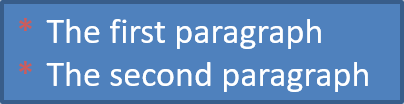
لإنشاء قائمة نقطية، أضف كائنات Paragraph إلى TextFrame واضبط BulletFormat.setType إلى BulletType.Symbol. بعد ذلك يمكنك استخدام BulletFormat.setChar، BulletFormat.getColor، وBulletFormat.setHeight للتحكم في مظهر الرصاص.
يُظهر كود Python التالي كيفية إنشاء قائمة نقطية على شريحة:
import jpype
import asposeslides

if not jpype.isJVMStarted():
    jpype.startJVM()

from asposeslides.api import BulletType, NullableBool, Paragraph, Presentation, SaveFormat, ShapeType
from java.awt import Color

presentation = Presentation()
try:
    slide = presentation.getSlides().get_Item(0)
    auto_shape = slide.getShapes().addAutoShape(ShapeType.Rectangle, 20, 20, 200, 50)

    text_frame = auto_shape.getTextFrame()
    text_frame.getParagraphs().clear()

    bullet_color = Color(205, 92, 92)

    first_paragraph = Paragraph()
    first_paragraph.getParagraphFormat().getBullet().setType(BulletType.Symbol)
    first_paragraph.getParagraphFormat().getBullet().setChar('*')
    first_paragraph.getParagraphFormat().setIndent(15)
    first_paragraph.getParagraphFormat().getBullet().setBulletHardColor(NullableBool.True_)
    first_paragraph.getParagraphFormat().getBullet().getColor().setColor(bullet_color)
    first_paragraph.getParagraphFormat().getBullet().setHeight(100)
    first_paragraph.setText("The first paragraph")
    text_frame.getParagraphs().add(first_paragraph)

    second_paragraph = Paragraph()
    second_paragraph.getParagraphFormat().getBullet().setType(BulletType.Symbol)
    second_paragraph.getParagraphFormat().getBullet().setChar('*')
    second_paragraph.getParagraphFormat().setIndent(15)
    second_paragraph.getParagraphFormat().getBullet().setBulletHardColor(NullableBool.True_)
    second_paragraph.getParagraphFormat().getBullet().getColor().setColor(bullet_color)
    second_paragraph.getParagraphFormat().getBullet().setHeight(100)
    second_paragraph.setText("The second paragraph")
    text_frame.getParagraphs().add(second_paragraph)

    presentation.save("symbol_bullets.pptx", SaveFormat.Pptx)
finally:
    presentation.dispose()
النتيجة:
إنشاء قائمة مرقمة
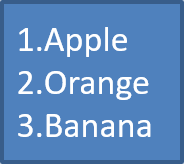
استخدم القوائم المرقمة عندما يكون ترتيب العناصر مهمًا. اضبط BulletFormat.setType إلى BulletType.Numbered. يمكنك أيضًا اختيار تنسيق الترقيم باستخدام BulletFormat.setNumberedBulletStyle أو استخدام BulletFormat.setNumberedBulletStartWith عندما يجب أن تبدأ القائمة بقيمة غير 1.
الكود التالي في Python يوضح كيفية إنشاء قائمة مرقمة على شريحة:
import jpype
import asposeslides

if not jpype.isJVMStarted():
    jpype.startJVM()

from asposeslides.api import BulletType, Paragraph, Presentation, SaveFormat, ShapeType

presentation = Presentation()
try:
    slide = presentation.getSlides().get_Item(0)
    auto_shape = slide.getShapes().addAutoShape(ShapeType.Rectangle, 20, 20, 90, 80)

    text_frame = auto_shape.getTextFrame()
    text_frame.getParagraphs().clear()

    first_paragraph = Paragraph()
    first_paragraph.getParagraphFormat().getBullet().setType(BulletType.Numbered)
    first_paragraph.setText("Apple")
    text_frame.getParagraphs().add(first_paragraph)

    second_paragraph = Paragraph()
    second_paragraph.getParagraphFormat().getBullet().setType(BulletType.Numbered)
    second_paragraph.setText("Orange")
    text_frame.getParagraphs().add(second_paragraph)

    third_paragraph = Paragraph()
    third_paragraph.getParagraphFormat().getBullet().setType(BulletType.Numbered)
    third_paragraph.setText("Banana")
    text_frame.getParagraphs().add(third_paragraph)

    presentation.save("numbered_bullets.pptx", SaveFormat.Pptx)
finally:
    presentation.dispose()
النتيجة:
إنشاء رصاص صورة
Aspose.Slides يسمح لك باستبدال رمز الرصاص العادي بصورة. تعمل رصاصات الصور بشكل أفضل مع الصور البسيطة التي تظل مقروءة بحجم صغير، مثل الأيقونات أو ملفات PNG الشفافة الصغيرة.
Note
إذا كنت تخطط لاستبدال رمز رصاص عادي بصورة، اختر رسمًا بسيطًا بخلفية شفافة. تعمل مثل هذه الصور جيدًا كرموز رصاص مخصصة.لإنشاء رصاص صورة، أضف صورة إلى Presentation.getImages وعيّن كائن الصورة المسترجع إلى BulletFormat.getPicture. اضبط BulletFormat.setType إلى BulletType.Picture قبل تعيين الصورة.
لنفترض أن لدينا صورة باسم “image.png”:

الكود التالي في Python يوضح كيفية إنشاء رصاصات صور على شريحة:
import jpype
import asposeslides

if not jpype.isJVMStarted():
    jpype.startJVM()

from asposeslides.api import BulletType, Images, Paragraph, Presentation, SaveFormat, ShapeType

presentation = Presentation()
try:
    slide = presentation.getSlides().get_Item(0)
    auto_shape = slide.getShapes().addAutoShape(ShapeType.Rectangle, 20, 20, 200, 50)

    text_frame = auto_shape.getTextFrame()
    text_frame.getParagraphs().clear()

    image = Images.fromFile("image.png")
    try:
        bullet_image = presentation.getImages().addImage(image)
    finally:
        image.dispose()

    first_paragraph = Paragraph()
    first_paragraph.getParagraphFormat().getBullet().setType(BulletType.Picture)
    first_paragraph.getParagraphFormat().getBullet().getPicture().setImage(bullet_image)
    first_paragraph.getParagraphFormat().setIndent(15)
    first_paragraph.getParagraphFormat().getBullet().setHeight(100)
    first_paragraph.setText("The first paragraph")
    text_frame.getParagraphs().add(first_paragraph)

    second_paragraph = Paragraph()
    second_paragraph.getParagraphFormat().getBullet().setType(BulletType.Picture)
    second_paragraph.getParagraphFormat().getBullet().getPicture().setImage(bullet_image)
    second_paragraph.getParagraphFormat().setIndent(15)
    second_paragraph.getParagraphFormat().getBullet().setHeight(100)
    second_paragraph.setText("The second paragraph")
    text_frame.getParagraphs().add(second_paragraph)

    presentation.save("picture_bullets.pptx", SaveFormat.Pptx)
finally:
    presentation.dispose()
النتيجة:

إنشاء قائمة متعددة المستويات
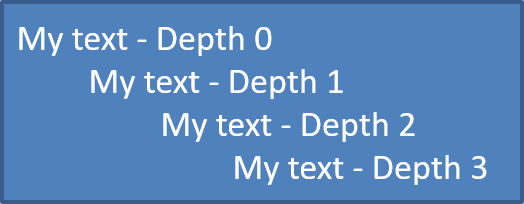
استخدم ParagraphFormat.setDepth لوضع عناصر القائمة على مستويات مختلفة. المستوى 0 هو المستوى الأعلى، المستوى 1 هو المتداخل تحته، وهكذا.
الكود التالي في Python يوضح كيفية إنشاء قائمة نقطية متعددة المستويات:
import jpype
import asposeslides

if not jpype.isJVMStarted():
    jpype.startJVM()

from asposeslides.api import Paragraph, Presentation, SaveFormat, ShapeType

presentation = Presentation()
try:
    slide = presentation.getSlides().get_Item(0)
    auto_shape = slide.getShapes().addAutoShape(ShapeType.Rectangle, 20, 20, 260, 110)

    text_frame = auto_shape.getTextFrame()
    text_frame.getParagraphs().clear()

    first_paragraph = Paragraph()
    first_paragraph.getParagraphFormat().setDepth(0)
    first_paragraph.setText("My text - Depth 0")
    text_frame.getParagraphs().add(first_paragraph)

    second_paragraph = Paragraph()
    second_paragraph.getParagraphFormat().setDepth(1)
    second_paragraph.setText("My text - Depth 1")
    text_frame.getParagraphs().add(second_paragraph)

    third_paragraph = Paragraph()
    third_paragraph.getParagraphFormat().setDepth(2)
    third_paragraph.setText("My text - Depth 2")
    text_frame.getParagraphs().add(third_paragraph)

    fourth_paragraph = Paragraph()
    fourth_paragraph.getParagraphFormat().setDepth(3)
    fourth_paragraph.setText("My text - Depth 3")
    text_frame.getParagraphs().add(fourth_paragraph)

    presentation.save("multilevel_bullets.pptx", SaveFormat.Pptx)
finally:
    presentation.dispose()
النتيجة:
تغيير قائمة موجودة
لتغيير تنسيق القائمة في عرض تقديمي موجود، احصل على الفقرة المستهدفة وقم بتحديث إعدادات ParagraphFormat.getBullet الخاصة بها. يمكن استخدام نفس الخصائص المستخدمة لإنشاء القوائم لفحص أو تعديل القوائم التي تم تحميلها من ملف PPT أو PPTX أو ODP.
الكود التالي في Python يغيّر الفقرة الأولى في إطار نص لاستخدام نمط قائمة مرقمة:
import jpype
import asposeslides

if not jpype.isJVMStarted():
    jpype.startJVM()

from asposeslides.api import BulletType, NumberedBulletStyle, Presentation, SaveFormat

presentation = Presentation("input.pptx")
try:
    slide = presentation.getSlides().get_Item(0)
    auto_shape = slide.getShapes().get_Item(0)
    paragraph = auto_shape.getTextFrame().getParagraphs().get_Item(0)

    paragraph.getParagraphFormat().getBullet().setType(BulletType.Numbered)
    paragraph.getParagraphFormat().getBullet().setNumberedBulletStyle(NumberedBulletStyle.BulletRomanUCPeriod)
    paragraph.getParagraphFormat().getBullet().setNumberedBulletStartWith(1)
    paragraph.getParagraphFormat().setMarginLeft(30)
    paragraph.getParagraphFormat().setIndent(-20)

    presentation.save("updated_list.pptx", SaveFormat.Pptx)
finally:
    presentation.dispose()
الأسئلة الشائعة
هل يمكن تصدير القوائم النقطية والمرقمة إلى PDF أو صور؟
نعم. Aspose.Slides يحافظ على تنسيق القائمة عندما يدعم التنسيق المستهدف تخطيط النص وميزات الرصاص المقابلة.
هل يمكنني تعديل القوائم في العروض التقديمية الموجودة؟
نعم. قم بتحميل العرض التقديمي، وصول إلى الفقرة المستهدفة، فحص أو تحديث إعدادات ParagraphFormat.getBullet، ثم احفظ العرض التقديمي.
هل يمكن أن تحتوي القوائم على نص غير لاتيني؟
نعم. يمكن أن يحتوي نص عنصر القائمة على أحرف Unicode، لذا يمكنك إنشاء قوائم في عروض تقديمية متعددة اللغات. تأكد من أن الخطوط المستخدمة في العرض تدعم الأحرف التي تحتاجها.