
Python via Java を使用してプレゼンテーションの箇条書きと番号付きリストを管理する
概要
Aspose.Slides for Python via Java を使用すると、PowerPoint および OpenDocument プレゼンテーションで箇条書きリストと番号付きリストを作成および書式設定できます。リスト項目は、段落の箇条書き設定が段落書式によって制御される段落です。
Paragraph.getParagraphFormat メソッドを使用して段落レベルのリスト設定にアクセスします。メインエントリーポイントは ParagraphFormat.getBullet で、BulletFormat オブジェクトを返します。このオブジェクトを使用して、箇条書きの種類、シンボル、画像、色、サイズ、番号付けスタイル、開始番号を設定できます。
本記事では以下を示します。
- カスタムシンボルで箇条書きリストを作成する方法
- 画像箇条書きを作成する方法
- 段落の深さを設定して階層リストを作成する方法
- 番号付きリストを作成する方法
- 既存のプレゼンテーションでリストの書式を確認および変更する方法
箇条書きリストの作成
箇条書きリストを作成するには、Paragraph オブジェクトを TextFrame に追加し、BulletFormat.setType を BulletType.Symbol に設定します。その後、BulletFormat.setChar、BulletFormat.getColor、BulletFormat.setHeight を使用して箇条書きの外観を制御できます。
以下の Python コードは、スライド上に箇条書きリストを作成する方法を示しています。
import jpype
import asposeslides

if not jpype.isJVMStarted():
    jpype.startJVM()

from asposeslides.api import BulletType, NullableBool, Paragraph, Presentation, SaveFormat, ShapeType
from java.awt import Color

presentation = Presentation()
try:
    slide = presentation.getSlides().get_Item(0)
    auto_shape = slide.getShapes().addAutoShape(ShapeType.Rectangle, 20, 20, 200, 50)

    text_frame = auto_shape.getTextFrame()
    text_frame.getParagraphs().clear()

    bullet_color = Color(205, 92, 92)

    first_paragraph = Paragraph()
    first_paragraph.getParagraphFormat().getBullet().setType(BulletType.Symbol)
    first_paragraph.getParagraphFormat().getBullet().setChar('*')
    first_paragraph.getParagraphFormat().setIndent(15)
    first_paragraph.getParagraphFormat().getBullet().setBulletHardColor(NullableBool.True_)
    first_paragraph.getParagraphFormat().getBullet().getColor().setColor(bullet_color)
    first_paragraph.getParagraphFormat().getBullet().setHeight(100)
    first_paragraph.setText("The first paragraph")
    text_frame.getParagraphs().add(first_paragraph)

    second_paragraph = Paragraph()
    second_paragraph.getParagraphFormat().getBullet().setType(BulletType.Symbol)
    second_paragraph.getParagraphFormat().getBullet().setChar('*')
    second_paragraph.getParagraphFormat().setIndent(15)
    second_paragraph.getParagraphFormat().getBullet().setBulletHardColor(NullableBool.True_)
    second_paragraph.getParagraphFormat().getBullet().getColor().setColor(bullet_color)
    second_paragraph.getParagraphFormat().getBullet().setHeight(100)
    second_paragraph.setText("The second paragraph")
    text_frame.getParagraphs().add(second_paragraph)

    presentation.save("symbol_bullets.pptx", SaveFormat.Pptx)
finally:
    presentation.dispose()
結果:

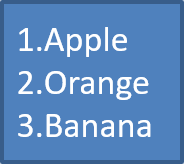
番号付きリストの作成
項目の順序が重要な場合は、番号付きリストを使用します。BulletFormat.setType を BulletType.Numbered に設定します。また、BulletFormat.setNumberedBulletStyle で番号付け形式を選択したり、BulletFormat.setNumberedBulletStartWith を使用してリストの開始番号を 1 以外に設定したりできます。
以下の Python コードは、スライド上に番号付きリストを作成する方法を示しています。
import jpype
import asposeslides

if not jpype.isJVMStarted():
    jpype.startJVM()

from asposeslides.api import BulletType, Paragraph, Presentation, SaveFormat, ShapeType

presentation = Presentation()
try:
    slide = presentation.getSlides().get_Item(0)
    auto_shape = slide.getShapes().addAutoShape(ShapeType.Rectangle, 20, 20, 90, 80)

    text_frame = auto_shape.getTextFrame()
    text_frame.getParagraphs().clear()

    first_paragraph = Paragraph()
    first_paragraph.getParagraphFormat().getBullet().setType(BulletType.Numbered)
    first_paragraph.setText("Apple")
    text_frame.getParagraphs().add(first_paragraph)

    second_paragraph = Paragraph()
    second_paragraph.getParagraphFormat().getBullet().setType(BulletType.Numbered)
    second_paragraph.setText("Orange")
    text_frame.getParagraphs().add(second_paragraph)

    third_paragraph = Paragraph()
    third_paragraph.getParagraphFormat().getBullet().setType(BulletType.Numbered)
    third_paragraph.setText("Banana")
    text_frame.getParagraphs().add(third_paragraph)

    presentation.save("numbered_bullets.pptx", SaveFormat.Pptx)
finally:
    presentation.dispose()
結果:
画像箇条書きの作成
Aspose.Slides を使用すると、通常の箇条書きシンボルを画像に置き換えることができます。画像箇条書きは、アイコンや小さな透過 PNG ファイルなど、小さなサイズでも可読性が保たれるシンプルな画像で最適に機能します。
Note
通常の箇条書きシンボルを画像に置き換える場合は、透明な背景を持つシンプルなグラフィックを選択してください。そのような画像はカスタム箇条書きシンボルとしてうまく機能します。
画像は非常に小さなサイズに縮小されます。そのため、リストの箇条書きとして使用したときに鮮明さと視覚的効果が維持できる画像を選択することを強く推奨します。
画像箇条書きを作成するには、Presentation.getImages に画像を追加し、返された画像オブジェクトを BulletFormat.getPicture に割り当てます。画像を割り当てる前に、BulletFormat.setType を BulletType.Picture に設定してください。
「image.png」という名前の画像があるとします:

以下の Python コードは、スライド上に画像箇条書きを作成する方法を示しています。
import jpype
import asposeslides

if not jpype.isJVMStarted():
    jpype.startJVM()

from asposeslides.api import BulletType, Images, Paragraph, Presentation, SaveFormat, ShapeType

presentation = Presentation()
try:
    slide = presentation.getSlides().get_Item(0)
    auto_shape = slide.getShapes().addAutoShape(ShapeType.Rectangle, 20, 20, 200, 50)

    text_frame = auto_shape.getTextFrame()
    text_frame.getParagraphs().clear()

    image = Images.fromFile("image.png")
    try:
        bullet_image = presentation.getImages().addImage(image)
    finally:
        image.dispose()

    first_paragraph = Paragraph()
    first_paragraph.getParagraphFormat().getBullet().setType(BulletType.Picture)
    first_paragraph.getParagraphFormat().getBullet().getPicture().setImage(bullet_image)
    first_paragraph.getParagraphFormat().setIndent(15)
    first_paragraph.getParagraphFormat().getBullet().setHeight(100)
    first_paragraph.setText("The first paragraph")
    text_frame.getParagraphs().add(first_paragraph)

    second_paragraph = Paragraph()
    second_paragraph.getParagraphFormat().getBullet().setType(BulletType.Picture)
    second_paragraph.getParagraphFormat().getBullet().getPicture().setImage(bullet_image)
    second_paragraph.getParagraphFormat().setIndent(15)
    second_paragraph.getParagraphFormat().getBullet().setHeight(100)
    second_paragraph.setText("The second paragraph")
    text_frame.getParagraphs().add(second_paragraph)

    presentation.save("picture_bullets.pptx", SaveFormat.Pptx)
finally:
    presentation.dispose()
結果:

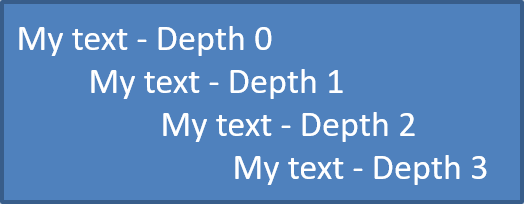
階層リストの作成
ParagraphFormat.setDepth を使用して、リスト項目を異なるレベルに配置します。レベル 0 が最上位、レベル 1 がその下にネストされる、といった具合です。
以下の Python コードは、階層化された箇条書きリストを作成する方法を示しています。
import jpype
import asposeslides

if not jpype.isJVMStarted():
    jpype.startJVM()

from asposeslides.api import Paragraph, Presentation, SaveFormat, ShapeType

presentation = Presentation()
try:
    slide = presentation.getSlides().get_Item(0)
    auto_shape = slide.getShapes().addAutoShape(ShapeType.Rectangle, 20, 20, 260, 110)

    text_frame = auto_shape.getTextFrame()
    text_frame.getParagraphs().clear()

    first_paragraph = Paragraph()
    first_paragraph.getParagraphFormat().setDepth(0)
    first_paragraph.setText("My text - Depth 0")
    text_frame.getParagraphs().add(first_paragraph)

    second_paragraph = Paragraph()
    second_paragraph.getParagraphFormat().setDepth(1)
    second_paragraph.setText("My text - Depth 1")
    text_frame.getParagraphs().add(second_paragraph)

    third_paragraph = Paragraph()
    third_paragraph.getParagraphFormat().setDepth(2)
    third_paragraph.setText("My text - Depth 2")
    text_frame.getParagraphs().add(third_paragraph)

    fourth_paragraph = Paragraph()
    fourth_paragraph.getParagraphFormat().setDepth(3)
    fourth_paragraph.setText("My text - Depth 3")
    text_frame.getParagraphs().add(fourth_paragraph)

    presentation.save("multilevel_bullets.pptx", SaveFormat.Pptx)
finally:
    presentation.dispose()
結果:
既存のリストの変更
既存のプレゼンテーションでリストの書式を変更するには、対象の段落にアクセスし、その ParagraphFormat.getBullet 設定を更新します。リスト作成時に使用したのと同じプロパティを使用して、PPT、PPTX、または ODP ファイルから読み込んだリストを検査または変更できます。
以下の Python コードは、テキストフレーム内の最初の段落を番号付きリストスタイルに変更します。
import jpype
import asposeslides

if not jpype.isJVMStarted():
    jpype.startJVM()

from asposeslides.api import BulletType, NumberedBulletStyle, Presentation, SaveFormat

presentation = Presentation("input.pptx")
try:
    slide = presentation.getSlides().get_Item(0)
    auto_shape = slide.getShapes().get_Item(0)
    paragraph = auto_shape.getTextFrame().getParagraphs().get_Item(0)

    paragraph.getParagraphFormat().getBullet().setType(BulletType.Numbered)
    paragraph.getParagraphFormat().getBullet().setNumberedBulletStyle(NumberedBulletStyle.BulletRomanUCPeriod)
    paragraph.getParagraphFormat().getBullet().setNumberedBulletStartWith(1)
    paragraph.getParagraphFormat().setMarginLeft(30)
    paragraph.getParagraphFormat().setIndent(-20)

    presentation.save("updated_list.pptx", SaveFormat.Pptx)
finally:
    presentation.dispose()
FAQ
箇条書きリストと番号付きリストは PDF や画像にエクスポートできますか?
はい。対象フォーマットが対応するテキストレイアウトと箇条書き機能をサポートしている場合、Aspose.Slides はリスト書式を保持します。
既存のプレゼンテーションでリストを編集できますか?
はい。プレゼンテーションを読み込み、対象の段落にアクセスし、ParagraphFormat.getBullet 設定を検査または更新してからプレゼンテーションを保存します。
リストにラテン文字以外のテキストを含めることはできますか?
はい。リスト項目のテキストは Unicode 文字を含めることができるため、多言語プレゼンテーションでリストを作成できます。使用するフォントが必要な文字をサポートしていることを確認してください。