
Python via Java を使用してプレゼンテーションにシェイプ アニメーションを適用する
概要
効果内の個々の動作を操作したり、モーションパス セグメントを編集したりするには、カスタム アニメーションをご覧ください。
Aspose.Slides for Python via Java は、スライド アニメーションをスライド タイムライン上の効果として表現します。効果には対象シェイプ、アニメーション タイプとサブタイプ、トリガー、タイミング設定、およびサウンドやアフター アニメーション 動作などのオプション プロパティがあります。
タイムラインには 2 種類のシーケンスが含まれます。
- メインシーケンス はスライドが進むと同時に再生されます。
- インタラクティブシーケンス はトリガー シェイプがクリックされたときに開始します。
テキスト ボックス、画像、チャート、表、その他のスライド オブジェクトはすべて Shape から派生するため、ほとんどのスライド コンテンツに対して同じ Sequence.addEffect メソッドを使用します。利用可能な効果は EffectType クラスに一覧されています。
シェイプ アニメーションの追加
アニメーションを追加するには、スライドのメインシーケンスを取得し、対象シェイプ、効果タイプ、サブタイプ、トリガーを指定して Sequence.addEffect を呼び出します。別のシェイプをクリックしたときに開始する効果の場合、そのシェイプをトリガーとするインタラクティブシーケンスを作成します。
次の例は 2 種類のアニメーションを作成し、結果を shape-animations.pptx に保存します。
import jpype
import asposeslides

if not jpype.isJVMStarted():
    jpype.startJVM()

from asposeslides.api import EffectSubtype, EffectTriggerType, EffectType, Presentation, SaveFormat, ShapeType

presentation = Presentation()
try:
    slide = presentation.getSlides().get_Item(0)

    target_shape = slide.getShapes().addAutoShape(ShapeType.RoundCornerRectangle, 120, 100, 320, 80)
    target_shape.addTextFrame("Click to animate this shape")

    main_sequence = slide.getTimeline().getMainSequence()
    entrance_effect = main_sequence.addEffect(target_shape, EffectType.Fade, EffectSubtype.None_, EffectTriggerType.OnClick)
    entrance_effect.getTiming().setDuration(1.5)

    trigger_shape = slide.getShapes().addAutoShape(ShapeType.Bevel, 20, 20, 100, 40)
    trigger_shape.addTextFrame("Move")

    interactive_sequence = slide.getTimeline().getInteractiveSequences().add(trigger_shape)
    interactive_sequence.addEffect(target_shape, EffectType.PathFootball, EffectSubtype.None_, EffectTriggerType.OnClick)

    presentation.save("shape-animations.pptx", SaveFormat.Pptx)
finally:
    presentation.dispose()
トリガーは効果の開始タイミングを制御します。
- EffectTriggerType.OnClick はメインシーケンスではクリックを待ち、インタラクティブシーケンスではトリガー シェイプのクリックを待ちます。
- EffectTriggerType.WithPrevious は直前の効果と同時に開始します。
- EffectTriggerType.AfterPrevious は直前の効果が完了したときに開始します。
画像、チャート、その他のシェイプ タイプをアニメーション化するには、target_shape の代わりに該当オブジェクトを Sequence.addEffect に渡します。チャート固有のグループ化オプションについては、Animated Charts を参照してください。
シェイプ アニメーションの取得
対象シェイプが分かっている場合は、Sequence.getEffectsByShape を使用します。すべての効果を調べるには、メインシーケンスとすべてのインタラクティブシーケンスを列挙します。列挙により、シーケンスにインデックス 0 の効果が必ず存在するという前提を避けられます。
次の例は、メインシーケンスとインタラクティブシーケンスの効果を持つシェイプを作成し、そのシェイプを対象とする効果を取得し、スライド上のすべてのシーケンスを列挙します。
import jpype
import asposeslides

if not jpype.isJVMStarted():
    jpype.startJVM()

from asposeslides.api import EffectSubtype, EffectTriggerType, EffectType, Presentation, ShapeType

def print_sequence(label, sequence):
    print(f"  {label}: {sequence.getCount()} effect(s)")
    for effect in sequence:
        target_shape = effect.getTargetShape()
        target_name = "unknown" if target_shape is None else target_shape.getName()
        type_name = EffectType.getName(EffectType.class_, effect.getType())
        subtype_name = EffectSubtype.getName(EffectSubtype.class_, effect.getSubtype())
        trigger_name = EffectTriggerType.getName(EffectTriggerType.class_, effect.getTiming().getTriggerType())
        effect_description = f"{type_name} {subtype_name}; target: {target_name}; trigger: {trigger_name}"
        print(f"    {effect_description}")


presentation = Presentation()
try:
    slide = presentation.getSlides().get_Item(0)
    target_shape = slide.getShapes().addAutoShape(ShapeType.Rectangle, 120, 100, 320, 80)
    target_shape.addTextFrame("Animated shape")

    main_sequence = slide.getTimeline().getMainSequence()
    main_sequence.addEffect(target_shape, EffectType.Fade, EffectSubtype.None_, EffectTriggerType.OnClick)

    trigger_shape = slide.getShapes().addAutoShape(ShapeType.Bevel, 20, 20, 100, 40)
    trigger_shape.addTextFrame("Move")

    interactive_sequence = slide.getTimeline().getInteractiveSequences().add(trigger_shape)
    interactive_sequence.addEffect(target_shape, EffectType.PathFootball, EffectSubtype.None_, EffectTriggerType.OnClick)

    target_effects = main_sequence.getEffectsByShape(target_shape)
    print(f"The main sequence contains {len(target_effects)} effect(s) for {target_shape.getName()}.")
    print_sequence("Main sequence", main_sequence)

    for interactive_index, sequence in enumerate(slide.getTimeline().getInteractiveSequences(), start=1):
        trigger_shape = sequence.getTriggerShape()
        trigger_name = "unknown" if trigger_shape is None else trigger_shape.getName()
        sequence_label = f"Interactive sequence {interactive_index}, trigger: {trigger_name}"
        print_sequence(sequence_label, sequence)
finally:
    presentation.dispose()
1 つのシェイプだけの効果が必要な場合は、名前、プレースホルダー タイプ、または他の安定したプロパティでシェイプを特定してから、Sequence.getEffectsByShape を呼び出してください。ShapeCollection.get_Item のインデックス 0 が常に目的のオブジェクトであるとは限らない点に注意してください。
継承されたプレースホルダー効果の操作
通常のスライド上のプレースホルダーは、レイアウト スライドおよびマスター スライド上の対応するプレースホルダーからアニメーション 動作を継承できます。Shape.getBasePlaceholder はその親プレースホルダーを返しますが、親が存在しない場合は None を返します。
以下の例のプレゼンテーションでは、フッターは通常スライドで Random Bars、レイアウト スライドで Split、マスター スライドで Fly In の効果を持ちます。
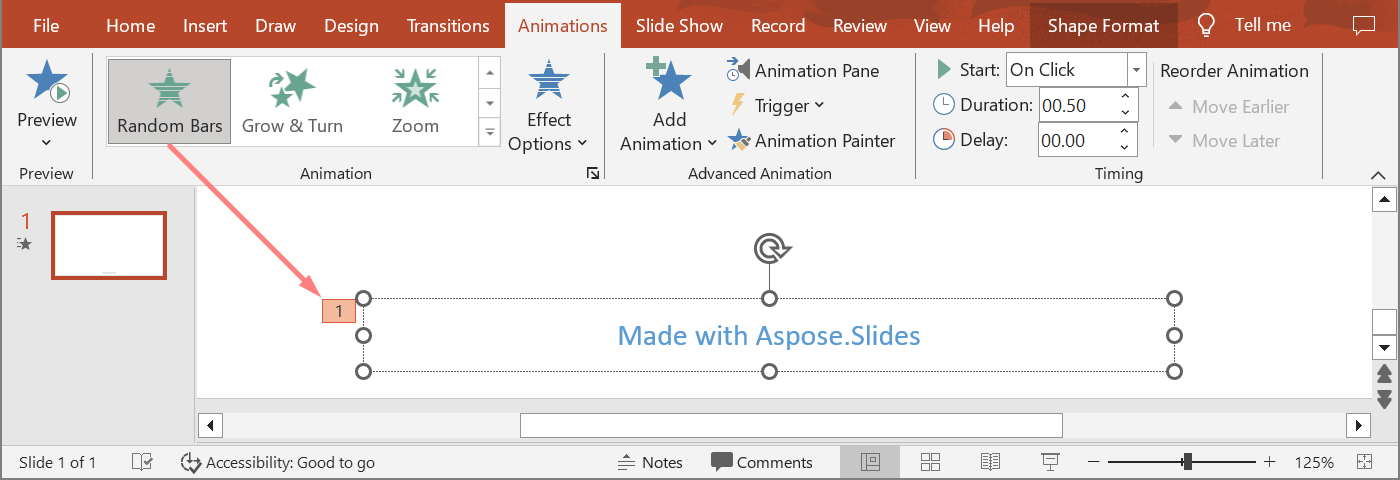
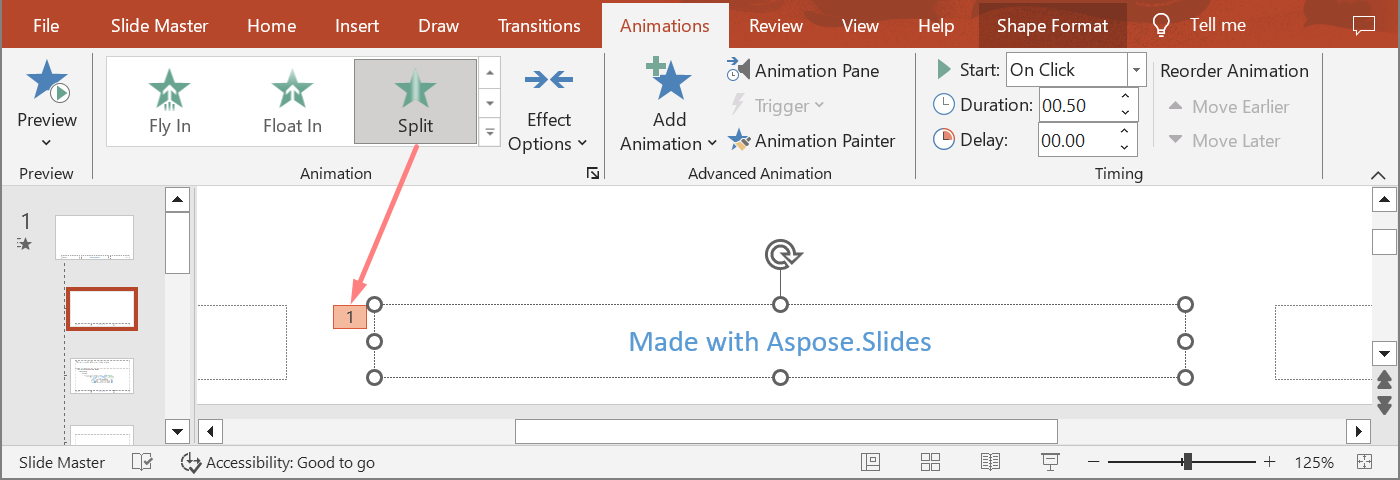
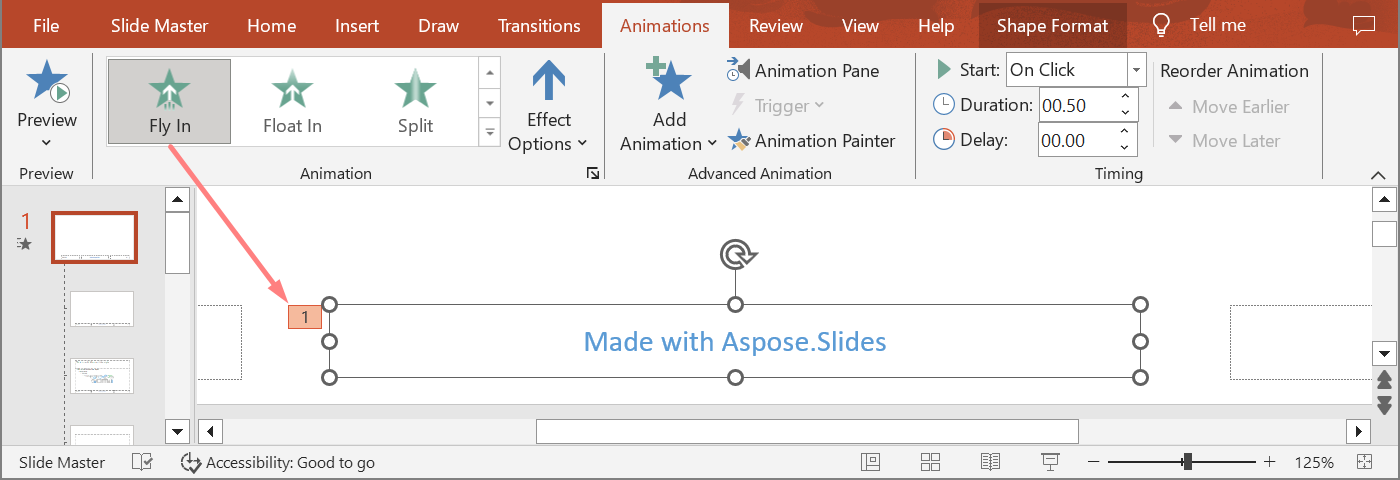
次の例は新規プレゼンテーションのプレースホルダー階層を使用します。マスター プレースホルダー、レイアウト プレースホルダー、および通常スライド上の対応プレースホルダーに効果を追加します。Shape.getBasePlaceholder の呼び出し結果が None でないことを必ず確認してから使用します。
import jpype
import asposeslides

if not jpype.isJVMStarted():
    jpype.startJVM()

from asposeslides.api import EffectSubtype, EffectTriggerType, EffectType, Presentation, SaveFormat, SlideLayoutType

def find_placeholder_with_base(slide, expected_base=None):
    for shape in slide.getShapes():
        base_placeholder = shape.getBasePlaceholder()
        if base_placeholder is not None and (expected_base is None or base_placeholder == expected_base):
            return shape
    return None


def print_effects(source, effects):
    print(f"{source}: {len(effects)} effect(s)")
    for effect in effects:
        type_name = EffectType.getName(EffectType.class_, effect.getType())
        subtype_name = EffectSubtype.getName(EffectSubtype.class_, effect.getSubtype())
        print(f"  {type_name} {subtype_name}")


presentation = Presentation()
try:
    layout_slide = presentation.getLayoutSlides().getByType(SlideLayoutType.TitleAndObject)
    layout_placeholder = find_placeholder_with_base(layout_slide) if layout_slide is not None else None
    if layout_placeholder is None:
        print("The layout slide does not contain a placeholder linked to its master slide.")
    else:
        master_placeholder = layout_placeholder.getBasePlaceholder()
        layout_slide.getMasterSlide().getTimeline().getMainSequence().addEffect(master_placeholder, EffectType.Fly, EffectSubtype.Bottom, EffectTriggerType.OnClick)
        layout_slide.getTimeline().getMainSequence().addEffect(layout_placeholder, EffectType.Split, EffectSubtype.VerticalIn, EffectTriggerType.OnClick)

        slide = presentation.getSlides().addEmptySlide(layout_slide)
        slide_placeholder = find_placeholder_with_base(slide, layout_placeholder)
        if slide_placeholder is None:
            print("The slide does not contain a placeholder linked to its layout slide.")
        else:
            slide.getTimeline().getMainSequence().addEffect(slide_placeholder, EffectType.RandomBars, EffectSubtype.Horizontal, EffectTriggerType.OnClick)
            slide_effects = slide.getTimeline().getMainSequence().getEffectsByShape(slide_placeholder)
            print_effects("Normal slide", slide_effects)

            base_layout_placeholder = slide_placeholder.getBasePlaceholder()
            if base_layout_placeholder is not None:
                layout_effects = layout_slide.getTimeline().getMainSequence().getEffectsByShape(base_layout_placeholder)
                print_effects("Layout slide", layout_effects)

                base_master_placeholder = base_layout_placeholder.getBasePlaceholder()
                if base_master_placeholder is not None:
                    master_effects = layout_slide.getMasterSlide().getTimeline().getMainSequence().getEffectsByShape(base_master_placeholder)
                    print_effects("Master slide", master_effects)

            presentation.save("placeholder-animations.pptx", SaveFormat.Pptx)
finally:
    presentation.dispose()
アニメーションのタイミング変更
PowerPoint の Timing ダイアログは、Timing のプロパティにマッピングされます。
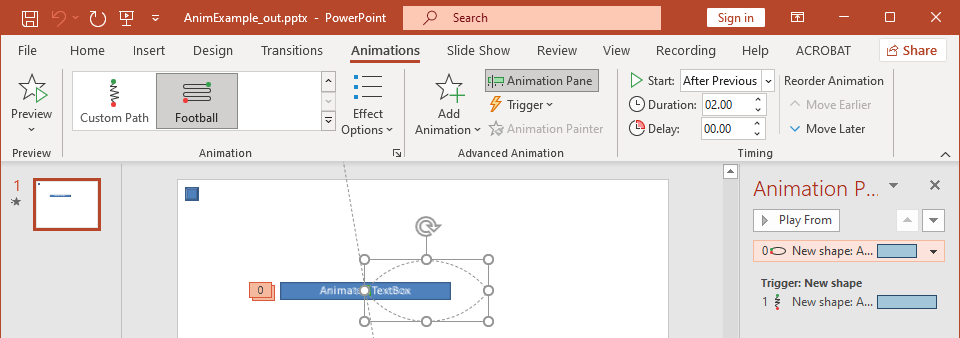
- Start は Timing.getTriggerType に対応します。
- Duration は Timing.getDuration(秒)に対応します。
- Delay は Timing.getTriggerDelayTime(秒)に対応します。
- Repeat は Timing.getRepeatCount、Timing.getRepeatUntilNextClick または Timing.getRepeatUntilEndSlide に対応します。
- Rewind when done playing は Timing.getRewind に対応します。
この独立した例では、効果を追加し、Sequence.addEffect が返すオブジェクトを介してタイミングを変更し、結果を保存します。返された Effect 参照を保持することで不要なコレクション インデックス取得を防ぎます。
import jpype
import asposeslides

if not jpype.isJVMStarted():
    jpype.startJVM()

from asposeslides.api import EffectSubtype, EffectTriggerType, EffectType, Presentation, SaveFormat, ShapeType

presentation = Presentation()
try:
    slide = presentation.getSlides().get_Item(0)
    shape = slide.getShapes().addAutoShape(ShapeType.Rectangle, 120, 100, 320, 80)
    shape.addTextFrame("Timed animation")

    effect = slide.getTimeline().getMainSequence().addEffect(shape, EffectType.Fade, EffectSubtype.None_, EffectTriggerType.OnClick)
    effect.getTiming().setTriggerType(EffectTriggerType.OnClick)
    effect.getTiming().setDuration(2.0)
    effect.getTiming().setTriggerDelayTime(0.5)
    effect.getTiming().setRepeatUntilNextClick(False)
    effect.getTiming().setRepeatUntilEndSlide(False)
    effect.getTiming().setRepeatCount(2.0)
    effect.getTiming().setRewind(True)

    presentation.save("shape-animation-timing.pptx", SaveFormat.Pptx)
finally:
    presentation.dispose()
繰り返しモードは 1 つだけ使用してください。繰り返し回数と「until」フラグを組み合わせると、ビューアによって結果が混乱する可能性があります。繰り返しモードを変更する際は、Timing.setRepeatUntilNextClick と Timing.setRepeatUntilEndSlide を先に呼び出し、最後に Timing.setRepeatCount を設定してください。フラグを設定するとアクティブな繰り返しモードが変更されます。
アニメーション サウンドの追加と抽出
アニメーション 効果は Effect.getSound を介して埋め込みオーディオを参照できます。Effect.setStopPreviousSound は、以前の効果で開始されたオーディオを停止するよう指示します。
効果にサウンドを追加
次の例はローカルのオーディオ ファイル animation-sound.wav が存在することを前提としています。2 つの効果を作成し、最初の効果のサウンドとしてそのファイルを埋め込み、2 番目の効果でサウンドを停止するよう設定します。オブジェクトは Sequence.addEffect が返すものを使用するため、シーケンス インデックスは不要です。
import jpype
import asposeslides

if not jpype.isJVMStarted():
    jpype.startJVM()

from asposeslides.api import EffectSubtype, EffectTriggerType, EffectType, Presentation, SaveFormat, ShapeType
from pathlib import Path

presentation = Presentation()
try:
    slide = presentation.getSlides().get_Item(0)
    first_shape = slide.getShapes().addAutoShape(ShapeType.Rectangle, 80, 100, 240, 80)
    second_shape = slide.getShapes().addAutoShape(ShapeType.Rectangle, 400, 100, 240, 80)
    first_shape.addTextFrame("Starts sound")
    second_shape.addTextFrame("Stops sound")

    sequence = slide.getTimeline().getMainSequence()
    first_effect = sequence.addEffect(first_shape, EffectType.Fade, EffectSubtype.None_, EffectTriggerType.OnClick)
    second_effect = sequence.addEffect(second_shape, EffectType.Fade, EffectSubtype.None_, EffectTriggerType.OnClick)

    audio_data = Path("animation-sound.wav").read_bytes()
    effect_sound = presentation.getAudios().addAudio(jpype.JArray(jpype.JByte)(audio_data))
    first_effect.setSound(effect_sound)
    second_effect.setStopPreviousSound(True)

    presentation.save("shape-animation-sound.pptx", SaveFormat.Pptx)
finally:
    presentation.dispose()
埋め込み効果サウンドの抽出
次の例はローカルのプレゼンテーション presentation-with-animation-sounds.pptx が存在することを前提としています。メインシーケンスとインタラクティブシーケンスの両方を走査し、埋め込み効果サウンドをすべて extracted-animation-sounds ディレクトリに書き出します。拡張子は Audio.getContentType が返すオーディオ MIME タイプから決定します。
import jpype
import asposeslides

if not jpype.isJVMStarted():
    jpype.startJVM()

from asposeslides.api import Presentation
from pathlib import Path

def get_audio_extension(content_type):
    normalized_type = "" if content_type is None else str(content_type).lower()
    if normalized_type == "audio/mpeg":
        return ".mp3"
    if normalized_type == "audio/mp4":
        return ".m4a"
    if normalized_type == "audio/ogg":
        return ".ogg"
    if normalized_type in ("audio/wav", "audio/x-wav"):
        return ".wav"
    return ".bin"


def save_sounds(sequence, output_directory, sound_index):
    for effect in sequence:
        sound = effect.getSound()
        if sound is None:
            continue
        extension = get_audio_extension(sound.getContentType())
        output_path = output_directory / f"effect-sound-{sound_index}{extension}"
        audio_data = bytes(sound.getBinaryData())
        output_path.write_bytes(audio_data)
        sound_index += 1
    return sound_index


input_path = Path("presentation-with-animation-sounds.pptx")
output_directory = Path("extracted-animation-sounds")
output_directory.mkdir(parents=True, exist_ok=True)

presentation = Presentation(str(input_path))
try:
    sound_index = 1
    for slide in presentation.getSlides():
        sound_index = save_sounds(slide.getTimeline().getMainSequence(), output_directory, sound_index)
        for sequence in slide.getTimeline().getInteractiveSequences():
            sound_index = save_sounds(sequence, output_directory, sound_index)
    print(f"Extracted {sound_index - 1} sound file(s) to {output_directory.resolve()}.")
finally:
    presentation.dispose()
大容量のオーディオ オブジェクトの場合は、Audio.getStream を使用してストリームをファイルにコピーし、全体をバイト配列として読み込むのを避けてください。
アフター アニメーション動作の設定
After animation オプションは、効果が終了した後にシェイプがどうなるかを制御します。
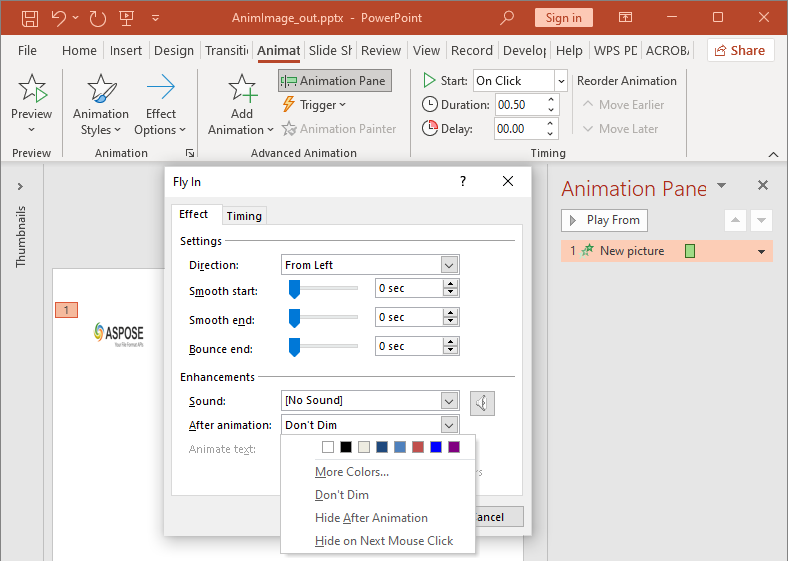
AfterAnimationType クラスは、シェイプをそのままにする、色を変える、アニメーション後に非表示にする、次のクリックで非表示にする、のいずれかをサポートします。タイプが AfterAnimationType.Color の場合は、Effect.getAfterAnimationColor も設定してください。
この独立した例では、効果を作成し、返された Effect オブジェクトを介してアフター アニメーション 動作を設定し、結果を保存します。
import jpype
import asposeslides

if not jpype.isJVMStarted():
    jpype.startJVM()

from asposeslides.api import AfterAnimationType, EffectSubtype, EffectTriggerType, EffectType, Presentation, SaveFormat, ShapeType
from java.awt import Color

presentation = Presentation()
try:
    slide = presentation.getSlides().get_Item(0)
    shape = slide.getShapes().addAutoShape(ShapeType.Rectangle, 120, 100, 320, 80)
    shape.addTextFrame("Dim after animation")

    effect = slide.getTimeline().getMainSequence().addEffect(shape, EffectType.Fade, EffectSubtype.None_, EffectTriggerType.OnClick)
    effect.setAfterAnimationType(AfterAnimationType.Color)
    effect.getAfterAnimationColor().setColor(Color.LIGHT_GRAY)

    presentation.save("shape-animation-after-effect.pptx", SaveFormat.Pptx)
finally:
    presentation.dispose()
AfterAnimationType.Color 以外のタイプに変更すると、アフター アニメーションの色設定はクリアされます。
テキストのアニメーション
テキスト アニメーションには 2 つの関連コントロールがあります。
- TextAnimation.getBuildType は段落全体で表示するか段落単位で表示するかを制御します。
- Effect.getAnimateTextType はテキストを一度に、単語単位、または文字単位で表示するかを制御します。Effect.getDelayBetweenTextParts は単語または文字間の遅延を設定します。正の値は効果時間のパーセンテージ、負の値は秒単位の遅延です。
次の独立した例はテキスト ボックス内の単語をアニメーション化します。BuildType.AsOneObject を使用すると段落単位のビルドが無効になり、単語設定がテキスト フレーム全体に適用されます。
import jpype
import asposeslides

if not jpype.isJVMStarted():
    jpype.startJVM()

from asposeslides.api import AnimateTextType, BuildType, EffectSubtype, EffectTriggerType, EffectType, Presentation, SaveFormat, ShapeType

presentation = Presentation()
try:
    slide = presentation.getSlides().get_Item(0)
    text_box = slide.getShapes().addAutoShape(ShapeType.Rectangle, 80, 80, 560, 100)
    text_box.addTextFrame("Aspose.Slides animates this sentence word by word.")

    effect = slide.getTimeline().getMainSequence().addEffect(text_box, EffectType.Fade, EffectSubtype.None_, EffectTriggerType.OnClick)
    effect.getTextAnimation().setBuildType(BuildType.AsOneObject)
    effect.setAnimateTextType(AnimateTextType.ByWord)
    effect.setDelayBetweenTextParts(20.0)

    presentation.save("animated-text.pptx", SaveFormat.Pptx)
finally:
    presentation.dispose()
段落単位でテキスト ボックスをビルドするには、BuildType.ByLevelParagraphs1(または他の段落レベル)を設定します。単一段落に個別の効果を付与したい場合は、Paragraph を受け取るオーバーロードの Sequence.addEffect を使用してください。段落レベルの例は Animated Text を参照してください。
エクスポートと互換性に関する注意事項
- PPT または PPTX への保存はアニメーション モデルを保持しますが、最終的な再生はプレゼンテーション ビューアが制御します。
- PDF および静止画像はアニメーションを再生しません。モーションを示す必要がある場合は、HTML5 エクスポート、アニメーション GIF、または ビデオ変換 を使用してください。
- HTML5 では Html5Options.setAnimateShapes を有効にし、必要に応じて Html5Options.setAnimateTransitions も設定してください。
- ビデオ レンダリングは多くの一般的な入口、強調、終了、モーション パス効果をサポートしますが、すべての PowerPoint 効果がサポートされているわけではありません。現在の サポートされているアニメーションと効果 を確認し、対象の Aspose.Slides バージョンで重要なプレゼンテーションをテストしてください。
- 高度なカスタム効果や他のプレゼンテーション形式からインポートされた効果はファイルに保持される場合がありますが、PowerPoint、HTML5、ビデオでのレンダリングは異なる場合があります。効果名だけに依存せず、エクスポート結果を必ず検証してください。
FAQ
なぜアニメーションは PowerPoint では表示されるのに PDF では表示されないのですか?
PDF は静的形式であるため、アニメーションやスライド遷移は再生されません。モーションを保持する必要がある場合は、HTML5、アニメーション GIF、またはビデオにエクスポートしてください。
なぜビデオで効果の再生が異なるのですか?
ビデオ エクスポートはアニメーション をレンダリングして保存するため、元の PowerPoint の動作がすべて保持されるわけではありません。いくつかの高度な効果は未サポートまたは近似されます。サポートされている効果表を確認し、実際のプレゼンテーションをテストしてから本番で使用してください。
シェイプを前面または背面に移動するとアニメーションの順序が変わりますか?
変更されません。シェイプの Z オーダーは重なり順を制御し、シーケンス順序とトリガーがアニメーションの再生順序を制御します。再生順序を変える必要がある場合は、タイムラインを変更してください。