
Manage Presentation Accessibility in .NET
Introduction
Alternative text helps people using assistive technologies understand the meaning of images, charts, and other informative shapes. This article explains how to read and update alternative text titles and descriptions with Aspose.Slides for .NET, distinguish accessibility descriptions from shape names used in code, and check whether a shape is marked as decorative.
These features support presentation accessibility, but do not guarantee it. Reading order, color contrast, text readability, and other accessibility requirements also need review.
Manage Alternative Text Titles and Descriptions
Use alternative text to explain the meaning of images, charts, and other informative shapes to people who cannot see them. The following properties serve different purposes:
| Property or content | Purpose |
|---|---|
| AlternativeTextTitle | A short title for the alternative description. |
| AlternativeText | A meaningful description of the shape’s content or purpose in the context of the slide. |
| Name | The shape’s name, which code can use to find a specific shape in the presentation. |
| Visible text | Content displayed on the slide, such as a shape’s text or a chart’s title and labels. Updating alternative text does not change this content. |
When a presentation is reused as a template, code may find a shape by its Name before updating it. This name serves a different purpose from alternative text, which explains what the visual communicates to the reader. Searching by name allows authors to improve or translate descriptions without changing how code finds the shape. Names can be edited and are not guaranteed to be unique, so check that the name matches the intended shape; see Identify and Find Shapes.
The following example requires input.pptx with an image of an office entrance as the first shape on the first slide. The image should not be marked as decorative. The example reads and prints its current alternative text title and description, updates both values, and saves the presentation as output.pptx. Adapt the wording to the actual image and the information it conveys.
using System;
using Aspose.Slides;
using Aspose.Slides.Export;

using var presentation = new Presentation("input.pptx");
var shape = presentation.Slides[0].Shapes[0];

Console.WriteLine($"Alternative text title: {shape.AlternativeTextTitle}");
Console.WriteLine($"Alternative text description: {shape.AlternativeText}");

shape.AlternativeTextTitle = "Office entrance";
shape.AlternativeText = "The office entrance has a wheelchair ramp to the right of the steps.";

presentation.Save("output.pptx", SaveFormat.Pptx);
Adding alternative text alone does not guarantee presentation accessibility or compliance with accessibility standards. Review the descriptions for accuracy and relevance, and also check reading order, color contrast, readable text, and other accessibility requirements. Informative visuals should not be marked as decorative; the next section shows how to read IsDecorative.
Mark as Decorative
Mark as decorative flags purely ornamental visuals so screen readers skip them, reducing noise and keeping focus on meaningful content. Apply it to backgrounds, flourishes, and spacers—never to charts, icons, or images that convey information. Aspose.Slides exposes this flag for detection and validation, enabling automated accessibility checks and cleanup.
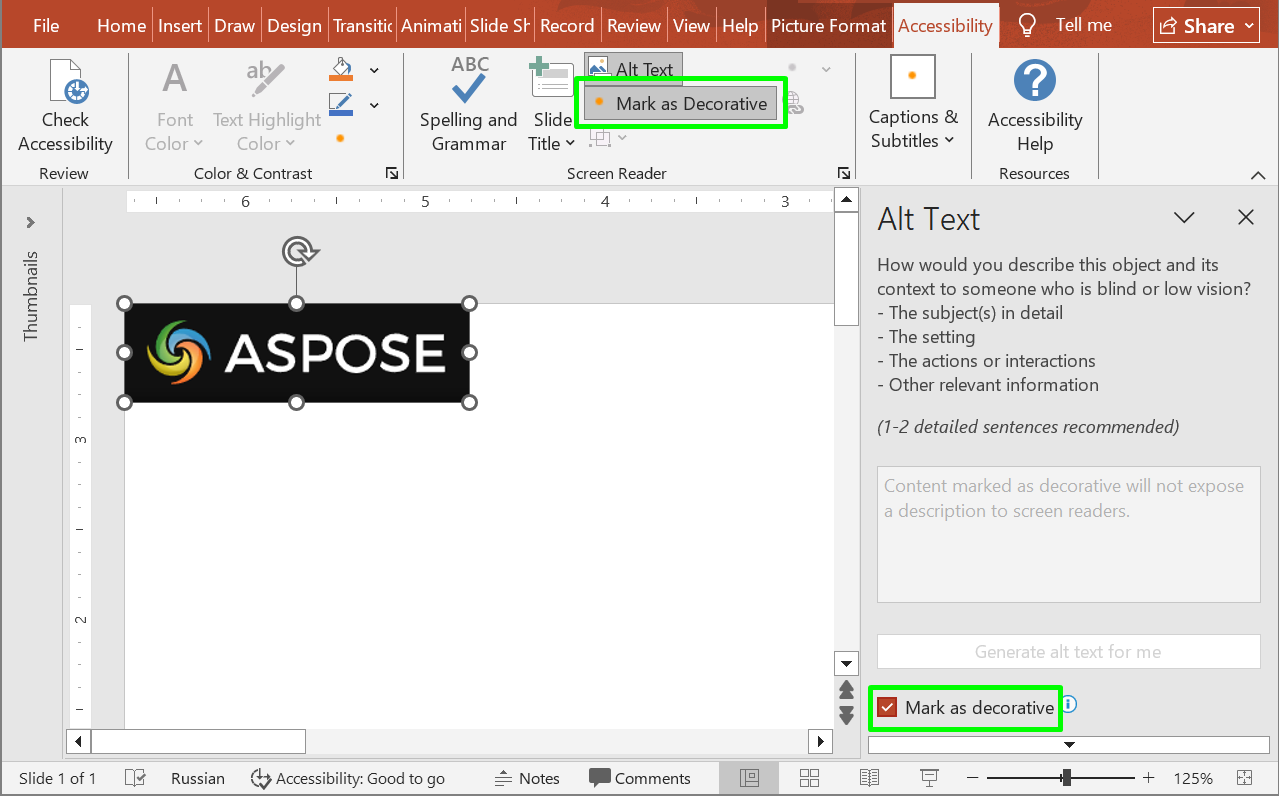
The following code sample shows how to determine whether a shape is marked as decorative.
using Aspose.Slides;

using var presentation = new Presentation("sample.pptx");

var shape = presentation.Slides[0].Shapes[0];
Console.WriteLine($"Is shape decorative: {shape.IsDecorative}");
FAQ
What should I put in the alternative text title and description?
Use a short title to identify the subject and a description to explain the information the visual conveys in the context of the slide. For a chart, describe the relevant trend or comparison rather than only saying “chart.”
Should I use alternative text to locate shapes in a template?
Prefer finding the shape by its Name and checking that it is the expected shape. Alternative text may be edited or translated, which can break code that searches for an exact description; see Identify and Find Shapes.
When should a shape be marked as decorative?
Use the decorative flag for visuals that add no information, such as ornamental flourishes. Images and charts that communicate meaning need an appropriate description instead.
Does adding alternative text make a presentation fully accessible?
No. Alternative text addresses only part of accessibility. Also review reading order, color contrast, text readability, and other applicable requirements; setting these properties alone does not establish compliance.