
ยกระดับการนำเสนอของคุณด้วย AutoFit ใน Python
บทนำ
โดยค่าเริ่มต้นเมื่อคุณเพิ่มกล่องข้อความ Microsoft PowerPoint จะใช้การตั้งค่า Resize shape to fix text สำหรับกล่องข้อความ—โดยอัตโนมัติจะปรับขนาดของกล่องข้อความเพื่อให้ข้อความพอดีเสมอ
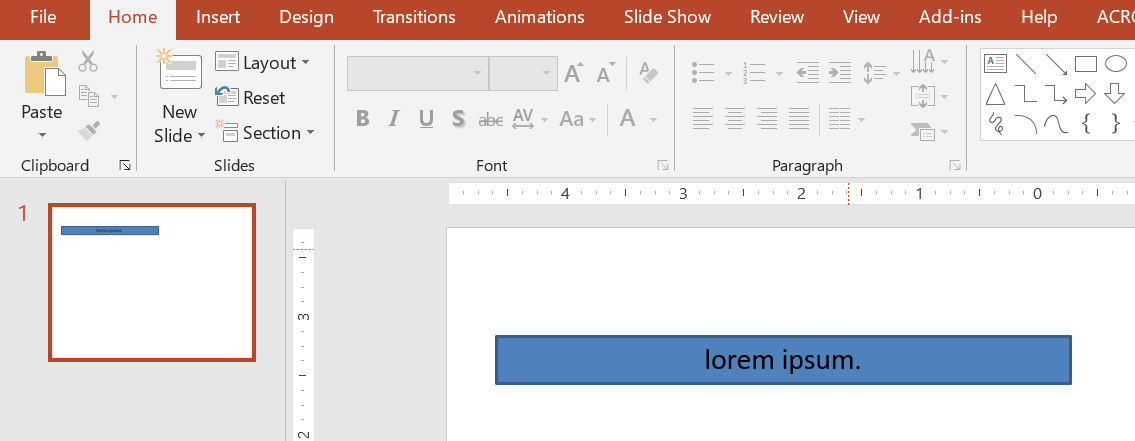
- เมื่อข้อความในกล่องข้อความยาวขึ้นหรือใหญ่ขึ้น PowerPoint จะขยายกล่องข้อความโดยอัตโนมัติ—เพิ่มความสูง—เพื่อให้สามารถบรรจุข้อความได้มากขึ้น
- เมื่อข้อความในกล่องข้อความสั้นลงหรือเล็กลง PowerPoint จะลดขนาดของกล่องข้อความโดยอัตโนมัติ—ลดความสูง—เพื่อกำจัดพื้นที่ที่ไม่จำเป็น
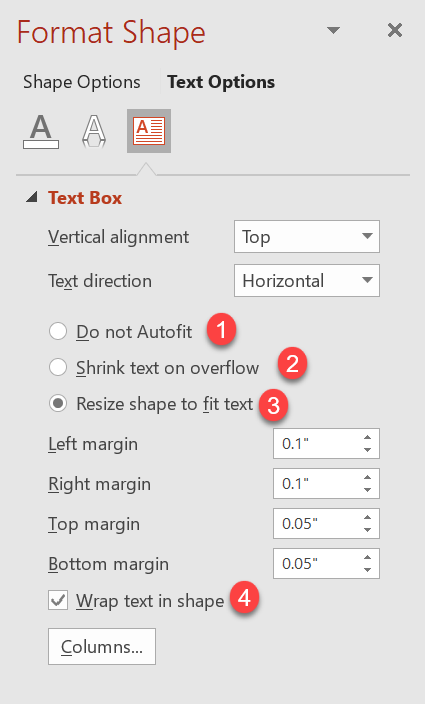
ใน PowerPoint มีพารามิเตอร์หรือ ตัวเลือกสำคัญ 4 อย่างที่ควบคุมพฤติกรรม autofit สำหรับกล่องข้อความ:
- Do not Autofit
- Shrink text on overflow
- Resize shape to fit text
- Wrap text in shape.
Aspose.Slides for Python via .NET มีตัวเลือกที่คล้ายกัน—บางคุณสมบัติภายใต้คลาส TextFrameFormat—ที่ช่วยให้คุณควบคุมพฤติกรรม AutoFit สำหรับกล่องข้อความในงานนำเสนอ
ปรับขนาดรูปร่างให้พอดีกับข้อความ
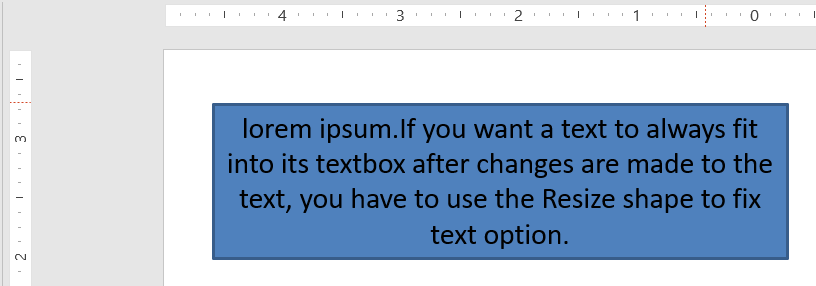
หากคุณต้องการให้ข้อความในกล่องพอดีกับกล่องเสมอหลังจากที่มีการแก้ไขข้อความ คุณต้องใช้ตัวเลือก Resize shape to fix text เพื่อระบุการตั้งค่านี้ให้ตั้งค่าคุณสมบัติ autofit_type จากคลาส TextFrameFormat เป็น SHAPE
โค้ด Python นี้แสดงวิธีระบุให้ข้อความต้องพอดีกับกล่องในงานนำเสนอ PowerPoint:
import aspose.slides as slides
import aspose.pydrawing as draw

with slides.Presentation() as presentation:
    slide = presentation.slides[0]
    auto_shape = slide.shapes.add_auto_shape(slides.ShapeType.RECTANGLE, 30, 30, 350, 100)

    portion = slides.Portion("lorem ipsum...")
    portion.portion_format.fill_format.solid_fill_color.color = draw.Color.black
    portion.portion_format.fill_format.fill_type = slides.FillType.SOLID
    auto_shape.text_frame.paragraphs[0].portions.add(portion)

    text_frame_format = auto_shape.text_frame.text_frame_format
    text_frame_format.autofit_type = slides.TextAutofitType.SHAPE

    presentation.save("output.pptx", slides.export.SaveFormat.PPTX)
หากข้อความยาวขึ้นหรือใหญ่ขึ้น กล่องข้อความจะถูกปรับขนาดโดยอัตโนมัติ (เพิ่มความสูง) เพื่อให้ข้อความทั้งหมดพอดี หากข้อความสั้นลงก็จะเกิดการกลับกัน
ไม่ทำ AutoFit
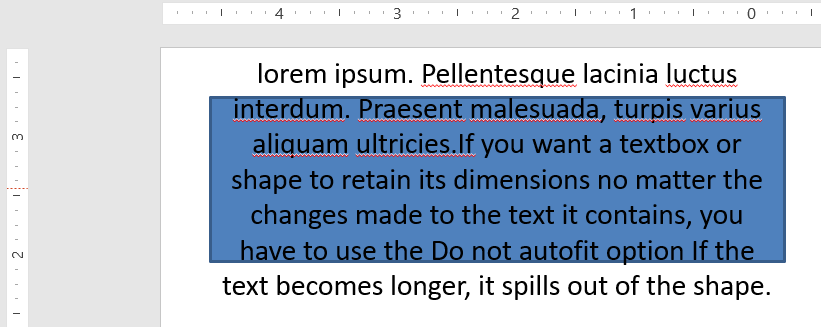
หากคุณต้องการให้กล่องข้อความหรือรูปร่างรักษาขนาดไว้โดยไม่ว่าข้อความจะเปลี่ยนแปลงอย่างไร คุณต้องใช้ตัวเลือก Do not Autofit เพื่อระบุการตั้งค่านี้ให้ตั้งค่าคุณสมบัติ autofit_type จากคลาส TextFrameFormat เป็น NONE
โค้ด Python นี้แสดงวิธีระบุให้กล่องข้อความคงขนาดไว้ในงานนำเสนอ PowerPoint:
import aspose.slides as slides
import aspose.pydrawing as draw

with slides.Presentation() as presentation:
    slide = presentation.slides[0]
    auto_shape = slide.shapes.add_auto_shape(slides.ShapeType.RECTANGLE, 30, 30, 350, 100)

    portion = slides.Portion("lorem ipsum...")
    portion.portion_format.fill_format.solid_fill_color.color = draw.Color.black
    portion.portion_format.fill_format.fill_type = slides.FillType.SOLID
    auto_shape.text_frame.paragraphs[0].portions.add(portion)

    text_frame_format = auto_shape.text_frame.text_frame_format
    text_frame_format.autofit_type = slides.TextAutofitType.NONE

    presentation.save("output.pptx", slides.export.SaveFormat.PPTX)
เมื่อข้อความยาวเกินกว่ากล่อง มันจะล้นออกมานอกกล่อง
ย่อข้อความเมื่อเกินขนาด
หากข้อความยาวเกินกว่ากล่อง คุณสามารถใช้ตัวเลือก Shrink text on overflow เพื่อระบุให้ขนาดและระยะห่างของข้อความลดลงเพื่อให้พอดีกับกล่องได้ โดยตั้งค่าคุณสมบัติ autofit_type จากคลาส TextFrameFormat เป็น NORMAL
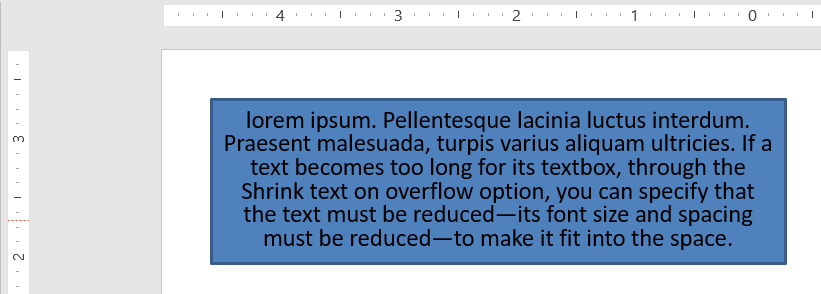
โค้ด Python นี้แสดงวิธีระบุให้ข้อความย่อเมื่อเกินขนาดในงานนำเสนอ PowerPoint:
import aspose.slides as slides
import aspose.pydrawing as draw

with slides.Presentation() as presentation:
    slide = presentation.slides[0]
    auto_shape = slide.shapes.add_auto_shape(slides.ShapeType.RECTANGLE, 30, 30, 350, 100)

    portion = slides.Portion("lorem ipsum...")
    portion.portion_format.fill_format.solid_fill_color.color = draw.Color.black
    portion.portion_format.fill_format.fill_type = slides.FillType.SOLID
    auto_shape.text_frame.paragraphs[0].portions.add(portion)

    text_frame_format = auto_shape.text_frame.text_frame_format
    text_frame_format.autofit_type = slides.TextAutofitType.NORMAL

    presentation.save("output.pptx", slides.export.SaveFormat.PPTX)
Info
เมื่อใช้ตัวเลือก Shrink text on overflow การตั้งค่านี้จะถูกนำไปใช้เฉพาะเมื่อข้อความยาวเกินขนาดของกล่องเท่านั้นห่อข้อความในรูปร่าง
หากคุณต้องการให้ข้อความในรูปร่างถูกห่อภายในรูปร่างเมื่อข้อความเกินขอบของรูปร่าง (เฉพาะความกว้าง) คุณต้องใช้พารามิเตอร์ Wrap text in shape เพื่อระบุตั้งค่านี้ให้ตั้งค่าคุณสมบัติ wrap_text จากคลาส TextFrameFormat เป็น NullableBool.TRUE
โค้ด Python นี้แสดงวิธีใช้การตั้งค่า Wrap Text ในงานนำเสนอ PowerPoint:
import aspose.slides as slides
import aspose.pydrawing as draw

with slides.Presentation() as presentation:
    slide = presentation.slides[0]
    auto_shape = slide.shapes.add_auto_shape(slides.ShapeType.RECTANGLE, 30, 30, 350, 100)

    portion = slides.Portion("lorem ipsum...")
    portion.portion_format.fill_format.solid_fill_color.color = draw.Color.black
    portion.portion_format.fill_format.fill_type = slides.FillType.SOLID
    auto_shape.text_frame.paragraphs[0].portions.add(portion)

    text_frame_format = auto_shape.text_frame.text_frame_format
    text_frame_format.autofit_type = slides.TextAutofitType.NONE
    text_frame_format.wrap_text = slides.NullableBool.TRUE

    presentation.save("output.pptx", slides.export.SaveFormat.PPTX)
Note
หากคุณตั้งค่าคุณสมบัติwrap_text เป็น NullableBool.FALSE สำหรับรูปร่างหนึ่ง เมื่อข้อความภายในรูปร่างยาวเกินความกว้างของรูปร่าง ข้อความจะลอยออกไปนอกขอบของรูปร่างในบรรทัดเดียว
FAQ
ขอบภายในของ Text Frame มีผลต่อ AutoFit หรือไม่?
ใช่. Padding (ขอบภายใน) ลดพื้นที่ใช้ได้สำหรับข้อความ ทำให้ AutoFit ทำงานเร็วขึ้น—โดยการย่อขนาดฟอนต์หรือปรับขนาดรูปร่างเร็วขึ้น ควรตรวจสอบและปรับขอบก่อนที่จะปรับแต่ง AutoFit
AutoFit ทำงานอย่างไรกับการขึ้นบรรทัดด้วยตนเองและการขึ้นบรรทัดแบบอ่อน?
การขึ้นบรรทัดที่บังคับไว้จะคงอยู่ และ AutoFit จะปรับขนาดฟอนต์และระยะห่างรอบๆ การขึ้นบรรทัดเหล่านั้น การลบการขึ้นบรรทัดที่ไม่จำเป็นมักจะลดความเข้มของการย่อข้อความโดย AutoFit
การเปลี่ยนฟอนต์ของธีมหรือการทำให้ฟอนต์ถูกแทนที่มีผลต่อผลลัพธ์ของ AutoFit หรือไม่?
ใช่. การเปลี่ยนเป็นฟอนต์ที่มีเมตริกของ glyph ต่างกันจะทำให้ความกว้าง/ความสูงของข้อความเปลี่ยนแปลง ซึ่งอาจทำให้ขนาดฟอนต์สุดท้ายและการตัดบรรทัดเปลี่ยนไป หลังจากการเปลี่ยนฟอนต์หรือการแทนที่ฟอนต์ใดๆ ควรตรวจสอบสไลด์อีกครั้ง.