
Spravovat odrážkové a číslované seznamy v prezentacích na Androidu
Přehled
Aspose.Slides for Android via Java vám umožňuje vytvářet a formátovat odrážkové i číslované seznamy v prezentacích PowerPoint a OpenDocument. Položka seznamu je odstavec, jehož nastavení odrážek je řízeno pomocí formátu odstavce.
Použijte metodu IParagraph.getParagraphFormat k přístupu k nastavením seznamu na úrovni odstavce. Hlavním vstupním bodem je IParagraphFormat.getBullet, který vrací objekt IBulletFormat. S tímto objektem můžete nastavit typ odrážky, symbol, obrázek, barvu, velikost, styl číslování a počáteční číslo.
Tento článek ukazuje, jak:
- vytvořit odrážkový seznam s vlastním symbolem
- vytvořit obrázkovou odrážku
- vytvořit vícestupňový seznam nastavením hloubky odstavce
- vytvořit číslovaný seznam
- prozkoumat a změnit formátování seznamu v existující prezentaci
Vytvořit odrážkový seznam
Pro vytvoření odrážkového seznamu přidejte odstavce do ITextFrame a nastavte IBulletFormat.setType na BulletType.Symbol. Poté můžete nastavit IBulletFormat.setChar, IBulletFormat.getColor a IBulletFormat.setHeight pro ovládání vzhledu odrážky.
Následující kód v jazyce Java ukazuje, jak vytvořit odrážkový seznam na snímku:
Presentation presentation = new Presentation();
try {
    ISlide slide = presentation.getSlides().get_Item(0);
    IAutoShape autoShape = slide.getShapes().addAutoShape(ShapeType.Rectangle, 20, 20, 200, 50);

    ITextFrame textFrame = autoShape.getTextFrame();
    textFrame.getParagraphs().clear();

    Paragraph paragraph1 = new Paragraph();
    paragraph1.getParagraphFormat().getBullet().setType(BulletType.Symbol);
    paragraph1.getParagraphFormat().getBullet().setChar('*');
    paragraph1.getParagraphFormat().setIndent(15);
    paragraph1.getParagraphFormat().getBullet().setBulletHardColor(NullableBool.True);
    paragraph1.getParagraphFormat().getBullet().getColor().setColor(Color.RED);
    paragraph1.getParagraphFormat().getBullet().setHeight(100);
    paragraph1.setText("The first paragraph");
    textFrame.getParagraphs().add(paragraph1);

    Paragraph paragraph2 = new Paragraph();
    paragraph2.getParagraphFormat().getBullet().setType(BulletType.Symbol);
    paragraph2.getParagraphFormat().getBullet().setChar('*');
    paragraph2.getParagraphFormat().setIndent(15);
    paragraph2.getParagraphFormat().getBullet().setBulletHardColor(NullableBool.True);
    paragraph2.getParagraphFormat().getBullet().getColor().setColor(Color.RED);
    paragraph2.getParagraphFormat().getBullet().setHeight(100);
    paragraph2.setText("The second paragraph");
    textFrame.getParagraphs().add(paragraph2);

    presentation.save("symbol_bullets.pptx", SaveFormat.Pptx);
} finally {
    presentation.dispose();
}
Výsledek:

Vytvořit číslovaný seznam
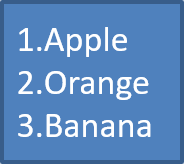
Používejte číslované seznamy, když je důležité pořadí položek. Nastavte IBulletFormat.setType na BulletType.Numbered. Můžete také zvolit formát číslování pomocí IBulletFormat.setNumberedBulletStyle nebo nastavit IBulletFormat.setNumberedBulletStartWith, pokud má seznam začít od hodnoty jiného než 1.
Následující kód v jazyce Java ukazuje, jak vytvořit číslovaný seznam na snímku:
Presentation presentation = new Presentation();
try {
    ISlide slide = presentation.getSlides().get_Item(0);
    IAutoShape autoShape = slide.getShapes().addAutoShape(ShapeType.Rectangle, 20, 20, 90, 80);

    ITextFrame textFrame = autoShape.getTextFrame();
    textFrame.getParagraphs().clear();

    Paragraph paragraph1 = new Paragraph();
    paragraph1.getParagraphFormat().getBullet().setType(BulletType.Numbered);
    paragraph1.setText("Apple");
    textFrame.getParagraphs().add(paragraph1);

    Paragraph paragraph2 = new Paragraph();
    paragraph2.getParagraphFormat().getBullet().setType(BulletType.Numbered);
    paragraph2.setText("Orange");
    textFrame.getParagraphs().add(paragraph2);

    Paragraph paragraph3 = new Paragraph();
    paragraph3.getParagraphFormat().getBullet().setType(BulletType.Numbered);
    paragraph3.setText("Banana");
    textFrame.getParagraphs().add(paragraph3);

    presentation.save("numbered_bullets.pptx", SaveFormat.Pptx);
} finally {
    presentation.dispose();
}
Výsledek:
Vytvořit obrázkovou odrážku
Aspose.Slides vám umožňuje nahradit běžný symbol odrážky obrázkem. Obrázkové odrážky fungují nejlépe s jednoduchými obrázky, které zůstávají čitelné i při malé velikosti, například ikony nebo malé průhledné soubory PNG.
Ideálně, pokud plánujete nahradit běžný symbol odrážky obrázkem, je nejlepší zvolit jednoduchou grafiku s průhledným pozadím. Takové obrázky dobře fungují jako vlastní symboly odrážek.
Mějte na paměti, že obrázek bude zmenšen na velmi malou velikost. Z tohoto důvodu důrazně doporučujeme vybrat obrázek, který zůstane jasný a vizuálně efektivní, když je použit jako odrážka v seznamu.
Pro vytvoření obrázkové odrážky přidejte obrázek pomocí Presentation.getImages a přiřaďte vrácený objekt IPPImage k IBulletFormat.getPicture. Před přiřazením obrázku nastavte IBulletFormat.setType na BulletType.Picture.
Řekněme, že máme soubor “image.png”:

Následující kód v jazyce Java ukazuje, jak vytvořit obrázkové odrážky na snímku:
Presentation presentation = new Presentation();
try {
    ISlide slide = presentation.getSlides().get_Item(0);
    IAutoShape autoShape = slide.getShapes().addAutoShape(ShapeType.Rectangle, 20, 20, 200, 50);

    ITextFrame textFrame = autoShape.getTextFrame();
    textFrame.getParagraphs().clear();

    IPPImage bulletImage = presentation.getImages().addImage(Images.fromFile("image.png"));

    Paragraph paragraph1 = new Paragraph();
    paragraph1.getParagraphFormat().getBullet().setType(BulletType.Picture);
    paragraph1.getParagraphFormat().getBullet().getPicture().setImage(bulletImage);
    paragraph1.getParagraphFormat().setIndent(15);
    paragraph1.getParagraphFormat().getBullet().setHeight(100);
    paragraph1.setText("The first paragraph");
    textFrame.getParagraphs().add(paragraph1);

    Paragraph paragraph2 = new Paragraph();
    paragraph2.getParagraphFormat().getBullet().setType(BulletType.Picture);
    paragraph2.getParagraphFormat().getBullet().getPicture().setImage(bulletImage);
    paragraph2.getParagraphFormat().setIndent(15);
    paragraph2.getParagraphFormat().getBullet().setHeight(100);
    paragraph2.setText("The second paragraph");
    textFrame.getParagraphs().add(paragraph2);

    presentation.save("picture_bullets.pptx", SaveFormat.Pptx);
} finally {
    presentation.dispose();
}
Výsledek:

Vytvořit víceúrovňový seznam
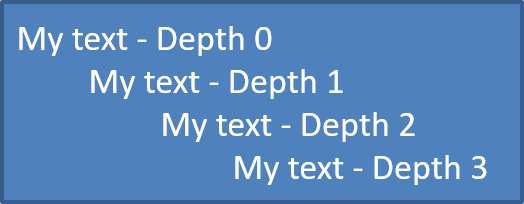
Použijte IParagraphFormat.setDepth k umístění položek seznamu na různé úrovně. Úroveň 0 je nejvyšší úroveň, úroveň 1 je pod ní a tak dále.
Následující kód v jazyce Java ukazuje, jak vytvořit víceúrovňový odrážkový seznam:
Presentation presentation = new Presentation();
try {
    ISlide slide = presentation.getSlides().get_Item(0);
    IAutoShape autoShape = slide.getShapes().addAutoShape(ShapeType.Rectangle, 20, 20, 260, 110);

    ITextFrame textFrame = autoShape.getTextFrame();
    textFrame.getParagraphs().clear();

    Paragraph paragraph1 = new Paragraph();
    paragraph1.getParagraphFormat().setDepth((short) 0);
    paragraph1.setText("My text - Depth 0");
    textFrame.getParagraphs().add(paragraph1);

    Paragraph paragraph2 = new Paragraph();
    paragraph2.getParagraphFormat().setDepth((short) 1);
    paragraph2.setText("My text - Depth 1");
    textFrame.getParagraphs().add(paragraph2);

    Paragraph paragraph3 = new Paragraph();
    paragraph3.getParagraphFormat().setDepth((short) 2);
    paragraph3.setText("My text - Depth 2");
    textFrame.getParagraphs().add(paragraph3);

    Paragraph paragraph4 = new Paragraph();
    paragraph4.getParagraphFormat().setDepth((short) 3);
    paragraph4.setText("My text - Depth 3");
    textFrame.getParagraphs().add(paragraph4);

    presentation.save("multilevel_bullets.pptx", SaveFormat.Pptx);
} finally {
    presentation.dispose();
}
Výsledek:
Změnit existující seznam
Pro změnu formátování seznamu v existující prezentaci přistupte k cílovému odstavci a aktualizujte jeho nastavení IParagraphFormat.getBullet. Stejné metody použité k vytvoření seznamů lze použít k prozkoumání nebo úpravě seznamů načtených ze souboru PPT, PPTX nebo ODP.
Presentation presentation = new Presentation("input.pptx");
try {
    ISlide slide = presentation.getSlides().get_Item(0);
    IAutoShape autoShape = (IAutoShape) slide.getShapes().get_Item(0);
    IParagraph paragraph = autoShape.getTextFrame().getParagraphs().get_Item(0);

    paragraph.getParagraphFormat().getBullet().setType(BulletType.Numbered);
    paragraph.getParagraphFormat().getBullet().setNumberedBulletStyle(NumberedBulletStyle.BulletRomanUCPeriod);
    paragraph.getParagraphFormat().getBullet().setNumberedBulletStartWith((short) 1);
    paragraph.getParagraphFormat().setMarginLeft(30);
    paragraph.getParagraphFormat().setIndent(-20);

    presentation.save("updated_list.pptx", SaveFormat.Pptx);
} finally {
    presentation.dispose();
}
Často kladené otázky
Lze odrážkové a číslované seznamy exportovat do PDF nebo obrázků?
Ano. Aspose.Slides zachovává formátování seznamu, pokud cílový formát podporuje odpovídající rozvržení textu a funkce odrážek.
Mohu upravovat seznamy v existujících prezentacích?
Ano. Načtěte prezentaci, přistupte k cílovému odstavci, prozkoumejte nebo aktualizujte jeho nastavení IParagraphFormat.getBullet a prezentaci uložte.
Mohou seznamy obsahovat text mimo latinku?
Ano. Text položek seznamu může obsahovat Unicode znaky, takže můžete vytvářet seznamy ve vícejazykových prezentacích. Ujistěte se, že použité fonty v prezentaci podporují potřebné znaky.