
使用 Python 在簡報中管理文字方塊
簡介
在 Aspose.Slides for Python via .NET 中,投影片文字儲存在屬於圖形的文字框中。 AutoShape 類別代表最常見的帶文字圖形,並透過 AutoShape.text_frame 屬性公開其文字。
注意
每個自動圖形皆繼承自 Shape,但並非所有圖形都是自動圖形或支援文字框。處理現有簡報時,請使用isinstance(shape, slides.AutoShape) 於存取文字前檢查圖形類型。
在投影片上建立文字方塊
要建立文字方塊,只需在投影片上加入自動圖形、在其文字框中加入文字,然後儲存簡報。以下範例會建立一個矩形文字方塊:
import aspose.slides as slides

with slides.Presentation() as presentation:
    slide = presentation.slides[0]
    text_box = slide.shapes.add_auto_shape(slides.ShapeType.RECTANGLE, 150, 75, 300, 50)
    text_box.add_text_frame("Aspose TextBox")

    presentation.save("TextBox.pptx", slides.export.SaveFormat.PPTX)
傳遞給 ShapeCollection.add_auto_shape 的座標與尺寸以點 (points) 為單位。 AutoShape.add_text_frame 會以提供的文字初始化文字框。
檢查是否為文字方塊圖形
使用 AutoShape.is_text_box 屬性可判斷自動圖形是否被視為文字方塊。當簡報同時包含帶文字和純圖形的自動圖形時,這非常有用。
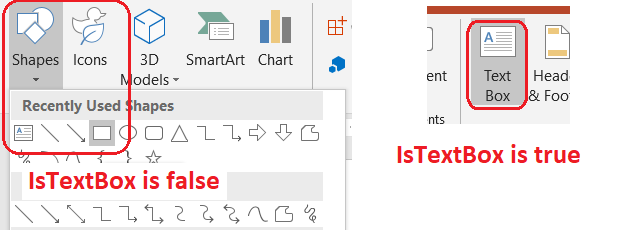
以下範例會檢查簡報中的每個自動圖形:
import aspose.slides as slides

with slides.Presentation() as presentation:
    slide = presentation.slides[0]
    text_box = slide.shapes.add_auto_shape(slides.ShapeType.RECTANGLE, 10, 10, 120, 40)
    text_box.add_text_frame("Text box")
    slide.shapes.add_auto_shape(slides.ShapeType.ELLIPSE, 150, 10, 40, 40)

    for current_slide in presentation.slides:
        for shape in current_slide.shapes:
            if isinstance(shape, slides.AutoShape):
                print("The shape is a text box." if shape.is_text_box else "The shape is not a text box.")
新加入的自動圖形在未包含非空文字前不會被視為文字方塊。您可以透過 AutoShape.add_text_frame 或 TextFrame.text 提供文字。將空字串加入或指派給文字框會使 is_text_box 保持 False:
import aspose.slides as slides

with slides.Presentation() as presentation:
    slide = presentation.slides[0]

    shape1 = slide.shapes.add_auto_shape(slides.ShapeType.RECTANGLE, 10, 10, 100, 40)
    shape1.add_text_frame("Shape 1")
    print(shape1.is_text_box)

    shape2 = slide.shapes.add_auto_shape(slides.ShapeType.RECTANGLE, 10, 70, 100, 40)
    shape2.text_frame.text = "Shape 2"
    print(shape2.is_text_box)

    shape3 = slide.shapes.add_auto_shape(slides.ShapeType.RECTANGLE, 10, 130, 100, 40)
    shape3.add_text_frame("")
    print(shape3.is_text_box)

    shape4 = slide.shapes.add_auto_shape(slides.ShapeType.RECTANGLE, 10, 190, 100, 40)
    shape4.text_frame.text = ""
    print(shape4.is_text_box)
前兩次呼叫會印出 True;後兩次則印出 False。
找出擁有文字框的圖形
通用的文字處理程式碼可能只取得一個 TextFrame,卻不知道它屬於哪個簡報物件。使用唯讀的 TextFrame.parent_shape 屬性即可回溯至其擁有者 Shape。
對於屬於自動圖形或其他帶文字圖形的文字框,parent_shape 會包含擁有者,而 TextFrame.parent_cell 為 None。在存取之前請先檢查回傳值。若需同時辨識圖形與表格儲存格的擁有者(包括與 SmartArt 節點相關的圖形),請參閱 搜尋與取代文字。
為文字方塊新增欄位
TextFrameFormat.column_count 屬性會將文字框分割成多個欄位,而 TextFrameFormat.column_spacing 則以點為單位設定欄位之間的間距。這兩個設定皆屬於 TextFrameFormat,可透過現有文字方塊的文字框進行變更。文字會在同一圖形內的欄位之間重新排版;不會流入其他圖形。
以下範例建立一個三欄文字方塊,欄位間距為 10 點,儲存簡報,並從輸出檔案中讀回設定:
import aspose.slides as slides

with slides.Presentation() as presentation:
    slide = presentation.slides[0]
    text_box = slide.shapes.add_auto_shape(slides.ShapeType.RECTANGLE, 100, 100, 300, 200)
    text_box.add_text_frame("This text is distributed automatically across all columns in the text box.")

    text_frame_format = text_box.text_frame.text_frame_format
    text_frame_format.column_count = 3
    text_frame_format.column_spacing = 10

    presentation.save("TextBoxColumns.pptx", slides.export.SaveFormat.PPTX)

with slides.Presentation("TextBoxColumns.pptx") as saved_presentation:
    saved_text_box = saved_presentation.slides[0].shapes[0]
    if isinstance(saved_text_box, slides.AutoShape):
        saved_format = saved_text_box.text_frame.text_frame_format
        print(f"Columns: {saved_format.column_count}; spacing: {saved_format.column_spacing} points")
從單一欄位擷取文字
使用 TextFrame.split_text_by_columns 可取得既有文字框中每個可視欄位的文字。此方法會依欄位閱讀順序回傳每個欄位的一個字串。單欄文字框會產生只有一個元素的清單,空欄位則以空字串表示。回傳的字串僅包含純文字;不會保留部份層級的格式設定。
此功能適用於以下情境:
- 在保留欄位閱讀順序的情況下擷取文字。
- 索引或比對多欄投影片的內容。
- 將每個欄位匯出至單獨檔案、資料庫欄位或其他目的地。
- 檢視在變更 TextFrameFormat.column_count、TextFrameFormat.column_spacing、字型或文字框大小後,文字如何重新分配。
此方法僅回報目前 TextFrame 內的文字分布,不會自動在不同圖形或文字方塊之間流動。欄位分配可能受可用字型與其他排版設定影響,若結果的一致性很重要,請確保所需字型已安裝。
以下範例載入簡報,找到第一個具多欄文字框的自動圖形,讀取其設定的欄位數,並將每個欄位的文字寫入個別檔案。沒有文字框的圖形會被跳過。
import aspose.slides as slides

with slides.Presentation("MultiColumnText.pptx") as presentation:
    text_box = None
    for shape in presentation.slides[0].shapes:
        if isinstance(shape, slides.AutoShape) and shape.text_frame is not None:
            column_count = shape.text_frame.text_frame_format.column_count
            if column_count > 1:
                text_box = shape
                break

    if text_box is None:
        print("No multi-column text frame was found.")
    else:
        text_frame = text_box.text_frame
        configured_column_count = text_frame.text_frame_format.column_count
        column_texts = text_frame.split_text_by_columns()

        print(f"Configured columns: {configured_column_count}")

        for column_number, column_text in enumerate(column_texts, start=1):
            print(f"Column {column_number}: {column_text}")
            with open(f"Column-{column_number}.txt", "w", encoding="utf-8") as column_file:
                column_file.write(column_text)
更新文字
若要在整份簡報中更新文字,可遍歷投影片與圖形,挑選自動圖形,然後編輯其文字部份。在部份層級上操作可同時變更文字與字元格式。
以下範例會將所有自動圖形文字中的 years 替換成 months,並將受影響的部份設定為粗體:
import aspose.slides as slides

with slides.Presentation("Text.pptx") as presentation:
    for slide in presentation.slides:
        for shape in slide.shapes:
            if not isinstance(shape, slides.AutoShape) or shape.text_frame is None:
                continue

            for paragraph in shape.text_frame.paragraphs:
                for portion in paragraph.portions:
                    if "years" in portion.text:
                        portion.text = portion.text.replace("years", "months")
                        portion.portion_format.font_bold = slides.NullableBool.TRUE

    presentation.save("TextChanged.pptx", slides.export.SaveFormat.PPTX)
此遍歷僅會更新自動圖形內的文字。儲存在表格、圖表、SmartArt 或群組圖形中的文字則需針對那些物件的集合自行遍歷。
加入具有超連結的文字方塊
可將超連結指派給特定的文字部份,讓只有該文字可點擊。使用 HyperlinkManager.set_external_hyperlink_click 即可將部份與外部 URL 相關聯。
以下範例建立帶有連結的文字,並將其儲存至簡報:
import aspose.slides as slides

with slides.Presentation() as presentation:
    slide = presentation.slides[0]
    text_box = slide.shapes.add_auto_shape(slides.ShapeType.RECTANGLE, 150, 150, 200, 50)
    text_box.add_text_frame("Aspose.Slides")

    text_portion = text_box.text_frame.paragraphs[0].portions[0]
    text_portion.portion_format.hyperlink_manager.set_external_hyperlink_click("https://www.aspose.com/")

    presentation.save("Hyperlink.pptx", slides.export.SaveFormat.PPTX)
常見問題
文字方塊與母片或版面配置投影片上的文字佔位符有何差異?
placeholder 能從 master slide 或 layout slide 繼承位置與格式。一般文字方塊則是建立於所在投影片的獨立圖形,版面變更時不會取得佔位符的行為。
如何在不更改圖表、表格或 SmartArt 內文字的情況下取代文字?
如同「更新文字」範例所示,僅將遍歷限制在 AutoShape 實例上。圖表、表格與 SmartArt 的文字儲存在各自的物件模型中,故不會受到此迴圈影響。