
在 Python 中格式化演示文稿文本
概述
本文展示了如何使用 Aspose.Slides for Python via .NET 对 PowerPoint 和 OpenDocument 演示文稿中的文本进行格式化。内容包括背景颜色、透明度、字符间距、字体属性、旋转、段落间距、自动适应行为、文本锚定、制表位和语言设置。
除非另有说明,示例使用 sample.pptx。其第一张幻灯片的第一个形状是一个文本框,第一段包含下文所示文本。幻灯片和形状的索引从零开始。选择粗体部分的示例使用有效格式,包括继承的粗体格式:

要查找并突出显示文字或正则表达式匹配项,请参阅 搜索和替换文本。
设置文本背景颜色
使用 ParagraphFormat.default_portion_format 为段落设置默认高亮颜色,或使用 BasePortionFormat.highlight_color 为单个文本片段设置高亮颜色。
下面的示例将第一段的默认高亮设置为浅灰色。对单独片段的显式高亮颜色会覆盖此默认值:
import aspose.pydrawing as draw
import aspose.slides as slides

with slides.Presentation("sample.pptx") as presentation:
    slide = presentation.slides[0]

    auto_shape = slide.shapes[0]
    paragraph = auto_shape.text_frame.paragraphs[0]

    # 为整个段落设置高亮颜色。
    paragraph.paragraph_format.default_portion_format.highlight_color.color = draw.Color.light_gray

    presentation.save("gray_paragraph.pptx", slides.export.SaveFormat.PPTX)
结果:

下面的代码示例演示如何为 粗体字体的文本片段 设置背景颜色:
import aspose.pydrawing as draw
import aspose.slides as slides

with slides.Presentation("sample.pptx") as presentation:
    slide = presentation.slides[0]

    auto_shape = slide.shapes[0]
    paragraph = auto_shape.text_frame.paragraphs[0]

    for portion in paragraph.portions:
        if portion.portion_format.get_effective().font_bold:
            # 为文本片段设置高亮颜色。
            portion.portion_format.highlight_color.color = draw.Color.light_gray

    presentation.save("gray_text_portions.pptx", slides.export.SaveFormat.PPTX)
结果:

对齐文本段落
使用 ParagraphFormat.alignment 设置文本框内段落的对齐方式。可选值包括居中、左对齐、右对齐、两端对齐等。
下面的代码示例演示如何将段落对齐到 居中:
import aspose.slides as slides

with slides.Presentation("sample.pptx") as presentation:
    slide = presentation.slides[0]

    auto_shape = slide.shapes[0]
    paragraph = auto_shape.text_frame.paragraphs[0]

    # 将段落的对齐方式设置为居中。
    paragraph.paragraph_format.alignment = slides.TextAlignment.CENTER

    presentation.save("aligned_paragraph.pptx", slides.export.SaveFormat.PPTX)
结果:

在行内对齐字体
使用 ParagraphFormat.font_alignment 在同一行中垂直对齐不同字号的文本片段。此设置适用于整个段落,并控制每行内部的对齐方式。
下面的独立示例在同一张幻灯片上创建四个带标签的文本框。每个段落以 18、36 和 54 磅的相同文字显示,并使用不同的字体对齐方式。示例使用 Arial,禁用自动适应和换行,并保持文本框足够大以容纳单行。
import aspose.pydrawing as draw
import aspose.slides as slides

with slides.Presentation() as presentation:
    slide = presentation.slides[0]

    alignments = [slides.FontAlignment.BASELINE, slides.FontAlignment.TOP, slides.FontAlignment.CENTER, slides.FontAlignment.BOTTOM]
    font_sizes = [18, 36, 54]

    for i, alignment in enumerate(alignments):
        shape = slide.shapes.add_auto_shape(slides.ShapeType.RECTANGLE, 30, 20 + i * 130, 660, 120)
        shape.fill_format.fill_type = slides.FillType.NO_FILL
        shape.line_format.fill_format.fill_type = slides.FillType.NO_FILL

        text_frame = shape.text_frame
        text_frame.text_frame_format.anchoring_type = slides.TextAnchorType.TOP
        text_frame.text_frame_format.autofit_type = slides.TextAutofitType.NONE
        text_frame.text_frame_format.wrap_text = slides.NullableBool.FALSE

        label = text_frame.paragraphs[0]
        label.text = alignment.name.title()
        label.paragraph_format.alignment = slides.TextAlignment.LEFT
        label.paragraph_format.default_portion_format.font_height = 14
        label.paragraph_format.default_portion_format.latin_font = slides.FontData("Arial")
        label.paragraph_format.default_portion_format.fill_format.fill_type = slides.FillType.SOLID
        label.paragraph_format.default_portion_format.fill_format.solid_fill_color.color = draw.Color.gray

        paragraph = slides.Paragraph()
        paragraph.paragraph_format.font_alignment = alignment
        paragraph.paragraph_format.alignment = slides.TextAlignment.LEFT
        paragraph.paragraph_format.default_portion_format.latin_font = slides.FontData("Arial")
        paragraph.paragraph_format.default_portion_format.fill_format.fill_type = slides.FillType.SOLID
        paragraph.paragraph_format.default_portion_format.fill_format.solid_fill_color.color = draw.Color.black

        for font_size in font_sizes:
            portion = slides.Portion("Ag ")
            portion.portion_format.font_height = font_size
            paragraph.portions.add(portion)

        text_frame.paragraphs.add(paragraph)

    presentation.save("font_alignment.pptx", slides.export.SaveFormat.PPTX)
结果:
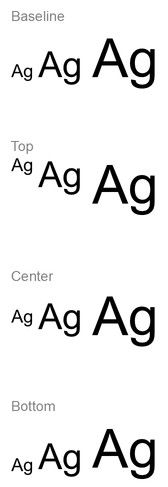
字体对齐使用字体度量,因此各个字母的可见边缘不一定完全对齐。示例包含大写字母和下垂字符,以帮助展示基线与底部对齐的差异。字体可用性、替代、使用的字符以及字号差异都会影响结果。框体尺寸、边距、行距、换行和自动适应也会影响布局;比较模式时请使用相同的字体和布局设置。
此设置不同于 ParagraphFormat.alignment,后者控制水平段落对齐;也不同于 TextFrameFormat.anchoring_type,后者在形状内垂直定位文本块。通过 BasePortionFormat.escapement 实现的上标和下标格式会相对于基线移动单个片段,而不是为段落的行设置字体对齐。
设置文本透明度
文本透明度通过分配给 BasePortionFormat.fill_format 的颜色的 alpha 分量来控制。在下面的示例中,alpha = 50 是 0–255 范围内的 ARGB alpha 通道值,而非透明度百分比。
下面的代码示例演示如何为 整个段落 应用透明度:
import aspose.pydrawing as draw
import aspose.slides as slides

alpha = 50

with slides.Presentation("sample.pptx") as presentation:
    slide = presentation.slides[0]

    auto_shape = slide.shapes[0]
    paragraph = auto_shape.text_frame.paragraphs[0]

    # 为文本设置半透明的黑色填充。
    paragraph.paragraph_format.default_portion_format.fill_format.fill_type = slides.FillType.SOLID
    paragraph.paragraph_format.default_portion_format.fill_format.solid_fill_color.color = draw.Color.from_argb(alpha, draw.Color.black)

    presentation.save("transparent_paragraph.pptx", slides.export.SaveFormat.PPTX)
结果:

下面的代码示例演示如何为 粗体字体的文本片段 应用透明度:
import aspose.pydrawing as draw
import aspose.slides as slides

alpha = 50

with slides.Presentation("sample.pptx") as presentation:
    slide = presentation.slides[0]

    auto_shape = slide.shapes[0]
    paragraph = auto_shape.text_frame.paragraphs[0]

    for portion in paragraph.portions:
        if portion.portion_format.get_effective().font_bold:
            # 为文本片段设置透明度。
            portion.portion_format.fill_format.fill_type = slides.FillType.SOLID
            portion.portion_format.fill_format.solid_fill_color.color = draw.Color.from_argb(alpha, draw.Color.black)

    presentation.save("transparent_text_portions.pptx", slides.export.SaveFormat.PPTX)
结果:

设置字符间距
使用 BasePortionFormat.spacing 可以在文本框中的字符之间扩展或压缩间距。示例中添加了 3 磅的间距;负值会压缩文本。
下面的 Python 代码演示如何在 整个段落 中扩展字符间距:
import aspose.slides as slides

with slides.Presentation("sample.pptx") as presentation:
    slide = presentation.slides[0]

    auto_shape = slide.shapes[0]
    paragraph = auto_shape.text_frame.paragraphs[0]

    # 注意:使用负值来压缩字符间距。
    paragraph.paragraph_format.default_portion_format.spacing = 3  # 扩展字符间距。

    presentation.save("character_spacing_in_paragraph.pptx", slides.export.SaveFormat.PPTX)
结果:

下面的代码示例演示如何在 粗体字体的文本片段 中扩展字符间距:
import aspose.slides as slides

with slides.Presentation("sample.pptx") as presentation:
    slide = presentation.slides[0]

    auto_shape = slide.shapes[0]
    paragraph = auto_shape.text_frame.paragraphs[0]

    for portion in paragraph.portions:
        if portion.portion_format.get_effective().font_bold:
            # 注意:使用负值来压缩字符间距。
            portion.portion_format.spacing = 3  # 扩展字符间距。

    presentation.save("character_spacing_in_text_portions.pptx", slides.export.SaveFormat.PPTX)
结果:

为特定字体禁用连字
在某些情况下,Aspose.Slides 渲染的文本可能比 PowerPoint 中显示的略紧。这可能是因为 PowerPoint 在某些字体上忽略了连字号数据,即使该字体包含有效的连字信息且 PowerPoint 设置中已启用连字。
为使渲染结果更接近 PowerPoint,可以为使用受影响字体的文本片段禁用连字。将 BasePortionFormat.kerning_minimal_size 设置为大于实际字体大小的值。本示例需要 “presentation.pptx”,其第一张幻灯片的第一形状为文本框。它检查有效字体名称(包括继承的字体),并对使用 Roboto 的片段设置 100 磅的阈值。低于此阈值的片段将禁用连字:
import aspose.slides as slides

with slides.Presentation("presentation.pptx") as presentation:
    slide = presentation.slides[0]

    auto_shape = slide.shapes[0]
    target_font = "Roboto"

    for paragraph in auto_shape.text_frame.paragraphs:
        for portion in paragraph.portions:
            text_format = portion.portion_format.get_effective()
            fonts = (text_format.latin_font, text_format.east_asian_font, text_format.complex_script_font)
            uses_target_font = any(font is not None and font.font_name == target_font for font in fonts)

            if uses_target_font:
                portion.portion_format.kerning_minimal_size = 100

    presentation.save("output.pptx", slides.export.SaveFormat.PPTX)
对于低于阈值的匹配文本,此设置会阻止连字,从而帮助使 Aspose.Slides 的渲染效果更贴近 PowerPoint 对受影响字体的视觉表现。
管理文本字体属性
可以通过 ParagraphFormat.default_portion_format 在段落级别设置字体属性,或通过 PortionFormat 在单个片段上设置。
下面的示例将第一段的默认字体设置为 12 磅 Times New Roman,并启用粗体、斜体和点状下划线。对单个片段的显式格式会覆盖这些默认值:
import aspose.slides as slides

with slides.Presentation("sample.pptx") as presentation:
    slide = presentation.slides[0]

    auto_shape = slide.shapes[0]
    paragraph = auto_shape.text_frame.paragraphs[0]

    # 为段落设置字体属性。
    portion_format = paragraph.paragraph_format.default_portion_format
    portion_format.font_height = 12
    portion_format.font_bold = slides.NullableBool.TRUE
    portion_format.font_italic = slides.NullableBool.TRUE
    portion_format.font_underline = slides.TextUnderlineType.DOTTED
    portion_format.latin_font = slides.FontData("Times New Roman")

    presentation.save("font_properties_for_paragraph.pptx", slides.export.SaveFormat.PPTX)
结果:

下面的示例对其有效格式为粗体的片段应用 13 磅 Times New Roman、斜体以及点状下划线:
import aspose.slides as slides

with slides.Presentation("sample.pptx") as presentation:
    slide = presentation.slides[0]

    auto_shape = slide.shapes[0]
    paragraph = auto_shape.text_frame.paragraphs[0]

    for portion in paragraph.portions:
        if portion.portion_format.get_effective().font_bold:
            # 为文本片段设置字体属性。
            portion.portion_format.font_height = 13
            portion.portion_format.font_italic = slides.NullableBool.TRUE
            portion.portion_format.font_underline = slides.TextUnderlineType.DOTTED
            portion.portion_format.latin_font = slides.FontData("Times New Roman")

    presentation.save("font_properties_for_text_portions.pptx", slides.export.SaveFormat.PPTX)
结果:

设置文本旋转
使用 TextFrameFormat.text_vertical_type 可以为形状内的文本设置预定义的垂直方向。
下面的代码示例将形状中文本的方向设置为 TextVerticalType.VERTICAL270,即 逆时针旋转 90 度:
import aspose.slides as slides

with slides.Presentation("sample.pptx") as presentation:
    slide = presentation.slides[0]

    auto_shape = slide.shapes[0]

    auto_shape.text_frame.text_frame_format.text_vertical_type = slides.TextVerticalType.VERTICAL270

    presentation.save("text_rotation.pptx", slides.export.SaveFormat.PPTX)
结果:

为文本框设置自定义旋转角度
使用 TextFrameFormat.rotation_angle 可以为 TextFrame 设置自定义旋转角度。
下面的代码示例将形状中文本框顺时针旋转 3 度:
import aspose.slides as slides

with slides.Presentation("sample.pptx") as presentation:
    slide = presentation.slides[0]

    auto_shape = slide.shapes[0]

    auto_shape.text_frame.text_frame_format.rotation_angle = 3

    presentation.save("custom_text_rotation.pptx", slides.export.SaveFormat.PPTX)
结果:

设置段落的行间距
Aspose.Slides 提供 ParagraphFormat.space_after、ParagraphFormat.space_before 和 ParagraphFormat.space_within 来控制段落间距。使用方法如下:
- 正值表示以行高的百分比指定行间距。
- 负值表示以磅为单位指定行间距。
下面的示例将第一段的内部间距设置为行高的 200%(双倍行距):
import aspose.slides as slides

with slides.Presentation("sample.pptx") as presentation:
    slide = presentation.slides[0]

    auto_shape = slide.shapes[0]
    paragraph = auto_shape.text_frame.paragraphs[0]

    paragraph.paragraph_format.space_within = 200

    presentation.save("line_spacing.pptx", slides.export.SaveFormat.PPTX)
结果:

控制换行规则
段落换行规则在窄文本块和混合拉丁文与东亚文字的演示文稿中非常有用。以下属性属于 ParagraphFormat,因此适用于整个段落:
- latin_line_break 控制拉丁文的换行规则。在混合文本中,修改它也会影响相邻东亚文字和标点的换行位置。
- east_asian_line_break 控制东亚文字的换行规则,包括行首和行尾字符的限制。
这些规则并不会取代 TextFrameFormat.wrap_text,后者启用文本框内的自动换行。它们在换行发生时影响布局;不会插入换行符。显式换行会强制在段落内部另起一行,且不受可用宽度限制。
下面的独立示例创建一个包含中文和拉丁文字的窄文本块。它显式设置两个换行属性并保存为 “line_breaking.pptx”。要实验任意规则,只需在保持另一属性不变的情况下更改对应属性的值。示例使用 24 磅 Arial 和 SimSun,框宽 160 磅,水平文本框边距为 0。将 TextFrameFormat.autofit_type 设置为 TextAutofitType.NONE,以保持文字大小和框尺寸固定:
import aspose.pydrawing as draw
import aspose.slides as slides

with slides.Presentation() as presentation:
    slide = presentation.slides[0]

    shape = slide.shapes.add_auto_shape(slides.ShapeType.RECTANGLE, 50, 50, 160, 300)
    shape.fill_format.fill_type = slides.FillType.NO_FILL

    text_frame = shape.text_frame
    text_frame.text_frame_format.wrap_text = slides.NullableBool.TRUE
    text_frame.text_frame_format.autofit_type = slides.TextAutofitType.NONE
    text_frame.text_frame_format.margin_left = 0
    text_frame.text_frame_format.margin_right = 0

    paragraph = text_frame.paragraphs[0]
    paragraph.text = "中文排版测试,PowerPoint 中文演示。"

    paragraph_format = paragraph.paragraph_format
    paragraph_format.alignment = slides.TextAlignment.LEFT
    paragraph_format.default_portion_format.font_height = 24
    paragraph_format.default_portion_format.latin_font = slides.FontData("Arial")
    paragraph_format.default_portion_format.east_asian_font = slides.FontData("SimSun")
    paragraph_format.default_portion_format.fill_format.fill_type = slides.FillType.SOLID
    paragraph_format.default_portion_format.fill_format.solid_fill_color.color = draw.Color.black
    paragraph_format.latin_line_break = slides.NullableBool.FALSE
    paragraph_format.east_asian_line_break = slides.NullableBool.TRUE

    presentation.save("line_breaking.pptx", slides.export.SaveFormat.PPTX)
控制悬挂标点
ParagraphFormat.hanging_punctuation 允许符合条件的标点超出文本行的右边缘,而不是占据下一行。它适用于整个段落,且不同于悬挂缩进。
下面的独立示例在宽度为 100 磅的文本框中启用悬挂标点,并保存为 “hanging_punctuation.pptx”。使用 24 磅 Arial 和水平文本框边距为 0 时,句号仍位于 “sentence” 之后并延伸至右侧文本边缘。将属性设为 NullableBool.FALSE 可对比效果:此时句号会占据单独一行。示例启用换行并禁用自动适应,以保持可用宽度固定。
import aspose.pydrawing as draw
import aspose.slides as slides

with slides.Presentation() as presentation:
    slide = presentation.slides[0]

    shape = slide.shapes.add_auto_shape(slides.ShapeType.RECTANGLE, 50, 50, 100, 200)
    shape.fill_format.fill_type = slides.FillType.NO_FILL

    text_frame = shape.text_frame
    text_frame.text_frame_format.wrap_text = slides.NullableBool.TRUE
    text_frame.text_frame_format.autofit_type = slides.TextAutofitType.NONE
    text_frame.text_frame_format.margin_left = 0
    text_frame.text_frame_format.margin_right = 0

    paragraph = text_frame.paragraphs[0]
    paragraph.text = "Simple text, next sentence."

    paragraph_format = paragraph.paragraph_format
    paragraph_format.alignment = slides.TextAlignment.LEFT
    paragraph_format.default_portion_format.font_height = 24
    paragraph_format.default_portion_format.latin_font = slides.FontData("Arial")
    paragraph_format.default_portion_format.fill_format.fill_type = slides.FillType.SOLID
    paragraph_format.default_portion_format.fill_format.solid_fill_color.color = draw.Color.black
    paragraph_format.hanging_punctuation = slides.NullableBool.TRUE

    presentation.save("hanging_punctuation.pptx", slides.export.SaveFormat.PPTX)
并非所有标点都能悬挂。可见结果取决于 字体和布局条件:更改字体、可用宽度、边距或自动适应设置都可能消除可见差异。
设置文本框的自动适应类型
TextFrameFormat.autofit_type 决定文本超过容器边界时的行为。可用来控制文本是收缩、溢出还是自动调整形状大小。下面的示例将形状配置为随文本大小而自动调整,并将结果保存为 “autofit_type.pptx”。
import aspose.slides as slides

with slides.Presentation("sample.pptx") as presentation:
    slide = presentation.slides[0]

    auto_shape = slide.shapes[0]

    auto_shape.text_frame.text_frame_format.autofit_type = slides.TextAutofitType.SHAPE

    presentation.save("autofit_type.pptx", slides.export.SaveFormat.PPTX)
若想在自动换行后统计行数并观察文本或形状宽度的变化,请参阅 Count Rendered Lines。仅行数并不能指示文本是否溢出容器。
设置文本框的锚定方式
TextFrameFormat.anchoring_type 定义文本在形状内部的垂直定位方式,例如顶部、居中或底部。下面的示例将文本锚定到第一形状的底部,并将结果保存为 “text_anchor.pptx”。
import aspose.slides as slides

with slides.Presentation("sample.pptx") as presentation:
    slide = presentation.slides[0]

    auto_shape = slide.shapes[0]

    auto_shape.text_frame.text_frame_format.anchoring_type = slides.TextAnchorType.BOTTOM

    presentation.save("text_anchor.pptx", slides.export.SaveFormat.PPTX)
设置制表位
使用 ParagraphFormat.default_tab_size 和 ParagraphFormat.tabs 可以在段落中配置制表位。下面的示例将默认制表间距设为 100 磅,并在 30 磅处添加一个左对齐的制表位。这些设置会影响包含制表符的文本。
import aspose.slides as slides

with slides.Presentation("sample.pptx") as presentation:
    slide = presentation.slides[0]

    auto_shape = slide.shapes[0]
    paragraph = auto_shape.text_frame.paragraphs[0]

    paragraph.paragraph_format.default_tab_size = 100
    paragraph.paragraph_format.tabs.add(30, slides.TabAlignment.LEFT)

    presentation.save("paragraph_tabs.pptx", slides.export.SaveFormat.PPTX)
结果:

设置校对语言
Aspose.Slides 提供 BasePortionFormat.language_id,可为文本片段设置校对语言。校对语言决定 PowerPoint 中的拼写和语法检查所使用的语言。
下面的示例需要 “presentation.pptx”,其第一张幻灯片的第一形状为文本框且至少包含一个段落。示例将第一段的内容替换为 “1。”,将其字体设为 SimSun,并将校对语言设为简体中文 (zh-CN)。结果保存为 “proofing_language.pptx”:
import aspose.slides as slides

with slides.Presentation("presentation.pptx") as presentation:
    slide = presentation.slides[0]

    auto_shape = slide.shapes[0]

    paragraph = auto_shape.text_frame.paragraphs[0]
    paragraph.portions.clear()

    font = slides.FontData("SimSun")

    text_portion = slides.Portion()
    text_portion.portion_format.complex_script_font = font
    text_portion.portion_format.east_asian_font = font
    text_portion.portion_format.latin_font = font

    # 将校对语言设置为简体中文。
    text_portion.portion_format.language_id = "zh-CN"

    text_portion.text = "1。"
    paragraph.portions.add(text_portion)

    presentation.save("proofing_language.pptx", slides.export.SaveFormat.PPTX)
设置默认语言
使用 LoadOptions.default_text_language 可以为在加载或创建演示文稿时生成的文本定义默认语言。下面的示例创建一个默认文本语言为美国英语的演示文稿,添加一个文本框,并打印其第一个文本片段的语言代码 en-US。
import aspose.slides as slides

load_options = slides.LoadOptions()
load_options.default_text_language = "en-US"

with slides.Presentation(load_options) as presentation:
    slide = presentation.slides[0]

    # 添加一个带文本的矩形形状。
    shape = slide.shapes.add_auto_shape(slides.ShapeType.RECTANGLE, 20, 20, 150, 50)
    shape.text_frame.text = "Sample text"

    # 检查第一个片段的语言。
    portion = shape.text_frame.paragraphs[0].portions[0]
    print(portion.portion_format.language_id)
设置默认文本样式
要在演示文稿级别应用默认文本格式,请使用 Presentation.default_text_style。
下面的示例为新演示文稿的顶级段落设置 14 磅粗体作为默认样式,并将其保存为 “default_text_style.pptx”。除非有更具体的格式覆盖,否则文本会继承这些默认设置。
import aspose.slides as slides

with slides.Presentation() as presentation:
    # 获取顶级段落格式。
    paragraph_format = presentation.default_text_style.get_level(0)

    if paragraph_format is not None:
        paragraph_format.default_portion_format.font_height = 14
        paragraph_format.default_portion_format.font_bold = slides.NullableBool.TRUE

    presentation.save("default_text_style.pptx", slides.export.SaveFormat.PPTX)
提取带全大写效果的文本
在 PowerPoint 中,应用 All Caps 字体效果会使幻灯片上的文本显示为大写,即使原始输入是小写。当使用 Aspose.Slides 检索此类文本片段时,库会返回原始输入的文本。若要匹配显示的文本,需要检查 TextCapType 并在值为 ALL 时将返回的字符串转换为大写。
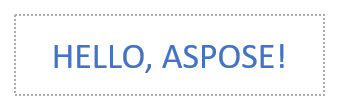
此示例需要 “sample2.pptx”,其第一张幻灯片的第一形状为文本框。其第一段的第一个片段包含 “Hello, Aspose!” 并应用了 All Caps 效果,如下图所示。
下面的代码示例演示如何提取应用了 All Caps 效果的文本:
import aspose.slides as slides

with slides.Presentation("sample2.pptx") as presentation:
    slide = presentation.slides[0]

    auto_shape = slide.shapes[0]
    text_portion = auto_shape.text_frame.paragraphs[0].portions[0]

    print("Original text:", text_portion.text)

    text_format = text_portion.portion_format.get_effective()
    if text_format.text_cap_type == slides.TextCapType.ALL:
        text = text_portion.text.upper()
        print("All-Caps effect:", text)
输出:
Original text: Hello, Aspose!
All-Caps effect: HELLO, ASPOSE!
常见问题解答
如何修改幻灯片上表格中的文本?
要修改幻灯片上表格中的文本,请使用 Table。遍历单元格,并通过 Cell.text_frame 更新每个单元格的文本框,再通过 Paragraph.paragraph_format 设置段落格式。
如何在 PowerPoint 幻灯片的文本上应用渐变颜色?
要为文本应用渐变颜色,请使用 BasePortionFormat.fill_format。将 FillFormat.fill_type 设置为 FillType.GRADIENT,并配置渐变停止点、方向和透明度。