
使用 Python via Java 在演示文稿中应用形状动画
概述
要处理效果内部的各个行为或编辑运动路径段,请参阅自定义动画。
Aspose.Slides for Python via Java 将幻灯片动画表示为幻灯片时间轴中的效果。每个效果具有目标形状、动画类型及子类型、触发器、时序设置,以及诸如声音或动画结束后行为等可选属性。
时间轴包含两种序列:
- 主序列 在幻灯片前进时播放。
- 交互序列 在其触发形状被点击时启动。
由于文本框、图片、图表、表格以及其他幻灯片对象都派生自Shape,因此对大多数幻灯片内容使用相同的Sequence.addEffect方法。可用的效果列在EffectType类中。
添加形状动画
要添加动画,获取幻灯片的主序列,并使用目标形状、效果类型、子类型和触发器调用Sequence.addEffect。对于在其他形状被点击时启动的效果,创建一个触发器为该其他形状的交互序列。
下面的示例创建两种类型的动画并将结果保存为shape-animations.pptx。
import jpype
import asposeslides

if not jpype.isJVMStarted():
    jpype.startJVM()

from asposeslides.api import EffectSubtype, EffectTriggerType, EffectType, Presentation, SaveFormat, ShapeType

presentation = Presentation()
try:
    slide = presentation.getSlides().get_Item(0)

    target_shape = slide.getShapes().addAutoShape(ShapeType.RoundCornerRectangle, 120, 100, 320, 80)
    target_shape.addTextFrame("Click to animate this shape")

    main_sequence = slide.getTimeline().getMainSequence()
    entrance_effect = main_sequence.addEffect(target_shape, EffectType.Fade, EffectSubtype.None_, EffectTriggerType.OnClick)
    entrance_effect.getTiming().setDuration(1.5)

    trigger_shape = slide.getShapes().addAutoShape(ShapeType.Bevel, 20, 20, 100, 40)
    trigger_shape.addTextFrame("Move")

    interactive_sequence = slide.getTimeline().getInteractiveSequences().add(trigger_shape)
    interactive_sequence.addEffect(target_shape, EffectType.PathFootball, EffectSubtype.None_, EffectTriggerType.OnClick)

    presentation.save("shape-animations.pptx", SaveFormat.Pptx)
finally:
    presentation.dispose()
触发器控制效果何时开始:
- EffectTriggerType.OnClick 在主序列中等待点击,或在交互序列中等待对触发形状的点击。
- EffectTriggerType.WithPrevious 与前一个效果同时开始。
- EffectTriggerType.AfterPrevious 在前一个效果完成后开始。
要为图片、图表或其他形状类型添加动画,请将该对象传递给Sequence.addEffect而不是target_shape。有关图表特定的分组选项,请参阅Animated Charts。
读取形状动画
当已知目标形状时,使用Sequence.getEffectsByShape。要检查每个效果,请枚举主序列和所有交互序列。枚举可避免假设序列在索引0处包含效果的情况。
下面的示例创建一个具有主序列和交互效果的形状,获取针对该形状的效果,然后枚举幻灯片上的所有序列。
import jpype
import asposeslides

if not jpype.isJVMStarted():
    jpype.startJVM()

from asposeslides.api import EffectSubtype, EffectTriggerType, EffectType, Presentation, ShapeType

def print_sequence(label, sequence):
    print(f"  {label}: {sequence.getCount()} effect(s)")
    for effect in sequence:
        target_shape = effect.getTargetShape()
        target_name = "unknown" if target_shape is None else target_shape.getName()
        type_name = EffectType.getName(EffectType.class_, effect.getType())
        subtype_name = EffectSubtype.getName(EffectSubtype.class_, effect.getSubtype())
        trigger_name = EffectTriggerType.getName(EffectTriggerType.class_, effect.getTiming().getTriggerType())
        effect_description = f"{type_name} {subtype_name}; target: {target_name}; trigger: {trigger_name}"
        print(f"    {effect_description}")


presentation = Presentation()
try:
    slide = presentation.getSlides().get_Item(0)
    target_shape = slide.getShapes().addAutoShape(ShapeType.Rectangle, 120, 100, 320, 80)
    target_shape.addTextFrame("Animated shape")

    main_sequence = slide.getTimeline().getMainSequence()
    main_sequence.addEffect(target_shape, EffectType.Fade, EffectSubtype.None_, EffectTriggerType.OnClick)

    trigger_shape = slide.getShapes().addAutoShape(ShapeType.Bevel, 20, 20, 100, 40)
    trigger_shape.addTextFrame("Move")

    interactive_sequence = slide.getTimeline().getInteractiveSequences().add(trigger_shape)
    interactive_sequence.addEffect(target_shape, EffectType.PathFootball, EffectSubtype.None_, EffectTriggerType.OnClick)

    target_effects = main_sequence.getEffectsByShape(target_shape)
    print(f"The main sequence contains {len(target_effects)} effect(s) for {target_shape.getName()}.")
    print_sequence("Main sequence", main_sequence)

    for interactive_index, sequence in enumerate(slide.getTimeline().getInteractiveSequences(), start=1):
        trigger_shape = sequence.getTriggerShape()
        trigger_name = "unknown" if trigger_shape is None else trigger_shape.getName()
        sequence_label = f"Interactive sequence {interactive_index}, trigger: {trigger_name}"
        print_sequence(sequence_label, sequence)
finally:
    presentation.dispose()
如果只需获取单个形状的效果,请先通过名称、占位符类型或其他稳定属性识别该形状;然后调用Sequence.getEffectsByShape。不要假设索引0处的ShapeCollection.get_Item始终是目标对象。
处理继承的占位符效果
普通幻灯片上的占位符可以继承其布局幻灯片和母版幻灯片上对应占位符的动画行为。Shape.getBasePlaceholder返回该父占位符;如果不存在父占位符,则返回None。
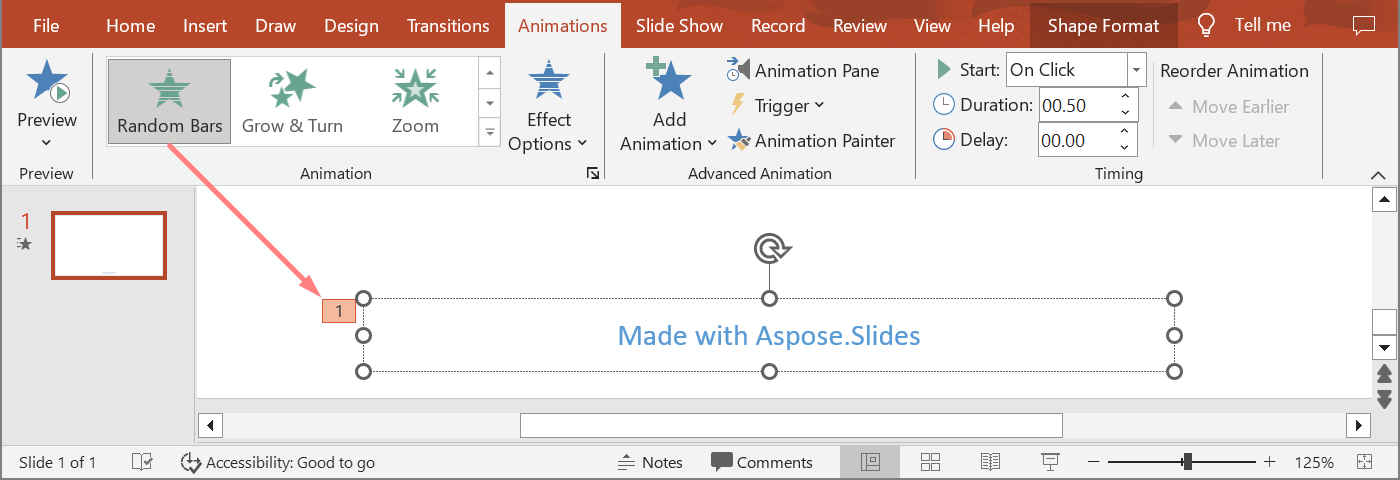
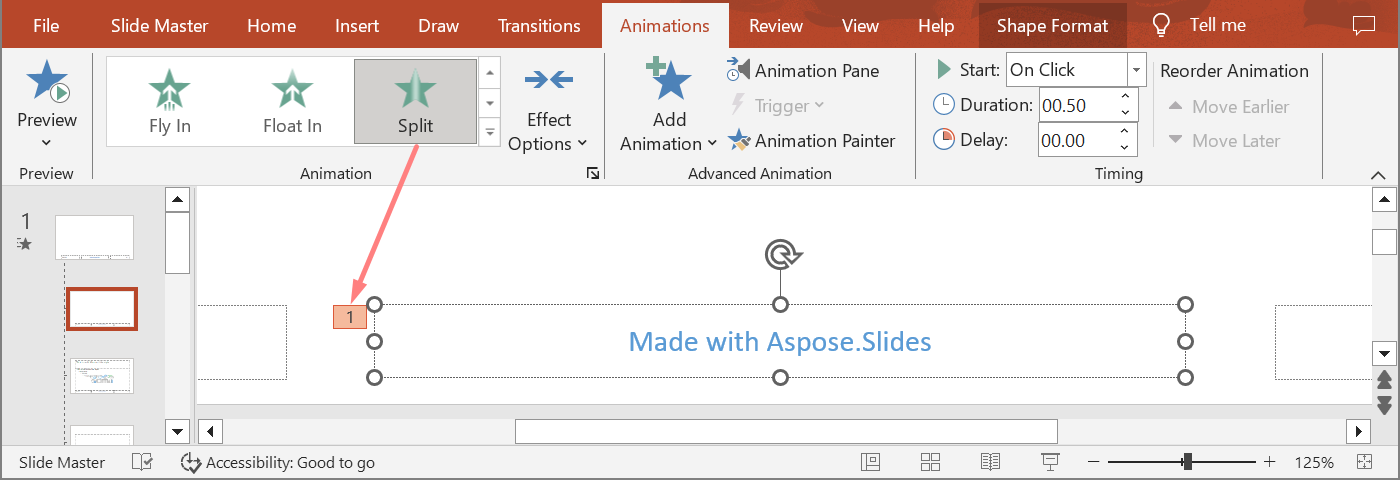
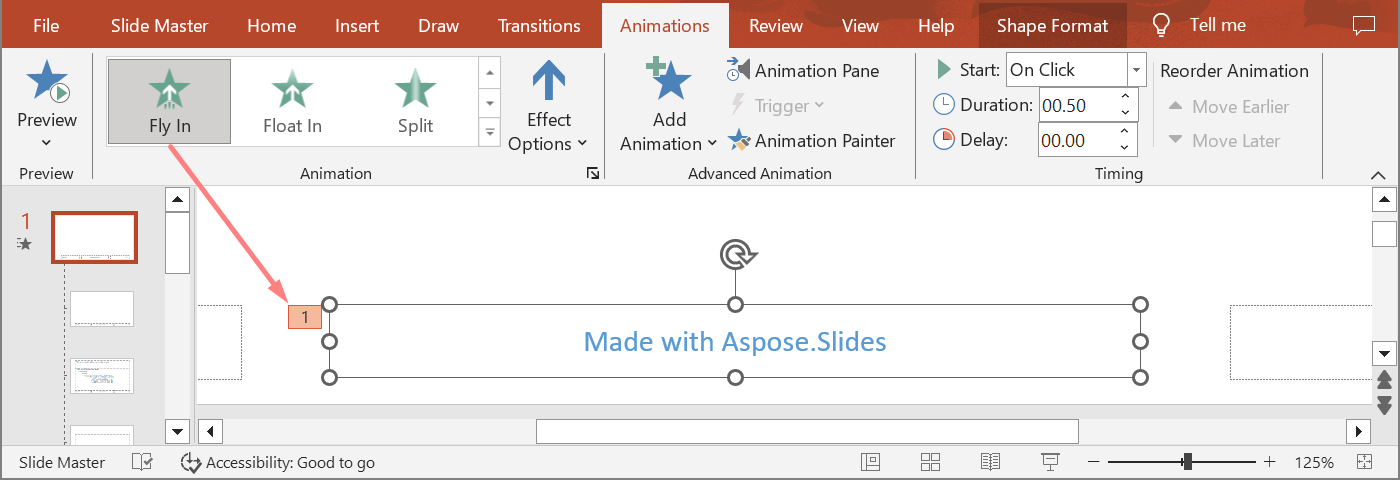
在下面的示例演示文稿中,页脚在普通幻灯片上使用Random Bars,在布局幻灯片上使用Split,在母版幻灯片上使用Fly In。
下一个示例使用新演示文稿中的占位符层次结构。它向母版占位符、布局占位符以及普通幻灯片上的相应占位符添加效果。在使用返回的形状之前,会检查每次对Shape.getBasePlaceholder的调用。
import jpype
import asposeslides

if not jpype.isJVMStarted():
    jpype.startJVM()

from asposeslides.api import EffectSubtype, EffectTriggerType, EffectType, Presentation, SaveFormat, SlideLayoutType

def find_placeholder_with_base(slide, expected_base=None):
    for shape in slide.getShapes():
        base_placeholder = shape.getBasePlaceholder()
        if base_placeholder is not None and (expected_base is None or base_placeholder == expected_base):
            return shape
    return None


def print_effects(source, effects):
    print(f"{source}: {len(effects)} effect(s)")
    for effect in effects:
        type_name = EffectType.getName(EffectType.class_, effect.getType())
        subtype_name = EffectSubtype.getName(EffectSubtype.class_, effect.getSubtype())
        print(f"  {type_name} {subtype_name}")


presentation = Presentation()
try:
    layout_slide = presentation.getLayoutSlides().getByType(SlideLayoutType.TitleAndObject)
    layout_placeholder = find_placeholder_with_base(layout_slide) if layout_slide is not None else None
    if layout_placeholder is None:
        print("The layout slide does not contain a placeholder linked to its master slide.")
    else:
        master_placeholder = layout_placeholder.getBasePlaceholder()
        layout_slide.getMasterSlide().getTimeline().getMainSequence().addEffect(master_placeholder, EffectType.Fly, EffectSubtype.Bottom, EffectTriggerType.OnClick)
        layout_slide.getTimeline().getMainSequence().addEffect(layout_placeholder, EffectType.Split, EffectSubtype.VerticalIn, EffectTriggerType.OnClick)

        slide = presentation.getSlides().addEmptySlide(layout_slide)
        slide_placeholder = find_placeholder_with_base(slide, layout_placeholder)
        if slide_placeholder is None:
            print("The slide does not contain a placeholder linked to its layout slide.")
        else:
            slide.getTimeline().getMainSequence().addEffect(slide_placeholder, EffectType.RandomBars, EffectSubtype.Horizontal, EffectTriggerType.OnClick)
            slide_effects = slide.getTimeline().getMainSequence().getEffectsByShape(slide_placeholder)
            print_effects("Normal slide", slide_effects)

            base_layout_placeholder = slide_placeholder.getBasePlaceholder()
            if base_layout_placeholder is not None:
                layout_effects = layout_slide.getTimeline().getMainSequence().getEffectsByShape(base_layout_placeholder)
                print_effects("Layout slide", layout_effects)

                base_master_placeholder = base_layout_placeholder.getBasePlaceholder()
                if base_master_placeholder is not None:
                    master_effects = layout_slide.getMasterSlide().getTimeline().getMainSequence().getEffectsByShape(base_master_placeholder)
                    print_effects("Master slide", master_effects)

            presentation.save("placeholder-animations.pptx", SaveFormat.Pptx)
finally:
    presentation.dispose()
更改动画时序
PowerPoint Timing 对话框对应于Timing的属性。
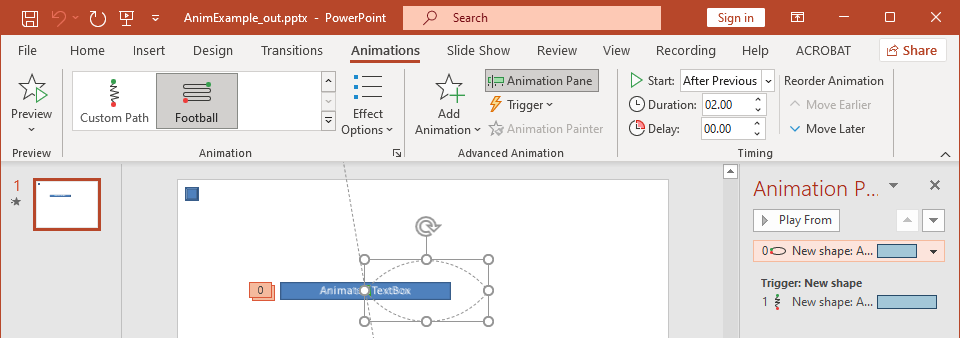
- 开始 对应Timing.getTriggerType。
- 持续时间 对应Timing.getDuration,单位为秒。
- 延迟 对应Timing.getTriggerDelayTime,单位为秒。
- 重复 对应Timing.getRepeatCount、Timing.getRepeatUntilNextClick或Timing.getRepeatUntilEndSlide。
- 播放完成后倒回 对应Timing.getRewind。
此独立示例添加一个效果,通过Sequence.addEffect返回的对象更改其时序,并保存结果。保留返回的Effect引用可避免不必要的集合索引。
import jpype
import asposeslides

if not jpype.isJVMStarted():
    jpype.startJVM()

from asposeslides.api import EffectSubtype, EffectTriggerType, EffectType, Presentation, SaveFormat, ShapeType

presentation = Presentation()
try:
    slide = presentation.getSlides().get_Item(0)
    shape = slide.getShapes().addAutoShape(ShapeType.Rectangle, 120, 100, 320, 80)
    shape.addTextFrame("Timed animation")

    effect = slide.getTimeline().getMainSequence().addEffect(shape, EffectType.Fade, EffectSubtype.None_, EffectTriggerType.OnClick)
    effect.getTiming().setTriggerType(EffectTriggerType.OnClick)
    effect.getTiming().setDuration(2.0)
    effect.getTiming().setTriggerDelayTime(0.5)
    effect.getTiming().setRepeatUntilNextClick(False)
    effect.getTiming().setRepeatUntilEndSlide(False)
    effect.getTiming().setRepeatCount(2.0)
    effect.getTiming().setRewind(True)

    presentation.save("shape-animation-timing.pptx", SaveFormat.Pptx)
finally:
    presentation.dispose()
请有意使用单一的重复模式。将重复计数与“until”标志组合可能在不同的查看器中产生混乱的结果。更改重复模式时,应先设置Timing.setRepeatUntilNextClick和Timing.setRepeatUntilEndSlide,再调用Timing.setRepeatCount,因为设置任一标志也会更改活动的重复模式。
添加和提取动画声音
动画效果可以通过Effect.getSound引用嵌入的音频。Effect.setStopPreviousSound指示效果停止之前效果启动的音频。
向效果添加声音
下面的示例需要一个名为animation-sound.wav的本地音频文件。它创建两个效果,将该文件嵌入为第一个效果的声音,并将第二个效果配置为停止该声音。它使用Sequence.addEffect返回的对象,因此不需要序列索引。
import jpype
import asposeslides

if not jpype.isJVMStarted():
    jpype.startJVM()

from asposeslides.api import EffectSubtype, EffectTriggerType, EffectType, Presentation, SaveFormat, ShapeType
from pathlib import Path

presentation = Presentation()
try:
    slide = presentation.getSlides().get_Item(0)
    first_shape = slide.getShapes().addAutoShape(ShapeType.Rectangle, 80, 100, 240, 80)
    second_shape = slide.getShapes().addAutoShape(ShapeType.Rectangle, 400, 100, 240, 80)
    first_shape.addTextFrame("Starts sound")
    second_shape.addTextFrame("Stops sound")

    sequence = slide.getTimeline().getMainSequence()
    first_effect = sequence.addEffect(first_shape, EffectType.Fade, EffectSubtype.None_, EffectTriggerType.OnClick)
    second_effect = sequence.addEffect(second_shape, EffectType.Fade, EffectSubtype.None_, EffectTriggerType.OnClick)

    audio_data = Path("animation-sound.wav").read_bytes()
    effect_sound = presentation.getAudios().addAudio(jpype.JArray(jpype.JByte)(audio_data))
    first_effect.setSound(effect_sound)
    second_effect.setStopPreviousSound(True)

    presentation.save("shape-animation-sound.pptx", SaveFormat.Pptx)
finally:
    presentation.dispose()
提取嵌入的效果声音
下面的示例需要一个名为presentation-with-animation-sounds.pptx的本地演示文稿。它扫描主序列和交互序列,并将每个嵌入的效果声音写入extracted-animation-sounds目录。文件扩展名根据Audio.getContentType暴露的音频 MIME 类型选择。
import jpype
import asposeslides

if not jpype.isJVMStarted():
    jpype.startJVM()

from asposeslides.api import Presentation
from pathlib import Path

def get_audio_extension(content_type):
    normalized_type = "" if content_type is None else str(content_type).lower()
    if normalized_type == "audio/mpeg":
        return ".mp3"
    if normalized_type == "audio/mp4":
        return ".m4a"
    if normalized_type == "audio/ogg":
        return ".ogg"
    if normalized_type in ("audio/wav", "audio/x-wav"):
        return ".wav"
    return ".bin"


def save_sounds(sequence, output_directory, sound_index):
    for effect in sequence:
        sound = effect.getSound()
        if sound is None:
            continue
        extension = get_audio_extension(sound.getContentType())
        output_path = output_directory / f"effect-sound-{sound_index}{extension}"
        audio_data = bytes(sound.getBinaryData())
        output_path.write_bytes(audio_data)
        sound_index += 1
    return sound_index


input_path = Path("presentation-with-animation-sounds.pptx")
output_directory = Path("extracted-animation-sounds")
output_directory.mkdir(parents=True, exist_ok=True)

presentation = Presentation(str(input_path))
try:
    sound_index = 1
    for slide in presentation.getSlides():
        sound_index = save_sounds(slide.getTimeline().getMainSequence(), output_directory, sound_index)
        for sequence in slide.getTimeline().getInteractiveSequences():
            sound_index = save_sounds(sequence, output_directory, sound_index)
    print(f"Extracted {sound_index - 1} sound file(s) to {output_directory.resolve()}.")
finally:
    presentation.dispose()
对于大型音频对象,请使用Audio.getStream并将流复制到文件,而不是将整个对象加载到字节数组中。
设置动画结束后的行为
After animation 选项控制效果结束后形状的处理方式。
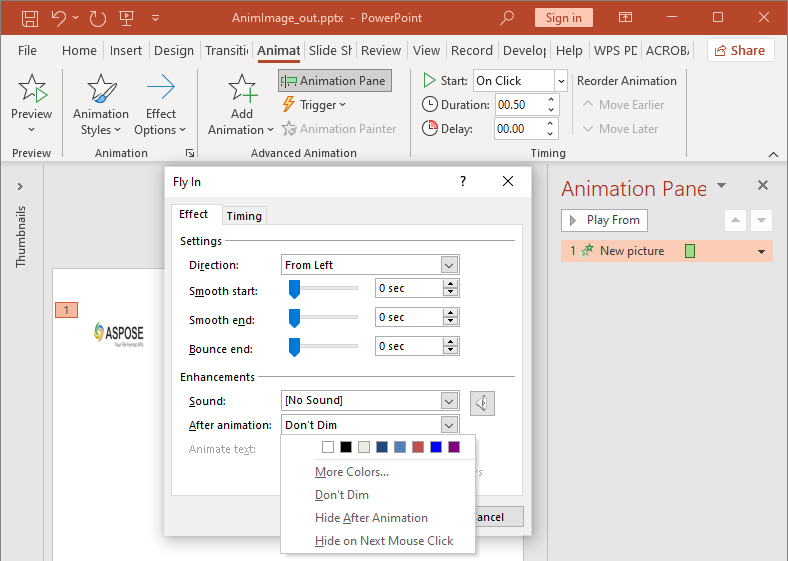
AfterAnimationType 类支持保持形状不变、改变其颜色、在动画后隐藏它,或在下一次点击时隐藏它。当类型为AfterAnimationType.Color时,还需设置Effect.getAfterAnimationColor。
此独立示例创建一个效果,通过返回的效果对象设置其动画结束后行为,并保存结果。
import jpype
import asposeslides

if not jpype.isJVMStarted():
    jpype.startJVM()

from asposeslides.api import AfterAnimationType, EffectSubtype, EffectTriggerType, EffectType, Presentation, SaveFormat, ShapeType
from java.awt import Color

presentation = Presentation()
try:
    slide = presentation.getSlides().get_Item(0)
    shape = slide.getShapes().addAutoShape(ShapeType.Rectangle, 120, 100, 320, 80)
    shape.addTextFrame("Dim after animation")

    effect = slide.getTimeline().getMainSequence().addEffect(shape, EffectType.Fade, EffectSubtype.None_, EffectTriggerType.OnClick)
    effect.setAfterAnimationType(AfterAnimationType.Color)
    effect.getAfterAnimationColor().setColor(Color.LIGHT_GRAY)

    presentation.save("shape-animation-after-effect.pptx", SaveFormat.Pptx)
finally:
    presentation.dispose()
将类型从AfterAnimationType.Color更改会清除动画结束颜色设置。
文本动画
文本动画有两个相关的控制:
- TextAnimation.getBuildType 控制段落是一起显示还是按段落级别显示。
- Effect.getAnimateTextType 控制文本是一次性显示、按单词显示还是按字母显示。Effect.getDelayBetweenTextParts 设置单词或字母之间的延迟。正值为效果持续时间的百分比,负值为秒数延迟。
下面的独立示例对文本框中的单词进行动画。BuildType.AsOneObject 禁用按段落构建,使单词设置适用于整个文本框。
import jpype
import asposeslides

if not jpype.isJVMStarted():
    jpype.startJVM()

from asposeslides.api import AnimateTextType, BuildType, EffectSubtype, EffectTriggerType, EffectType, Presentation, SaveFormat, ShapeType

presentation = Presentation()
try:
    slide = presentation.getSlides().get_Item(0)
    text_box = slide.getShapes().addAutoShape(ShapeType.Rectangle, 80, 80, 560, 100)
    text_box.addTextFrame("Aspose.Slides animates this sentence word by word.")

    effect = slide.getTimeline().getMainSequence().addEffect(text_box, EffectType.Fade, EffectSubtype.None_, EffectTriggerType.OnClick)
    effect.getTextAnimation().setBuildType(BuildType.AsOneObject)
    effect.setAnimateTextType(AnimateTextType.ByWord)
    effect.setDelayBetweenTextParts(20.0)

    presentation.save("animated-text.pptx", SaveFormat.Pptx)
finally:
    presentation.dispose()
若要按段落构建文本框,请设置BuildType.ByLevelParagraphs1(或其他段落级别)。若要对单个段落使用单独的效果,请使用接受Paragraph参数的Sequence.addEffect重载。有关段落级示例,请参阅Animated Text。
导出和兼容性说明
- 将文件保存为 PPT 或 PPTX 可保留动画模型,但最终播放由演示文稿查看器控制。
- PDF 和静态图像不播放动画。若输出必须显示运动,请使用HTML5 export、动画 GIF 或video conversion。
- 对于 HTML5,请启用Html5Options.setAnimateShapes,必要时还可启用Html5Options.setAnimateTransitions。
- 视频渲染支持许多常见的进入、强调、退出和运动路径效果,但并非所有 PowerPoint 效果都受支持。请查看当前的Supported animations and effects并使用目标 Aspose.Slides 版本测试关键演示文稿。
- 高级自定义效果以及从其他演示格式导入的效果可能在文件中得以保留,但在 PowerPoint、HTML5 或视频中呈现方式可能不同。请验证导出结果,而不仅仅依赖效果名称。
常见问题
为什么动画在 PowerPoint 中显示,但在 PDF 中不显示?
PDF 是静态格式,因此动画和幻灯片切换不会播放。若必须保留运动,请导出为 HTML5、动画 GIF 或视频。
为什么效果在视频中播放不同?
视频导出会渲染动画,而不是存储原始 PowerPoint 行为。某些高级效果不受支持或被近似。请查看支持的效果表,并在生产使用前测试实际演示文稿。
移动形状的前后顺序会改变动画顺序吗?
不会。形状的 Z 顺序控制重叠,而序列顺序和触发器控制动画播放。如果需要不同的播放顺序,请更改时间轴。