
ใช้การเคลื่อนไหวรูปทรงในงานนำเสนอด้วย Python ผ่าน Java
Overview
เพื่อทำงานกับพฤติกรรมแต่ละอย่างภายในเอฟเฟกต์หรือแก้ไขส่วนของ motion-path ให้ดูที่ Custom Animation.
Aspose.Slides สำหรับ Python ผ่าน Java แสดงการเคลื่อนไหวของสไลด์เป็นเอฟเฟกต์ในไทม์ไลน์ของสไลด์ เอฟเฟกต์หนึ่งจะมีรูปทรงเป้าหมาย, ชนิดและรูปแบบย่อยของการเคลื่อนไหว, ตัวกระตุ้น, การตั้งค่าเวลา, และคุณสมบัติเสริมเช่นเสียงหรือพฤติกรรมหลังการเคลื่อนไหว.
ไทม์ไลน์มีลำดับสองประเภท:
- ลำดับหลัก จะเล่นเมื่อสไลด์ก้าวหน้า.
- ลำดับโต้ตอบ จะเริ่มเมื่อรูปทรงตัวกระตุ้นถูกคลิก.
เนื่องจากกล่องข้อความ, รูปภาพ, แผนภูมิ, ตาราง, และวัตถุสไลด์อื่น ๆ สืบทอดจาก Shape, คุณจึงใช้วิธีเดียวกันคือ Sequence.addEffect สำหรับเนื้อหาสไลด์ส่วนใหญ่ เอฟเฟกต์ที่ใช้ได้จะระบุในคลาส EffectType.
Add Shape Animations
เพื่อเพิ่มการเคลื่อนไหว, รับลำดับหลักของสไลด์และเรียก Sequence.addEffect พร้อมรูปทรงเป้าหมาย, ชนิดเอฟเฟกต์, รูปแบบย่อย, และตัวกระตุ้น สำหรับเอฟเฟกต์ที่เริ่มเมื่อรูปทรงอื่นถูกคลิก, ให้สร้างลำดับโต้ตอบที่ตัวกระตุ้นคือรูปทรงนั้น.
ตัวอย่างต่อไปนี้สร้างการเคลื่อนไหวทั้งสองประเภทและบันทึกผลลัพธ์เป็น shape-animations.pptx.
import jpype
import asposeslides

if not jpype.isJVMStarted():
    jpype.startJVM()

from asposeslides.api import EffectSubtype, EffectTriggerType, EffectType, Presentation, SaveFormat, ShapeType

presentation = Presentation()
try:
    slide = presentation.getSlides().get_Item(0)

    target_shape = slide.getShapes().addAutoShape(ShapeType.RoundCornerRectangle, 120, 100, 320, 80)
    target_shape.addTextFrame("Click to animate this shape")

    main_sequence = slide.getTimeline().getMainSequence()
    entrance_effect = main_sequence.addEffect(target_shape, EffectType.Fade, EffectSubtype.None_, EffectTriggerType.OnClick)
    entrance_effect.getTiming().setDuration(1.5)

    trigger_shape = slide.getShapes().addAutoShape(ShapeType.Bevel, 20, 20, 100, 40)
    trigger_shape.addTextFrame("Move")

    interactive_sequence = slide.getTimeline().getInteractiveSequences().add(trigger_shape)
    interactive_sequence.addEffect(target_shape, EffectType.PathFootball, EffectSubtype.None_, EffectTriggerType.OnClick)

    presentation.save("shape-animations.pptx", SaveFormat.Pptx)
finally:
    presentation.dispose()
ตัวกระตุ้นควบคุมว่าเอฟเฟกต์เริ่มเมื่อใด:
- EffectTriggerType.OnClick รอการคลิกในลำดับหลัก, หรือการคลิกบนรูปทรงตัวกระตุ้นในลำดับโต้ตอบ.
- EffectTriggerType.WithPrevious เริ่มพร้อมกับเอฟเฟกต์ก่อนหน้า.
- EffectTriggerType.AfterPrevious เริ่มเมื่อเอฟเฟกต์ก่อนหน้าจบ.
เพื่อเคลื่อนไหวรูปภาพ, แผนภูมิ, หรือรูปทรงประเภทอื่น, ส่งอ็อบเจ็กต์นั้นไปที่ Sequence.addEffect แทน target_shape. สำหรับตัวเลือกการจัดกลุ่มเฉพาะแผนภูมิ, ดู Animated Charts.
Read Shape Animations
ใช้ Sequence.getEffectsByShape เมื่อคุณรู้รูปทรงเป้าหมาย. เพื่อตรวจสอบทุกเอฟเฟกต์, ให้วนลำดับหลักและลำดับโต้ตอบแต่ละอัน. การวนลูปช่วยหลีกเลี่ยงการสันนิษฐานว่าลำดับมีเอฟเฟกต์ที่ตำแหน่ง 0.
import jpype
import asposeslides

if not jpype.isJVMStarted():
    jpype.startJVM()

from asposeslides.api import EffectSubtype, EffectTriggerType, EffectType, Presentation, ShapeType

def print_sequence(label, sequence):
    print(f"  {label}: {sequence.getCount()} effect(s)")
    for effect in sequence:
        target_shape = effect.getTargetShape()
        target_name = "unknown" if target_shape is None else target_shape.getName()
        type_name = EffectType.getName(EffectType.class_, effect.getType())
        subtype_name = EffectSubtype.getName(EffectSubtype.class_, effect.getSubtype())
        trigger_name = EffectTriggerType.getName(EffectTriggerType.class_, effect.getTiming().getTriggerType())
        effect_description = f"{type_name} {subtype_name}; target: {target_name}; trigger: {trigger_name}"
        print(f"    {effect_description}")


presentation = Presentation()
try:
    slide = presentation.getSlides().get_Item(0)
    target_shape = slide.getShapes().addAutoShape(ShapeType.Rectangle, 120, 100, 320, 80)
    target_shape.addTextFrame("Animated shape")

    main_sequence = slide.getTimeline().getMainSequence()
    main_sequence.addEffect(target_shape, EffectType.Fade, EffectSubtype.None_, EffectTriggerType.OnClick)

    trigger_shape = slide.getShapes().addAutoShape(ShapeType.Bevel, 20, 20, 100, 40)
    trigger_shape.addTextFrame("Move")

    interactive_sequence = slide.getTimeline().getInteractiveSequences().add(trigger_shape)
    interactive_sequence.addEffect(target_shape, EffectType.PathFootball, EffectSubtype.None_, EffectTriggerType.OnClick)

    target_effects = main_sequence.getEffectsByShape(target_shape)
    print(f"The main sequence contains {len(target_effects)} effect(s) for {target_shape.getName()}.")
    print_sequence("Main sequence", main_sequence)

    for interactive_index, sequence in enumerate(slide.getTimeline().getInteractiveSequences(), start=1):
        trigger_shape = sequence.getTriggerShape()
        trigger_name = "unknown" if trigger_shape is None else trigger_shape.getName()
        sequence_label = f"Interactive sequence {interactive_index}, trigger: {trigger_name}"
        print_sequence(sequence_label, sequence)
finally:
    presentation.dispose()
หากคุณต้องการเอฟเฟกต์เฉพาะรูปทรงเดียว, ให้ระบุตัวรูปทรงโดยชื่อ, ประเภท placeholder, หรือคุณสมบัติที่คงที่อื่น; แล้วเรียก Sequence.getEffectsByShape. อย่าสันนิษฐานว่า ShapeCollection.get_Item ที่ตำแหน่ง 0 จะเป็นวัตถุที่ต้องการเสมอ.
Work with Inherited Placeholder Effects
Placeholder บนสไลด์ปกติสามารถสืบทอดพฤติกรรมการเคลื่อนไหวจาก placeholder ที่สอดคล้องบนสไลด์เลเอาท์และมาสเตอร์ได้. Shape.getBasePlaceholder จะคืน placeholder พ่อแม่, หรือ None หากไม่มีพ่อแม่.
ในตัวอย่างการนำเสนอด้านล่าง, ส่วนท้ายมี Random Bars บนสไลด์ปกติ, Split บนสไลด์เลเอาท์, และ Fly In บนสไลด์มาสเตอร์.
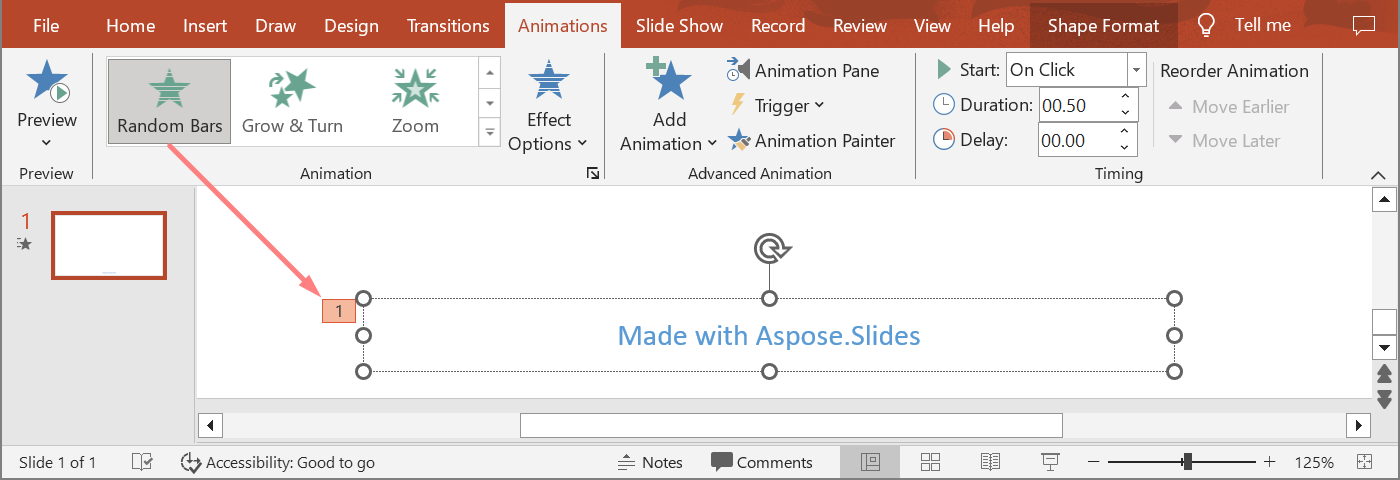
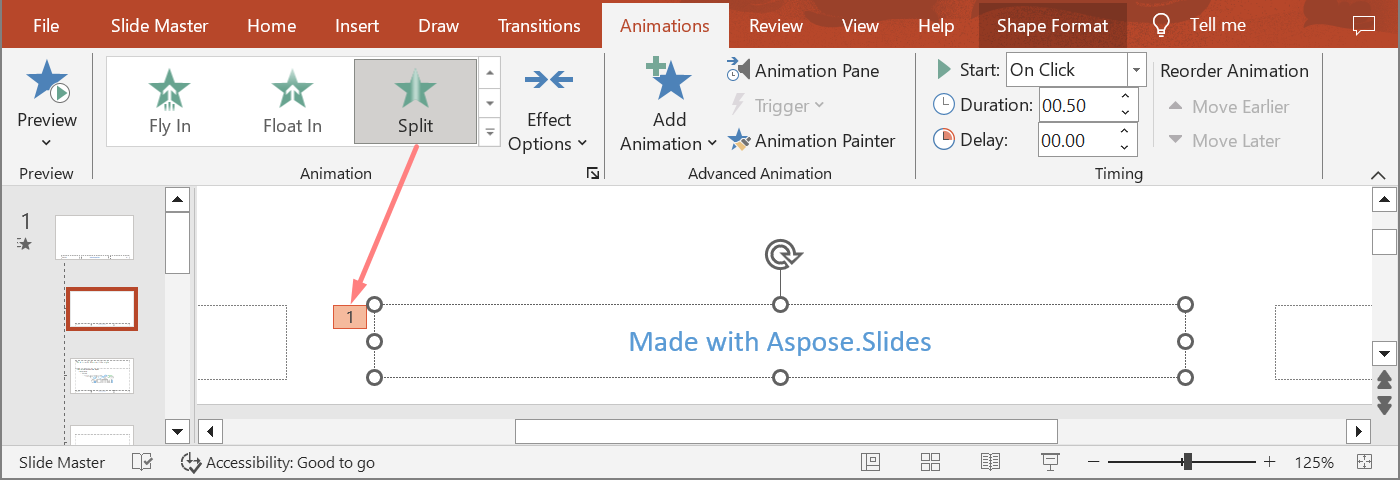
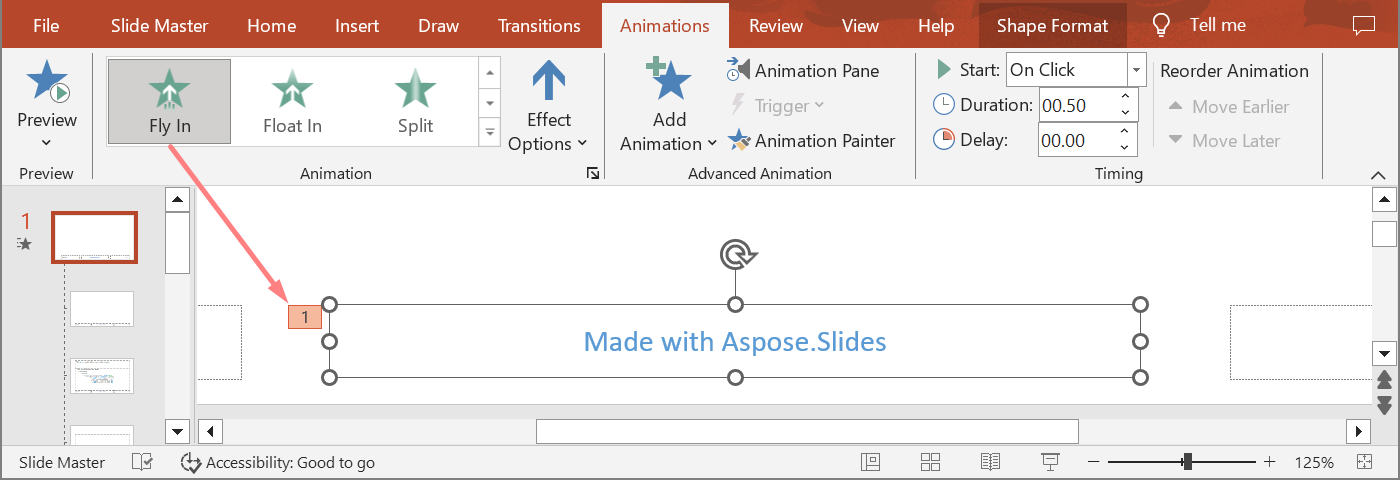
ตัวอย่างต่อไปนี้ใช้โครงสร้าง hierarchy ของ placeholder จากการนำเสนอใหม่. มันเพิ่มเอฟเฟกต์ให้กับ placeholder ของมาสเตอร์, placeholder ของเลเอาท์, และ placeholder ที่สอดคล้องบนสไลด์ปกติ. ทุกการเรียก Shape.getBasePlaceholder จะถูกตรวจสอบก่อนใช้รูปทรงที่คืนค่า.
import jpype
import asposeslides

if not jpype.isJVMStarted():
    jpype.startJVM()

from asposeslides.api import EffectSubtype, EffectTriggerType, EffectType, Presentation, SaveFormat, SlideLayoutType

def find_placeholder_with_base(slide, expected_base=None):
    for shape in slide.getShapes():
        base_placeholder = shape.getBasePlaceholder()
        if base_placeholder is not None and (expected_base is None or base_placeholder == expected_base):
            return shape
    return None


def print_effects(source, effects):
    print(f"{source}: {len(effects)} effect(s)")
    for effect in effects:
        type_name = EffectType.getName(EffectType.class_, effect.getType())
        subtype_name = EffectSubtype.getName(EffectSubtype.class_, effect.getSubtype())
        print(f"  {type_name} {subtype_name}")


presentation = Presentation()
try:
    layout_slide = presentation.getLayoutSlides().getByType(SlideLayoutType.TitleAndObject)
    layout_placeholder = find_placeholder_with_base(layout_slide) if layout_slide is not None else None
    if layout_placeholder is None:
        print("The layout slide does not contain a placeholder linked to its master slide.")
    else:
        master_placeholder = layout_placeholder.getBasePlaceholder()
        layout_slide.getMasterSlide().getTimeline().getMainSequence().addEffect(master_placeholder, EffectType.Fly, EffectSubtype.Bottom, EffectTriggerType.OnClick)
        layout_slide.getTimeline().getMainSequence().addEffect(layout_placeholder, EffectType.Split, EffectSubtype.VerticalIn, EffectTriggerType.OnClick)

        slide = presentation.getSlides().addEmptySlide(layout_slide)
        slide_placeholder = find_placeholder_with_base(slide, layout_placeholder)
        if slide_placeholder is None:
            print("The slide does not contain a placeholder linked to its layout slide.")
        else:
            slide.getTimeline().getMainSequence().addEffect(slide_placeholder, EffectType.RandomBars, EffectSubtype.Horizontal, EffectTriggerType.OnClick)
            slide_effects = slide.getTimeline().getMainSequence().getEffectsByShape(slide_placeholder)
            print_effects("Normal slide", slide_effects)

            base_layout_placeholder = slide_placeholder.getBasePlaceholder()
            if base_layout_placeholder is not None:
                layout_effects = layout_slide.getTimeline().getMainSequence().getEffectsByShape(base_layout_placeholder)
                print_effects("Layout slide", layout_effects)

                base_master_placeholder = base_layout_placeholder.getBasePlaceholder()
                if base_master_placeholder is not None:
                    master_effects = layout_slide.getMasterSlide().getTimeline().getMainSequence().getEffectsByShape(base_master_placeholder)
                    print_effects("Master slide", master_effects)

            presentation.save("placeholder-animations.pptx", SaveFormat.Pptx)
finally:
    presentation.dispose()
Change Animation Timing
ไดอะล็อก Timing ของ PowerPoint แสดงเป็นคุณสมบัติของ Timing.
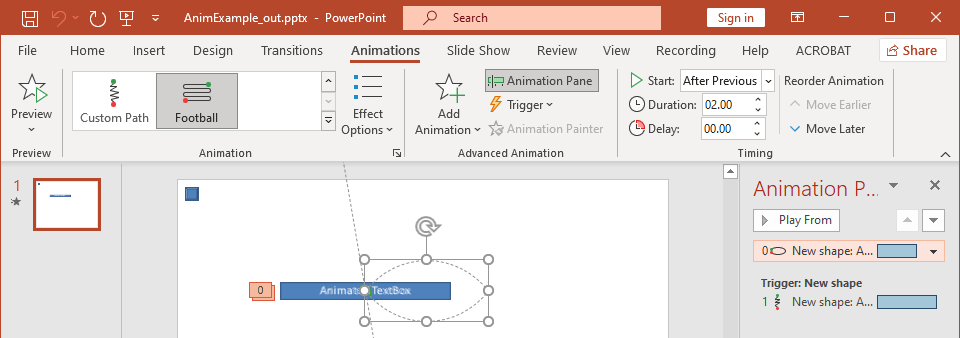
- Start สอดคล้องกับ Timing.getTriggerType.
- Duration สอดคล้องกับ Timing.getDuration หน่วยเป็นวินาที.
- Delay สอดคล้องกับ Timing.getTriggerDelayTime หน่วยเป็นวินาที.
- Repeat สอดคล้องกับ Timing.getRepeatCount, Timing.getRepeatUntilNextClick, หรือ Timing.getRepeatUntilEndSlide.
- Rewind when done playing สอดคล้องกับ Timing.getRewind.
ตัวอย่างอิสระนี้เพิ่มเอฟเฟกต์, เปลี่ยนเวลาผ่านอ็อบเจ็กต์ที่คืนจาก Sequence.addEffect, แล้วบันทึกผลลัพธ์. การเก็บอ้างอิง Effect ที่คืนค่าช่วยหลีกเลี่ยงการอ้างอิงดัชนีคอลเล็กชันที่ไม่จำเป็น.
import jpype
import asposeslides

if not jpype.isJVMStarted():
    jpype.startJVM()

from asposeslides.api import EffectSubtype, EffectTriggerType, EffectType, Presentation, SaveFormat, ShapeType

presentation = Presentation()
try:
    slide = presentation.getSlides().get_Item(0)
    shape = slide.getShapes().addAutoShape(ShapeType.Rectangle, 120, 100, 320, 80)
    shape.addTextFrame("Timed animation")

    effect = slide.getTimeline().getMainSequence().addEffect(shape, EffectType.Fade, EffectSubtype.None_, EffectTriggerType.OnClick)
    effect.getTiming().setTriggerType(EffectTriggerType.OnClick)
    effect.getTiming().setDuration(2.0)
    effect.getTiming().setTriggerDelayTime(0.5)
    effect.getTiming().setRepeatUntilNextClick(False)
    effect.getTiming().setRepeatUntilEndSlide(False)
    effect.getTiming().setRepeatCount(2.0)
    effect.getTiming().setRewind(True)

    presentation.save("shape-animation-timing.pptx", SaveFormat.Pptx)
finally:
    presentation.dispose()
ใช้โหมดการทำซ้ำเพียงหนึ่งแบบเท่านั้น. การผสมจำนวนการทำซ้ำกับธง “until” อาจทำให้ผลลัพธ์สับสนในโปรแกรมแสดงผลต่าง ๆ. เมื่อต้องเปลี่ยนโหมดทำซ้ำ, ให้ตั้งค่า Timing.setRepeatUntilNextClick และ Timing.setRepeatUntilEndSlide ก่อน Timing.setRepeatCount, เพราะการตั้งค่าใด ๆ หนึ่งจะเปลี่ยนโหมดทำซ้ำที่ใช้งานอยู่.
Add and Extract Animation Sounds
เอฟเฟกต์การเคลื่อนไหวสามารถอ้างอิงไฟล์เสียงฝังด้วย Effect.getSound. Effect.setStopPreviousSound บอกเอฟเฟกต์ให้หยุดเสียงที่เริ่มโดยเอฟเฟกต์ก่อนหน้า.
Add a Sound to an Effect
ตัวอย่างต่อไปนี้คาดหวังไฟล์เสียงในเครื่องชื่อ animation-sound.wav. มันสร้างเอฟเฟกต์สองรายการ, ฝังไฟล์นั้นเป็นเสียงสำหรับเอฟเฟกต์แรก, และกำหนดค่าให้เอฟเฟกต์ที่สองหยุดเสียง. ใช้อ็อบเจ็กต์ที่คืนจาก [Sequence.addEffect], ดังนั้นไม่ต้องระบุดัชนีของลำดับ.
import jpype
import asposeslides

if not jpype.isJVMStarted():
    jpype.startJVM()

from asposeslides.api import EffectSubtype, EffectTriggerType, EffectType, Presentation, SaveFormat, ShapeType
from pathlib import Path

presentation = Presentation()
try:
    slide = presentation.getSlides().get_Item(0)
    first_shape = slide.getShapes().addAutoShape(ShapeType.Rectangle, 80, 100, 240, 80)
    second_shape = slide.getShapes().addAutoShape(ShapeType.Rectangle, 400, 100, 240, 80)
    first_shape.addTextFrame("Starts sound")
    second_shape.addTextFrame("Stops sound")

    sequence = slide.getTimeline().getMainSequence()
    first_effect = sequence.addEffect(first_shape, EffectType.Fade, EffectSubtype.None_, EffectTriggerType.OnClick)
    second_effect = sequence.addEffect(second_shape, EffectType.Fade, EffectSubtype.None_, EffectTriggerType.OnClick)

    audio_data = Path("animation-sound.wav").read_bytes()
    effect_sound = presentation.getAudios().addAudio(jpype.JArray(jpype.JByte)(audio_data))
    first_effect.setSound(effect_sound)
    second_effect.setStopPreviousSound(True)

    presentation.save("shape-animation-sound.pptx", SaveFormat.Pptx)
finally:
    presentation.dispose()
Extract Embedded Effect Sounds
ตัวอย่างต่อไปนี้คาดหวังการนำเสนอในเครื่องชื่อ presentation-with-animation-sounds.pptx. มันสแกนทั้งลำดับหลักและลำดับโต้ตอบและเขียนเสียงเอฟเฟกต์ที่ฝังทั้งหมดไปยังโฟลเดอร์ extracted-animation-sounds. ส่วนขยายไฟล์จะเลือกจาก MIME type ของเสียงที่เปิดเผยโดย Audio.getContentType.
import jpype
import asposeslides

if not jpype.isJVMStarted():
    jpype.startJVM()

from asposeslides.api import Presentation
from pathlib import Path

def get_audio_extension(content_type):
    normalized_type = "" if content_type is None else str(content_type).lower()
    if normalized_type == "audio/mpeg":
        return ".mp3"
    if normalized_type == "audio/mp4":
        return ".m4a"
    if normalized_type == "audio/ogg":
        return ".ogg"
    if normalized_type in ("audio/wav", "audio/x-wav"):
        return ".wav"
    return ".bin"


def save_sounds(sequence, output_directory, sound_index):
    for effect in sequence:
        sound = effect.getSound()
        if sound is None:
            continue
        extension = get_audio_extension(sound.getContentType())
        output_path = output_directory / f"effect-sound-{sound_index}{extension}"
        audio_data = bytes(sound.getBinaryData())
        output_path.write_bytes(audio_data)
        sound_index += 1
    return sound_index


input_path = Path("presentation-with-animation-sounds.pptx")
output_directory = Path("extracted-animation-sounds")
output_directory.mkdir(parents=True, exist_ok=True)

presentation = Presentation(str(input_path))
try:
    sound_index = 1
    for slide in presentation.getSlides():
        sound_index = save_sounds(slide.getTimeline().getMainSequence(), output_directory, sound_index)
        for sequence in slide.getTimeline().getInteractiveSequences():
            sound_index = save_sounds(sequence, output_directory, sound_index)
    print(f"Extracted {sound_index - 1} sound file(s) to {output_directory.resolve()}.")
finally:
    presentation.dispose()
สำหรับอ็อบเจ็กต์เสียงขนาดใหญ่, ใช้ Audio.getStream แล้วคัดลอกสตรีมไปยังไฟล์แทนการโหลดอ็อบเจ็กต์ทั้งหมดเข้าสู่ byte array.
Set After-Animation Behavior
ตัวเลือก After animation ควบคุมว่าอะไรจะเกิดขึ้นกับรูปทรงหลังจากเอฟเฟกต์จบลง.
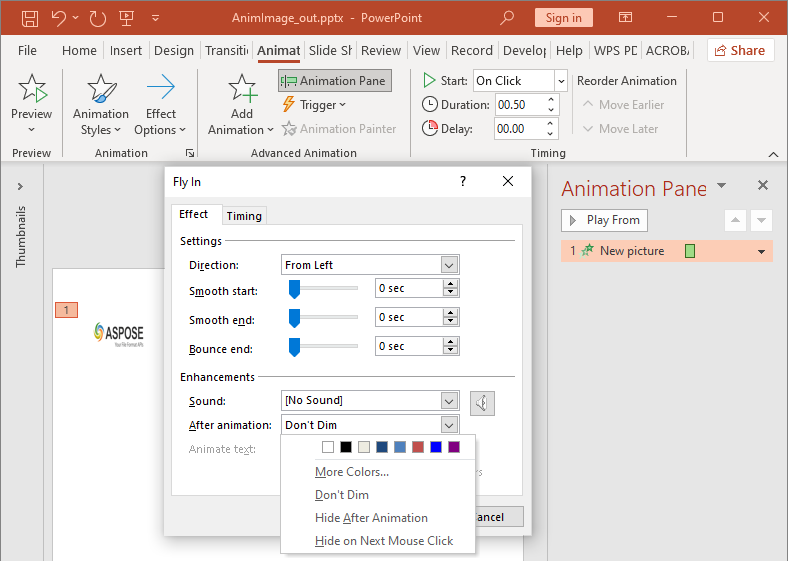
คลาส AfterAnimationType รองรับการทิ้งรูปทรงไว้โดยไม่เปลี่ยน, การเปลี่ยนสี, การซ่อนหลังการเคลื่อนไหว, หรือการซ่อนเมื่อคลิกครั้งต่อไป. เมื่อประเภทคือ AfterAnimationType.Color, ให้ตั้งค่า Effect.getAfterAnimationColor ด้วย.
ตัวอย่างอิสระนี้สร้างเอฟเฟกต์, ตั้งค่าพฤติกรรมหลังการเคลื่อนไหวผ่านอ็อบเจ็กต์เอฟเฟกต์ที่คืนค่า, แล้วบันทึกผลลัพธ์.
import jpype
import asposeslides

if not jpype.isJVMStarted():
    jpype.startJVM()

from asposeslides.api import AfterAnimationType, EffectSubtype, EffectTriggerType, EffectType, Presentation, SaveFormat, ShapeType
from java.awt import Color

presentation = Presentation()
try:
    slide = presentation.getSlides().get_Item(0)
    shape = slide.getShapes().addAutoShape(ShapeType.Rectangle, 120, 100, 320, 80)
    shape.addTextFrame("Dim after animation")

    effect = slide.getTimeline().getMainSequence().addEffect(shape, EffectType.Fade, EffectSubtype.None_, EffectTriggerType.OnClick)
    effect.setAfterAnimationType(AfterAnimationType.Color)
    effect.getAfterAnimationColor().setColor(Color.LIGHT_GRAY)

    presentation.save("shape-animation-after-effect.pptx", SaveFormat.Pptx)
finally:
    presentation.dispose()
การเปลี่ยนประเภทออกจาก AfterAnimationType.Color จะล้างการตั้งค่าสีหลังการเคลื่อนไหว.
Animate Text
การเคลื่อนไหวข้อความมีการควบคุมสองส่วนที่เกี่ยวข้อง:
- TextAnimation.getBuildType ควบคุมว่าข้อความย่อหน้าแสดงพร้อมกันหรือแยกตามระดับย่อหน้า.
- Effect.getAnimateTextType ควบคุมว่าข้อความแสดงทั้งหมดพร้อมกัน, ตามคำ, หรือ ตามตัวอักษร. Effect.getDelayBetweenTextParts กำหนดค่าหน่วงเวลาระหว่างคำหรืออักษร. ค่าเป็นบวกหมายถึงเปอร์เซ็นต์ของระยะเวลาเอฟเฟกต์; ค่าเป็นลบหมายถึงหน่วงเวลาเป็นวินาที.
ตัวอย่างอิสระต่อไปนี้เคลื่อนไหวคำในกล่องข้อความ. BuildType.AsOneObject ปิดการสร้างแบบย่อยตามย่อหน้าเพื่อให้การตั้งค่าคำใช้กับเฟรมข้อความทั้งหมด.
import jpype
import asposeslides

if not jpype.isJVMStarted():
    jpype.startJVM()

from asposeslides.api import AnimateTextType, BuildType, EffectSubtype, EffectTriggerType, EffectType, Presentation, SaveFormat, ShapeType

presentation = Presentation()
try:
    slide = presentation.getSlides().get_Item(0)
    text_box = slide.getShapes().addAutoShape(ShapeType.Rectangle, 80, 80, 560, 100)
    text_box.addTextFrame("Aspose.Slides animates this sentence word by word.")

    effect = slide.getTimeline().getMainSequence().addEffect(text_box, EffectType.Fade, EffectSubtype.None_, EffectTriggerType.OnClick)
    effect.getTextAnimation().setBuildType(BuildType.AsOneObject)
    effect.setAnimateTextType(AnimateTextType.ByWord)
    effect.setDelayBetweenTextParts(20.0)

    presentation.save("animated-text.pptx", SaveFormat.Pptx)
finally:
    presentation.dispose()
หากต้องการสร้างกล่องข้อความตามย่อหน้า, ให้ตั้งค่า BuildType.ByLevelParagraphs1 (หรือระดับย่อหน้าอื่น). เพื่อให้ย่อหน้าหนึ่งมีเอฟเฟกต์ของตนเอง, ใช้การโอเวอร์โหลดของ [Sequence.addEffect] ที่รับ Paragraph. ดู Animated Text สำหรับตัวอย่างระดับย่อหน้า.
Export and Compatibility Notes
- การบันทึกเป็น PPT หรือ PPTX จะคงโมเดลการเคลื่อนไหวไว้, แต่การเล่นขั้นสุดท้ายขึ้นกับโปรแกรมแสดงผลของการนำเสนอ.
- PDF และภาพคงที่จะไม่เล่นการเคลื่อนไหว. ใช้ HTML5 export, GIF เคลื่อนไหว, หรือ video conversion เมื่อผลลัพธ์ต้องแสดงการเคลื่อนไหว.
- สำหรับ HTML5, เปิดใช้งาน Html5Options.setAnimateShapes และเมื่อจำเป็น, Html5Options.setAnimateTransitions.
- การเรนเดอร์วิดีโอรองรับเอฟเฟกต์การเข้ามา, เน้น, ออก, และ motion-path ที่พบมาก, แต่ไม่รองรับเอฟเฟกต์ PowerPoint ทุกอย่าง. ตรวจสอบ supported animations and effects ปัจจุบันและทดสอบการนำเสนอสำคัญกับเวอร์ชัน Aspose.Slides ที่คุณใช้.
- เอฟเฟกต์กำหนดเองขั้นสูงและเอฟเฟกต์ที่นำเข้าจากรูปแบบการนำเสนออื่นอาจถูกเก็บไว้ในไฟล์แต่แสดงผลต่างกันใน PowerPoint, HTML5, หรือวิดีโอ. ตรวจสอบผลลัพธ์ที่ส่งออกแทนการพึ่งพาแค่ชื่อเอฟเฟกต์.
FAQ
ทำไมการเคลื่อนไหวจะแสดงใน PowerPoint แต่ไม่แสดงใน PDF?
PDF เป็นรูปแบบคงที่, ดังนั้นการเคลื่อนไหวและการเปลี่ยนสไลด์จะไม่เล่น. ส่งออกเป็น HTML5, GIF เคลื่อนไหว, หรือวิดีโอเมื่อจำเป็นต้องคงการเคลื่อนที่.
ทำไมเอฟเฟกต์จึงเล่นต่างกันในวิดีโอ?
การส่งออกวิดีโอทำการเรนเดอร์การเคลื่อนไหวแทนการเก็บพฤติกรรมเดิมของ PowerPoint. เอฟเฟกต์ขั้นสูงบางอย่างไม่ได้สนับสนุนหรือจะถูกประมาณค่า. ตรวจสอบตารางเอฟเฟกต์ที่สนับสนุนและทดสอบการนำเสนอจริงก่อนใช้งานจริง.
การย้ายรูปทรงไปข้างหน้าหรือข้างหลังเปลี่ยนลำดับการเคลื่อนไหวหรือไม่?
ไม่. การจัดเรียง z-order ของรูปทรงควบคุมการทับซ้อน, ส่วนลำดับของลำดับและตัวกระตุ้นควบคุมการเล่นการเคลื่อนไหว. ปรับไทม์ไลน์หากต้องการลำดับการเล่นที่แตกต่าง.