
在 C++ 中於 PowerPoint 簡報新增數學方程式
概述
PowerPoint 將方程式儲存為 Office Math Markup Language(OMML)。使用 Aspose.Slides for C++,您可以以程式方式建立相同類型的數學內容:分數、根號、函式、極限、N 元運算子、矩陣、陣列以及格式化的數學區塊。
在 PowerPoint 中,使用者通常從 Insert > Equation 新增方程式:
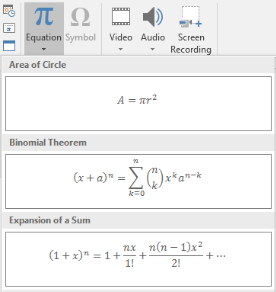
結果會在投影片上呈現可編輯的數學文字:

Aspose.Slides 透過三個主要物件建立此數學文字:
- 數學形狀,由 AddMathShape 建立,是包含方程式的形狀。
- MathPortion 在形狀文字框內儲存數學內容。
- MathParagraph 包含一個或多個 MathBlock 物件。
以下大多範例使用 MathematicalText 以及 IMathElement 的流暢方法,以保持程式碼簡潔易讀。
For MathML export scenarios, see Export Math Equations from Presentations in C++.
建立方程式
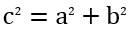
此範例建立一個數學形狀並加入畢氏定理:
auto presentation = System::MakeObject<Presentation>();
auto slide = presentation->get_Slide(0);

auto mathShape = slide->get_Shapes()->AddMathShape(20.0f, 20.0f, 700.0f, 120.0f);
auto mathPortion = System::ExplicitCast<MathPortion>(mathShape->get_TextFrame()->get_Paragraph(0)->get_Portion(0));
auto mathParagraph = mathPortion->get_MathParagraph();

auto equation = System::MakeObject<MathematicalText>(u"c")
        - >SetSuperscript(u"2")
        - >Join(u"=")
        - >Join(System::MakeObject<MathematicalText>(u"a")->SetSuperscript(u"2"))
        - >Join(u"+")
        - >Join(System::MakeObject<MathematicalText>(u"b")->SetSuperscript(u"2"));

mathParagraph->Add(equation);

presentation->Save(u"pythagorean-theorem.pptx", SaveFormat::Pptx);
presentation->Dispose();
AddMathShape 會建立已包含數學段落的形狀。取得第一個 MathPortion、其 MathParagraph,並向其中加入數學區塊或數學元素。
加入分數
使用 Divide 建立分數。您可以使用 MathFractionTypes 選擇分數樣式。

auto presentation = System::MakeObject<Presentation>();
auto slide = presentation->get_Slide(0);

auto mathShape = slide->get_Shapes()->AddMathShape(20.0f, 20.0f, 700.0f, 100.0f);
auto mathPortion = System::ExplicitCast<MathPortion>(mathShape->get_TextFrame()->get_Paragraph(0)->get_Portion(0));
auto mathParagraph = mathPortion->get_MathParagraph();

auto fraction = System::MakeObject<MathematicalText>(u"1")
        - >Divide(u"x", MathFractionTypes::Skewed);

mathParagraph->Add(System::MakeObject<MathBlock>(fraction));

presentation->Save(u"fraction.pptx", SaveFormat::Pptx);
presentation->Dispose();
若要堆疊式分數,使用 MathFractionTypes::Bar:
auto stackedFraction = System::MakeObject<MathematicalText>(u"x + 1")->Divide(u"y - 1", MathFractionTypes::Bar);
加入根號
使用 Radical 建立平方根、立方根或其他次方根。當前元素會成為根底,參數則為次方。

auto presentation = System::MakeObject<Presentation>();
auto slide = presentation->get_Slide(0);

auto mathShape = slide->get_Shapes()->AddMathShape(20.0f, 20.0f, 700.0f, 100.0f);
auto mathPortion = System::ExplicitCast<MathPortion>(mathShape->get_TextFrame()->get_Paragraph(0)->get_Portion(0));
auto mathParagraph = mathPortion->get_MathParagraph();

auto radical = System::MakeObject<MathematicalText>(u"x")
        - >Radical(u"n");

mathParagraph->Add(System::MakeObject<MathBlock>(radical));

presentation->Save(u"radical.pptx", SaveFormat::Pptx);
presentation->Dispose();
加入函式與極限
使用 AsArgumentOfFunction 或 Function 來建立如 sin(x)、log(x) 或自訂函式名稱的函式。對於極限,將 lim 放入 MathLimit 中,或使用 SetLowerLimit。

auto presentation = System::MakeObject<Presentation>();
auto slide = presentation->get_Slide(0);

auto mathShape = slide->get_Shapes()->AddMathShape(20.0f, 20.0f, 700.0f, 100.0f);
auto mathPortion = System::ExplicitCast<MathPortion>(mathShape->get_TextFrame()->get_Paragraph(0)->get_Portion(0));
auto mathParagraph = mathPortion->get_MathParagraph();

auto limit = System::MakeObject<MathematicalText>(u"lim")
        - >SetLowerLimit(u"x→∞")
        - >Function(u"x");

mathParagraph->Add(System::MakeObject<MathBlock>(limit));

presentation->Save(u"functions-and-limits.pptx", SaveFormat::Pptx);
presentation->Dispose();
若要自訂函式名稱,將函式名稱設為當前元素:
auto customFunction = System::MakeObject<MathematicalText>(u"f")->Function(u"x + 1");
加入 N 元運算子與積分
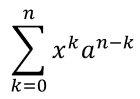
使用 Nary 來建立總和、聯集、交集及其他大型運算子。使用 Integral 來建立積分。兩者皆可設定上下限。
auto presentation = System::MakeObject<Presentation>();
auto slide = presentation->get_Slide(0);

auto mathShape = slide->get_Shapes()->AddMathShape(20.0f, 20.0f, 700.0f, 120.0f);
auto mathPortion = System::ExplicitCast<MathPortion>(mathShape->get_TextFrame()->get_Paragraph(0)->get_Portion(0));
auto mathParagraph = mathPortion->get_MathParagraph();

auto summationBase = System::MakeObject<MathematicalText>(u"x")
        - >SetSuperscript(u"k")
        - >Join(System::MakeObject<MathematicalText>(u"a")->SetSuperscript(u"n-k"));

auto summation = summationBase->Nary(MathNaryOperatorTypes::Summation, u"k=0", u"n");

mathParagraph->Add(System::MakeObject<MathBlock>(summation));

presentation->Save(u"nary-operators.pptx", SaveFormat::Pptx);
presentation->Dispose();
N 元運算子用於可選上下限的大型運算子。像 +、-、= 等簡單運算子通常以 MathematicalText 加入並串接於表達式中。
若要建立積分,使用 Integral:
auto integralBase = System::MakeObject<MathematicalText>(u"x")->Join(System::MakeObject<MathematicalText>(u"dx")->ToBox());
auto integral = integralBase->Integral(MathIntegralTypes::Simple, u"0", u"1");
加入矩陣
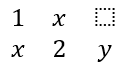
使用 MathMatrix 來建立行列。矩陣預設不含括號,因此當需要括弧、方括號或大括號時,請自行將矩陣包起來。
auto presentation = System::MakeObject<Presentation>();
auto slide = presentation->get_Slide(0);

auto mathShape = slide->get_Shapes()->AddMathShape(20.0f, 20.0f, 700.0f, 120.0f);
auto mathPortion = System::ExplicitCast<MathPortion>(mathShape->get_TextFrame()->get_Paragraph(0)->get_Portion(0));
auto mathParagraph = mathPortion->get_MathParagraph();

auto matrix = System::MakeObject<MathMatrix>(2, 3);
matrix->idx_set(0, 0, System::MakeObject<MathematicalText>(u"1"));
matrix->idx_set(0, 1, System::MakeObject<MathematicalText>(u"x"));
matrix->idx_set(1, 0, System::MakeObject<MathematicalText>(u"x"));
matrix->idx_set(1, 1, System::MakeObject<MathematicalText>(u"2"));
matrix->idx_set(1, 2, System::MakeObject<MathematicalText>(u"y"));

mathParagraph->Add(System::MakeObject<MathBlock>(matrix));

presentation->Save(u"matrix.pptx", SaveFormat::Pptx);
presentation->Dispose();
加入方程式陣列
當需要對齊的方程式或垂直堆疊的表達式時,使用 ToMathArray。

auto presentation = System::MakeObject<Presentation>();
auto slide = presentation->get_Slide(0);

auto mathShape = slide->get_Shapes()->AddMathShape(20.0f, 20.0f, 700.0f, 140.0f);
auto mathPortion = System::ExplicitCast<MathPortion>(mathShape->get_TextFrame()->get_Paragraph(0)->get_Portion(0));
auto mathParagraph = mathPortion->get_MathParagraph();

auto equationArray = System::MakeObject<MathematicalText>(u"x")
        - >Join(u"y")
        - >ToMathArray();

mathParagraph->Add(System::MakeObject<MathBlock>(equationArray));

presentation->Save(u"equation-array.pptx", SaveFormat::Pptx);
presentation->Dispose();
加入三角函式
當參數是當前元素且函式名稱已知時,使用 AsArgumentOfFunction。

auto presentation = System::MakeObject<Presentation>();
auto slide = presentation->get_Slide(0);

auto mathShape = slide->get_Shapes()->AddMathShape(20.0f, 20.0f, 700.0f, 100.0f);
auto mathPortion = System::ExplicitCast<MathPortion>(mathShape->get_TextFrame()->get_Paragraph(0)->get_Portion(0));
auto mathParagraph = mathPortion->get_MathParagraph();

auto cosine = System::MakeObject<MathematicalText>(u"2x")
        - >AsArgumentOfFunction(MathFunctionsOfOneArgument::Cos);

mathParagraph->Add(System::MakeObject<MathBlock>(cosine));

presentation->Save(u"trigonometric-function.pptx", SaveFormat::Pptx);
presentation->Dispose();
加入下標與上標
使用下標與上標輔助工具來設定指數與次方。若指標需顯示在基底左側,請使用 SetSubSuperscriptOnTheLeft。

auto presentation = System::MakeObject<Presentation>();
auto slide = presentation->get_Slide(0);

auto mathShape = slide->get_Shapes()->AddMathShape(20.0f, 20.0f, 700.0f, 100.0f);
auto mathPortion = System::ExplicitCast<MathPortion>(mathShape->get_TextFrame()->get_Paragraph(0)->get_Portion(0));
auto mathParagraph = mathPortion->get_MathParagraph();

auto scripts = System::MakeObject<MathematicalText>(u"Y")
        - >SetSubSuperscriptOnTheLeft(u"1", u"n");

mathParagraph->Add(System::MakeObject<MathBlock>(scripts));

presentation->Save(u"subscript-superscript.pptx", SaveFormat::Pptx);
presentation->Dispose();
加入分隔符
使用 Enclose 將表達式放入分隔符內。對於包含多個元素的分隔符表達式,亦可設定分隔字元。

auto presentation = System::MakeObject<Presentation>();
auto slide = presentation->get_Slide(0);

auto mathShape = slide->get_Shapes()->AddMathShape(20.0f, 20.0f, 700.0f, 100.0f);
auto mathPortion = System::ExplicitCast<MathPortion>(mathShape->get_TextFrame()->get_Paragraph(0)->get_Portion(0));
auto mathParagraph = mathPortion->get_MathParagraph();

auto delimiter = System::MakeObject<MathematicalText>(u"x")
        - >Join(u"y")
        - >Join(u"z")
        - >Enclose(u'<', u'>', u'|');

mathParagraph->Add(System::MakeObject<MathBlock>(delimiter));

presentation->Save(u"delimiters.pptx", SaveFormat::Pptx);
presentation->Dispose();
加入框線盒
當方程式本身需要加框時,使用 ToBorderBox。
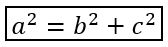
auto presentation = System::MakeObject<Presentation>();
auto slide = presentation->get_Slide(0);

auto mathShape = slide->get_Shapes()->AddMathShape(20.0f, 20.0f, 700.0f, 100.0f);
auto mathPortion = System::ExplicitCast<MathPortion>(mathShape->get_TextFrame()->get_Paragraph(0)->get_Portion(0));
auto mathParagraph = mathPortion->get_MathParagraph();

auto boxedEquation = System::MakeObject<MathematicalText>(u"a")
        - >SetSuperscript(u"2")
        - >Join(u"=")
        - >Join(System::MakeObject<MathematicalText>(u"b")->SetSuperscript(u"2"))
        - >Join(u"+")
        - >Join(System::MakeObject<MathematicalText>(u"c")->SetSuperscript(u"2"))
        - >ToBorderBox();

mathParagraph->Add(System::MakeObject<MathBlock>(boxedEquation));

presentation->Save(u"border-box.pptx", SaveFormat::Pptx);
presentation->Dispose();
分組項目
使用 Group 在表達式之上或之下放置分組符號。可加入上下限以標記分組的項目。

auto presentation = System::MakeObject<Presentation>();
auto slide = presentation->get_Slide(0);

auto mathShape = slide->get_Shapes()->AddMathShape(20.0f, 20.0f, 700.0f, 120.0f);
auto mathPortion = System::ExplicitCast<MathPortion>(mathShape->get_TextFrame()->get_Paragraph(0)->get_Portion(0));
auto mathParagraph = mathPortion->get_MathParagraph();

auto grouped = System::MakeObject<MathematicalText>(u"x + y")
        - >Group(u'\u23DF', MathTopBotPositions::Bottom, MathTopBotPositions::Top)
        - >SetLowerLimit(u"any text");

mathParagraph->Add(System::MakeObject<MathBlock>(grouped));

presentation->Save(u"grouped-terms.pptx", SaveFormat::Pptx);
presentation->Dispose();
格式化數學元素
僅在有助於說明公式時使用格式化輔助工具。例如,Overbar 會在數學元素上方加上橫線。

auto presentation = System::MakeObject<Presentation>();
auto slide = presentation->get_Slide(0);

auto mathShape = slide->get_Shapes()->AddMathShape(20.0f, 20.0f, 700.0f, 100.0f);
auto mathPortion = System::ExplicitCast<MathPortion>(mathShape->get_TextFrame()->get_Paragraph(0)->get_Portion(0));
auto mathParagraph = mathPortion->get_MathParagraph();

auto overbar = System::MakeObject<MathematicalText>(u"ABC")->Overbar();

mathParagraph->Add(System::MakeObject<MathBlock>(overbar));

presentation->Save(u"overbar.pptx", SaveFormat::Pptx);
presentation->Dispose();
快速參考
| 任務 | 主要 API |
|---|---|
| 建立數學文字 | MathematicalText |
| 合併元素 | IMathElement.Join |
| 建立分數 | IMathElement.Divide |
| 加入上標或下標 | SetSuperscript, SetSubscript |
| 加入函式 | Function, AsArgumentOfFunction |
| 加入根號 | IMathElement.Radical |
| 加入極限 | SetLowerLimit, SetUpperLimit |
| 加入左側標記 | SetSubSuperscriptOnTheLeft |
| 加入總和與積分 | Nary, Integral |
| 加入矩陣 | MathMatrix |
| 加入方程式陣列 | ToMathArray |
| 加入分隔符 | Enclose |
| 加入橫線與框線 | Overbar, ToBorderBox |
| 分組項目 | Group |
常見問題
我可以編輯已存在的 PowerPoint 方程式嗎?
可以。開啟簡報,找到包含 MathPortion 的形狀,取得其 MathParagraph,並在該段落中更新數學區塊。
方程式是否儲存為可編輯的 PowerPoint 數學內容?
可以。將檔案儲存為 PPTX 時,Aspose.Slides 會將方程式寫入為可編輯的 Office 數學內容。
我可以將方程式匯出為 LaTeX 嗎?
可以。從其 IMathPortion 取得方程式的 IMathParagraph,然後呼叫 IMathParagraph::ToLatex 直接匯出。完整範例請參考 Export Math Equations from Presentations in C++。