
تخصيص أشكال العرض التقديمي في C++
نظرة عامة
تشرح هذه المقالة كيفية تخصيص أشكال العروض التقديمية في Aspose.Slides عن طريق تعديل هندسة الشكل عبر نقاط التحرير ومسارات الهندسة. توضح كيفية العمل مع GeometryPath وIGeometryPath لتعديل الأشكال الموجودة، وإجراء عمليات تحرير أساسية للمسار، وإضافة أو إزالة النقاط، وتطبيق الهندسة المحدثة على الشكل. كما توضح كيفية إنشاء أشكال مخصصة ومركبة، وبناء أشكال ذات زوايا منحنية، وتحديد ما إذا كانت هندسة الشكل مغلقة.
تغيير شكل باستخدام نقاط التحرير
- تحريك زاوية إلى الداخل أو الخارج.
- ضبط الانحناء عند نقطة.
- إضافة نقاط جديدة.
تسمح لك نقاط التحرير بتعديل مخطط الشكل أو استخدام شكل موجود كأساس لآخر جديد.
نصائح تحرير الشكل
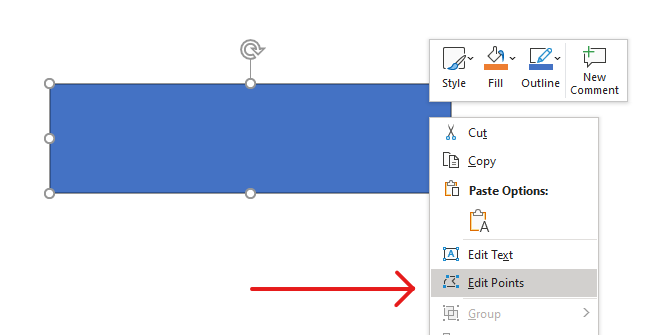
عند تحرير أشكال PowerPoint، احتفظ بهذه المفاهيم في ذهنك:
- يمكن أن يكون الشكل (أو مساره) مغلقًا أو مفتوحًا.
- يتكون مسار الشكل من نقاط ربط متصلة بواسطة مقاطع.
- يمكن أن يكون المقطع مستقيمًا أو منحنياً. تحدد نقاط الربط ومقابض التحكم شكله.
- توجد نقاط الربط كنقاط زاوية، نقاط مستقيمة، أو نقاط ناعمة:
- في نقطة الزاوية، يمكن أن تلتقي المقاطع المتجاورة بزاوية.
- في نقطة ناعمة، تكون مقبضا التحكم متوازيين ومسافتهما متساوية من نقطة الربط.
- في نقطة مستقيمة، يكون مقبضا التحكم متوازيين لكن قد تكون مسافتهما مختلفة عن نقطة الربط.
- تحريك نقاط الربط أو تعديل مقابضها يغيّر مخطط الشكل.
لتحرير أشكال PowerPoint عبر نقاط التحرير، توفر Aspose.Slides الفئة GeometryPath والواجهة IGeometryPath.
- تمثل نسخة GeometryPath مسار هندسي لكائن IGeometryShape.
- لاسترجاع GeometryPath من نسخة IGeometryShape، يمكنك استخدام طريقة IGeometryShape::GetGeometryPaths.
- لتعيين GeometryPath لشكل، يمكنك استخدام هذه الطرق: IGeometryShape::SetGeometryPath للأشكال ذات المسار الواحد وIGeometryShape::SetGeometryPaths للأشكال ذات المسارات المتعددة.
- لإضافة مقاطع، يمكنك استخدام الطرق الموجودة تحت IGeometryPath.
- باستخدام طريقتي IGeometryPath::set_Stroke وIGeometryPath::set_FillMode ، يمكنك تحديد مظهر مسار هندسي.
- باستخدام طريقة IGeometryPath::get_PathData ، يمكنك استرجاع مسار الهندسة لـGeometryShape كمصفوفة من مقاطع المسار.
عمليات تحرير بسيطة
استخدم الطرق التالية لتحرير مسار هندسي. الإصدارات التي تقبل فهرسًا تُدرج مقطعًا في ذلك الموضع الصفري القائم في مصفوفة مقاطع المسار.
| العملية | الطريقة |
|---|---|
| إضافة أو إدراج خط مستقيم. | GeometryPath::LineTo |
| إضافة أو إدراج منحنى بيزيه مكعب مع نقطتي تحكم ونقطة نهاية. | GeometryPath::CubicBezierTo |
| إضافة أو إدراج منحنى بيزيه تربيعي مع نقطة تحكم واحدة ونقطة نهاية. | GeometryPath::QuadraticBezierTo |
| إضافة قوس بيضاوي بالأبعاد والزوايا المحددة بالدرجات. | GeometryPath::ArcTo |
| إغلاق الشكل الحالي بربط نقطة نهايته بنقطة بدايته. | GeometryPath::CloseFigure |
| تعيين نقطة بدء الشكل. | GeometryPath::MoveTo |
| إزالة مقطع عند فهرس صفري. | GeometryPath::RemoveAt |
إضافة نقاط مخصصة إلى شكل
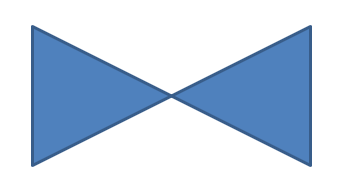
تُدرج هذه المثال نقطتين في شكل مستطيل باستخدام GeometryPath::LineTo وتطبق المسار المُحرّر باستخدام IGeometryShape::SetGeometryPath. الإحداثيات محلية إلى الشكل: النقطتان الجديدتان تقعان في مركزه، على بُعد 100 نقطة من اليسار و50 نقطة من الأعلى. مؤشرات المقاطع 1 و4 تضعهما على الحافتين العلوية والسفلية، مما يسحب هاتين الحافتين إلى الداخل.
#include <DOM/IAutoShape.h>
#include <DOM/IGeometryPath.h>
#include <DOM/IShapeCollection.h>
#include <DOM/ISlide.h>
#include <DOM/ISlideCollection.h>
#include <DOM/Presentation.h>
#include <DOM/ShapeType.h>
#include <system/smart_ptr.h>

using namespace Aspose::Slides;
using namespace System;

auto presentation = System::MakeObject<Presentation>();
auto slide = presentation->get_Slide(0);

auto shape = slide->get_Shapes()->AddAutoShape(ShapeType::Rectangle, 100.0f, 100.0f, 200.0f, 100.0f);

auto geometryPath = shape->GetGeometryPaths()->idx_get(0);
geometryPath->LineTo(100.0f, 50.0f, 1);
geometryPath->LineTo(100.0f, 50.0f, 4);

shape->SetGeometryPath(geometryPath);
إزالة نقاط من شكل
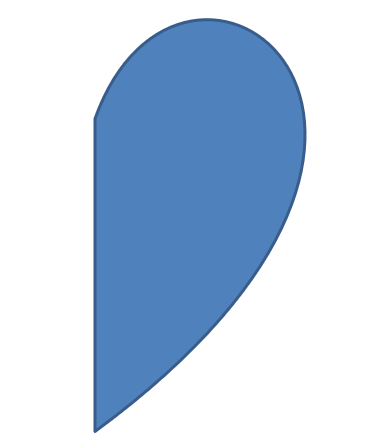
يُغيّر هذا المثال مخطط شكل على شكل قلب بإزالة المقطع عند الفهرس الصفري 2 باستخدام GeometryPath::RemoveAt. تطبيق المسار المعدل باستخدام IGeometryShape::SetGeometryPath يحدّث محيط الشكل.
#include <DOM/IAutoShape.h>
#include <DOM/IGeometryPath.h>
#include <DOM/IShapeCollection.h>
#include <DOM/ISlide.h>
#include <DOM/ISlideCollection.h>
#include <DOM/Presentation.h>
#include <DOM/ShapeType.h>
#include <system/smart_ptr.h>

using namespace Aspose::Slides;
using namespace System;

auto presentation = System::MakeObject<Presentation>();
auto slide = presentation->get_Slide(0);

auto shape = slide->get_Shapes()->AddAutoShape(ShapeType::Heart, 100.0f, 100.0f, 300.0f, 300.0f);

auto path = shape->GetGeometryPaths()->idx_get(0);
path->RemoveAt(2);

shape->SetGeometryPath(path);
إنشاء شكل مخصص
يبني هذا المثال نجماً خماسيّ الأطراف باستخدام GeometryPath. تُحدِّد أنصاف الأقطار الخارجية والداخلية المتبادلة بـ100 و50 نقطة القمم والجزء المَعرّج؛ خطوة قدرها 72 درجة تُوزّع القمم الخمسة بالتساوي. يُغلق المسار باستخدام GeometryPath::CloseFigure ويُطبق على شكل مستطيل باستخدام IGeometryShape::SetGeometryPath، مستبدلاً مخططه.
#include <DOM/GeometryPath.h>
#include <DOM/IAutoShape.h>
#include <DOM/IShapeCollection.h>
#include <DOM/ISlide.h>
#include <DOM/ISlideCollection.h>
#include <DOM/Presentation.h>
#include <DOM/ShapeType.h>
#include <drawing/point_f.h>
#include <system/collections/list.h>
#include <system/math.h>
#include <system/smart_ptr.h>

using namespace Aspose::Slides;
using namespace System;
using namespace System::Collections::Generic;
using namespace System::Drawing;

auto points = System::MakeObject<List<PointF>>();

auto outerRadius = 100.0f;
auto innerRadius = 50.0f;
auto angleStep = 72;

for (auto angle = -90; angle < 270; angle += angleStep)
{
    auto radians = angle * (Math::PI / 180.f);
    auto x = outerRadius * Math::Cos(radians);
    auto y = outerRadius * Math::Sin(radians);
    points->Add(PointF((float)x + outerRadius, (float)y + outerRadius));

    radians = Math::PI * (angle + angleStep / 2) / 180.0;
    x = innerRadius * Math::Cos(radians);
    y = innerRadius * Math::Sin(radians);
    points->Add(PointF((float)x + outerRadius, (float)y + outerRadius));
}

auto starPath = System::MakeObject<GeometryPath>();
starPath->MoveTo(points->idx_get(0));

for (auto i = 1; i < points->get_Count(); i++)
{
    starPath->LineTo(points->idx_get(i));
}

starPath->CloseFigure();

auto presentation = System::MakeObject<Presentation>();
auto slide = presentation->get_Slide(0);

auto shape = slide->get_Shapes()->AddAutoShape(ShapeType::Rectangle, 100.0f, 100.0f, outerRadius * 2, outerRadius * 2);
shape->SetGeometryPath(starPath);

إنشاء شكل مخصص مركب
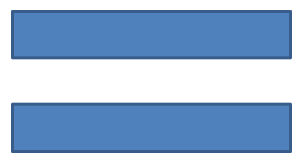
يُعرّف هذا المثال جسمين GeometryPath مغلقين للثلث العلوي والسفلي من الشكل. تطبيق كلا المسارين باستخدام IGeometryShape::SetGeometryPaths يُنشئ شكلاً مركّبًا واحدًا به فجوة عبر الثلث الأوسط.
#include <DOM/GeometryPath.h>
#include <DOM/IAutoShape.h>
#include <DOM/IGeometryPath.h>
#include <DOM/IShapeCollection.h>
#include <DOM/ISlide.h>
#include <DOM/ISlideCollection.h>
#include <DOM/Presentation.h>
#include <DOM/ShapeType.h>
#include <system/smart_ptr.h>

using namespace Aspose::Slides;
using namespace System;

auto presentation = System::MakeObject<Presentation>();
auto slide = presentation->get_Slide(0);

auto shape = slide->get_Shapes()->AddAutoShape(ShapeType::Rectangle, 100.0f, 100.0f, 200.0f, 100.0f);

auto topPath = System::MakeObject<GeometryPath>();
topPath->MoveTo(0.0f, 0.0f);
topPath->LineTo(shape->get_Width(), 0.0f);
topPath->LineTo(shape->get_Width(), shape->get_Height() / 3);
topPath->LineTo(0.0f, shape->get_Height() / 3);
topPath->CloseFigure();

auto bottomPath = System::MakeObject<GeometryPath>();
bottomPath->MoveTo(0.0f, shape->get_Height() / 3 * 2);
bottomPath->LineTo(shape->get_Width(), shape->get_Height() / 3 * 2);
bottomPath->LineTo(shape->get_Width(), shape->get_Height());
bottomPath->LineTo(0.0f, shape->get_Height());
bottomPath->CloseFigure();

auto paths = System::MakeArray<SharedPtr<IGeometryPath>>({ topPath, bottomPath });

shape->SetGeometryPaths(paths);
إنشاء شكل مخصص بزوايا منحنية
يجمع هذا المثال بين المقاطع المستقيمة وGeometryPath::ArcTo لإنشاء شكل بزوايا منحنية إلى الداخل. كل حجم زاوية يحدد عرض وارتفاع القوس بالنقاط، والمسح بزاوية -90 درجة يرسم ربع إهليلج عكس اتجاه العقارب. يُطبق المسار المكتمل باستخدام IGeometryShape::SetGeometryPath، ويُحفظ العرض التقديمي بصيغة PPTX.
#include <DOM/GeometryPath.h>
#include <DOM/IAutoShape.h>
#include <DOM/IShapeCollection.h>
#include <DOM/ISlide.h>
#include <DOM/ISlideCollection.h>
#include <DOM/Presentation.h>
#include <DOM/ShapeType.h>
#include <Export/SaveFormat.h>
#include <drawing/point_f.h>

using namespace Aspose::Slides;
using namespace Aspose::Slides::Export;
using namespace System::Drawing;

auto shapeX = 20.f;
auto shapeY = 20.f;
auto shapeWidth = 300.f;
auto shapeHeight = 200.f;

auto leftTopSize = 50.f;
auto rightTopSize = 20.f;
auto rightBottomSize = 40.f;
auto leftBottomSize = 10.f;

auto presentation = System::MakeObject<Presentation>();
auto slide = presentation->get_Slide(0);

auto shape = slide->get_Shapes()->AddAutoShape(ShapeType::Custom, shapeX, shapeY, shapeWidth, shapeHeight);

auto topLeft = PointF(leftTopSize, 0.0f);
auto topRight = PointF(shapeWidth - rightTopSize, 0.0f);
auto rightBottom = PointF(shapeWidth, shapeHeight - rightBottomSize);
auto bottomLeft = PointF(leftBottomSize, shapeHeight);
auto leftTop = PointF(0.0f, leftTopSize);

auto geometryPath = System::MakeObject<GeometryPath>();
geometryPath->MoveTo(topLeft);
geometryPath->LineTo(topRight);
geometryPath->ArcTo(rightTopSize, rightTopSize, 180.0f, -90.0f);
geometryPath->LineTo(rightBottom);
geometryPath->ArcTo(rightBottomSize, rightBottomSize, -90.0f, -90.0f);
geometryPath->LineTo(bottomLeft);
geometryPath->ArcTo(leftBottomSize, leftBottomSize, 0.0f, -90.0f);
geometryPath->LineTo(leftTop);
geometryPath->ArcTo(leftTopSize, leftTopSize, 90.0f, -90.0f);
geometryPath->CloseFigure();

shape->SetGeometryPath(geometryPath);

presentation->Save(u"output.pptx", SaveFormat::Pptx);
معرفة ما إذا كانت هندسة الشكل مغلقة
يتحقق المساعد التالي ما إذا كان كل مسار هندسي غير فارغ ينتهي بمقطع إغلاق. يقرأ IGeometryPath::get_PathData ويقارن أمر المقطع النهائي لـIPathSegment::get_PathCommand مع PathCommandType::Close. يُعيد false عندما لا توجد مسارات غير فارغة. يتحقق هذا من الأمر النهائي لكل مسار؛ لا يفحص كل شكل فرعي داخل المسار. يطبع المثال True لمستطيل.
#include <DOM/Presentation.h>
#include <DOM/ISlide.h>
#include <DOM/IShapeCollection.h>
#include <DOM/IAutoShape.h>
#include <DOM/IGeometryShape.h>
#include <DOM/IGeometryPath.h>
#include <DOM/ShapeType.h>
#include <system/array.h>
#include <system/smart_ptr.h>
#include <system/console.h>
#include <DOM/IPathSegment.h>
#include <DOM/PathCommandType.h>

using namespace Aspose::Slides;
using namespace System;

auto isGeometryClosed = [](SharedPtr<IGeometryShape> geometryShape)
{
    auto hasNonemptyPath = false;
    for (auto&& geometryPath : geometryShape->GetGeometryPaths())
    {
        auto segments = geometryPath->get_PathData();
        if (segments->get_Length() == 0)
        {
            continue;
        }

        hasNonemptyPath = true;
        auto lastSegment = segments->idx_get(segments->get_Length() - 1);
        if (lastSegment->get_PathCommand() != PathCommandType::Close)
        {
            return false;
        }
    }
    return hasNonemptyPath;
};

auto presentation = MakeObject<Presentation>();
auto slide = presentation->get_Slide(0);

auto shape = slide->get_Shapes()->AddAutoShape(ShapeType::Rectangle, 100, 100, 200, 100);
Console::WriteLine(isGeometryClosed(shape));
استخراج وفحص عناصر الشكل
استخدم IGeometryShape::CreateShapeElements لفحص شكل موجود كعناصر تحتوي على نقاط المسار وأنواع النقاط. حوّل كل IShapeElement معاد إلى ShapeElement لقراءة المصفوفات المعادة عبر get_PathPoints وget_PathTypes. هذا التمثيل مفيد لتحليل المخطط أو تمرير الهندسة إلى أدوات رسم مخصصة.
يفتح المثال عرضًا تقديميًا، يجد أول شكل هندسي مباشرةً على الشريحة الأولى، ويطبع مقاطع مساره. استخدم عرضًا يحتوي على شكل به مقاطع مستقيمة ومنحنية لرؤية كلا النوعين من الإخراج. لا يبحث داخل المجموعات.
#include <DOM/Presentation.h>
#include <DOM/ISlide.h>
#include <DOM/IShapeCollection.h>
#include <DOM/IAutoShape.h>
#include <DOM/IGeometryShape.h>
#include <DOM/IGeometryPath.h>
#include <DOM/ShapeType.h>
#include <system/array.h>
#include <system/smart_ptr.h>
#include <system/console.h>
#include <DOM/IShapeElement.h>
#include <DOM/ShapeElement.h>

using namespace Aspose::Slides;
using namespace System;

auto presentation = MakeObject<Presentation>(u"input.pptx");
auto slide = presentation->get_Slide(0);

SharedPtr<IGeometryShape> shape;
for (auto&& candidate : slide->get_Shapes())
{
    shape = AsCast<IGeometryShape>(candidate);
    if (shape != nullptr)
    {
        break;
    }
}
if (shape == nullptr)
{
    Console::WriteLine(u"No geometry shape found on the first slide.");
    return;
}

for (auto&& element : shape->CreateShapeElements())
{
    auto shapeElement = ExplicitCast<ShapeElement>(element);
    auto points = shapeElement->get_PathPoints();
    auto types = shapeElement->get_PathTypes();
    Console::WriteLine(u"Shape element:");

    for (auto i = 0; i < points->get_Length(); i++)
    {
        auto pointType = types[i] & 0x07; // احتفظ بنوع المقطع، مستثنيًا العلامات.
        switch (pointType)
        {
            case 0:
                Console::WriteLine(u"Start figure at {0}", points[i]);
                break;
            case 1:
                Console::WriteLine(u"Line to {0}", points[i]);
                break;
            case 3:
                Console::WriteLine(u"Cubic Bezier: controls {0}, {1}; end {2}", points[i], points[i + 1], points[i + 2]);
                i += 2; // Consume both control points and the endpoint.
                break;
        }
        if ((types[i] & 0x80) != 0)
        {
            Console::WriteLine(u"Close subpath back to its starting point.");
        }
    }
}
تطابق المصفوفات حسب الفهرس: points[i] هي نقطة وtypes[i] تصف دورها. النوع 0 يبدأ شكلًا، والنوع 1 يرسم خطًا من النقطة السابقة إلى الحالية. يبدأ مقطع بيزيه مكعب عند نقطة النهاية السابقة ويستخدم ثلاث إدخالات متتالية من النوع 3: نقطتي تحكم تليهما نقطة النهاية الجديدة. يستهلك الحلقة هذه الثلاث إدخالات معًا ويتحقق من إغلاق نقطة النهاية.
تحتوي أنواع النقاط أيضًا على أعلام. استخدم القناع 0x07 لتحديد نوع المقطع، واختبر 0x80 بصورة منفصلة لاكتشاف مسار فرعي مغلق. على سبيل المثال، 129 (0x81) يعني نقطة نهاية خط تُغلق مسارًا فرعيًا، و131 (0x83) يعني نقطة نهاية بيزيه تُغلق مسارًا. مقارنة القيمة الخام فقط بـ 1 أو 3 سيفوت هذه الحالات. الأعلام الأخرى، مثل الشرطة (0x10) والعلامة (0x20)، لا تغير نوع المقطع الأساسي.
الإحداثيات والتحويلات. تُقاس النقاط بوحدات النقطة (1/72 بوصة)، مع زيادة X إلى اليمين وY إلى الأسفل. بالنسبة لشكل غير مُجَمَّع، تشمل الإحداثيات المستخرجة بالفعل الموضع الذي تُعيده get_X وget_Y وتعكس عرضه وارتفاعه الحالي. على سبيل المثال، مستطيل غير دوَّار عند (100, 200) بحجم 120 × 80 له حدود المخطط (100, 200)–(220, 280). لا تُضيف موضع الشكل مرة أخرى. اطرح X وY للحصول على إحداثيات نسبية لإطار غير دوَّار.
النقاط المستخرجة لا تُطبق الدوران المحدد عبر set_Rotation أو الانعكاسات الأفقية والرأسية. لإعادة إنتاج المخطط المعروض، طبّق تلك التحويلات حول مركز الشكل. بالنسبة للأشكال المُجمَّعة، احسب أيضًا تحويلات وإسقاط إحداثيات المجموعة؛ لا تفترض أن النقاط المستخرجة هي إحداثيات الشريحة النهائية أو تُطبق ترجمة أو مقياسًا مرتين إذا كان ذلك قد انعكس بالفعل في إطار العنصر الفرعي.
الفحص مقابل التحرير. تصف المصفوفات المستخرجة المخطط؛ تعديلها لا يُحدّث الشكل الأصلي. اختر هذا الأسلوب عندما تحتاج تحليلاتك أو كود الرسم إلى مصفوفات نقطة/نوع. استخدم GetGeometryPaths عندما تحتاج أوامر هندسية بنظام إحداثيات الشكل المحلي أو تريد تحرير هندسته. طبّق المسارات المُعدلة عبر SetGeometryPath أو SetGeometryPaths.
تحويل GeometryPath إلى GraphicsPath
لا تُظهر واجهة برمجة التطبيقات العامة الحالية لـ Aspose.Slides للـ C++ تحويلات بين مسارات الهندسة ومسارات الرسوم. لفحص مخطط، استخدم عناصر الشكل كما هو موضح أعلاه. لتحرير شكل، استخدم مسارات الهندسة وطبق المسارات المحدثة على الشكل.
الأسئلة الشائعة
ماذا سيحدث للملء والحد بعد استبدال الهندسة؟
تبقى النمط مع الشكل؛ يتغير فقط المخطط. يُطبق الملء والحد تلقائيًا على الهندسة الجديدة.
كيف يمكنني تدوير شكل مخصص بشكل صحيح مع هندسته؟
استخدم طريقة set_Rotation الخاصة بالشكل؛ يدور الهندسة مع الشكل لأنه مرتبط بنظام إحداثيات الشكل نفسه.
هل يمكنني تحويل شكل مخصص إلى صورة لتثبيت النتيجة؟
نعم. صدّر المنطقة المطلوبة من الشريحة أو الـالشكل نفسها إلى تنسيق نقطي؛ هذا يبسط العمل الإضافي مع الهندسات المعقدة.