
تطبيق الرسوم المتحركة للأشكال في العروض التقديمية باستخدام C++
نظرة عامة
للعمل مع السلوكيات الفردية داخل تأثير أو تحرير مقاطع مسار الحركة، راجع الرسوم المتحركة المخصصة.
يمثل Aspose.Slides for C++ الرسوم المتحركة للشرائح كـ تأثيرات في خط زمني للشرائح. يحتوي التأثير على الشكل الهدف، نوع الرسوم المتحركة والنوع الفرعي، مشغل، إعدادات التوقيت، وخصائص اختيارية مثل الصوت أو سلوك ما بعد الرسوم المتحركة.
يحتوي الخط الزمني على نوعين من التسلسلات:
- التسلسل الرئيسي يُشغل عندما تتقدم الشريحة.
- التسلسل التفاعلي يبدأ عندما يتم النقر على الشكل المشغل.
نظرًا لأن مربعات النص، والصور، والرسوم البيانية، والجداول، وغيرها من كائنات الشريحة تُطبق IShape، يمكنك استخدام نفس طريقة ISequence::AddEffect لمعظم محتوى الشريحة. يتم سرد التأثيرات المتاحة في تعداد EffectType.
إضافة رسوم متحركة للأشكال
لإضافة رسوم متحركة، احصل على التسلسل الرئيسي للشفريحة واستدعِ ISequence::AddEffect مع الشكل الهدف، نوع التأثير، النوع الفرعي، والمشغل. لتأثير يبدأ عند النقر على شكل آخر، أنشئ تسلسلاً تفاعليًا يكون مشغله ذلك الشكل الآخر.
المثال التالي يُنشئ كلا نوعي الرسوم المتحركة ويحفظ النتيجة إلى shape-animations.pptx.
#include <DOM/Animation/EffectSubtype.h>
#include <DOM/Animation/EffectTriggerType.h>
#include <DOM/Animation/EffectType.h>
#include <DOM/Animation/IEffect.h>
#include <DOM/Animation/ISequence.h>
#include <DOM/Animation/ISequenceCollection.h>
#include <DOM/Animation/ITiming.h>
#include <DOM/IAnimationTimeLine.h>
#include <DOM/IAutoShape.h>
#include <DOM/IShapeCollection.h>
#include <DOM/ISlide.h>
#include <DOM/ISlideCollection.h>
#include <DOM/ITextFrame.h>
#include <DOM/Presentation.h>
#include <DOM/ShapeType.h>
#include <Export/SaveFormat.h>

using namespace Aspose::Slides;
using namespace Aspose::Slides::Animation;
using namespace Aspose::Slides::Export;
using namespace System;

auto presentation = MakeObject<Presentation>();
auto slide = presentation->get_Slide(0);

auto targetShape = slide->get_Shapes()->AddAutoShape(ShapeType::RoundCornerRectangle, 120.0f, 100.0f, 320.0f, 80.0f);
targetShape->get_TextFrame()->set_Text(u"Click to animate this shape");

auto mainSequence = slide->get_Timeline()->get_MainSequence();
auto entranceEffect = mainSequence->AddEffect(targetShape, EffectType::Fade, EffectSubtype::None, EffectTriggerType::OnClick);
entranceEffect->get_Timing()->set_Duration(1.5f);

auto triggerShape = slide->get_Shapes()->AddAutoShape(ShapeType::Bevel, 20.0f, 20.0f, 100.0f, 40.0f);
triggerShape->get_TextFrame()->set_Text(u"Move");

auto interactiveSequence = slide->get_Timeline()->get_InteractiveSequences()->Add(triggerShape);
interactiveSequence->AddEffect(targetShape, EffectType::PathFootball, EffectSubtype::None, EffectTriggerType::OnClick);

presentation->Save(u"shape-animations.pptx", SaveFormat::Pptx);
presentation->Dispose();
المشغل يتحكم في وقت بدء التأثير:
- EffectTriggerType::OnClick ينتظر نقرة في التسلسل الرئيسي، أو نقرة على الشكل المشغل في التسلسل التفاعلي.
- EffectTriggerType::WithPrevious يبدأ مع التأثير السابق.
- EffectTriggerType::AfterPrevious يبدأ عندما ينتهي التأثير السابق.
لتحريك صورة أو رسم بياني أو نوع آخر من الأشكال، مرّر ذلك الكائن إلى ISequence::AddEffect بدلاً من targetShape. للحصول على خيارات تجميع خاصة بالرسوم البيانية، راجع الرسوم البيانية المتحركة.
قراءة رسومات متحركة للأشكال
استخدم ISequence::GetEffectsByShape عندما تعرف الشكل الهدف. لتفحص كل تأثير، قم بتعداد التسلسل الرئيسي وكل تسلسل تفاعلي. يعدّ التعداد تجنّب الافتراض بأن التسلسل يحتوي على تأثير في الفهرس 0.
المثال التالي يُنشئ شكلاً يحتوي على تأثيرات تسلسل رئيسي وتفاعلي، يحصل على التأثيرات التي تستهدف الشكل، ثم يُعدّ كل تسلسل في الشريحة.
#include <DOM/Animation/EffectSubtype.h>
#include <DOM/Animation/EffectTriggerType.h>
#include <DOM/Animation/EffectType.h>
#include <DOM/Animation/IEffect.h>
#include <DOM/Animation/ISequence.h>
#include <DOM/Animation/ISequenceCollection.h>
#include <DOM/Animation/ITiming.h>
#include <DOM/IAnimationTimeLine.h>
#include <DOM/IAutoShape.h>
#include <DOM/IShape.h>
#include <DOM/IShapeCollection.h>
#include <DOM/ISlide.h>
#include <DOM/ISlideCollection.h>
#include <DOM/ITextFrame.h>
#include <DOM/Presentation.h>
#include <DOM/ShapeType.h>
#include <system/console.h>
#include <system/string.h>

using namespace Aspose::Slides;
using namespace Aspose::Slides::Animation;
using namespace System;

auto printSequence = [](const String& label, const SharedPtr<ISequence>& sequence)
{
    Console::WriteLine(String::Format(u"  {0}: {1} effect(s)", label, sequence->get_Count()));

    for (const auto& effect : sequence)
    {
        auto targetName = effect->get_TargetShape() == nullptr ? u"unknown" : effect->get_TargetShape()->get_Name();
        auto effectDescription = String::Format(u"{0} {1}; target: {2}; trigger: {3}", effect->get_Type(), effect->get_Subtype(), targetName, effect->get_Timing()->get_TriggerType());
        Console::WriteLine(u"    " + effectDescription);
    }
};

auto presentation = MakeObject<Presentation>();
auto slide = presentation->get_Slide(0);
auto targetShape = slide->get_Shapes()->AddAutoShape(ShapeType::Rectangle, 120.0f, 100.0f, 320.0f, 80.0f);
targetShape->get_TextFrame()->set_Text(u"Animated shape");

auto mainSequence = slide->get_Timeline()->get_MainSequence();
mainSequence->AddEffect(targetShape, EffectType::Fade, EffectSubtype::None, EffectTriggerType::OnClick);

auto triggerShape = slide->get_Shapes()->AddAutoShape(ShapeType::Bevel, 20.0f, 20.0f, 100.0f, 40.0f);
triggerShape->get_TextFrame()->set_Text(u"Move");

auto interactiveSequence = slide->get_Timeline()->get_InteractiveSequences()->Add(triggerShape);
interactiveSequence->AddEffect(targetShape, EffectType::PathFootball, EffectSubtype::None, EffectTriggerType::OnClick);

auto targetEffects = mainSequence->GetEffectsByShape(targetShape);
Console::WriteLine(String::Format(u"The main sequence contains {0} effect(s) for {1}.", targetEffects->get_Length(), targetShape->get_Name()));

printSequence(u"Main sequence", mainSequence);

int32_t interactiveIndex = 1;
for (const auto& sequence : slide->get_Timeline()->get_InteractiveSequences())
{
    auto triggerName = sequence->get_TriggerShape() == nullptr ? u"unknown" : sequence->get_TriggerShape()->get_Name();
    auto sequenceLabel = String::Format(u"Interactive sequence {0}, trigger: {1}", interactiveIndex, triggerName);
    printSequence(sequenceLabel, sequence);
    interactiveIndex++;
}

presentation->Dispose();
إذا كنت تحتاج فقط إلى التأثيرات لشكل واحد، حدد الشكل أولاً بالاسم أو نوع العنصر النائب أو خاصية مستقرة أخرى؛ ثم استدعِ ISequence::GetEffectsByShape. لا تفترض أن IShapeCollection::idx_get في الفهرس 0 هو دائمًا الكائن المقصود.
العمل مع تأثيرات العناصر النائبة الموروثة
يمكن للعنصر النائب في شريحة عادية أن يرث سلوك الرسوم المتحركة من العنصر النائب المقابل في شريحة التخطيط والشريحة الرئيسية. تُعيد IShape::GetBasePlaceholder ذلك العنصر النائب الأب، أو nullptr إذا لم يكن هناك أب.
في عرض الشرائح المثال التالي، يحتوي التذييل على Random Bars في الشريحة العادية، Split في شريحة التخطيط، وFly In في الشريحة الرئيسية.


المثال التالي يبني هيكلية العناصر النائبة نفسها. يضيف تأثيرات إلى عنصر نائب رئيسي، عنصر نائب تخطيط، والعنصر النائب المقابل في شريحة عادية. يتم فحص كل استدعاء لـ IShape::GetBasePlaceholder قبل استخدام الشكل المعاد.
#include <DOM/Animation/EffectSubtype.h>
#include <DOM/Animation/EffectTriggerType.h>
#include <DOM/Animation/EffectType.h>
#include <DOM/Animation/IEffect.h>
#include <DOM/Animation/ISequence.h>
#include <DOM/IAnimationTimeLine.h>
#include <DOM/IAutoShape.h>
#include <DOM/IGlobalLayoutSlideCollection.h>
#include <DOM/ILayoutPlaceholderManager.h>
#include <DOM/ILayoutSlide.h>
#include <DOM/IMasterSlide.h>
#include <DOM/IShape.h>
#include <DOM/IShapeCollection.h>
#include <DOM/ISlide.h>
#include <DOM/ISlideCollection.h>
#include <DOM/Presentation.h>
#include <DOM/SlideLayoutType.h>
#include <Export/SaveFormat.h>
#include <system/array.h>
#include <system/console.h>
#include <system/exceptions.h>
#include <system/string.h>

using namespace Aspose::Slides;
using namespace Aspose::Slides::Animation;
using namespace Aspose::Slides::Export;
using namespace System;

auto findPlaceholderWithBase = [](const SharedPtr<ISlide>& slide) -> SharedPtr<IShape>
{
    for (const auto& shape : slide->get_Shapes())
    {
        if (shape->GetBasePlaceholder() != nullptr)
            return shape;
    }

    return nullptr;
};

auto printEffects = [](const String& source, const ArrayPtr<SharedPtr<IEffect>>& effects)
{
    Console::WriteLine(String::Format(u"{0}: {1} effect(s)", source, effects->get_Length()));

    for (const auto& effect : effects)
        Console::WriteLine(String::Format(u"  {0} {1}", effect->get_Type(), effect->get_Subtype()));
};

auto presentation = MakeObject<Presentation>();
auto layoutSlide = presentation->get_LayoutSlides()->GetByType(SlideLayoutType::Blank);
auto layoutPlaceholder = layoutSlide->get_PlaceholderManager()->AddTextPlaceholder(100.0f, 100.0f, 400.0f, 80.0f);
layoutSlide->get_Timeline()->get_MainSequence()->AddEffect(layoutPlaceholder, EffectType::Split, EffectSubtype::VerticalIn, EffectTriggerType::OnClick);

auto masterPlaceholder = layoutPlaceholder->GetBasePlaceholder();
if (masterPlaceholder != nullptr)
{
    auto masterSequence = layoutSlide->get_MasterSlide()->get_Timeline()->get_MainSequence();
    masterSequence->AddEffect(masterPlaceholder, EffectType::Fly, EffectSubtype::Bottom, EffectTriggerType::OnClick);
}

auto slide = presentation->get_Slides()->AddEmptySlide(layoutSlide);
auto slidePlaceholder = findPlaceholderWithBase(slide);

if (slidePlaceholder == nullptr)
    throw InvalidOperationException(u"The slide does not contain a placeholder linked to its layout slide.");

slide->get_Timeline()->get_MainSequence()->AddEffect(slidePlaceholder, EffectType::RandomBars, EffectSubtype::Horizontal, EffectTriggerType::OnClick);
printEffects(u"Normal slide", slide->get_Timeline()->get_MainSequence()->GetEffectsByShape(slidePlaceholder));

auto baseLayoutPlaceholder = slidePlaceholder->GetBasePlaceholder();
if (baseLayoutPlaceholder != nullptr)
{
    printEffects(u"Layout slide", layoutSlide->get_Timeline()->get_MainSequence()->GetEffectsByShape(baseLayoutPlaceholder));

    auto baseMasterPlaceholder = baseLayoutPlaceholder->GetBasePlaceholder();
    if (baseMasterPlaceholder != nullptr)
        printEffects(u"Master slide", layoutSlide->get_MasterSlide()->get_Timeline()->get_MainSequence()->GetEffectsByShape(baseMasterPlaceholder));
}

presentation->Save(u"placeholder-animations.pptx", SaveFormat::Pptx);
presentation->Dispose();
تغيير توقيت الرسوم المتحركة
حوار Timing في PowerPoint يتطابق مع طرق ITiming.
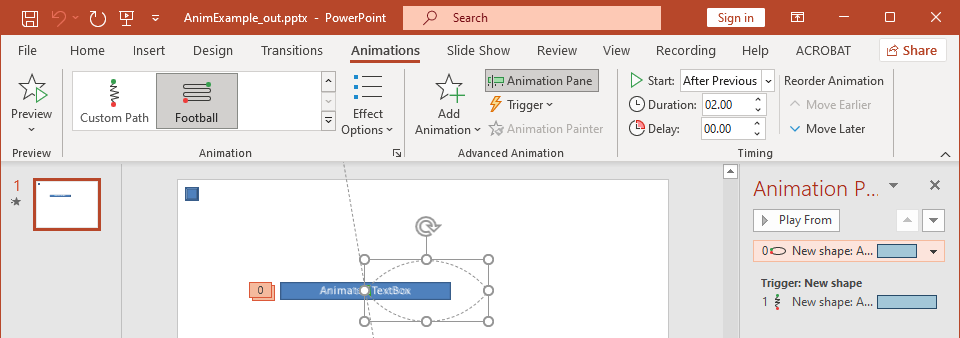
- البدء يتطابق مع ITiming::set_TriggerType .
- المدة يتطابق مع ITiming::set_Duration، بالثواني.
- التأخير يتطابق مع ITiming::set_TriggerDelayTime، بالثواني.
- التكرار يتطابق مع ITiming::set_RepeatCount، ITiming::set_RepeatUntilNextClick، أو ITiming::set_RepeatUntilEndSlide .
- إعادة اللولبة عند الانتهاء يتطابق مع ITiming::set_Rewind .
هذا المثال المستقل يضيف تأثيرًا، يغيّر توقيته عبر الكائن المعاد من ISequence::AddEffect، ويحفظ النتيجة. الحفاظ على مرجع IEffect المعاد يتجنب فهرس مجموعة غير ضروري.
#include <DOM/Animation/EffectSubtype.h>
#include <DOM/Animation/EffectTriggerType.h>
#include <DOM/Animation/EffectType.h>
#include <DOM/Animation/IEffect.h>
#include <DOM/Animation/ISequence.h>
#include <DOM/Animation/ITiming.h>
#include <DOM/IAnimationTimeLine.h>
#include <DOM/IAutoShape.h>
#include <DOM/IShapeCollection.h>
#include <DOM/ISlide.h>
#include <DOM/ISlideCollection.h>
#include <DOM/ITextFrame.h>
#include <DOM/Presentation.h>
#include <DOM/ShapeType.h>
#include <Export/SaveFormat.h>

using namespace Aspose::Slides;
using namespace Aspose::Slides::Animation;
using namespace Aspose::Slides::Export;
using namespace System;

auto presentation = MakeObject<Presentation>();
auto slide = presentation->get_Slide(0);
auto shape = slide->get_Shapes()->AddAutoShape(ShapeType::Rectangle, 120.0f, 100.0f, 320.0f, 80.0f);
shape->get_TextFrame()->set_Text(u"Timed animation");

auto effect = slide->get_Timeline()->get_MainSequence()->AddEffect(shape, EffectType::Fade, EffectSubtype::None, EffectTriggerType::OnClick);
effect->get_Timing()->set_TriggerType(EffectTriggerType::OnClick);
effect->get_Timing()->set_Duration(2.0f);
effect->get_Timing()->set_TriggerDelayTime(0.5f);
effect->get_Timing()->set_RepeatUntilNextClick(false);
effect->get_Timing()->set_RepeatUntilEndSlide(false);
effect->get_Timing()->set_RepeatCount(2.0f);
effect->get_Timing()->set_Rewind(true);

presentation->Save(u"shape-animation-timing.pptx", SaveFormat::Pptx);
presentation->Dispose();
استخدم وضع تكرار واحد عن قصد. دمج عدد التكرار مع علامة “until” قد ينتج نتائج مربكة في مشغلات مختلفة. عند تغيير وضعيات التكرار، استدعِ ITiming::set_RepeatUntilNextClick وITiming::set_RepeatUntilEndSlide قبل ITiming::set_RepeatCount، لأن ضبط أي علامة يغيّر وضع التكرار النشط.
إضافة واستخراج أصوات الرسوم المتحركة
يمكن لتأثير الرسوم المتحركة الإشارة إلى صوت مدمج عبر IEffect::set_Sound. IEffect::set_StopPreviousSound يُخبر التأثير بإيقاف الصوت الذي بدأه تأثير سابق.
إضافة صوت إلى تأثير
المثال التالي يتوقع ملف صوت محلي باسم animation-sound.wav. يُنشئ تأثيرين، يُدمج ذلك الملف كصوت للتأثير الأول، ويُكوّن التأثير الثاني لإيقاف الصوت. يستخدم الكائنات المعادة من ISequence::AddEffect، لذا لا يلزم فهرس التسلسل.
#include <DOM/Animation/EffectSubtype.h>
#include <DOM/Animation/EffectTriggerType.h>
#include <DOM/Animation/EffectType.h>
#include <DOM/Animation/IEffect.h>
#include <DOM/Animation/ISequence.h>
#include <DOM/IAnimationTimeLine.h>
#include <DOM/IAudio.h>
#include <DOM/IAudioCollection.h>
#include <DOM/IAutoShape.h>
#include <DOM/IShapeCollection.h>
#include <DOM/ISlide.h>
#include <DOM/ISlideCollection.h>
#include <DOM/ITextFrame.h>
#include <DOM/Presentation.h>
#include <DOM/ShapeType.h>
#include <Export/SaveFormat.h>
#include <system/io/file.h>

using namespace Aspose::Slides;
using namespace Aspose::Slides::Animation;
using namespace Aspose::Slides::Export;
using namespace System;
using namespace System::IO;

auto presentation = MakeObject<Presentation>();
auto slide = presentation->get_Slide(0);
auto firstShape = slide->get_Shapes()->AddAutoShape(ShapeType::Rectangle, 80.0f, 100.0f, 240.0f, 80.0f);
auto secondShape = slide->get_Shapes()->AddAutoShape(ShapeType::Rectangle, 400.0f, 100.0f, 240.0f, 80.0f);
firstShape->get_TextFrame()->set_Text(u"Starts sound");
secondShape->get_TextFrame()->set_Text(u"Stops sound");

auto sequence = slide->get_Timeline()->get_MainSequence();
auto firstEffect = sequence->AddEffect(firstShape, EffectType::Fade, EffectSubtype::None, EffectTriggerType::OnClick);
auto secondEffect = sequence->AddEffect(secondShape, EffectType::Fade, EffectSubtype::None, EffectTriggerType::OnClick);

auto audioData = File::ReadAllBytes(u"animation-sound.wav");
auto effectSound = presentation->get_Audios()->AddAudio(audioData);
firstEffect->set_Sound(effectSound);
secondEffect->set_StopPreviousSound(true);

presentation->Save(u"shape-animation-sound.pptx", SaveFormat::Pptx);
presentation->Dispose();
استخراج أصوات التأثيرات المدمجة
المثال التالي يتوقع عرض تقديمي محلي باسم presentation-with-animation-sounds.pptx. يمسح كل من التسلسلات الرئيسية والتفاعلية ويكتب كل صوت تأثير مدمج إلى المجلد extracted-animation-sounds. يتم اختيار الامتداد من نوع MIME الصوتي الذي تُظهره IAudio::get_ContentType.
#include <DOM/Animation/IEffect.h>
#include <DOM/Animation/ISequence.h>
#include <DOM/Animation/ISequenceCollection.h>
#include <DOM/IAnimationTimeLine.h>
#include <DOM/IAudio.h>
#include <DOM/ISlide.h>
#include <DOM/ISlideCollection.h>
#include <DOM/Presentation.h>
#include <system/console.h>
#include <system/io/directory.h>
#include <system/io/file.h>
#include <system/io/path.h>
#include <system/string.h>

using namespace Aspose::Slides;
using namespace Aspose::Slides::Animation;
using namespace System;
using namespace System::IO;

auto getAudioExtension = [](const String& contentType)
{
    auto normalizedType = String::IsNullOrEmpty(contentType) ? String::Empty : contentType.ToLowerInvariant();

    if (normalizedType == u"audio/mpeg")
        return String(u".mp3");

    if (normalizedType == u"audio/mp4")
        return String(u".m4a");

    if (normalizedType == u"audio/ogg")
        return String(u".ogg");

    if (normalizedType == u"audio/wav" || normalizedType == u"audio/x-wav")
        return String(u".wav");

    return String(u".bin");
};

auto saveSounds = [&getAudioExtension](const SharedPtr<ISequence>& sequence, const String& outputDirectory, int32_t& soundIndex)
{
    for (const auto& effect : sequence)
    {
        if (effect->get_Sound() == nullptr)
            continue;

        auto extension = getAudioExtension(effect->get_Sound()->get_ContentType());
        auto outputPath = Path::Combine(outputDirectory, String::Format(u"effect-sound-{0}{1}", soundIndex, extension));
        File::WriteAllBytes(outputPath, effect->get_Sound()->get_BinaryData());
        soundIndex++;
    }
};

auto inputPath = String(u"presentation-with-animation-sounds.pptx");
auto outputDirectory = String(u"extracted-animation-sounds");

Directory::CreateDirectory_(outputDirectory);

auto presentation = MakeObject<Presentation>(inputPath);
int32_t soundIndex = 1;

for (const auto& slide : presentation->get_Slides())
{
    saveSounds(slide->get_Timeline()->get_MainSequence(), outputDirectory, soundIndex);

    for (const auto& sequence : slide->get_Timeline()->get_InteractiveSequences())
        saveSounds(sequence, outputDirectory, soundIndex);
}

Console::WriteLine(String::Format(u"Extracted {0} sound file(s) to {1}.", soundIndex - 1, Path::GetFullPath(outputDirectory)));
presentation->Dispose();
للكائنات الصوتية الكبيرة، استخدم IAudio::GetStream وانسخ التدفق إلى ملف بدلاً من تحميل الكائن بالكامل إلى مصفوفة بايت.
تحديد سلوك ما بعد الرسوم المتحركة
خيار After animation يتحكم بما يحدث للشكل بعد انتهاء تأثيره.
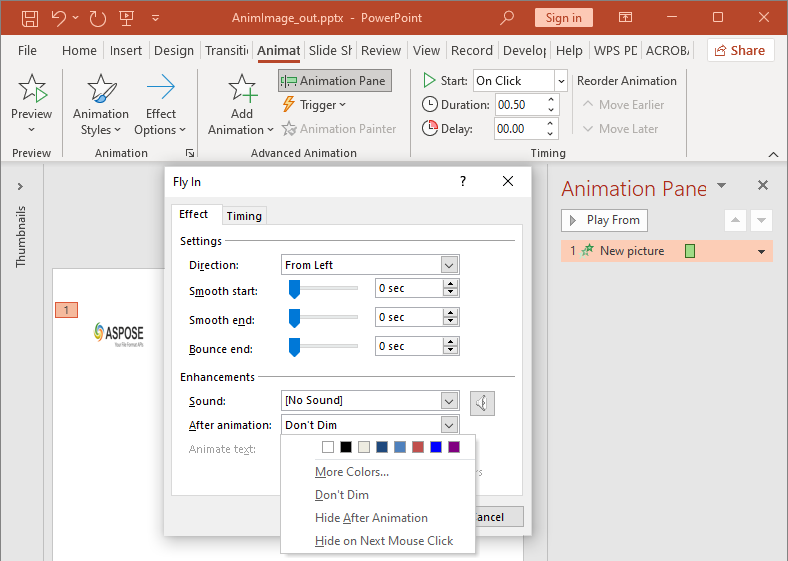
يُدعم تعداد AfterAnimationType ترك الشكل دون تغيير، تغيير لونه، إخفاؤه بعد الرسوم المتحركة، أو إخفاؤه عند النقر التالي. عندما يكون النوع هو AfterAnimationType::Color، استدعِ IEffect::get_AfterAnimationColor لتعيين اللون أيضًا.
هذا المثال المستقل يخلق تأثيرًا، يحدد سلوك ما بعد الرسوم المتحركة عبر كائن التأثير المعاد، ويحفظ النتيجة.
#include <DOM/Animation/AfterAnimationType.h>
#include <DOM/Animation/EffectSubtype.h>
#include <DOM/Animation/EffectTriggerType.h>
#include <DOM/Animation/EffectType.h>
#include <DOM/Animation/IEffect.h>
#include <DOM/Animation/ISequence.h>
#include <DOM/IAnimationTimeLine.h>
#include <DOM/IAutoShape.h>
#include <DOM/IColorFormat.h>
#include <DOM/IShapeCollection.h>
#include <DOM/ISlide.h>
#include <DOM/ISlideCollection.h>
#include <DOM/ITextFrame.h>
#include <DOM/Presentation.h>
#include <DOM/ShapeType.h>
#include <Export/SaveFormat.h>
#include <drawing/color.h>

using namespace Aspose::Slides;
using namespace Aspose::Slides::Animation;
using namespace Aspose::Slides::Export;
using namespace System;
using namespace System::Drawing;

auto presentation = MakeObject<Presentation>();
auto slide = presentation->get_Slide(0);
auto shape = slide->get_Shapes()->AddAutoShape(ShapeType::Rectangle, 120.0f, 100.0f, 320.0f, 80.0f);
shape->get_TextFrame()->set_Text(u"Dim after animation");

auto effect = slide->get_Timeline()->get_MainSequence()->AddEffect(shape, EffectType::Fade, EffectSubtype::None, EffectTriggerType::OnClick);
effect->set_AfterAnimationType(AfterAnimationType::Color);
effect->get_AfterAnimationColor()->set_Color(Color::get_LightGray());

presentation->Save(u"shape-animation-after-effect.pptx", SaveFormat::Pptx);
presentation->Dispose();
تغيير النوع بعيدًا عن AfterAnimationType::Color يُزيل إعداد لون ما بعد الرسوم المتحركة.
تحريك النص
لتحريك النص يوجد تحكمان مرتبطان:
- ITextAnimation::set_BuildType يتحكم فيما إذا كانت الفقرات تظهر معًا أو على مستوى الفقرة.
- IEffect::set_AnimateTextType يتحكم فيما إذا كان النص يظهر دفعة واحدة، بالكلمة، أو بالحرف. IEffect::set_DelayBetweenTextParts يحدد التأخير بين الكلمات أو الأحرف. القيمة الموجبة هي نسبة مئوية من مدة التأثير؛ القيمة السالبة هي تأخير بالثواني.
المثال المستقل التالي يُحرك الكلمات في مربع نص. BuildType::AsOneObject يُعطل بناء الفقرة بفقرة بحيث يُطبق إعداد الكلمة على الإطار النصي بالكامل.
#include <DOM/Animation/AnimateTextType.h>
#include <DOM/Animation/BuildType.h>
#include <DOM/Animation/EffectSubtype.h>
#include <DOM/Animation/EffectTriggerType.h>
#include <DOM/Animation/EffectType.h>
#include <DOM/Animation/IEffect.h>
#include <DOM/Animation/ISequence.h>
#include <DOM/Animation/ITextAnimation.h>
#include <DOM/IAnimationTimeLine.h>
#include <DOM/IAutoShape.h>
#include <DOM/IShapeCollection.h>
#include <DOM/ISlide.h>
#include <DOM/ISlideCollection.h>
#include <DOM/ITextFrame.h>
#include <DOM/Presentation.h>
#include <DOM/ShapeType.h>
#include <Export/SaveFormat.h>

using namespace Aspose::Slides;
using namespace Aspose::Slides::Animation;
using namespace Aspose::Slides::Export;
using namespace System;

auto presentation = MakeObject<Presentation>();
auto slide = presentation->get_Slide(0);
auto textBox = slide->get_Shapes()->AddAutoShape(ShapeType::Rectangle, 80.0f, 80.0f, 560.0f, 100.0f);
textBox->get_TextFrame()->set_Text(u"Aspose.Slides animates this sentence word by word.");

auto effect = slide->get_Timeline()->get_MainSequence()->AddEffect(textBox, EffectType::Fade, EffectSubtype::None, EffectTriggerType::OnClick);
effect->get_TextAnimation()->set_BuildType(BuildType::AsOneObject);
effect->set_AnimateTextType(AnimateTextType::ByWord);
effect->set_DelayBetweenTextParts(20.0f);

presentation->Save(u"animated-text.pptx", SaveFormat::Pptx);
presentation->Dispose();
لبناء مربع نص وفقًا للفقرة، استخدم ITextAnimation::set_BuildType مع BuildType::ByLevelParagraphs1 أو مستوى فقرة آخر. لاستهداف فقرة واحدة بتأثير خاص بها، استخدم نسخة ISequence::AddEffect التي تقبل IParagraph. راجع النص المتحرك للحصول على أمثلة على مستوى الفقرة.
ملاحظات التصدير والتوافق
- الحفظ إلى PPT أو PPTX يحافظ على نموذج الرسوم المتحركة، لكن التشغيل النهائي يتحكم فيه عارض العرض.
- PDF والصور الثابتة لا تشغل الرسوم المتحركة. استخدم HTML5 export، GIF متحرك، أو video conversion عندما يجب أن يُظهر الناتج حركة.
- في HTML5، فعّل [Html5Options::set_AnimateShapes] وعند الحاجة، [Html5Options::set_AnimateTransitions] .
- يَدعم تصيير الفيديو العديد من تأثيرات الدخول، والتركيز، والخروج، ومسار الحركة الشائعة، لكن ليس كل تأثير PowerPoint مدعوم. تحقق من supported animations and effects واختبر العروض الحرجة مع نسخة Aspose.Slides المستهدفة.
- قد تُحافظ التأثيرات المخصصة المتقدمة والتأثيرات المستوردة من صيغ عروض تقديمية أخرى على الملف لكنها تُعرض بشكل مختلف في PowerPoint أو HTML5 أو الفيديو. تحقق من صحة النتيجة المصدرة بدلاً من الاعتماد فقط على اسم التأثير.
الأسئلة المتكررة
لماذا يظهر تأثير في PowerPoint لكنه غير ظاهر في PDF؟
PDF هو صيغة ثابتة، لذا لا تُشغل الرسوم المتحركة وانتقالات الشرائح. صدّر إلى HTML5، GIF متحرك، أو فيديو عندما يجب الحفاظ على الحركة.
لماذا يُشغل تأثير بشكل مختلف في الفيديو؟
تصدير الفيديو يُظهر الرسوم المتحركة بدلاً من حفظ سلوك PowerPoint الأصلي. بعض التأثيرات المتقدمة غير مدعومة أو تُقرب. راجع جدول التأثيرات المدعومة واختبر العرض الفعلي قبل الاستخدام الإنتاجي.
هل يغير نقل الشكل للأمام أو للخلف ترتيب رسوماته المتحركة؟
لا. ترتيب Z للشكل يتحكم في التغطية، بينما يتحكم ترتيب التسلسل والمشغلات في تشغيل الرسوم المتحركة. غيّر الخط الزمني إذا كنت تحتاج ترتيب تشغيل مختلف.