
ایجاد و اعمال افکتهای WordArt در Python via Java
مرور کلی
افکتهای WordArt به شما امکان میدهد متن را با پرکنندهها، خطوط دور، سایهها، انعکاسها، درخشندگی، تبدیلها و قالببندی سهبعدی استایل دهید. این مقاله نحوه ایجاد و سفارشیسازی این افکتها را در ارائههای PowerPoint با استفاده از Aspose.Slides for Python via Java، بدون نصب Microsoft Office، توضیح میدهد.
ایجاد یک قالب ساده WordArt و اعمال آن بر روی متن
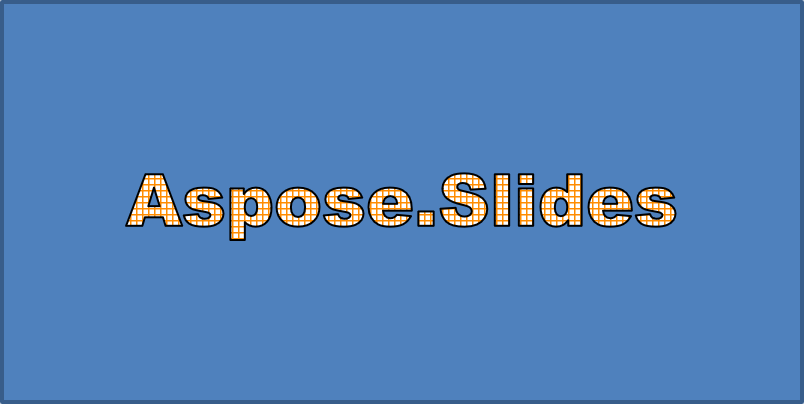
مثالهای زیر یک سبک ساده WordArt را با تنظیم متن، فونت، پرکننده الگو و خط دور میسازند.
هر مثال یک ارائه جدید ایجاد میکند و یک مستطیل را به اسلاید اول آن اضافه میکند؛ نیازی به فایل ورودی نیست. مثال اول متن را به «Aspose.Slides» تنظیم میکند. موقعیت و ابعاد شکل بر حسب نقطه اندازهگیری میشوند:
import jpype
import asposeslides

if not jpype.isJVMStarted():
    jpype.startJVM()

from asposeslides.api import Presentation, ShapeType

presentation = Presentation()
try:
    slide = presentation.getSlides().get_Item(0)

    auto_shape = slide.getShapes().addAutoShape(ShapeType.Rectangle, 20, 20, 400, 200)
    text_frame = auto_shape.getTextFrame()

    portion = text_frame.getParagraphs().get_Item(0).getPortions().get_Item(0)
    portion.setText("Aspose.Slides")
finally:
    presentation.dispose()
فونت را به Arial Black با اندازه 36 نقطه تنظیم کنید تا قالببندی واضحتر باشد:
import jpype
import asposeslides

if not jpype.isJVMStarted():
    jpype.startJVM()

from asposeslides.api import FontData, Presentation, ShapeType

presentation = Presentation()
try:
    slide = presentation.getSlides().get_Item(0)

    auto_shape = slide.getShapes().addAutoShape(ShapeType.Rectangle, 20, 20, 400, 200)

    portion = auto_shape.getTextFrame().getParagraphs().get_Item(0).getPortions().get_Item(0)
    portion.setText("Aspose.Slides")
    font = FontData("Arial Black")
    portion.getPortionFormat().setLatinFont(font)
    portion.getPortionFormat().setFontHeight(36)
finally:
    presentation.dispose()
یک الگوی SmallGrid با پیشزمینه نارنجی تیره و پسزمینه سفید اعمال کنید، سپس یک خط دور متن سیاه با عرض 1 نقطه اضافه کنید:
import jpype
import asposeslides

if not jpype.isJVMStarted():
    jpype.startJVM()

from asposeslides.api import FillType, FontData, PatternStyle, Presentation, ShapeType
from java.awt import Color

presentation = Presentation()
try:
    slide = presentation.getSlides().get_Item(0)

    auto_shape = slide.getShapes().addAutoShape(ShapeType.Rectangle, 20, 20, 400, 200)

    portion = auto_shape.getTextFrame().getParagraphs().get_Item(0).getPortions().get_Item(0)
    portion.setText("Aspose.Slides")
    font = FontData("Arial Black")
    portion.getPortionFormat().setLatinFont(font)
    portion.getPortionFormat().setFontHeight(36)

    portion.getPortionFormat().getFillFormat().setFillType(FillType.Pattern)
    dark_orange = Color(255, 140, 0)
    portion.getPortionFormat().getFillFormat().getPatternFormat().getForeColor().setColor(dark_orange)
    portion.getPortionFormat().getFillFormat().getPatternFormat().getBackColor().setColor(Color.WHITE)
    portion.getPortionFormat().getFillFormat().getPatternFormat().setPatternStyle(PatternStyle.SmallGrid)

    portion.getPortionFormat().getLineFormat().setWidth(1)
    portion.getPortionFormat().getLineFormat().getFillFormat().setFillType(FillType.Solid)
    portion.getPortionFormat().getLineFormat().getFillFormat().getSolidFillColor().setColor(Color.BLACK)
finally:
    presentation.dispose()
متن حاصل:
اعمال سایر افکتهای WordArt
مثالهای زیر نشان میدهند چگونه سایهها، انعکاسها، درخشندگی، تبدیلها و افکتهای سهبعدی را بر روی متن اعمال کنید.
اعمال افکتهای سایه خارجی
سایه خارجی عمق میافزاید با قرار دادن سایه پشت متن. میتوانید رنگ، جهت، فاصله، شعاع محو، مقیاس و انحراف آن را سفارشی کنید.
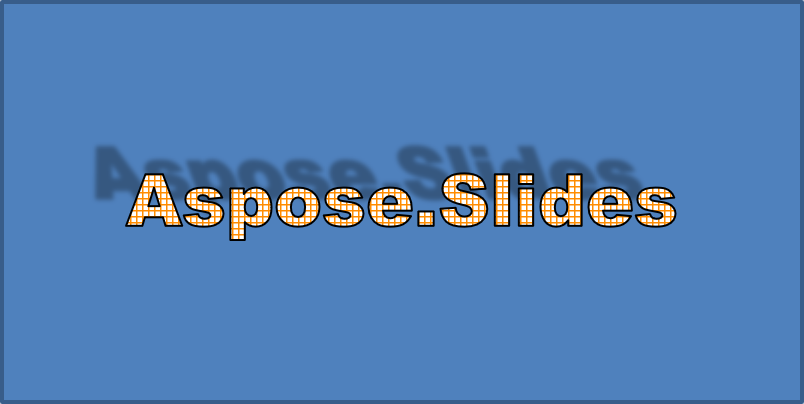
این مثال متد enableOuterShadowEffect را فراخوانی میکند و یک سایه سیاه با شعاع محو 4 نقطه، جهت 230 درجه و فاصله 30 نقطه تنظیم میکند. مقادیر مقیاس 100 اندازه سایه را حفظ میکند، در حالی که انحراف افقی آن را 20 درجه میچرخاند. تبدیل آلفا شفافیت را به 32٪ تنظیم میکند:
import jpype
import asposeslides

if not jpype.isJVMStarted():
    jpype.startJVM()

from asposeslides.api import ColorTransformOperation, FontData, Presentation, ShapeType
from java.awt import Color

presentation = Presentation()
try:
    slide = presentation.getSlides().get_Item(0)

    auto_shape = slide.getShapes().addAutoShape(ShapeType.Rectangle, 20, 20, 400, 200)

    portion = auto_shape.getTextFrame().getParagraphs().get_Item(0).getPortions().get_Item(0)
    portion.setText("Aspose.Slides")
    font = FontData("Arial Black")
    portion.getPortionFormat().setLatinFont(font)
    portion.getPortionFormat().setFontHeight(36)

    portion.getPortionFormat().getEffectFormat().enableOuterShadowEffect()
    portion.getPortionFormat().getEffectFormat().getOuterShadowEffect().getShadowColor().setColor(Color.BLACK)
    portion.getPortionFormat().getEffectFormat().getOuterShadowEffect().setScaleHorizontal(100)
    portion.getPortionFormat().getEffectFormat().getOuterShadowEffect().setScaleVertical(100)
    portion.getPortionFormat().getEffectFormat().getOuterShadowEffect().setBlurRadius(4)
    portion.getPortionFormat().getEffectFormat().getOuterShadowEffect().setDirection(230)
    portion.getPortionFormat().getEffectFormat().getOuterShadowEffect().setDistance(30)
    portion.getPortionFormat().getEffectFormat().getOuterShadowEffect().setSkewHorizontal(20)
    portion.getPortionFormat().getEffectFormat().getOuterShadowEffect().setSkewVertical(0)
    portion.getPortionFormat().getEffectFormat().getOuterShadowEffect().getShadowColor().getColorTransform().add(ColorTransformOperation.SetAlpha, 0.32)
finally:
    presentation.dispose()
متن حاصل:
Note
- وقتی سایههای خارجی و پیشتنظیمشده همزمان استفاده شوند، فقط سایه خارجی اعمال میشود.
- اگر سایههای خارجی و داخلی همزمان استفاده شوند، اثر نهایی به نسخه PowerPoint وابسته است. به عنوان مثال، در PowerPoint 2013 اثر دوبرابر میشود، در حالی که در PowerPoint 2007 فقط سایه خارجی اعمال میشود.
اعمال افکتهای انعکاس
انعکاس یک نسخه آینهای از متن ایجاد میکند. میتوانید موقعیت، مقیاس، محو و شفافیت آن را تنظیم کنید تا ظاهر دلخواه را به دست آورید.
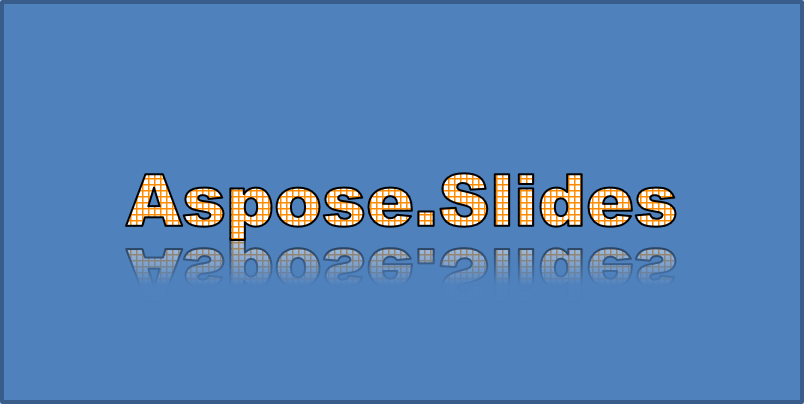
این مثال متد enableReflectionEffect را فراخوانی میکند و انعکاس را به صورت عمودی با مقیاس ‑100٪ میچرخاند. از شعاع محو 0.5 نقطه و فاصله 4.72 نقطه استفاده میشود. شفافیت از 60٪ به 0.9٪ بین موقعیتهای 0٪ و 60٪ در طول انعکاس کاهش مییابد:
import jpype
import asposeslides

if not jpype.isJVMStarted():
    jpype.startJVM()

from asposeslides.api import FontData, Presentation, RectangleAlignment, ShapeType

presentation = Presentation()
try:
    slide = presentation.getSlides().get_Item(0)

    auto_shape = slide.getShapes().addAutoShape(ShapeType.Rectangle, 20, 20, 400, 200)

    portion = auto_shape.getTextFrame().getParagraphs().get_Item(0).getPortions().get_Item(0)
    portion.setText("Aspose.Slides")
    font = FontData("Arial Black")
    portion.getPortionFormat().setLatinFont(font)
    portion.getPortionFormat().setFontHeight(36)

    portion.getPortionFormat().getEffectFormat().enableReflectionEffect()
    portion.getPortionFormat().getEffectFormat().getReflectionEffect().setBlurRadius(0.5)
    portion.getPortionFormat().getEffectFormat().getReflectionEffect().setDistance(4.72)
    portion.getPortionFormat().getEffectFormat().getReflectionEffect().setStartPosAlpha(0)
    portion.getPortionFormat().getEffectFormat().getReflectionEffect().setEndPosAlpha(60)
    portion.getPortionFormat().getEffectFormat().getReflectionEffect().setDirection(90)
    portion.getPortionFormat().getEffectFormat().getReflectionEffect().setScaleHorizontal(100)
    portion.getPortionFormat().getEffectFormat().getReflectionEffect().setScaleVertical(-100)
    portion.getPortionFormat().getEffectFormat().getReflectionEffect().setStartReflectionOpacity(60)
    portion.getPortionFormat().getEffectFormat().getReflectionEffect().setEndReflectionOpacity(0.9)
    portion.getPortionFormat().getEffectFormat().getReflectionEffect().setRectangleAlign(RectangleAlignment.BottomLeft)
finally:
    presentation.dispose()
متن حاصل:
اعمال افکتهای درخشندگی
درخشندگی یک خط دور رنگی نرم اطراف متن اضافه میکند. میتوانید رنگ، شفافیت و شعاع آن را تنظیم کنید.
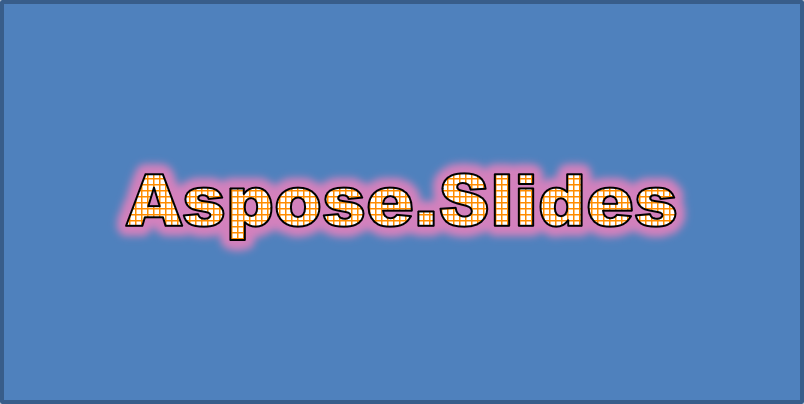
این مثال متد enableGlowEffect را فراخوانی میکند و یک درخشندگی قرمز با شفافیت 54٪ و شعاع 7 نقطه اعمال میکند:
import jpype
import asposeslides

if not jpype.isJVMStarted():
    jpype.startJVM()

from asposeslides.api import ColorTransformOperation, FontData, Presentation, ShapeType
from java.awt import Color

presentation = Presentation()
try:
    slide = presentation.getSlides().get_Item(0)

    auto_shape = slide.getShapes().addAutoShape(ShapeType.Rectangle, 20, 20, 400, 200)

    portion = auto_shape.getTextFrame().getParagraphs().get_Item(0).getPortions().get_Item(0)
    portion.setText("Aspose.Slides")
    font = FontData("Arial Black")
    portion.getPortionFormat().setLatinFont(font)
    portion.getPortionFormat().setFontHeight(36)

    portion.getPortionFormat().getEffectFormat().enableGlowEffect()
    portion.getPortionFormat().getEffectFormat().getGlowEffect().getColor().setColor(Color.RED)
    portion.getPortionFormat().getEffectFormat().getGlowEffect().getColor().getColorTransform().add(ColorTransformOperation.SetAlpha, 0.54)
    portion.getPortionFormat().getEffectFormat().getGlowEffect().setRadius(7)
finally:
    presentation.dispose()
متن حاصل:
اعمال تبدیلهای WordArt
تبدیلهای WordArt متن را خم، کشیده یا تغییر شکل میدهند.
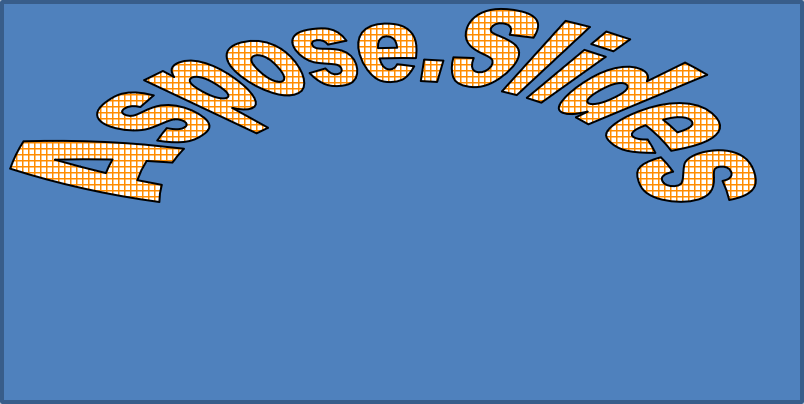
متد setTransform را به ArchUpPour تنظیم کنید تا تمام چارچوب متن به سمت بالا خم شود:
import jpype
import asposeslides

if not jpype.isJVMStarted():
    jpype.startJVM()

from asposeslides.api import Presentation, ShapeType, TextShapeType

presentation = Presentation()
try:
    slide = presentation.getSlides().get_Item(0)

    auto_shape = slide.getShapes().addAutoShape(ShapeType.Rectangle, 20, 20, 400, 200)

    text_frame = auto_shape.getTextFrame()
    text_frame.setText("Aspose.Slides")
    text_frame.getTextFrameFormat().setTransform(TextShapeType.ArchUpPour)
finally:
    presentation.dispose()
متن حاصل:
Note
Aspose.Slides for Python via Java مجموعهای از انواع تبدیل پیشتعریفشده را فراهم میکند.اعمال افکتهای سهبعدی بر اشکال و متن
میتوانید افکتهای سهبعدی را بر یک شکل یا متن آن اعمال کنید. سطحزدن، برجستهسازی، نورپردازی و تنظیمات دوربین نحوه ظاهر نهایی را تعیین میکنند.
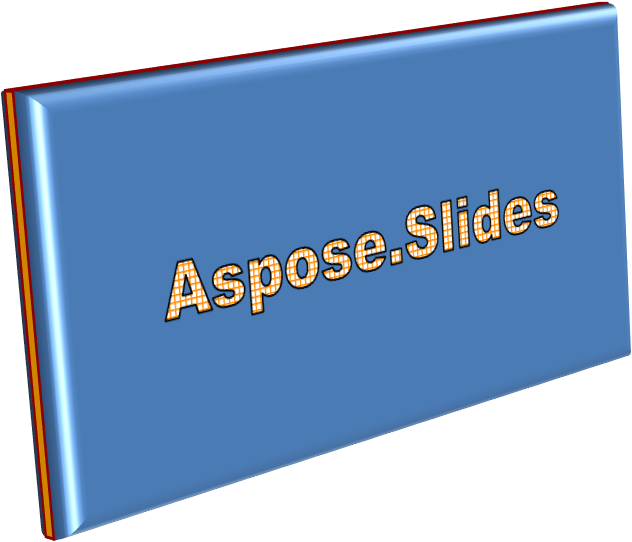
مثال زیر از ThreeDFormat برای افزودن برجستگیهای دایرهای، برجستهسازی نارنجی و کانتور قرمز تیره به مستطیل استفاده میکند. ابعاد برجستگی، ارتفاع برجستهسازی، عرض کانتور و عمق بر حسب نقطه اندازهگیری میشوند. یک ماده پلاستیکی، نورپردازی متعادل چرخیده به میزان 40 درجه حول محور Z و دوربین پرسپکتیو ظاهر آن را تعریف میکنند:
import jpype
import asposeslides

if not jpype.isJVMStarted():
    jpype.startJVM()

from asposeslides.api import BevelPresetType, CameraPresetType, LightRigPresetType, LightingDirection, MaterialPresetType, Presentation, ShapeType
from java.awt import Color

presentation = Presentation()
try:
    slide = presentation.getSlides().get_Item(0)

    auto_shape = slide.getShapes().addAutoShape(ShapeType.Rectangle, 20, 20, 400, 200)
    auto_shape.getTextFrame().setText("Aspose.Slides")

    auto_shape.getThreeDFormat().getBevelBottom().setBevelType(BevelPresetType.Circle)
    auto_shape.getThreeDFormat().getBevelBottom().setHeight(10.5)
    auto_shape.getThreeDFormat().getBevelBottom().setWidth(10.5)

    auto_shape.getThreeDFormat().getBevelTop().setBevelType(BevelPresetType.Circle)
    auto_shape.getThreeDFormat().getBevelTop().setHeight(12.5)
    auto_shape.getThreeDFormat().getBevelTop().setWidth(11)

    orange = Color(255, 165, 0)
    auto_shape.getThreeDFormat().getExtrusionColor().setColor(orange)
    auto_shape.getThreeDFormat().setExtrusionHeight(6)

    dark_red = Color(139, 0, 0)
    auto_shape.getThreeDFormat().getContourColor().setColor(dark_red)
    auto_shape.getThreeDFormat().setContourWidth(1.5)

    auto_shape.getThreeDFormat().setDepth(3)

    auto_shape.getThreeDFormat().setMaterial(MaterialPresetType.Plastic)

    auto_shape.getThreeDFormat().getLightRig().setDirection(LightingDirection.Top)
    auto_shape.getThreeDFormat().getLightRig().setLightType(LightRigPresetType.Balanced)
    auto_shape.getThreeDFormat().getLightRig().setRotation(0, 0, 40)

    auto_shape.getThreeDFormat().getCamera().setCameraType(CameraPresetType.PerspectiveContrastingRightFacing)
finally:
    presentation.dispose()
شکل حاصل:
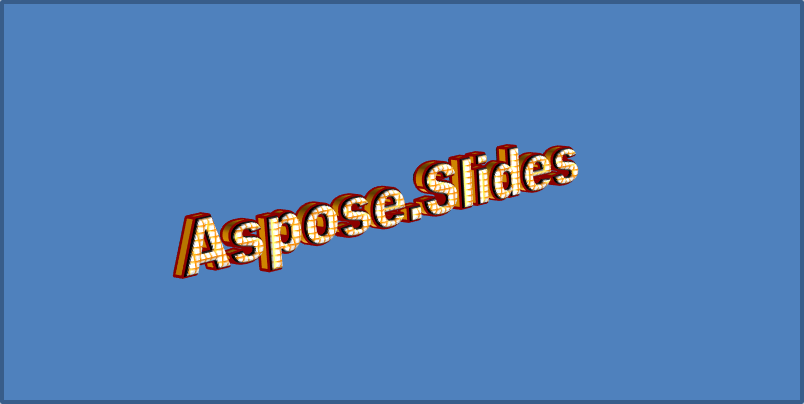
این مثال قالببندی سهبعدی مشابهی را بر متن از طریق TextFrameFormat.getThreeDFormat اعمال میکند. برجستگیهای کوچکتر لبههای حروف را شکل میدهند، در حالی که برجستهسازی و نورپردازی عمق میبخشند:
import jpype
import asposeslides

if not jpype.isJVMStarted():
    jpype.startJVM()

from asposeslides.api import BevelPresetType, CameraPresetType, LightRigPresetType, LightingDirection, MaterialPresetType, Presentation, ShapeType
from java.awt import Color

presentation = Presentation()
try:
    slide = presentation.getSlides().get_Item(0)

    auto_shape = slide.getShapes().addAutoShape(ShapeType.Rectangle, 20, 20, 400, 200)
    text_frame = auto_shape.getTextFrame()
    text_frame.setText("Aspose.Slides")

    text_frame.getTextFrameFormat().getThreeDFormat().getBevelBottom().setBevelType(BevelPresetType.Circle)
    text_frame.getTextFrameFormat().getThreeDFormat().getBevelBottom().setHeight(3.5)
    text_frame.getTextFrameFormat().getThreeDFormat().getBevelBottom().setWidth(3.5)

    text_frame.getTextFrameFormat().getThreeDFormat().getBevelTop().setBevelType(BevelPresetType.Circle)
    text_frame.getTextFrameFormat().getThreeDFormat().getBevelTop().setHeight(4)
    text_frame.getTextFrameFormat().getThreeDFormat().getBevelTop().setWidth(4)

    orange = Color(255, 165, 0)
    text_frame.getTextFrameFormat().getThreeDFormat().getExtrusionColor().setColor(orange)
    text_frame.getTextFrameFormat().getThreeDFormat().setExtrusionHeight(6)

    dark_red = Color(139, 0, 0)
    text_frame.getTextFrameFormat().getThreeDFormat().getContourColor().setColor(dark_red)
    text_frame.getTextFrameFormat().getThreeDFormat().setContourWidth(1.5)

    text_frame.getTextFrameFormat().getThreeDFormat().setDepth(3)

    text_frame.getTextFrameFormat().getThreeDFormat().setMaterial(MaterialPresetType.Plastic)

    text_frame.getTextFrameFormat().getThreeDFormat().getLightRig().setDirection(LightingDirection.Top)
    text_frame.getTextFrameFormat().getThreeDFormat().getLightRig().setLightType(LightRigPresetType.Balanced)
    text_frame.getTextFrameFormat().getThreeDFormat().getLightRig().setRotation(0, 0, 40)

    text_frame.getTextFrameFormat().getThreeDFormat().getCamera().setCameraType(CameraPresetType.PerspectiveContrastingRightFacing)
finally:
    presentation.dispose()
متن حاصل:
Note
اعمال افکتهای سهبعدی بر متن یا شکلهای آنها—و تعامل بین این افکتها—بر اساس قوانین خاصی انجام میشود. صحنهای که هم متن و هم شکل آن را شامل میشود، در نظر گرفته میشود. یک افکت سهبعدی شامل نمایش سهبعدی شیء و صحنهای است که در آن قرار دارد.
- اگر صحنهای برای هر دو شکل و متن تنظیم شود، صحنه شکل اولویت دارد و صحنه متن نادیده گرفته میشود.
- اگر شکل صحنه خودش را نداشته باشد اما نمای سهبعدی داشته باشد، صحنه متن استفاده میشود.
- اگر شکل هیچ افکت سهبعدی نداشته باشد، به عنوان صاف در نظر گرفته میشود و افکت سهبعدی فقط بر متن اعمال میشود.
این رفتارها مربوط به متدهای ThreeDFormat.getLightRig و ThreeDFormat.getCamera هستند.
برای اینکه متن را صاف و قابل خواندن نگه دارید در حالی که قالببندی سهبعدی شکل خود را حفظ میکنید، به مقاله Keep Text Flat on a 3D Shape برای مقایسه هر دو تنظیم و مثال کامل Python مراجعه کنید.
سوالات متداول
آیا میتوانم افکتهای WordArt را با فونتها یا اسکریپتهای مختلف (مثلاً عربی، چینی) استفاده کنم؟
بله، Aspose.Slides for Python via Java یونیکد را پشتیبانی میکند و با همه فونتها و اسکریپتهای اصلی کار میکند. افکتهای WordArt مانند سایه، پرکننده و خط دور بدون توجه به زبان قابل اعمال هستند، هرچند در دسترس بودن فونت و رندر ممکن است به فونتهای سیستم وابسته باشد.
آیا میتوانم افکتهای WordArt را بر عناصر مستر اسلاید اعمال کنم؟
بله، میتوانید افکتهای WordArt را بر اشکال موجود در اسلایدهای مستر، از جمله مکانگیرهای عنوان، فوترها یا متن پسزمینه اعمال کنید. تغییرات اعمالشده بر روی لایه مستر در تمام اسلایدهای مرتبط منعکس میشود.
آیا افکتهای WordArt بر حجم فایل ارائه تأثیر میگذارند؟
به مقدار کمی. افکتهایی مانند سایه، درخشندگی و پرکنندههای گرادیان ممکن است به دلیل افزودن متادیتای قالببندی، حجم فایل را اندک افزایش دهند، اما معمولاً این اختلاف ناچیز است.
آیا میتوانم نتیجه افکتهای WordArt را بدون ذخیره ارائه پیشنمایش دهم؟
بله، میتوانید اسلایدهای حاوی WordArt را به تصاویر (مثلاً PNG، JPEG) با استفاده از Slide.getImage رندر کنید، یا اشکال جداگانه را با Shape.getImage رندر کنید. این امکان پیشنمایش در حافظه یا روی صفحه نمایش را پیش از ذخیره یا خروجی کامل ارائه میدهد.