
Créer et appliquer des effets WordArt en Python via Java
Aperçu
Les effets WordArt vous permettent de styliser le texte avec des remplissages, des contours, des ombres, des reflets, une lueur, des transformations et une mise en forme 3D. Cet article explique comment créer et personnaliser ces effets dans des présentations PowerPoint à l’aide d’Aspose.Slides pour Python via Java, sans Microsoft Office installé.
Créer un modèle WordArt simple et l’appliquer au texte
Les exemples suivants construisent un style WordArt simple en définissant le texte, la police, le remplissage motif et le contour.
Chaque exemple crée une nouvelle présentation et ajoute un rectangle à sa première diapositive ; aucun fichier d’entrée n’est requis. Le premier exemple définit le texte à « Aspose.Slides ». La position et les dimensions de la forme sont exprimées en points :
import jpype
import asposeslides

if not jpype.isJVMStarted():
    jpype.startJVM()

from asposeslides.api import Presentation, ShapeType

presentation = Presentation()
try:
    slide = presentation.getSlides().get_Item(0)

    auto_shape = slide.getShapes().addAutoShape(ShapeType.Rectangle, 20, 20, 400, 200)
    text_frame = auto_shape.getTextFrame()

    portion = text_frame.getParagraphs().get_Item(0).getPortions().get_Item(0)
    portion.setText("Aspose.Slides")
finally:
    presentation.dispose()
Définissez la police à Arial Black à 36 points pour rendre le formatage plus visible :
import jpype
import asposeslides

if not jpype.isJVMStarted():
    jpype.startJVM()

from asposeslides.api import FontData, Presentation, ShapeType

presentation = Presentation()
try:
    slide = presentation.getSlides().get_Item(0)

    auto_shape = slide.getShapes().addAutoShape(ShapeType.Rectangle, 20, 20, 400, 200)

    portion = auto_shape.getTextFrame().getParagraphs().get_Item(0).getPortions().get_Item(0)
    portion.setText("Aspose.Slides")
    font = FontData("Arial Black")
    portion.getPortionFormat().setLatinFont(font)
    portion.getPortionFormat().setFontHeight(36)
finally:
    presentation.dispose()
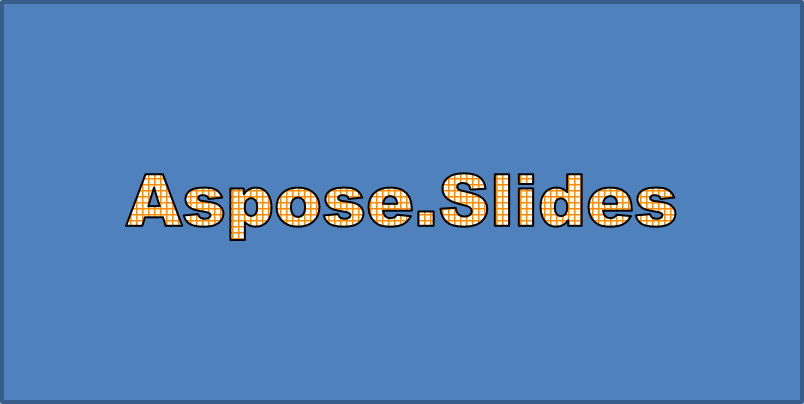
Appliquez un motif SmallGrid avec un avant‑plan orange foncé et un arrière‑plan blanc, puis ajoutez un contour de texte noir d’une largeur de 1 point :
import jpype
import asposeslides

if not jpype.isJVMStarted():
    jpype.startJVM()

from asposeslides.api import FillType, FontData, PatternStyle, Presentation, ShapeType
from java.awt import Color

presentation = Presentation()
try:
    slide = presentation.getSlides().get_Item(0)

    auto_shape = slide.getShapes().addAutoShape(ShapeType.Rectangle, 20, 20, 400, 200)

    portion = auto_shape.getTextFrame().getParagraphs().get_Item(0).getPortions().get_Item(0)
    portion.setText("Aspose.Slides")
    font = FontData("Arial Black")
    portion.getPortionFormat().setLatinFont(font)
    portion.getPortionFormat().setFontHeight(36)

    portion.getPortionFormat().getFillFormat().setFillType(FillType.Pattern)
    dark_orange = Color(255, 140, 0)
    portion.getPortionFormat().getFillFormat().getPatternFormat().getForeColor().setColor(dark_orange)
    portion.getPortionFormat().getFillFormat().getPatternFormat().getBackColor().setColor(Color.WHITE)
    portion.getPortionFormat().getFillFormat().getPatternFormat().setPatternStyle(PatternStyle.SmallGrid)

    portion.getPortionFormat().getLineFormat().setWidth(1)
    portion.getPortionFormat().getLineFormat().getFillFormat().setFillType(FillType.Solid)
    portion.getPortionFormat().getLineFormat().getFillFormat().getSolidFillColor().setColor(Color.BLACK)
finally:
    presentation.dispose()
Le texte résultant :
Appliquer d’autres effets WordArt
Les exemples suivants montrent comment appliquer des ombres, des reflets, une lueur, des transformations et des effets 3D au texte.
Appliquer des effets d’ombre extérieure
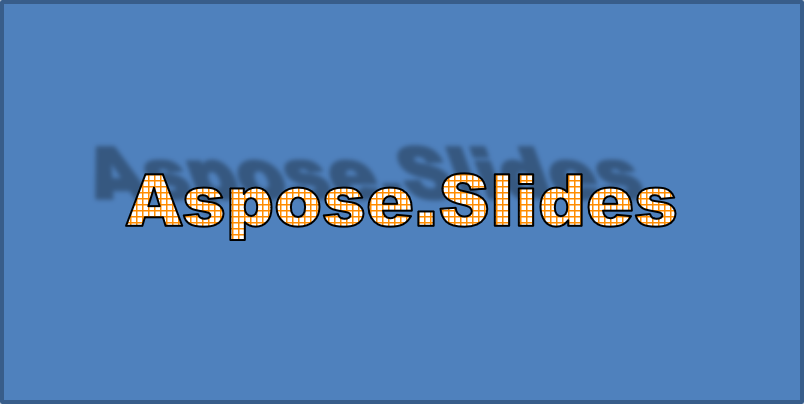
Une ombre extérieure ajoute de la profondeur en plaçant une ombre derrière le texte. Vous pouvez personnaliser sa couleur, sa direction, sa distance, son rayon de flou, son échelle et son inclinaison.
Cet exemple appelle enableOuterShadowEffect et définit une ombre noire avec un rayon de flou de 4 points, une direction de 230 degrés et une distance de 30 points. Les valeurs d’échelle à 100 conservent la taille de l’ombre, tandis qu’une inclinaison horizontale de 20 degrés l’incline. La transformation alpha fixe son opacité à 32 % :
import jpype
import asposeslides

if not jpype.isJVMStarted():
    jpype.startJVM()

from asposeslides.api import ColorTransformOperation, FontData, Presentation, ShapeType
from java.awt import Color

presentation = Presentation()
try:
    slide = presentation.getSlides().get_Item(0)

    auto_shape = slide.getShapes().addAutoShape(ShapeType.Rectangle, 20, 20, 400, 200)

    portion = auto_shape.getTextFrame().getParagraphs().get_Item(0).getPortions().get_Item(0)
    portion.setText("Aspose.Slides")
    font = FontData("Arial Black")
    portion.getPortionFormat().setLatinFont(font)
    portion.getPortionFormat().setFontHeight(36)

    portion.getPortionFormat().getEffectFormat().enableOuterShadowEffect()
    portion.getPortionFormat().getEffectFormat().getOuterShadowEffect().getShadowColor().setColor(Color.BLACK)
    portion.getPortionFormat().getEffectFormat().getOuterShadowEffect().setScaleHorizontal(100)
    portion.getPortionFormat().getEffectFormat().getOuterShadowEffect().setScaleVertical(100)
    portion.getPortionFormat().getEffectFormat().getOuterShadowEffect().setBlurRadius(4)
    portion.getPortionFormat().getEffectFormat().getOuterShadowEffect().setDirection(230)
    portion.getPortionFormat().getEffectFormat().getOuterShadowEffect().setDistance(30)
    portion.getPortionFormat().getEffectFormat().getOuterShadowEffect().setSkewHorizontal(20)
    portion.getPortionFormat().getEffectFormat().getOuterShadowEffect().setSkewVertical(0)
    portion.getPortionFormat().getEffectFormat().getOuterShadowEffect().getShadowColor().getColorTransform().add(ColorTransformOperation.SetAlpha, 0.32)
finally:
    presentation.dispose()
Le texte résultant :
Note
- Lorsque les ombres extérieures et les ombres prédéfinies sont utilisées ensemble, seule l’ombre extérieure est appliquée.
- Si les ombres extérieures et intérieures sont utilisées simultanément, l’effet résultant dépend de la version de PowerPoint. Par exemple, dans PowerPoint 2013, l’effet est doublé, alors que dans PowerPoint 2007, seule l’ombre extérieure est appliquée.
Appliquer des effets de réflexion
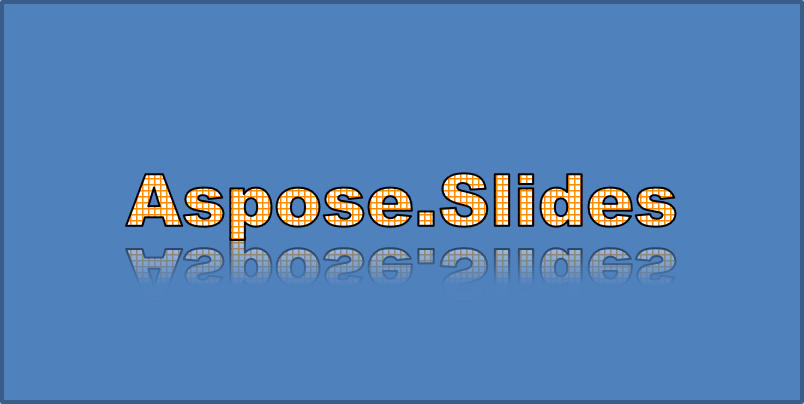
Une réflexion crée une copie miroir du texte. Ajustez sa position, son échelle, son flou et son opacité pour contrôler son apparence.
Cet exemple appelle enableReflectionEffect et inverse la réflexion verticalement avec une échelle de -100 %. Il utilise un rayon de flou de 0,5 point et une distance de 4,72 points. L’opacité diminue de 60 % à 0,9 % entre les positions 0 % et 60 % le long de la réflexion :
import jpype
import asposeslides

if not jpype.isJVMStarted():
    jpype.startJVM()

from asposeslides.api import FontData, Presentation, RectangleAlignment, ShapeType

presentation = Presentation()
try:
    slide = presentation.getSlides().get_Item(0)

    auto_shape = slide.getShapes().addAutoShape(ShapeType.Rectangle, 20, 20, 400, 200)

    portion = auto_shape.getTextFrame().getParagraphs().get_Item(0).getPortions().get_Item(0)
    portion.setText("Aspose.Slides")
    font = FontData("Arial Black")
    portion.getPortionFormat().setLatinFont(font)
    portion.getPortionFormat().setFontHeight(36)

    portion.getPortionFormat().getEffectFormat().enableReflectionEffect()
    portion.getPortionFormat().getEffectFormat().getReflectionEffect().setBlurRadius(0.5)
    portion.getPortionFormat().getEffectFormat().getReflectionEffect().setDistance(4.72)
    portion.getPortionFormat().getEffectFormat().getReflectionEffect().setStartPosAlpha(0)
    portion.getPortionFormat().getEffectFormat().getReflectionEffect().setEndPosAlpha(60)
    portion.getPortionFormat().getEffectFormat().getReflectionEffect().setDirection(90)
    portion.getPortionFormat().getEffectFormat().getReflectionEffect().setScaleHorizontal(100)
    portion.getPortionFormat().getEffectFormat().getReflectionEffect().setScaleVertical(-100)
    portion.getPortionFormat().getEffectFormat().getReflectionEffect().setStartReflectionOpacity(60)
    portion.getPortionFormat().getEffectFormat().getReflectionEffect().setEndReflectionOpacity(0.9)
    portion.getPortionFormat().getEffectFormat().getReflectionEffect().setRectangleAlign(RectangleAlignment.BottomLeft)
finally:
    presentation.dispose()
Le texte résultant :
Appliquer des effets de lueur
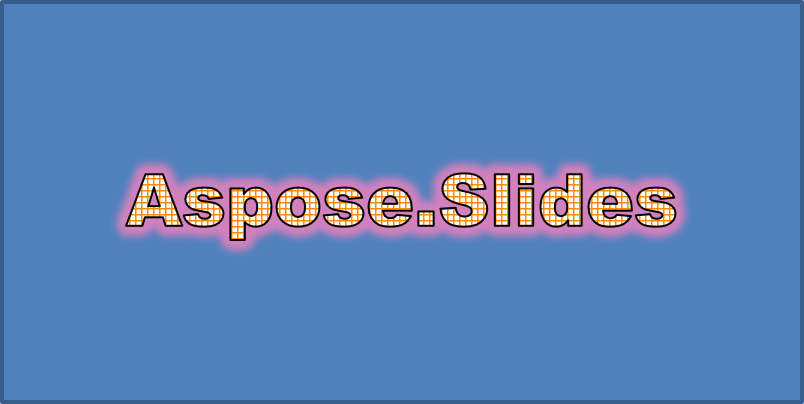
Une lueur ajoute un contour coloré doux autour du texte. Ajustez sa couleur, son opacité et son rayon pour contrôler l’effet.
Cet exemple appelle enableGlowEffect et applique une lueur rouge avec une opacité de 54 % et un rayon de 7 points :
import jpype
import asposeslides

if not jpype.isJVMStarted():
    jpype.startJVM()

from asposeslides.api import ColorTransformOperation, FontData, Presentation, ShapeType
from java.awt import Color

presentation = Presentation()
try:
    slide = presentation.getSlides().get_Item(0)

    auto_shape = slide.getShapes().addAutoShape(ShapeType.Rectangle, 20, 20, 400, 200)

    portion = auto_shape.getTextFrame().getParagraphs().get_Item(0).getPortions().get_Item(0)
    portion.setText("Aspose.Slides")
    font = FontData("Arial Black")
    portion.getPortionFormat().setLatinFont(font)
    portion.getPortionFormat().setFontHeight(36)

    portion.getPortionFormat().getEffectFormat().enableGlowEffect()
    portion.getPortionFormat().getEffectFormat().getGlowEffect().getColor().setColor(Color.RED)
    portion.getPortionFormat().getEffectFormat().getGlowEffect().getColor().getColorTransform().add(ColorTransformOperation.SetAlpha, 0.54)
    portion.getPortionFormat().getEffectFormat().getGlowEffect().setRadius(7)
finally:
    presentation.dispose()
Le texte résultant :
Appliquer des transformations WordArt
Les transformations WordArt courbent, étirent ou déforment un bloc de texte.
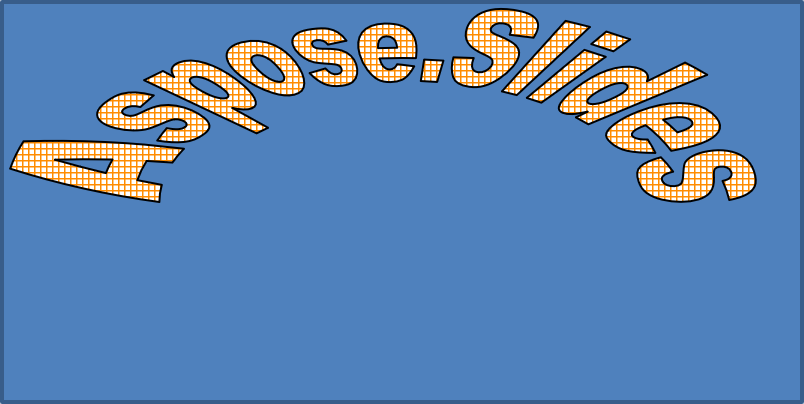
Définissez setTransform sur ArchUpPour pour arrondir l’ensemble du cadre de texte vers le haut :
import jpype
import asposeslides

if not jpype.isJVMStarted():
    jpype.startJVM()

from asposeslides.api import Presentation, ShapeType, TextShapeType

presentation = Presentation()
try:
    slide = presentation.getSlides().get_Item(0)

    auto_shape = slide.getShapes().addAutoShape(ShapeType.Rectangle, 20, 20, 400, 200)

    text_frame = auto_shape.getTextFrame()
    text_frame.setText("Aspose.Slides")
    text_frame.getTextFrameFormat().setTransform(TextShapeType.ArchUpPour)
finally:
    presentation.dispose()
Le texte résultant :
Note
Aspose.Slides pour Python via Java fournit un ensemble de types de transformation prédéfinis.Appliquer des effets 3D aux formes et au texte
Vous pouvez appliquer des effets 3D à une forme ou à son texte. Les chanfreins, l’extrusion, l’éclairage et les paramètres de caméra contrôlent l’apparence résultante.
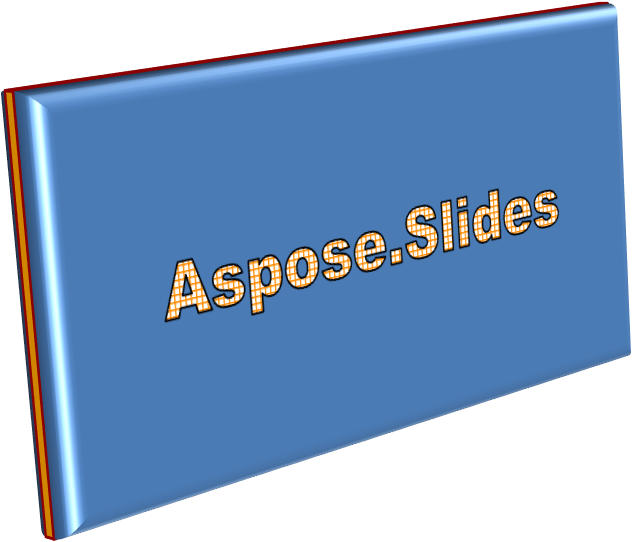
L’exemple suivant utilise ThreeDFormat pour ajouter des chanfreins circulaires, une extrusion orange et un contour rouge foncé au rectangle. Les dimensions du chanfrein, la hauteur d’extrusion, la largeur du contour et la profondeur sont exprimées en points. Un matériau plastique, un éclairage équilibré tourné de 40 degrés autour de l’axe Z et une caméra en perspective définissent son apparence :
import jpype
import asposeslides

if not jpype.isJVMStarted():
    jpype.startJVM()

from asposeslides.api import BevelPresetType, CameraPresetType, LightRigPresetType, LightingDirection, MaterialPresetType, Presentation, ShapeType
from java.awt import Color

presentation = Presentation()
try:
    slide = presentation.getSlides().get_Item(0)

    auto_shape = slide.getShapes().addAutoShape(ShapeType.Rectangle, 20, 20, 400, 200)
    auto_shape.getTextFrame().setText("Aspose.Slides")

    auto_shape.getThreeDFormat().getBevelBottom().setBevelType(BevelPresetType.Circle)
    auto_shape.getThreeDFormat().getBevelBottom().setHeight(10.5)
    auto_shape.getThreeDFormat().getBevelBottom().setWidth(10.5)

    auto_shape.getThreeDFormat().getBevelTop().setBevelType(BevelPresetType.Circle)
    auto_shape.getThreeDFormat().getBevelTop().setHeight(12.5)
    auto_shape.getThreeDFormat().getBevelTop().setWidth(11)

    orange = Color(255, 165, 0)
    auto_shape.getThreeDFormat().getExtrusionColor().setColor(orange)
    auto_shape.getThreeDFormat().setExtrusionHeight(6)

    dark_red = Color(139, 0, 0)
    auto_shape.getThreeDFormat().getContourColor().setColor(dark_red)
    auto_shape.getThreeDFormat().setContourWidth(1.5)

    auto_shape.getThreeDFormat().setDepth(3)

    auto_shape.getThreeDFormat().setMaterial(MaterialPresetType.Plastic)

    auto_shape.getThreeDFormat().getLightRig().setDirection(LightingDirection.Top)
    auto_shape.getThreeDFormat().getLightRig().setLightType(LightRigPresetType.Balanced)
    auto_shape.getThreeDFormat().getLightRig().setRotation(0, 0, 40)

    auto_shape.getThreeDFormat().getCamera().setCameraType(CameraPresetType.PerspectiveContrastingRightFacing)
finally:
    presentation.dispose()
La forme résultante :
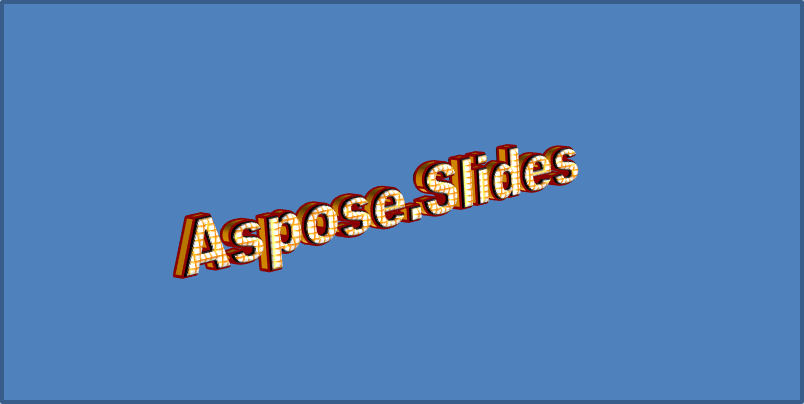
Cet exemple applique un formatage 3D similaire au texte via TextFrameFormat.getThreeDFormat. Des chanfreins plus petits façonnent les bords des lettres, tandis que l’extrusion et l’éclairage donnent de la profondeur au texte :
import jpype
import asposeslides

if not jpype.isJVMStarted():
    jpype.startJVM()

from asposeslides.api import BevelPresetType, CameraPresetType, LightRigPresetType, LightingDirection, MaterialPresetType, Presentation, ShapeType
from java.awt import Color

presentation = Presentation()
try:
    slide = presentation.getSlides().get_Item(0)

    auto_shape = slide.getShapes().addAutoShape(ShapeType.Rectangle, 20, 20, 400, 200)
    text_frame = auto_shape.getTextFrame()
    text_frame.setText("Aspose.Slides")

    text_frame.getTextFrameFormat().getThreeDFormat().getBevelBottom().setBevelType(BevelPresetType.Circle)
    text_frame.getTextFrameFormat().getThreeDFormat().getBevelBottom().setHeight(3.5)
    text_frame.getTextFrameFormat().getThreeDFormat().getBevelBottom().setWidth(3.5)

    text_frame.getTextFrameFormat().getThreeDFormat().getBevelTop().setBevelType(BevelPresetType.Circle)
    text_frame.getTextFrameFormat().getThreeDFormat().getBevelTop().setHeight(4)
    text_frame.getTextFrameFormat().getThreeDFormat().getBevelTop().setWidth(4)

    orange = Color(255, 165, 0)
    text_frame.getTextFrameFormat().getThreeDFormat().getExtrusionColor().setColor(orange)
    text_frame.getTextFrameFormat().getThreeDFormat().setExtrusionHeight(6)

    dark_red = Color(139, 0, 0)
    text_frame.getTextFrameFormat().getThreeDFormat().getContourColor().setColor(dark_red)
    text_frame.getTextFrameFormat().getThreeDFormat().setContourWidth(1.5)

    text_frame.getTextFrameFormat().getThreeDFormat().setDepth(3)

    text_frame.getTextFrameFormat().getThreeDFormat().setMaterial(MaterialPresetType.Plastic)

    text_frame.getTextFrameFormat().getThreeDFormat().getLightRig().setDirection(LightingDirection.Top)
    text_frame.getTextFrameFormat().getThreeDFormat().getLightRig().setLightType(LightRigPresetType.Balanced)
    text_frame.getTextFrameFormat().getThreeDFormat().getLightRig().setRotation(0, 0, 40)

    text_frame.getTextFrameFormat().getThreeDFormat().getCamera().setCameraType(CameraPresetType.PerspectiveContrastingRightFacing)
finally:
    presentation.dispose()
Le texte résultant :
Note
L’application des effets 3D au texte ou à leurs formes — et l’interaction entre ces effets — est régie par des règles spécifiques. Considérez une scène impliquant à la fois le texte et la forme qui le contient. Un effet 3D comprend la représentation 3D de l’objet et la scène dans laquelle il est placé.
- Si une scène est définie à la fois pour la forme et pour le texte, la scène de la forme prend la priorité et celle du texte est ignorée.
- Si la forme n’a pas de scène propre mais possède une représentation 3D, la scène du texte est utilisée.
- Si la forme n’a aucun effet 3D, elle est traitée comme plate et l’effet 3D n’est appliqué qu’au texte.
Ces comportements se rapportent aux méthodes ThreeDFormat.getLightRig et ThreeDFormat.getCamera.
Pour garder le texte plat et lisible tout en conservant le formatage 3D de la forme, consultez Keep Text Flat on a 3D Shape pour une comparaison des deux réglages et un exemple complet en Python.
FAQ
Puis‑je utiliser les effets WordArt avec différentes polices ou scripts (par exemple, arabe, chinois) ?
Oui, Aspose.Slides pour Python via Java prend en charge Unicode et fonctionne avec toutes les principales polices et scripts. Les effets WordArt tels que l’ombre, le remplissage et le contour peuvent être appliqués quel que soit la langue, bien que la disponibilité des polices et le rendu puissent dépendre des polices système.
Puis‑je appliquer les effets WordArt aux éléments du masque des diapositives ?
Oui, vous pouvez appliquer les effets WordArt aux formes sur les masques, y compris les espaces réservés de titre, les pieds de page ou le texte d’arrière‑plan. Les modifications apportées à la disposition du masque seront répercutées sur toutes les diapositives associées.
Les effets WordArt affectent‑ils la taille du fichier de présentation ?
Légèrement. Les effets WordArt tels que les ombres, les lueurs et les remplissages dégradés peuvent augmenter légèrement la taille du fichier en raison des métadonnées de formatage ajoutées, mais la différence est généralement négligeable.
Puis‑je prévisualiser le résultat des effets WordArt sans enregistrer la présentation ?
Oui, vous pouvez rendre les diapositives contenant du WordArt en images (par exemple PNG, JPEG) à l’aide de Slide.getImage, ou rendre les formes individuelles avec Shape.getImage. Cela vous permet de prévisualiser le résultat en mémoire ou à l’écran avant d’enregistrer ou d’exporter la présentation complète.