
مدیریت پاراگرافهای متن PowerPoint در Python via Java
بررسی کلی
Aspose.Slides for Python via Java متن را بهعنوان یک سلسلهمراتب از قابهای متن، پاراگرافها و بخشها (Portion) نمایش میدهد:
- TextFrame نمایانگر محفظهٔ متن در یک شکل است و دسترسی به مجموعهٔ پاراگرافهای آن را فراهم میکند.
- Paragraph نمایانگر یک پاراگراف در قاب متن است و دسترسی به بخشها و قالببندی سطح پاراگراف را میدهد.
- Portion نمایانگر یک بخش متن درون یک پاراگراف است. هر بخش میتواند متن و قالببندی کاراکتری خاص خود را داشته باشد.
بنابراین یک پاراگراف میتواند متنی با فونتها، رنگها، اندازهها و قالببندیهای مختلف داشته باشد که با استفاده از بخشهای متعدد ایجاد میشود.
ایجاد و قالببندی پاراگرافها
پاراگرافها را در قاب متن یک شکل ایجاد کنید و از بخشها برای قالببندی اجرایهای متنی جداگانه استفاده کنید. این بخش نشان میدهد چگونه بخشهای متعدد را در هر پاراگراف ترکیب کرده و رنگها، اندازههای فونت و سبکهای مختلف را اعمال کنید.
ایجاد پاراگرافها با چندین بخش
مثال پایتون زیر سه پاراگراف ایجاد میکند که هر کدام شامل سه بخش متنی در مجموعهای است که توسط Paragraph.getPortions برگردانده میشود. این مثال پاراگراف پیشفرض و بخش خالی آن را مجدداً استفاده میکند، سپس پاراگرافها و بخشهای باقیمانده را اضافه میکند. قالببندی از طریق Portion.getPortionFormat اعمال میشود: اولین بخش در هر پاراگراف قرمز، توپر و با اندازهٔ ۱۵ پوینت است؛ دومین بخش آبی، کج و با اندازهٔ ۱۸ پوینت؛ بخش سوم قالببندی پیشفرض خود را حفظ میکند:
import jpype
import asposeslides

if not jpype.isJVMStarted():
    jpype.startJVM()

from asposeslides.api import FillType, NullableBool, Paragraph, Portion, Presentation, SaveFormat, ShapeType
from java.awt import Color

presentation = Presentation()
try:
    slide = presentation.getSlides().get_Item(0)

    shape = slide.getShapes().addAutoShape(ShapeType.Rectangle, 50, 150, 300, 150)
    text_frame = shape.getTextFrame()

    first_paragraph = text_frame.getParagraphs().get_Item(0)
    first_paragraph.getPortions().add(Portion())
    first_paragraph.getPortions().add(Portion())

    second_paragraph = Paragraph()
    second_paragraph.getPortions().add(Portion())
    second_paragraph.getPortions().add(Portion())
    second_paragraph.getPortions().add(Portion())
    text_frame.getParagraphs().add(second_paragraph)

    third_paragraph = Paragraph()
    third_paragraph.getPortions().add(Portion())
    third_paragraph.getPortions().add(Portion())
    third_paragraph.getPortions().add(Portion())
    text_frame.getParagraphs().add(third_paragraph)

    paragraph_count = text_frame.getParagraphs().getCount()
    for paragraph_index in range(paragraph_count):
        paragraph = text_frame.getParagraphs().get_Item(paragraph_index)
        portion_count = paragraph.getPortions().getCount()
        for portion_index in range(portion_count):
            portion = paragraph.getPortions().get_Item(portion_index)
            portion.setText(f"Portion {paragraph_index + 1}.{portion_index + 1}")

            if portion_index == 0:
                portion.getPortionFormat().getFillFormat().setFillType(FillType.Solid)
                portion.getPortionFormat().getFillFormat().getSolidFillColor().setColor(Color.RED)
                portion.getPortionFormat().setFontBold(NullableBool.True_)
                portion.getPortionFormat().setFontHeight(15)
            elif portion_index == 1:
                portion.getPortionFormat().getFillFormat().setFillType(FillType.Solid)
                portion.getPortionFormat().getFillFormat().getSolidFillColor().setColor(Color.BLUE)
                portion.getPortionFormat().setFontItalic(NullableBool.True_)
                portion.getPortionFormat().setFontHeight(18)

    presentation.save("paragraphs_with_portions.pptx", SaveFormat.Pptx)
finally:
    presentation.dispose()
ایجاد فهرستهای بولتدار و شمارهدار
متن پاراگراف را به فهرستهایی با نمادها، اعداد یا تصاویر سفارشی تبدیل کنید. مثالهای این بخش به قالببندی بولتها، فهرستهای چندسطحی و اعداد شروع سفارشی میپردازند.
ایجاد فهرست بولتدار یا شمارهدار
بولتها و شمارهگذاری آیتمهای مرتبط را برای اسکن سریعتر میکند. در Aspose.Slides، تنظیمات فهرست از طریق BulletFormat تعریف میشود.
این مثال پایتون یک بولت نمادین و یک آیتم عددی را به یک قاب متن اضافه میکند. BulletFormat.setType نوع بولت را انتخاب میکند، در حالی که BulletFormat.setChar نماد را تعیین میکند و BulletFormat.setNumberedBulletStyle سبک شمارهگذاری را انتخاب میکند. هر دو آیتم از بولتهای سیاه با ارتفاع ۱۰۰ درصد و تو رفتگی پاراگراف ۲۵ پوینت استفاده میکنند:
import jpype
import asposeslides

if not jpype.isJVMStarted():
    jpype.startJVM()

from asposeslides.api import BulletType, ColorType, NullableBool, NumberedBulletStyle, Paragraph, Presentation, SaveFormat, ShapeType
from java.awt import Color

presentation = Presentation()
try:
    slide = presentation.getSlides().get_Item(0)

    shape = slide.getShapes().addAutoShape(ShapeType.Rectangle, 200, 200, 400, 200)
    text_frame = shape.getTextFrame()
    text_frame.getParagraphs().clear()

    symbol_paragraph = Paragraph()
    symbol_paragraph.setText("Welcome to Aspose.Slides")
    symbol_paragraph.getParagraphFormat().getBullet().setType(BulletType.Symbol)
    symbol_paragraph.getParagraphFormat().getBullet().setChar("•")
    symbol_paragraph.getParagraphFormat().setIndent(25)
    symbol_paragraph.getParagraphFormat().getBullet().getColor().setColorType(ColorType.RGB)
    symbol_paragraph.getParagraphFormat().getBullet().getColor().setColor(Color.BLACK)
    symbol_paragraph.getParagraphFormat().getBullet().setBulletHardColor(NullableBool.True_)
    symbol_paragraph.getParagraphFormat().getBullet().setHeight(100)
    text_frame.getParagraphs().add(symbol_paragraph)

    numbered_paragraph = Paragraph()
    numbered_paragraph.setText("This is a numbered item")
    numbered_paragraph.getParagraphFormat().getBullet().setType(BulletType.Numbered)
    numbered_paragraph.getParagraphFormat().getBullet().setNumberedBulletStyle(NumberedBulletStyle.BulletCircleNumWDBlackPlain)
    numbered_paragraph.getParagraphFormat().setIndent(25)
    numbered_paragraph.getParagraphFormat().getBullet().getColor().setColorType(ColorType.RGB)
    numbered_paragraph.getParagraphFormat().getBullet().getColor().setColor(Color.BLACK)
    numbered_paragraph.getParagraphFormat().getBullet().setBulletHardColor(NullableBool.True_)
    numbered_paragraph.getParagraphFormat().getBullet().setHeight(100)
    text_frame.getParagraphs().add(numbered_paragraph)

    presentation.save("bulleted_and_numbered_list.pptx", SaveFormat.Pptx)
finally:
    presentation.dispose()
استفاده از بولتهای تصویری
بولتهای تصویری به شما اجازه میدهند بهجای یک نماد یا عدد، تصویر سفارشی استفاده کنید.
این مثال پایتون یک تصویر را به مجموعهٔ تصاویر ارائه بهعنوان یک PPImage اضافه میکند و آن را به عنوان بولت پاراگراف استفاده مینماید. با فراخوانی BulletFormat.setType نوع بولت تصویری انتخاب میشود و تصویر از طریق BulletFormat.getPicture اختصاص مییابد. BulletFormat.setHeight بر روی ۱۰۰ درصد تنظیم میشود تا اندازهٔ بولت نسبت به متن پاراگراف تنظیم گردد:
import jpype
import asposeslides

if not jpype.isJVMStarted():
    jpype.startJVM()

from asposeslides.api import BulletType, Images, Paragraph, Presentation, SaveFormat, ShapeType

presentation = Presentation()
try:
    slide = presentation.getSlides().get_Item(0)

    bullet_image = Images.fromFile("bullets.png")
    try:
        presentation_image = presentation.getImages().addImage(bullet_image)
    finally:
        bullet_image.dispose()

    shape = slide.getShapes().addAutoShape(ShapeType.Rectangle, 200, 200, 400, 200)
    text_frame = shape.getTextFrame()
    text_frame.getParagraphs().clear()

    paragraph = Paragraph()
    paragraph.setText("Welcome to Aspose.Slides")
    paragraph.getParagraphFormat().getBullet().setType(BulletType.Picture)
    paragraph.getParagraphFormat().getBullet().getPicture().setImage(presentation_image)
    paragraph.getParagraphFormat().getBullet().setHeight(100)
    text_frame.getParagraphs().add(paragraph)

    presentation.save("picture_bullet.pptx", SaveFormat.Pptx)
    presentation.save("picture_bullet.ppt", SaveFormat.Ppt)
finally:
    presentation.dispose()
ایجاد فهرست چندسطحی
ParagraphFormat.setDepth را تنظیم کنید تا پاراگرافها را در سطوح مختلف فهرست قرار دهید. سطح بالایی عمق 0 دارد.
این مثال پایتون مقادیر ParagraphFormat.setDepth را از ۰ تا ۳ به چهار پاراگراف اختصاص میدهد و یک سلسلهمراتب درون یک قاب متن ایجاد میکند. هر پاراگراف از بولت نمادین استفاده میکند، که با BulletFormat.setChar بهصورت بولت گرد یا خط تیره بهصورت متناوب برای تمایز سطوح همجوار جابجا میشود:
import jpype
import asposeslides

if not jpype.isJVMStarted():
    jpype.startJVM()

from asposeslides.api import BulletType, FillType, Paragraph, Presentation, SaveFormat, ShapeType
from java.awt import Color

presentation = Presentation()
try:
    slide = presentation.getSlides().get_Item(0)

    shape = slide.getShapes().addAutoShape(ShapeType.Rectangle, 200, 200, 400, 200)
    text_frame = shape.getTextFrame()
    text_frame.getParagraphs().clear()

    first_paragraph = Paragraph()
    first_paragraph.setText("Content")
    first_paragraph.getParagraphFormat().getBullet().setType(BulletType.Symbol)
    first_paragraph.getParagraphFormat().getBullet().setChar("•")
    first_paragraph.getParagraphFormat().getDefaultPortionFormat().getFillFormat().setFillType(FillType.Solid)
    first_paragraph.getParagraphFormat().getDefaultPortionFormat().getFillFormat().getSolidFillColor().setColor(Color.BLACK)
    first_paragraph.getParagraphFormat().setDepth(0)

    second_paragraph = Paragraph()
    second_paragraph.setText("Second level")
    second_paragraph.getParagraphFormat().getBullet().setType(BulletType.Symbol)
    second_paragraph.getParagraphFormat().getBullet().setChar('-')
    second_paragraph.getParagraphFormat().getDefaultPortionFormat().getFillFormat().setFillType(FillType.Solid)
    second_paragraph.getParagraphFormat().getDefaultPortionFormat().getFillFormat().getSolidFillColor().setColor(Color.BLACK)
    second_paragraph.getParagraphFormat().setDepth(1)

    third_paragraph = Paragraph()
    third_paragraph.setText("Third level")
    third_paragraph.getParagraphFormat().getBullet().setType(BulletType.Symbol)
    third_paragraph.getParagraphFormat().getBullet().setChar("•")
    third_paragraph.getParagraphFormat().getDefaultPortionFormat().getFillFormat().setFillType(FillType.Solid)
    third_paragraph.getParagraphFormat().getDefaultPortionFormat().getFillFormat().getSolidFillColor().setColor(Color.BLACK)
    third_paragraph.getParagraphFormat().setDepth(2)

    fourth_paragraph = Paragraph()
    fourth_paragraph.setText("Fourth level")
    fourth_paragraph.getParagraphFormat().getBullet().setType(BulletType.Symbol)
    fourth_paragraph.getParagraphFormat().getBullet().setChar('-')
    fourth_paragraph.getParagraphFormat().getDefaultPortionFormat().getFillFormat().setFillType(FillType.Solid)
    fourth_paragraph.getParagraphFormat().getDefaultPortionFormat().getFillFormat().getSolidFillColor().setColor(Color.BLACK)
    fourth_paragraph.getParagraphFormat().setDepth(3)

    text_frame.getParagraphs().add(first_paragraph)
    text_frame.getParagraphs().add(second_paragraph)
    text_frame.getParagraphs().add(third_paragraph)
    text_frame.getParagraphs().add(fourth_paragraph)

    presentation.save("multilevel_list.pptx", SaveFormat.Pptx)
finally:
    presentation.dispose()
شروع آیتمهای فهرست شمارهدار با مقادیر دلخواه
از BulletFormat.setNumberedBulletStartWith برای تعیین عدد اولیهٔ نمایش دادهشده برای یک پاراگراف شمارهدار استفاده کنید.
این مثال پایتون BulletFormat.setType را برای استفاده از شمارهگذاری در سه پاراگراف تنظیم میکند و مقادیر BulletFormat.setNumberedBulletStartWith را به ترتیب ۲، ۳ و ۷ اختصاص میدهد. مقدار شروع بهصورت جداگانه برای هر پاراگراف پیکربندی میشود تا اعداد نشاندادهشده بتوانند مقادیر را رد کنند:
import jpype
import asposeslides

if not jpype.isJVMStarted():
    jpype.startJVM()

from asposeslides.api import BulletType, Paragraph, Presentation, SaveFormat, ShapeType

presentation = Presentation()
try:
    slide = presentation.getSlides().get_Item(0)

    shape = slide.getShapes().addAutoShape(ShapeType.Rectangle, 200, 200, 400, 200)
    text_frame = shape.getTextFrame()
    text_frame.getParagraphs().clear()

    first_paragraph = Paragraph()
    first_paragraph.setText("Start at 2")
    first_paragraph.getParagraphFormat().getBullet().setType(BulletType.Numbered)
    first_paragraph.getParagraphFormat().getBullet().setNumberedBulletStartWith(2)

    text_frame.getParagraphs().add(first_paragraph)

    second_paragraph = Paragraph()
    second_paragraph.setText("Start at 3")
    second_paragraph.getParagraphFormat().getBullet().setType(BulletType.Numbered)
    second_paragraph.getParagraphFormat().getBullet().setNumberedBulletStartWith(3)
    text_frame.getParagraphs().add(second_paragraph)

    third_paragraph = Paragraph()
    third_paragraph.setText("Start at 7")
    third_paragraph.getParagraphFormat().getBullet().setType(BulletType.Numbered)
    third_paragraph.getParagraphFormat().getBullet().setNumberedBulletStartWith(7)
    text_frame.getParagraphs().add(third_paragraph)

    presentation.save("custom_numbered_list.pptx", SaveFormat.Pptx)
finally:
    presentation.dispose()
کنترل چیدمان پاراگراف و ویژگیهای انتهایی
حاشیهها و تورفتگیهای پاراگراف را تنظیم کنید تا موقعیت خط اول و خطوط بستهبندیشده را کنترل کنید. همچنین میتوانید علامت انتهای پاراگراف را جدا از بخشهای متنی قابل مشاهده قالببندی کنید.
تنظیم تورفتگی خط اول
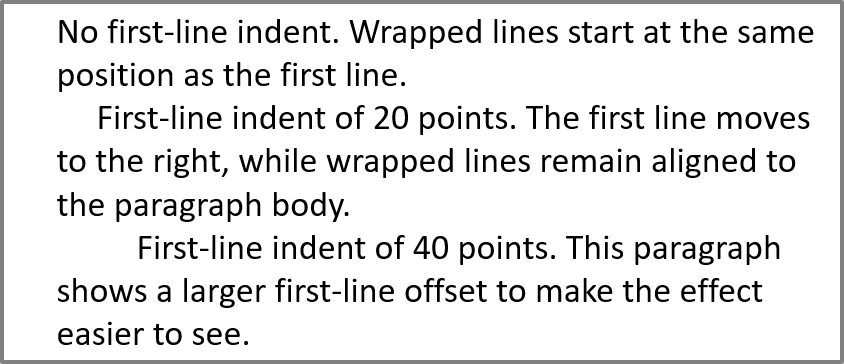
از متد ParagraphFormat.setIndent برای کنترل تورفتگی خط اول یک پاراگراف استفاده کنید. این تنظیم فقط خط اول را نسبت به حاشیهٔ چپ پاراگراف جابجا میکند. مقدار مثبت خط اول را به سمت راست منتقل میکند، در حالی که خطوط باقیمانده مطابق با بدنهٔ پاراگراف میمانند.
از ParagraphFormat.setMarginLeft هنگامی که نیاز به جابهجایی کل پاراگراف دارید، استفاده کنید. از ParagraphFormat.setIndent زمانی که فقط خط اول را میخواهید جابجا کنید، استفاده کنید.
مثال زیر به سه پاراگراف همان مقدار ParagraphFormat.setMarginLeft برابر ۲۰ پوینت و مقادیر ParagraphFormat.setIndent به ترتیب ۰، ۲۰ و ۴۰ پوینت میدهد. خطوط اول بهصورت تدریجی در آفستهای بزرگتری شروع میشوند، در حالی که خطوط بستهبندیشده همان حاشیهٔ چپ را حفظ میکنند:
import jpype
import asposeslides

if not jpype.isJVMStarted():
    jpype.startJVM()

from asposeslides.api import FillType, Paragraph, Presentation, SaveFormat, ShapeType, TextAutofitType
from java.awt import Color

presentation = Presentation()
try:
    slide = presentation.getSlides().get_Item(0)

    shape = slide.getShapes().addAutoShape(ShapeType.Rectangle, 50, 50, 420, 220)
    shape.getFillFormat().setFillType(FillType.NoFill)
    shape.getLineFormat().getFillFormat().setFillType(FillType.Solid)
    shape.getLineFormat().getFillFormat().getSolidFillColor().setColor(Color.GRAY)

    text_frame = shape.getTextFrame()
    text_frame.getTextFrameFormat().setAutofitType(TextAutofitType.Shape)
    text_frame.getParagraphs().clear()

    first_paragraph = Paragraph()
    first_paragraph.setText("No first-line indent. Wrapped lines start at the same position as the first line.")
    first_paragraph.getParagraphFormat().getDefaultPortionFormat().getFillFormat().setFillType(FillType.Solid)
    first_paragraph.getParagraphFormat().getDefaultPortionFormat().getFillFormat().getSolidFillColor().setColor(Color.BLACK)
    first_paragraph.getParagraphFormat().setMarginLeft(20.0)
    first_paragraph.getParagraphFormat().setIndent(0.0)

    second_paragraph = Paragraph()
    second_paragraph.setText("First-line indent of 20 points. The first line moves to the right, while wrapped lines remain aligned to the paragraph body.")
    second_paragraph.getParagraphFormat().getDefaultPortionFormat().getFillFormat().setFillType(FillType.Solid)
    second_paragraph.getParagraphFormat().getDefaultPortionFormat().getFillFormat().getSolidFillColor().setColor(Color.BLACK)
    second_paragraph.getParagraphFormat().setMarginLeft(20.0)
    second_paragraph.getParagraphFormat().setIndent(20.0)

    third_paragraph = Paragraph()
    third_paragraph.setText("First-line indent of 40 points. This paragraph shows a larger first-line offset to make the effect easier to see.")
    third_paragraph.getParagraphFormat().getDefaultPortionFormat().getFillFormat().setFillType(FillType.Solid)
    third_paragraph.getParagraphFormat().getDefaultPortionFormat().getFillFormat().getSolidFillColor().setColor(Color.BLACK)
    third_paragraph.getParagraphFormat().setMarginLeft(20.0)
    third_paragraph.getParagraphFormat().setIndent(40.0)

    text_frame.getParagraphs().add(first_paragraph)
    text_frame.getParagraphs().add(second_paragraph)
    text_frame.getParagraphs().add(third_paragraph)

    presentation.save("paragraph_indent.pptx", SaveFormat.Pptx)
finally:
    presentation.dispose()
نتیجه:
تنظیم تورفتگی معلق
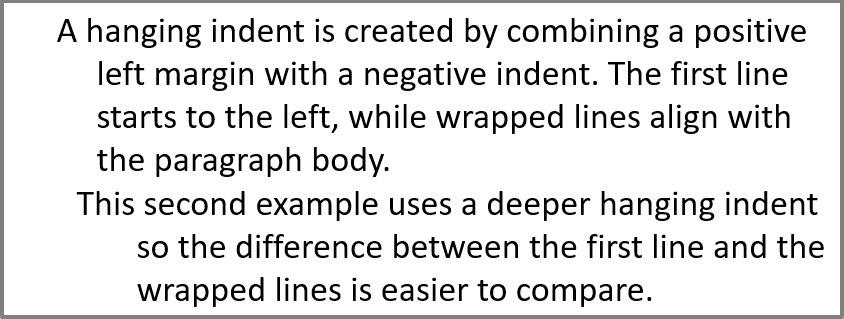
تورفتگی معلق یک چیدمان پاراگراف است که در آن خط اول نسبت به خطوط باقیمانده به سمت چپ شروع میشود. در Aspose.Slides، این اثر را با ویژگی ParagraphFormat.setIndent ایجاد میکنید. مقدار Indent را منفی تنظیم کنید تا خط اول نسبت به بدنهٔ پاراگراف به سمت چپ جابهجا شود.
در عمل، ParagraphFormat.setMarginLeft موقعیت چپ بدنهٔ پاراگراف را تعریف میکند و ParagraphFormat.setIndent موقعیت خط اول را نسبت به آن حاشیه تعیین میکند. برای ایجاد تورفتگی معلق، مقدار مثبت MarginLeft و مقدار منفی Indent را تنظیم کنید.
این قالببندی برای کتابشناسیها، مراجع، ورودیهای واژهنامه و سایر پاراگرافهایی که خطوط بستهبندیشده باید زیر بدنهٔ پاراگراف نه زیر اولین کاراکتر خط اول تراز باشند، مفید است.
مثال پایتون زیر مقادیر ParagraphFormat.setMarginLeft برابر ۴۰ و ۶۰ پوینت را با مقادیر ParagraphFormat.setIndent برابر ‑۲۰ و ‑۳۰ پوینت ترکیب میکند. در هر پاراگراف، خط اول بهسمت چپ خطوط بستهبندیشده شروع میشود؛ پاراگراف دوم تورفتگی معلق عمیقتری دارد:
import jpype
import asposeslides

if not jpype.isJVMStarted():
    jpype.startJVM()

from asposeslides.api import FillType, Paragraph, Presentation, SaveFormat, ShapeType, TextAutofitType
from java.awt import Color

presentation = Presentation()
try:
    slide = presentation.getSlides().get_Item(0)

    shape = slide.getShapes().addAutoShape(ShapeType.Rectangle, 50, 50, 420, 220)
    shape.getFillFormat().setFillType(FillType.NoFill)
    shape.getLineFormat().getFillFormat().setFillType(FillType.Solid)
    shape.getLineFormat().getFillFormat().getSolidFillColor().setColor(Color.GRAY)

    text_frame = shape.getTextFrame()
    text_frame.getTextFrameFormat().setAutofitType(TextAutofitType.Shape)
    text_frame.getParagraphs().clear()

    first_paragraph = Paragraph()
    first_paragraph.setText("A hanging indent is created by combining a positive left margin with a negative indent. The first line starts to the left, while wrapped lines align with the paragraph body.")
    first_paragraph.getParagraphFormat().getDefaultPortionFormat().getFillFormat().setFillType(FillType.Solid)
    first_paragraph.getParagraphFormat().getDefaultPortionFormat().getFillFormat().getSolidFillColor().setColor(Color.BLACK)
    first_paragraph.getParagraphFormat().setMarginLeft(40.0)
    first_paragraph.getParagraphFormat().setIndent(-20.0)

    second_paragraph = Paragraph()
    second_paragraph.setText("This second example uses a deeper hanging indent so the difference between the first line and the wrapped lines is easier to compare.")
    second_paragraph.getParagraphFormat().getDefaultPortionFormat().getFillFormat().setFillType(FillType.Solid)
    second_paragraph.getParagraphFormat().getDefaultPortionFormat().getFillFormat().getSolidFillColor().setColor(Color.BLACK)
    second_paragraph.getParagraphFormat().setMarginLeft(60.0)
    second_paragraph.getParagraphFormat().setIndent(-30.0)

    text_frame.getParagraphs().add(first_paragraph)
    text_frame.getParagraphs().add(second_paragraph)

    presentation.save("hanging_indent.pptx", SaveFormat.Pptx)
finally:
    presentation.dispose()
نتیجه:
تنظیم ویژگیهای انتهای پاراگراف
متد Paragraph.setEndParagraphPortionFormat قالببندی علامت انتهای پاراگراف را کنترل میکند. مثال زیر یک PortionFormat ایجاد میکند که در آن BasePortionFormat.setFontHeight برابر ۴۸ پوینت و BasePortionFormat.setLatinFont برابر Times New Roman تنظیم شدهاند. این قالب به علامت انتهای پاراگراف دوم اختصاص داده میشود و بخشهای متنی قابل مشاهده بدون تغییر میمانند:
import jpype
import asposeslides

if not jpype.isJVMStarted():
    jpype.startJVM()

from asposeslides.api import FontData, Paragraph, Portion, PortionFormat, Presentation, SaveFormat, ShapeType

presentation = Presentation("Test.pptx")
try:
    slide = presentation.getSlides().get_Item(0)

    shape = slide.getShapes().addAutoShape(ShapeType.Rectangle, 10, 10, 200, 250)
    text_frame = shape.getTextFrame()
    text_frame.getParagraphs().clear()

    first_paragraph = Paragraph()
    first_portion = Portion("Sample text")
    first_paragraph.getPortions().add(first_portion)

    second_paragraph = Paragraph()
    second_portion = Portion("Sample text 2")
    second_paragraph.getPortions().add(second_portion)

    end_paragraph_format = PortionFormat()
    end_paragraph_format.setFontHeight(48)
    latin_font = FontData("Times New Roman")
    end_paragraph_format.setLatinFont(latin_font)
    second_paragraph.setEndParagraphPortionFormat(end_paragraph_format)

    text_frame.getParagraphs().add(first_paragraph)
    text_frame.getParagraphs().add(second_paragraph)

    presentation.save("end_paragraph_format.pptx", SaveFormat.Pptx)
finally:
    presentation.dispose()
شمارش خطوط رندرشده
برای قواعد پاراگرافی که بر بستهبندی خودکار و علامتگذاری در انتهای خطوط تأثیر میگذارند، به Control Line Breaking و Control Hanging Punctuation مراجعه کنید.
از Paragraph.getLinesCount برای شمارش خطوطی که یک پاراگراف پس از چیدمان متن اشغال میکند، استفاده کنید؛ این شامل بستهبندی خودکار میشود. این ویژگی هنگام بررسی طول متن و چیدمان در الگوهای ارائه مفید است.
پاراگراف یک مورد در TextFrame.getParagraphs است و میتواند چندین خط رندر شده را اشغال کند. یک شکست خط صریح درون پاراگراف، خط جدیدی ایجاد میکند بدون اینکه پاراگراف جدیدی ساخته شود. بستهبندی خودکار خطوط را بر اساس عرض موجود تولید میکند بدون افزودن شکستهای صریح به متن. بنابراین شمارش پاراگرافها یا کاراکترهای شکست خط، شمارش خطوط رندر شده را نمیدهد.
مثال زیر یک شکل متن ایجاد میکند، خطوط آن را میشمارد، شکل را باریک میکند و سپس متن را با رشتهای کوتاهتر جایگزین میکند. مثال با استفاده از TextFrameFormat.setWrapText بستهبندی را فعال میکند و با TextFrameFormat.setAutofitType قابلیت اتوفیت را غیرفعال میکند تا عرض شکل کنترل بستهبندی را داشته باشد بدون اینکه بهصورت خودکار متن را کوچک یا شکل را تغییر اندازه دهد. هر اندازهگیری از Paragraph.getLinesCount استفاده میکند. ابعاد شکل بر حسب پوینت هستند. در نهایت، مثال یک پاراگراف دیگر اضافه میکند و تعداد خطوط را در کل قاب متن جمع میزند:
import jpype
import asposeslides

if not jpype.isJVMStarted():
    jpype.startJVM()

from asposeslides.api import NullableBool, Paragraph, Presentation, ShapeType, TextAutofitType

presentation = Presentation()
try:
    slide = presentation.getSlides().get_Item(0)

    shape = slide.getShapes().addAutoShape(ShapeType.Rectangle, 50, 50, 400, 200)
    text_frame = shape.getTextFrame()
    text_frame.getTextFrameFormat().setWrapText(NullableBool.True_)
    text_frame.getTextFrameFormat().setAutofitType(TextAutofitType.None_)

    paragraph = text_frame.getParagraphs().get_Item(0)
    paragraph.getParagraphFormat().getDefaultPortionFormat().setFontHeight(20)
    paragraph.setText("This text demonstrates how automatic wrapping changes the number of rendered lines.")
    print("Original width:", paragraph.getLinesCount())

    shape.setWidth(150)
    print("Narrower shape:", paragraph.getLinesCount())

    paragraph.setText("Short text.")
    print("Shorter text:", paragraph.getLinesCount())

    second_paragraph = Paragraph()
    second_paragraph.setText("Another paragraph.")
    second_paragraph.getParagraphFormat().getDefaultPortionFormat().setFontHeight(20)
    text_frame.getParagraphs().add(second_paragraph)

    total_line_count = 0
    for current_paragraph in text_frame.getParagraphs():
        total_line_count += current_paragraph.getLinesCount()
    print("Total lines in the text frame:", total_line_count)
finally:
    presentation.dispose()
با این متن و این ابعاد، باریک کردن شکل تعداد خطوط را افزایش میدهد، در حالی که جایگزینی متن با رشتهٔ کوتاهتر آن را کاهش میدهد. شمارش دقیق میتواند بسته به در دسترس بودن و جایگزینی فونت، اندازهٔ فونت، حاشیهها، تورفتگی، بستهبندی و تنظیمات اتوفیت متفاوت باشد. هنگام بررسی یک الگو، از فونتها و تنظیمات چیدمان موردنظر برای محیط هدف استفاده کنید.
تعداد خطوط بهتنهایی تعیینکنندهٔ این نیست که متن از محفظهاش سرریز میشود یا نه. ارتفاع موجود، ارتفاع خطوط، فاصلهٔ پاراگراف و خط، و رفتار اتوفیت نیز مهماند؛ حتی یک خط میتواند عرض موجود را در صورت غیرفعال بودن بستهبندی تجاوز کند.
واردات و صادرات محتوای پاراگراف
از HTML برای وارد کردن متن به یک ارائه یا صادرات پاراگرافهای موجود برای استفاده خارج از آن استفاده کنید. این بخش همچنین نحوهٔ رندر کردن پاراگرافهای تکتک بهصورت تصویر، شامل پاراگرافهای داخل سلولهای جدول را نشان میدهد.
وارد کردن متن HTML به پاراگرافها
از ParagraphCollection.addFromHtml برای تبدیل نشانهگذاری HTML به پاراگرافها و بخشها در یک قاب متن استفاده کنید.
این مثال پایتون HTML را از یک فایل میخواند و نشانهگذاری را به ParagraphCollection.addFromHtml میسپارد. این مثال پاراگراف پیشفرض قاب متن را پاک میکند تا فقط محتوای وارد شده درون قاب باشد. شکل مستطیل شکل حاشیهٔ ۱۰ پوینت در هر طرف اسلاید را حفظ میکند:
import jpype
import asposeslides

if not jpype.isJVMStarted():
    jpype.startJVM()

from asposeslides.api import FillType, Presentation, SaveFormat, ShapeType
from pathlib import Path

presentation = Presentation()
try:
    slide = presentation.getSlides().get_Item(0)

    shape_width = presentation.getSlideSize().getSize().getWidth() - 20
    shape_height = presentation.getSlideSize().getSize().getHeight() - 20

    shape = slide.getShapes().addAutoShape(ShapeType.Rectangle, 10, 10, shape_width, shape_height)
    shape.getFillFormat().setFillType(FillType.NoFill)
    shape.getTextFrame().getParagraphs().clear()

    try:
        html = Path("file.html").read_text(encoding="utf-8")
        shape.getTextFrame().getParagraphs().addFromHtml(html)

        presentation.save("html_text.pptx", SaveFormat.Pptx)
    except OSError as exception:
        print("The HTML file could not be read: " + str(exception))
finally:
    presentation.dispose()
صادرات متن پاراگراف به HTML
از ParagraphCollection.exportToHtml برای صادرات یک بازهٔ انتخابشده از پاراگرافها بهصورت HTML استفاده کنید. هنگام استفاده مجدد از متن ارائه در یک وبسایت، ممکن است بخواهید تاکیدهای محلی را بدون انتقال فونت، اندازه یا سبکهای جعبهٔ متن ارائه حفظ کنید. با تنظیم TextToHtmlConversionOptions.setTextInheritanceLimit میتوانید میزان ارثبری قالببندی توسط Exporter را کنترل کنید.
نمونهٔ ارائه را از اینجا دانلود کنید و در پوشهٔ کاری برنامه قرار دهید. اسلاید اول آن شامل یک شکل متنی با متن «Inherited text; explicit red 18pt» است. ورودی بهصورت عمدی چندین سطح قالببندی استفاده میکند:
- سبک متن پیشفرض ارائه Calibri با اندازهٔ ۲۸ پوینت را فراهم میکند.
- سبک متن سطح اول قاب متن متن آبی و کج را فراهم میکند.
- پاراگراف بهصورت صریح متن توپر را تنظیم میکند.
- بخش دوم، «explicit red 18pt»، بهصورت صریح متن قرمز و اندازهٔ ۱۸ پوینت را تنظیم میکند.
مثال کامل زیر همان پاراگرافها را سه بار صادر میکند. TextToHtmlConversionOptions به متد صادرات پاس داده میشود و هر نتیجه بهعنوان یک فایل HTML جداگانه با رمزگذاری UTF-8 ذخیره میشود:
import jpype
import asposeslides
from pathlib import Path

if not jpype.isJVMStarted():
    jpype.startJVM()

from asposeslides.api import AutoShape, Presentation, TextInheritanceLimit, TextToHtmlConversionOptions

presentation = Presentation("text-inheritance.pptx")
try:
    shape = presentation.getSlides().get_Item(0).getShapes().get_Item(0)

    if isinstance(shape, AutoShape):
        text_frame = shape.getTextFrame()
        if text_frame is not None:
            paragraphs = text_frame.getParagraphs()

            modes = [TextInheritanceLimit.All, TextInheritanceLimit.TextBox, TextInheritanceLimit.ParagraphOnly]
            file_names = ["All.html", "TextBox.html", "ParagraphOnly.html"]

            for mode, file_name in zip(modes, file_names):
                options = TextToHtmlConversionOptions()
                options.setTextInheritanceLimit(mode)

                html = paragraphs.exportToHtml(0, paragraphs.getCount(), options)
                try:
                    Path(file_name).write_text(str(html), encoding="utf-8")
                except OSError as exception:
                    print("The HTML file could not be written: " + str(exception))
        else:
            print("The first shape does not contain a text frame.")
    else:
        print("The first shape is not a text shape.")
finally:
    presentation.dispose()
HTML تولید شده CSS زیر را برای اولین بخش، «Inherited text; » شامل میشود. جدول زیر اعلانهای مربوطه را فهرست میکند؛ سایر ویژگیهای تولید شده برای وضوح حذف شدهاند.
| خروجی | CSS مرتبط برای اولین بخش | ظاهر |
|---|---|---|
All.html |
font-family:'Calibri'; font-size:28pt; color:#0000ff; font-style:italic; font-weight:bold |
متن آبی، توپر، کج با اندازهٔ ۲۸ پوینت در Calibri، در صورتی که این فونت موجود باشد. |
TextBox.html |
color:#0000ff; font-style:italic; font-weight:bold |
متن آبی، توپر، کج؛ صفحه یا مرورگر محیطی فونت و اندازه را تامین میکند. |
ParagraphOnly.html |
font-weight:bold |
متن توپر؛ صفحه یا مرورگر فونت، اندازه، رنگ و سبک کج را تامین میکند. |
بخش دوم color:#ff0000، font-size:18pt و font-weight:bold را در هر سه خروجی حفظ میکند. همچنین سبک کج در خروجیهای All و TextBox حفظ میشود اما در ParagraphOnly نیست. محدود کردن ارثبری بنابراین قالببندی صریح اختصاص دادهشده به پاراگراف یا بخش را حذف نمیکند.
فایلها را در یک مرورگر باز کنید تا مقایسه کنید. در دو حالت محدود شده، ویژگیهای CSS حذفشده توسط سبکهای صفحهٔ مقصد یا پیشفرض مرورگر حل میشوند، بنابراین ظاهر نهایی به موقعیتی که HTML استفاده میشود وابسته است.
رندر کردن یک پاراگراف بهصورت تصویر
Paragraph.getImage یک پاراگراف تک را مستقیماً رندر میکند و یک شیء تصویر برمیگرداند. نتیجه را با متد save بهصورت فایل یا جریان ذخیره کنید. نیازی به رندر کردن شکل حاوی آن یا برش دستی یک bitmap ندارید.
Paragraph.getImage میتواند None برگرداند اگر پاراگراف در مجموعهٔ والد خود یافت نشود، مرزهای رندر معتبری نداشته باشد یا قابل رندر نباشد. قبل از ذخیره کردن نتیجه را بررسی کنید و بعد از استفاده تصویر برگشتدادهشده را آزاد کنید.
رندر یک پاراگراف در مقیاس پیشفرض
این مثال از یک ارائه با یک اسلاید استفاده میکند که اولین شکل آن یک جعبه متن حاوی سه پاراگراف است.
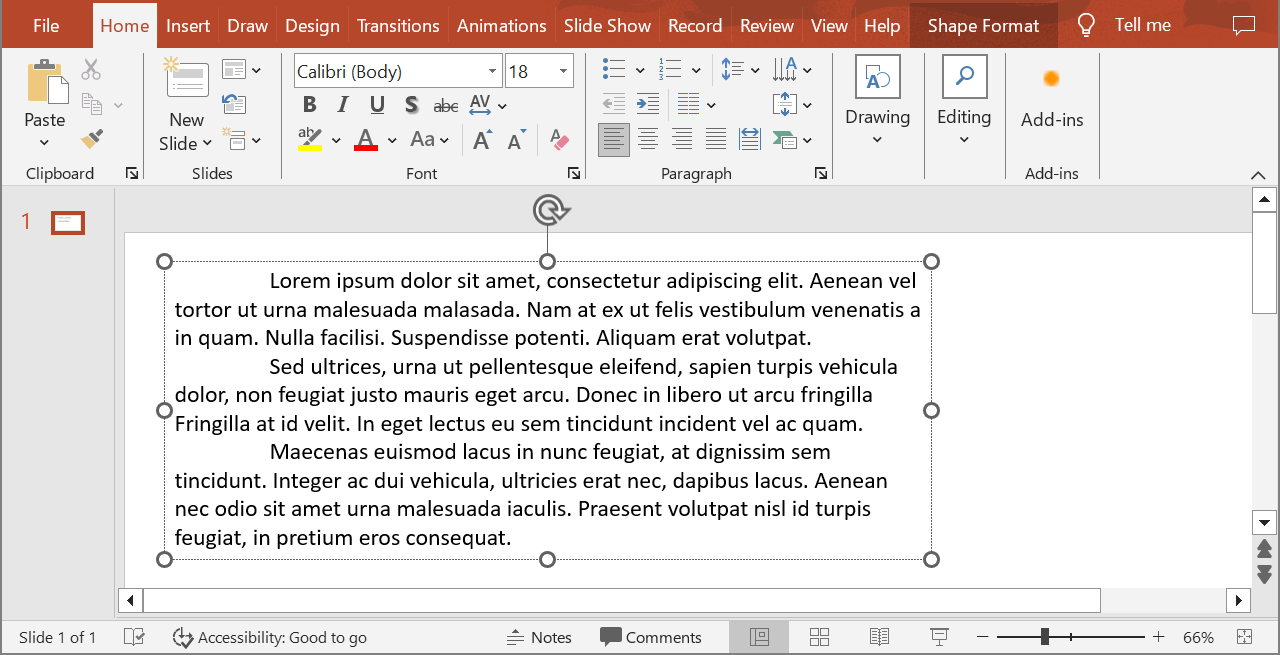
مثال زیر پاراگراف دوم را در ایندکس ۱ انتخاب میکند و بدون پارامترهای مقیاس به Paragraph.getImage فراخوانی میکند. ابتدا بررسی میکند که شکل شامل پاراگراف موردنظر است و رندر تصویر وجود دارد قبل از اینکه متد save را برای ذخیرهٔ آن در قالب PNG فراخوانی کند. بلوک finally پس از استفاده تصویر را آزاد میکند.
import jpype
import asposeslides

if not jpype.isJVMStarted():
    jpype.startJVM()

from asposeslides.api import AutoShape, ImageFormat, Presentation

presentation = Presentation("sample.pptx")
try:
    shape = presentation.getSlides().get_Item(0).getShapes().get_Item(0)

    if isinstance(shape, AutoShape):
        text_shape = shape
        text_frame = text_shape.getTextFrame()
        if text_frame is not None and text_frame.getParagraphs().getCount() > 1:
            paragraph = text_frame.getParagraphs().get_Item(1)
            paragraph_image = paragraph.getImage()

            if paragraph_image is not None:
                try:
                    paragraph_image.save("paragraph.png", ImageFormat.Png)
                finally:
                    paragraph_image.dispose()
            else:
                print("The paragraph could not be rendered.")
        else:
            print("The expected paragraph was not found.")
    else:
        print("The first shape is not a text shape.")
finally:
    presentation.dispose()
نتیجه:

رندر یک پاراگراف در سلول جدول با مقیاسگذاری
از overload Paragraph.getImage که پارامترهای scale_x و scale_y را میپذیرد، برای تنظیم عوامل مقیاس افقی و عمودی استفاده کنید. مثال زیر یک جدول ایجاد میکند، پاراگراف را در اولین سلول آن با دو برابر عرض و ارتفاع پیشفرض رندر میکند و نتیجه را بهصورت تصویر PNG ذخیره میکند.
import jpype
import asposeslides

if not jpype.isJVMStarted():
    jpype.startJVM()

from asposeslides.api import ImageFormat, Presentation

scale_x = 2.0
scale_y = 2.0
presentation = Presentation()
try:
    slide = presentation.getSlides().get_Item(0)

    table = slide.getShapes().addTable(50, 50, [300.0], [80.0])

    paragraph = table.get_Item(0, 0).getTextFrame().getParagraphs().get_Item(0)
    paragraph.setText("Text in a table cell")

    paragraph_image = paragraph.getImage(scale_x, scale_y)

    if paragraph_image is not None:
        try:
            paragraph_image.save("table_paragraph.png", ImageFormat.Png)
        finally:
            paragraph_image.dispose()
    else:
        print("The paragraph could not be rendered.")
finally:
    presentation.dispose()
عامل مقیاس 1 آن محور را در اندازهٔ پیشفرض پیکسل نگه میدارد. برای مثال، مقدار 2 برای هر دو عامل تصویری تولید میکند که عرض و ارتفاع آن تقریباً دو برابر ابعاد پیشفرض است و چهار برابر پیکسل میشود. عوامل بزرگتر معمولاً متن واضحتری برای زوم یا خروجی با وضوح بالا تولید میکنند، اما حافظه و حجم فایل را نیز افزایش میدهند. عوامل زیر 1 تصاویر کوچکتر با جزئیات کمتر تولید میکنند. برای حفظ نسبت تصویر پاراگراف از عوامل مساوی استفاده کنید؛ عوامل افقی و عمودی متفاوت خروجی را بهصورت مستقل کش میدهند.
رندر یک شکل کامل با استفاده از Shape.getImage همچنان مفید است وقتی خروجی باید شامل پر، حاشیه یا سایر زمینههای بصری شکل باشد. برای یک تصویر فقط پاراگراف، از Paragraph.getImage استفاده کنید.
سؤالات متداول
آیا میتوانم بستهبندی خطوط را بهصورت کامل در یک قاب متن غیرفعال کنم؟
بله. با تنظیم TextFrameFormat.setWrapText میتوانید بستهبندی را غیرفعال کنید تا خطوط در لبههای قاب متن شکسته نشوند.
چگونه میتوانم محدودهٔ دقیق روی اسلاید برای یک پاراگراف خاص را دریافت کنم؟
از Paragraph.getRect برای دریافت مستطیل مرزبندی پاراگراف استفاده کنید. Portion.getRect مرزبندی یک بخش تکتک را فراهم میکند.
کجا تنظیم تراز پاراگراف (چپ، راست، وسط یا توجیه) کنترل میشود؟
ParagraphFormat.setAlignment یک تنظیم سطح پاراگراف است و بر کل پاراگراف صرفنظر از قالببندی بخشهای مجزا اعمال میشود.
برای تراز عمودی بخشهای مختلف با اندازههای فونت متفاوت در هر خط، به Align Fonts Within a Line مراجعه کنید.
آیا میتوانم زبان اثبات را برای بخشی از یک پاراگراف تنظیم کنم؟
بله. با تنظیم BasePortionFormat.setLanguageId برای بخشهای مجزا، میتوانید یک پاراگراف شامل متن در چند زبان مختلف داشته باشید.