
PowerPoint Metin Paragraflarını Python üzerinden Java ile Yönet
Genel Bakış
Aspose.Slides for Python via Java, metni metin çerçeveleri, paragraflar ve bölümler hiyerarşisi olarak temsil eder:
- TextFrame şeklin içindeki metin kapsayıcısını temsil eder ve paragraf koleksiyonuna erişim sağlar.
- Paragraph metin çerçevesindeki bir paragrafı temsil eder ve bölümlerine ve paragraf düzeyindeki biçimlendirmeye erişim sağlar.
- Portion paragraf içinde bir metin yürütmesini temsil eder. Her bölüm kendi metnine ve karakter düzeyindeki biçimlendirmeye sahip olabilir.
Bu nedenle bir paragraf, birden çok bölüm kullanılarak farklı yazı tipleri, renkler, boyutlar ve diğer biçimlendirmeler içerebilir.
Paragrafları Oluşturma ve Biçimlendirme
Birden Çok Bölüm İçeren Paragraflar Oluşturma
Aşağıdaki adımlar, her biri üç bölüm içeren üç paragrafla bir metin çerçevesi oluşturur:
- Presentation sınıfının bir örneğini oluşturun.
- İndeksi aracılığıyla ilgili slayta erişin.
- Slayta dikdörtgen bir AutoShape ekleyin.
- Şeklin TextFrame öğesine erişin.
- Varsayılan paragrafı kullanın ve metin çerçevesine iki ek Paragraph nesnesi ekleyin.
- Her paragrafın üç bölüm içerebilmesi için yeterli sayıda Portion nesnesi ekleyin. Varsayılan paragraf zaten bir boş bölüm içerir.
- Her bölümün metnini ayarlayın.
- Portion.getPortionFormat aracılığıyla karakter düzeyinde biçimlendirme uygulayın.
- Değiştirilmiş sunumu kaydedin.
Bu Python örneği adımları uygular:
import jpype
import asposeslides

if not jpype.isJVMStarted():
    jpype.startJVM()

from asposeslides.api import FillType, NullableBool, Paragraph, Portion, Presentation, SaveFormat, ShapeType
from java.awt import Color

presentation = Presentation()
try:
    slide = presentation.getSlides().get_Item(0)
    shape = slide.getShapes().addAutoShape(ShapeType.Rectangle, 50, 150, 300, 150)
    text_frame = shape.getTextFrame()
    first_paragraph = text_frame.getParagraphs().get_Item(0)
    first_paragraph.getPortions().add(Portion())
    first_paragraph.getPortions().add(Portion())
    second_paragraph = Paragraph()
    second_paragraph.getPortions().add(Portion())
    second_paragraph.getPortions().add(Portion())
    second_paragraph.getPortions().add(Portion())
    text_frame.getParagraphs().add(second_paragraph)
    third_paragraph = Paragraph()
    third_paragraph.getPortions().add(Portion())
    third_paragraph.getPortions().add(Portion())
    third_paragraph.getPortions().add(Portion())
    text_frame.getParagraphs().add(third_paragraph)
    paragraph_count = text_frame.getParagraphs().getCount()
    for paragraph_index in range(paragraph_count):
        paragraph = text_frame.getParagraphs().get_Item(paragraph_index)
        portion_count = paragraph.getPortions().getCount()
        for portion_index in range(portion_count):
            portion = paragraph.getPortions().get_Item(portion_index)
            portion.setText(f"Portion {paragraph_index + 1}.{portion_index + 1}")
            if portion_index == 0:
                portion.getPortionFormat().getFillFormat().setFillType(FillType.Solid)
                portion.getPortionFormat().getFillFormat().getSolidFillColor().setColor(Color.RED)
                portion.getPortionFormat().setFontBold(NullableBool.True_)
                portion.getPortionFormat().setFontHeight(15)
            elif portion_index == 1:
                portion.getPortionFormat().getFillFormat().setFillType(FillType.Solid)
                portion.getPortionFormat().getFillFormat().getSolidFillColor().setColor(Color.BLUE)
                portion.getPortionFormat().setFontItalic(NullableBool.True_)
                portion.getPortionFormat().setFontHeight(18)
    presentation.save("paragraphs_with_portions.pptx", SaveFormat.Pptx)
finally:
    presentation.dispose()
Madde İşaretli ve Numaralı Listeler Oluşturma
Madde İşaretli veya Numaralı Liste Oluşturma
Madde işaretleri ve numaralar, ilgili öğelerin taranmasını kolaylaştırır. Aspose.Slides içinde liste ayarları BulletFormat aracılığıyla tanımlanır.
- Presentation sınıfının bir örneğini oluşturun.
- İndeksi aracılığıyla ilgili slayta erişin.
- Seçili slayta bir AutoShape ekleyin.
- Şeklin TextFrame öğesine erişin.
- Metin çerçevesinden varsayılan paragrafı kaldırın.
- Sembol madde işareti için bir Paragraph oluşturun.
- BulletFormat.setType değerini BulletType.Symbol olarak ayarlayın ve madde işareti karakterini belirtin.
- Paragraf metnini, girintiyi, madde işareti rengini ve yüksekliğini ayarlayın.
- Paragrafı metin çerçevesine ekleyin.
- İkinci bir paragraf oluşturun ve BulletFormat.setType değerini BulletType.Numbered olarak ayarlayın.
- Numaralı madde işareti stilini yapılandırın ve paragrafı metin çerçevesine ekleyin.
- Sunumu kaydedin.
Bu Python örneği bir sembol madde işareti ve bir numaralı madde işareti oluşturur:
import jpype
import asposeslides

if not jpype.isJVMStarted():
    jpype.startJVM()

from asposeslides.api import BulletType, ColorType, NullableBool, NumberedBulletStyle, Paragraph, Presentation, SaveFormat, ShapeType
from java.awt import Color

presentation = Presentation()
try:
    slide = presentation.getSlides().get_Item(0)
    shape = slide.getShapes().addAutoShape(ShapeType.Rectangle, 200, 200, 400, 200)
    text_frame = shape.getTextFrame()
    text_frame.getParagraphs().clear()
    symbol_paragraph = Paragraph()
    symbol_paragraph.setText("Welcome to Aspose.Slides")
    symbol_paragraph.getParagraphFormat().getBullet().setType(BulletType.Symbol)
    symbol_paragraph.getParagraphFormat().getBullet().setChar("•")
    symbol_paragraph.getParagraphFormat().setIndent(25)
    symbol_paragraph.getParagraphFormat().getBullet().getColor().setColorType(ColorType.RGB)
    symbol_paragraph.getParagraphFormat().getBullet().getColor().setColor(Color.BLACK)
    symbol_paragraph.getParagraphFormat().getBullet().setBulletHardColor(NullableBool.True_)
    symbol_paragraph.getParagraphFormat().getBullet().setHeight(100)
    text_frame.getParagraphs().add(symbol_paragraph)
    numbered_paragraph = Paragraph()
    numbered_paragraph.setText("This is a numbered item")
    numbered_paragraph.getParagraphFormat().getBullet().setType(BulletType.Numbered)
    numbered_paragraph.getParagraphFormat().getBullet().setNumberedBulletStyle(NumberedBulletStyle.BulletCircleNumWDBlackPlain)
    numbered_paragraph.getParagraphFormat().setIndent(25)
    numbered_paragraph.getParagraphFormat().getBullet().getColor().setColorType(ColorType.RGB)
    numbered_paragraph.getParagraphFormat().getBullet().getColor().setColor(Color.BLACK)
    numbered_paragraph.getParagraphFormat().getBullet().setBulletHardColor(NullableBool.True_)
    numbered_paragraph.getParagraphFormat().getBullet().setHeight(100)
    text_frame.getParagraphs().add(numbered_paragraph)
    presentation.save("bulleted_and_numbered_list.pptx", SaveFormat.Pptx)
finally:
    presentation.dispose()
Resim Madde İşaretleri Kullanma
Resim madde işaretleri, bir sembol veya sayı yerine özel bir görüntü kullanmanıza olanak tanır.
- Presentation sınıfının bir örneğini oluşturun.
- İndeksi aracılığıyla ilgili slayta erişin.
- Bir AutoShape ekleyin ve onun TextFrame öğesine erişin.
- Metin çerçevesinden varsayılan paragrafı kaldırın.
- Madde işareti görüntüsünü yükleyin ve sunumun görüntü koleksiyonuna bir PPImage olarak ekleyin.
- Bir Paragraph oluşturun ve metnini ayarlayın.
- BulletFormat.setType değerini BulletType.Picture olarak ayarlayın.
- Görüntüyü BulletFormat.getPicture aracılığıyla atayın ve madde işareti yüksekliğini ayarlayın.
- Paragrafı metin çerçevesine ekleyin.
- Değiştirilmiş sunumu kaydedin.
Bu Python örneği bir resim madde işareti oluşturur:
import jpype
import asposeslides

if not jpype.isJVMStarted():
    jpype.startJVM()

from asposeslides.api import BulletType, Images, Paragraph, Presentation, SaveFormat, ShapeType

presentation = Presentation()
try:
    slide = presentation.getSlides().get_Item(0)
    bullet_image = Images.fromFile("bullets.png")
    try:
        presentation_image = presentation.getImages().addImage(bullet_image)
    finally:
        bullet_image.dispose()
    shape = slide.getShapes().addAutoShape(ShapeType.Rectangle, 200, 200, 400, 200)
    text_frame = shape.getTextFrame()
    text_frame.getParagraphs().clear()
    paragraph = Paragraph()
    paragraph.setText("Welcome to Aspose.Slides")
    paragraph.getParagraphFormat().getBullet().setType(BulletType.Picture)
    paragraph.getParagraphFormat().getBullet().getPicture().setImage(presentation_image)
    paragraph.getParagraphFormat().getBullet().setHeight(100)
    text_frame.getParagraphs().add(paragraph)
    presentation.save("picture_bullet.pptx", SaveFormat.Pptx)
    presentation.save("picture_bullet.ppt", SaveFormat.Ppt)
finally:
    presentation.dispose()
Çok Düzeyli Liste Oluşturma
ParagraphFormat.setDepth değerini ayarlayarak paragrafları listenin farklı seviyelerine yerleştirebilirsiniz. Üst seviye derinliği 0 dır.
- Bir Presentation oluşturun ve bir slayta erişin.
- Bir AutoShape ekleyin ve metin çerçevesinden varsayılan paragrafı temizleyin.
- Dört paragraf oluşturun ve madde işareti sembollerini yapılandırın.
- ParagraphFormat.setDepth değerlerini
0,1,2ve3olarak ayarlayın. - Paragrafları metin çerçevesine ekleyin ve sunumu kaydedin.
Bu Python örneği dört seviyeli bir madde işaretli liste oluşturur:
import jpype
import asposeslides

if not jpype.isJVMStarted():
    jpype.startJVM()

from asposeslides.api import BulletType, FillType, Paragraph, Presentation, SaveFormat, ShapeType
from java.awt import Color

presentation = Presentation()
try:
    slide = presentation.getSlides().get_Item(0)
    shape = slide.getShapes().addAutoShape(ShapeType.Rectangle, 200, 200, 400, 200)
    text_frame = shape.getTextFrame()
    text_frame.getParagraphs().clear()
    first_paragraph = Paragraph()
    first_paragraph.setText("Content")
    first_paragraph.getParagraphFormat().getBullet().setType(BulletType.Symbol)
    first_paragraph.getParagraphFormat().getBullet().setChar("•")
    first_paragraph.getParagraphFormat().getDefaultPortionFormat().getFillFormat().setFillType(FillType.Solid)
    first_paragraph.getParagraphFormat().getDefaultPortionFormat().getFillFormat().getSolidFillColor().setColor(Color.BLACK)
    first_paragraph.getParagraphFormat().setDepth(0)
    second_paragraph = Paragraph()
    second_paragraph.setText("Second level")
    second_paragraph.getParagraphFormat().getBullet().setType(BulletType.Symbol)
    second_paragraph.getParagraphFormat().getBullet().setChar('-')
    second_paragraph.getParagraphFormat().getDefaultPortionFormat().getFillFormat().setFillType(FillType.Solid)
    second_paragraph.getParagraphFormat().getDefaultPortionFormat().getFillFormat().getSolidFillColor().setColor(Color.BLACK)
    second_paragraph.getParagraphFormat().setDepth(1)
    third_paragraph = Paragraph()
    third_paragraph.setText("Third level")
    third_paragraph.getParagraphFormat().getBullet().setType(BulletType.Symbol)
    third_paragraph.getParagraphFormat().getBullet().setChar("•")
    third_paragraph.getParagraphFormat().getDefaultPortionFormat().getFillFormat().setFillType(FillType.Solid)
    third_paragraph.getParagraphFormat().getDefaultPortionFormat().getFillFormat().getSolidFillColor().setColor(Color.BLACK)
    third_paragraph.getParagraphFormat().setDepth(2)
    fourth_paragraph = Paragraph()
    fourth_paragraph.setText("Fourth level")
    fourth_paragraph.getParagraphFormat().getBullet().setType(BulletType.Symbol)
    fourth_paragraph.getParagraphFormat().getBullet().setChar('-')
    fourth_paragraph.getParagraphFormat().getDefaultPortionFormat().getFillFormat().setFillType(FillType.Solid)
    fourth_paragraph.getParagraphFormat().getDefaultPortionFormat().getFillFormat().getSolidFillColor().setColor(Color.BLACK)
    fourth_paragraph.getParagraphFormat().setDepth(3)
    text_frame.getParagraphs().add(first_paragraph)
    text_frame.getParagraphs().add(second_paragraph)
    text_frame.getParagraphs().add(third_paragraph)
    text_frame.getParagraphs().add(fourth_paragraph)
    presentation.save("multilevel_list.pptx", SaveFormat.Pptx)
finally:
    presentation.dispose()
Numaralı Liste Öğelerini Özel Değerlerle Başlatma
BulletFormat.setNumberedBulletStartWith özelliğini kullanarak bir numaralı paragraf için başlangıç sayısını ayarlayabilirsiniz.
- Bir Presentation oluşturun ve bir AutoShape ekleyin.
- Şeklin metin çerçevesinden varsayılan paragrafı temizleyin.
- Üç numaralı paragraf oluşturun.
- İlgili paragraflar için BulletFormat.setNumberedBulletStartWith değerlerini sırasıyla
2,3ve7olarak ayarlayın. - Paragrafları metin çerçevesine ekleyin ve sunumu kaydedin.
Bu Python örneği her paragraf için özel bir başlangıç numarası atar:
import jpype
import asposeslides

if not jpype.isJVMStarted():
    jpype.startJVM()

from asposeslides.api import BulletType, Paragraph, Presentation, SaveFormat, ShapeType

presentation = Presentation()
try:
    slide = presentation.getSlides().get_Item(0)
    shape = slide.getShapes().addAutoShape(ShapeType.Rectangle, 200, 200, 400, 200)
    text_frame = shape.getTextFrame()
    text_frame.getParagraphs().clear()
    first_paragraph = Paragraph()
    first_paragraph.setText("Start at 2")
    first_paragraph.getParagraphFormat().getBullet().setType(BulletType.Numbered)
    first_paragraph.getParagraphFormat().getBullet().setNumberedBulletStartWith(2)
    text_frame.getParagraphs().add(first_paragraph)
    second_paragraph = Paragraph()
    second_paragraph.setText("Start at 3")
    second_paragraph.getParagraphFormat().getBullet().setType(BulletType.Numbered)
    second_paragraph.getParagraphFormat().getBullet().setNumberedBulletStartWith(3)
    text_frame.getParagraphs().add(second_paragraph)
    third_paragraph = Paragraph()
    third_paragraph.setText("Start at 7")
    third_paragraph.getParagraphFormat().getBullet().setType(BulletType.Numbered)
    third_paragraph.getParagraphFormat().getBullet().setNumberedBulletStartWith(7)
    text_frame.getParagraphs().add(third_paragraph)
    presentation.save("custom_numbered_list.pptx", SaveFormat.Pptx)
finally:
    presentation.dispose()
Paragraf Düzeni ve Bitiş Özelliklerini Kontrol Etme
İlk Satır Girintisi Ayarlama
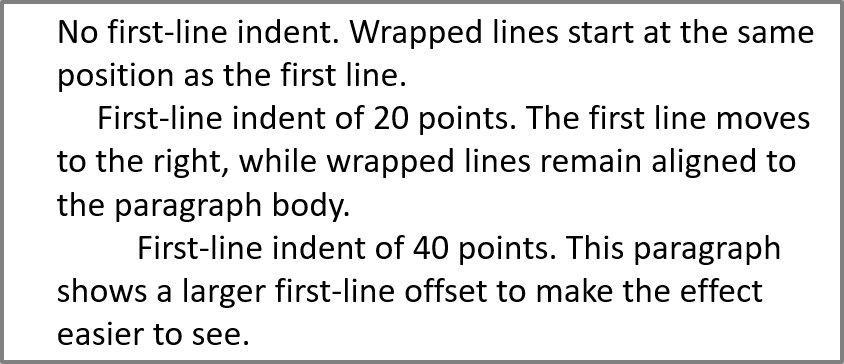
ParagraphFormat.setIndent metodunu kullanarak bir paragrafın ilk satır girintisini kontrol edebilirsiniz. Bu yöntem yalnızca paragrafın sol kenar boşluğuna göre ilk satırı taşır. Pozitif bir değer ilk satırı sağa kaydırır, kalan satırlar ise paragraf gövdesine hizalı kalır.
Tüm paragrafı taşımak gerektiğinde ParagraphFormat.setMarginLeft kullanın. Sadece ilk satırı taşımak istediğinizde ise ParagraphFormat.setIndent kullanın.
Aşağıdaki örnek, birkaç paragraf oluşturur ve farklı ParagraphFormat.setIndent değerleri uygulayarak ilk satır girintisinin paragraf düzenini nasıl etkilediğini gösterir.
- Presentation sınıfının bir örneğini oluşturun.
- Hedef slayta erişin.
- Slayta dikdörtgen bir AutoShape ekleyin.
- Şeklin TextFrame öğesine erişin ve varsayılan paragrafı kaldırın.
- Birkaç paragraf oluşturun ve her biri için farklı ParagraphFormat.setIndent değerleri ayarlayın.
- Paragrafları metin çerçevesine ekleyin.
- Değiştirilmiş sunumu kaydedin.
Bu kod, bir paragraf girintisinin nasıl ayarlanacağını gösterir:
import jpype
import asposeslides

if not jpype.isJVMStarted():
    jpype.startJVM()

from asposeslides.api import FillType, Paragraph, Presentation, SaveFormat, ShapeType, TextAutofitType
from java.awt import Color

presentation = Presentation()
try:
    slide = presentation.getSlides().get_Item(0)
    shape = slide.getShapes().addAutoShape(ShapeType.Rectangle, 50, 50, 420, 220)
    shape.getFillFormat().setFillType(FillType.NoFill)
    shape.getLineFormat().getFillFormat().setFillType(FillType.Solid)
    shape.getLineFormat().getFillFormat().getSolidFillColor().setColor(Color.GRAY)
    text_frame = shape.getTextFrame()
    text_frame.getTextFrameFormat().setAutofitType(TextAutofitType.Shape)
    text_frame.getParagraphs().clear()
    first_paragraph = Paragraph()
    first_paragraph.setText("No first-line indent. Wrapped lines start at the same position as the first line.")
    first_paragraph.getParagraphFormat().getDefaultPortionFormat().getFillFormat().setFillType(FillType.Solid)
    first_paragraph.getParagraphFormat().getDefaultPortionFormat().getFillFormat().getSolidFillColor().setColor(Color.BLACK)
    first_paragraph.getParagraphFormat().setMarginLeft(20.0)
    first_paragraph.getParagraphFormat().setIndent(0.0)
    second_paragraph = Paragraph()
    second_paragraph.setText("First-line indent of 20 points. The first line moves to the right, while wrapped lines remain aligned to the paragraph body.")
    second_paragraph.getParagraphFormat().getDefaultPortionFormat().setFillType(FillType.Solid)
    second_paragraph.getParagraphFormat().getDefaultPortionFormat().getFillFormat().getSolidFillColor().setColor(Color.BLACK)
    second_paragraph.getParagraphFormat().setMarginLeft(20.0)
    second_paragraph.getParagraphFormat().setIndent(20.0)
    third_paragraph = Paragraph()
    third_paragraph.setText("First-line indent of 40 points. This paragraph shows a larger first-line offset to make the effect easier to see.")
    third_paragraph.getParagraphFormat().getDefaultPortionFormat().setFillType(FillType.Solid)
    third_paragraph.getParagraphFormat().getDefaultPortionFormat().getFillFormat().getSolidFillColor().setColor(Color.BLACK)
    third_paragraph.getParagraphFormat().setMarginLeft(20.0)
    third_paragraph.getParagraphFormat().setIndent(40.0)
    text_frame.getParagraphs().add(first_paragraph)
    text_frame.getParagraphs().add(second_paragraph)
    text_frame.getParagraphs().add(third_paragraph)
    presentation.save("paragraph_indent.pptx", SaveFormat.Pptx)
finally:
    presentation.dispose()
Sonuç:
Asılı Girinti Ayarlama
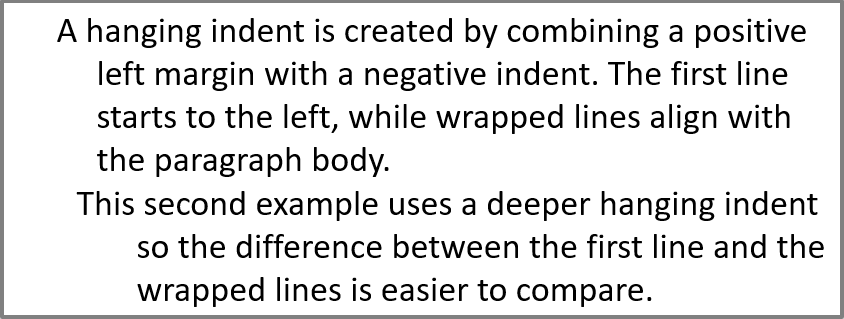
Asılı girinti, ilk satırın kalan satırlardan daha sola başlaması durumudur. Aspose.Slides içinde bu etkiyi ParagraphFormat.setIndent ile elde edersiniz. İlk satırı paragraf gövdesine göre sola kaydırmak için negatif bir değer geçirin.
Uygulamada, ParagraphFormat.setMarginLeft paragraf gövdesinin sol konumunu tanımlar, ParagraphFormat.setIndent ise ilk satırın bu kenar boşluğuna göre konumunu tanımlar. Asılı girinti oluşturmak için ParagraphFormat.setMarginLeft için pozitif bir değer, ParagraphFormat.setIndent için negatif bir değer kullanın.
Bu biçimlendirme, bibliyografyalar, referanslar, sözlük girişleri ve satırların paragraf gövdesi altında hizalanması gereken diğer paragraflar için kullanışlıdır.
- Presentation sınıfının bir örneğini oluşturun.
- Hedef slayta erişin.
- Slayta dikdörtgen bir AutoShape ekleyin.
- Şeklin TextFrame öğesine erişin ve varsayılan paragrafı kaldırın.
- Paragraflar oluşturun ve her paragraf için ParagraphFormat.setMarginLeft değerine pozitif bir değer verin.
- Asılı girinti etkisini yaratmak için ParagraphFormat.setIndent değerine negatif bir değer verin.
- Paragrafları metin çerçevesine ekleyin.
- Değiştirilmiş sunumu kaydedin.
Bu kod, bir paragraf için asılı girinti nasıl ayarlanır gösterir:
import jpype
import asposeslides

if not jpype.isJVMStarted():
    jpype.startJVM()

from asposeslides.api import FillType, Paragraph, Presentation, SaveFormat, ShapeType, TextAutofitType
from java.awt import Color

presentation = Presentation()
try:
    slide = presentation.getSlides().get_Item(0)
    shape = slide.getShapes().addAutoShape(ShapeType.Rectangle, 50, 50, 420, 220)
    shape.getFillFormat().setFillType(FillType.NoFill)
    shape.getLineFormat().getFillFormat().setFillType(FillType.Solid)
    shape.getLineFormat().getFillFormat().getSolidFillColor().setColor(Color.GRAY)
    text_frame = shape.getTextFrame()
    text_frame.getTextFrameFormat().setAutofitType(TextAutofitType.Shape)
    text_frame.getParagraphs().clear()
    first_paragraph = Paragraph()
    first_paragraph.setText("A hanging indent is created by combining a positive left margin with a negative indent. The first line starts to the left, while wrapped lines align with the paragraph body.")
    first_paragraph.getParagraphFormat().getDefaultPortionFormat().getFillFormat().setFillType(FillType.Solid)
    first_paragraph.getParagraphFormat().getDefaultPortionFormat().getFillFormat().getSolidFillColor().setColor(Color.BLACK)
    first_paragraph.getParagraphFormat().setMarginLeft(40.0)
    first_paragraph.getParagraphFormat().setIndent(-20.0)
    second_paragraph = Paragraph()
    second_paragraph.setText("This second example uses a deeper hanging indent so the difference between the first line and the wrapped lines is easier to compare.")
    second_paragraph.getParagraphFormat().getDefaultPortionFormat().getFillFormat().setFillType(FillType.Solid)
    second_paragraph.getParagraphFormat().getDefaultPortionFormat().getFillFormat().getSolidFillColor().setColor(Color.BLACK)
    second_paragraph.getParagraphFormat().setMarginLeft(60.0)
    second_paragraph.getParagraphFormat().setIndent(-30.0)
    text_frame.getParagraphs().add(first_paragraph)
    text_frame.getParagraphs().add(second_paragraph)
    presentation.save("hanging_indent.pptx", SaveFormat.Pptx)
finally:
    presentation.dispose()
Sonuç:
Paragraf Sonu Koşu Özelliklerini Ayarla
Paragraph.setEndParagraphPortionFormat paragraf son işaretinin biçimlendirmesini kontrol eder. Aşağıdaki örnek, ikinci paragrafın son işaretine bir yazı tipi boyutu ve Latin yazı tipi atar:
- Bir Presentation yükleyin ve bir slayta erişin.
- Bir AutoShape ekleyin ve varsayılan paragrafını temizleyin.
- İki paragraf oluşturun ve bunlara metin bölümleri ekleyin.
- İkinci paragrafın son işareti için bir PortionFormat oluşturun.
- BasePortionFormat.setFontHeight ve BasePortionFormat.setLatinFont ayarlayın.
- Paragraph.setEndParagraphPortionFormat ile formatı atayın ve sunumu kaydedin.
import jpype
import asposeslides

if not jpype.isJVMStarted():
    jpype.startJVM()

from asposeslides.api import FontData, Paragraph, Portion, PortionFormat, Presentation, SaveFormat, ShapeType

presentation = Presentation("Test.pptx")
try:
    slide = presentation.getSlides().get_Item(0)
    shape = slide.getShapes().addAutoShape(ShapeType.Rectangle, 10, 10, 200, 250)
    text_frame = shape.getTextFrame()
    text_frame.getParagraphs().clear()
    first_paragraph = Paragraph()
    first_portion = Portion("Sample text")
    first_paragraph.getPortions().add(first_portion)
    second_paragraph = Paragraph()
    second_portion = Portion("Sample text 2")
    second_paragraph.getPortions().add(second_portion)
    end_paragraph_format = PortionFormat()
    end_paragraph_format.setFontHeight(48)
    latin_font = FontData("Times New Roman")
    end_paragraph_format.setLatinFont(latin_font)
    second_paragraph.setEndParagraphPortionFormat(end_paragraph_format)
    text_frame.getParagraphs().add(first_paragraph)
    text_frame.getParagraphs().add(second_paragraph)
    presentation.save("end_paragraph_format.pptx", SaveFormat.Pptx)
finally:
    presentation.dispose()
Render Edilen Satırları Sayma
Metin kaydırma ve satır sonundaki noktalama işaretlerini etkileyen paragraf kuralları için Control Line Breaking ve Control Hanging Punctuation bölümlerine bakın.
Paragraph.getLinesCount metodunu kullanarak bir paragrafın metin yerleşiminden sonra kaç satır kapladığını sayabilirsiniz; bu, otomatik kaydırmayı da içerir. Şablonlarda metin uzunluğunu ve yerleşimini kontrol ederken faydalıdır.
Bir paragraf, TextFrame.getParagraphs içinde bir öğedir ve birkaç render edilmiş satır kaplayabilir. Paragraf içinde açık bir satır sonu eklemek yeni bir satır oluşturur ancak yeni bir paragraf yaratmaz. Otomatik kaydırma, mevcut genişliğe göre satırlar oluşturur ve metne açık satır sonu karakteri eklemez. Bu nedenle paragraf sayısını veya satır sonu karakterlerini saymak, render edilmiş satır sayısını vermez.
Aşağıdaki örnek bir metin şekli oluşturur, satırlarını sayar, şekli daraltır ve ardından metni daha kısa bir dizeyle değiştirir. Kaydırma etkinleştirilmiş ve otomatik sığdırma devre dışı bırakılmıştır, böylece şekil genişliği kaydırmayı kontrol eder, metni otomatik olarak küçültmez ya da şekli yeniden boyutlandırmaz. Şekil boyutları puan cinsindendir. Son olarak örnek, metin çerçevesine bir paragraf daha ekler ve satır sayısını toplar.
import jpype
import asposeslides

if not jpype.isJVMStarted():
    jpype.startJVM()

from asposeslides.api import NullableBool, Paragraph, Presentation, ShapeType, TextAutofitType

presentation = Presentation()
try:
    slide = presentation.getSlides().get_Item(0)

    shape = slide.getShapes().addAutoShape(ShapeType.Rectangle, 50, 50, 400, 200)
    text_frame = shape.getTextFrame()
    text_frame.getTextFrameFormat().setWrapText(NullableBool.True_)
    text_frame.getTextFrameFormat().setAutofitType(TextAutofitType.None_)

    paragraph = text_frame.getParagraphs().get_Item(0)
    paragraph.getParagraphFormat().getDefaultPortionFormat().setFontHeight(20)
    paragraph.setText("This text demonstrates how automatic wrapping changes the number of rendered lines.")
    print("Original width:", paragraph.getLinesCount())

    shape.setWidth(150)
    print("Narrower shape:", paragraph.getLinesCount())

    paragraph.setText("Short text.")
    print("Shorter text:", paragraph.getLinesCount())

    second_paragraph = Paragraph()
    second_paragraph.setText("Another paragraph.")
    second_paragraph.getParagraphFormat().getDefaultPortionFormat().setFontHeight(20)
    text_frame.getParagraphs().add(second_paragraph)

    total_line_count = 0
    for current_paragraph in text_frame.getParagraphs():
        total_line_count += current_paragraph.getLinesCount()
    print("Total lines in the text frame:", total_line_count)
finally:
    presentation.dispose()
Bu metin ve bu boyutlarla şekli daraltmak satır sayısını artırırken, kısa dizeyle değiştirmek azaltır. Kesin sayılar, kullanılan yazı tipine, yazı tipi boyutuna, kenar boşluklarına, girintilere, kaydırmaya ve otomatik sığdırma ayarlarına göre değişebilir. Şablonu kontrol ederken hedef ortam için tasarlanan yazı tiplerini ve düzen ayarlarını kullanın.
Satır sayısı tek başına metnin konteynerini aşıp aşmadığını belirlemez. Mevcut yükseklik, satır yükseklikleri, paragraf ve satır aralığı ve otomatik sığdırma davranışı da önemlidir; kaydırma devre dışı bırakıldığında tek bir satır bile mevcut genişliği aşabilir.
Paragraf İçeriğini İçe ve Dışa Aktarma
HTML Metnini Paragraflara İçe Aktarma
ParagraphCollection.addFromHtml metodunu kullanarak HTML işaretlemelerini bir metin çerçevesindeki paragraflara ve bölümlere dönüştürebilirsiniz.
- Presentation sınıfının bir örneğini oluşturun.
- Bir slayta erişin ve bir AutoShape ekleyin.
- Şeklin TextFrame öğesine erişin ve varsayılan paragrafı temizleyin.
- Kaynak HTML dosyasını okuyun.
- HTML dizesini ParagraphCollection.addFromHtml metoduna geçirin.
- Değiştirilmiş sunumu kaydedin.
Bu Python örneği HTML’i bir metin çerçevesine içe aktarır:
import jpype
import asposeslides

if not jpype.isJVMStarted():
    jpype.startJVM()

from asposeslides.api import FillType, Presentation, SaveFormat, ShapeType
from pathlib import Path

presentation = Presentation()
try:
    slide = presentation.getSlides().get_Item(0)
    shape_width = presentation.getSlideSize().getSize().getWidth() - 20
    shape_height = presentation.getSlideSize().getSize().getHeight() - 20
    shape = slide.getShapes().addAutoShape(ShapeType.Rectangle, 10, 10, shape_width, shape_height)
    shape.getFillFormat().setFillType(FillType.NoFill)
    shape.getTextFrame().getParagraphs().clear()
    try:
        html = Path("file.html").read_text(encoding="utf-8")
        shape.getTextFrame().getParagraphs().addFromHtml(html)
        presentation.save("html_text.pptx", SaveFormat.Pptx)
    except OSError as exception:
        print("The HTML file could not be read: " + str(exception))
finally:
    presentation.dispose()
Paragraf Metnini HTML’ye Dışa Aktarma
ParagraphCollection.exportToHtml metodunu kullanarak seçili paragraf aralığını HTML olarak dışa aktarabilirsiniz.
- Presentation sınıfının bir örneğini oluşturun ve istediğiniz sunumu yükleyin.
- Slayta erişin ve metni içeren AutoShape öğesini bulun.
- Şeklin TextFrame öğesine erişin.
- Başlangıç paragraf indeksi ve dışa aktarılacak paragraf sayısı ile ParagraphCollection.exportToHtml metodunu çağırın.
- Dönen HTML dizesini bir dosyaya yazın.
Bu Python örneği ilk metin şeklinin tüm paragraflarını dışa aktarır:
import jpype
import asposeslides

if not jpype.isJVMStarted():
    jpype.startJVM()

from asposeslides.api import AutoShape, Presentation
from pathlib import Path

presentation = Presentation("ExportingHTMLText.pptx")
try:
    shape = presentation.getSlides().get_Item(0).getShapes().get_Item(0)
    if isinstance(shape, AutoShape):
        text_shape = shape
        text_frame = text_shape.getTextFrame()
        if text_frame is not None:
            paragraphs = text_frame.getParagraphs()
            html = paragraphs.exportToHtml(0, paragraphs.getCount(), None)
            try:
                Path("paragraphs.html").write_text(str(html), encoding="utf-8")
            except OSError as exception:
                print("The HTML file could not be written: " + str(exception))
        else:
            print("The first shape does not contain a text frame.")
    else:
        print("The first shape is not a text shape.")
finally:
    presentation.dispose()
Bir Paragrafı Görüntü Olarak Render Etme
Paragraph.getImage bir paragrafı doğrudan render eder ve bir görüntü nesnesi döndürür. Sonucu save yöntemiyle bir dosyaya veya akışa kaydedin. İçeren şekli render etmenize veya bitmap’i elle kırpmanıza gerek yoktur.
Paragraph.getImage paragraf ebeveyn koleksiyonunda bulunamazsa, geçerli bir render sınırı yoksa veya render edilemezse None döndürebilir. Kaydetmeden önce sonucu kontrol edin ve kullanılan görüntüyü ardından serbest bırakın.
Varsayılan Ölçekte Paragraf Render Etme
sample.pptx adlı bir sunum dosyamız olduğunu ve içinde bir slayt olduğunu, ilk şeklin ise üç paragraf içeren bir metin kutusu olduğunu varsayalım.
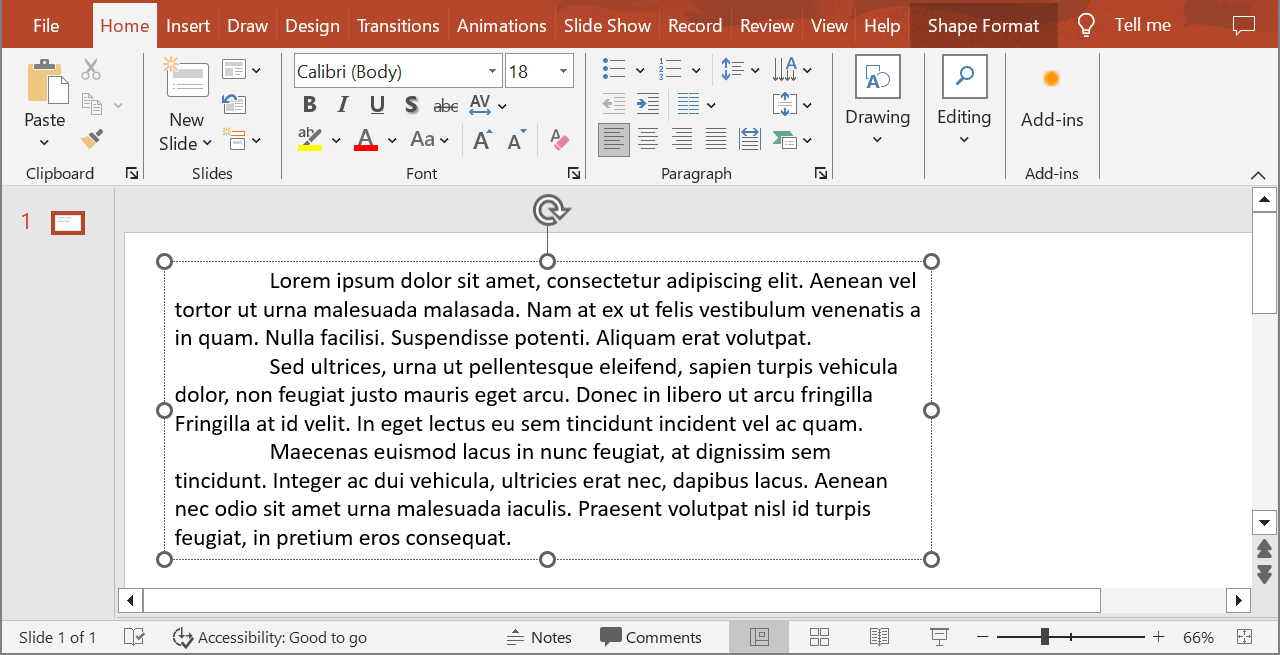
Aşağıdaki örnek, ikinci paragrafı normal bir metin şekli içinde varsayılan ölçekte render eder ve PNG formatında kaydeder. finally bloğu görüntünün doğru bir şekilde serbest bırakılmasını sağlar.
import jpype
import asposeslides

if not jpype.isJVMStarted():
    jpype.startJVM()

from asposeslides.api import AutoShape, ImageFormat, Presentation

presentation = Presentation("sample.pptx")
try:
    shape = presentation.getSlides().get_Item(0).getShapes().get_Item(0)
    if isinstance(shape, AutoShape):
        text_shape = shape
        text_frame = text_shape.getTextFrame()
        if text_frame is not None and text_frame.getParagraphs().getCount() > 1:
            paragraph = text_frame.getParagraphs().get_Item(1)
            paragraph_image = paragraph.getImage()
            if paragraph_image is not None:
                try:
                    paragraph_image.save("paragraph.png", ImageFormat.Png)
                finally:
                    paragraph_image.dispose()
            else:
                print("The paragraph could not be rendered.")
        else:
            print("The expected paragraph was not found.")
    else:
        print("The first shape is not a text shape.")
finally:
    presentation.dispose()
Sonuç:

Tablo Hücresinde Ölçekli Paragraf Render Etme
scale_x ve scale_y parametrelerini kabul eden Paragraph.getImage aşırı yüklemesini kullanarak yatay ve dikey ölçek faktörlerini ayarlayabilirsiniz. Aşağıdaki örnek bir tablo oluşturur, paragrafı ilk hücresinde varsayılan genişliğinin ve yüksekliğinin iki katı ölçekte render eder ve sonucu PNG olarak kaydeder.
import jpype
import asposeslides

if not jpype.isJVMStarted():
    jpype.startJVM()

from asposeslides.api import ImageFormat, Presentation

scale_x = 2.0
scale_y = 2.0
presentation = Presentation()
try:
    slide = presentation.getSlides().get_Item(0)
    table = slide.getShapes().addTable(50, 50, [300.0], [80.0])
    paragraph = table.get_Item(0, 0).getTextFrame().getParagraphs().get_Item(0)
    paragraph.setText("Text in a table cell")
    paragraph_image = paragraph.getImage(scale_x, scale_y)
    if paragraph_image is not None:
        try:
            paragraph_image.save("table_paragraph.png", ImageFormat.Png)
        finally:
            paragraph_image.dispose()
    else:
        print("The paragraph could not be rendered.")
finally:
    presentation.dispose()
1 ölçek faktörü ekseni varsayılan piksel boyutunda tutar. Örneğin, her iki faktör için 2 verilirse, genişliği ve yüksekliği yaklaşık iki katına çıkar ve piksel sayısı dört katına çıkar. Daha büyük faktörler, yakınlaştırma veya yüksek çözünürlüklü çıktı için metni daha keskin yapar, ancak bellek kullanımını ve dosya boyutunu artırır. 1’den düşük faktörler daha az ayrıntılı, daha küçük görüntüler üretir. Paragrafın en boy oranını korumak için eşit faktörler kullanın; farklı yatay ve dikey faktörler çıktıyı bağımsız olarak uzatır.
Shape.getImage ile bir bütün şekli render etmek, çıktının şeklin doldurmasını, kenarlığını veya diğer görsel bağlamını içermesi gerektiğinde hâlâ faydalıdır. Sadece paragraf görüntüsü için Paragraph.getImage kullanın.
SSS
Bir metin çerçevesi içinde satır kaydırmayı tamamen devre dışı bırakabilir miyim?
Evet. TextFrameFormat.setWrapText değerini ayarlayarak kaydırmayı devre dışı bırakabilir, böylece satırlar metin çerçevesinin kenarlarında kesilmez.
Belirli bir paragrafın slayt üzerindeki tam sınırlarını nasıl alabilirim?
Paragraph.getRect metodunu kullanarak paragrafın sınırlayıcı dikdörtgenini alabilirsiniz. Portion.getRect ise tek bir bölümün sınırlarını sağlar.
Paragraf hizalaması (sol, sağ, ortalanmış veya iki yana yaslanmış) nerede kontrol edilir?
ParagraphFormat.setAlignment bir paragraf‑seviyesi ayardır ve bireysel bölüm biçimlendirmesinden bağımsız olarak tüm paragrafı etkiler.
Farklı yazı tipi boyutlarına sahip bölümlerin her satır içinde dikey hizalanması için Align Fonts Within a Line bölümüne bakın.
Paragrafın bir kısmı için denetim (proofing) dili ayarlayabilir miyim?
Evet. BasePortionFormat.setLanguageId yöntemini bireysel bölümlere uygulayarak bir paragrafın içinde birden çok dilde metin bulunmasını sağlayabilirsiniz.