
Gerenciar Parágrafos de Texto do PowerPoint em Python via Java
Visão geral
Aspose.Slides for Python via Java representa o texto como uma hierarquia de quadros de texto, parágrafos e porções:
- TextFrame representa o contêiner de texto em uma forma e fornece acesso à sua coleção de parágrafos.
- Paragraph representa um parágrafo em um quadro de texto e fornece acesso às suas porções e à formatação a nível de parágrafo.
- Portion representa uma sequência de texto dentro de um parágrafo. Cada porção pode ter seu próprio texto e formatação a nível de caractere.
Um parágrafo pode, portanto, conter texto com fontes, cores, tamanhos e outras formatações diferentes usando várias porções.
Criar e formatar parágrafos
Crie parágrafos no quadro de texto de uma forma e use porções para formatar execuções individuais de texto. Esta seção mostra como combinar várias porções dentro de cada parágrafo e aplicar cores, tamanhos de fonte e estilos diferentes.
Criar parágrafos com múltiplas porções
O exemplo Python a seguir cria três parágrafos, cada um contendo três execuções de texto na coleção retornada por Paragraph.getPortions. Ele reutiliza o parágrafo padrão e sua porção vazia, então adiciona os parágrafos e porções restantes. A formatação é aplicada através de Portion.getPortionFormat: a primeira porção em cada parágrafo é vermelha, em negrito e 15 pontos; a segunda é azul, itálica e 18 pontos. A terceira porção mantém sua formatação padrão:
import jpype
import asposeslides

if not jpype.isJVMStarted():
    jpype.startJVM()

from asposeslides.api import FillType, NullableBool, Paragraph, Portion, Presentation, SaveFormat, ShapeType
from java.awt import Color

presentation = Presentation()
try:
    slide = presentation.getSlides().get_Item(0)

    shape = slide.getShapes().addAutoShape(ShapeType.Rectangle, 50, 150, 300, 150)
    text_frame = shape.getTextFrame()

    first_paragraph = text_frame.getParagraphs().get_Item(0)
    first_paragraph.getPortions().add(Portion())
    first_paragraph.getPortions().add(Portion())

    second_paragraph = Paragraph()
    second_paragraph.getPortions().add(Portion())
    second_paragraph.getPortions().add(Portion())
    second_paragraph.getPortions().add(Portion())
    text_frame.getParagraphs().add(second_paragraph)

    third_paragraph = Paragraph()
    third_paragraph.getPortions().add(Portion())
    third_paragraph.getPortions().add(Portion())
    third_paragraph.getPortions().add(Portion())
    text_frame.getParagraphs().add(third_paragraph)

    paragraph_count = text_frame.getParagraphs().getCount()
    for paragraph_index in range(paragraph_count):
        paragraph = text_frame.getParagraphs().get_Item(paragraph_index)
        portion_count = paragraph.getPortions().getCount()
        for portion_index in range(portion_count):
            portion = paragraph.getPortions().get_Item(portion_index)
            portion.setText(f"Portion {paragraph_index + 1}.{portion_index + 1}")

            if portion_index == 0:
                portion.getPortionFormat().getFillFormat().setFillType(FillType.Solid)
                portion.getPortionFormat().getFillFormat().getSolidFillColor().setColor(Color.RED)
                portion.getPortionFormat().setFontBold(NullableBool.True_)
                portion.getPortionFormat().setFontHeight(15)
            elif portion_index == 1:
                portion.getPortionFormat().getFillFormat().setFillType(FillType.Solid)
                portion.getPortionFormat().getFillFormat().getSolidFillColor().setColor(Color.BLUE)
                portion.getPortionFormat().setFontItalic(NullableBool.True_)
                portion.getPortionFormat().setFontHeight(18)

    presentation.save("paragraphs_with_portions.pptx", SaveFormat.Pptx)
finally:
    presentation.dispose()
Criar listas com marcadores e numeradas
Organize o texto dos parágrafos em listas com símbolos, números ou imagens personalizadas. Os exemplos nesta seção cobrem formatação de marcadores, listas multinível e números iniciais personalizados.
Criar uma lista com marcadores ou numerada
Marcadores e numeração facilitam a leitura de itens relacionados. No Aspose.Slides, as configurações de lista são definidas através de BulletFormat.
Este exemplo Python adiciona um marcador de símbolo e um item numerado ao mesmo quadro de texto. BulletFormat.setType seleciona o tipo de marcador, enquanto BulletFormat.setChar fornece o símbolo e BulletFormat.setNumberedBulletStyle seleciona o estilo de numeração. Ambos os itens usam marcadores pretos com altura de 100 % e recuo de parágrafo de 25 pontos:
import jpype
import asposeslides

if not jpype.isJVMStarted():
    jpype.startJVM()

from asposeslides.api import BulletType, ColorType, NullableBool, NumberedBulletStyle, Paragraph, Presentation, SaveFormat, ShapeType
from java.awt import Color

presentation = Presentation()
try:
    slide = presentation.getSlides().get_Item(0)

    shape = slide.getShapes().addAutoShape(ShapeType.Rectangle, 200, 200, 400, 200)
    text_frame = shape.getTextFrame()
    text_frame.getParagraphs().clear()

    symbol_paragraph = Paragraph()
    symbol_paragraph.setText("Welcome to Aspose.Slides")
    symbol_paragraph.getParagraphFormat().getBullet().setType(BulletType.Symbol)
    symbol_paragraph.getParagraphFormat().getBullet().setChar("•")
    symbol_paragraph.getParagraphFormat().setIndent(25)
    symbol_paragraph.getParagraphFormat().getBullet().getColor().setColorType(ColorType.RGB)
    symbol_paragraph.getParagraphFormat().getBullet().getColor().setColor(Color.BLACK)
    symbol_paragraph.getParagraphFormat().getBullet().setBulletHardColor(NullableBool.True_)
    symbol_paragraph.getParagraphFormat().getBullet().setHeight(100)
    text_frame.getParagraphs().add(symbol_paragraph)

    numbered_paragraph = Paragraph()
    numbered_paragraph.setText("This is a numbered item")
    numbered_paragraph.getParagraphFormat().getBullet().setType(BulletType.Numbered)
    numbered_paragraph.getParagraphFormat().getBullet().setNumberedBulletStyle(NumberedBulletStyle.BulletCircleNumWDBlackPlain)
    numbered_paragraph.getParagraphFormat().setIndent(25)
    numbered_paragraph.getParagraphFormat().getBullet().getColor().setColorType(ColorType.RGB)
    numbered_paragraph.getParagraphFormat().getBullet().getColor().setColor(Color.BLACK)
    numbered_paragraph.getParagraphFormat().getBullet().setBulletHardColor(NullableBool.True_)
    numbered_paragraph.getParagraphFormat().getBullet().setHeight(100)
    text_frame.getParagraphs().add(numbered_paragraph)

    presentation.save("bulleted_and_numbered_list.pptx", SaveFormat.Pptx)
finally:
    presentation.dispose()
Usar marcadores de imagem
Marcadores de imagem permitem usar uma imagem personalizada em vez de um símbolo ou número.
Este exemplo Python adiciona uma imagem à coleção de imagens da apresentação como um PPImage e a usa como marcador de parágrafo. Ele chama BulletFormat.setType para usar um marcador de imagem e atribui a imagem através de BulletFormat.getPicture. BulletFormat.setHeight é definido como 100 % para dimensionar o marcador em relação ao texto do parágrafo:
import jpype
import asposeslides

if not jpype.isJVMStarted():
    jpype.startJVM()

from asposeslides.api import BulletType, Images, Paragraph, Presentation, SaveFormat, ShapeType

presentation = Presentation()
try:
    slide = presentation.getSlides().get_Item(0)

    bullet_image = Images.fromFile("bullets.png")
    try:
        presentation_image = presentation.getImages().addImage(bullet_image)
    finally:
        bullet_image.dispose()

    shape = slide.getShapes().addAutoShape(ShapeType.Rectangle, 200, 200, 400, 200)
    text_frame = shape.getTextFrame()
    text_frame.getParagraphs().clear()

    paragraph = Paragraph()
    paragraph.setText("Welcome to Aspose.Slides")
    paragraph.getParagraphFormat().getBullet().setType(BulletType.Picture)
    paragraph.getParagraphFormat().getBullet().getPicture().setImage(presentation_image)
    paragraph.getParagraphFormat().getBullet().setHeight(100)
    text_frame.getParagraphs().add(paragraph)

    presentation.save("picture_bullet.pptx", SaveFormat.Pptx)
    presentation.save("picture_bullet.ppt", SaveFormat.Ppt)
finally:
    presentation.dispose()
Criar uma lista multinível
Defina ParagraphFormat.setDepth para posicionar parágrafos em diferentes níveis de uma lista. O nível superior tem profundidade 0.
Este exemplo Python atribui valores de ParagraphFormat.setDepth de 0 a 3 a quatro parágrafos, criando uma hierarquia dentro de um único quadro de texto. Cada parágrafo usa um marcador de símbolo, com BulletFormat.setChar alternando entre um marcador redondo e um hífen para distinguir os níveis adjacentes:
import jpype
import asposeslides

if not jpype.isJVMStarted():
    jpype.startJVM()

from asposeslides.api import BulletType, FillType, Paragraph, Presentation, SaveFormat, ShapeType
from java.awt import Color

presentation = Presentation()
try:
    slide = presentation.getSlides().get_Item(0)

    shape = slide.getShapes().addAutoShape(ShapeType.Rectangle, 200, 200, 400, 200)
    text_frame = shape.getTextFrame()
    text_frame.getParagraphs().clear()

    first_paragraph = Paragraph()
    first_paragraph.setText("Content")
    first_paragraph.getParagraphFormat().getBullet().setType(BulletType.Symbol)
    first_paragraph.getParagraphFormat().getBullet().setChar("•")
    first_paragraph.getParagraphFormat().getDefaultPortionFormat().getFillFormat().setFillType(FillType.Solid)
    first_paragraph.getParagraphFormat().getDefaultPortionFormat().getFillFormat().getSolidFillColor().setColor(Color.BLACK)
    first_paragraph.getParagraphFormat().setDepth(0)

    second_paragraph = Paragraph()
    second_paragraph.setText("Second level")
    second_paragraph.getParagraphFormat().getBullet().setType(BulletType.Symbol)
    second_paragraph.getParagraphFormat().getBullet().setChar('-')
    second_paragraph.getParagraphFormat().getDefaultPortionFormat().getFillFormat().setFillType(FillType.Solid)
    second_paragraph.getParagraphFormat().getDefaultPortionFormat().getFillFormat().getSolidFillColor().setColor(Color.BLACK)
    second_paragraph.getParagraphFormat().setDepth(1)

    third_paragraph = Paragraph()
    third_paragraph.setText("Third level")
    third_paragraph.getParagraphFormat().getBullet().setType(BulletType.Symbol)
    third_paragraph.getParagraphFormat().getBullet().setChar("•")
    third_paragraph.getParagraphFormat().getDefaultPortionFormat().getFillFormat().setFillType(FillType.Solid)
    third_paragraph.getParagraphFormat().getDefaultPortionFormat().getFillFormat().getSolidFillColor().setColor(Color.BLACK)
    third_paragraph.getParagraphFormat().setDepth(2)

    fourth_paragraph = Paragraph()
    fourth_paragraph.setText("Fourth level")
    fourth_paragraph.getParagraphFormat().getBullet().setType(BulletType.Symbol)
    fourth_paragraph.getParagraphFormat().getBullet().setChar('-')
    fourth_paragraph.getParagraphFormat().getDefaultPortionFormat().getFillFormat().setFillType(FillType.Solid)
    fourth_paragraph.getParagraphFormat().getDefaultPortionFormat().getFillFormat().getSolidFillColor().setColor(Color.BLACK)
    fourth_paragraph.getParagraphFormat().setDepth(3)

    text_frame.getParagraphs().add(first_paragraph)
    text_frame.getParagraphs().add(second_paragraph)
    text_frame.getParagraphs().add(third_paragraph)
    text_frame.getParagraphs().add(fourth_paragraph)

    presentation.save("multilevel_list.pptx", SaveFormat.Pptx)
finally:
    presentation.dispose()
Iniciar itens numerados com valores personalizados
Use BulletFormat.setNumberedBulletStartWith para definir o número inicial exibido para um parágrafo numerado.
Este exemplo Python define BulletFormat.setType para usar numeração em três parágrafos e atribui valores de BulletFormat.setNumberedBulletStartWith de 2, 3 e 7. O valor inicial é configurado separadamente para cada parágrafo, permitindo que os números exibidos pulem valores:
import jpype
import asposeslides

if not jpype.isJVMStarted():
    jpype.startJVM()

from asposeslides.api import BulletType, Paragraph, Presentation, SaveFormat, ShapeType

presentation = Presentation()
try:
    slide = presentation.getSlides().get_Item(0)

    shape = slide.getShapes().addAutoShape(ShapeType.Rectangle, 200, 200, 400, 200)
    text_frame = shape.getTextFrame()
    text_frame.getParagraphs().clear()

    first_paragraph = Paragraph()
    first_paragraph.setText("Start at 2")
    first_paragraph.getParagraphFormat().getBullet().setType(BulletType.Numbered)
    first_paragraph.getParagraphFormat().getBullet().setNumberedBulletStartWith(2)

    text_frame.getParagraphs().add(first_paragraph)

    second_paragraph = Paragraph()
    second_paragraph.setText("Start at 3")
    second_paragraph.getParagraphFormat().getBullet().setType(BulletType.Numbered)
    second_paragraph.getParagraphFormat().getBullet().setNumberedBulletStartWith(3)
    text_frame.getParagraphs().add(second_paragraph)

    third_paragraph = Paragraph()
    third_paragraph.setText("Start at 7")
    third_paragraph.getParagraphFormat().getBullet().setType(BulletType.Numbered)
    third_paragraph.getParagraphFormat().getBullet().setNumberedBulletStartWith(7)
    text_frame.getParagraphs().add(third_paragraph)

    presentation.save("custom_numbered_list.pptx", SaveFormat.Pptx)
finally:
    presentation.dispose()
Controlar layout e propriedades de fim do parágrafo
Ajuste margens e recuos de parágrafo para controlar a posição da primeira linha e das linhas envolvidas. Você também pode formatar a marca de fim de parágrafo separadamente das porções de texto visíveis.
Definir recuo da primeira linha
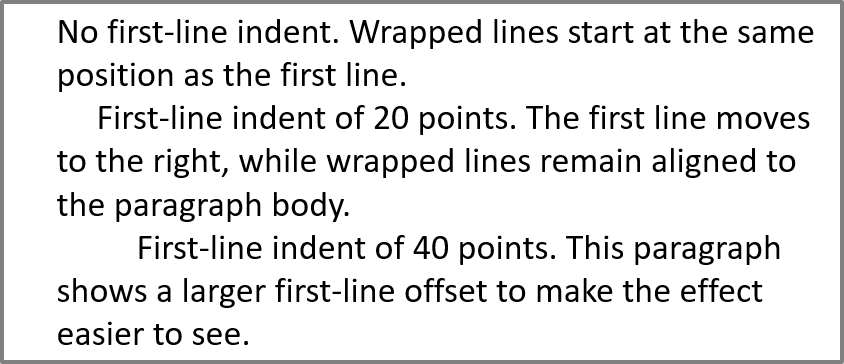
Use o método ParagraphFormat.setIndent para controlar o recuo da primeira linha de um parágrafo. Esta configuração desloca apenas a primeira linha em relação à margem esquerda do parágrafo. Um valor positivo desloca a primeira linha para a direita, enquanto as linhas restantes permanecem alinhadas ao corpo do parágrafo.
Use ParagraphFormat.setMarginLeft quando precisar mover todo o parágrafo. Use ParagraphFormat.setIndent quando precisar mover apenas a primeira linha.
O exemplo a seguir aplica a mesma ParagraphFormat.setMarginLeft de 20 pontos e valores de ParagraphFormat.setIndent de 0, 20 e 40 pontos a três parágrafos. As primeiras linhas iniciam em deslocamentos progressivamente maiores, enquanto as linhas envolvidas mantêm a mesma margem esquerda:
import jpype
import asposeslides

if not jpype.isJVMStarted():
    jpype.startJVM()

from asposeslides.api import FillType, Paragraph, Presentation, SaveFormat, ShapeType, TextAutofitType
from java.awt import Color

presentation = Presentation()
try:
    slide = presentation.getSlides().get_Item(0)

    shape = slide.getShapes().addAutoShape(ShapeType.Rectangle, 50, 50, 420, 220)
    shape.getFillFormat().setFillType(FillType.NoFill)
    shape.getLineFormat().getFillFormat().setFillType(FillType.Solid)
    shape.getLineFormat().getFillFormat().getSolidFillColor().setColor(Color.GRAY)

    text_frame = shape.getTextFrame()
    text_frame.getTextFrameFormat().setAutofitType(TextAutofitType.Shape)
    text_frame.getParagraphs().clear()

    first_paragraph = Paragraph()
    first_paragraph.setText("No first-line indent. Wrapped lines start at the same position as the first line.")
    first_paragraph.getParagraphFormat().getDefaultPortionFormat().getFillFormat().setFillType(FillType.Solid)
    first_paragraph.getParagraphFormat().getDefaultPortionFormat().getFillFormat().getSolidFillColor().setColor(Color.BLACK)
    first_paragraph.getParagraphFormat().setMarginLeft(20.0)
    first_paragraph.getParagraphFormat().setIndent(0.0)

    second_paragraph = Paragraph()
    second_paragraph.setText("First-line indent of 20 points. The first line moves to the right, while wrapped lines remain aligned to the paragraph body.")
    second_paragraph.getParagraphFormat().getDefaultPortionFormat().getFillFormat().setFillType(FillType.Solid)
    second_paragraph.getParagraphFormat().getDefaultPortionFormat().getFillFormat().getSolidFillColor().setColor(Color.BLACK)
    second_paragraph.getParagraphFormat().setMarginLeft(20.0)
    second_paragraph.getParagraphFormat().setIndent(20.0)

    third_paragraph = Paragraph()
    third_paragraph.setText("First-line indent of 40 points. This paragraph shows a larger first-line offset to make the effect easier to see.")
    third_paragraph.getParagraphFormat().getDefaultPortionFormat().getFillFormat().setFillType(FillType.Solid)
    third_paragraph.getParagraphFormat().getDefaultPortionFormat().getFillFormat().getSolidFillColor().setColor(Color.BLACK)
    third_paragraph.getParagraphFormat().setMarginLeft(20.0)
    third_paragraph.getParagraphFormat().setIndent(40.0)

    text_frame.getParagraphs().add(first_paragraph)
    text_frame.getParagraphs().add(second_paragraph)
    text_frame.getParagraphs().add(third_paragraph)

    presentation.save("paragraph_indent.pptx", SaveFormat.Pptx)
finally:
    presentation.dispose()
O resultado:
Definir recuo suspenso
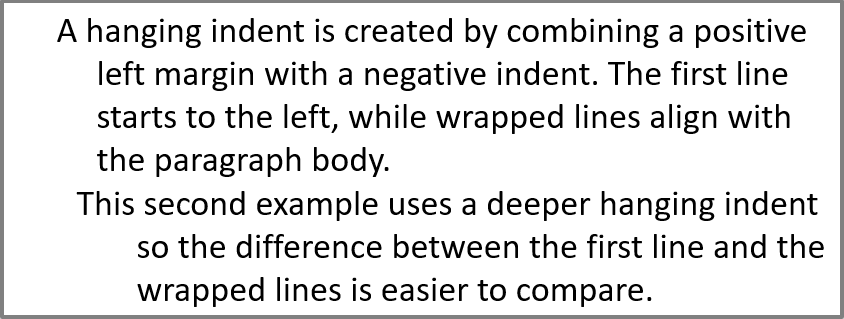
Um recuo suspenso é um layout de parágrafo em que a primeira linha começa à esquerda das linhas restantes. No Aspose.Slides, você cria esse efeito com a propriedade ParagraphFormat.setIndent. Defina Indent como um valor negativo para mover a primeira linha para a esquerda em relação ao corpo do parágrafo.
Na prática, ParagraphFormat.setMarginLeft define a posição esquerda do corpo do parágrafo, e ParagraphFormat.setIndent define a posição da primeira linha em relação a essa margem. Para criar um recuo suspenso, defina um valor positivo para MarginLeft e um valor negativo para Indent.
Essa formatação é útil para bibliografias, referências, entradas de glossário e outros parágrafos onde as linhas envolvidas devem alinhar‑se sob o corpo do parágrafo e não sob o primeiro caractere da primeira linha.
O exemplo Python a seguir combina valores de ParagraphFormat.setMarginLeft de 40 e 60 pontos com valores de ParagraphFormat.setIndent de -20 e -30 pontos. Em cada parágrafo, a primeira linha começa à esquerda das linhas envolvidas; o segundo parágrafo tem um recuo suspenso mais profundo:
import jpype
import asposeslides

if not jpype.isJVMStarted():
    jpype.startJVM()

from asposeslides.api import FillType, Paragraph, Presentation, SaveFormat, ShapeType, TextAutofitType
from java.awt import Color

presentation = Presentation()
try:
    slide = presentation.getSlides().get_Item(0)

    shape = slide.getShapes().addAutoShape(ShapeType.Rectangle, 50, 50, 420, 220)
    shape.getFillFormat().setFillType(FillType.NoFill)
    shape.getLineFormat().getFillFormat().setFillType(FillType.Solid)
    shape.getLineFormat().getFillFormat().getSolidFillColor().setColor(Color.GRAY)

    text_frame = shape.getTextFrame()
    text_frame.getTextFrameFormat().setAutofitType(TextAutofitType.Shape)
    text_frame.getParagraphs().clear()

    first_paragraph = Paragraph()
    first_paragraph.setText("A hanging indent is created by combining a positive left margin with a negative indent. The first line starts to the left, while wrapped lines align with the paragraph body.")
    first_paragraph.getParagraphFormat().getDefaultPortionFormat().getFillFormat().setFillType(FillType.Solid)
    first_paragraph.getParagraphFormat().getDefaultPortionFormat().getFillFormat().getSolidFillColor().setColor(Color.BLACK)
    first_paragraph.getParagraphFormat().setMarginLeft(40.0)
    first_paragraph.getParagraphFormat().setIndent(-20.0)

    second_paragraph = Paragraph()
    second_paragraph.setText("This second example uses a deeper hanging indent so the difference between the first line and the wrapped lines is easier to compare.")
    second_paragraph.getParagraphFormat().getDefaultPortionFormat().getFillFormat().setFillType(FillType.Solid)
    second_paragraph.getParagraphFormat().getDefaultPortionFormat().getFillFormat().getSolidFillColor().setColor(Color.BLACK)
    second_paragraph.getParagraphFormat().setMarginLeft(60.0)
    second_paragraph.getParagraphFormat().setIndent(-30.0)

    text_frame.getParagraphs().add(first_paragraph)
    text_frame.getParagraphs().add(second_paragraph)

    presentation.save("hanging_indent.pptx", SaveFormat.Pptx)
finally:
    presentation.dispose()
O resultado:
Definir propriedades de execução do fim do parágrafo
O método Paragraph.setEndParagraphPortionFormat controla a formatação da marca de fim de parágrafo. O exemplo a seguir cria um PortionFormat com BasePortionFormat.setFontHeight definido para 48 pontos e BasePortionFormat.setLatinFont definido para Times New Roman. Ele atribui esse formato à marca de fim do segundo parágrafo, deixando as porções de texto visíveis inalteradas:
import jpype
import asposeslides

if not jpype.isJVMStarted():
    jpype.startJVM()

from asposeslides.api import FontData, Paragraph, Portion, PortionFormat, Presentation, SaveFormat, ShapeType

presentation = Presentation("Test.pptx")
try:
    slide = presentation.getSlides().get_Item(0)

    shape = slide.getShapes().addAutoShape(ShapeType.Rectangle, 10, 10, 200, 250)
    text_frame = shape.getTextFrame()
    text_frame.getParagraphs().clear()

    first_paragraph = Paragraph()
    first_portion = Portion("Sample text")
    first_paragraph.getPortions().add(first_portion)

    second_paragraph = Paragraph()
    second_portion = Portion("Sample text 2")
    second_paragraph.getPortions().add(second_portion)

    end_paragraph_format = PortionFormat()
    end_paragraph_format.setFontHeight(48)
    latin_font = FontData("Times New Roman")
    end_paragraph_format.setLatinFont(latin_font)
    second_paragraph.setEndParagraphPortionFormat(end_paragraph_format)

    text_frame.getParagraphs().add(first_paragraph)
    text_frame.getParagraphs().add(second_paragraph)

    presentation.save("end_paragraph_format.pptx", SaveFormat.Pptx)
finally:
    presentation.dispose()
Contar linhas renderizadas
Para regras de parágrafo que afetam a quebra automática e pontuação no final das linhas, consulte Control Line Breaking e Control Hanging Punctuation.
Use Paragraph.getLinesCount para contar as linhas ocupadas por um parágrafo após o layout do texto, incluindo a quebra automática. Isso é útil ao verificar o comprimento e o layout do texto em modelos de apresentação.
Um parágrafo é um item em TextFrame.getParagraphs e pode ocupar várias linhas renderizadas. Uma quebra de linha explícita dentro de um parágrafo força uma nova linha sem criar outro parágrafo. A quebra automática cria linhas com base na largura disponível sem inserir quebras de linha explícitas no texto. Portanto, contar parágrafos ou caracteres de quebra de linha não fornece a contagem de linhas renderizadas.
O exemplo a seguir cria uma forma de texto, conta suas linhas, estreita a forma e depois substitui o texto por uma cadeia mais curta. O exemplo habilita a quebra com TextFrameFormat.setWrapText e desabilita o ajuste automático com TextFrameFormat.setAutofitType para que a largura da forma controle a quebra sem reduzir automaticamente o texto ou redimensionar a forma. Cada medição usa Paragraph.getLinesCount. As dimensões da forma estão em pontos. Por fim, o exemplo adiciona outro parágrafo e soma as contagens de linhas em todo o quadro de texto.
import jpype
import asposeslides

if not jpype.isJVMStarted():
    jpype.startJVM()

from asposeslides.api import NullableBool, Paragraph, Presentation, ShapeType, TextAutofitType

presentation = Presentation()
try:
    slide = presentation.getSlides().get_Item(0)

    shape = slide.getShapes().addAutoShape(ShapeType.Rectangle, 50, 50, 400, 200)
    text_frame = shape.getTextFrame()
    text_frame.getTextFrameFormat().setWrapText(NullableBool.True_)
    text_frame.getTextFrameFormat().setAutofitType(TextAutofitType.None_)

    paragraph = text_frame.getParagraphs().get_Item(0)
    paragraph.getParagraphFormat().getDefaultPortionFormat().setFontHeight(20)
    paragraph.setText("This text demonstrates how automatic wrapping changes the number of rendered lines.")
    print("Original width:", paragraph.getLinesCount())

    shape.setWidth(150)
    print("Narrower shape:", paragraph.getLinesCount())

    paragraph.setText("Short text.")
    print("Shorter text:", paragraph.getLinesCount())

    second_paragraph = Paragraph()
    second_paragraph.setText("Another paragraph.")
    second_paragraph.getParagraphFormat().getDefaultPortionFormat().setFontHeight(20)
    text_frame.getParagraphs().add(second_paragraph)

    total_line_count = 0
    for current_paragraph in text_frame.getParagraphs():
        total_line_count += current_paragraph.getLinesCount()
    print("Total lines in the text frame:", total_line_count)
finally:
    presentation.dispose()
Com esse texto e essas dimensões, estreitar a forma aumenta a contagem de linhas, enquanto substituir o texto pela cadeia curta a reduz. Contagens exatas podem variar conforme a disponibilidade e substituição de fontes, tamanho da fonte, margens, recuo, quebra e configurações de ajuste automático. Use as fontes e configurações de layout previstas para o ambiente de destino ao verificar um modelo.
A contagem de linhas por si só não determina se o texto excede seu contêiner. A altura disponível, alturas de linha, espaçamento de parágrafo e linha, e o comportamento de ajuste automático também são importantes; até uma única linha pode ultrapassar a largura disponível quando a quebra está desativada.
Importar e exportar conteúdo de parágrafos
Use HTML para inserir texto em uma apresentação ou exportar parágrafos existentes para uso externo. Esta seção também mostra como renderizar parágrafos individuais como imagens, inclusive parágrafos em células de tabela.
Importar texto HTML para parágrafos
Use ParagraphCollection.addFromHtml para converter marcação HTML em parágrafos e porções em um quadro de texto.
Este exemplo Python lê HTML de um arquivo e passa a marcação para ParagraphCollection.addFromHtml. Ele limpa o parágrafo padrão do quadro de texto para que o quadro contenha apenas o conteúdo importado. A forma retangular deixa uma margem de 10 pontos em cada lado do slide:
import jpype
import asposeslides

if not jpype.isJVMStarted():
    jpype.startJVM()

from asposeslides.api import FillType, Presentation, SaveFormat, ShapeType
from pathlib import Path

presentation = Presentation()
try:
    slide = presentation.getSlides().get_Item(0)

    shape_width = presentation.getSlideSize().getSize().getWidth() - 20
    shape_height = presentation.getSlideSize().getSize().getHeight() - 20

    shape = slide.getShapes().addAutoShape(ShapeType.Rectangle, 10, 10, shape_width, shape_height)
    shape.getFillFormat().setFillType(FillType.NoFill)
    shape.getTextFrame().getParagraphs().clear()

    try:
        html = Path("file.html").read_text(encoding="utf-8")
        shape.getTextFrame().getParagraphs().addFromHtml(html)

        presentation.save("html_text.pptx", SaveFormat.Pptx)
    except OSError as exception:
        print("The HTML file could not be read: " + str(exception))
finally:
    presentation.dispose()
Exportar texto de parágrafo para HTML
Use ParagraphCollection.exportToHtml para exportar um intervalo selecionado de parágrafos como HTML. Ao reutilizar texto de apresentação em um site, você pode querer preservar ênfase local sem levar as fontes, tamanho ou estilos da caixa de texto da apresentação. Defina TextToHtmlConversionOptions.setTextInheritanceLimit para controlar até onde o exportador segue a herança de formatação.
Baixe a apresentação de exemplo e coloque-a no diretório de trabalho da aplicação. Seu primeiro slide contém uma forma de texto com o texto “Inherited text; explicit red 18pt”. A entrada usa deliberadamente vários níveis de formatação:
- O estilo de texto padrão da apresentação fornece Calibri e tamanho de 28 pt.
- O estilo de texto de primeiro nível do quadro de texto fornece texto azul e itálico.
- O parágrafo define explicitamente texto em negrito.
- A segunda porção, “explicit red 18pt”, define explicitamente texto vermelho e tamanho de 18 pt.
O exemplo completo a seguir exporta os mesmos parágrafos três vezes. Ele passa TextToHtmlConversionOptions para o método de exportação e grava cada resultado como um arquivo HTML UTF‑8 separado:
import jpype
import asposeslides
from pathlib import Path

if not jpype.isJVMStarted():
    jpype.startJVM()

from asposeslides.api import AutoShape, Presentation, TextInheritanceLimit, TextToHtmlConversionOptions

presentation = Presentation("text-inheritance.pptx")
try:
    shape = presentation.getSlides().get_Item(0).getShapes().get_Item(0)

    if isinstance(shape, AutoShape):
        text_frame = shape.getTextFrame()
        if text_frame is not None:
            paragraphs = text_frame.getParagraphs()

            modes = [TextInheritanceLimit.All, TextInheritanceLimit.TextBox, TextInheritanceLimit.ParagraphOnly]
            file_names = ["All.html", "TextBox.html", "ParagraphOnly.html"]

            for mode, file_name in zip(modes, file_names):
                options = TextToHtmlConversionOptions()
                options.setTextInheritanceLimit(mode)

                html = paragraphs.exportToHtml(0, paragraphs.getCount(), options)
                try:
                    Path(file_name).write_text(str(html), encoding="utf-8")
                except OSError as exception:
                    print("The HTML file could not be written: " + str(exception))
        else:
            print("The first shape does not contain a text frame.")
    else:
        print("The first shape is not a text shape.")
finally:
    presentation.dispose()
O HTML gerado contém o seguinte CSS para a primeira porção, “Inherited text; ”. A tabela lista as declarações relevantes; outras propriedades geradas foram omitidas para clareza.
| Saída | CSS relevante para a primeira porção | Aparência |
|---|---|---|
All.html |
font-family:'Calibri'; font-size:28pt; color:#0000ff; font-style:italic; font-weight:bold |
Texto azul, negrito e itálico a 28 pt em Calibri, se a fonte estiver disponível. |
TextBox.html |
color:#0000ff; font-style:italic; font-weight:bold |
Texto azul, negrito e itálico; a página ou navegador fornece a família e o tamanho da fonte. |
ParagraphOnly.html |
font-weight:bold |
Texto em negrito; a página ou navegador fornece família, tamanho, cor e estilo itálico. |
A segunda porção mantém color:#ff0000, font-size:18pt e font-weight:bold em todas as três saídas. Ela também mantém itálico em All e TextBox, mas não em ParagraphOnly. Restringir a herança, portanto, não remove formatação atribuída explicitamente a um parágrafo ou porção.
Abra os arquivos no mesmo navegador para compará‑los. Nos dois modos restritos, as propriedades CSS omitidas são resolvidas pelos estilos da página de destino ou pelos padrões do navegador, de modo que a aparência resultante depende de onde o HTML é usado.
Renderizar um parágrafo como imagem
Paragraph.getImage renderiza um parágrafo individualmente e devolve um objeto de imagem. Salve o resultado em um arquivo ou fluxo com seu método save. Não é necessário renderizar a forma contenedora ou recortar um bitmap manualmente.
Paragraph.getImage pode devolver None se o parágrafo não for encontrado em sua coleção pai, não possuir limites de renderização válidos ou não puder ser renderizado. Verifique o resultado antes de salvá‑lo e descarte a imagem retornada após o uso.
Renderizar um parágrafo na escala padrão
O exemplo usa uma apresentação com um slide cujo primeiro objeto é uma caixa de texto contendo três parágrafos.
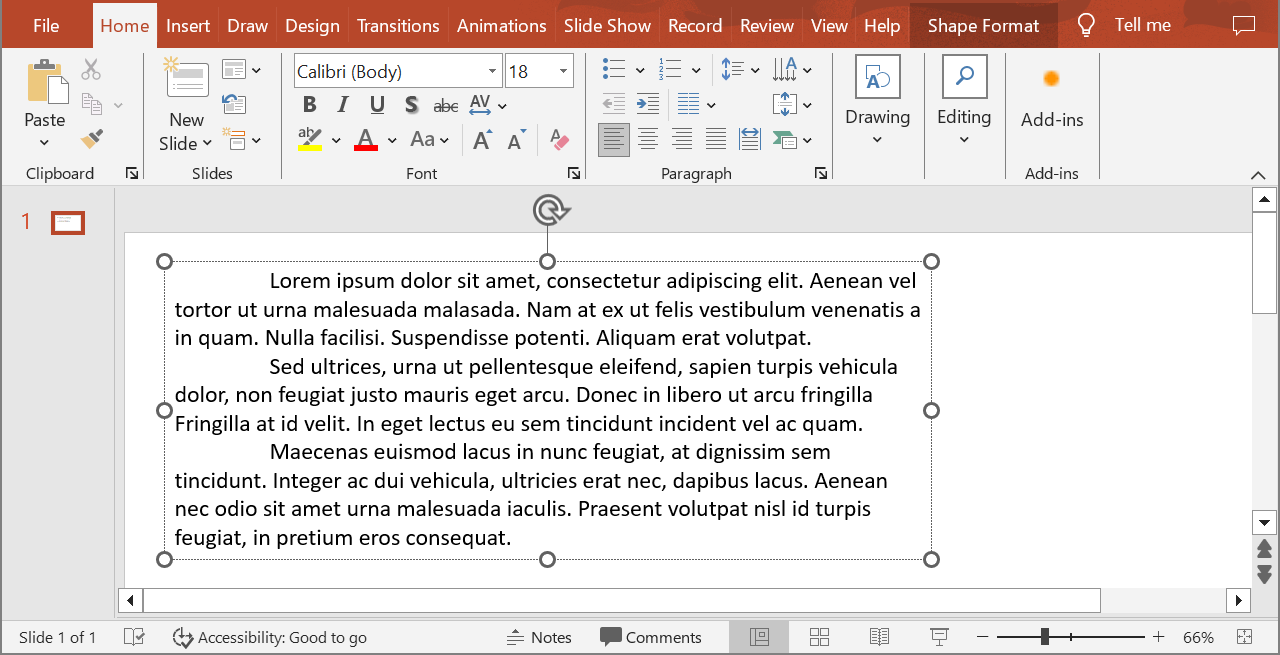
O exemplo a seguir seleciona o segundo parágrafo (índice 1) e chama Paragraph.getImage sem parâmetros de escala. Ele verifica se a forma contém o parágrafo requerido e se a renderização devolve uma imagem antes de chamar seu método save para gravá‑la em formato PNG. O bloco finally descarta a imagem após o uso.
import jpype
import asposeslides

if not jpype.isJVMStarted():
    jpype.startJVM()

from asposeslides.api import AutoShape, ImageFormat, Presentation

presentation = Presentation("sample.pptx")
try:
    shape = presentation.getSlides().get_Item(0).getShapes().get_Item(0)

    if isinstance(shape, AutoShape):
        text_shape = shape
        text_frame = text_shape.getTextFrame()
        if text_frame is not None and text_frame.getParagraphs().getCount() > 1:
            paragraph = text_frame.getParagraphs().get_Item(1)
            paragraph_image = paragraph.getImage()

            if paragraph_image is not None:
                try:
                    paragraph_image.save("paragraph.png", ImageFormat.Png)
                finally:
                    paragraph_image.dispose()
            else:
                print("The paragraph could not be rendered.")
        else:
            print("The expected paragraph was not found.")
    else:
        print("The first shape is not a text shape.")
finally:
    presentation.dispose()
O resultado:

Renderizar um parágrafo em célula de tabela com escala
Use a sobrecarga de Paragraph.getImage que aceita os parâmetros scale_x e scale_y para definir os fatores de escala horizontal e vertical. O exemplo a seguir cria uma tabela, renderiza o parágrafo em sua primeira célula com o dobro da largura e altura padrão, e grava o resultado como imagem PNG.
import jpype
import asposeslides

if not jpype.isJVMStarted():
    jpype.startJVM()

from asposeslides.api import ImageFormat, Presentation

scale_x = 2.0
scale_y = 2.0
presentation = Presentation()
try:
    slide = presentation.getSlides().get_Item(0)

    table = slide.getShapes().addTable(50, 50, [300.0], [80.0])

    paragraph = table.get_Item(0, 0).getTextFrame().getParagraphs().get_Item(0)
    paragraph.setText("Text in a table cell")

    paragraph_image = paragraph.getImage(scale_x, scale_y)

    if paragraph_image is not None:
        try:
            paragraph_image.save("table_paragraph.png", ImageFormat.Png)
        finally:
            paragraph_image.dispose()
    else:
        print("The paragraph could not be rendered.")
finally:
    presentation.dispose()
Um fator de escala 1 mantém esse eixo no tamanho de pixel padrão. Por exemplo, 2 em ambos os fatores produz uma imagem cuja largura e altura são aproximadamente o dobro das dimensões padrão, resultando em quatro vezes mais pixels. Fatores maiores geralmente produzem texto mais nítido para zoom ou saída de alta resolução, porém aumentam o uso de memória e o tamanho do arquivo. Fatores abaixo de 1 produzem imagens menores com menos detalhe. Use fatores iguais para preservar a proporção do parágrafo; fatores diferentes em cada eixo esticam a saída independentemente.
Renderizar toda a forma com Shape.getImage continua útil quando a saída deve incluir o preenchimento, borda ou outro contexto visual da forma. Para uma imagem contendo apenas o parágrafo, use Paragraph.getImage.
FAQ
Posso desativar completamente a quebra automática de linhas dentro de um quadro de texto?
Sim. Defina TextFrameFormat.setWrapText para desativar a quebra, de modo que as linhas não se partam nas bordas do quadro de texto.
Como obter as dimensões exatas na apresentação de um parágrafo específico?
Use Paragraph.getRect para recuperar o retângulo delimitador do parágrafo. Portion.getRect fornece os limites de uma porção individual.
Onde o alinhamento de parágrafo (esquerda, direita, centro ou justificado) é controlado?
ParagraphFormat.setAlignment é uma configuração a nível de parágrafo e se aplica a todo o parágrafo independentemente da formatação de porções individuais.
Para alinhar verticalmente porções com tamanhos de fonte diferentes dentro de cada linha, consulte Align Fonts Within a Line.
Posso definir o idioma de revisão para parte de um parágrafo?
Sim. Defina BasePortionFormat.setLanguageId para porções individuais, permitindo que um parágrafo contenha texto em múltiplos idiomas.