
Gestire i paragrafi di testo PowerPoint in Python tramite Java
Panoramica
Aspose.Slides per Python tramite Java rappresenta il testo come una gerarchia di TextFrame, Paragraph e Portion:
- TextFrame rappresenta il contenitore di testo in una forma e fornisce l’accesso alla sua collezione di paragrafi.
- Paragraph rappresenta un singolo paragrafo in un TextFrame e fornisce l’accesso alle sue porzioni e alla formattazione a livello di paragrafo.
- Portion rappresenta un segmento di testo all’interno di un paragrafo. Ogni porzione può avere il proprio testo e la propria formattazione a livello di carattere.
Un paragrafo può quindi contenere testo con font, colori, dimensioni e altre formattazioni diverse utilizzando più porzioni.
Creare e Formattare i Paragrafi
Crea paragrafi nel TextFrame di una forma e utilizza le porzioni per formattare singoli segmenti di testo. Questa sezione mostra come combinare più porzioni all’interno di ciascun paragrafo e applicare colori, dimensioni di carattere e stili diversi.
Creare Paragrafi con Più Porzioni
Il seguente esempio Python crea tre paragrafi, ognuno contenente tre segmenti di testo nella collezione restituita da Paragraph.getPortions. Riutilizza il paragrafo predefinito e la sua porzione vuota, quindi aggiunge i paragrafi e le porzioni rimanenti. La formattazione viene applicata tramite Portion.getPortionFormat: la prima porzione in ogni paragrafo è rossa, in grassetto e 15 punti; la seconda è blu, in corsivo e 18 punti. La terza porzione mantiene la formattazione predefinita:
import jpype
import asposeslides

if not jpype.isJVMStarted():
    jpype.startJVM()

from asposeslides.api import FillType, NullableBool, Paragraph, Portion, Presentation, SaveFormat, ShapeType
from java.awt import Color

presentation = Presentation()
try:
    slide = presentation.getSlides().get_Item(0)

    shape = slide.getShapes().addAutoShape(ShapeType.Rectangle, 50, 150, 300, 150)
    text_frame = shape.getTextFrame()

    first_paragraph = text_frame.getParagraphs().get_Item(0)
    first_paragraph.getPortions().add(Portion())
    first_paragraph.getPortions().add(Portion())

    second_paragraph = Paragraph()
    second_paragraph.getPortions().add(Portion())
    second_paragraph.getPortions().add(Portion())
    second_paragraph.getPortions().add(Portion())
    text_frame.getParagraphs().add(second_paragraph)

    third_paragraph = Paragraph()
    third_paragraph.getPortions().add(Portion())
    third_paragraph.getPortions().add(Portion())
    third_paragraph.getPortions().add(Portion())
    text_frame.getParagraphs().add(third_paragraph)

    paragraph_count = text_frame.getParagraphs().getCount()
    for paragraph_index in range(paragraph_count):
        paragraph = text_frame.getParagraphs().get_Item(paragraph_index)
        portion_count = paragraph.getPortions().getCount()
        for portion_index in range(portion_count):
            portion = paragraph.getPortions().get_Item(portion_index)
            portion.setText(f"Portion {paragraph_index + 1}.{portion_index + 1}")

            if portion_index == 0:
                portion.getPortionFormat().getFillFormat().setFillType(FillType.Solid)
                portion.getPortionFormat().getFillFormat().getSolidFillColor().setColor(Color.RED)
                portion.getPortionFormat().setFontBold(NullableBool.True_)
                portion.getPortionFormat().setFontHeight(15)
            elif portion_index == 1:
                portion.getPortionFormat().getFillFormat().setFillType(FillType.Solid)
                portion.getPortionFormat().getFillFormat().getSolidFillColor().setColor(Color.BLUE)
                portion.getPortionFormat().setFontItalic(NullableBool.True_)
                portion.getPortionFormat().setFontHeight(18)

    presentation.save("paragraphs_with_portions.pptx", SaveFormat.Pptx)
finally:
    presentation.dispose()
Creare Elenchi Puntati e Numerati
Organizza il testo dei paragrafi in elenchi con simboli, numeri o immagini personalizzate. Gli esempi in questa sezione coprono la formattazione dei punti elenco, gli elenchi multilivello e l’impostazione di numeri di partenza personalizzati.
Creare un Elenco Puntato o Numerato
I punti elenco e la numerazione rendono gli elementi correlati più facili da scansionare. In Aspose.Slides, le impostazioni dell’elenco sono definite tramite BulletFormat.
Questo esempio Python aggiunge un punto simbolo e un elemento numerato allo stesso TextFrame. BulletFormat.setType seleziona il tipo di punto, mentre BulletFormat.setChar fornisce il simbolo e BulletFormat.setNumberedBulletStyle seleziona lo stile di numerazione. Entrambi gli elementi usano punti neri con un’altezza del 100 % e un rientro del paragrafo di 25 punti:
import jpype
import asposeslides

if not jpype.isJVMStarted():
    jpype.startJVM()

from asposeslides.api import BulletType, ColorType, NullableBool, NumberedBulletStyle, Paragraph, Presentation, SaveFormat, ShapeType
from java.awt import Color

presentation = Presentation()
try:
    slide = presentation.getSlides().get_Item(0)

    shape = slide.getShapes().addAutoShape(ShapeType.Rectangle, 200, 200, 400, 200)
    text_frame = shape.getTextFrame()
    text_frame.getParagraphs().clear()

    symbol_paragraph = Paragraph()
    symbol_paragraph.setText("Welcome to Aspose.Slides")
    symbol_paragraph.getParagraphFormat().getBullet().setType(BulletType.Symbol)
    symbol_paragraph.getParagraphFormat().getBullet().setChar("•")
    symbol_paragraph.getParagraphFormat().setIndent(25)
    symbol_paragraph.getParagraphFormat().getBullet().getColor().setColorType(ColorType.RGB)
    symbol_paragraph.getParagraphFormat().getBullet().getColor().setColor(Color.BLACK)
    symbol_paragraph.getParagraphFormat().getBullet().setBulletHardColor(NullableBool.True_)
    symbol_paragraph.getParagraphFormat().getBullet().setHeight(100)
    text_frame.getParagraphs().add(symbol_paragraph)

    numbered_paragraph = Paragraph()
    numbered_paragraph.setText("This is a numbered item")
    numbered_paragraph.getParagraphFormat().getBullet().setType(BulletType.Numbered)
    numbered_paragraph.getParagraphFormat().getBullet().setNumberedBulletStyle(NumberedBulletStyle.BulletCircleNumWDBlackPlain)
    numbered_paragraph.getParagraphFormat().setIndent(25)
    numbered_paragraph.getParagraphFormat().getBullet().getColor().setColorType(ColorType.RGB)
    numbered_paragraph.getParagraphFormat().getBullet().getColor().setColor(Color.BLACK)
    numbered_paragraph.getParagraphFormat().getBullet().setBulletHardColor(NullableBool.True_)
    numbered_paragraph.getParagraphFormat().getBullet().setHeight(100)
    text_frame.getParagraphs().add(numbered_paragraph)

    presentation.save("bulleted_and_numbered_list.pptx", SaveFormat.Pptx)
finally:
    presentation.dispose()
Utilizzare Punti Immagine
I punti immagine consentono di utilizzare un’immagine personalizzata al posto di un simbolo o di un numero.
Questo esempio Python aggiunge un’immagine alla collezione di immagini della presentazione come un PPImage e la utilizza come punto del paragrafo. Chiama BulletFormat.setType per utilizzare un punto immagine e assegna l’immagine tramite BulletFormat.getPicture. BulletFormat.setHeight è impostato al 100 % per dimensionare il punto in relazione al testo del paragrafo:
import jpype
import asposeslides

if not jpype.isJVMStarted():
    jpype.startJVM()

from asposeslides.api import BulletType, Images, Paragraph, Presentation, SaveFormat, ShapeType

presentation = Presentation()
try:
    slide = presentation.getSlides().get_Item(0)

    bullet_image = Images.fromFile("bullets.png")
    try:
        presentation_image = presentation.getImages().addImage(bullet_image)
    finally:
        bullet_image.dispose()

    shape = slide.getShapes().addAutoShape(ShapeType.Rectangle, 200, 200, 400, 200)
    text_frame = shape.getTextFrame()
    text_frame.getParagraphs().clear()

    paragraph = Paragraph()
    paragraph.setText("Welcome to Aspose.Slides")
    paragraph.getParagraphFormat().getBullet().setType(BulletType.Picture)
    paragraph.getParagraphFormat().getBullet().getPicture().setImage(presentation_image)
    paragraph.getParagraphFormat().getBullet().setHeight(100)
    text_frame.getParagraphs().add(paragraph)

    presentation.save("picture_bullet.pptx", SaveFormat.Pptx)
    presentation.save("picture_bullet.ppt", SaveFormat.Ppt)
finally:
    presentation.dispose()
Creare un Elenco Multilivello
Imposta ParagraphFormat.setDepth per posizionare i paragrafi a diversi livelli di un elenco. Il livello superiore ha una profondità di 0.
Questo esempio Python assegna valori di ParagraphFormat.setDepth da 0 a 3 a quattro paragrafi, creando una gerarchia all’interno di un unico TextFrame. Ogni paragrafo usa un punto simbolo, con BulletFormat.setChar alternato tra un punto rotondo e un trattino per distinguere i livelli adiacenti:
import jpype
import asposeslides

if not jpype.isJVMStarted():
    jpype.startJVM()

from asposeslides.api import BulletType, FillType, Paragraph, Presentation, SaveFormat, ShapeType
from java.awt import Color

presentation = Presentation()
try:
    slide = presentation.getSlides().get_Item(0)

    shape = slide.getShapes().addAutoShape(ShapeType.Rectangle, 200, 200, 400, 200)
    text_frame = shape.getTextFrame()
    text_frame.getParagraphs().clear()

    first_paragraph = Paragraph()
    first_paragraph.setText("Content")
    first_paragraph.getParagraphFormat().getBullet().setType(BulletType.Symbol)
    first_paragraph.getParagraphFormat().getBullet().setChar("•")
    first_paragraph.getParagraphFormat().getDefaultPortionFormat().getFillFormat().setFillType(FillType.Solid)
    first_paragraph.getParagraphFormat().getDefaultPortionFormat().getFillFormat().getSolidFillColor().setColor(Color.BLACK)
    first_paragraph.getParagraphFormat().setDepth(0)

    second_paragraph = Paragraph()
    second_paragraph.setText("Second level")
    second_paragraph.getParagraphFormat().getBullet().setType(BulletType.Symbol)
    second_paragraph.getParagraphFormat().getBullet().setChar('-')
    second_paragraph.getParagraphFormat().getDefaultPortionFormat().getFillFormat().setFillType(FillType.Solid)
    second_paragraph.getParagraphFormat().getDefaultPortionFormat().getFillFormat().getSolidFillColor().setColor(Color.BLACK)
    second_paragraph.getParagraphFormat().setDepth(1)

    third_paragraph = Paragraph()
    third_paragraph.setText("Third level")
    third_paragraph.getParagraphFormat().getBullet().setType(BulletType.Symbol)
    third_paragraph.getParagraphFormat().getBullet().setChar("•")
    third_paragraph.getParagraphFormat().getDefaultPortionFormat().getFillFormat().setFillType(FillType.Solid)
    third_paragraph.getParagraphFormat().getDefaultPortionFormat().getFillFormat().getSolidFillColor().setColor(Color.BLACK)
    third_paragraph.getParagraphFormat().setDepth(2)

    fourth_paragraph = Paragraph()
    fourth_paragraph.setText("Fourth level")
    fourth_paragraph.getParagraphFormat().getBullet().setType(BulletType.Symbol)
    fourth_paragraph.getParagraphFormat().getBullet().setChar('-')
    fourth_paragraph.getParagraphFormat().getDefaultPortionFormat().getFillFormat().setFillType(FillType.Solid)
    fourth_paragraph.getParagraphFormat().getDefaultPortionFormat().getFillFormat().getSolidFillColor().setColor(Color.BLACK)
    fourth_paragraph.getParagraphFormat().setDepth(3)

    text_frame.getParagraphs().add(first_paragraph)
    text_frame.getParagraphs().add(second_paragraph)
    text_frame.getParagraphs().add(third_paragraph)
    text_frame.getParagraphs().add(fourth_paragraph)

    presentation.save("multilevel_list.pptx", SaveFormat.Pptx)
finally:
    presentation.dispose()
Impostare Valori Personalizzati per l’Inizio degli Elementi Numerati
Usa BulletFormat.setNumberedBulletStartWith per definire il numero iniziale visualizzato per un paragrafo numerato.
Questo esempio Python imposta BulletFormat.setType per utilizzare la numerazione per tre paragrafi e assegna valori di BulletFormat.setNumberedBulletStartWith di 2, 3 e 7. Il valore di partenza viene configurato separatamente per ciascun paragrafo, consentendo di saltare numeri visualizzati:
import jpype
import asposeslides

if not jpype.isJVMStarted():
    jpype.startJVM()

from asposeslides.api import BulletType, Paragraph, Presentation, SaveFormat, ShapeType

presentation = Presentation()
try:
    slide = presentation.getSlides().get_Item(0)

    shape = slide.getShapes().addAutoShape(ShapeType.Rectangle, 200, 200, 400, 200)
    text_frame = shape.getTextFrame()
    text_frame.getParagraphs().clear()

    first_paragraph = Paragraph()
    first_paragraph.setText("Start at 2")
    first_paragraph.getParagraphFormat().getBullet().setType(BulletType.Numbered)
    first_paragraph.getParagraphFormat().getBullet().setNumberedBulletStartWith(2)

    text_frame.getParagraphs().add(first_paragraph)

    second_paragraph = Paragraph()
    second_paragraph.setText("Start at 3")
    second_paragraph.getParagraphFormat().getBullet().setType(BulletType.Numbered)
    second_paragraph.getParagraphFormat().getBullet().setNumberedBulletStartWith(3)
    text_frame.getParagraphs().add(second_paragraph)

    third_paragraph = Paragraph()
    third_paragraph.setText("Start at 7")
    third_paragraph.getParagraphFormat().getBullet().setType(BulletType.Numbered)
    third_paragraph.getParagraphFormat().getBullet().setNumberedBulletStartWith(7)
    text_frame.getParagraphs().add(third_paragraph)

    presentation.save("custom_numbered_list.pptx", SaveFormat.Pptx)
finally:
    presentation.dispose()
Controllare il Layout del Paragrafo e le Proprietà di Fine
Regola i margini e i rientri dei paragrafi per controllare la posizione della prima linea e delle linee a capo. È inoltre possibile formattare il segno di fine paragrafo separatamente dalle porzioni di testo visibili.
Impostare un Rientro della Prima Linea
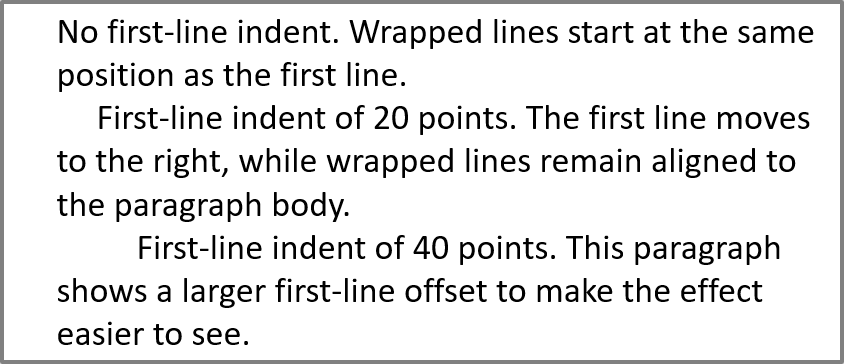
Usa il metodo ParagraphFormat.setIndent per controllare il rientro della prima linea di un paragrafo. Questa impostazione sposta solo la prima linea rispetto al margine sinistro del paragrafo. Un valore positivo sposta la prima linea verso destra, mentre le linee rimanenti rimangono allineate al corpo del paragrafo.
Usa ParagraphFormat.setMarginLeft quando devi spostare l’intero paragrafo. Usa ParagraphFormat.setIndent quando devi spostare solo la prima linea.
L’esempio seguente assegna a tre paragrafi lo stesso ParagraphFormat.setMarginLeft di 20 punti e valori di ParagraphFormat.setIndent di 0, 20 e 40 punti. Le prime linee iniziano a offset progressivamente maggiori, mentre le linee a capo conservano lo stesso margine sinistro:
import jpype
import asposeslides

if not jpype.isJVMStarted():
    jpype.startJVM()

from asposeslides.api import FillType, Paragraph, Presentation, SaveFormat, ShapeType, TextAutofitType
from java.awt import Color

presentation = Presentation()
try:
    slide = presentation.getSlides().get_Item(0)

    shape = slide.getShapes().addAutoShape(ShapeType.Rectangle, 50, 50, 420, 220)
    shape.getFillFormat().setFillType(FillType.NoFill)
    shape.getLineFormat().getFillFormat().setFillType(FillType.Solid)
    shape.getLineFormat().getFillFormat().getSolidFillColor().setColor(Color.GRAY)

    text_frame = shape.getTextFrame()
    text_frame.getTextFrameFormat().setAutofitType(TextAutofitType.Shape)
    text_frame.getParagraphs().clear()

    first_paragraph = Paragraph()
    first_paragraph.setText("No first-line indent. Wrapped lines start at the same position as the first line.")
    first_paragraph.getParagraphFormat().getDefaultPortionFormat().getFillFormat().setFillType(FillType.Solid)
    first_paragraph.getParagraphFormat().getDefaultPortionFormat().getFillFormat().getSolidFillColor().setColor(Color.BLACK)
    first_paragraph.getParagraphFormat().setMarginLeft(20.0)
    first_paragraph.getParagraphFormat().setIndent(0.0)

    second_paragraph = Paragraph()
    second_paragraph.setText("First-line indent of 20 points. The first line moves to the right, while wrapped lines remain aligned to the paragraph body.")
    second_paragraph.getParagraphFormat().getDefaultPortionFormat().getFillFormat().setFillType(FillType.Solid)
    second_paragraph.getParagraphFormat().getDefaultPortionFormat().getFillFormat().getSolidFillColor().setColor(Color.BLACK)
    second_paragraph.getParagraphFormat().setMarginLeft(20.0)
    second_paragraph.getParagraphFormat().setIndent(20.0)

    third_paragraph = Paragraph()
    third_paragraph.setText("First-line indent of 40 points. This paragraph shows a larger first-line offset to make the effect easier to see.")
    third_paragraph.getParagraphFormat().getDefaultPortionFormat().getFillFormat().setFillType(FillType.Solid)
    third_paragraph.getParagraphFormat().getDefaultPortionFormat().getFillFormat().getSolidFillColor().setColor(Color.BLACK)
    third_paragraph.getParagraphFormat().setMarginLeft(20.0)
    third_paragraph.getParagraphFormat().setIndent(40.0)

    text_frame.getParagraphs().add(first_paragraph)
    text_frame.getParagraphs().add(second_paragraph)
    text_frame.getParagraphs().add(third_paragraph)

    presentation.save("paragraph_indent.pptx", SaveFormat.Pptx)
finally:
    presentation.dispose()
Il risultato:
Impostare un Rientro Sospeso
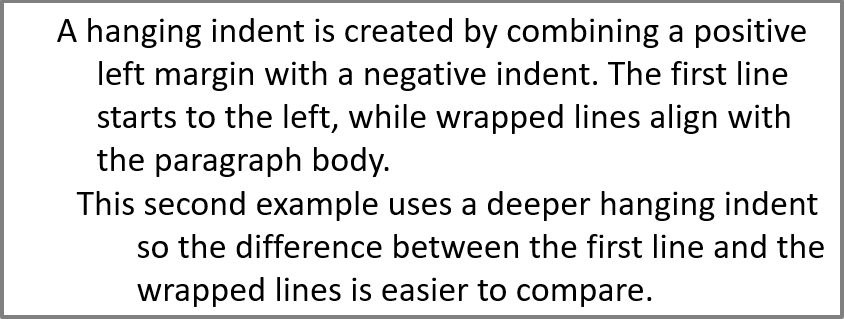
Un rientro sospeso è un layout di paragrafo in cui la prima linea inizia a sinistra delle linee restanti. In Aspose.Slides, crei questo effetto con la proprietà ParagraphFormat.setIndent. Imposta Indent a un valore negativo per spostare la prima linea verso sinistra rispetto al corpo del paragrafo.
In pratica, ParagraphFormat.setMarginLeft definisce la posizione sinistra del corpo del paragrafo, e ParagraphFormat.setIndent definisce la posizione della prima linea rispetto a quel margine. Per creare un rientro sospeso, imposta un valore positivo di MarginLeft e un valore negativo di Indent.
Questa formattazione è utile per bibliografie, riferimenti, voci di glossario e altri paragrafi in cui le linee a capo devono allinearsi sotto il corpo del paragrafo anziché sotto il primo carattere della prima linea.
L’esempio Python seguente abbina valori di ParagraphFormat.setMarginLeft di 40 e 60 punti con valori di ParagraphFormat.setIndent di -20 e -30 punti. In ciascun paragrafo, la prima linea inizia a sinistra delle linee a capo; il secondo paragrafo ha un rientro sospeso più profondo:
import jpype
import asposeslides

if not jpype.isJVMStarted():
    jpype.startJVM()

from asposeslides.api import FillType, Paragraph, Presentation, SaveFormat, ShapeType, TextAutofitType
from java.awt import Color

presentation = Presentation()
try:
    slide = presentation.getSlides().get_Item(0)

    shape = slide.getShapes().addAutoShape(ShapeType.Rectangle, 50, 50, 420, 220)
    shape.getFillFormat().setFillType(FillType.NoFill)
    shape.getLineFormat().getFillFormat().setFillType(FillType.Solid)
    shape.getLineFormat().getFillFormat().getSolidFillColor().setColor(Color.GRAY)

    text_frame = shape.getTextFrame()
    text_frame.getTextFrameFormat().setAutofitType(TextAutofitType.Shape)
    text_frame.getParagraphs().clear()

    first_paragraph = Paragraph()
    first_paragraph.setText("A hanging indent is created by combining a positive left margin with a negative indent. The first line starts to the left, while wrapped lines align with the paragraph body.")
    first_paragraph.getParagraphFormat().getDefaultPortionFormat().getFillFormat().setFillType(FillType.Solid)
    first_paragraph.getParagraphFormat().getDefaultPortionFormat().getFillFormat().getSolidFillColor().setColor(Color.BLACK)
    first_paragraph.getParagraphFormat().setMarginLeft(40.0)
    first_paragraph.getParagraphFormat().setIndent(-20.0)

    second_paragraph = Paragraph()
    second_paragraph.setText("This second example uses a deeper hanging indent so the difference between the first line and the wrapped lines is easier to compare.")
    second_paragraph.getParagraphFormat().getDefaultPortionFormat().getFillFormat().setFillType(FillType.Solid)
    second_paragraph.getParagraphFormat().getDefaultPortionFormat().getFillFormat().getSolidFillColor().setColor(Color.BLACK)
    second_paragraph.getParagraphFormat().setMarginLeft(60.0)
    second_paragraph.getParagraphFormat().setIndent(-30.0)

    text_frame.getParagraphs().add(first_paragraph)
    text_frame.getParagraphs().add(second_paragraph)

    presentation.save("hanging_indent.pptx", SaveFormat.Pptx)
finally:
    presentation.dispose()
Il risultato:
Impostare le Proprietà di Fine Paragrafo
Il metodo Paragraph.setEndParagraphPortionFormat controlla la formattazione del segno di fine paragrafo. L’esempio seguente crea un PortionFormat con BasePortionFormat.setFontHeight impostato a 48 punti e BasePortionFormat.setLatinFont impostato a Times New Roman. Assegna questo formato al segno di fine del secondo paragrafo, lasciando inalterate le porzioni di testo visibili:
import jpype
import asposeslides

if not jpype.isJVMStarted():
    jpype.startJVM()

from asposeslides.api import FontData, Paragraph, Portion, PortionFormat, Presentation, SaveFormat, ShapeType

presentation = Presentation("Test.pptx")
try:
    slide = presentation.getSlides().get_Item(0)

    shape = slide.getShapes().addAutoShape(ShapeType.Rectangle, 10, 10, 200, 250)
    text_frame = shape.getTextFrame()
    text_frame.getParagraphs().clear()

    first_paragraph = Paragraph()
    first_portion = Portion("Sample text")
    first_paragraph.getPortions().add(first_portion)

    second_paragraph = Paragraph()
    second_portion = Portion("Sample text 2")
    second_paragraph.getPortions().add(second_portion)

    end_paragraph_format = PortionFormat()
    end_paragraph_format.setFontHeight(48)
    latin_font = FontData("Times New Roman")
    end_paragraph_format.setLatinFont(latin_font)
    second_paragraph.setEndParagraphPortionFormat(end_paragraph_format)

    text_frame.getParagraphs().add(first_paragraph)
    text_frame.getParagraphs().add(second_paragraph)

    presentation.save("end_paragraph_format.pptx", SaveFormat.Pptx)
finally:
    presentation.dispose()
Conteggiare le Linee Renderizzate
Per le regole di paragrafo che influenzano il ritorno automatico a capo e la punteggiatura finale, vedi Control Line Breaking e Control Hanging Punctuation.
Usa Paragraph.getLinesCount per contare le linee occupate da un paragrafo dopo il layout del testo, includendo il ritorno automatico a capo. È utile per verificare la lunghezza del testo e il layout nei modelli di presentazione.
Un paragrafo è un elemento in TextFrame.getParagraphs e può occupare diverse linee renderizzate. Un ritorno a capo esplicito all’interno di un paragrafo forza una nuova linea senza creare un altro paragrafo. Il ritorno automatico a capo crea linee in base alla larghezza disponibile senza inserire interruzioni di linea esplicite nel testo. Pertanto contare i paragrafi o i caratteri di ritorno a capo non fornisce il conteggio delle linee renderizzate.
L’esempio seguente crea una forma di testo, conta le sue linee, riduce la larghezza della forma e poi sostituisce il testo con una stringa più corta. L’esempio abilita il ritorno a capo con TextFrameFormat.setWrapText e disabilita l’autofit con TextFrameFormat.setAutofitType in modo che la larghezza della forma controlli il ritorno a capo senza ridimensionare automaticamente il testo o la forma. Ogni misura utilizza Paragraph.getLinesCount. Le dimensioni della forma sono in punti. Infine, l’esempio aggiunge un altro paragrafo e somma i conteggi delle linee in tutto il TextFrame.
import jpype
import asposeslides

if not jpype.isJVMStarted():
    jpype.startJVM()

from asposeslides.api import NullableBool, Paragraph, Presentation, ShapeType, TextAutofitType

presentation = Presentation()
try:
    slide = presentation.getSlides().get_Item(0)

    shape = slide.getShapes().addAutoShape(ShapeType.Rectangle, 50, 50, 400, 200)
    text_frame = shape.getTextFrame()
    text_frame.getTextFrameFormat().setWrapText(NullableBool.True_)
    text_frame.getTextFrameFormat().setAutofitType(TextAutofitType.None_)

    paragraph = text_frame.getParagraphs().get_Item(0)
    paragraph.getParagraphFormat().getDefaultPortionFormat().setFontHeight(20)
    paragraph.setText("This text demonstrates how automatic wrapping changes the number of rendered lines.")
    print("Original width:", paragraph.getLinesCount())

    shape.setWidth(150)
    print("Narrower shape:", paragraph.getLinesCount())

    paragraph.setText("Short text.")
    print("Shorter text:", paragraph.getLinesCount())

    second_paragraph = Paragraph()
    second_paragraph.setText("Another paragraph.")
    second_paragraph.getParagraphFormat().getDefaultPortionFormat().setFontHeight(20)
    text_frame.getParagraphs().add(second_paragraph)

    total_line_count = 0
    for current_paragraph in text_frame.getParagraphs():
        total_line_count += current_paragraph.getLinesCount()
    print("Total lines in the text frame:", total_line_count)
finally:
    presentation.dispose()
Con questo testo e queste dimensioni, ridurre la larghezza della forma aumenta il conteggio delle linee, mentre sostituire il testo con la stringa corta lo riduce. I conteggi esatti possono variare in base alla disponibilità dei font e alle sostituzioni, alla dimensione del carattere, ai margini, all’indentazione, al ritorno a capo e alle impostazioni di autofit. Usa i font e le impostazioni di layout previsti per l’ambiente di destinazione durante la verifica di un modello.
Il solo conteggio delle linee non determina se il testo supera il contenitore. Anche l’altezza disponibile, l’altezza delle linee, la spaziatura di paragrafi e linee e il comportamento di autofit sono rilevanti; anche una singola linea può eccedere la larghezza disponibile quando il ritorno a capo è disattivato.
Importare ed Esportare il Contenuto dei Paragrafi
Usa HTML per importare testo in una presentazione o per esportare paragrafi esistenti per utilizzi esterni. Questa sezione mostra anche come renderizzare singoli paragrafi come immagini, inclusi i paragrafi nelle celle delle tabelle.
Importare Testo HTML nei Paragrafi
Usa ParagraphCollection.addFromHtml per convertire markup HTML in paragrafi e porzioni in un TextFrame.
Questo esempio Python legge HTML da un file e passa il markup a ParagraphCollection.addFromHtml. Cancella il paragrafo predefinito del TextFrame in modo che il frame contenga solo il contenuto importato. La forma rettangolare lascia un margine di 10 punti su ogni lato della diapositiva:
import jpype
import asposeslides

if not jpype.isJVMStarted():
    jpype.startJVM()

from asposeslides.api import FillType, Presentation, SaveFormat, ShapeType
from pathlib import Path

presentation = Presentation()
try:
    slide = presentation.getSlides().get_Item(0)

    shape_width = presentation.getSlideSize().getSize().getWidth() - 20
    shape_height = presentation.getSlideSize().getSize().getHeight() - 20

    shape = slide.getShapes().addAutoShape(ShapeType.Rectangle, 10, 10, shape_width, shape_height)
    shape.getFillFormat().setFillType(FillType.NoFill)
    shape.getTextFrame().getParagraphs().clear()

    try:
        html = Path("file.html").read_text(encoding="utf-8")
        shape.getTextFrame().getParagraphs().addFromHtml(html)

        presentation.save("html_text.pptx", SaveFormat.Pptx)
    except OSError as exception:
        print("The HTML file could not be read: " + str(exception))
finally:
    presentation.dispose()
Esportare il Testo del Paragrafo in HTML
Usa ParagraphCollection.exportToHtml per esportare un intervallo selezionato di paragrafi in HTML. Quando riutilizzi il testo della presentazione su un sito web, potresti voler conservare l’enfasi locale senza trasportare lo stile di font, dimensione o casella di testo della presentazione. Imposta TextToHtmlConversionOptions.setTextInheritanceLimit per controllare fino a che punto l’esportatore segue l’eredità della formattazione.
Scarica la presentazione di esempio e posizionala nella directory di lavoro dell’applicazione. La sua prima diapositiva contiene una forma di testo con il testo “Inherited text; explicit red 18pt”. L’input usa deliberatamente diversi livelli di formattazione:
- Lo stile di testo predefinito della presentazione fornisce Calibri e una dimensione di 28 pt.
- Lo stile di testo di primo livello del TextFrame fornisce testo blu e corsivo.
- Il paragrafo imposta esplicitamente il testo in grassetto.
- La seconda porzione, “explicit red 18pt”, imposta esplicitamente testo rosso e una dimensione di 18 pt.
Il seguente esempio completo esporta gli stessi paragrafi tre volte. Passa TextToHtmlConversionOptions al metodo di esportazione e scrive ogni risultato in un file HTML UTF‑8 separato:
import jpype
import asposeslides
from pathlib import Path

if not jpype.isJVMStarted():
    jpype.startJVM()

from asposeslides.api import AutoShape, Presentation, TextInheritanceLimit, TextToHtmlConversionOptions

presentation = Presentation("text-inheritance.pptx")
try:
    shape = presentation.getSlides().get_Item(0).getShapes().get_Item(0)

    if isinstance(shape, AutoShape):
        text_frame = shape.getTextFrame()
        if text_frame is not None:
            paragraphs = text_frame.getParagraphs()

            modes = [TextInheritanceLimit.All, TextInheritanceLimit.TextBox, TextInheritanceLimit.ParagraphOnly]
            file_names = ["All.html", "TextBox.html", "ParagraphOnly.html"]

            for mode, file_name in zip(modes, file_names):
                options = TextToHtmlConversionOptions()
                options.setTextInheritanceLimit(mode)

                html = paragraphs.exportToHtml(0, paragraphs.getCount(), options)
                try:
                    Path(file_name).write_text(str(html), encoding="utf-8")
                except OSError as exception:
                    print("The HTML file could not be written: " + str(exception))
        else:
            print("The first shape does not contain a text frame.")
    else:
        print("The first shape is not a text shape.")
finally:
    presentation.dispose()
L’HTML generato contiene il seguente CSS per la prima porzione, “Inherited text; “. La tabella elenca le dichiarazioni pertinenti; le altre proprietà generate sono omesse per chiarezza.
| Output | CSS Rilevante per la Prima Porzione | Aspetto |
|---|---|---|
All.html |
font-family:'Calibri'; font-size:28pt; color:#0000ff; font-style:italic; font-weight:bold |
Testo blu, grassetto, corsivo a 28 pt in Calibri, se il font è disponibile. |
TextBox.html |
color:#0000ff; font-style:italic; font-weight:bold |
Testo blu, grassetto, corsivo; la pagina o il browser forniscono famiglia di font e dimensione. |
ParagraphOnly.html |
font-weight:bold |
Testo in grassetto; la pagina o il browser forniscono famiglia di font, dimensione, colore e stile corsivo. |
La seconda porzione mantiene color:#ff0000, font-size:18pt e font-weight:bold in tutti e tre gli output. Mantiene anche il corsivo in All e TextBox, ma non in ParagraphOnly. Limitare l’eredità quindi non rimuove la formattazione assegnata esplicitamente a un paragrafo o a una porzione.
Apri i file nello stesso browser per confrontarli. Nei due modi limitati, le proprietà CSS omesse sono risolte dagli stili della pagina di destinazione o dai valori predefiniti del browser, quindi l’aspetto finale dipende da dove viene utilizzato l’HTML.
Renderizzare un Paragrafo come Immagine
Paragraph.getImage renderizza direttamente un singolo paragrafo e restituisce un oggetto immagine. Salva il risultato in un file o stream con il suo metodo save. Non è necessario renderizzare la forma contenente o ritagliare manualmente una bitmap.
Paragraph.getImage può restituire None se il paragrafo non è trovato nella collezione padre, non ha limiti di rendering validi o non può essere renderizzato. Verifica il risultato prima di salvarlo e rilascia l’immagine restituita dopo l’uso.
Renderizzare un Paragrafo alla Scala Predefinita
L’esempio utilizza una presentazione con una diapositiva la cui prima forma è una casella di testo contenente tre paragrafi.
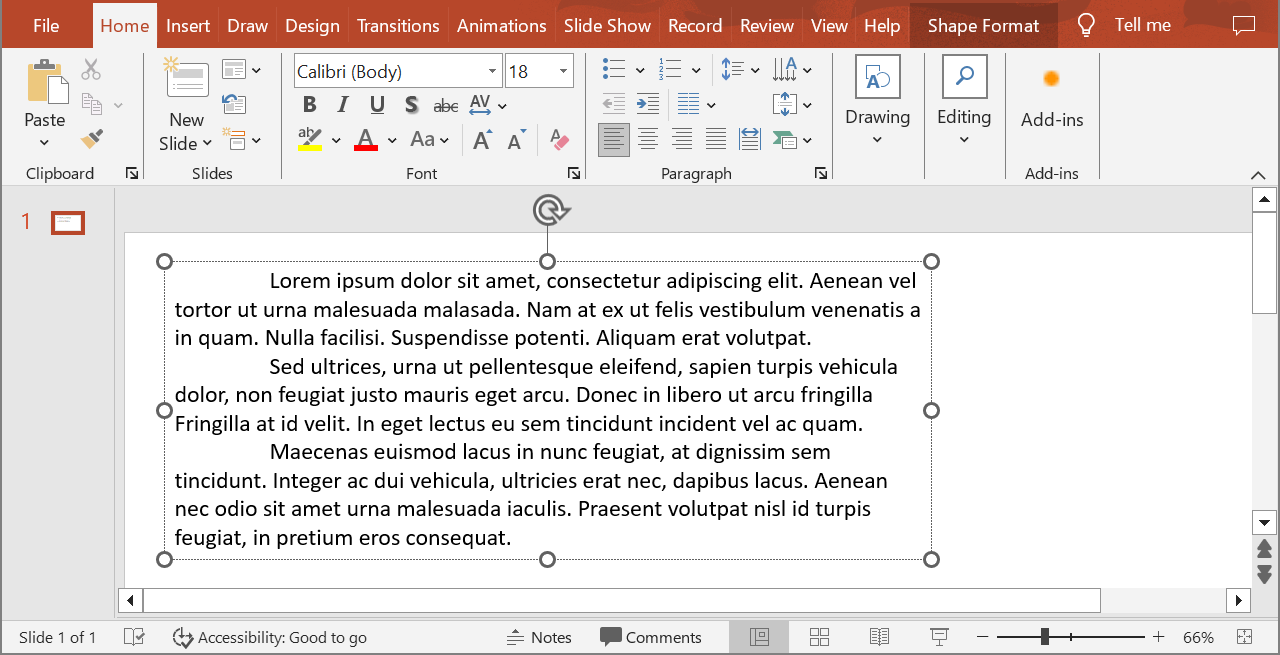
Il seguente esempio seleziona il secondo paragrafo all’indice 1 e chiama Paragraph.getImage senza parametri di scala. Verifica che la forma contenga il paragrafo richiesto e che il rendering restituisca un’immagine prima di chiamare il suo metodo save per salvare il risultato in formato PNG. Il blocco finally rilascia l’immagine dopo l’uso.
import jpype
import asposeslides

if not jpype.isJVMStarted():
    jpype.startJVM()

from asposeslides.api import AutoShape, ImageFormat, Presentation

presentation = Presentation("sample.pptx")
try:
    shape = presentation.getSlides().get_Item(0).getShapes().get_Item(0)

    if isinstance(shape, AutoShape):
        text_shape = shape
        text_frame = text_shape.getTextFrame()
        if text_frame is not None and text_frame.getParagraphs().getCount() > 1:
            paragraph = text_frame.getParagraphs().get_Item(1)
            paragraph_image = paragraph.getImage()

            if paragraph_image is not None:
                try:
                    paragraph_image.save("paragraph.png", ImageFormat.Png)
                finally:
                    paragraph_image.dispose()
            else:
                print("The paragraph could not be rendered.")
        else:
            print("The expected paragraph was not found.")
    else:
        print("The first shape is not a text shape.")
finally:
    presentation.dispose()
Il risultato:

Renderizzare un Paragrafo in una Cella di Tabella con Scaling
Usa la sovraccarico di Paragraph.getImage che accetta i parametri scale_x e scale_y per impostare i fattori di scala orizzontale e verticale. Il seguente esempio crea una tabella, renderizza il paragrafo nella sua prima cella con una larghezza e altezza doppie rispetto al valore predefinito, e salva il risultato come immagine PNG.
import jpype
import asposeslides

if not jpype.isJVMStarted():
    jpype.startJVM()

from asposeslides.api import ImageFormat, Presentation

scale_x = 2.0
scale_y = 2.0
presentation = Presentation()
try:
    slide = presentation.getSlides().get_Item(0)

    table = slide.getShapes().addTable(50, 50, [300.0], [80.0])

    paragraph = table.get_Item(0, 0).getTextFrame().getParagraphs().get_Item(0)
    paragraph.setText("Text in a table cell")

    paragraph_image = paragraph.getImage(scale_x, scale_y)

    if paragraph_image is not None:
        try:
            paragraph_image.save("table_paragraph.png", ImageFormat.Png)
        finally:
            paragraph_image.dispose()
    else:
        print("The paragraph could not be rendered.")
finally:
    presentation.dispose()
Un fattore di scala di 1 mantiene quell’asse alla sua dimensione pixel predefinita. Per esempio, 2 per entrambi i fattori produce un’immagine la cui larghezza e altezza sono approssimativamente il doppio delle dimensioni predefinite, risultando in quattro volte più pixel. Fattori più grandi producono generalmente testo più nitido per lo zoom o output ad alta risoluzione, ma aumentano anche l’uso di memoria e la dimensione del file. Fattori inferiori a 1 producono immagini più piccole con meno dettagli. Usa fattori uguali per preservare il rapporto d’aspetto del paragrafo; fattori diversi per gli assi orizzontale e verticale allungano l’output in modo indipendente.
Renderizzare un’intera forma con Shape.getImage rimane utile quando l’output deve includere il riempimento, il bordo o altri contesti visivi della forma. Per un’immagine contenente solo il paragrafo, usa Paragraph.getImage.
FAQ
Posso disabilitare completamente il ritorno a capo all’interno di un TextFrame?
Sì. Imposta TextFrameFormat.setWrapText per disabilitare il ritorno a capo così le linee non si interrompono ai bordi del TextFrame.
Come posso ottenere le coordinate precise di un paragrafo specifico sulla diapositiva?
Usa Paragraph.getRect per recuperare il rettangolo di delimitazione del paragrafo. Portion.getRect fornisce i limiti di una singola porzione.
Dove viene controllato l’allineamento del paragrafo (sinistra, destra, centrato o giustificato)?
ParagraphFormat.setAlignment è un’impostazione a livello di paragrafo e si applica all’intero paragrafo indipendentemente dalla formattazione delle singole porzioni.
Per allineare verticalmente le porzioni con dimensioni di carattere diverse all’interno di ogni linea, vedi Align Fonts Within a Line.
Posso impostare la lingua di correzione per una parte di un paragrafo?
Sì. Imposta BasePortionFormat.setLanguageId per le singole porzioni, così un paragrafo può contenere testo in più lingue.