
Kelola Paragraf Teks PowerPoint dalam Python via Java
Gambaran Umum
Aspose.Slides untuk Python via Java merepresentasikan teks sebagai hierarki bingkai teks, paragraf, dan bagian:
- TextFrame mewakili wadah teks dalam sebuah bentuk dan menyediakan akses ke koleksi paragrafnya.
- Paragraph mewakili satu paragraf dalam bingkai teks dan menyediakan akses ke bagian-bagiannya serta pemformatan tingkat paragraf.
- Portion mewakili rangkaian teks dalam sebuah paragraf. Setiap bagian dapat memiliki teks dan pemformatan tingkat karakter masing‑masing.
Dengan demikian, sebuah paragraf dapat berisi teks dengan font, warna, ukuran, dan pemformatan lain yang berbeda‑beda dengan menggunakan beberapa bagian.
Buat dan Format Paragraf
Buat paragraf dalam bingkai teks sebuah bentuk dan gunakan bagian‑bagian untuk memformat rangkaian teks individu. Bagian ini menunjukkan cara menggabungkan beberapa bagian dalam setiap paragraf serta menerapkan warna, ukuran font, dan gaya yang berbeda.
Buat Paragraf dengan Beberapa Bagian
Contoh Python berikut membuat tiga paragraf, masing‑masing berisi tiga rangkaian teks dalam koleksi yang dikembalikan oleh Paragraph.getPortions. Ia menggunakan kembali paragraf default dan bagian kosongnya, lalu menambahkan paragraf serta bagian yang tersisa. Pemformatan diterapkan melalui Portion.getPortionFormat: bagian pertama dalam setiap paragraf berwarna merah, tebal, dan 15 poin; yang kedua berwarna biru, miring, dan 18 poin. Bagian ketiga mempertahankan pemformatan defaultnya:
import jpype
import asposeslides

if not jpype.isJVMStarted():
    jpype.startJVM()

from asposeslides.api import FillType, NullableBool, Paragraph, Portion, Presentation, SaveFormat, ShapeType
from java.awt import Color

presentation = Presentation()
try:
    slide = presentation.getSlides().get_Item(0)

    shape = slide.getShapes().addAutoShape(ShapeType.Rectangle, 50, 150, 300, 150)
    text_frame = shape.getTextFrame()

    first_paragraph = text_frame.getParagraphs().get_Item(0)
    first_paragraph.getPortions().add(Portion())
    first_paragraph.getPortions().add(Portion())

    second_paragraph = Paragraph()
    second_paragraph.getPortions().add(Portion())
    second_paragraph.getPortions().add(Portion())
    second_paragraph.getPortions().add(Portion())
    text_frame.getParagraphs().add(second_paragraph)

    third_paragraph = Paragraph()
    third_paragraph.getPortions().add(Portion())
    third_paragraph.getPortions().add(Portion())
    third_paragraph.getPortions().add(Portion())
    text_frame.getParagraphs().add(third_paragraph)

    paragraph_count = text_frame.getParagraphs().getCount()
    for paragraph_index in range(paragraph_count):
        paragraph = text_frame.getParagraphs().get_Item(paragraph_index)
        portion_count = paragraph.getPortions().getCount()
        for portion_index in range(portion_count):
            portion = paragraph.getPortions().get_Item(portion_index)
            portion.setText(f"Portion {paragraph_index + 1}.{portion_index + 1}")

            if portion_index == 0:
                portion.getPortionFormat().getFillFormat().setFillType(FillType.Solid)
                portion.getPortionFormat().getFillFormat().getSolidFillColor().setColor(Color.RED)
                portion.getPortionFormat().setFontBold(NullableBool.True_)
                portion.getPortionFormat().setFontHeight(15)
            elif portion_index == 1:
                portion.getPortionFormat().getFillFormat().setFillType(FillType.Solid)
                portion.getPortionFormat().getFillFormat().getSolidFillColor().setColor(Color.BLUE)
                portion.getPortionFormat().setFontItalic(NullableBool.True_)
                portion.getPortionFormat().setFontHeight(18)

    presentation.save("paragraphs_with_portions.pptx", SaveFormat.Pptx)
finally:
    presentation.dispose()
Buat Daftar Berbutir dan Bernomor
Atur teks paragraf menjadi daftar dengan simbol, angka, atau gambar khusus. Contoh-contoh dalam bagian ini mencakup pemformatan butir, daftar berjenjang, dan angka awal khusus.
Buat Daftar Berbutir atau Bernomor
Butir dan penomoran memudahkan pemindaian item terkait. Dalam Aspose.Slides, pengaturan daftar didefinisikan melalui BulletFormat.
Contoh Python ini menambahkan butir simbol dan item bernomor ke bingkai teks yang sama. BulletFormat.setType memilih tipe butir, sementara BulletFormat.setChar menyediakan simbol dan BulletFormat.setNumberedBulletStyle memilih gaya penomoran. Kedua item menggunakan butir hitam dengan tinggi 100 persen dan indentasi paragraf 25 poin:
import jpype
import asposeslides

if not jpype.isJVMStarted():
    jpype.startJVM()

from asposeslides.api import BulletType, ColorType, NullableBool, NumberedBulletStyle, Paragraph, Presentation, SaveFormat, ShapeType
from java.awt import Color

presentation = Presentation()
try:
    slide = presentation.getSlides().get_Item(0)

    shape = slide.getShapes().addAutoShape(ShapeType.Rectangle, 200, 200, 400, 200)
    text_frame = shape.getTextFrame()
    text_frame.getParagraphs().clear()

    symbol_paragraph = Paragraph()
    symbol_paragraph.setText("Welcome to Aspose.Slides")
    symbol_paragraph.getParagraphFormat().getBullet().setType(BulletType.Symbol)
    symbol_paragraph.getParagraphFormat().getBullet().setChar("•")
    symbol_paragraph.getParagraphFormat().setIndent(25)
    symbol_paragraph.getParagraphFormat().getBullet().getColor().setColorType(ColorType.RGB)
    symbol_paragraph.getParagraphFormat().getBullet().getColor().setColor(Color.BLACK)
    symbol_paragraph.getParagraphFormat().getBullet().setBulletHardColor(NullableBool.True_)
    symbol_paragraph.getParagraphFormat().getBullet().setHeight(100)
    text_frame.getParagraphs().add(symbol_paragraph)

    numbered_paragraph = Paragraph()
    numbered_paragraph.setText("This is a numbered item")
    numbered_paragraph.getParagraphFormat().getBullet().setType(BulletType.Numbered)
    numbered_paragraph.getParagraphFormat().getBullet().setNumberedBulletStyle(NumberedBulletStyle.BulletCircleNumWDBlackPlain)
    numbered_paragraph.getParagraphFormat().setIndent(25)
    numbered_paragraph.getParagraphFormat().getBullet().getColor().setColorType(ColorType.RGB)
    numbered_paragraph.getParagraphFormat().getBullet().getColor().setColor(Color.BLACK)
    numbered_paragraph.getParagraphFormat().getBullet().setBulletHardColor(NullableBool.True_)
    numbered_paragraph.getParagraphFormat().getBullet().setHeight(100)
    text_frame.getParagraphs().add(numbered_paragraph)

    presentation.save("bulleted_and_numbered_list.pptx", SaveFormat.Pptx)
finally:
    presentation.dispose()
Gunakan Butir Gambar
Butir gambar memungkinkan Anda menggunakan gambar khusus alih‑alih simbol atau angka.
Contoh Python ini menambahkan gambar ke koleksi gambar presentasi sebagai PPImage dan menggunakannya sebagai butir paragraf. Ia memanggil BulletFormat.setType untuk menggunakan butir gambar dan menetapkan gambar melalui BulletFormat.getPicture. BulletFormat.setHeight diatur ke 100 persen untuk menyesuaikan ukuran butir relatif terhadap teks paragraf:
import jpype
import asposeslides

if not jpype.isJVMStarted():
    jpype.startJVM()

from asposeslides.api import BulletType, Images, Paragraph, Presentation, SaveFormat, ShapeType

presentation = Presentation()
try:
    slide = presentation.getSlides().get_Item(0)

    bullet_image = Images.fromFile("bullets.png")
    try:
        presentation_image = presentation.getImages().addImage(bullet_image)
    finally:
        bullet_image.dispose()

    shape = slide.getShapes().addAutoShape(ShapeType.Rectangle, 200, 200, 400, 200)
    text_frame = shape.getTextFrame()
    text_frame.getParagraphs().clear()

    paragraph = Paragraph()
    paragraph.setText("Welcome to Aspose.Slides")
    paragraph.getParagraphFormat().getBullet().setType(BulletType.Picture)
    paragraph.getParagraphFormat().getBullet().getPicture().setImage(presentation_image)
    paragraph.getParagraphFormat().getBullet().setHeight(100)
    text_frame.getParagraphs().add(paragraph)

    presentation.save("picture_bullet.pptx", SaveFormat.Pptx)
    presentation.save("picture_bullet.ppt", SaveFormat.Ppt)
finally:
    presentation.dispose()
Buat Daftar Berjenjang
Atur ParagraphFormat.setDepth untuk menempatkan paragraf pada tingkat yang berbeda dalam sebuah daftar. Tingkat teratas memiliki kedalaman 0.
Contoh Python ini menetapkan nilai ParagraphFormat.setDepth dari 0 hingga 3 pada empat paragraf, membuat hierarki dalam satu bingkai teks. Setiap paragraf menggunakan butir simbol, dengan BulletFormat.setChar bergantian antara butir bulat dan tanda hubung untuk membedakan tingkat yang berdekatan:
import jpype
import asposeslides

if not jpype.isJVMStarted():
    jpype.startJVM()

from asposeslides.api import BulletType, FillType, Paragraph, Presentation, SaveFormat, ShapeType
from java.awt import Color

presentation = Presentation()
try:
    slide = presentation.getSlides().get_Item(0)

    shape = slide.getShapes().addAutoShape(ShapeType.Rectangle, 200, 200, 400, 200)
    text_frame = shape.getTextFrame()
    text_frame.getParagraphs().clear()

    first_paragraph = Paragraph()
    first_paragraph.setText("Content")
    first_paragraph.getParagraphFormat().getBullet().setType(BulletType.Symbol)
    first_paragraph.getParagraphFormat().getBullet().setChar("•")
    first_paragraph.getParagraphFormat().getDefaultPortionFormat().getFillFormat().setFillType(FillType.Solid)
    first_paragraph.getParagraphFormat().getDefaultPortionFormat().getFillFormat().getSolidFillColor().setColor(Color.BLACK)
    first_paragraph.getParagraphFormat().setDepth(0)

    second_paragraph = Paragraph()
    second_paragraph.setText("Second level")
    second_paragraph.getParagraphFormat().getBullet().setType(BulletType.Symbol)
    second_paragraph.getParagraphFormat().getBullet().setChar('-')
    second_paragraph.getParagraphFormat().getDefaultPortionFormat().getFillFormat().setFillType(FillType.Solid)
    second_paragraph.getParagraphFormat().getDefaultPortionFormat().getFillFormat().getSolidFillColor().setColor(Color.BLACK)
    second_paragraph.getParagraphFormat().setDepth(1)

    third_paragraph = Paragraph()
    third_paragraph.setText("Third level")
    third_paragraph.getParagraphFormat().getBullet().setType(BulletType.Symbol)
    third_paragraph.getParagraphFormat().getBullet().setChar("•")
    third_paragraph.getParagraphFormat().getDefaultPortionFormat().getFillFormat().setFillType(FillType.Solid)
    third_paragraph.getParagraphFormat().getDefaultPortionFormat().getFillFormat().getSolidFillColor().setColor(Color.BLACK)
    third_paragraph.getParagraphFormat().setDepth(2)

    fourth_paragraph = Paragraph()
    fourth_paragraph.setText("Fourth level")
    fourth_paragraph.getParagraphFormat().getBullet().setType(BulletType.Symbol)
    fourth_paragraph.getParagraphFormat().getBullet().setChar('-')
    fourth_paragraph.getParagraphFormat().getDefaultPortionFormat().getFillFormat().setFillType(FillType.Solid)
    fourth_paragraph.getParagraphFormat().getDefaultPortionFormat().getFillFormat().getSolidFillColor().setColor(Color.BLACK)
    fourth_paragraph.getParagraphFormat().setDepth(3)

    text_frame.getParagraphs().add(first_paragraph)
    text_frame.getParagraphs().add(second_paragraph)
    text_frame.getParagraphs().add(third_paragraph)
    text_frame.getParagraphs().add(fourth_paragraph)

    presentation.save("multilevel_list.pptx", SaveFormat.Pptx)
finally:
    presentation.dispose()
Mulai Item Daftar Bernomor dengan Nilai Kustom
Gunakan BulletFormat.setNumberedBulletStartWith untuk menetapkan nomor awal yang ditampilkan pada paragraf bernomor.
Contoh Python ini mengatur BulletFormat.setType untuk menggunakan penomoran pada tiga paragraf dan menetapkan nilai BulletFormat.setNumberedBulletStartWith masing‑masing 2, 3, dan 7. Nilai awal dikonfigurasi terpisah untuk setiap paragraf, memungkinkan nomor yang ditampilkan melompati nilai tertentu:
import jpype
import asposeslides

if not jpype.isJVMStarted():
    jpype.startJVM()

from asposeslides.api import BulletType, Paragraph, Presentation, SaveFormat, ShapeType

presentation = Presentation()
try:
    slide = presentation.getSlides().get_Item(0)

    shape = slide.getShapes().addAutoShape(ShapeType.Rectangle, 200, 200, 400, 200)
    text_frame = shape.getTextFrame()
    text_frame.getParagraphs().clear()

    first_paragraph = Paragraph()
    first_paragraph.setText("Start at 2")
    first_paragraph.getParagraphFormat().getBullet().setType(BulletType.Numbered)
    first_paragraph.getParagraphFormat().getBullet().setNumberedBulletStartWith(2)

    text_frame.getParagraphs().add(first_paragraph)

    second_paragraph = Paragraph()
    second_paragraph.setText("Start at 3")
    second_paragraph.getParagraphFormat().getBullet().setType(BulletType.Numbered)
    second_paragraph.getParagraphFormat().getBullet().setNumberedBulletStartWith(3)
    text_frame.getParagraphs().add(second_paragraph)

    third_paragraph = Paragraph()
    third_paragraph.setText("Start at 7")
    third_paragraph.getParagraphFormat().getBullet().setType(BulletType.Numbered)
    third_paragraph.getParagraphFormat().getBullet().setNumberedBulletStartWith(7)
    text_frame.getParagraphs().add(third_paragraph)

    presentation.save("custom_numbered_list.pptx", SaveFormat.Pptx)
finally:
    presentation.dispose()
Kendalikan Tata Letak Paragraf dan Properti Akhir
Sesuaikan margin dan indentasi paragraf untuk mengendalikan posisi baris pertama dan baris yang dibungkus. Anda juga dapat memformat tanda akhir paragraf secara terpisah dari bagian teks yang terlihat.
Atur Inden Baris Pertama
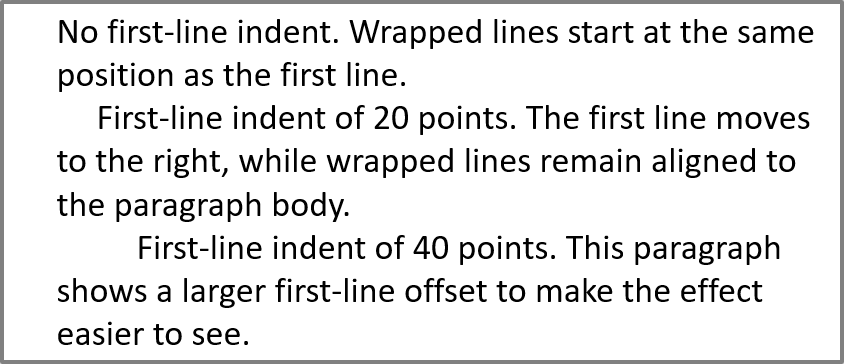
Gunakan metode ParagraphFormat.setIndent untuk mengendalikan inden baris pertama pada sebuah paragraf. Pengaturan ini menggerakkan hanya baris pertama relatif terhadap margin kiri paragraf. Nilai positif menggeser baris pertama ke kanan, sementara baris lainnya tetap rata dengan isi paragraf.
Gunakan ParagraphFormat.setMarginLeft ketika Anda perlu memindahkan seluruh paragraf. Gunakan ParagraphFormat.setIndent ketika Anda hanya perlu memindahkan baris pertama.
Contoh berikut memberikan tiga paragraf margin kiri yang sama dengan ParagraphFormat.setMarginLeft sebesar 20 poin dan nilai ParagraphFormat.setIndent masing‑masing 0, 20, dan 40 poin. Baris pertama mulai pada offset yang semakin besar, sementara baris yang dibungkus mempertahankan margin kiri yang sama:
import jpype
import asposeslides

if not jpype.isJVMStarted():
    jpype.startJVM()

from asposeslides.api import FillType, Paragraph, Presentation, SaveFormat, ShapeType, TextAutofitType
from java.awt import Color

presentation = Presentation()
try:
    slide = presentation.getSlides().get_Item(0)

    shape = slide.getShapes().addAutoShape(ShapeType.Rectangle, 50, 50, 420, 220)
    shape.getFillFormat().setFillType(FillType.NoFill)
    shape.getLineFormat().getFillFormat().setFillType(FillType.Solid)
    shape.getLineFormat().getFillFormat().getSolidFillColor().setColor(Color.GRAY)

    text_frame = shape.getTextFrame()
    text_frame.getTextFrameFormat().setAutofitType(TextAutofitType.Shape)
    text_frame.getParagraphs().clear()

    first_paragraph = Paragraph()
    first_paragraph.setText("No first-line indent. Wrapped lines start at the same position as the first line.")
    first_paragraph.getParagraphFormat().getDefaultPortionFormat().getFillFormat().setFillType(FillType.Solid)
    first_paragraph.getParagraphFormat().getDefaultPortionFormat().getFillFormat().getSolidFillColor().setColor(Color.BLACK)
    first_paragraph.getParagraphFormat().setMarginLeft(20.0)
    first_paragraph.getParagraphFormat().setIndent(0.0)

    second_paragraph = Paragraph()
    second_paragraph.setText("First-line indent of 20 points. The first line moves to the right, while wrapped lines remain aligned to the paragraph body.")
    second_paragraph.getParagraphFormat().getDefaultPortionFormat().setFillType(FillType.Solid)
    second_paragraph.getParagraphFormat().getDefaultPortionFormat().getFillFormat().setSolidFillColor(Color.BLACK)
    second_paragraph.getParagraphFormat().setMarginLeft(20.0)
    second_paragraph.getParagraphFormat().setIndent(20.0)

    third_paragraph = Paragraph()
    third_paragraph.setText("First-line indent of 40 points. This paragraph shows a larger first-line offset to make the effect easier to see.")
    third_paragraph.getParagraphFormat().getDefaultPortionFormat().getFillFormat().setFillType(FillType.Solid)
    third_paragraph.getParagraphFormat().getDefaultPortionFormat().getFillFormat().getSolidFillColor().setColor(Color.BLACK)
    third_paragraph.getParagraphFormat().setMarginLeft(20.0)
    third_paragraph.getParagraphFormat().setIndent(40.0)

    text_frame.getParagraphs().add(first_paragraph)
    text_frame.getParagraphs().add(second_paragraph)
    text_frame.getParagraphs().add(third_paragraph)

    presentation.save("paragraph_indent.pptx", SaveFormat.Pptx)
finally:
    presentation.dispose()
Hasil:
Atur Inden Gantung
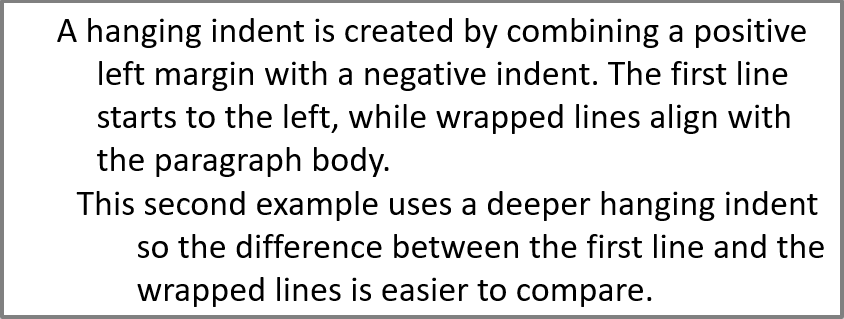
Indentasi gantung adalah tata letak paragraf di mana baris pertama dimulai di sebelah kiri baris‑bari berikutnya. Di Aspose.Slides, Anda membuat efek ini dengan properti ParagraphFormat.setIndent. Atur Indent ke nilai negatif untuk memindahkan baris pertama ke kiri relatif terhadap isi paragraf.
Secara praktik, ParagraphFormat.setMarginLeft menentukan posisi kiri isi paragraf, dan ParagraphFormat.setIndent menentukan posisi baris pertama relatif terhadap margin tersebut. Untuk membuat indentasi gantung, atur nilai MarginLeft positif dan nilai Indent negatif.
Pemformatan ini berguna untuk bibliografi, referensi, entri glosarium, dan paragraf lain di mana baris yang dibungkus harus rata di bawah isi paragraf, bukan di bawah karakter pertama baris pertama.
Contoh Python berikut memadukan nilai ParagraphFormat.setMarginLeft 40 dan 60 poin dengan nilai ParagraphFormat.setIndent -20 dan -30 poin. Pada setiap paragraf, baris pertama dimulai di sebelah kiri baris yang dibungkus; paragraf kedua memiliki indentasi gantung yang lebih dalam:
import jpype
import asposeslides

if not jpype.isJVMStarted():
    jpype.startJVM()

from asposeslides.api import FillType, Paragraph, Presentation, SaveFormat, ShapeType, TextAutofitType
from java.awt import Color

presentation = Presentation()
try:
    slide = presentation.getSlides().get_Item(0)

    shape = slide.getShapes().addAutoShape(ShapeType.Rectangle, 50, 50, 420, 220)
    shape.getFillFormat().setFillType(FillType.NoFill)
    shape.getLineFormat().getFillFormat().setFillType(FillType.Solid)
    shape.getLineFormat().getFillFormat().getSolidFillColor().setColor(Color.GRAY)

    text_frame = shape.getTextFrame()
    text_frame.getTextFrameFormat().setAutofitType(TextAutofitType.Shape)
    text_frame.getParagraphs().clear()

    first_paragraph = Paragraph()
    first_paragraph.setText("A hanging indent is created by combining a positive left margin with a negative indent. The first line starts to the left, while wrapped lines align with the paragraph body.")
    first_paragraph.getParagraphFormat().getDefaultPortionFormat().getFillFormat().setFillType(FillType.Solid)
    first_paragraph.getParagraphFormat().getDefaultPortionFormat().getFillFormat().getSolidFillColor().setColor(Color.BLACK)
    first_paragraph.getParagraphFormat().setMarginLeft(40.0)
    first_paragraph.getParagraphFormat().setIndent(-20.0)

    second_paragraph = Paragraph()
    second_paragraph.setText("This second example uses a deeper hanging indent so the difference between the first line and the wrapped lines is easier to compare.")
    second_paragraph.getParagraphFormat().getDefaultPortionFormat().getFillFormat().setFillType(FillType.Solid)
    second_paragraph.getParagraphFormat().getDefaultPortionFormat().getFillFormat().getSolidFillColor().setColor(Color.BLACK)
    second_paragraph.getParagraphFormat().setMarginLeft(60.0)
    second_paragraph.getParagraphFormat().setIndent(-30.0)

    text_frame.getParagraphs().add(first_paragraph)
    text_frame.getParagraphs().add(second_paragraph)

    presentation.save("hanging_indent.pptx", SaveFormat.Pptx)
finally:
    presentation.dispose()
Hasil:
Atur Properti Jalur Akhir Paragraf
Metode Paragraph.setEndParagraphPortionFormat mengendalikan pemformatan tanda akhir paragraf. Contoh berikut membuat sebuah PortionFormat dengan BasePortionFormat.setFontHeight diatur ke 48 poin dan BasePortionFormat.setLatinFont diatur ke Times New Roman. Ia menetapkan format ini ke tanda akhir paragraf kedua, meninggalkan bagian teks yang terlihat tidak berubah:
import jpype
import asposeslides

if not jpype.isJVMStarted():
    jpype.startJVM()

from asposeslides.api import FontData, Paragraph, Portion, PortionFormat, Presentation, SaveFormat, ShapeType

presentation = Presentation("Test.pptx")
try:
    slide = presentation.getSlides().get_Item(0)

    shape = slide.getShapes().addAutoShape(ShapeType.Rectangle, 10, 10, 200, 250)
    text_frame = shape.getTextFrame()
    text_frame.getParagraphs().clear()

    first_paragraph = Paragraph()
    first_portion = Portion("Sample text")
    first_paragraph.getPortions().add(first_portion)

    second_paragraph = Paragraph()
    second_portion = Portion("Sample text 2")
    second_paragraph.getPortions().add(second_portion)

    end_paragraph_format = PortionFormat()
    end_paragraph_format.setFontHeight(48)
    latin_font = FontData("Times New Roman")
    end_paragraph_format.setLatinFont(latin_font)
    second_paragraph.setEndParagraphPortionFormat(end_paragraph_format)

    text_frame.getParagraphs().add(first_paragraph)
    text_frame.getParagraphs().add(second_paragraph)

    presentation.save("end_paragraph_format.pptx", SaveFormat.Pptx)
finally:
    presentation.dispose()
Hitung Baris yang Dihasilkan
Untuk aturan paragraf yang memengaruhi pembungkus otomatis dan tanda baca pada akhir baris, lihat Kontrol Pemutusan Baris dan Kontrol Tanda Baca Gantung.
Gunakan Paragraph.getLinesCount untuk menghitung baris yang ditempati oleh sebuah paragraf setelah tata letak teks, termasuk pembungkus otomatis. Ini berguna saat memeriksa panjang teks dan tata letak dalam templat presentasi.
Sebuah paragraf adalah satu item dalam TextFrame.getParagraphs, dan dapat menempati beberapa baris yang dihasilkan. Pemutusan baris eksplisit dalam paragraf memaksa baris baru tanpa membuat paragraf lain. Pembungkus otomatis membuat baris berdasarkan lebar yang tersedia tanpa menyisipkan pemutusan baris eksplisit ke dalam teks. Oleh karena itu, menghitung paragraf atau karakter pemutusan baris tidak menghasilkan jumlah baris yang dihasilkan.
Contoh berikut membuat sebuah bentuk teks, menghitung barisnya, mengecilkan bentuk, dan kemudian mengganti teks dengan string yang lebih pendek. Contoh tersebut mengaktifkan pembungkus dengan TextFrameFormat.setWrapText dan menonaktifkan autofit dengan TextFrameFormat.setAutofitType sehingga lebar bentuk mengendalikan pembungkus tanpa secara otomatis mengecilkan teks atau mengubah ukuran bentuk. Setiap pengukuran menggunakan Paragraph.getLinesCount. Dimensi bentuk dalam poin. Akhirnya, contoh menambahkan paragraf lain dan menjumlahkan jumlah baris di seluruh bingkai teks.
import jpype
import asposeslides

if not jpype.isJVMStarted():
    jpype.startJVM()

from asposeslides.api import NullableBool, Paragraph, Presentation, ShapeType, TextAutofitType

presentation = Presentation()
try:
    slide = presentation.getSlides().get_Item(0)

    shape = slide.getShapes().addAutoShape(ShapeType.Rectangle, 50, 50, 400, 200)
    text_frame = shape.getTextFrame()
    text_frame.getTextFrameFormat().setWrapText(NullableBool.True_)
    text_frame.getTextFrameFormat().setAutofitType(TextAutofitType.None_)

    paragraph = text_frame.getParagraphs().get_Item(0)
    paragraph.getParagraphFormat().getDefaultPortionFormat().setFontHeight(20)
    paragraph.setText("This text demonstrates how automatic wrapping changes the number of rendered lines.")
    print("Original width:", paragraph.getLinesCount())

    shape.setWidth(150)
    print("Narrower shape:", paragraph.getLinesCount())

    paragraph.setText("Short text.")
    print("Shorter text:", paragraph.getLinesCount())

    second_paragraph = Paragraph()
    second_paragraph.setText("Another paragraph.")
    second_paragraph.getParagraphFormat().getDefaultPortionFormat().setFontHeight(20)
    text_frame.getParagraphs().add(second_paragraph)

    total_line_count = 0
    for current_paragraph in text_frame.getParagraphs():
        total_line_count += current_paragraph.getLinesCount()
    print("Total lines in the text frame:", total_line_count)
finally:
    presentation.dispose()
Dengan teks dan dimensi ini, mempersempit bentuk meningkatkan jumlah baris, sementara mengganti teks dengan string pendek menguranginya. Hitungan yang tepat dapat bervariasi tergantung pada ketersediaan dan substitusi font, ukuran font, margin, indentasi, pembungkus, dan pengaturan autofit. Gunakan font dan pengaturan tata letak yang dimaksudkan untuk lingkungan target saat memeriksa sebuah templat.
Jumlah baris saja tidak menentukan apakah teks melampaui kontainernya. Tinggi yang tersedia, tinggi baris, spasi paragraf dan baris, serta perilaku autofit juga penting; bahkan satu baris dapat melebihi lebar yang tersedia ketika pembungkus dinonaktifkan.
Impor dan Ekspor Konten Paragraf
Gunakan HTML untuk memasukkan teks ke dalam presentasi atau mengekspor paragraf yang ada untuk digunakan di luar presentasi. Bagian ini juga menunjukkan cara merender paragraf individu sebagai gambar, termasuk paragraf dalam sel tabel.
Impor Teks HTML ke dalam Paragraf
Gunakan ParagraphCollection.addFromHtml untuk mengonversi markup HTML menjadi paragraf dan bagian dalam sebuah bingkai teks.
Contoh Python ini membaca HTML dari sebuah file dan mengirimkan markup ke ParagraphCollection.addFromHtml. Ia membersihkan paragraf default bingkai teks sehingga bingkai hanya berisi konten yang diimpor. Bentuk persegi panjang meninggalkan margin 10 poin pada setiap sisi slide:
import jpype
import asposeslides

if not jpype.isJVMStarted():
    jpype.startJVM()

from asposeslides.api import FillType, Presentation, SaveFormat, ShapeType
from pathlib import Path

presentation = Presentation()
try:
    slide = presentation.getSlides().get_Item(0)

    shape_width = presentation.getSlideSize().getSize().getWidth() - 20
    shape_height = presentation.getSlideSize().getSize().getHeight() - 20

    shape = slide.getShapes().addAutoShape(ShapeType.Rectangle, 10, 10, shape_width, shape_height)
    shape.getFillFormat().setFillType(FillType.NoFill)
    shape.getTextFrame().getParagraphs().clear()

    try:
        html = Path("file.html").read_text(encoding="utf-8")
        shape.getTextFrame().getParagraphs().addFromHtml(html)

        presentation.save("html_text.pptx", SaveFormat.Pptx)
    except OSError as exception:
        print("The HTML file could not be read: " + str(exception))
finally:
    presentation.dispose()
Ekspor Teks Paragraf ke HTML
Gunakan ParagraphCollection.exportToHtml untuk mengekspor rentang paragraf terpilih sebagai HTML. Saat menggunakan kembali teks presentasi di situs web, Anda mungkin ingin mempertahankan penekanan lokal tanpa membawa font, ukuran, atau gaya kotak teks presentasi. Atur TextToHtmlConversionOptions.setTextInheritanceLimit untuk mengontrol seberapa jauh exporter mengikuti pewarisan pemformatan.
Unduh the sample presentation dan letakkan di direktori kerja aplikasi. Slide pertama berisi satu bentuk teks dengan teks “Inherited text; explicit red 18pt”. Input dengan sengaja menggunakan beberapa tingkat pemformatan:
- Gaya teks default presentasi menyediakan Calibri dan ukuran 28 pt.
- Gaya teks tingkat pertama bingkai teks menyediakan teks biru dan miring.
- Paragraf secara eksplisit mengatur teks tebal.
- Bagian kedua, “explicit red 18pt”, secara eksplisit mengatur teks merah dan ukuran 18 pt.
Contoh lengkap berikut mengekspor paragraf yang sama tiga kali. Ia meneruskan TextToHtmlConversionOptions ke metode ekspor dan menulis setiap hasil sebagai file HTML UTF-8 terpisah:
import jpype
import asposeslides
from pathlib import Path

if not jpype.isJVMStarted():
    jpype.startJVM()

from asposeslides.api import AutoShape, Presentation, TextInheritanceLimit, TextToHtmlConversionOptions

presentation = Presentation("text-inheritance.pptx")
try:
    shape = presentation.getSlides().get_Item(0).getShapes().get_Item(0)

    if isinstance(shape, AutoShape):
        text_frame = shape.getTextFrame()
        if text_frame is not None:
            paragraphs = text_frame.getParagraphs()

            modes = [TextInheritanceLimit.All, TextInheritanceLimit.TextBox, TextInheritanceLimit.ParagraphOnly]
            file_names = ["All.html", "TextBox.html", "ParagraphOnly.html"]

            for mode, file_name in zip(modes, file_names):
                options = TextToHtmlConversionOptions()
                options.setTextInheritanceLimit(mode)

                html = paragraphs.exportToHtml(0, paragraphs.getCount(), options)
                try:
                    Path(file_name).write_text(str(html), encoding="utf-8")
                except OSError as exception:
                    print("The HTML file could not be written: " + str(exception))
        else:
            print("The first shape does not contain a text frame.")
    else:
        print("The first shape is not a text shape.")
finally:
    presentation.dispose()
HTML yang dihasilkan berisi CSS berikut untuk bagian pertama, “Inherited text; “. Tabel menampilkan deklarasi yang relevan; properti lain yang dihasilkan dihilangkan demi kejelasan.
| Output | CSS Relevan untuk bagian pertama | Penampilan |
|---|---|---|
All.html |
font-family:'Calibri'; font-size:28pt; color:#0000ff; font-style:italic; font-weight:bold |
Teks biru, tebal, miring berukuran 28 pt dalam Calibri, jika font tersebut tersedia. |
TextBox.html |
color:#0000ff; font-style:italic; font-weight:bold |
Teks biru, tebal, miring; halaman atau browser di sekitarnya menyediakan keluarga font dan ukuran. |
ParagraphOnly.html |
font-weight:bold |
Teks tebal; halaman atau browser di sekitarnya menyediakan keluarga font, ukuran, warna, dan gaya miring. |
Bagian kedua mempertahankan color:#ff0000, font-size:18pt, dan font-weight:bold di ketiga output. Ia juga mempertahankan miring pada All dan TextBox, namun tidak pada ParagraphOnly. Membatasi pewarisan sehingga tidak menghapus pemformatan yang secara eksplisit ditetapkan pada paragraf atau bagian.
Buka file-file tersebut di browser yang sama untuk membandingkannya. Dalam dua mode terbatas, properti CSS yang dihilangkan diselesaikan oleh gaya halaman tujuan atau default browser, sehingga tampilan yang dihasilkan tergantung pada tempat HTML digunakan.
Render Paragraf sebagai Gambar
Paragraph.getImage merender paragraf individu secara langsung dan mengembalikan objek gambar. Simpan hasilnya ke file atau aliran dengan metode save. Anda tidak perlu merender bentuk yang menyertakan atau memotong bitmap secara manual.
Paragraph.getImage dapat mengembalikan None jika paragraf tidak dapat ditemukan dalam koleksi induknya, tidak memiliki batas render yang valid, atau tidak dapat dirender. Periksa hasilnya sebelum menyimpannya dan buang gambar yang dikembalikan setelah penggunaan.
Render Paragraf pada Skala Default
Contoh ini menggunakan sebuah presentasi dengan satu slide yang bentuk pertamanya adalah kotak teks berisi tiga paragraf.
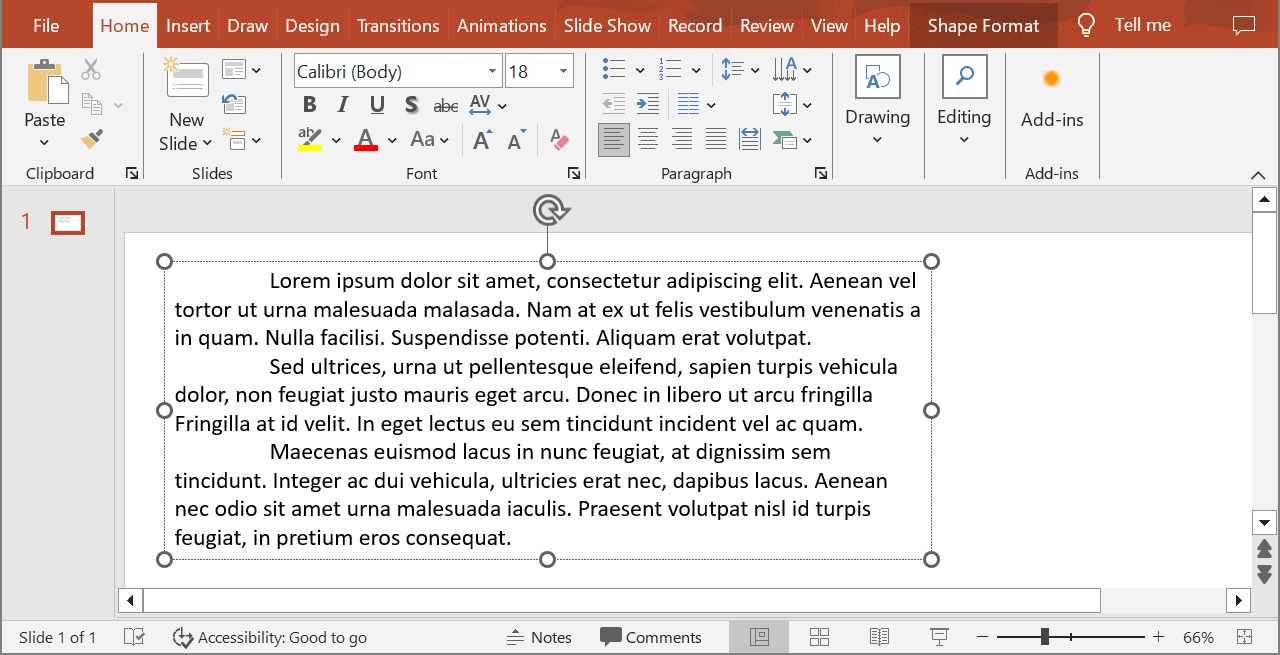
Contoh berikut memilih paragraf kedua pada indeks 1 dan memanggil Paragraph.getImage tanpa parameter skala. Ia memeriksa bahwa bentuk berisi paragraf yang diperlukan dan bahwa proses render mengembalikan gambar sebelum memanggil metode save-nya untuk menyimpannya dalam format PNG. Blok finally membuang gambar setelah penggunaan.
import jpype
import asposeslides

if not jpype.isJVMStarted():
    jpype.startJVM()

from asposeslides.api import AutoShape, ImageFormat, Presentation

presentation = Presentation("sample.pptx")
try:
    shape = presentation.getSlides().get_Item(0).getShapes().get_Item(0)

    if isinstance(shape, AutoShape):
        text_shape = shape
        text_frame = text_shape.getTextFrame()
        if text_frame is not None and text_frame.getParagraphs().getCount() > 1:
            paragraph = text_frame.getParagraphs().get_Item(1)
            paragraph_image = paragraph.getImage()

            if paragraph_image is not None:
                try:
                    paragraph_image.save("paragraph.png", ImageFormat.Png)
                finally:
                    paragraph_image.dispose()
            else:
                print("The paragraph could not be rendered.")
        else:
            print("The expected paragraph was not found.")
    else:
        print("The first shape is not a text shape.")
finally:
    presentation.dispose()
Hasil:

Render Paragraf dalam Sel Tabel dengan Skala
Gunakan overload Paragraph.getImage yang menerima parameter scale_x dan scale_y untuk mengatur faktor skala horizontal dan vertikal. Contoh berikut membuat tabel, merender paragraf dalam sel pertamanya dengan lebar dan tinggi dua kali lipat dari default, dan menyimpan hasilnya sebagai gambar PNG.
import jpype
import asposeslides

if not jpype.isJVMStarted():
    jpype.startJVM()

from asposeslides.api import ImageFormat, Presentation

scale_x = 2.0
scale_y = 2.0
presentation = Presentation()
try:
    slide = presentation.getSlides().get_Item(0)

    table = slide.getShapes().addTable(50, 50, [300.0], [80.0])

    paragraph = table.get_Item(0, 0).getTextFrame().getParagraphs().get_Item(0)
    paragraph.setText("Text in a table cell")

    paragraph_image = paragraph.getImage(scale_x, scale_y)

    if paragraph_image is not None:
        try:
            paragraph_image.save("table_paragraph.png", ImageFormat.Png)
        finally:
            paragraph_image.dispose()
    else:
        print("The paragraph could not be rendered.")
finally:
    presentation.dispose()
Faktor skala 1 menjaga sumbu tersebut pada ukuran piksel defaultnya. Misalnya, 2 untuk kedua faktor menghasilkan gambar yang lebar dan tingginya kira‑kira dua kali dimensi default, menghasilkan empat kali lebih banyak piksel. Faktor yang lebih besar biasanya menghasilkan teks yang lebih tajam untuk pembesaran atau output resolusi tinggi, tetapi juga meningkatkan penggunaan memori dan ukuran file. Faktor di bawah 1 menghasilkan gambar lebih kecil dengan detail lebih sedikit. Gunakan faktor yang sama untuk mempertahankan rasio aspek paragraf; faktor horizontal dan vertikal yang berbeda meregangkan output secara terpisah.
Merender seluruh bentuk dengan Shape.getImage tetap berguna ketika output harus mencakup isi, tepi, atau konteks visual lain dari bentuk. Untuk gambar hanya paragraf, gunakan Paragraph.getImage.
FAQ
Apakah saya dapat sepenuhnya menonaktifkan pembungkus garis di dalam bingkai teks?
Ya. Atur TextFrameFormat.setWrapText untuk menonaktifkan pembungkus sehingga garis tidak terputus pada tepi bingkai teks.
Bagaimana cara mendapatkan batas tepat pada slide untuk paragraf tertentu?
Gunakan Paragraph.getRect untuk mengambil persegi batas paragraf. Portion.getRect menyediakan batas sebuah bagian individu.
Di mana pengaturan perataan paragraf (kiri, kanan, tengah, atau rata) dikontrol?
ParagraphFormat.setAlignment adalah pengaturan tingkat paragraf dan berlaku pada seluruh paragraf terlepas dari pemformatan bagian individu. Untuk meratakan secara vertikal bagian dengan ukuran font berbeda dalam setiap baris, lihat Ratakan Font dalam Baris.
Apakah saya dapat mengatur bahasa pemeriksaan ejaan untuk sebagian paragraf?
Ya. Atur BasePortionFormat.setLanguageId untuk bagian individu, sehingga satu paragraf dapat berisi teks dalam beberapa bahasa.