
จัดการย่อหน้าข้อความ PowerPoint ด้วย Python ผ่าน Java
ภาพรวม
Aspose.Slides สำหรับ Python ผ่าน Java แสดงข้อความเป็นโครงสร้างชั้นของ text frame, paragraph, และ portion:
- TextFrame เป็นคอนเทนเนอร์ข้อความในรูปร่างและให้การเข้าถึงคอลเลกชัน paragraph ของมัน.
- Paragraph แสดงถึงย่อหน้าเดียวใน text frame และให้การเข้าถึง portion รวมทั้งการจัดรูปแบบระดับย่อหน้า.
- Portion เป็นรันของข้อความภายในย่อหน้า แต่ละ portion สามารถมีข้อความและการจัดรูปแบบระดับอักขระของตนเองได้.
ดังนั้น ย่อหน้าจึงสามารถมีข้อความที่ใช้ฟอนต์, สี, ขนาด, และการจัดรูปแบบอื่น ๆ ที่ต่างกันโดยใช้หลาย portion.
สร้างและจัดรูปแบบย่อหน้า
สร้างย่อหน้าใน text frame ของรูปร่างและใช้ portion เพื่อจัดรูปแบบรันข้อความแต่ละอัน. ส่วนนี้จะแสดงวิธีรวมหลาย portion ภายในแต่ละย่อหน้าและใช้สี, ขนาดฟอนต์, และสไตล์ที่แตกต่างกัน.
สร้างย่อหน้าด้วยหลาย Portion
ตัวอย่าง Python ด้านล่างสร้างย่อหน้า 3 ย่อหน้า, แต่ละย่อหน้ามี portion 3 ส่วนในคอลเลกชันที่คืนค่าจาก Paragraph.getPortions. ตัวอย่างนี้ใช้ย่อหน้าเริ่มต้นและ portion ว่างของมัน, จากนั้นเพิ่มย่อหน้าและ portion ที่เหลือ. การจัดรูปแบบทำผ่าน Portion.getPortionFormat: portion แรกของแต่ละย่อหน้าเป็นสีแดง, ตัวหนา, ขนาด 15 พ้อยต์; portion ที่สองเป็นสีน้ำเงิน, ตัวเอียง, ขนาด 18 พ้อยต์. ส่วนที่สามคงการจัดรูปแบบเริ่มต้นไว้:
import jpype
import asposeslides

if not jpype.isJVMStarted():
    jpype.startJVM()

from asposeslides.api import FillType, NullableBool, Paragraph, Portion, Presentation, SaveFormat, ShapeType
from java.awt import Color

presentation = Presentation()
try:
    slide = presentation.getSlides().get_Item(0)

    shape = slide.getShapes().addAutoShape(ShapeType.Rectangle, 50, 150, 300, 150)
    text_frame = shape.getTextFrame()

    first_paragraph = text_frame.getParagraphs().get_Item(0)
    first_paragraph.getPortions().add(Portion())
    first_paragraph.getPortions().add(Portion())

    second_paragraph = Paragraph()
    second_paragraph.getPortions().add(Portion())
    second_paragraph.getPortions().add(Portion())
    second_paragraph.getPortions().add(Portion())
    text_frame.getParagraphs().add(second_paragraph)

    third_paragraph = Paragraph()
    third_paragraph.getPortions().add(Portion())
    third_paragraph.getPortions().add(Portion())
    third_paragraph.getPortions().add(Portion())
    text_frame.getParagraphs().add(third_paragraph)

    paragraph_count = text_frame.getParagraphs().getCount()
    for paragraph_index in range(paragraph_count):
        paragraph = text_frame.getParagraphs().get_Item(paragraph_index)
        portion_count = paragraph.getPortions().getCount()
        for portion_index in range(portion_count):
            portion = paragraph.getPortions().get_Item(portion_index)
            portion.setText(f"Portion {paragraph_index + 1}.{portion_index + 1}")

            if portion_index == 0:
                portion.getPortionFormat().getFillFormat().setFillType(FillType.Solid)
                portion.getPortionFormat().getFillFormat().getSolidFillColor().setColor(Color.RED)
                portion.getPortionFormat().setFontBold(NullableBool.True_)
                portion.getPortionFormat().setFontHeight(15)
            elif portion_index == 1:
                portion.getPortionFormat().getFillFormat().setFillType(FillType.Solid)
                portion.getPortionFormat().getFillFormat().getSolidFillColor().setColor(Color.BLUE)
                portion.getPortionFormat().setFontItalic(NullableBool.True_)
                portion.getPortionFormat().setFontHeight(18)

    presentation.save("paragraphs_with_portions.pptx", SaveFormat.Pptx)
finally:
    presentation.dispose()
สร้างรายการแบบมีสัญลักษณ์และลำดับเลข
จัดข้อความย่อหน้าเป็นรายการโดยใช้สัญลักษณ์, ตัวเลข, หรือรูปภาพที่กำหนดเอง. ตัวอย่างในส่วนนี้ครอบคลุมการจัดรูปแบบ bullet, รายการหลายระดับ, และการตั้งค่าเลขเริ่มต้นแบบกำหนดเอง.
สร้างรายการแบบมีสัญลักษณ์หรือเลขลำดับ
Bullets และเลขลำดับทำให้รายการที่เกี่ยวข้องอ่านง่ายขึ้น. ใน Aspose.Slides การตั้งค่ารายการกำหนดโดย BulletFormat.
ตัวอย่าง Python นี้เพิ่ม bullet สัญลักษณ์และรายการเลขลำดับใน text frame เดียวกัน. BulletFormat.setType เลือกชนิด bullet, ส่วน BulletFormat.setChar ระบุสัญลักษณ์และ BulletFormat.setNumberedBulletStyle เลือกสไตล์การนับเลข. รายการทั้งสองใช้ bullet สีดำที่ความสูง 100% และระยะเยื้องย่อหน้า 25 พ้อยต์:
import jpype
import asposeslides

if not jpype.isJVMStarted():
    jpype.startJVM()

from asposeslides.api import BulletType, ColorType, NullableBool, NumberedBulletStyle, Paragraph, Presentation, SaveFormat, ShapeType
from java.awt import Color

presentation = Presentation()
try:
    slide = presentation.getSlides().get_Item(0)

    shape = slide.getShapes().addAutoShape(ShapeType.Rectangle, 200, 200, 400, 200)
    text_frame = shape.getTextFrame()
    text_frame.getParagraphs().clear()

    symbol_paragraph = Paragraph()
    symbol_paragraph.setText("Welcome to Aspose.Slides")
    symbol_paragraph.getParagraphFormat().getBullet().setType(BulletType.Symbol)
    symbol_paragraph.getParagraphFormat().getBullet().setChar("•")
    symbol_paragraph.getParagraphFormat().setIndent(25)
    symbol_paragraph.getParagraphFormat().getBullet().getColor().setColorType(ColorType.RGB)
    symbol_paragraph.getParagraphFormat().getBullet().getColor().setColor(Color.BLACK)
    symbol_paragraph.getParagraphFormat().getBullet().setBulletHardColor(NullableBool.True_)
    symbol_paragraph.getParagraphFormat().getBullet().setHeight(100)
    text_frame.getParagraphs().add(symbol_paragraph)

    numbered_paragraph = Paragraph()
    numbered_paragraph.setText("This is a numbered item")
    numbered_paragraph.getParagraphFormat().getBullet().setType(BulletType.Numbered)
    numbered_paragraph.getParagraphFormat().getBullet().setNumberedBulletStyle(NumberedBulletStyle.BulletCircleNumWDBlackPlain)
    numbered_paragraph.getParagraphFormat().setIndent(25)
    numbered_paragraph.getParagraphFormat().getBullet().getColor().setColorType(ColorType.RGB)
    numbered_paragraph.getParagraphFormat().getBullet().getColor().setColor(Color.BLACK)
    numbered_paragraph.getParagraphFormat().getBullet().setBulletHardColor(NullableBool.True_)
    numbered_paragraph.getParagraphFormat().getBullet().setHeight(100)
    text_frame.getParagraphs().add(numbered_paragraph)

    presentation.save("bulleted_and_numbered_list.pptx", SaveFormat.Pptx)
finally:
    presentation.dispose()
ใช้ Picture Bullets
Picture bullets ให้คุณใช้รูปภาพกำหนดเองแทนสัญลักษณ์หรือเลข.
ตัวอย่าง Python นี้เพิ่มรูปภาพลงในคอลเลกชันรูปภาพของงานนำเสนอเป็น PPImage และใช้เป็น bullet ของย่อหน้า. มันเรียก BulletFormat.setType เพื่อใช้ picture bullet และกำหนดรูปภาพผ่าน BulletFormat.getPicture. BulletFormat.setHeight ถูกตั้งค่าเป็น 100% เพื่อกำหนดขนาด bullet เทียบกับข้อความย่อหน้า:
import jpype
import asposeslides

if not jpype.isJVMStarted():
    jpype.startJVM()

from asposeslides.api import BulletType, Images, Paragraph, Presentation, SaveFormat, ShapeType

presentation = Presentation()
try:
    slide = presentation.getSlides().get_Item(0)

    bullet_image = Images.fromFile("bullets.png")
    try:
        presentation_image = presentation.getImages().addImage(bullet_image)
    finally:
        bullet_image.dispose()

    shape = slide.getShapes().addAutoShape(ShapeType.Rectangle, 200, 200, 400, 200)
    text_frame = shape.getTextFrame()
    text_frame.getParagraphs().clear()

    paragraph = Paragraph()
    paragraph.setText("Welcome to Aspose.Slides")
    paragraph.getParagraphFormat().getBullet().setType(BulletType.Picture)
    paragraph.getParagraphFormat().getBullet().getPicture().setImage(presentation_image)
    paragraph.getParagraphFormat().getBullet().setHeight(100)
    text_frame.getParagraphs().add(paragraph)

    presentation.save("picture_bullet.pptx", SaveFormat.Pptx)
    presentation.save("picture_bullet.ppt", SaveFormat.Ppt)
finally:
    presentation.dispose()
สร้างรายการหลายระดับ
ตั้งค่า ParagraphFormat.setDepth เพื่อวางย่อหน้าในระดับต่าง ๆ ของรายการ. ระดับบนสุดมีความลึก 0.
ตัวอย่าง Python นี้กำหนดค่า ParagraphFormat.setDepth ตั้งแต่ 0 ถึง 3 ให้กับย่อหน้า 4 ย่อหน้า, สร้างโครงสร้างชั้นภายใน text frame เดียว. แต่ละย่อหน้าใช้ bullet สัญลักษณ์, โดย BulletFormat.setChar สลับระหว่าง bullet กลมและ hyphen เพื่อบ่งบอกระดับที่ใกล้เคียง:
import jpype
import asposeslides

if not jpype.isJVMStarted():
    jpype.startJVM()

from asposeslides.api import BulletType, FillType, Paragraph, Presentation, SaveFormat, ShapeType
from java.awt import Color

presentation = Presentation()
try:
    slide = presentation.getSlides().get_Item(0)

    shape = slide.getShapes().addAutoShape(ShapeType.Rectangle, 200, 200, 400, 200)
    text_frame = shape.getTextFrame()
    text_frame.getParagraphs().clear()

    first_paragraph = Paragraph()
    first_paragraph.setText("Content")
    first_paragraph.getParagraphFormat().getBullet().setType(BulletType.Symbol)
    first_paragraph.getParagraphFormat().getBullet().setChar("•")
    first_paragraph.getParagraphFormat().getDefaultPortionFormat().getFillFormat().setFillType(FillType.Solid)
    first_paragraph.getParagraphFormat().getDefaultPortionFormat().getFillFormat().getSolidFillColor().setColor(Color.BLACK)
    first_paragraph.getParagraphFormat().setDepth(0)

    second_paragraph = Paragraph()
    second_paragraph.setText("Second level")
    second_paragraph.getParagraphFormat().getBullet().setType(BulletType.Symbol)
    second_paragraph.getParagraphFormat().getBullet().setChar('-')
    second_paragraph.getParagraphFormat().getDefaultPortionFormat().getFillFormat().setFillType(FillType.Solid)
    second_paragraph.getParagraphFormat().getDefaultPortionFormat().getFillFormat().getSolidFillColor().setColor(Color.BLACK)
    second_paragraph.getParagraphFormat().setDepth(1)

    third_paragraph = Paragraph()
    third_paragraph.setText("Third level")
    third_paragraph.getParagraphFormat().getBullet().setType(BulletType.Symbol)
    third_paragraph.getParagraphFormat().getBullet().setChar("•")
    third_paragraph.getParagraphFormat().getDefaultPortionFormat().getFillFormat().setFillType(FillType.Solid)
    third_paragraph.getParagraphFormat().getDefaultPortionFormat().getFillFormat().getSolidFillColor().setColor(Color.BLACK)
    third_paragraph.getParagraphFormat().setDepth(2)

    fourth_paragraph = Paragraph()
    fourth_paragraph.setText("Fourth level")
    fourth_paragraph.getParagraphFormat().getBullet().setType(BulletType.Symbol)
    fourth_paragraph.getParagraphFormat().getBullet().setChar('-')
    fourth_paragraph.getParagraphFormat().getDefaultPortionFormat().getFillFormat().setFillType(FillType.Solid)
    fourth_paragraph.getParagraphFormat().getDefaultPortionFormat().getFillFormat().getSolidFillColor().setColor(Color.BLACK)
    fourth_paragraph.getParagraphFormat().setDepth(3)

    text_frame.getParagraphs().add(first_paragraph)
    text_frame.getParagraphs().add(second_paragraph)
    text_frame.getParagraphs().add(third_paragraph)
    text_frame.getParagraphs().add(fourth_paragraph)

    presentation.save("multilevel_list.pptx", SaveFormat.Pptx)
finally:
    presentation.dispose()
กำหนดค่าเริ่มต้นของรายการเลขตามค่าที่กำหนดเอง
ใช้ BulletFormat.setNumberedBulletStartWith เพื่อตั้งค่าตัวเลขเริ่มต้นที่แสดงสำหรับย่อหน้าแบบมีเลขลำดับ.
ตัวอย่าง Python นี้ตั้งค่า BulletFormat.setType ให้ใช้การนับเลขสำหรับย่อหน้า 3 ย่อหน้าและกำหนดค่า BulletFormat.setNumberedBulletStartWith เป็น 2, 3, และ 7. ค่าการเริ่มต้นถูกกำหนดแยกสำหรับแต่ละย่อหน้า, ทำให้เลขที่แสดงข้ามค่าได้:
import jpype
import asposeslides

if not jpype.isJVMStarted():
    jpype.startJVM()

from asposeslides.api import BulletType, Paragraph, Presentation, SaveFormat, ShapeType

presentation = Presentation()
try:
    slide = presentation.getSlides().get_Item(0)

    shape = slide.getShapes().addAutoShape(ShapeType.Rectangle, 200, 200, 400, 200)
    text_frame = shape.getTextFrame()
    text_frame.getParagraphs().clear()

    first_paragraph = Paragraph()
    first_paragraph.setText("Start at 2")
    first_paragraph.getParagraphFormat().getBullet().setType(BulletType.Numbered)
    first_paragraph.getParagraphFormat().getBullet().setNumberedBulletStartWith(2)

    text_frame.getParagraphs().add(first_paragraph)

    second_paragraph = Paragraph()
    second_paragraph.setText("Start at 3")
    second_paragraph.getParagraphFormat().getBullet().setType(BulletType.Numbered)
    second_paragraph.getParagraphFormat().getBullet().setNumberedBulletStartWith(3)
    text_frame.getParagraphs().add(second_paragraph)

    third_paragraph = Paragraph()
    third_paragraph.setText("Start at 7")
    third_paragraph.getParagraphFormat().getBullet().setType(BulletType.Numbered)
    third_paragraph.getParagraphFormat().getBullet().setNumberedBulletStartWith(7)
    text_frame.getParagraphs().add(third_paragraph)

    presentation.save("custom_numbered_list.pptx", SaveFormat.Pptx)
finally:
    presentation.dispose()
ควบคุมการจัดวางและคุณสมบัติ End ของย่อหน้า
ปรับระยะขอบและการเยื้องของย่อหน้าเพื่อควบคุมตำแหน่งของบรรทัดแรกและบรรทัดที่ต่อเนื่อง. คุณยังสามารถจัดรูปแบบเครื่องหมายสิ้นสุดของย่อหน้าแยกต่างหากจาก portion ของข้อความที่มองเห็นได้.
ตั้งค่า Indent ของบรรทัดแรก
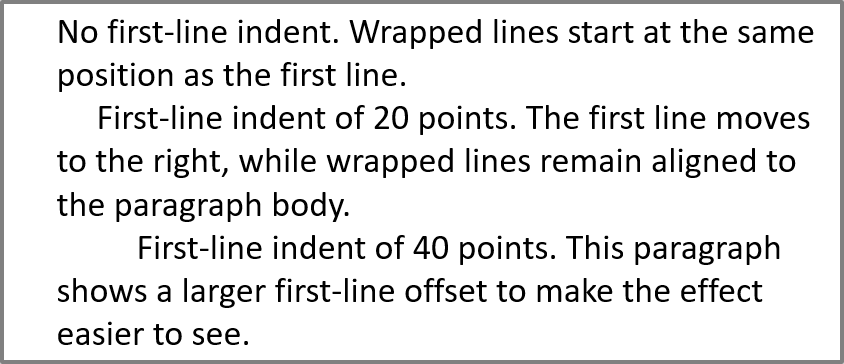
ใช้เมธอด ParagraphFormat.setIndent เพื่อควบคุมการเยื้องบรรทัดแรกของย่อหน้า. การตั้งค่านี้จะย้ายบรรทัดแรกเท่านั้นเมื่อเทียบกับระยะขอบซ้ายของย่อหน้า. ค่าบวกจะทำให้บรรทัดแรกเลื่อนขวา, ส่วนบรรทัดที่เหลือคงตำแหน่งตามเนื้อหาย่อหน้า.
ใช้ ParagraphFormat.setMarginLeft เมื่อคุณต้องการย้ายย่อหน้าทั้งหมด. ใช้ ParagraphFormat.setIndent เมื่อคุณต้องการย้ายเฉพาะบรรทัดแรก.
ตัวอย่างต่อไปนี้ให้ย่อหน้า 3 ย่อหน้ามี ParagraphFormat.setMarginLeft เท่ากับ 20 พ้อยต์และค่า ParagraphFormat.setIndent เป็น 0, 20, และ 40 พ้อยต์. บรรทัดแรกเริ่มที่ระยะที่เพิ่มขึ้นทีละมาก, ขณะที่บรรทัดที่ต่อเนื่องคงระยะซ้ายเท่าเดิม:
import jpype
import asposeslides

if not jpype.isJVMStarted():
    jpype.startJVM()

from asposeslides.api import FillType, Paragraph, Presentation, SaveFormat, ShapeType, TextAutofitType
from java.awt import Color

presentation = Presentation()
try:
    slide = presentation.getSlides().get_Item(0)

    shape = slide.getShapes().addAutoShape(ShapeType.Rectangle, 50, 50, 420, 220)
    shape.getFillFormat().setFillType(FillType.NoFill)
    shape.getLineFormat().getFillFormat().setFillType(FillType.Solid)
    shape.getLineFormat().getFillFormat().getSolidFillColor().setColor(Color.GRAY)

    text_frame = shape.getTextFrame()
    text_frame.getTextFrameFormat().setAutofitType(TextAutofitType.Shape)
    text_frame.getParagraphs().clear()

    first_paragraph = Paragraph()
    first_paragraph.setText("No first-line indent. Wrapped lines start at the same position as the first line.")
    first_paragraph.getParagraphFormat().getDefaultPortionFormat().getFillFormat().setFillType(FillType.Solid)
    first_paragraph.getParagraphFormat().getDefaultPortionFormat().getFillFormat().getSolidFillColor().setColor(Color.BLACK)
    first_paragraph.getParagraphFormat().setMarginLeft(20.0)
    first_paragraph.getParagraphFormat().setIndent(0.0)

    second_paragraph = Paragraph()
    second_paragraph.setText("First-line indent of 20 points. The first line moves to the right, while wrapped lines remain aligned to the paragraph body.")
    second_paragraph.getParagraphFormat().getDefaultPortionFormat().setFillType(FillType.Solid)
    second_paragraph.getParagraphFormat().getDefaultPortionFormat().getFillFormat().getSolidFillColor().setColor(Color.BLACK)
    second_paragraph.getParagraphFormat().setMarginLeft(20.0)
    second_paragraph.getParagraphFormat().setIndent(20.0)

    third_paragraph = Paragraph()
    third_paragraph.setText("First-line indent of 40 points. This paragraph shows a larger first-line offset to make the effect easier to see.")
    third_paragraph.getParagraphFormat().getDefaultPortionFormat().setFillType(FillType.Solid)
    third_paragraph.getParagraphFormat().getDefaultPortionFormat().getFillFormat().getSolidFillColor().setColor(Color.BLACK)
    third_paragraph.getParagraphFormat().setMarginLeft(20.0)
    third_paragraph.getParagraphFormat().setIndent(40.0)

    text_frame.getParagraphs().add(first_paragraph)
    text_frame.getParagraphs().add(second_paragraph)
    text_frame.getParagraphs().add(third_paragraph)

    presentation.save("paragraph_indent.pptx", SaveFormat.Pptx)
finally:
    presentation.dispose()
ผลลัพธ์:
ตั้งค่า Hanging Indent
Hanging indent คือการจัดวางย่อหน้าในที่บรรทัดแรกเริ่มอยู่ทางซ้ายของบรรทัดอื่น ๆ. ใน Aspose.Slides คุณสร้างเอฟเฟกต์นี้ด้วย properties ของ ParagraphFormat.setIndent. ตั้งค่า Indent เป็นค่าติดลบเพื่อย้ายบรรทัดแรกไปทางซ้ายเมื่อเทียบกับเนื้อหาย่อหน้า.
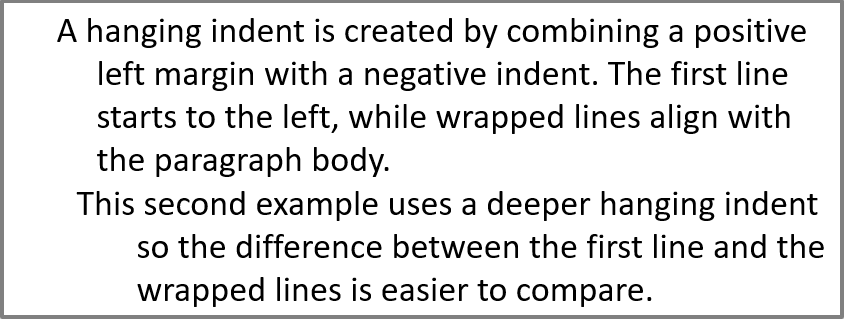
โดยปฏิบัติ, ParagraphFormat.setMarginLeft กำหนดตำแหน่งซ้ายของเนื้อหาย่อหน้า, และ ParagraphFormat.setIndent กำหนดตำแหน่งของบรรทัดแรกเมื่อเทียบกับระยะนั้น. เพื่อสร้าง hanging indent, ตั้งค่า MarginLeft เป็นค่าบวกและ Indent เป็นค่าติดลบ.
การจัดรูปแบบนี้มีประโยชน์สำหรับบรรณานุกรม, แหล่งอ้างอิง, รายการอภิธานศัพท์, และย่อหน้าอื่น ๆ ที่ต้องการให้บรรทัดต่อเนื่องจัดแนวใต้เนื้อหาย่อหน้าแทนใต้ตัวอักษรแรกของบรรทัดแรก.
ตัวอย่าง Python ต่อไปนี้จับคู่ค่า ParagraphFormat.setMarginLeft ที่ 40 และ 60 พ้อยต์กับค่า ParagraphFormat.setIndent ที่ -20 และ -30 พ้อยต์. ในแต่ละย่อหน้า, บรรทัดแรกเริ่มอยู่ทางซ้ายของบรรทัดต่อเนื่อง; ย่อหน้าที่สองมี hanging indent ที่ลึกกว่า:
import jpype
import asposeslides

if not jpype.isJVMStarted():
    jpype.startJVM()

from asposeslides.api import FillType, Paragraph, Presentation, SaveFormat, ShapeType, TextAutofitType
from java.awt import Color

presentation = Presentation()
try:
    slide = presentation.getSlides().get_Item(0)

    shape = slide.getShapes().addAutoShape(ShapeType.Rectangle, 50, 50, 420, 220)
    shape.getFillFormat().setFillType(FillType.NoFill)
    shape.getLineFormat().getFillFormat().setFillType(FillType.Solid)
    shape.getLineFormat().getFillFormat().getSolidFillColor().setColor(Color.GRAY)

    text_frame = shape.getTextFrame()
    text_frame.getTextFrameFormat().setAutofitType(TextAutofitType.Shape)
    text_frame.getParagraphs().clear()

    first_paragraph = Paragraph()
    first_paragraph.setText("A hanging indent is created by combining a positive left margin with a negative indent. The first line starts to the left, while wrapped lines align with the paragraph body.")
    first_paragraph.getParagraphFormat().getDefaultPortionFormat().getFillFormat().setFillType(FillType.Solid)
    first_paragraph.getParagraphFormat().getDefaultPortionFormat().getFillFormat().getSolidFillColor().setColor(Color.BLACK)
    first_paragraph.getParagraphFormat().setMarginLeft(40.0)
    first_paragraph.getParagraphFormat().setIndent(-20.0)

    second_paragraph = Paragraph()
    second_paragraph.setText("This second example uses a deeper hanging indent so the difference between the first line and the wrapped lines is easier to compare.")
    second_paragraph.getParagraphFormat().getDefaultPortionFormat().getFillFormat().setFillType(FillType.Solid)
    second_paragraph.getParagraphFormat().getDefaultPortionFormat().getFillFormat().getSolidFillColor().setColor(Color.BLACK)
    second_paragraph.getParagraphFormat().setMarginLeft(60.0)
    second_paragraph.getParagraphFormat().setIndent(-30.0)

    text_frame.getParagraphs().add(first_paragraph)
    text_frame.getParagraphs().add(second_paragraph)

    presentation.save("hanging_indent.pptx", SaveFormat.Pptx)
finally:
    presentation.dispose()
ผลลัพธ์:
ตั้งค่าคุณสมบัติ End Paragraph Run
เมธอด Paragraph.setEndParagraphPortionFormat ควบคุมการจัดรูปแบบของเครื่องหมายสิ้นสุดย่อหน้า. ตัวอย่างต่อไปนี้สร้าง PortionFormat ที่มี BasePortionFormat.setFontHeight ตั้งเป็น 48 พ้อยต์และ BasePortionFormat.setLatinFont ตั้งเป็น Times New Roman. มันกำหนดรูปแบบนี้ให้กับเครื่องหมายสิ้นสุดของย่อหน้าที่สอง, ปล่อยให้ portion ของข้อความที่มองเห็นอยู่ไม่มีการเปลี่ยนแปลง:
import jpype
import asposeslides

if not jpype.isJVMStarted():
    jpype.startJVM()

from asposeslides.api import FontData, Paragraph, Portion, PortionFormat, Presentation, SaveFormat, ShapeType

presentation = Presentation("Test.pptx")
try:
    slide = presentation.getSlides().get_Item(0)

    shape = slide.getShapes().addAutoShape(ShapeType.Rectangle, 10, 10, 200, 250)
    text_frame = shape.getTextFrame()
    text_frame.getParagraphs().clear()

    first_paragraph = Paragraph()
    first_portion = Portion("Sample text")
    first_paragraph.getPortions().add(first_portion)

    second_paragraph = Paragraph()
    second_portion = Portion("Sample text 2")
    second_paragraph.getPortions().add(second_portion)

    end_paragraph_format = PortionFormat()
    end_paragraph_format.setFontHeight(48)
    latin_font = FontData("Times New Roman")
    end_paragraph_format.setLatinFont(latin_font)
    second_paragraph.setEndParagraphPortionFormat(end_paragraph_format)

    text_frame.getParagraphs().add(first_paragraph)
    text_frame.getParagraphs().add(second_paragraph)

    presentation.save("end_paragraph_format.pptx", SaveFormat.Pptx)
finally:
    presentation.dispose()
นับจำนวนบรรทัดที่แสดงผล
สำหรับกฎของย่อหน้าที่ส่งผลต่อการห่ออัตโนมัติและเครื่องหมายจุดพักที่ปลายบรรทัด, ดู Control Line Breaking และ Control Hanging Punctuation.
ใช้ Paragraph.getLinesCount เพื่อคำนวนจำนวนบรรทัดที่ย่อหน้าใช้หลังจากการจัดวางข้อความ, รวมถึงการห่ออัตโนมัติ. สิ่งนี้มีประโยชน์เมื่อเช็คความยาวของข้อความและการจัดวางในเทมเพลตการนำเสนอ.
ย่อหน้าเป็นรายการหนึ่งใน TextFrame.getParagraphs, และมันอาจครอบคลุมหลายบรรทัดที่แสดงผล. การขึ้นบรรทัดใหม่โดยเจตนาในย่อหน้าจะบังคับให้สร้างบรรทัดใหม่โดยไม่สร้างย่อหน้าใหม่. การห่ออัตโนมัติสร้างบรรทัดตามความกว้างที่มีอยู่โดยไม่แทรกการขึ้นบรรทัดใหม่ในข้อความ. ดังนั้นการนับย่อหน้าหรืออักขระขึ้นบรรทัดใหม่ไม่ได้ให้จำนวนบรรทัดที่แสดงผล.
ตัวอย่างต่อไปนี้สร้าง shape ข้อความ, นับบรรทัด, ลดความกว้างของ shape, แล้วแทนที่ข้อความด้วยสตริงที่สั้นลง. ตัวอย่างเปิดใช้งานการห่อด้วย TextFrameFormat.setWrapText และปิดการ autofit ด้วย TextFrameFormat.setAutofitType เพื่อให้ความกว้างของ shape ควบคุมการห่อโดยไม่ทำให้ข้อความหรือ shape ลดขนาดโดยอัตโนมัติ. การวัดแต่ละครั้งใช้ Paragraph.getLinesCount. มิติของ shape อยู่ในหน่วยพ้อยต์. สุดท้าย, ตัวอย่างเพิ่มย่อหน้าอีกหนึ่งย่อหน้าและรวมจำนวนบรรทัดทั้งหมดใน text frame.
import jpype
import asposeslides

if not jpype.isJVMStarted():
    jpype.startJVM()

from asposeslides.api import NullableBool, Paragraph, Presentation, ShapeType, TextAutofitType

presentation = Presentation()
try:
    slide = presentation.getSlides().get_Item(0)

    shape = slide.getShapes().addAutoShape(ShapeType.Rectangle, 50, 50, 400, 200)
    text_frame = shape.getTextFrame()
    text_frame.getTextFrameFormat().setWrapText(NullableBool.True_)
    text_frame.getTextFrameFormat().setAutofitType(TextAutofitType.None_)

    paragraph = text_frame.getParagraphs().get_Item(0)
    paragraph.getParagraphFormat().getDefaultPortionFormat().setFontHeight(20)
    paragraph.setText("This text demonstrates how automatic wrapping changes the number of rendered lines.")
    print("Original width:", paragraph.getLinesCount())

    shape.setWidth(150)
    print("Narrower shape:", paragraph.getLinesCount())

    paragraph.setText("Short text.")
    print("Shorter text:", paragraph.getLinesCount())

    second_paragraph = Paragraph()
    second_paragraph.setText("Another paragraph.")
    second_paragraph.getParagraphFormat().getDefaultPortionFormat().setFontHeight(20)
    text_frame.getParagraphs().add(second_paragraph)

    total_line_count = 0
    for current_paragraph in text_frame.getParagraphs():
        total_line_count += current_paragraph.getLinesCount()
    print("Total lines in the text frame:", total_line_count)
finally:
    presentation.dispose()
ด้วยข้อความและมิติเหล่านี้, การลดความกว้างของ shape จะเพิ่มจำนวนบรรทัด, ในขณะที่การแทนที่ข้อความด้วยสตริงสั้นจะลดจำนวนบรรทัด. จำนวนที่แน่นอนอาจแตกต่างตามการมีฟอนต์และการแทนที่, ขนาดฟอนต์, ระยะขอบ, การเยื้อง, การห่อ, และการตั้งค่า autofit. ใช้ฟอนต์และการตั้งค่าการจัดวางที่ตั้งใจสำหรับสภาพแวดล้อมเป้าหมายเมื่อเช็คเทมเพลต.
จำนวนบรรทัดเพียงอย่างเดียวไม่ได้บ่งบอกว่าข้อความล้นพื้นที่หรือไม่. ความสูงที่มีอยู่, ความสูงของบรรทัด, ระยะห่างระหว่างย่อหน้าและบรรทัด, และพฤติกรรม autofit ก็สำคัญ; แม้บรรทัดเดียวก็อาจเกินความกว้างที่มีเมื่อตัวเลือกห่อปิด.
นำเข้าและส่งออกเนื้อหาย่อหน้า
ใช้ HTML เพื่อนำข้อความเข้าสู่การนำเสนอหรือส่งออกย่อหน้าที่มีอยู่เพื่อนำไปใช้ภายนอก. ส่วนนี้ยังแสดงวิธีเรนเดอร์ย่อหน้าเป็นภาพ, รวมถึงย่อหน้าในเซลล์ตาราง.
นำเข้า HTML Text ไปยังย่อหน้า
ใช้ ParagraphCollection.addFromHtml เพื่อแปลง markup HTML เป็นย่อหน้าและ portion ใน text frame.
ตัวอย่าง Python นี้อ่าน HTML จากไฟล์และส่ง markup ให้กับ ParagraphCollection.addFromHtml. มันล้างย่อหน้าเริ่มต้นของ text frame เพื่อให้ frame มีเฉพาะเนื้อหาที่นำเข้า. รูปร่างสี่เหลี่ยมทิ้งระยะขอบ 10 พ้อยต์ด้านละแต่ละด้านของสไลด์:
import jpype
import asposeslides

if not jpype.isJVMStarted():
    jpype.startJVM()

from asposeslides.api import FillType, Presentation, SaveFormat, ShapeType
from pathlib import Path

presentation = Presentation()
try:
    slide = presentation.getSlides().get_Item(0)

    shape_width = presentation.getSlideSize().getSize().getWidth() - 20
    shape_height = presentation.getSlideSize().getSize().getHeight() - 20

    shape = slide.getShapes().addAutoShape(ShapeType.Rectangle, 10, 10, shape_width, shape_height)
    shape.getFillFormat().setFillType(FillType.NoFill)
    shape.getTextFrame().getParagraphs().clear()

    try:
        html = Path("file.html").read_text(encoding="utf-8")
        shape.getTextFrame().getParagraphs().addFromHtml(html)

        presentation.save("html_text.pptx", SaveFormat.Pptx)
    except OSError as exception:
        print("The HTML file could not be read: " + str(exception))
finally:
    presentation.dispose()
ส่งออกข้อความย่อหน้าเป็น HTML
ใช้ ParagraphCollection.exportToHtml เพื่อส่งออกช่วงย่อหน้าที่เลือกเป็น HTML. เมื่อใช้ข้อความการนำเสนอบนเว็บไซต์, คุณอาจต้องการเก็บการเน้นโดยไม่ต้องนำฟอนต์, ขนาด, หรือสไตล์กล่องข้อความของการนำเสนอไปด้วย. ตั้งค่า TextToHtmlConversionOptions.setTextInheritanceLimit เพื่อควบคุมว่าตัวแปลงจะสืบทอดการจัดรูปแบบไกลแค่ไหน.
ดาวน์โหลด the sample presentation และวางไว้ในไดเรกทอรีทำงานของแอปพลิเคชัน. สไลด์แรกของมันมี shape ข้อความหนึ่งรูปที่มีข้อความ “Inherited text; explicit red 18pt”. อินพุตตั้งใจใช้ระดับการจัดรูปแบบหลายระดับ:
- สไตล์ข้อความเริ่มต้นของการนำเสนอใช้ Calibri และขนาด 28 pt.
- สไตล์ข้อความระดับแรกของ text frame ใช้ข้อความสีน้ำเงินและตัวเอียง.
- ย่อหน้ากำหนดข้อความตัวหนาอย่างชัดเจน.
- Portion ที่สอง, “explicit red 18pt”, กำหนดข้อความสีแดงและขนาด 18 pt อย่างชัดเจน.
ตัวอย่างเต็มต่อไปนี้ส่งออกย่อหน้าเดียวกันสามครั้ง. มันส่งผ่าน TextToHtmlConversionOptions ไปยังเมธอดส่งออกและเขียนแต่ละผลลัพธ์เป็นไฟล์ HTML UTF-8 แยกไฟล์:
import jpype
import asposeslides
from pathlib import Path

if not jpype.isJVMStarted():
    jpype.startJVM()

from asposeslides.api import AutoShape, Presentation, TextInheritanceLimit, TextToHtmlConversionOptions

presentation = Presentation("text-inheritance.pptx")
try:
    shape = presentation.getSlides().get_Item(0).getShapes().get_Item(0)

    if isinstance(shape, AutoShape):
        text_frame = shape.getTextFrame()
        if text_frame is not None:
            paragraphs = text_frame.getParagraphs()

            modes = [TextInheritanceLimit.All, TextInheritanceLimit.TextBox, TextInheritanceLimit.ParagraphOnly]
            file_names = ["All.html", "TextBox.html", "ParagraphOnly.html"]

            for mode, file_name in zip(modes, file_names):
                options = TextToHtmlConversionOptions()
                options.setTextInheritanceLimit(mode)

                html = paragraphs.exportToHtml(0, paragraphs.getCount(), options)
                try:
                    Path(file_name).write_text(str(html), encoding="utf-8")
                except OSError as exception:
                    print("The HTML file could not be written: " + str(exception))
        else:
            print("The first shape does not contain a text frame.")
    else:
        print("The first shape is not a text shape.")
finally:
    presentation.dispose()
HTML ที่สร้างมี CSS ต่อไปนี้สำหรับ portion แรก, “Inherited text; “. ตารางแสดงการประกาศที่เกี่ยวข้อง; คุณสมบัติเพิ่มเติมอื่น ๆ ถูกละเว้นเพื่อความกระชับ.
| Output | Relevant CSS for the first portion | Appearance |
|---|---|---|
All.html |
font-family:'Calibri'; font-size:28pt; color:#0000ff; font-style:italic; font-weight:bold |
Blue, bold, italic text at 28 pt in Calibri, if that font is available . |
TextBox.html |
color:#0000ff; font-style:italic; font-weight:bold |
Blue, bold, italic text; the surrounding page or browser supplies the font family and size. |
ParagraphOnly.html |
font-weight:bold |
Bold text; the surrounding page or browser supplies the font family, size, color, and italic style. |
Portion ที่สองคง color:#ff0000, font-size:18pt, และ font-weight:bold ในทุกผลลัพธ์สามไฟล์. มันยังคงตัวเอียงใน All และ TextBox, แต่ไม่ใน ParagraphOnly. การจำกัดการสืบทอดจึงไม่ลบการจัดรูปแบบที่กำหนดให้กับย่อหน้า或portion อย่างชัดเจน.
เปิดไฟล์ในเบราว์เซอร์เดียวกันเพื่อเปรียบเทียบ. ในสองโหมดที่จำกัด, คุณสมบัติ CSS ที่ถูกละเว้นจะถูกแทนที่โดยสไตล์ของหน้าปลายทางหรือค่าเริ่มต้นของเบราว์เซอร์, ดังนั้นลักษณะที่แสดงผลขึ้นอยู่กับที่ใช้ HTML.
เรนเดอร์ย่อหน้าเป็นภาพ
Paragraph.getImage เรนเดอร์ย่อหน้าเดี่ยวโดยตรงและคืนค่าอ็อบเจกต์ภาพ. บันทึกผลลัพธ์ไปยังไฟล์หรือสตรีมด้วยเมธอด save. คุณไม่จำเป็นต้องเรนเดอร์ shape ที่บรรจุหรือครอปรูปภาพด้วยตนเอง.
Paragraph.getImage สามารถคืนค่า None หากย่อหน้าไม่พบในคอลเลกชันแม่, ไม่มีขอบเขตการเรนเดอร์ที่ถูกต้อง, หรือไม่สามารถเรนเดอร์ได้. ตรวจสอบผลลัพธ์ก่อนบันทึกและทำลายภาพที่คืนค่าหลังการใช้.
เรนเดอร์ย่อหน้าที่สเกลเริ่มต้น
ตัวอย่างใช้การนำเสนอที่มีสไลด์หนึ่งซึ่ง shape แรกเป็น text box ที่มีย่อหน้า สามย่อหน้า.
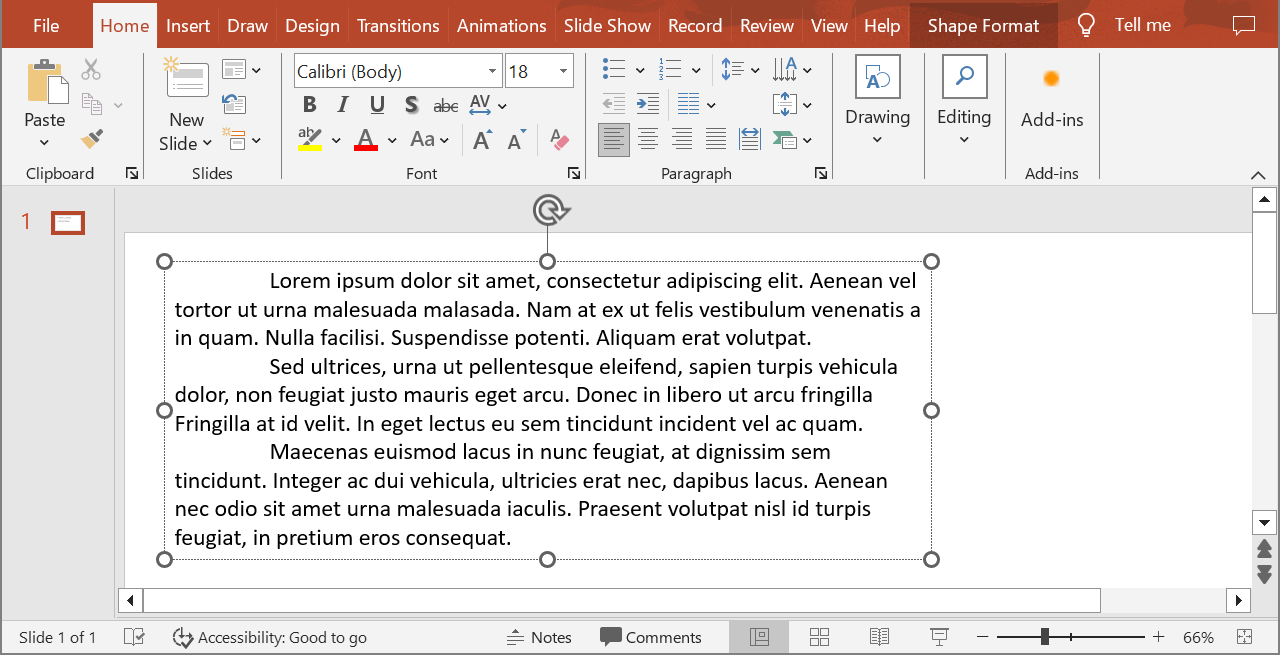
ตัวอย่างต่อไปนี้เลือกย่อหน้าที่สองที่ตำแหน่งอินเด็กซ์ 1 และเรียก Paragraph.getImage โดยไม่กำหนดพารามิเตอร์สเกล. มันตรวจสอบว่า shape มีย่อหน้าที่ต้องการและการเรนเดอร์คืนภาพก่อนเรียกเมธอด save เพื่อบันทึกในรูปแบบ PNG. บล็อก finally ทำลายภาพหลังการใช้.
import jpype
import asposeslides

if not jpype.isJVMStarted():
    jpype.startJVM()

from asposeslides.api import AutoShape, ImageFormat, Presentation

presentation = Presentation("sample.pptx")
try:
    shape = presentation.getSlides().get_Item(0).getShapes().get_Item(0)

    if isinstance(shape, AutoShape):
        text_shape = shape
        text_frame = text_shape.getTextFrame()
        if text_frame is not None and text_frame.getParagraphs().getCount() > 1:
            paragraph = text_frame.getParagraphs().get_Item(1)
            paragraph_image = paragraph.getImage()

            if paragraph_image is not None:
                try:
                    paragraph_image.save("paragraph.png", ImageFormat.Png)
                finally:
                    paragraph_image.dispose()
            else:
                print("The paragraph could not be rendered.")
        else:
            print("The expected paragraph was not found.")
    else:
        print("The first shape is not a text shape.")
finally:
    presentation.dispose()
ผลลัพธ์:

เรนเดอร์ย่อหน้าในเซลล์ตารางพร้อมสเกล
ใช้ overload ของ Paragraph.getImage ที่รับพารามิเตอร์ scale_x และ scale_y เพื่อกำหนดอัตราสเกลแนวนอนและแนวตั้ง. ตัวอย่างต่อไปนี้สร้างตาราง, เรนเดอร์ย่อหน้าในเซลล์แรกด้วยสเกลสองเท่าของความกว้างและความสูงเริ่มต้น, และบันทึกผลลัพธ์เป็นภาพ PNG.
import jpype
import asposeslides

if not jpype.isJVMStarted():
    jpype.startJVM()

from asposeslides.api import ImageFormat, Presentation

scale_x = 2.0
scale_y = 2.0
presentation = Presentation()
try:
    slide = presentation.getSlides().get_Item(0)

    table = slide.getShapes().addTable(50, 50, [300.0], [80.0])

    paragraph = table.get_Item(0, 0).getTextFrame().getParagraphs().get_Item(0)
    paragraph.setText("Text in a table cell")

    paragraph_image = paragraph.getImage(scale_x, scale_y)

    if paragraph_image is not None:
        try:
            paragraph_image.save("table_paragraph.png", ImageFormat.Png)
        finally:
            paragraph_image.dispose()
    else:
        print("The paragraph could not be rendered.")
finally:
    presentation.dispose()
ค่าอัตราสเกล 1 จะทำให้แกนนั้นคงขนาดพิกเซลเริ่มต้น. ตัวอย่างเช่น, 2 สำหรับทั้งสองค่า จะทำให้ภาพที่กว้างและสูงประมาณสองเท่าของมิติเริ่มต้น, ส่งผลให้มีพิกเซลสี่เท่า. ค่าที่ใหญ่กว่าจะให้ข้อความคมชัดมากขึ้นสำหรับการซูมหรือเอาต์พุตความละเอียดสูง, แต่ก็เพิ่มการใช้หน่วยความจำและขนาดไฟล์. ค่าที่ต่ำกว่า 1 จะให้ภาพเล็กลงและรายละเอียดน้อยลง. ใช้อัตราสเกลที่เท่ากันเพื่อคงอัตราส่วนของย่อหน้า; ค่าที่ต่างกันระหว่างแนวนอนและแนวตั้งจะยืดออกผลลัพธ์แยกกัน.
การเรนเดอร์ shape ทั้งหมดด้วย Shape.getImage ยังมีประโยชน์เมื่อผลลัพธ์ต้องรวมการเติม, ขอบ, หรือบริบทภาพอื่นของ shape. สำหรับภาพที่มีแต่ย่อหน้า, ใช้ Paragraph.getImage.
คำถามที่พบบ่อย
ฉันสามารถปิดการห่อบรรทัดภายใน text frame ได้อย่างสมบูรณ์หรือไม่?
ใช่. ตั้งค่า TextFrameFormat.setWrapText เพื่อปิดการห่อบรรทัดเพื่อให้บรรทัดไม่ถูกตัดที่ขอบของ text frame.
ฉันจะรับขอบเขตที่แม่นยำบนสไลด์ของย่อหน้าเฉพาะได้อย่างไร?
ใช้ Paragraph.getRect เพื่อดึงสี่เหลี่ยมขอบของย่อหน้า. Portion.getRect ให้ขอบเขตของ portion ทีละส่วน.
การจัดแนวย่อหน้า (ซ้าย, ขวา, กลาง หรือจัดเต็ม) ถูกควบคุมที่ไหน?
ParagraphFormat.setAlignment เป็นการตั้งค่าระดับย่อหน้าและใช้กับย่อหน้าทั้งหมดโดยไม่คำนึงถึงการจัดรูปแบบ portion แต่ละอัน.
เพื่อจัดเรียงฟอนต์ในแนวตั้งของ portion ที่มีขนาดฟอนต์ต่างกันภายในบรรทัดเดียว, ดู จัดเรียงฟอนต์ภายในบรรทัด.
ฉันสามารถตั้งค่าภาษา proofing สำหรับส่วนหนึ่งของย่อหน้าได้หรือไม่?
ใช่. ตั้งค่า BasePortionFormat.setLanguageId สำหรับ portion แยกต่างหาก, เพื่อให้ย่อหน้าเดียวสามารถมีข้อความหลายภาษาได้.