
Gestionar párrafos de texto de PowerPoint en Python vía Java
Descripción general
Aspose.Slides for Python via Java representa el texto como una jerarquía de marcos de texto, párrafos y porciones:
- TextFrame representa el contenedor de texto en una forma y proporciona acceso a su colección de párrafos.
- Paragraph representa un párrafo en un marco de texto y proporciona acceso a sus porciones y al formato a nivel de párrafo.
- Portion representa una ejecución de texto dentro de un párrafo. Cada porción puede tener su propio texto y formato a nivel de carácter.
Por lo tanto, un párrafo puede contener texto con diferentes fuentes, colores, tamaños y otros formatos mediante varias porciones.
Crear y formatear párrafos
Cree párrafos en el marco de texto de una forma y use porciones para formatear ejecuciones de texto individuales. Esta sección muestra cómo combinar varias porciones dentro de cada párrafo y aplicar diferentes colores, tamaños de fuente y estilos.
Crear párrafos con varias porciones
El siguiente ejemplo en Python crea tres párrafos, cada uno conteniendo tres ejecuciones de texto en la colección devuelta por Paragraph.getPortions. Reutiliza el párrafo predeterminado y su porción vacía, luego añade los párrafos y porciones restantes. El formato se aplica mediante Portion.getPortionFormat: la primera porción de cada párrafo es roja, en negrita y de 15 puntos; la segunda es azul, cursiva y de 18 puntos. La tercera porción conserva su formato predeterminado:
import jpype
import asposeslides

if not jpype.isJVMStarted():
    jpype.startJVM()

from asposeslides.api import FillType, NullableBool, Paragraph, Portion, Presentation, SaveFormat, ShapeType
from java.awt import Color

presentation = Presentation()
try:
    slide = presentation.getSlides().get_Item(0)

    shape = slide.getShapes().addAutoShape(ShapeType.Rectangle, 50, 150, 300, 150)
    text_frame = shape.getTextFrame()

    first_paragraph = text_frame.getParagraphs().get_Item(0)
    first_paragraph.getPortions().add(Portion())
    first_paragraph.getPortions().add(Portion())

    second_paragraph = Paragraph()
    second_paragraph.getPortions().add(Portion())
    second_paragraph.getPortions().add(Portion())
    second_paragraph.getPortions().add(Portion())
    text_frame.getParagraphs().add(second_paragraph)

    third_paragraph = Paragraph()
    third_paragraph.getPortions().add(Portion())
    third_paragraph.getPortions().add(Portion())
    third_paragraph.getPortions().add(Portion())
    text_frame.getParagraphs().add(third_paragraph)

    paragraph_count = text_frame.getParagraphs().getCount()
    for paragraph_index in range(paragraph_count):
        paragraph = text_frame.getParagraphs().get_Item(paragraph_index)
        portion_count = paragraph.getPortions().getCount()
        for portion_index in range(portion_count):
            portion = paragraph.getPortions().get_Item(portion_index)
            portion.setText(f"Portion {paragraph_index + 1}.{portion_index + 1}")

            if portion_index == 0:
                portion.getPortionFormat().getFillFormat().setFillType(FillType.Solid)
                portion.getPortionFormat().getFillFormat().getSolidFillColor().setColor(Color.RED)
                portion.getPortionFormat().setFontBold(NullableBool.True_)
                portion.getPortionFormat().setFontHeight(15)
            elif portion_index == 1:
                portion.getPortionFormat().getFillFormat().setFillType(FillType.Solid)
                portion.getPortionFormat().getFillFormat().getSolidFillColor().setColor(Color.BLUE)
                portion.getPortionFormat().setFontItalic(NullableBool.True_)
                portion.getPortionFormat().setFontHeight(18)

    presentation.save("paragraphs_with_portions.pptx", SaveFormat.Pptx)
finally:
    presentation.dispose()
Crear listas con viñetas y numeradas
Organice el texto de los párrafos en listas con símbolos, números o imágenes personalizadas. Los ejemplos de esta sección abarcan el formato de viñetas, listas multinivel y números iniciales personalizados.
Crear una lista con viñetas o numerada
Las viñetas y la numeración facilitan la escaneabilidad de los elementos relacionados. En Aspose.Slides, la configuración de listas se define a través de BulletFormat.
Este ejemplo en Python agrega una viñeta con símbolo y un elemento numerado al mismo marco de texto. BulletFormat.setType selecciona el tipo de viñeta, mientras que BulletFormat.setChar suministra el símbolo y BulletFormat.setNumberedBulletStyle elige el estilo de numeración. Ambos elementos usan viñetas negras con una altura del 100 % y una sangría de párrafo de 25 puntos:
import jpype
import asposeslides

if not jpype.isJVMStarted():
    jpype.startJVM()

from asposeslides.api import BulletType, ColorType, NullableBool, NumberedBulletStyle, Paragraph, Presentation, SaveFormat, ShapeType
from java.awt import Color

presentation = Presentation()
try:
    slide = presentation.getSlides().get_Item(0)

    shape = slide.getShapes().addAutoShape(ShapeType.Rectangle, 200, 200, 400, 200)
    text_frame = shape.getTextFrame()
    text_frame.getParagraphs().clear()

    symbol_paragraph = Paragraph()
    symbol_paragraph.setText("Welcome to Aspose.Slides")
    symbol_paragraph.getParagraphFormat().getBullet().setType(BulletType.Symbol)
    symbol_paragraph.getParagraphFormat().getBullet().setChar("•")
    symbol_paragraph.getParagraphFormat().setIndent(25)
    symbol_paragraph.getParagraphFormat().getBullet().getColor().setColorType(ColorType.RGB)
    symbol_paragraph.getParagraphFormat().getBullet().getColor().setColor(Color.BLACK)
    symbol_paragraph.getParagraphFormat().getBullet().setBulletHardColor(NullableBool.True_)
    symbol_paragraph.getParagraphFormat().getBullet().setHeight(100)
    text_frame.getParagraphs().add(symbol_paragraph)

    numbered_paragraph = Paragraph()
    numbered_paragraph.setText("This is a numbered item")
    numbered_paragraph.getParagraphFormat().getBullet().setType(BulletType.Numbered)
    numbered_paragraph.getParagraphFormat().getBullet().setNumberedBulletStyle(NumberedBulletStyle.BulletCircleNumWDBlackPlain)
    numbered_paragraph.getParagraphFormat().setIndent(25)
    numbered_paragraph.getParagraphFormat().getBullet().getColor().setColorType(ColorType.RGB)
    numbered_paragraph.getParagraphFormat().getBullet().getColor().setColor(Color.BLACK)
    numbered_paragraph.getParagraphFormat().getBullet().setBulletHardColor(NullableBool.True_)
    numbered_paragraph.getParagraphFormat().getBullet().setHeight(100)
    text_frame.getParagraphs().add(numbered_paragraph)

    presentation.save("bulleted_and_numbered_list.pptx", SaveFormat.Pptx)
finally:
    presentation.dispose()
Usar viñetas con imágenes
Las viñetas con imágenes le permiten usar una imagen personalizada en lugar de un símbolo o número.
Este ejemplo en Python agrega una imagen a la colección de imágenes de la presentación como un PPImage y la usa como viñeta de párrafo. Llama a BulletFormat.setType para usar una viñeta con imagen y asigna la imagen mediante BulletFormat.getPicture. BulletFormat.setHeight se establece al 100 % para dimensionar la viñeta respecto al texto del párrafo:
import jpype
import asposeslides

if not jpype.isJVMStarted():
    jpype.startJVM()

from asposeslides.api import BulletType, Images, Paragraph, Presentation, SaveFormat, ShapeType

presentation = Presentation()
try:
    slide = presentation.getSlides().get_Item(0)

    bullet_image = Images.fromFile("bullets.png")
    try:
        presentation_image = presentation.getImages().addImage(bullet_image)
    finally:
        bullet_image.dispose()

    shape = slide.getShapes().addAutoShape(ShapeType.Rectangle, 200, 200, 400, 200)
    text_frame = shape.getTextFrame()
    text_frame.getParagraphs().clear()

    paragraph = Paragraph()
    paragraph.setText("Welcome to Aspose.Slides")
    paragraph.getParagraphFormat().getBullet().setType(BulletType.Picture)
    paragraph.getParagraphFormat().getBullet().getPicture().setImage(presentation_image)
    paragraph.getParagraphFormat().getBullet().setHeight(100)
    text_frame.getParagraphs().add(paragraph)

    presentation.save("picture_bullet.pptx", SaveFormat.Pptx)
    presentation.save("picture_bullet.ppt", SaveFormat.Ppt)
finally:
    presentation.dispose()
Crear una lista multinivel
Establezca ParagraphFormat.setDepth para ubicar los párrafos en diferentes niveles de una lista. El nivel superior tiene una profundidad de 0.
Este ejemplo en Python asigna valores de ParagraphFormat.setDepth de 0 a 3 a cuatro párrafos, creando una jerarquía dentro de un mismo marco de texto. Cada párrafo usa una viñeta de símbolo, con BulletFormat.setChar alternando entre una viñeta redonda y un guion para distinguir los niveles adyacentes:
import jpype
import asposeslides

if not jpype.isJVMStarted():
    jpype.startJVM()

from asposeslides.api import BulletType, FillType, Paragraph, Presentation, SaveFormat, ShapeType
from java.awt import Color

presentation = Presentation()
try:
    slide = presentation.getSlides().get_Item(0)

    shape = slide.getShapes().addAutoShape(ShapeType.Rectangle, 200, 200, 400, 200)
    text_frame = shape.getTextFrame()
    text_frame.getParagraphs().clear()

    first_paragraph = Paragraph()
    first_paragraph.setText("Content")
    first_paragraph.getParagraphFormat().getBullet().setType(BulletType.Symbol)
    first_paragraph.getParagraphFormat().getBullet().setChar("•")
    first_paragraph.getParagraphFormat().getDefaultPortionFormat().getFillFormat().setFillType(FillType.Solid)
    first_paragraph.getParagraphFormat().getDefaultPortionFormat().getFillFormat().getSolidFillColor().setColor(Color.BLACK)
    first_paragraph.getParagraphFormat().setDepth(0)

    second_paragraph = Paragraph()
    second_paragraph.setText("Second level")
    second_paragraph.getParagraphFormat().getBullet().setType(BulletType.Symbol)
    second_paragraph.getParagraphFormat().getBullet().setChar('-')
    second_paragraph.getParagraphFormat().getDefaultPortionFormat().getFillFormat().setFillType(FillType.Solid)
    second_paragraph.getParagraphFormat().getDefaultPortionFormat().getFillFormat().getSolidFillColor().setColor(Color.BLACK)
    second_paragraph.getParagraphFormat().setDepth(1)

    third_paragraph = Paragraph()
    third_paragraph.setText("Third level")
    third_paragraph.getParagraphFormat().getBullet().setType(BulletType.Symbol)
    third_paragraph.getParagraphFormat().getBullet().setChar("•")
    third_paragraph.getParagraphFormat().getDefaultPortionFormat().getFillFormat().setFillType(FillType.Solid)
    third_paragraph.getParagraphFormat().getDefaultPortionFormat().getFillFormat().getSolidFillColor().setColor(Color.BLACK)
    third_paragraph.getParagraphFormat().setDepth(2)

    fourth_paragraph = Paragraph()
    fourth_paragraph.setText("Fourth level")
    fourth_paragraph.getParagraphFormat().getBullet().setType(BulletType.Symbol)
    fourth_paragraph.getParagraphFormat().getBullet().setChar('-')
    fourth_paragraph.getParagraphFormat().getDefaultPortionFormat().getFillFormat().setFillType(FillType.Solid)
    fourth_paragraph.getParagraphFormat().getDefaultPortionFormat().getFillFormat().getSolidFillColor().setColor(Color.BLACK)
    fourth_paragraph.getParagraphFormat().setDepth(3)

    text_frame.getParagraphs().add(first_paragraph)
    text_frame.getParagraphs().add(second_paragraph)
    text_frame.getParagraphs().add(third_paragraph)
    text_frame.getParagraphs().add(fourth_paragraph)

    presentation.save("multilevel_list.pptx", SaveFormat.Pptx)
finally:
    presentation.dispose()
Iniciar elementos de lista numerada con valores personalizados
Use BulletFormat.setNumberedBulletStartWith para establecer el número inicial que se muestra en un párrafo numerado.
Este ejemplo en Python establece BulletFormat.setType para usar numeración en tres párrafos y asigna valores de BulletFormat.setNumberedBulletStartWith de 2, 3 y 7. El valor inicial se configura por separado para cada párrafo, lo que permite que los números mostrados omitan valores:
import jpype
import asposeslides

if not jpype.isJVMStarted():
    jpype.startJVM()

from asposeslides.api import BulletType, Paragraph, Presentation, SaveFormat, ShapeType

presentation = Presentation()
try:
    slide = presentation.getSlides().get_Item(0)

    shape = slide.getShapes().addAutoShape(ShapeType.Rectangle, 200, 200, 400, 200)
    text_frame = shape.getTextFrame()
    text_frame.getParagraphs().clear()

    first_paragraph = Paragraph()
    first_paragraph.setText("Start at 2")
    first_paragraph.getParagraphFormat().getBullet().setType(BulletType.Numbered)
    first_paragraph.getParagraphFormat().getBullet().setNumberedBulletStartWith(2)

    text_frame.getParagraphs().add(first_paragraph)

    second_paragraph = Paragraph()
    second_paragraph.setText("Start at 3")
    second_paragraph.getParagraphFormat().getBullet().setType(BulletType.Numbered)
    second_paragraph.getParagraphFormat().getBullet().setNumberedBulletStartWith(3)
    text_frame.getParagraphs().add(second_paragraph)

    third_paragraph = Paragraph()
    third_paragraph.setText("Start at 7")
    third_paragraph.getParagraphFormat().getBullet().setType(BulletType.Numbered)
    third_paragraph.getParagraphFormat().getBullet().setNumberedBulletStartWith(7)
    text_frame.getParagraphs().add(third_paragraph)

    presentation.save("custom_numbered_list.pptx", SaveFormat.Pptx)
finally:
    presentation.dispose()
Controlar el diseño del párrafo y sus propiedades de final
Ajuste los márgenes y sangrías de los párrafos para controlar la posición de la primera línea y de las líneas envueltas. También puede formatear la marca de fin de párrafo por separado del texto visible de las porciones.
Establecer una sangría de primera línea
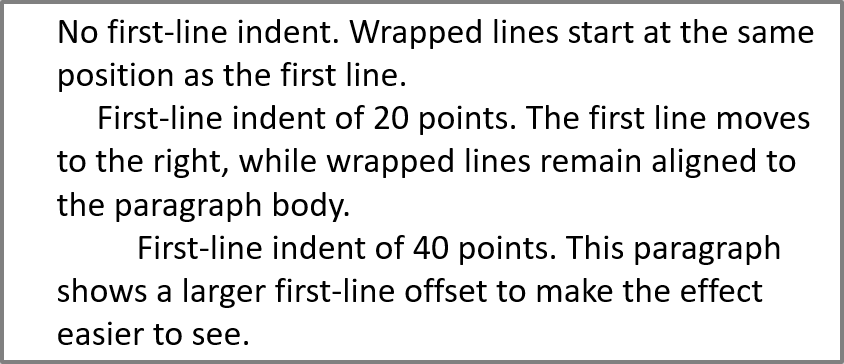
Use el método ParagraphFormat.setIndent para controlar la sangría de la primera línea de un párrafo. Esta configuración mueve solo la primera línea respecto al margen izquierdo del párrafo. Un valor positivo desplaza la primera línea a la derecha, mientras que las líneas restantes permanecen alineadas con el cuerpo del párrafo.
Use ParagraphFormat.setMarginLeft cuando necesite mover todo el párrafo. Use ParagraphFormat.setIndent cuando necesite mover solo la primera línea.
El siguiente ejemplo asigna a tres párrafos el mismo ParagraphFormat.setMarginLeft de 20 puntos y valores de ParagraphFormat.setIndent de 0, 20 y 40 puntos. Las primeras líneas comienzan en desplazamientos progresivamente mayores, mientras que las líneas envueltas conservan el mismo margen izquierdo:
import jpype
import asposeslides

if not jpype.isJVMStarted():
    jpype.startJVM()

from asposeslides.api import FillType, Paragraph, Presentation, SaveFormat, ShapeType, TextAutofitType
from java.awt import Color

presentation = Presentation()
try:
    slide = presentation.getSlides().get_Item(0)

    shape = slide.getShapes().addAutoShape(ShapeType.Rectangle, 50, 50, 420, 220)
    shape.getFillFormat().setFillType(FillType.NoFill)
    shape.getLineFormat().getFillFormat().setFillType(FillType.Solid)
    shape.getLineFormat().getFillFormat().getSolidFillColor().setColor(Color.GRAY)

    text_frame = shape.getTextFrame()
    text_frame.getTextFrameFormat().setAutofitType(TextAutofitType.Shape)
    text_frame.getParagraphs().clear()

    first_paragraph = Paragraph()
    first_paragraph.setText("No first-line indent. Wrapped lines start at the same position as the first line.")
    first_paragraph.getParagraphFormat().getDefaultPortionFormat().getFillFormat().setFillType(FillType.Solid)
    first_paragraph.getParagraphFormat().getDefaultPortionFormat().getFillFormat().getSolidFillColor().setColor(Color.BLACK)
    first_paragraph.getParagraphFormat().setMarginLeft(20.0)
    first_paragraph.getParagraphFormat().setIndent(0.0)

    second_paragraph = Paragraph()
    second_paragraph.setText("First-line indent of 20 points. The first line moves to the right, while wrapped lines remain aligned to the paragraph body.")
    second_paragraph.getParagraphFormat().getDefaultPortionFormat().setFillType(FillType.Solid)
    second_paragraph.getParagraphFormat().getDefaultPortionFormat().getFillFormat().getSolidFillColor().setColor(Color.BLACK)
    second_paragraph.getParagraphFormat().setMarginLeft(20.0)
    second_paragraph.getParagraphFormat().setIndent(20.0)

    third_paragraph = Paragraph()
    third_paragraph.setText("First-line indent of 40 points. This paragraph shows a larger first-line offset to make the effect easier to see.")
    third_paragraph.getParagraphFormat().getDefaultPortionFormat().setFillType(FillType.Solid)
    third_paragraph.getParagraphFormat().getDefaultPortionFormat().getFillFormat().getSolidFillColor().setColor(Color.BLACK)
    third_paragraph.getParagraphFormat().setMarginLeft(20.0)
    third_paragraph.getParagraphFormat().setIndent(40.0)

    text_frame.getParagraphs().add(first_paragraph)
    text_frame.getParagraphs().add(second_paragraph)
    text_frame.getParagraphs().add(third_paragraph)

    presentation.save("paragraph_indent.pptx", SaveFormat.Pptx)
finally:
    presentation.dispose()
El resultado:
Establecer una sangría colgante
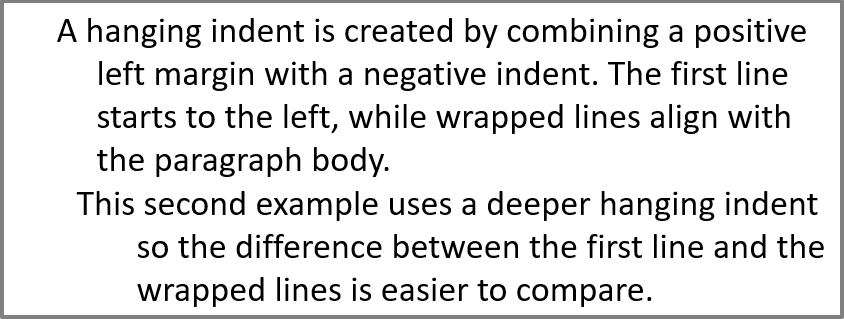
Una sangría colgante es un diseño de párrafo en el que la primera línea comienza a la izquierda del resto de líneas. En Aspose.Slides, crea este efecto con la propiedad ParagraphFormat.setIndent. Establezca Indent a un valor negativo para mover la primera línea a la izquierda respecto al cuerpo del párrafo.
En la práctica, ParagraphFormat.setMarginLeft define la posición izquierda del cuerpo del párrafo, y ParagraphFormat.setIndent define la posición de la primera línea respecto a ese margen. Para crear una sangría colgante, establezca un valor positivo en MarginLeft y un valor negativo en Indent.
Este formato es útil para bibliografías, referencias, entradas de glosario y otros párrafos donde las líneas envueltas deben alinearse bajo el cuerpo del párrafo y no bajo el primer carácter de la primera línea.
El siguiente ejemplo en Python combina valores de ParagraphFormat.setMarginLeft de 40 y 60 puntos con valores de ParagraphFormat.setIndent de -20 y -30 puntos. En cada párrafo, la primera línea comienza a la izquierda de las líneas envueltas; el segundo párrafo tiene una sangría colgante más profunda:
import jpype
import asposeslides

if not jpype.isJVMStarted():
    jpype.startJVM()

from asposeslides.api import FillType, Paragraph, Presentation, SaveFormat, ShapeType, TextAutofitType
from java.awt import Color

presentation = Presentation()
try:
    slide = presentation.getSlides().get_Item(0)

    shape = slide.getShapes().addAutoShape(ShapeType.Rectangle, 50, 50, 420, 220)
    shape.getFillFormat().setFillType(FillType.NoFill)
    shape.getLineFormat().getFillFormat().setFillType(FillType.Solid)
    shape.getLineFormat().getFillFormat().getSolidFillColor().setColor(Color.GRAY)

    text_frame = shape.getTextFrame()
    text_frame.getTextFrameFormat().setAutofitType(TextAutofitType.Shape)
    text_frame.getParagraphs().clear()

    first_paragraph = Paragraph()
    first_paragraph.setText("A hanging indent is created by combining a positive left margin with a negative indent. The first line starts to the left, while wrapped lines align with the paragraph body.")
    first_paragraph.getParagraphFormat().getDefaultPortionFormat().getFillFormat().setFillType(FillType.Solid)
    first_paragraph.getParagraphFormat().getDefaultPortionFormat().getFillFormat().getSolidFillColor().setColor(Color.BLACK)
    first_paragraph.getParagraphFormat().setMarginLeft(40.0)
    first_paragraph.getParagraphFormat().setIndent(-20.0)

    second_paragraph = Paragraph()
    second_paragraph.setText("This second example uses a deeper hanging indent so the difference between the first line and the wrapped lines is easier to compare.")
    second_paragraph.getParagraphFormat().getDefaultPortionFormat().getFillFormat().setFillType(FillType.Solid)
    second_paragraph.getParagraphFormat().getDefaultPortionFormat().getFillFormat().getSolidFillColor().setColor(Color.BLACK)
    second_paragraph.getParagraphFormat().setMarginLeft(60.0)
    second_paragraph.getParagraphFormat().setIndent(-30.0)

    text_frame.getParagraphs().add(first_paragraph)
    text_frame.getParagraphs().add(second_paragraph)

    presentation.save("hanging_indent.pptx", SaveFormat.Pptx)
finally:
    presentation.dispose()
El resultado:
Establecer propiedades de ejecución del final del párrafo
El método Paragraph.setEndParagraphPortionFormat controla el formato de la marca de fin del párrafo. El siguiente ejemplo crea un PortionFormat con BasePortionFormat.setFontHeight establecido a 48 puntos y BasePortionFormat.setLatinFont a Times New Roman. Asigna este formato a la marca de fin del segundo párrafo, dejando sin cambios las porciones de texto visibles:
import jpype
import asposeslides

if not jpype.isJVMStarted():
    jpype.startJVM()

from asposeslides.api import FontData, Paragraph, Portion, PortionFormat, Presentation, SaveFormat, ShapeType

presentation = Presentation("Test.pptx")
try:
    slide = presentation.getSlides().get_Item(0)

    shape = slide.getShapes().addAutoShape(ShapeType.Rectangle, 10, 10, 200, 250)
    text_frame = shape.getTextFrame()
    text_frame.getParagraphs().clear()

    first_paragraph = Paragraph()
    first_portion = Portion("Sample text")
    first_paragraph.getPortions().add(first_portion)

    second_paragraph = Paragraph()
    second_portion = Portion("Sample text 2")
    second_paragraph.getPortions().add(second_portion)

    end_paragraph_format = PortionFormat()
    end_paragraph_format.setFontHeight(48)
    latin_font = FontData("Times New Roman")
    end_paragraph_format.setLatinFont(latin_font)
    second_paragraph.setEndParagraphPortionFormat(end_paragraph_format)

    text_frame.getParagraphs().add(first_paragraph)
    text_frame.getParagraphs().add(second_paragraph)

    presentation.save("end_paragraph_format.pptx", SaveFormat.Pptx)
finally:
    presentation.dispose()
Contar líneas renderizadas
Para reglas de párrafo que afectan el ajuste automático y la puntuación al final de línea, consulte Control Line Breaking y Control Hanging Punctuation.
Use Paragraph.getLinesCount para contar las líneas que ocupa un párrafo después del diseño del texto, incluido el ajuste automático. Esto es útil al comprobar la longitud y el diseño del texto en plantillas de presentaciones.
Un párrafo es un elemento en TextFrame.getParagraphs y puede ocupar varias líneas renderizadas. Un salto de línea explícito dentro de un párrafo fuerza una nueva línea sin crear otro párrafo. El ajuste automático crea líneas según el ancho disponible sin insertar saltos de línea explícitos en el texto. Por ello, contar párrafos o caracteres de salto de línea no proporciona el recuento de líneas renderizadas.
El siguiente ejemplo crea una forma de texto, cuenta sus líneas, estrecha la forma y luego reemplaza el texto por una cadena más corta. El ejemplo habilita el ajuste con TextFrameFormat.setWrapText y desactiva el autofit con TextFrameFormat.setAutofitType para que el ancho de la forma controle el ajuste sin reducir automáticamente el texto ni redimensionar la forma. Cada medición usa Paragraph.getLinesCount. Las dimensiones de la forma están en puntos. Finalmente, el ejemplo añade otro párrafo y suma los recuentos de líneas en todo el marco de texto.
import jpype
import asposeslides

if not jpype.isJVMStarted():
    jpype.startJVM()

from asposeslides.api import NullableBool, Paragraph, Presentation, ShapeType, TextAutofitType

presentation = Presentation()
try:
    slide = presentation.getSlides().get_Item(0)

    shape = slide.getShapes().addAutoShape(ShapeType.Rectangle, 50, 50, 400, 200)
    text_frame = shape.getTextFrame()
    text_frame.getTextFrameFormat().setWrapText(NullableBool.True_)
    text_frame.getTextFrameFormat().setAutofitType(TextAutofitType.None_)

    paragraph = text_frame.getParagraphs().get_Item(0)
    paragraph.getParagraphFormat().getDefaultPortionFormat().setFontHeight(20)
    paragraph.setText("This text demonstrates how automatic wrapping changes the number of rendered lines.")
    print("Original width:", paragraph.getLinesCount())

    shape.setWidth(150)
    print("Narrower shape:", paragraph.getLinesCount())

    paragraph.setText("Short text.")
    print("Shorter text:", paragraph.getLinesCount())

    second_paragraph = Paragraph()
    second_paragraph.setText("Another paragraph.")
    second_paragraph.getParagraphFormat().getDefaultPortionFormat().setFontHeight(20)
    text_frame.getParagraphs().add(second_paragraph)

    total_line_count = 0
    for current_paragraph in text_frame.getParagraphs():
        total_line_count += current_paragraph.getLinesCount()
    print("Total lines in the text frame:", total_line_count)
finally:
    presentation.dispose()
Con este texto y estas dimensiones, estrechar la forma incrementa el recuento de líneas, mientras que sustituir el texto por la cadena corta lo reduce. Los recuentos exactos pueden variar según la disponibilidad y sustitución de fuentes, tamaño de fuente, márgenes, sangrías, ajuste y configuración de autofit. Utilice las fuentes y la configuración de diseño previstas para el entorno de destino al comprobar una plantilla.
El número de líneas por sí solo no determina si el texto desborda su contenedor. También influyen la altura disponible, la altura de línea, el espaciado de párrafos y líneas, y el comportamiento de autofit; incluso una única línea puede superar el ancho disponible cuando el ajuste está desactivado.
Importar y exportar contenido de párrafos
Use HTML para introducir texto en una presentación o exportar párrafos existentes para usarlos fuera de ella. Esta sección también muestra cómo renderizar párrafos individuales como imágenes, incluidos los párrafos en celdas de tabla.
Importar texto HTML en párrafos
Use ParagraphCollection.addFromHtml para convertir marcado HTML en párrafos y porciones en un marco de texto.
Este ejemplo en Python lee HTML de un archivo y pasa el marcado a ParagraphCollection.addFromHtml. Limpia el párrafo predeterminado del marco de texto para que el marco contenga solo el contenido importado. La forma rectangular deja un margen de 10 puntos en cada lado de la diapositiva:
import jpype
import asposeslides

if not jpype.isJVMStarted():
    jpype.startJVM()

from asposeslides.api import FillType, Presentation, SaveFormat, ShapeType
from pathlib import Path

presentation = Presentation()
try:
    slide = presentation.getSlides().get_Item(0)

    shape_width = presentation.getSlideSize().getSize().getWidth() - 20
    shape_height = presentation.getSlideSize().getSize().getHeight() - 20

    shape = slide.getShapes().addAutoShape(ShapeType.Rectangle, 10, 10, shape_width, shape_height)
    shape.getFillFormat().setFillType(FillType.NoFill)
    shape.getTextFrame().getParagraphs().clear()

    try:
        html = Path("file.html").read_text(encoding="utf-8")
        shape.getTextFrame().getParagraphs().addFromHtml(html)

        presentation.save("html_text.pptx", SaveFormat.Pptx)
    except OSError as exception:
        print("The HTML file could not be read: " + str(exception))
finally:
    presentation.dispose()
Exportar texto de párrafo a HTML
Use ParagraphCollection.exportToHtml para exportar un rango seleccionado de párrafos como HTML. Al reutilizar texto de una presentación en un sitio web, puede que desee conservar el énfasis local sin heredar la fuente, el tamaño o los estilos del cuadro de texto de la presentación. Establezca TextToHtmlConversionOptions.setTextInheritanceLimit para controlar hasta dónde sigue el exportador la herencia de formato.
Descargue the sample presentation y colóquela en el directorio de trabajo de la aplicación. Su primera diapositiva contiene una forma de texto con el texto “Inherited text; explicit red 18pt”. La entrada usa deliberadamente varios niveles de formato:
- El estilo de texto predeterminado de la presentación proporciona Calibri y un tamaño de 28 pt.
- El estilo de texto de primer nivel del marco de texto proporciona texto azul y cursiva.
- El párrafo establece explícitamente texto en negrita.
- La segunda porción, “explicit red 18pt”, establece explícitamente texto rojo y un tamaño de 18 pt.
El siguiente ejemplo completo exporta los mismos párrafos tres veces. Pasa TextToHtmlConversionOptions al método de exportación y escribe cada resultado en un archivo HTML UTF‑8 separado:
import jpype
import asposeslides
from pathlib import Path

if not jpype.isJVMStarted():
    jpype.startJVM()

from asposeslides.api import AutoShape, Presentation, TextInheritanceLimit, TextToHtmlConversionOptions

presentation = Presentation("text-inheritance.pptx")
try:
    shape = presentation.getSlides().get_Item(0).getShapes().get_Item(0)

    if isinstance(shape, AutoShape):
        text_frame = shape.getTextFrame()
        if text_frame is not None:
            paragraphs = text_frame.getParagraphs()

            modes = [TextInheritanceLimit.All, TextInheritanceLimit.TextBox, TextInheritanceLimit.ParagraphOnly]
            file_names = ["All.html", "TextBox.html", "ParagraphOnly.html"]

            for mode, file_name in zip(modes, file_names):
                options = TextToHtmlConversionOptions()
                options.setTextInheritanceLimit(mode)

                html = paragraphs.exportToHtml(0, paragraphs.getCount(), options)
                try:
                    Path(file_name).write_text(str(html), encoding="utf-8")
                except OSError as exception:
                    print("The HTML file could not be written: " + str(exception))
        else:
            print("The first shape does not contain a text frame.")
    else:
        print("The first shape is not a text shape.")
finally:
    presentation.dispose()
El HTML generado contiene el siguiente CSS para la primera porción, “Inherited text; ”. La tabla enumera las declaraciones relevantes; se omiten otras propiedades generadas por claridad.
| Salida | CSS relevante para la primera porción | Apariencia |
|---|---|---|
All.html |
font-family:'Calibri'; font-size:28pt; color:#0000ff; font-style:italic; font-weight:bold |
Texto azul, negrita, cursiva a 28 pt en Calibri, si esa fuente está disponible. |
TextBox.html |
color:#0000ff; font-style:italic; font-weight:bold |
Texto azul, negrita, cursiva; la página o el navegador circundante suministra la familia de fuentes y el tamaño. |
ParagraphOnly.html |
font-weight:bold |
Texto en negrita; la página o el navegador circundante suministra la familia de fuentes, el tamaño, el color y el estilo cursiva. |
La segunda porción conserva color:#ff0000, font-size:18pt y font-weight:bold en los tres resultados. También mantiene la cursiva en All y TextBox, pero no en ParagraphOnly. Restringir la herencia, por lo tanto, no elimina el formato asignado explícitamente a un párrafo o porción.
Abra los archivos en el mismo navegador para compararlos. En los dos modos restringidos, las propiedades CSS omitidas se resuelven mediante los estilos de la página de destino o los valores predeterminados del navegador, por lo que la apariencia resultante depende de dónde se utilice el HTML.
Renderizar un párrafo como una imagen
Paragraph.getImage renderiza directamente un párrafo individual y devuelve un objeto de imagen. Guarde el resultado en un archivo o flujo con su método save. No es necesario renderizar la forma contenedora ni recortar manualmente un mapa de bits.
Paragraph.getImage puede devolver None si el párrafo no se encuentra en su colección padre, no tiene límites de renderizado válidos o no puede renderizarse. Verifique el resultado antes de guardarlo y libere la imagen devuelta tras su uso.
Renderizar un párrafo a escala predeterminada
El ejemplo usa una presentación con una diapositiva cuyo primer objeto es un cuadro de texto que contiene tres párrafos.
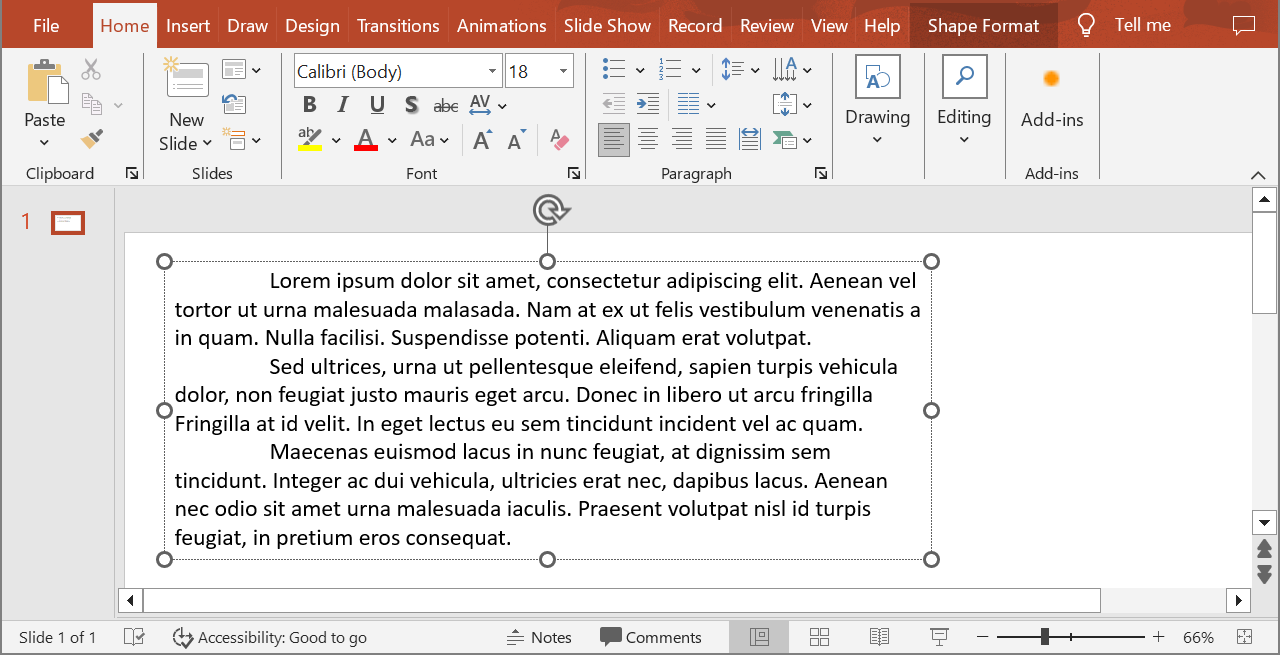
El siguiente ejemplo selecciona el segundo párrafo (índice 1) y llama a Paragraph.getImage sin parámetros de escala. Comprueba que la forma contiene el párrafo requerido y que el renderizado devuelve una imagen antes de invocar su método save para guardarla en formato PNG. El bloque finally libera la imagen tras su uso.
import jpype
import asposeslides

if not jpype.isJVMStarted():
    jpype.startJVM()

from asposeslides.api import AutoShape, ImageFormat, Presentation

presentation = Presentation("sample.pptx")
try:
    shape = presentation.getSlides().get_Item(0).getShapes().get_Item(0)

    if isinstance(shape, AutoShape):
        text_shape = shape
        text_frame = text_shape.getTextFrame()
        if text_frame is not None and text_frame.getParagraphs().getCount() > 1:
            paragraph = text_frame.getParagraphs().get_Item(1)
            paragraph_image = paragraph.getImage()

            if paragraph_image is not None:
                try:
                    paragraph_image.save("paragraph.png", ImageFormat.Png)
                finally:
                    paragraph_image.dispose()
            else:
                print("The paragraph could not be rendered.")
        else:
            print("The expected paragraph was not found.")
    else:
        print("The first shape is not a text shape.")
finally:
    presentation.dispose()
El resultado:

Renderizar un párrafo en una celda de tabla con escalado
Utilice la sobrecarga de Paragraph.getImage que acepta los parámetros scale_x y scale_y para establecer los factores de escala horizontal y vertical. El siguiente ejemplo crea una tabla, renderiza el párrafo en su primera celda al doble de su ancho y alto predeterminados y guarda el resultado como una imagen PNG.
import jpype
import asposeslides

if not jpype.isJVMStarted():
    jpype.startJVM()

from asposeslides.api import ImageFormat, Presentation

scale_x = 2.0
scale_y = 2.0
presentation = Presentation()
try:
    slide = presentation.getSlides().get_Item(0)

    table = slide.getShapes().addTable(50, 50, [300.0], [80.0])

    paragraph = table.get_Item(0, 0).getTextFrame().getParagraphs().get_Item(0)
    paragraph.setText("Text in a table cell")

    paragraph_image = paragraph.getImage(scale_x, scale_y)

    if paragraph_image is not None:
        try:
            paragraph_image.save("table_paragraph.png", ImageFormat.Png)
        finally:
            paragraph_image.dispose()
    else:
        print("The paragraph could not be rendered.")
finally:
    presentation.dispose()
Un factor de escala de 1 mantiene ese eje en su tamaño de píxel predeterminado. Por ejemplo, 2 en ambos factores produce una imagen cuyo ancho y alto son aproximadamente el doble de las dimensiones predeterminadas, lo que genera cuatro veces más píxeles. Los factores mayores suelen producir texto más nítido para ampliaciones o salida de alta resolución, pero también aumentan el uso de memoria y el tamaño del archivo. Los factores inferiores a 1 generan imágenes más pequeñas con menos detalle. Use factores iguales para preservar la relación de aspecto del párrafo; factores diferentes en horizontal y vertical estiran la salida de forma independiente.
Renderizar una forma completa con Shape.getImage sigue siendo útil cuando la salida debe incluir el relleno, el borde u otro contexto visual de la forma. Para una imagen que contenga solo el párrafo, use Paragraph.getImage.
Preguntas frecuentes
¿Puedo desactivar completamente el ajuste de línea dentro de un marco de texto?
Sí. Establezca TextFrameFormat.setWrapText para desactivar el ajuste de modo que las líneas no se quiebren en los bordes del marco de texto.
¿Cómo puedo obtener los límites exactos en la diapositiva de un párrafo específico?
Utilice Paragraph.getRect para obtener el rectángulo delimitador del párrafo. Portion.getRect proporciona los límites de una porción individual.
¿Dónde se controla la alineación del párrafo (izquierda, derecha, centrado o justificado)?
ParagraphFormat.setAlignment es una configuración a nivel de párrafo y se aplica a todo el párrafo independientemente del formato de cada porción.
Para alinear verticalmente porciones de diferentes tamaños de fuente dentro de cada línea, consulte Alinear fuentes dentro de una línea.
¿Puedo establecer el idioma de corrección para parte de un párrafo?
Sí. Establezca BasePortionFormat.setLanguageId para porciones individuales, de modo que un párrafo pueda contener texto en varios idiomas.