
Gérer les paragraphes de texte PowerPoint en Python via Java
Vue d’ensemble
Aspose.Slides for Python via Java représente le texte sous la forme d’une hiérarchie de TextFrame, Paragraph et Portion :
- TextFrame représente le conteneur de texte d’une forme et fournit l’accès à sa collection de paragraphes.
- Paragraph représente un paragraphe dans un cadre de texte et fournit l’accès à ses portions ainsi qu’à la mise en forme au niveau du paragraphe.
- Portion représente une séquence de texte au sein d’un paragraphe. Chaque portion peut avoir son propre texte et sa propre mise en forme au niveau des caractères.
Un paragraphe peut donc contenir du texte avec différentes polices, couleurs, tailles et autres mises en forme en utilisant plusieurs portions.
Créer et formater des paragraphes
Créez des paragraphes dans le cadre de texte d’une forme et utilisez des portions pour mettre en forme des séquences de texte individuelles. Cette section montre comment combiner plusieurs portions au sein de chaque paragraphe et appliquer différentes couleurs, tailles de police et styles.
Créer des paragraphes avec plusieurs portions
L’exemple Python suivant crée trois paragraphes, chacun contenant trois séquences de texte dans la collection renvoyée par Paragraph.getPortions. Il réutilise le paragraphe par défaut et sa portion vide, puis ajoute les paragraphes et portions restants. La mise en forme est appliquée via Portion.getPortionFormat : la première portion de chaque paragraphe est rouge, en gras, et de 15 points ; la deuxième est bleue, en italique, et de 18 points. La troisième portion conserve sa mise en forme par défaut :
import jpype
import asposeslides

if not jpype.isJVMStarted():
    jpype.startJVM()

from asposeslides.api import FillType, NullableBool, Paragraph, Portion, Presentation, SaveFormat, ShapeType
from java.awt import Color

presentation = Presentation()
try:
    slide = presentation.getSlides().get_Item(0)

    shape = slide.getShapes().addAutoShape(ShapeType.Rectangle, 50, 150, 300, 150)
    text_frame = shape.getTextFrame()

    first_paragraph = text_frame.getParagraphs().get_Item(0)
    first_paragraph.getPortions().add(Portion())
    first_paragraph.getPortions().add(Portion())

    second_paragraph = Paragraph()
    second_paragraph.getPortions().add(Portion())
    second_paragraph.getPortions().add(Portion())
    second_paragraph.getPortions().add(Portion())
    text_frame.getParagraphs().add(second_paragraph)

    third_paragraph = Paragraph()
    third_paragraph.getPortions().add(Portion())
    third_paragraph.getPortions().add(Portion())
    third_paragraph.getPortions().add(Portion())
    text_frame.getParagraphs().add(third_paragraph)

    paragraph_count = text_frame.getParagraphs().getCount()
    for paragraph_index in range(paragraph_count):
        paragraph = text_frame.getParagraphs().get_Item(paragraph_index)
        portion_count = paragraph.getPortions().getCount()
        for portion_index in range(portion_count):
            portion = paragraph.getPortions().get_Item(portion_index)
            portion.setText(f"Portion {paragraph_index + 1}.{portion_index + 1}")

            if portion_index == 0:
                portion.getPortionFormat().getFillFormat().setFillType(FillType.Solid)
                portion.getPortionFormat().getFillFormat().getSolidFillColor().setColor(Color.RED)
                portion.getPortionFormat().setFontBold(NullableBool.True_)
                portion.getPortionFormat().setFontHeight(15)
            elif portion_index == 1:
                portion.getPortionFormat().getFillFormat().setFillType(FillType.Solid)
                portion.getPortionFormat().getFillFormat().getSolidFillColor().setColor(Color.BLUE)
                portion.getPortionFormat().setFontItalic(NullableBool.True_)
                portion.getPortionFormat().setFontHeight(18)

    presentation.save("paragraphs_with_portions.pptx", SaveFormat.Pptx)
finally:
    presentation.dispose()
Créer des listes à puces et numérotées
Organisez le texte des paragraphes en listes avec des symboles, des nombres ou des images personnalisées. Les exemples de cette section couvrent la mise en forme des puces, les listes à plusieurs niveaux et les numéros de départ personnalisés.
Créer une liste à puces ou numérotée
Les puces et la numérotation rendent les éléments liés plus faciles à parcourir. Dans Aspose.Slides, les paramètres de liste sont définis via BulletFormat.
Cet exemple Python ajoute une puce symbole et un élément numéroté au même cadre de texte. BulletFormat.setType sélectionne le type de puce, tandis que BulletFormat.setChar fournit le symbole et BulletFormat.setNumberedBulletStyle sélectionne le style de numérotation. Les deux éléments utilisent des puces noires avec une hauteur de 100 % et une indentation de paragraphe de 25 points :
import jpype
import asposeslides

if not jpype.isJVMStarted():
    jpype.startJVM()

from asposeslides.api import BulletType, ColorType, NullableBool, NumberedBulletStyle, Paragraph, Presentation, SaveFormat, ShapeType
from java.awt import Color

presentation = Presentation()
try:
    slide = presentation.getSlides().get_Item(0)

    shape = slide.getShapes().addAutoShape(ShapeType.Rectangle, 200, 200, 400, 200)
    text_frame = shape.getTextFrame()
    text_frame.getParagraphs().clear()

    symbol_paragraph = Paragraph()
    symbol_paragraph.setText("Welcome to Aspose.Slides")
    symbol_paragraph.getParagraphFormat().getBullet().setType(BulletType.Symbol)
    symbol_paragraph.getParagraphFormat().getBullet().setChar("•")
    symbol_paragraph.getParagraphFormat().setIndent(25)
    symbol_paragraph.getParagraphFormat().getBullet().getColor().setColorType(ColorType.RGB)
    symbol_paragraph.getParagraphFormat().getBullet().getColor().setColor(Color.BLACK)
    symbol_paragraph.getParagraphFormat().getBullet().setBulletHardColor(NullableBool.True_)
    symbol_paragraph.getParagraphFormat().getBullet().setHeight(100)
    text_frame.getParagraphs().add(symbol_paragraph)

    numbered_paragraph = Paragraph()
    numbered_paragraph.setText("This is a numbered item")
    numbered_paragraph.getParagraphFormat().getBullet().setType(BulletType.Numbered)
    numbered_paragraph.getParagraphFormat().getBullet().setNumberedBulletStyle(NumberedBulletStyle.BulletCircleNumWDBlackPlain)
    numbered_paragraph.getParagraphFormat().setIndent(25)
    numbered_paragraph.getParagraphFormat().getBullet().getColor().setColorType(ColorType.RGB)
    numbered_paragraph.getParagraphFormat().getBullet().getColor().setColor(Color.BLACK)
    numbered_paragraph.getParagraphFormat().getBullet().setBulletHardColor(NullableBool.True_)
    numbered_paragraph.getParagraphFormat().getBullet().setHeight(100)
    text_frame.getParagraphs().add(numbered_paragraph)

    presentation.save("bulleted_and_numbered_list.pptx", SaveFormat.Pptx)
finally:
    presentation.dispose()
Utiliser des puces d’image
Les puces d’image vous permettent d’utiliser une image personnalisée à la place d’un symbole ou d’un nombre.
Cet exemple Python ajoute une image à la collection d’images de la présentation en tant que PPImage et l’utilise comme puce de paragraphe. Il appelle BulletFormat.setType pour choisir une puce image et assigne l’image via BulletFormat.getPicture. BulletFormat.setHeight est réglé à 100 % pour dimensionner la puce proportionnellement au texte du paragraphe :
import jpype
import asposeslides

if not jpype.isJVMStarted():
    jpype.startJVM()

from asposeslides.api import BulletType, Images, Paragraph, Presentation, SaveFormat, ShapeType

presentation = Presentation()
try:
    slide = presentation.getSlides().get_Item(0)

    bullet_image = Images.fromFile("bullets.png")
    try:
        presentation_image = presentation.getImages().addImage(bullet_image)
    finally:
        bullet_image.dispose()

    shape = slide.getShapes().addAutoShape(ShapeType.Rectangle, 200, 200, 400, 200)
    text_frame = shape.getTextFrame()
    text_frame.getParagraphs().clear()

    paragraph = Paragraph()
    paragraph.setText("Welcome to Aspose.Slides")
    paragraph.getParagraphFormat().getBullet().setType(BulletType.Picture)
    paragraph.getParagraphFormat().getBullet().getPicture().setImage(presentation_image)
    paragraph.getParagraphFormat().getBullet().setHeight(100)
    text_frame.getParagraphs().add(paragraph)

    presentation.save("picture_bullet.pptx", SaveFormat.Pptx)
    presentation.save("picture_bullet.ppt", SaveFormat.Ppt)
finally:
    presentation.dispose()
Créer une liste à plusieurs niveaux
Définissez ParagraphFormat.setDepth pour placer les paragraphes à différents niveaux d’une liste. Le niveau supérieur a une profondeur de 0.
Cet exemple Python assigne des valeurs de ParagraphFormat.setDepth de 0 à 3 à quatre paragraphes, créant ainsi une hiérarchie au sein d’un même cadre de texte. Chaque paragraphe utilise une puce symbole, avec BulletFormat.setChar alternant entre une puce ronde et un tiret pour distinguer les niveaux adjacents :
import jpype
import asposeslides

if not jpype.isJVMStarted():
    jpype.startJVM()

from asposeslides.api import BulletType, FillType, Paragraph, Presentation, SaveFormat, ShapeType
from java.awt import Color

presentation = Presentation()
try:
    slide = presentation.getSlides().get_Item(0)

    shape = slide.getShapes().addAutoShape(ShapeType.Rectangle, 200, 200, 400, 200)
    text_frame = shape.getTextFrame()
    text_frame.getParagraphs().clear()

    first_paragraph = Paragraph()
    first_paragraph.setText("Content")
    first_paragraph.getParagraphFormat().getBullet().setType(BulletType.Symbol)
    first_paragraph.getParagraphFormat().getBullet().setChar("•")
    first_paragraph.getParagraphFormat().getDefaultPortionFormat().getFillFormat().setFillType(FillType.Solid)
    first_paragraph.getParagraphFormat().getDefaultPortionFormat().getFillFormat().getSolidFillColor().setColor(Color.BLACK)
    first_paragraph.getParagraphFormat().setDepth(0)

    second_paragraph = Paragraph()
    second_paragraph.setText("Second level")
    second_paragraph.getParagraphFormat().getBullet().setType(BulletType.Symbol)
    second_paragraph.getParagraphFormat().getBullet().setChar('-')
    second_paragraph.getParagraphFormat().getDefaultPortionFormat().getFillFormat().setFillType(FillType.Solid)
    second_paragraph.getParagraphFormat().getDefaultPortionFormat().getFillFormat().getSolidFillColor().setColor(Color.BLACK)
    second_paragraph.getParagraphFormat().setDepth(1)

    third_paragraph = Paragraph()
    third_paragraph.setText("Third level")
    third_paragraph.getParagraphFormat().getBullet().setType(BulletType.Symbol)
    third_paragraph.getParagraphFormat().getBullet().setChar("•")
    third_paragraph.getParagraphFormat().getDefaultPortionFormat().getFillFormat().setFillType(FillType.Solid)
    third_paragraph.getParagraphFormat().getDefaultPortionFormat().getFillFormat().getSolidFillColor().setColor(Color.BLACK)
    third_paragraph.getParagraphFormat().setDepth(2)

    fourth_paragraph = Paragraph()
    fourth_paragraph.setText("Fourth level")
    fourth_paragraph.getParagraphFormat().getBullet().setType(BulletType.Symbol)
    fourth_paragraph.getParagraphFormat().getBullet().setChar('-')
    fourth_paragraph.getParagraphFormat().getDefaultPortionFormat().getFillFormat().setFillType(FillType.Solid)
    fourth_paragraph.getParagraphFormat().getDefaultPortionFormat().getFillFormat().getSolidFillColor().setColor(Color.BLACK)
    fourth_paragraph.getParagraphFormat().setDepth(3)

    text_frame.getParagraphs().add(first_paragraph)
    text_frame.getParagraphs().add(second_paragraph)
    text_frame.getParagraphs().add(third_paragraph)
    text_frame.getParagraphs().add(fourth_paragraph)

    presentation.save("multilevel_list.pptx", SaveFormat.Pptx)
finally:
    presentation.dispose()
Démarrer les éléments numérotés à des valeurs personnalisées
Utilisez BulletFormat.setNumberedBulletStartWith pour définir le numéro initial affiché pour un paragraphe numéroté.
Cet exemple Python définit BulletFormat.setType pour utiliser la numérotation pour trois paragraphes et assigne des valeurs de BulletFormat.setNumberedBulletStartWith de 2, 3 et 7. La valeur de départ est configurée séparément pour chaque paragraphe, permettant aux nombres affichés de sauter des valeurs :
import jpype
import asposeslides

if not jpype.isJVMStarted():
    jpype.startJVM()

from asposeslides.api import BulletType, Paragraph, Presentation, SaveFormat, ShapeType

presentation = Presentation()
try:
    slide = presentation.getSlides().get_Item(0)

    shape = slide.getShapes().addAutoShape(ShapeType.Rectangle, 200, 200, 400, 200)
    text_frame = shape.getTextFrame()
    text_frame.getParagraphs().clear()

    first_paragraph = Paragraph()
    first_paragraph.setText("Start at 2")
    first_paragraph.getParagraphFormat().getBullet().setType(BulletType.Numbered)
    first_paragraph.getParagraphFormat().getBullet().setNumberedBulletStartWith(2)

    text_frame.getParagraphs().add(first_paragraph)

    second_paragraph = Paragraph()
    second_paragraph.setText("Start at 3")
    second_paragraph.getParagraphFormat().getBullet().setType(BulletType.Numbered)
    second_paragraph.getParagraphFormat().getBullet().setNumberedBulletStartWith(3)
    text_frame.getParagraphs().add(second_paragraph)

    third_paragraph = Paragraph()
    third_paragraph.setText("Start at 7")
    third_paragraph.getParagraphFormat().getBullet().setType(BulletType.Numbered)
    third_paragraph.getParagraphFormat().getBullet().setNumberedBulletStartWith(7)
    text_frame.getParagraphs().add(third_paragraph)

    presentation.save("custom_numbered_list.pptx", SaveFormat.Pptx)
finally:
    presentation.dispose()
Contrôler la mise en page des paragraphes et les propriétés de fin
Ajustez les marges et les retraits des paragraphes pour contrôler la position de la première ligne et des lignes renvoyées. Vous pouvez également mettre en forme le marqueur de fin de paragraphe séparément du texte visible.
Définir une indentation de première ligne
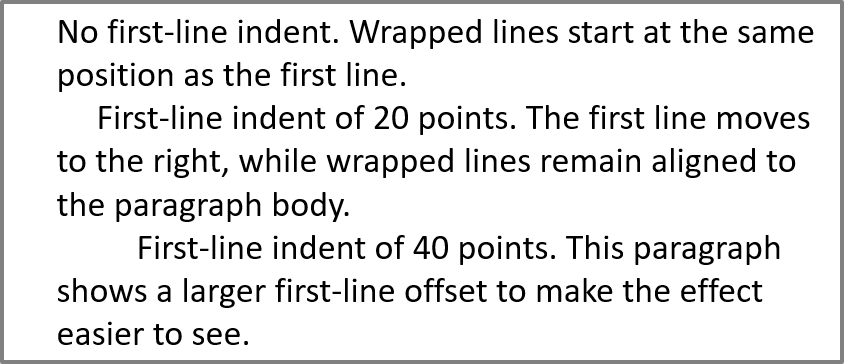
Utilisez la méthode ParagraphFormat.setIndent pour contrôler l’indentation de la première ligne d’un paragraphe. Ce paramètre ne déplace que la première ligne par rapport à la marge gauche du paragraphe. Une valeur positive décale la première ligne vers la droite, tandis que les lignes restantes restent alignées sur le corps du paragraphe.
Utilisez ParagraphFormat.setMarginLeft lorsque vous avez besoin de déplacer tout le paragraphe. Utilisez ParagraphFormat.setIndent lorsque vous devez déplacer uniquement la première ligne.
L’exemple suivant donne à trois paragraphes la même ParagraphFormat.setMarginLeft de 20 points et des valeurs de ParagraphFormat.setIndent de 0, 20 et 40 points. Les premières lignes commencent à des décalages progressivement plus importants, tandis que les lignes renvoyées conservent la même marge gauche :
import jpype
import asposeslides

if not jpype.isJVMStarted():
    jpype.startJVM()

from asposeslides.api import FillType, Paragraph, Presentation, SaveFormat, ShapeType, TextAutofitType
from java.awt import Color

presentation = Presentation()
try:
    slide = presentation.getSlides().get_Item(0)

    shape = slide.getShapes().addAutoShape(ShapeType.Rectangle, 50, 50, 420, 220)
    shape.getFillFormat().setFillType(FillType.NoFill)
    shape.getLineFormat().getFillFormat().setFillType(FillType.Solid)
    shape.getLineFormat().getFillFormat().getSolidFillColor().setColor(Color.GRAY)

    text_frame = shape.getTextFrame()
    text_frame.getTextFrameFormat().setAutofitType(TextAutofitType.Shape)
    text_frame.getParagraphs().clear()

    first_paragraph = Paragraph()
    first_paragraph.setText("No first-line indent. Wrapped lines start at the same position as the first line.")
    first_paragraph.getParagraphFormat().getDefaultPortionFormat().getFillFormat().setFillType(FillType.Solid)
    first_paragraph.getParagraphFormat().getDefaultPortionFormat().getFillFormat().getSolidFillColor().setColor(Color.BLACK)
    first_paragraph.getParagraphFormat().setMarginLeft(20.0)
    first_paragraph.getParagraphFormat().setIndent(0.0)

    second_paragraph = Paragraph()
    second_paragraph.setText("First-line indent of 20 points. The first line moves to the right, while wrapped lines remain aligned to the paragraph body.")
    second_paragraph.getParagraphFormat().getDefaultPortionFormat().getFillFormat().setFillType(FillType.Solid)
    second_paragraph.getParagraphFormat().getDefaultPortionFormat().getFillFormat().getSolidFillColor().setColor(Color.BLACK)
    second_paragraph.getParagraphFormat().setMarginLeft(20.0)
    second_paragraph.getParagraphFormat().setIndent(20.0)

    third_paragraph = Paragraph()
    third_paragraph.setText("First-line indent of 40 points. This paragraph shows a larger first-line offset to make the effect easier to see.")
    third_paragraph.getParagraphFormat().getDefaultPortionFormat().getFillFormat().setFillType(FillType.Solid)
    third_paragraph.getParagraphFormat().getDefaultPortionFormat().getFillFormat().getSolidFillColor().setColor(Color.BLACK)
    third_paragraph.getParagraphFormat().setMarginLeft(20.0)
    third_paragraph.getParagraphFormat().setIndent(40.0)

    text_frame.getParagraphs().add(first_paragraph)
    text_frame.getParagraphs().add(second_paragraph)
    text_frame.getParagraphs().add(third_paragraph)

    presentation.save("paragraph_indent.pptx", SaveFormat.Pptx)
finally:
    presentation.dispose()
Le résultat :
Définir une indentation suspendue
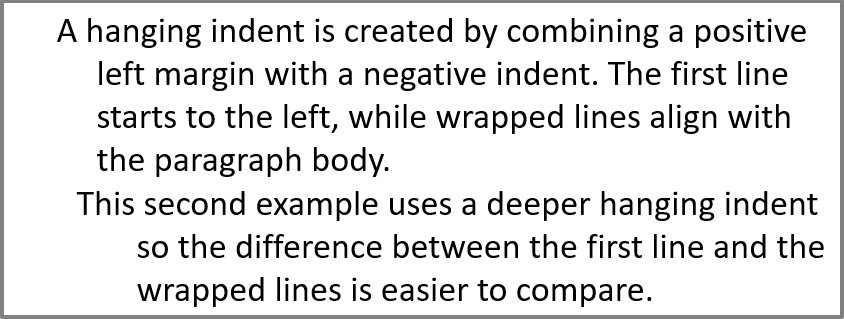
Une indentation suspendue est une mise en page de paragraphe dans laquelle la première ligne commence à gauche des lignes suivantes. Dans Aspose.Slides, vous créez cet effet avec la propriété ParagraphFormat.setIndent. Réglez Indent sur une valeur négative pour déplacer la première ligne vers la gauche par rapport au corps du paragraphe.
En pratique, ParagraphFormat.setMarginLeft définit la position gauche du corps du paragraphe, et ParagraphFormat.setIndent définit la position de la première ligne par rapport à cette marge. Pour créer une indentation suspendue, définissez une valeur positive pour MarginLeft et une valeur négative pour Indent.
Cette mise en forme est utile pour les bibliographies, références, entrées de glossaire et autres paragraphes où les lignes renvoyées doivent s’aligner sous le corps du paragraphe plutôt que sous le premier caractère de la première ligne.
L’exemple Python suivant associe des valeurs de ParagraphFormat.setMarginLeft de 40 et 60 points avec des valeurs de ParagraphFormat.setIndent de -20 et -30 points. Dans chaque paragraphe, la première ligne commence à gauche des lignes renvoyées ; le deuxième paragraphe possède une indentation suspendue plus profonde :
import jpype
import asposeslides

if not jpype.isJVMStarted():
    jpype.startJVM()

from asposeslides.api import FillType, Paragraph, Presentation, SaveFormat, ShapeType, TextAutofitType
from java.awt import Color

presentation = Presentation()
try:
    slide = presentation.getSlides().get_Item(0)

    shape = slide.getShapes().addAutoShape(ShapeType.Rectangle, 50, 50, 420, 220)
    shape.getFillFormat().setFillType(FillType.NoFill)
    shape.getLineFormat().getFillFormat().setFillType(FillType.Solid)
    shape.getLineFormat().getFillFormat().getSolidFillColor().setColor(Color.GRAY)

    text_frame = shape.getTextFrame()
    text_frame.getTextFrameFormat().setAutofitType(TextAutofitType.Shape)
    text_frame.getParagraphs().clear()

    first_paragraph = Paragraph()
    first_paragraph.setText("A hanging indent is created by combining a positive left margin with a negative indent. The first line starts to the left, while wrapped lines align with the paragraph body.")
    first_paragraph.getParagraphFormat().getDefaultPortionFormat().getFillFormat().setFillType(FillType.Solid)
    first_paragraph.getParagraphFormat().getDefaultPortionFormat().getFillFormat().getSolidFillColor().setColor(Color.BLACK)
    first_paragraph.getParagraphFormat().setMarginLeft(40.0)
    first_paragraph.getParagraphFormat().setIndent(-20.0)

    second_paragraph = Paragraph()
    second_paragraph.setText("This second example uses a deeper hanging indent so the difference between the first line and the wrapped lines is easier to compare.")
    second_paragraph.getParagraphFormat().getDefaultPortionFormat().setFillType(FillType.Solid)
    second_paragraph.getParagraphFormat().getDefaultPortionFormat().getFillFormat().getSolidFillColor().setColor(Color.BLACK)
    second_paragraph.getParagraphFormat().setMarginLeft(60.0)
    second_paragraph.getParagraphFormat().setIndent(-30.0)

    text_frame.getParagraphs().add(first_paragraph)
    text_frame.getParagraphs().add(second_paragraph)

    presentation.save("hanging_indent.pptx", SaveFormat.Pptx)
finally:
    presentation.dispose()
Le résultat :
Définir les propriétés de fin de paragraphe
La méthode Paragraph.setEndParagraphPortionFormat contrôle la mise en forme du marqueur de fin de paragraphe. L’exemple suivant crée un PortionFormat avec BasePortionFormat.setFontHeight réglé à 48 points et BasePortionFormat.setLatinFont défini sur Times New Roman. Il applique ce format au marqueur de fin du deuxième paragraphe, laissant les portions de texte visibles inchangées :
import jpype
import asposeslides

if not jpype.isJVMStarted():
    jpype.startJVM()

from asposeslides.api import FontData, Paragraph, Portion, PortionFormat, Presentation, SaveFormat, ShapeType

presentation = Presentation("Test.pptx")
try:
    slide = presentation.getSlides().get_Item(0)

    shape = slide.getShapes().addAutoShape(ShapeType.Rectangle, 10, 10, 200, 250)
    text_frame = shape.getTextFrame()
    text_frame.getParagraphs().clear()

    first_paragraph = Paragraph()
    first_portion = Portion("Sample text")
    first_paragraph.getPortions().add(first_portion)

    second_paragraph = Paragraph()
    second_portion = Portion("Sample text 2")
    second_paragraph.getPortions().add(second_portion)

    end_paragraph_format = PortionFormat()
    end_paragraph_format.setFontHeight(48)
    latin_font = FontData("Times New Roman")
    end_paragraph_format.setLatinFont(latin_font)
    second_paragraph.setEndParagraphPortionFormat(end_paragraph_format)

    text_frame.getParagraphs().add(first_paragraph)
    text_frame.getParagraphs().add(second_paragraph)

    presentation.save("end_paragraph_format.pptx", SaveFormat.Pptx)
finally:
    presentation.dispose()
Compter les lignes rendues
Pour les règles de paragraphe qui affectent le renvoi automatique et la ponctuation en fin de ligne, consultez Control Line Breaking et Control Hanging Punctuation.
Utilisez Paragraph.getLinesCount pour compter les lignes occupées par un paragraphe après la mise en page du texte, y compris le renvoi automatique. Ceci est utile lors de la vérification de la longueur du texte et de la mise en page dans les modèles de présentation.
Un paragraphe est un élément de TextFrame.getParagraphs, et il peut occuper plusieurs lignes rendues. Un saut de ligne explicite à l’intérieur d’un paragraphe force une nouvelle ligne sans créer un autre paragraphe. Le renvoi automatique crée des lignes en fonction de la largeur disponible sans insérer de sauts de ligne explicites dans le texte. Compter les paragraphes ou les caractères de saut de ligne ne donne donc pas le nombre de lignes rendues.
L’exemple suivant crée une forme de texte, compte ses lignes, rétrécit la forme, puis remplace le texte par une chaîne plus courte. L’exemple active le renvoi avec TextFrameFormat.setWrapText et désactive l’ajustement automatique avec TextFrameFormat.setAutofitType afin que la largeur de la forme contrôle le renvoi sans réduire automatiquement le texte ni redimensionner la forme. Chaque mesure utilise Paragraph.getLinesCount. Les dimensions de la forme sont exprimées en points. Enfin, l’exemple ajoute un autre paragraphe et additionne les comptes de lignes sur l’ensemble du cadre de texte.
import jpype
import asposeslides

if not jpype.isJVMStarted():
    jpype.startJVM()

from asposeslides.api import NullableBool, Paragraph, Presentation, ShapeType, TextAutofitType

presentation = Presentation()
try:
    slide = presentation.getSlides().get_Item(0)

    shape = slide.getShapes().addAutoShape(ShapeType.Rectangle, 50, 50, 400, 200)
    text_frame = shape.getTextFrame()
    text_frame.getTextFrameFormat().setWrapText(NullableBool.True_)
    text_frame.getTextFrameFormat().setAutofitType(TextAutofitType.None_)

    paragraph = text_frame.getParagraphs().get_Item(0)
    paragraph.getParagraphFormat().getDefaultPortionFormat().setFontHeight(20)
    paragraph.setText("This text demonstrates how automatic wrapping changes the number of rendered lines.")
    print("Original width:", paragraph.getLinesCount())

    shape.setWidth(150)
    print("Narrower shape:", paragraph.getLinesCount())

    paragraph.setText("Short text.")
    print("Shorter text:", paragraph.getLinesCount())

    second_paragraph = Paragraph()
    second_paragraph.setText("Another paragraph.")
    second_paragraph.getParagraphFormat().getDefaultPortionFormat().setFontHeight(20)
    text_frame.getParagraphs().add(second_paragraph)

    total_line_count = 0
    for current_paragraph in text_frame.getParagraphs():
        total_line_count += current_paragraph.getLinesCount()
    print("Total lines in the text frame:", total_line_count)
finally:
    presentation.dispose()
Avec ce texte et ces dimensions, le rétrécissement de la forme augmente le nombre de lignes, tandis que le remplacement du texte par la chaîne courte le réduit. Les comptes exacts peuvent varier selon la disponibilité et la substitution des polices, la taille de la police, les marges, l’indentation, le renvoi et les paramètres d’ajustement. Utilisez les polices et les paramètres de mise en page prévus pour l’environnement cible lors de la validation d’un modèle.
Le seul nombre de lignes ne détermine pas si le texte dépasse son conteneur. La hauteur disponible, la hauteur des lignes, l’espacement des paragraphes et des lignes, ainsi que le comportement d’ajustement sont également importants ; même une seule ligne peut dépasser la largeur disponible si le renvoi est désactivé.
Importer et exporter le contenu des paragraphes
Utilisez le HTML pour faire entrer du texte dans une présentation ou exporter des paragraphes existants afin de les réutiliser en dehors de celle‑ci. Cette section montre également comment rendre des paragraphes individuels en images, y compris les paragraphes dans les cellules de tableau.
Importer du texte HTML dans les paragraphes
Utilisez ParagraphCollection.addFromHtml pour convertir du balisage HTML en paragraphes et portions dans un cadre de texte.
Cet exemple Python lit le HTML depuis un fichier et transmet le balisage à ParagraphCollection.addFromHtml. Il supprime le paragraphe par défaut du cadre de texte afin que le cadre ne contienne que le contenu importé. La forme rectangulaire laisse une marge de 10 points de chaque côté de la diapositive :
import jpype
import asposeslides

if not jpype.isJVMStarted():
    jpype.startJVM()

from asposeslides.api import FillType, Presentation, SaveFormat, ShapeType
from pathlib import Path

presentation = Presentation()
try:
    slide = presentation.getSlides().get_Item(0)

    shape_width = presentation.getSlideSize().getSize().getWidth() - 20
    shape_height = presentation.getSlideSize().getSize().getHeight() - 20

    shape = slide.getShapes().addAutoShape(ShapeType.Rectangle, 10, 10, shape_width, shape_height)
    shape.getFillFormat().setFillType(FillType.NoFill)
    shape.getTextFrame().getParagraphs().clear()

    try:
        html = Path("file.html").read_text(encoding="utf-8")
        shape.getTextFrame().getParagraphs().addFromHtml(html)

        presentation.save("html_text.pptx", SaveFormat.Pptx)
    except OSError as exception:
        print("The HTML file could not be read: " + str(exception))
finally:
    presentation.dispose()
Exporter le texte du paragraphe en HTML
Utilisez ParagraphCollection.exportToHtml pour exporter une plage sélectionnée de paragraphes en HTML. Lorsque vous réutilisez le texte d’une présentation sur un site Web, vous pouvez vouloir conserver les emphases locales sans reporter la police, la taille ou les styles de zone de texte de la présentation. Réglez TextToHtmlConversionOptions.setTextInheritanceLimit pour contrôler jusqu’où l’exportateur suit l’héritage de la mise en forme.
Téléchargez la présentation d’exemple et placez‑la dans le répertoire de travail de l’application. Sa première diapositive contient une forme de texte avec le texte « Inherited text; explicit red 18pt ». L’entrée utilise délibérément plusieurs niveaux de mise en forme :
- Le style de texte par défaut de la présentation fournit Calibri en 28 pt.
- Le style de texte de premier niveau du cadre de texte fournit du texte bleu et italique.
- Le paragraphe définit explicitement le texte en gras.
- La deuxième portion, « explicit red 18pt », définit explicitement le texte rouge et une taille de 18 pt.
L’exemple complet suivant exporte les mêmes paragraphes trois fois. Il transmet TextToHtmlConversionOptions à la méthode d’exportation et écrit chaque résultat dans un fichier HTML UTF‑8 distinct :
import jpype
import asposeslides
from pathlib import Path

if not jpype.isJVMStarted():
    jpype.startJVM()

from asposeslides.api import AutoShape, Presentation, TextInheritanceLimit, TextToHtmlConversionOptions

presentation = Presentation("text-inheritance.pptx")
try:
    shape = presentation.getSlides().get_Item(0).getShapes().get_Item(0)

    if isinstance(shape, AutoShape):
        text_frame = shape.getTextFrame()
        if text_frame is not None:
            paragraphs = text_frame.getParagraphs()

            modes = [TextInheritanceLimit.All, TextInheritanceLimit.TextBox, TextInheritanceLimit.ParagraphOnly]
            file_names = ["All.html", "TextBox.html", "ParagraphOnly.html"]

            for mode, file_name in zip(modes, file_names):
                options = TextToHtmlConversionOptions()
                options.setTextInheritanceLimit(mode)

                html = paragraphs.exportToHtml(0, paragraphs.getCount(), options)
                try:
                    Path(file_name).write_text(str(html), encoding="utf-8")
                except OSError as exception:
                    print("The HTML file could not be written: " + str(exception))
        else:
            print("The first shape does not contain a text frame.")
    else:
        print("The first shape is not a text shape.")
finally:
    presentation.dispose()
Le HTML généré contient le CSS suivant pour la première portion, « Inherited text; ». Le tableau répertorie les déclarations pertinentes ; les autres propriétés générées sont omises pour plus de clarté.
| Sortie | CSS pertinent pour la première portion | Apparence |
|---|---|---|
All.html |
font-family:'Calibri'; font-size:28pt; color:#0000ff; font-style:italic; font-weight:bold |
Texte bleu, gras, italique à 28 pt en Calibri, si cette police est disponible. |
TextBox.html |
color:#0000ff; font-style:italic; font-weight:bold |
Texte bleu, gras, italique ; la page ou le navigateur fournit la famille de polices et la taille. |
ParagraphOnly.html |
font-weight:bold |
Texte gras ; la page ou le navigateur fournit la famille de polices, la taille, la couleur et le style italique. |
La deuxième portion conserve color:#ff0000, font-size:18pt et font-weight:bold dans les trois sorties. Elle conserve également l’italique avec All et TextBox, mais pas avec ParagraphOnly. Restreindre l’héritage ne supprime donc pas la mise en forme explicitement attribuée à un paragraphe ou à une portion.
Ouvrez les fichiers dans le même navigateur pour les comparer. Dans les deux modes restreints, les propriétés CSS omises sont résolues par les styles de la page de destination ou les paramètres par défaut du navigateur, de sorte que l’aspect final dépend de l’endroit où le HTML est utilisé.
Rendre un paragraphe en image
Paragraph.getImage rend directement un paragraphe individuel et renvoie un objet image. Enregistrez le résultat dans un fichier ou un flux avec sa méthode save. Vous n’avez pas besoin de rendre la forme contenant ou de recadrer manuellement le bitmap.
Paragraph.getImage peut renvoyer None si le paragraphe n’est pas trouvé dans sa collection parente, n’a pas de limites de rendu valides, ou ne peut pas être rendu. Vérifiez le résultat avant de l’enregistrer et libérez l’image retournée après utilisation.
Rendre un paragraphe à l’échelle par défaut
L’exemple utilise une présentation d’une diapositive dont la première forme est une zone de texte contenant trois paragraphes.
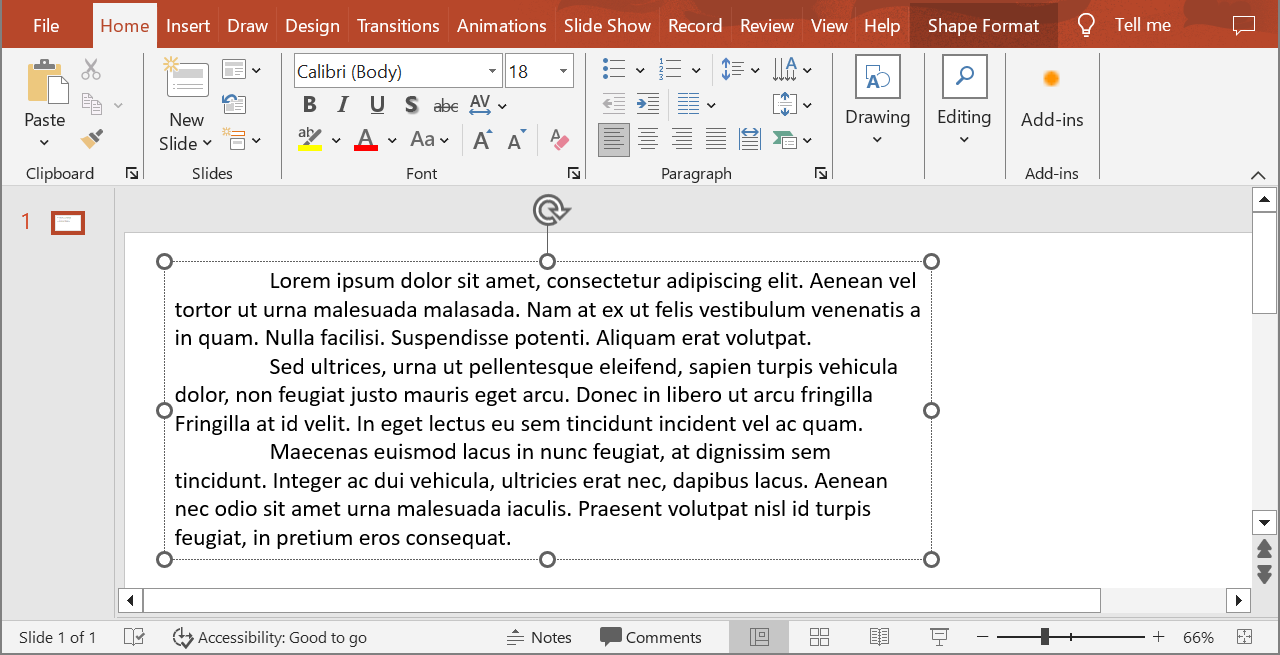
L’exemple suivant sélectionne le deuxième paragraphe (indice 1) et appelle Paragraph.getImage sans paramètres d’échelle. Il vérifie que la forme contient le paragraphe requis et que le rendu renvoie une image avant d’appeler sa méthode save pour l’enregistrer au format PNG. Le bloc finally libère l’image après utilisation.
import jpype
import asposeslides

if not jpype.isJVMStarted():
    jpype.startJVM()

from asposeslides.api import AutoShape, ImageFormat, Presentation

presentation = Presentation("sample.pptx")
try:
    shape = presentation.getSlides().get_Item(0).getShapes().get_Item(0)

    if isinstance(shape, AutoShape):
        text_shape = shape
        text_frame = text_shape.getTextFrame()
        if text_frame is not None and text_frame.getParagraphs().getCount() > 1:
            paragraph = text_frame.getParagraphs().get_Item(1)
            paragraph_image = paragraph.getImage()

            if paragraph_image is not None:
                try:
                    paragraph_image.save("paragraph.png", ImageFormat.Png)
                finally:
                    paragraph_image.dispose()
            else:
                print("The paragraph could not be rendered.")
        else:
            print("The expected paragraph was not found.")
    else:
        print("The first shape is not a text shape.")
finally:
    presentation.dispose()
Le résultat :

Rendre un paragraphe dans une cellule de tableau avec mise à l’échelle
Utilisez la surcharge de Paragraph.getImage qui accepte les paramètres scale_x et scale_y pour définir les facteurs d’échelle horizontaux et verticaux. L’exemple suivant crée un tableau, rend le paragraphe dans sa première cellule à deux fois sa largeur et hauteur par défaut, et enregistre le résultat sous forme d’image PNG.
import jpype
import asposeslides

if not jpype.isJVMStarted():
    jpype.startJVM()

from asposeslides.api import ImageFormat, Presentation

scale_x = 2.0
scale_y = 2.0
presentation = Presentation()
try:
    slide = presentation.getSlides().get_Item(0)

    table = slide.getShapes().addTable(50, 50, [300.0], [80.0])

    paragraph = table.get_Item(0, 0).getTextFrame().getParagraphs().get_Item(0)
    paragraph.setText("Text in a table cell")

    paragraph_image = paragraph.getImage(scale_x, scale_y)

    if paragraph_image is not None:
        try:
            paragraph_image.save("table_paragraph.png", ImageFormat.Png)
        finally:
            paragraph_image.dispose()
    else:
        print("The paragraph could not be rendered.")
finally:
    presentation.dispose()
Un facteur d’échelle de 1 conserve cet axe à sa taille de pixel par défaut. Par exemple, 2 pour les deux facteurs produit une image dont la largeur et la hauteur sont approximativement deux fois les dimensions par défaut, soit quatre fois plus de pixels. Des facteurs plus élevés produisent généralement un texte plus net pour le zoom ou la sortie haute résolution, mais augmentent également l’utilisation de mémoire et la taille du fichier. Des facteurs inférieurs à 1 produisent des images plus petites avec moins de détails. Utilisez des facteurs égaux pour préserver le rapport d’aspect du paragraphe ; des facteurs différents horizontalement et verticalement étirent la sortie indépendamment.
Rendre une forme entière avec Shape.getImage reste utile lorsque la sortie doit inclure le remplissage, la bordure ou d’autres contextes visuels de la forme. Pour une image contenant uniquement le paragraphe, utilisez Paragraph.getImage.
FAQ
Puis‑je désactiver complètement le renvoi de texte à l’intérieur d’un cadre de texte ?
Oui. Définissez TextFrameFormat.setWrapText pour désactiver le renvoi afin que les lignes ne se cassent pas aux bords du cadre de texte.
Comment obtenir les limites exactes d’un paragraphe spécifique sur la diapositive ?
Utilisez Paragraph.getRect pour récupérer le rectangle englobant du paragraphe. Portion.getRect fournit les limites d’une portion individuelle.
Où est‑elle contrôlée l’alignement du paragraphe (gauche, droite, centre ou justifié) ?
ParagraphFormat.setAlignment est un paramètre au niveau du paragraphe et s’applique à tout le paragraphe, indépendamment de la mise en forme des portions individuelles.
Pour aligner verticalement des portions de tailles de police différentes au sein de chaque ligne, voir Align Fonts Within a Line.
Puis‑je définir la langue de vérification orthographique pour une partie d’un paragraphe ?
Oui. Définissez BasePortionFormat.setLanguageId pour des portions individuelles, de sorte qu’un paragraphe puisse contenir du texte dans plusieurs langues.