
使用 C++ 在簡報中套用形狀效果
簡介
雖然 PowerPoint 中的效果可用於讓形狀脫穎而出,但它們與 填色 或輪廓不同。使用 PowerPoint 效果,您可以在形狀上創建逼真的反射、擴散形狀的發光等。
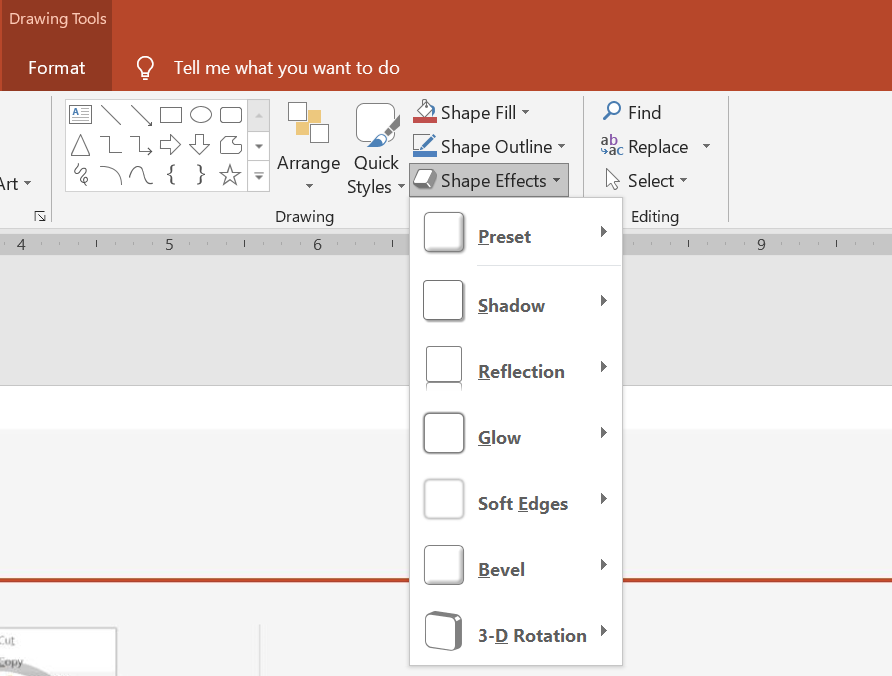
PowerPoint 提供六種可套用於形狀的效果。您可以對形狀套用一個或多個效果。
某些效果組合比其他組合更好看。為此,PowerPoint 在 預設 下提供選項。預設選項本質上是已知兩種或以上效果的良好組合。透過選取預設,您無需浪費時間測試或組合不同的效果以找到合適的組合。
Aspose.Slides 在 EffectFormat 類別中提供屬性與方法,讓您能在 PowerPoint 簡報的形狀上套用相同的效果。
套用陰影效果
Aspose.Slides for C++ 支援形狀的外部與內部陰影。您可以自訂其顏色、方向、距離與模糊半徑,以符合簡報的設計。
套用外部陰影
使用外部陰影可讓卡片或面板在投影片背景中突顯。陰影延伸至形狀邊緣之外,營造形狀浮於投影片上的感覺。調整其顏色、方向、距離與模糊半徑,以匹配範本的光線與樣式。
以下 C++ 程式碼示範如何將 外部陰影效果 套用至矩形:
#include <DOM/Effects/IOuterShadow.h>
#include <DOM/IAutoShape.h>
#include <DOM/IColorFormat.h>
#include <DOM/IEffectFormat.h>
#include <DOM/IShapeCollection.h>
#include <DOM/ISlide.h>
#include <DOM/Presentation.h>
#include <DOM/ShapeType.h>
#include <Export/SaveFormat.h>
#include <drawing/color.h>

using namespace Aspose::Slides;
using namespace Aspose::Slides::Export;
using namespace System::Drawing;

auto presentation = System::MakeObject<Presentation>();
auto slide = presentation->get_Slide(0);

auto shape = slide->get_Shapes()->AddAutoShape(ShapeType::RoundCornerRectangle, 20.0f, 20.0f, 200.0f, 100.0f);
auto effectFormat = shape->get_EffectFormat();
effectFormat->EnableOuterShadowEffect();
auto outerShadowEffect = effectFormat->get_OuterShadowEffect();
outerShadowEffect->get_ShadowColor()->set_Color(Color::get_DarkGray());
outerShadowEffect->set_Distance(10);
outerShadowEffect->set_Direction(45.0f);

presentation->Save(u"shadow_effect.pptx", SaveFormat::Pptx);

套用內部陰影
在重現範本的視覺樣式時,使用內部陰影可為卡片或面板營造凹陷的外觀。外部陰影延伸至形狀外部,使其看起來凸起,而內部陰影則為其邊緣內部上色。
呼叫 EnableInnerShadowEffect,然後設定 InnerShadowEffect。較大的模糊半徑值會產生較柔和的邊緣。
以下 C++ 範例建立一張淡藍色卡片,帶有深灰色內部陰影,並將其儲存為 PPTX 檔案:
#include <DOM/Effects/IInnerShadow.h>
#include <DOM/IAutoShape.h>
#include <DOM/IColorFormat.h>
#include <DOM/IEffectFormat.h>
#include <DOM/IFillFormat.h>
#include <DOM/ILineFormat.h>
#include <DOM/IShapeCollection.h>
#include <DOM/ISlide.h>
#include <DOM/Presentation.h>
#include <DOM/FillType.h>
#include <DOM/ShapeType.h>
#include <Export/SaveFormat.h>
#include <drawing/color.h>

using namespace Aspose::Slides;
using namespace Aspose::Slides::Export;
using namespace System::Drawing;

auto presentation = System::MakeObject<Presentation>();
auto slide = presentation->get_Slide(0);

auto shape = slide->get_Shapes()->AddAutoShape(ShapeType::Rectangle, 20.0f, 20.0f, 200.0f, 100.0f);
shape->get_FillFormat()->set_FillType(FillType::Solid);
shape->get_FillFormat()->get_SolidFillColor()->set_Color(Color::get_LightBlue());
shape->get_LineFormat()->get_FillFormat()->set_FillType(FillType::NoFill);

shape->get_EffectFormat()->EnableInnerShadowEffect();
auto shadow = shape->get_EffectFormat()->get_InnerShadowEffect();
shadow->get_ShadowColor()->set_Color(Color::get_DimGray());
shadow->set_Direction(225);
shadow->set_Distance(7);
shadow->set_BlurRadius(6);

presentation->Save(u"inner_shadow_effect.pptx", SaveFormat::Pptx);

若要移除內部陰影,請在形狀的 effect format 上呼叫 DisableInnerShadowEffect。
套用反射效果
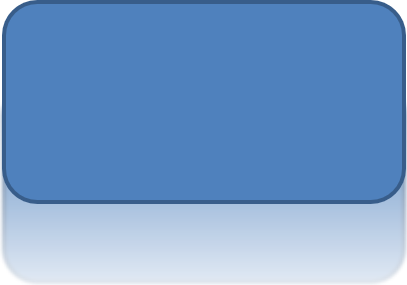
在 Aspose.Slides for C++ 中套用反射效果時,您可以為形狀加入類似鏡面的反射,並調整距離、透明度和大小等參數。此效果可提升簡報的美感,使形狀看起來更精緻、優雅。透過簡單的程式碼即可輕鬆實作,快速地在多個元件上套用以維持一致的設計。
以下 C++ 程式碼示範如何將 反射效果 套用至形狀:
#include <DOM/Effects/IReflection.h>
#include <DOM/IAutoShape.h>
#include <DOM/IEffectFormat.h>
#include <DOM/IShapeCollection.h>
#include <DOM/ISlide.h>
#include <DOM/Presentation.h>
#include <DOM/RectangleAlignment.h>
#include <DOM/ShapeType.h>
#include <Export/SaveFormat.h>

using namespace Aspose::Slides;
using namespace Aspose::Slides::Export;

auto presentation = System::MakeObject<Presentation>();
auto slide = presentation->get_Slide(0);

auto shape = slide->get_Shapes()->AddAutoShape(ShapeType::RoundCornerRectangle, 20.0f, 20.0f, 200.0f, 100.0f);
auto effectFormat = shape->get_EffectFormat();
effectFormat->EnableReflectionEffect();
auto reflectionEffect = effectFormat->get_ReflectionEffect();
reflectionEffect->set_RectangleAlign(RectangleAlignment::Bottom);
reflectionEffect->set_Direction(90.0f);
reflectionEffect->set_Distance(40);
reflectionEffect->set_BlurRadius(2);

presentation->Save(u"reflection_effect.pptx", SaveFormat::Pptx);
套用發光效果
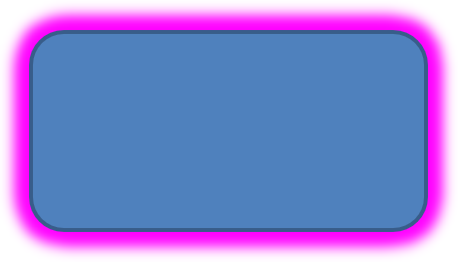
在 Aspose.Slides for C++ 中為形狀套用發光效果時,您可以在形狀周圍加入柔和、發光的光暈,並調整顏色與大小等屬性。此效果有助於凸顯形狀,為簡報增添吸引人的視覺元素。使用極少的程式碼即可輕鬆實作,提升投影片的整體外觀。
以下 C++ 程式碼示範如何將 發光效果 套用至形狀:
#include <DOM/Effects/IGlow.h>
#include <DOM/IAutoShape.h>
#include <DOM/IColorFormat.h>
#include <DOM/IEffectFormat.h>
#include <DOM/IShapeCollection.h>
#include <DOM/ISlide.h>
#include <DOM/Presentation.h>
#include <DOM/ShapeType.h>
#include <Export/SaveFormat.h>
#include <drawing/color.h>

using namespace Aspose::Slides;
using namespace Aspose::Slides::Export;
using namespace System::Drawing;

auto presentation = System::MakeObject<Presentation>();
auto slide = presentation->get_Slide(0);

auto shape = slide->get_Shapes()->AddAutoShape(ShapeType::RoundCornerRectangle, 20.0f, 20.0f, 200.0f, 100.0f);
auto effectFormat = shape->get_EffectFormat();
effectFormat->EnableGlowEffect();
auto glowEffect = effectFormat->get_GlowEffect();
glowEffect->get_Color()->set_Color(Color::get_Magenta());
glowEffect->set_Radius(15);

presentation->Save(u"glow_effect.pptx", SaveFormat::Pptx);
套用柔化邊緣效果
在 Aspose.Slides for C++ 中套用柔化邊緣效果時,您可以在形狀的邊緣建立平滑、模糊的過渡。此效果增添更細緻、精緻的外觀,非常適合需要柔和外觀的設計。您可輕鬆調整半徑等參數,以在簡報的各種形狀上實現理想的效果。
以下 C++ 程式碼示範如何將 柔化邊緣 套用至形狀:
#include <DOM/Effects/ISoftEdge.h>
#include <DOM/IAutoShape.h>
#include <DOM/IEffectFormat.h>
#include <DOM/IShapeCollection.h>
#include <DOM/ISlide.h>
#include <DOM/Presentation.h>
#include <DOM/ShapeType.h>
#include <Export/SaveFormat.h>

using namespace Aspose::Slides;
using namespace Aspose::Slides::Export;

auto presentation = System::MakeObject<Presentation>();
auto slide = presentation->get_Slide(0);

auto shape = slide->get_Shapes()->AddAutoShape(ShapeType::RoundCornerRectangle, 20.0f, 20.0f, 200.0f, 150.0f);
auto effectFormat = shape->get_EffectFormat();
effectFormat->EnableSoftEdgeEffect();
auto softEdgeEffect = effectFormat->get_SoftEdgeEffect();
softEdgeEffect->set_Radius(8);

presentation->Save(u"soft_edges_effect.pptx", SaveFormat::Pptx);

常見問題
我可以對同一個形狀套用多個效果嗎?
是的,您可以在單一形狀上結合不同的效果,例如陰影、反射和發光,以呈現更具動態的外觀。
我可以對哪些形狀套用效果?
您可以對各種形狀套用效果,包括自動圖案、圖表、表格、圖片、SmartArt 物件、OLE 物件等。
我可以對群組形狀套用效果嗎?
是的,您可以對群組形狀套用效果。效果將套用於整個群組。