
在簡報中使用 C++ 套用形狀動畫
概觀
若要處理效果內的個別行為或編輯動態路徑段,請參閱Custom Animation。
Aspose.Slides for C++ 以投影片時間軸中的效果來表示投影片動畫。每個效果具有目標形狀、動畫類型與子類型、觸發器、時間設定,以及聲音或動畫後行為等可選屬性。
時間軸包含兩種序列:
- 主要序列在投影片前進時播放。
- 互動序列在其觸發形狀被點擊時開始。
由於文字方塊、圖片、圖表、表格及其他投影片物件皆實作 IShape,您可對大多數投影片內容使用相同的 ISequence::AddEffect 方法。可用的效果列於 EffectType 列舉。
新增形狀動畫
若要新增動畫,取得投影片的主要序列,並以目標形狀、效果類型、子類型與觸發器呼叫 ISequence::AddEffect。若效果需在點擊另一個形狀時開始,請建立一個觸發該形狀的互動序列。
下列範例建立兩種動畫,並將結果儲存為 shape-animations.pptx。
#include <DOM/Animation/EffectSubtype.h>
#include <DOM/Animation/EffectTriggerType.h>
#include <DOM/Animation/EffectType.h>
#include <DOM/Animation/IEffect.h>
#include <DOM/Animation/ISequence.h>
#include <DOM/Animation/ISequenceCollection.h>
#include <DOM/Animation/ITiming.h>
#include <DOM/IAnimationTimeLine.h>
#include <DOM/IAutoShape.h>
#include <DOM/IShapeCollection.h>
#include <DOM/ISlide.h>
#include <DOM/ISlideCollection.h>
#include <DOM/ITextFrame.h>
#include <DOM/Presentation.h>
#include <DOM/ShapeType.h>
#include <Export/SaveFormat.h>

using namespace Aspose::Slides;
using namespace Aspose::Slides::Animation;
using namespace Aspose::Slides::Export;
using namespace System;

auto presentation = MakeObject<Presentation>();
auto slide = presentation->get_Slide(0);

auto targetShape = slide->get_Shapes()->AddAutoShape(ShapeType::RoundCornerRectangle, 120.0f, 100.0f, 320.0f, 80.0f);
targetShape->get_TextFrame()->set_Text(u"Click to animate this shape");

auto mainSequence = slide->get_Timeline()->get_MainSequence();
auto entranceEffect = mainSequence->AddEffect(targetShape, EffectType::Fade, EffectSubtype::None, EffectTriggerType::OnClick);
entranceEffect->get_Timing()->set_Duration(1.5f);

auto triggerShape = slide->get_Shapes()->AddAutoShape(ShapeType::Bevel, 20.0f, 20.0f, 100.0f, 40.0f);
triggerShape->get_TextFrame()->set_Text(u"Move");

auto interactiveSequence = slide->get_Timeline()->get_InteractiveSequences()->Add(triggerShape);
interactiveSequence->AddEffect(targetShape, EffectType::PathFootball, EffectSubtype::None, EffectTriggerType::OnClick);

presentation->Save(u"shape-animations.pptx", SaveFormat::Pptx);
presentation->Dispose();
觸發器控制效果何時開始:
- EffectTriggerType::OnClick 在主要序列中等待點擊,或在互動序列中等待對觸發形狀的點擊。
- EffectTriggerType::WithPrevious 與前一個效果同時開始。
- EffectTriggerType::AfterPrevious 在前一個效果結束時開始。
若要為圖片、圖表或其他形狀類型設定動畫,請將該物件傳遞給 ISequence::AddEffect,而非 targetShape。有關圖表專屬的群組選項,請參閱 Animated Charts。
讀取形狀動畫
當您已知目標形狀時,使用 ISequence::GetEffectsByShape。若要檢查每個效果,請列舉主要序列與所有互動序列。列舉可避免假設序列在索引 0 處一定有效果。
下列範例建立具有主要序列與互動效果的形狀,取得針對該形狀的效果,然後列舉投影片上的每個序列。
#include <DOM/Animation/EffectSubtype.h>
#include <DOM/Animation/EffectTriggerType.h>
#include <DOM/Animation/EffectType.h>
#include <DOM/Animation/IEffect.h>
#include <DOM/Animation/ISequence.h>
#include <DOM/Animation/ISequenceCollection.h>
#include <DOM/Animation/ITiming.h>
#include <DOM/IAnimationTimeLine.h>
#include <DOM/IAutoShape.h>
#include <DOM/IShape.h>
#include <DOM/IShapeCollection.h>
#include <DOM/ISlide.h>
#include <DOM/ISlideCollection.h>
#include <DOM/ITextFrame.h>
#include <DOM/Presentation.h>
#include <DOM/ShapeType.h>
#include <system/console.h>
#include <system/string.h>

using namespace Aspose::Slides;
using namespace Aspose::Slides::Animation;
using namespace System;

auto printSequence = [](const String& label, const SharedPtr<ISequence>& sequence)
{
    Console::WriteLine(String::Format(u"  {0}: {1} effect(s)", label, sequence->get_Count()));

    for (const auto& effect : sequence)
    {
        auto targetName = effect->get_TargetShape() == nullptr ? u"unknown" : effect->get_TargetShape()->get_Name();
        auto effectDescription = String::Format(u"{0} {1}; target: {2}; trigger: {3}", effect->get_Type(), effect->get_Subtype(), targetName, effect->get_Timing()->get_TriggerType());
        Console::WriteLine(u"    " + effectDescription);
    }
};

auto presentation = MakeObject<Presentation>();
auto slide = presentation->get_Slide(0);
auto targetShape = slide->get_Shapes()->AddAutoShape(ShapeType::Rectangle, 120.0f, 100.0f, 320.0f, 80.0f);
targetShape->get_TextFrame()->set_Text(u"Animated shape");

auto mainSequence = slide->get_Timeline()->get_MainSequence();
mainSequence->AddEffect(targetShape, EffectType::Fade, EffectSubtype::None, EffectTriggerType::OnClick);

auto triggerShape = slide->get_Shapes()->AddAutoShape(ShapeType::Bevel, 20.0f, 20.0f, 100.0f, 40.0f);
triggerShape->get_TextFrame()->set_Text(u"Move");

auto interactiveSequence = slide->get_Timeline()->get_InteractiveSequences()->Add(triggerShape);
interactiveSequence->AddEffect(targetShape, EffectType::PathFootball, EffectSubtype::None, EffectTriggerType::OnClick);

auto targetEffects = mainSequence->GetEffectsByShape(targetShape);
Console::WriteLine(String::Format(u"The main sequence contains {0} effect(s) for {1}.", targetEffects->get_Length(), targetShape->get_Name()));

printSequence(u"Main sequence", mainSequence);

int32_t interactiveIndex = 1;
for (const auto& sequence : slide->get_Timeline()->get_InteractiveSequences())
{
    auto triggerName = sequence->get_TriggerShape() == nullptr ? u"unknown" : sequence->get_TriggerShape()->get_Name();
    auto sequenceLabel = String::Format(u"Interactive sequence {0}, trigger: {1}", interactiveIndex, triggerName);
    printSequence(sequenceLabel, sequence);
    interactiveIndex++;
}

presentation->Dispose();
如果只需要單一形狀的效果,請先以名稱、占位符類型或其他穩定屬性辨識該形狀;接著呼叫 ISequence::GetEffectsByShape。不要假設索引 0 的 IShapeCollection::idx_get 必定是目標物件。
處理繼承的占位符效果
一般投影片上的占位符可以從其版面投影片與母片上的相對應占位符繼承動畫行為。 IShape::GetBasePlaceholder 會返回該父占位符,若不存在則返回 nullptr。
在下列示範投影片中,頁腳在一般投影片上為 Random Bars,在版面投影片上為 Split,在母片上為 Fly In。
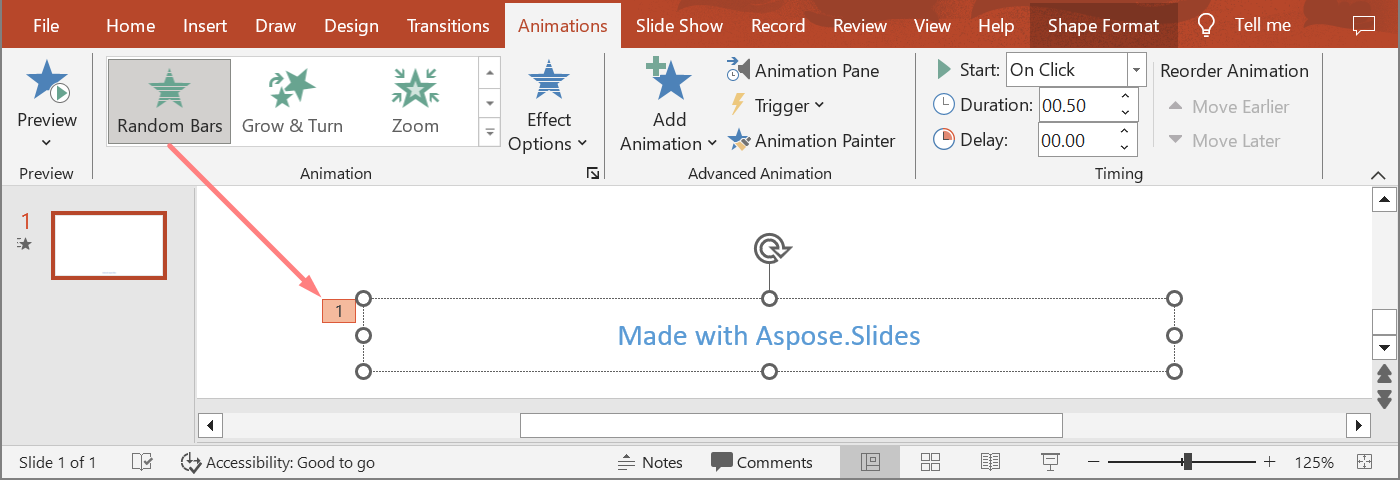
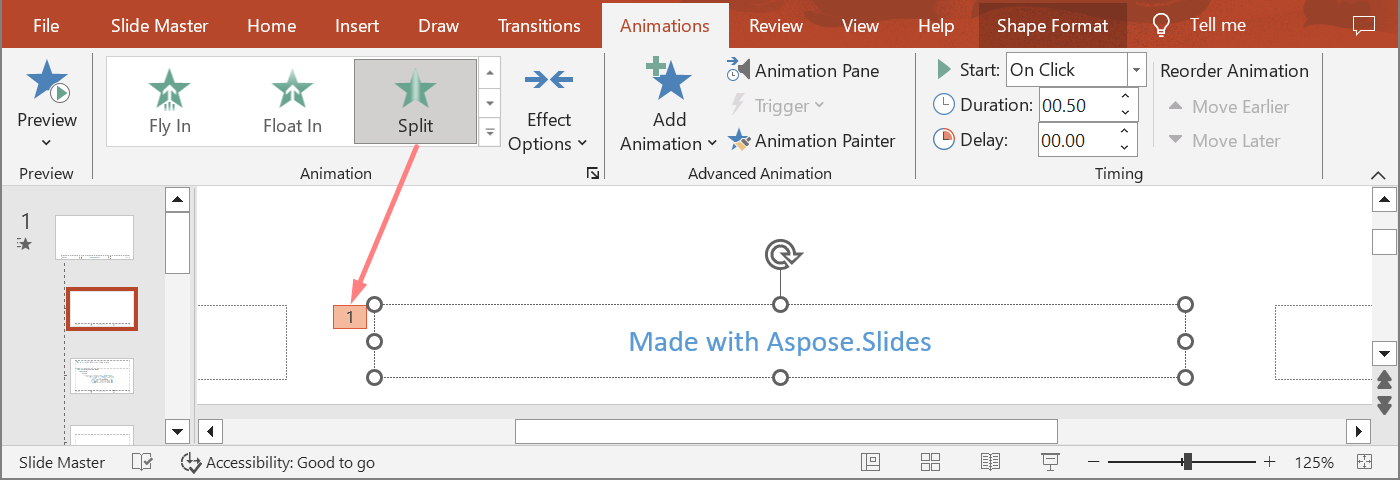
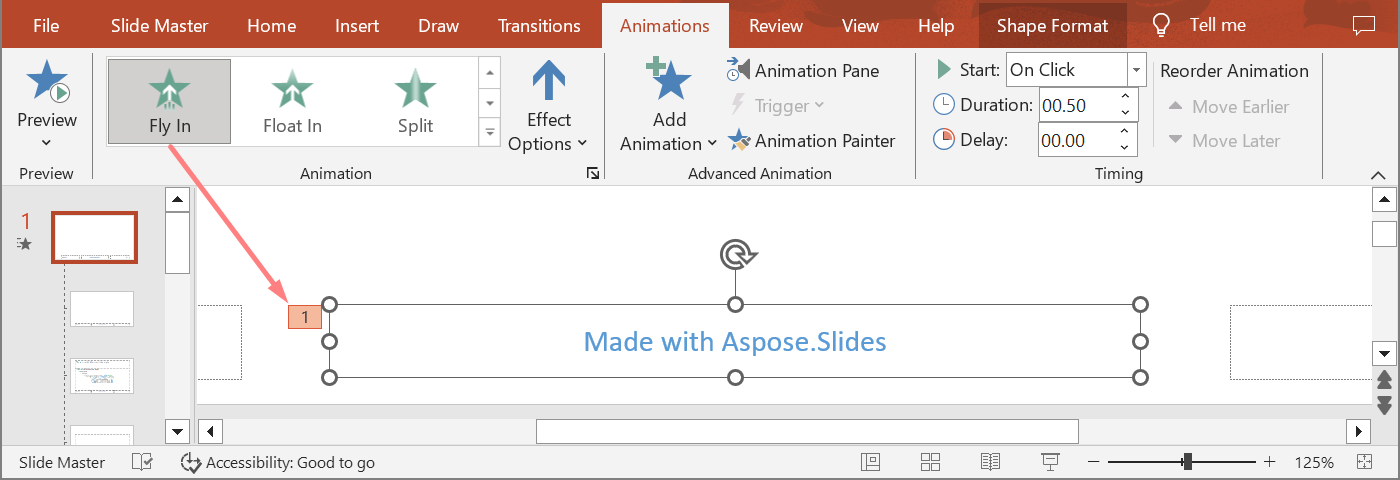
以下範例自行建構占位符層級。它會為母片占位符、版面占位符以及一般投影片上的相對應占位符加入效果。在使用返回的形狀之前,會先檢查每一次對 IShape::GetBasePlaceholder 的呼叫。
#include <DOM/Animation/EffectSubtype.h>
#include <DOM/Animation/EffectTriggerType.h>
#include <DOM/Animation/EffectType.h>
#include <DOM/Animation/IEffect.h>
#include <DOM/Animation/ISequence.h>
#include <DOM/IAnimationTimeLine.h>
#include <DOM/IAutoShape.h>
#include <DOM/IGlobalLayoutSlideCollection.h>
#include <DOM/ILayoutPlaceholderManager.h>
#include <DOM/ILayoutSlide.h>
#include <DOM/IMasterSlide.h>
#include <DOM/IShape.h>
#include <DOM/IShapeCollection.h>
#include <DOM/ISlide.h>
#include <DOM/ISlideCollection.h>
#include <DOM/Presentation.h>
#include <DOM/SlideLayoutType.h>
#include <Export/SaveFormat.h>
#include <system/array.h>
#include <system/console.h>
#include <system/exceptions.h>
#include <system/string.h>

using namespace Aspose::Slides;
using namespace Aspose::Slides::Animation;
using namespace Aspose::Slides::Export;
using namespace System;

auto findPlaceholderWithBase = [](const SharedPtr<ISlide>& slide) -> SharedPtr<IShape>
{
    for (const auto& shape : slide->get_Shapes())
    {
        if (shape->GetBasePlaceholder() != nullptr)
            return shape;
    }

    return nullptr;
};

auto printEffects = [](const String& source, const ArrayPtr<SharedPtr<IEffect>>& effects)
{
    Console::WriteLine(String::Format(u"{0}: {1} effect(s)", source, effects->get_Length()));

    for (const auto& effect : effects)
        Console::WriteLine(String::Format(u"  {0} {1}", effect->get_Type(), effect->get_Subtype()));
};

auto presentation = MakeObject<Presentation>();
auto layoutSlide = presentation->get_LayoutSlides()->GetByType(SlideLayoutType::Blank);
auto layoutPlaceholder = layoutSlide->get_PlaceholderManager()->AddTextPlaceholder(100.0f, 100.0f, 400.0f, 80.0f);
layoutSlide->get_Timeline()->get_MainSequence()->AddEffect(layoutPlaceholder, EffectType::Split, EffectSubtype::VerticalIn, EffectTriggerType::OnClick);

auto masterPlaceholder = layoutPlaceholder->GetBasePlaceholder();
if (masterPlaceholder != nullptr)
{
    auto masterSequence = layoutSlide->get_MasterSlide()->get_Timeline()->get_MainSequence();
    masterSequence->AddEffect(masterPlaceholder, EffectType::Fly, EffectSubtype::Bottom, EffectTriggerType::OnClick);
}

auto slide = presentation->get_Slides()->AddEmptySlide(layoutSlide);
auto slidePlaceholder = findPlaceholderWithBase(slide);

if (slidePlaceholder == nullptr)
    throw InvalidOperationException(u"The slide does not contain a placeholder linked to its layout slide.");

slide->get_Timeline()->get_MainSequence()->AddEffect(slidePlaceholder, EffectType::RandomBars, EffectSubtype::Horizontal, EffectTriggerType::OnClick);
printEffects(u"Normal slide", slide->get_Timeline()->get_MainSequence()->GetEffectsByShape(slidePlaceholder));

auto baseLayoutPlaceholder = slidePlaceholder->GetBasePlaceholder();
if (baseLayoutPlaceholder != nullptr)
{
    printEffects(u"Layout slide", layoutSlide->get_Timeline()->get_MainSequence()->GetEffectsByShape(baseLayoutPlaceholder));

    auto baseMasterPlaceholder = baseLayoutPlaceholder->GetBasePlaceholder();
    if (baseMasterPlaceholder != nullptr)
        printEffects(u"Master slide", layoutSlide->get_MasterSlide()->get_Timeline()->get_MainSequence()->GetEffectsByShape(baseMasterPlaceholder));
}

presentation->Save(u"placeholder-animations.pptx", SaveFormat::Pptx);
presentation->Dispose();
變更動畫時間設定
PowerPoint Timing 對話框對應到 ITiming 的方法。
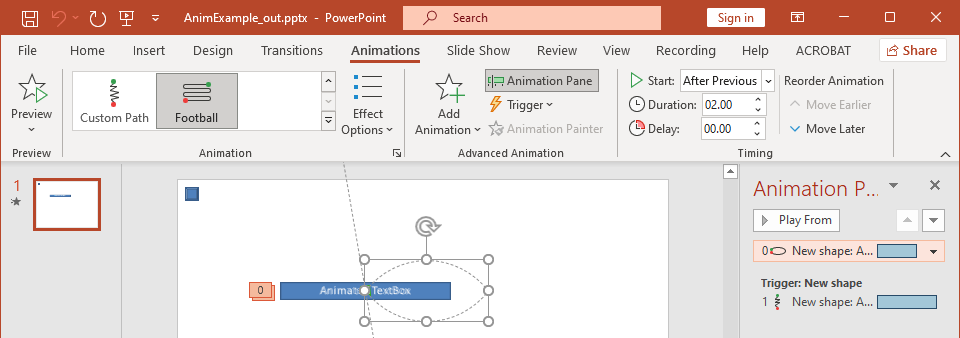
- 開始 對應到 ITiming::set_TriggerType。
- 持續時間 對應到 ITiming::set_Duration,以秒為單位。
- 延遲 對應到 ITiming::set_TriggerDelayTime,以秒為單位。
- 重複 對應到 ITiming::set_RepeatCount、ITiming::set_RepeatUntilNextClick 或 ITiming::set_RepeatUntilEndSlide。
- 播放完成後倒帶 對應到 ITiming::set_Rewind。
此獨立範例加入效果,透過 [ISequence::AddEffect] 回傳的物件變更其時間設定,並儲存結果。保留回傳的 [IEffect] 參考可避免不必要的集合索引。
#include <DOM/Animation/EffectSubtype.h>
#include <DOM/Animation/EffectTriggerType.h>
#include <DOM/Animation/EffectType.h>
#include <DOM/Animation/IEffect.h>
#include <DOM/Animation/ISequence.h>
#include <DOM/Animation/ITiming.h>
#include <DOM/IAnimationTimeLine.h>
#include <DOM/IAutoShape.h>
#include <DOM/IShapeCollection.h>
#include <DOM/ISlide.h>
#include <DOM/ISlideCollection.h>
#include <DOM/ITextFrame.h>
#include <DOM/Presentation.h>
#include <DOM/ShapeType.h>
#include <Export/SaveFormat.h>

using namespace Aspose::Slides;
using namespace Aspose::Slides::Animation;
using namespace Aspose::Slides::Export;
using namespace System;

auto presentation = MakeObject<Presentation>();
auto slide = presentation->get_Slide(0);
auto shape = slide->get_Shapes()->AddAutoShape(ShapeType::Rectangle, 120.0f, 100.0f, 320.0f, 80.0f);
shape->get_TextFrame()->set_Text(u"Timed animation");

auto effect = slide->get_Timeline()->get_MainSequence()->AddEffect(shape, EffectType::Fade, EffectSubtype::None, EffectTriggerType::OnClick);
effect->get_Timing()->set_TriggerType(EffectTriggerType::OnClick);
effect->get_Timing()->set_Duration(2.0f);
effect->get_Timing()->set_TriggerDelayTime(0.5f);
effect->get_Timing()->set_RepeatUntilNextClick(false);
effect->get_Timing()->set_RepeatUntilEndSlide(false);
effect->get_Timing()->set_RepeatCount(2.0f);
effect->get_Timing()->set_Rewind(true);

presentation->Save(u"shape-animation-timing.pptx", SaveFormat::Pptx);
presentation->Dispose();
請有意只使用一種重複模式。將重複次數與「until」旗標結合可能在不同的檢視器中產生混淆結果。變更重複模式時,請先呼叫 [ITiming::set_RepeatUntilNextClick]… 與 [ITiming::set_RepeatUntilEndSlide]…,再呼叫 [ITiming::set_RepeatCount]…,因為設定任一旗標會同時改變當前的重複模式。
新增與擷取動畫音效
動畫效果可透過 IEffect::set_Sound 參考嵌入的音訊。IEffect::set_StopPreviousSound 可指示效果停止先前效果啟動的音訊。
為效果新增音效
下列範例需要一個名為 animation-sound.wav 的本機音訊檔案。它建立兩個效果,將該檔案嵌入為第一個效果的音效,並設定第二個效果停止該音效。它使用由 [ISequence::AddEffect]… 回傳的物件,因此不需要序列索引。
#include <DOM/Animation/EffectSubtype.h>
#include <DOM/Animation/EffectTriggerType.h>
#include <DOM/Animation/EffectType.h>
#include <DOM/Animation/IEffect.h>
#include <DOM/Animation/ISequence.h>
#include <DOM/IAnimationTimeLine.h>
#include <DOM/IAudio.h>
#include <DOM/IAudioCollection.h>
#include <DOM/IAutoShape.h>
#include <DOM/IShapeCollection.h>
#include <DOM/ISlide.h>
#include <DOM/ISlideCollection.h>
#include <DOM/ITextFrame.h>
#include <DOM/Presentation.h>
#include <DOM/ShapeType.h>
#include <Export/SaveFormat.h>
#include <system/io/file.h>

using namespace Aspose::Slides;
using namespace Aspose::Slides::Animation;
using namespace Aspose::Slides::Export;
using namespace System;
using namespace System::IO;

auto presentation = MakeObject<Presentation>();
auto slide = presentation->get_Slide(0);
auto firstShape = slide->get_Shapes()->AddAutoShape(ShapeType::Rectangle, 80.0f, 100.0f, 240.0f, 80.0f);
auto secondShape = slide->get_Shapes()->AddAutoShape(ShapeType::Rectangle, 400.0f, 100.0f, 240.0f, 80.0f);
firstShape->get_TextFrame()->set_Text(u"Starts sound");
secondShape->get_TextFrame()->set_Text(u"Stops sound");

auto sequence = slide->get_Timeline()->get_MainSequence();
auto firstEffect = sequence->AddEffect(firstShape, EffectType::Fade, EffectSubtype::None, EffectTriggerType::OnClick);
auto secondEffect = sequence->AddEffect(secondShape, EffectType::Fade, EffectSubtype::None, EffectTriggerType::OnClick);

auto audioData = File::ReadAllBytes(u"animation-sound.wav");
auto effectSound = presentation->get_Audios()->AddAudio(audioData);
firstEffect->set_Sound(effectSound);
secondEffect->set_StopPreviousSound(true);

presentation->Save(u"shape-animation-sound.pptx", SaveFormat::Pptx);
presentation->Dispose();
擷取嵌入的效果音效
下列範例需要一個名為 presentation-with-animation-sounds.pptx 的本機投影片。它會掃描主要與互動序列,將每個嵌入的效果音效寫入 extracted-animation-sounds 目錄。副檔名依據由 [IAudio::get_ContentType]… 公開的音訊 MIME 類型選取。
#include <DOM/Animation/IEffect.h>
#include <DOM/Animation/ISequence.h>
#include <DOM/Animation/ISequenceCollection.h>
#include <DOM/IAnimationTimeLine.h>
#include <DOM/IAudio.h>
#include <DOM/ISlide.h>
#include <DOM/ISlideCollection.h>
#include <DOM/Presentation.h>
#include <system/console.h>
#include <system/io/directory.h>
#include <system/io/file.h>
#include <system/io/path.h>
#include <system/string.h>

using namespace Aspose::Slides;
using namespace Aspose::Slides::Animation;
using namespace System;
using namespace System::IO;

auto getAudioExtension = [](const String& contentType)
{
    auto normalizedType = String::IsNullOrEmpty(contentType) ? String::Empty : contentType.ToLowerInvariant();

    if (normalizedType == u"audio/mpeg")
        return String(u".mp3");

    if (normalizedType == u"audio/mp4")
        return String(u".m4a");

    if (normalizedType == u"audio/ogg")
        return String(u".ogg");

    if (normalizedType == u"audio/wav" || normalizedType == u"audio/x-wav")
        return String(u".wav");

    return String(u".bin");
};

auto saveSounds = [&getAudioExtension](const SharedPtr<ISequence>& sequence, const String& outputDirectory, int32_t& soundIndex)
{
    for (const auto& effect : sequence)
    {
        if (effect->get_Sound() == nullptr)
            continue;

        auto extension = getAudioExtension(effect->get_Sound()->get_ContentType());
        auto outputPath = Path::Combine(outputDirectory, String::Format(u"effect-sound-{0}{1}", soundIndex, extension));
        File::WriteAllBytes(outputPath, effect->get_Sound()->get_BinaryData());
        soundIndex++;
    }
};

auto inputPath = String(u"presentation-with-animation-sounds.pptx");
auto outputDirectory = String(u"extracted-animation-sounds");

Directory::CreateDirectory_(outputDirectory);

auto presentation = MakeObject<Presentation>(inputPath);
int32_t soundIndex = 1;

for (const auto& slide : presentation->get_Slides())
{
    saveSounds(slide->get_Timeline()->get_MainSequence(), outputDirectory, soundIndex);

    for (const auto& sequence : slide->get_Timeline()->get_InteractiveSequences())
        saveSounds(sequence, outputDirectory, soundIndex);
}

Console::WriteLine(String::Format(u"Extracted {0} sound file(s) to {1}.", soundIndex - 1, Path::GetFullPath(outputDirectory)));
presentation->Dispose();
對於大型音訊物件,請使用 IAudio::GetStream,並將串流複製至檔案,而非將整個物件載入至位元組陣列。
設定動畫後行為
動畫結束後選項控制形狀在效果完成後的狀態。
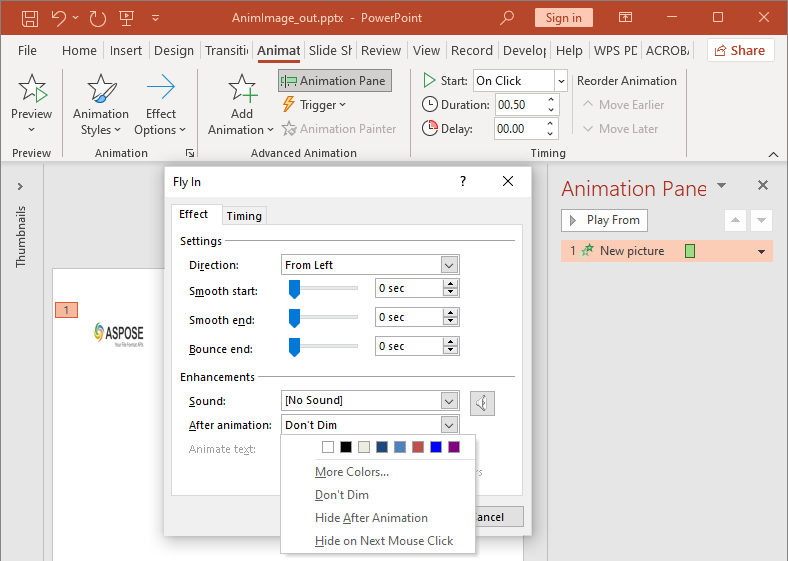
AfterAnimationType 列舉支援保持形狀不變、更改其顏色、在動畫後隱藏,或在下一次點擊時隱藏。當類型為 AfterAnimationType::Color 時,請呼叫 IEffect::get_AfterAnimationColor 以同時設定顏色。
此獨立範例建立效果,透過回傳的效果物件設定其動畫後行為,並儲存結果。
#include <DOM/Animation/AfterAnimationType.h>
#include <DOM/Animation/EffectSubtype.h>
#include <DOM/Animation/EffectTriggerType.h>
#include <DOM/Animation/EffectType.h>
#include <DOM/Animation/IEffect.h>
#include <DOM/Animation/ISequence.h>
#include <DOM/IAnimationTimeLine.h>
#include <DOM/IAutoShape.h>
#include <DOM/IColorFormat.h>
#include <DOM/IShapeCollection.h>
#include <DOM/ISlide.h>
#include <DOM/ISlideCollection.h>
#include <DOM/ITextFrame.h>
#include <DOM/Presentation.h>
#include <DOM/ShapeType.h>
#include <Export/SaveFormat.h>
#include <drawing/color.h>

using namespace Aspose::Slides;
using namespace Aspose::Slides::Animation;
using namespace Aspose::Slides::Export;
using namespace System;
using namespace System::Drawing;

auto presentation = MakeObject<Presentation>();
auto slide = presentation->get_Slide(0);
auto shape = slide->get_Shapes()->AddAutoShape(ShapeType::Rectangle, 120.0f, 100.0f, 320.0f, 80.0f);
shape->get_TextFrame()->set_Text(u"Dim after animation");

auto effect = slide->get_Timeline()->get_MainSequence()->AddEffect(shape, EffectType::Fade, EffectSubtype::None, EffectTriggerType::OnClick);
effect->set_AfterAnimationType(AfterAnimationType::Color);
effect->get_AfterAnimationColor()->set_Color(Color::get_LightGray());

presentation->Save(u"shape-animation-after-effect.pptx", SaveFormat::Pptx);
presentation->Dispose();
將類型從 AfterAnimationType::Color 改變為其他值會清除動畫後的顏色設定。
文字動畫
文字動畫有兩個相關控制項:
- ITextAnimation::set_BuildType 控制段落是一起顯示還是依段落層級顯示。
- IEffect::set_AnimateTextType 控制文字是一次顯示、依單字或依字母顯示。IEffect::set_DelayBetweenTextParts 設定單字或字母之間的延遲。正值代表效果持續時間的百分比;負值代表以秒為單位的延遲。
下列獨立範例對文字方塊中的單字進行動畫。BuildType::AsOneObject 會停用逐段落建立,使單字設定套用於整個文字框。
#include <DOM/Animation/AnimateTextType.h>
#include <DOM/Animation/BuildType.h>
#include <DOM/Animation/EffectSubtype.h>
#include <DOM/Animation/EffectTriggerType.h>
#include <DOM/Animation/EffectType.h>
#include <DOM/Animation/IEffect.h>
#include <DOM/Animation/ISequence.h>
#include <DOM/Animation/ITextAnimation.h>
#include <DOM/IAnimationTimeLine.h>
#include <DOM/IAutoShape.h>
#include <DOM/IShapeCollection.h>
#include <DOM/ISlide.h>
#include <DOM/ISlideCollection.h>
#include <DOM/ITextFrame.h>
#include <DOM/Presentation.h>
#include <DOM/ShapeType.h>
#include <Export/SaveFormat.h>

using namespace Aspose::Slides;
using namespace Aspose::Slides::Animation;
using namespace Aspose::Slides::Export;
using namespace System;

auto presentation = MakeObject<Presentation>();
auto slide = presentation->get_Slide(0);
auto textBox = slide->get_Shapes()->AddAutoShape(ShapeType::Rectangle, 80.0f, 80.0f, 560.0f, 100.0f);
textBox->get_TextFrame()->set_Text(u"Aspose.Slides animates this sentence word by word.");

auto effect = slide->get_Timeline()->get_MainSequence()->AddEffect(textBox, EffectType::Fade, EffectSubtype::None, EffectTriggerType::OnClick);
effect->get_TextAnimation()->set_BuildType(BuildType::AsOneObject);
effect->set_AnimateTextType(AnimateTextType::ByWord);
effect->set_DelayBetweenTextParts(20.0f);

presentation->Save(u"animated-text.pptx", SaveFormat::Pptx);
presentation->Dispose();
若要依段落建立文字方塊,請使用 ITextAnimation::set_BuildType 並搭配 BuildType::ByLevelParagraphs1 或其他段落層級。若要為單一段落設定自己的效果,請使用接受 IParagraph 的 ISequence::AddEffect 之多載。參閱 Animated Text 取得段落層級範例。
匯出與相容性說明
- 儲存為 PPT 或 PPTX 會保留動畫模型,但最終播放由投影片檢視器控制。
- PDF 與靜態影像不會播放動畫。當輸出必須顯示動態時,請使用 HTML5 export、動畫 GIF,或 video conversion。
- 對於 HTML5,請啟用 Html5Options::set_AnimateShapes,並在需要時啟用 Html5Options::set_AnimateTransitions。
- 影片轉換支援許多常見的進入、強調、退出與動態路徑效果,但並非所有 PowerPoint 效果皆受支援。請檢查目前的 supported animations and effects 並以目標 Aspose.Slides 版本測試關鍵投影片。
- 進階自訂效果以及從其他投影片格式匯入的效果可能在檔案中保留,但在 PowerPoint、HTML5 或影片中呈現方式可能不同。請驗證匯出結果,而非僅依賴效果名稱。
常見問題
為何動畫在 PowerPoint 中顯示,但在 PDF 中不顯示?
PDF 為靜態格式,因此不會播放動畫與投影片轉場。當必須保留動態時,請匯出為 HTML5、動畫 GIF 或影片。
為何效果在影片中播放結果不同?
影片匯出會渲染動畫,而非儲存原始 PowerPoint 行為。某些進階效果未受支援或僅為近似。請檢視支援效果表,並在投產前測試實際投影片。
將形狀前移或後移會改變其動畫順序嗎?
不會。形狀的 Z 軸順序僅控制重疊,序列順序與觸發器才決定動畫播放。若需要不同的播放順序,請調整時間軸。