
管理 PowerPoint 文字段落於 PHP
概觀
Aspose.Slides for PHP via Java 以文字框、段落和部分的層次結構來表示文字:
- TextFrame 代表形狀中的文字容器,並提供對其段落集合的存取。
- Paragraph 代表文字框中的一個段落,並提供對其部分與段落層級格式的存取。
- Portion 代表段落內的文字執行區塊。每個部分可以有自己的文字和字元層級格式。
因此,一個段落可以透過使用多個部分來包含具有不同字型、顏色、大小和其他格式設定的文字。
建立與格式化段落
在形狀的文字框中建立段落,並使用部分來格式化個別的文字執行區塊。本節說明如何在每個段落內結合多個部分,並套用不同的顏色、字型大小與樣式。
使用多個部分建立段落
以下 PHP 範例建立三個段落,每個段落在由 Paragraph::getPortions 回傳的集合中包含三個文字執行。它重複使用預設段落與其空白部分,然後加入其餘的段落和部分。格式化透過 Portion::getPortionFormat 套用:每個段落的第一個部分為紅色、粗體、15 點;第二個為藍色、斜體、18 點。第三個部分保留其預設格式:
use aspose\slides\FillType;
use aspose\slides\NullableBool;
use aspose\slides\Paragraph;
use aspose\slides\Portion;
use aspose\slides\Presentation;
use aspose\slides\SaveFormat;
use aspose\slides\ShapeType;

$presentation = new Presentation();
try {
    $slide = $presentation->getSlides()->get_Item(0);

    $shape = $slide->getShapes()->addAutoShape(ShapeType::Rectangle, 50, 150, 300, 150);
    $textFrame = $shape->getTextFrame();

    $firstParagraph = $textFrame->getParagraphs()->get_Item(0);
    $firstParagraph->getPortions()->add(new Portion());
    $firstParagraph->getPortions()->add(new Portion());

    $secondParagraph = new Paragraph();
    $secondParagraph->getPortions()->add(new Portion());
    $secondParagraph->getPortions()->add(new Portion());
    $secondParagraph->getPortions()->add(new Portion());
    $textFrame->getParagraphs()->add($secondParagraph);

    $thirdParagraph = new Paragraph();
    $thirdParagraph->getPortions()->add(new Portion());
    $thirdParagraph->getPortions()->add(new Portion());
    $thirdParagraph->getPortions()->add(new Portion());
    $textFrame->getParagraphs()->add($thirdParagraph);

    $paragraphCount = java_values($textFrame->getParagraphs()->getCount());
    for ($paragraphIndex = 0; $paragraphIndex < $paragraphCount; $paragraphIndex++) {
        $paragraph = $textFrame->getParagraphs()->get_Item($paragraphIndex);
        $portionCount = java_values($paragraph->getPortions()->getCount());
        for ($portionIndex = 0; $portionIndex < $portionCount; $portionIndex++) {
            $portion = $paragraph->getPortions()->get_Item($portionIndex);
            $portion->setText("Portion " . ($paragraphIndex + 1) . "." . ($portionIndex + 1));

            if ($portionIndex == 0) {
                $portion->getPortionFormat()->getFillFormat()->setFillType(FillType::Solid);
                $portion->getPortionFormat()->getFillFormat()->getSolidFillColor()->setColor(java("java.awt.Color")->RED);
                $portion->getPortionFormat()->setFontBold(NullableBool::True);
                $portion->getPortionFormat()->setFontHeight(15);
            } else if ($portionIndex == 1) {
                $portion->getPortionFormat()->getFillFormat()->setFillType(FillType::Solid);
                $portion->getPortionFormat()->getFillFormat()->getSolidFillColor()->setColor(java("java.awt.Color")->BLUE);
                $portion->getPortionFormat()->setFontItalic(NullableBool::True);
                $portion->getPortionFormat()->setFontHeight(18);
            }
        }
    }

    $presentation->save("paragraphs_with_portions.pptx", SaveFormat::Pptx);
} finally {
    $presentation->dispose();
}
建立項目符號與編號清單
將段落文字組織成使用符號、編號或自訂影像的清單。本節的範例涵蓋項目符號格式、多層清單以及自訂起始編號。
建立項目符號或編號清單
項目符號與編號讓相關項目更易於瀏覽。在 Aspose.Slides 中,清單設定透過 BulletFormat 定義。
此 PHP 範例在同一文字框中加入符號項目符號與編號項目。BulletFormat::setType 用來選擇項目符號類型;BulletFormat::setChar 提供符號;BulletFormat::setNumberedBulletStyle 選擇編號樣式。兩個項目皆使用黑色項目符號,高度為 100%,段落縮排為 25 點:
use aspose\slides\BulletType;
use aspose\slides\ColorType;
use aspose\slides\NullableBool;
use aspose\slides\NumberedBulletStyle;
use aspose\slides\Paragraph;
use aspose\slides\Presentation;
use aspose\slides\SaveFormat;
use aspose\slides\ShapeType;

$presentation = new Presentation();
try {
    $slide = $presentation->getSlides()->get_Item(0);

    $shape = $slide->getShapes()->addAutoShape(ShapeType::Rectangle, 200, 200, 400, 200);
    $textFrame = $shape->getTextFrame();
    $textFrame->getParagraphs()->clear();

    $symbolParagraph = new Paragraph();
    $symbolParagraph->setText("Welcome to Aspose.Slides");
    $symbolParagraph->getParagraphFormat()->getBullet()->setType(BulletType::Symbol);
    $symbolParagraph->getParagraphFormat()->getBullet()->setChar("•");
    $symbolParagraph->getParagraphFormat()->setIndent(25);
    $symbolParagraph->getParagraphFormat()->getBullet()->getColor()->setColorType(ColorType::RGB);
    $symbolParagraph->getParagraphFormat()->getBullet()->getColor()->setColor(java("java.awt.Color")->BLACK);
    $symbolParagraph->getParagraphFormat()->getBullet()->setBulletHardColor(NullableBool::True);
    $symbolParagraph->getParagraphFormat()->getBullet()->setHeight(100);
    $textFrame->getParagraphs()->add($symbolParagraph);

    $numberedParagraph = new Paragraph();
    $numberedParagraph->setText("This is a numbered item");
    $numberedParagraph->getParagraphFormat()->getBullet()->setType(BulletType::Numbered);
    $numberedParagraph->getParagraphFormat()->getBullet()->setNumberedBulletStyle(NumberedBulletStyle::BulletCircleNumWDBlackPlain);
    $numberedParagraph->getParagraphFormat()->setIndent(25);
    $numberedParagraph->getParagraphFormat()->getBullet()->getColor()->setColorType(ColorType::RGB);
    $numberedParagraph->getParagraphFormat()->getBullet()->getColor()->setColor(java("java.awt.Color")->BLACK);
    $numberedParagraph->getParagraphFormat()->getBullet()->setBulletHardColor(NullableBool::True);
    $numberedParagraph->getParagraphFormat()->getBullet()->setHeight(100);
    $textFrame->getParagraphs()->add($numberedParagraph);

    $presentation->save("bulleted_and_numbered_list.pptx", SaveFormat::Pptx);
} finally {
    $presentation->dispose();
}
使用圖片項目符號
圖片項目符號讓您以自訂影像取代符號或編號。
此 PHP 範例將影像加入簡報的影像收藏,作為 PPImage,並將其作為段落的項目符號。它呼叫 BulletFormat::setType 以使用圖片項目符號,並透過 BulletFormat::getPicture 指定影像。BulletFormat::setHeight 設為 100% 以依段落文字的比例調整項目符號大小:
use aspose\slides\BulletType;
use aspose\slides\Images;
use aspose\slides\Paragraph;
use aspose\slides\Presentation;
use aspose\slides\SaveFormat;
use aspose\slides\ShapeType;

$presentation = new Presentation();
try {
    $slide = $presentation->getSlides()->get_Item(0);

    $bulletImage = Images::fromFile("bullets.png");
    try {
        $presentationImage = $presentation->getImages()->addImage($bulletImage);
    } finally {
        $bulletImage->dispose();
    }

    $shape = $slide->getShapes()->addAutoShape(ShapeType::Rectangle, 200, 200, 400, 200);
    $textFrame = $shape->getTextFrame();
    $textFrame->getParagraphs()->clear();

    $paragraph = new Paragraph();
    $paragraph->setText("Welcome to Aspose.Slides");
    $paragraph->getParagraphFormat()->getBullet()->setType(BulletType::Picture);
    $paragraph->getParagraphFormat()->getBullet()->getPicture()->setImage($presentationImage);
    $paragraph->getParagraphFormat()->getBullet()->setHeight(100);
    $textFrame->getParagraphs()->add($paragraph);

    $presentation->save("picture_bullet.pptx", SaveFormat::Pptx);
    $presentation->save("picture_bullet.ppt", SaveFormat::Ppt);
} finally {
    $presentation->dispose();
}
建立多層清單
設定 ParagraphFormat::setDepth 以將段落放置於清單的不同層級。最高層的深度為 0。
此 PHP 範例將 ParagraphFormat::setDepth 的值從 0 設為 3,於四個段落中建立層次結構。每個段落使用符號項目符號,並透過 BulletFormat::setChar 在圓形項目符號與連字號之間交替,以區分相鄰層級:
use aspose\slides\BulletType;
use aspose\slides\FillType;
use aspose\slides\Paragraph;
use aspose\slides\Presentation;
use aspose\slides\SaveFormat;
use aspose\slides\ShapeType;

$presentation = new Presentation();
try {
    $slide = $presentation->getSlides()->get_Item(0);

    $shape = $slide->getShapes()->addAutoShape(ShapeType::Rectangle, 200, 200, 400, 200);
    $textFrame = $shape->getTextFrame();
    $textFrame->getParagraphs()->clear();

    $firstParagraph = new Paragraph();
    $firstParagraph->setText("Content");
    $firstParagraph->getParagraphFormat()->getBullet()->setType(BulletType::Symbol);
    $firstParagraph->getParagraphFormat()->getBullet()->setChar("•");
    $firstParagraph->getParagraphFormat()->getDefaultPortionFormat()->getFillFormat()->setFillType(FillType::Solid);
    $firstParagraph->getParagraphFormat()->getDefaultPortionFormat()->getFillFormat()->getSolidFillColor()->setColor(java("java.awt.Color")->BLACK);
    $firstParagraph->getParagraphFormat()->setDepth(0);

    $secondParagraph = new Paragraph();
    $secondParagraph->setText("Second level");
    $secondParagraph->getParagraphFormat()->getBullet()->setType(BulletType::Symbol);
    $secondParagraph->getParagraphFormat()->getBullet()->setChar('-');
    $secondParagraph->getParagraphFormat()->getDefaultPortionFormat()->getFillFormat()->setFillType(FillType::Solid);
    $secondParagraph->getParagraphFormat()->getDefaultPortionFormat()->getFillFormat()->getSolidFillColor()->setColor(java("java.awt.Color")->BLACK);
    $secondParagraph->getParagraphFormat()->setDepth(1);

    $thirdParagraph = new Paragraph();
    $thirdParagraph->setText("Third level");
    $thirdParagraph->getParagraphFormat()->getBullet()->setType(BulletType::Symbol);
    $thirdParagraph->getParagraphFormat()->getBullet()->setChar("•");
    $thirdParagraph->getParagraphFormat()->getDefaultPortionFormat()->getFillFormat()->setFillType(FillType::Solid);
    $thirdParagraph->getParagraphFormat()->getDefaultPortionFormat()->getFillFormat()->getSolidFillColor()->setColor(java("java.awt.Color")->BLACK);
    $thirdParagraph->getParagraphFormat()->setDepth(2);

    $fourthParagraph = new Paragraph();
    $fourthParagraph->setText("Fourth level");
    $fourthParagraph->getParagraphFormat()->getBullet()->setType(BulletType::Symbol);
    $fourthParagraph->getParagraphFormat()->getBullet()->setChar('-');
    $fourthParagraph->getParagraphFormat()->getDefaultPortionFormat()->getFillFormat()->setFillType(FillType::Solid);
    $fourthParagraph->getParagraphFormat()->getDefaultPortionFormat()->getFillFormat()->getSolidFillColor()->setColor(java("java.awt.Color")->BLACK);
    $fourthParagraph->getParagraphFormat()->setDepth(3);

    $textFrame->getParagraphs()->add($firstParagraph);
    $textFrame->getParagraphs()->add($secondParagraph);
    $textFrame->getParagraphs()->add($thirdParagraph);
    $textFrame->getParagraphs()->add($fourthParagraph);

    $presentation->save("multilevel_list.pptx", SaveFormat::Pptx);
} finally {
    $presentation->dispose();
}
以自訂值開始編號清單項目
使用 BulletFormat::setNumberedBulletStartWith 設定編號段落的起始編號。
此 PHP 範例將 BulletFormat::setType 設為編號,並為三個段落分別指定 BulletFormat::setNumberedBulletStartWith 為 2、3、7。每個段落各自的起始值可獨立設定,讓顯示的編號跳過特定數字:
use aspose\slides\BulletType;
use aspose\slides\Paragraph;
use aspose\slides\Presentation;
use aspose\slides\SaveFormat;
use aspose\slides\ShapeType;

$presentation = new Presentation();
try {
    $slide = $presentation->getSlides()->get_Item(0);

    $shape = $slide->getShapes()->addAutoShape(ShapeType::Rectangle, 200, 200, 400, 200);
    $textFrame = $shape->getTextFrame();
    $textFrame->getParagraphs()->clear();

    $firstParagraph = new Paragraph();
    $firstParagraph->setText("Start at 2");
    $firstParagraph->getParagraphFormat()->getBullet()->setType(BulletType::Numbered);
    $firstParagraph->getParagraphFormat()->getBullet()->setNumberedBulletStartWith(2);
    $textFrame->getParagraphs()->add($firstParagraph);

    $secondParagraph = new Paragraph();
    $secondParagraph->setText("Start at 3");
    $secondParagraph->getParagraphFormat()->getBullet()->setType(BulletType::Numbered);
    $secondParagraph->getParagraphFormat()->getBullet()->setNumberedBulletStartWith(3);
    $textFrame->getParagraphs()->add($secondParagraph);

    $thirdParagraph = new Paragraph();
    $thirdParagraph->setText("Start at 7");
    $thirdParagraph->getParagraphFormat()->getBullet()->setType(BulletType::Numbered);
    $thirdParagraph->getParagraphFormat()->getBullet()->setNumberedBulletStartWith(7);
    $textFrame->getParagraphs()->add($thirdParagraph);

    $presentation->save("custom_numbered_list.pptx", SaveFormat::Pptx);
} finally {
    $presentation->dispose();
}
控制段落版面與結尾屬性
調整段落的邊距與縮排,以控制首行與換行行的位置。您也可以分別為段落結尾標記與可見文字部分設定格式。
設定首行縮排
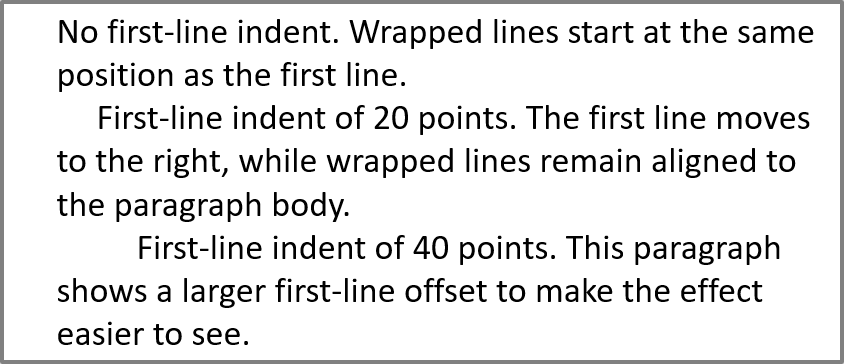
使用 ParagraphFormat::setIndent 方法控制段落的首行縮排。此設定僅移動首行相對於段落左邊距的位移。正值會將首行向右移動,而其餘行仍與段落主體對齊。
需要移動整個段落時,使用 ParagraphFormat::setMarginLeft;只需移動首行時,使用 ParagraphFormat::setIndent。
下列範例為三個段落設定相同的 ParagraphFormat::setMarginLeft 為 20 點,並分別設定 ParagraphFormat::setIndent 為 0、20、40 點。首行的起始位置逐漸增大,而換行行則保留相同的左邊距:
use aspose\slides\FillType;
use aspose\slides\Paragraph;
use aspose\slides\Presentation;
use aspose\slides\SaveFormat;
use aspose\slides\ShapeType;
use aspose\slides\TextAutofitType;

$presentation = new Presentation();
try {
    $slide = $presentation->getSlides()->get_Item(0);

    $shape = $slide->getShapes()->addAutoShape(ShapeType::Rectangle, 50, 50, 420, 220);
    $shape->getFillFormat()->setFillType(FillType::NoFill);
    $shape->getLineFormat()->getFillFormat()->setFillType(FillType::Solid);
    $shape->getLineFormat()->getFillFormat()->getSolidFillColor()->setColor(java("java.awt.Color")->GRAY);

    $textFrame = $shape->getTextFrame();
    $textFrame->getTextFrameFormat()->setAutofitType(TextAutofitType::Shape);
    $textFrame->getParagraphs()->clear();

    $firstParagraph = new Paragraph();
    $firstParagraph->setText("No first-line indent. Wrapped lines start at the same position as the first line.");
    $firstParagraph->getParagraphFormat()->getDefaultPortionFormat()->getFillFormat()->setFillType(FillType::Solid);
    $firstParagraph->getParagraphFormat()->getDefaultPortionFormat()->getFillFormat()->getSolidFillColor()->setColor(java("java.awt.Color")->BLACK);
    $firstParagraph->getParagraphFormat()->setMarginLeft(20.0);
    $firstParagraph->getParagraphFormat()->setIndent(0.0);

    $secondParagraph = new Paragraph();
    $secondParagraph->setText("First-line indent of 20 points. The first line moves to the right, while wrapped lines remain aligned to the paragraph body.");
    $secondParagraph->getParagraphFormat()->getDefaultPortionFormat()->getFillFormat()->setFillType(FillType::Solid);
    $secondParagraph->getParagraphFormat()->getDefaultPortionFormat()->getFillFormat()->getSolidFillColor()->setColor(java("java.awt.Color")->BLACK);
    $secondParagraph->getParagraphFormat()->setMarginLeft(20.0);
    $secondParagraph->getParagraphFormat()->setIndent(20.0);

    $thirdParagraph = new Paragraph();
    $thirdParagraph->setText("First-line indent of 40 points. This paragraph shows a larger first-line offset to make the effect easier to see.");
    $thirdParagraph->getParagraphFormat()->getDefaultPortionFormat()->getFillFormat()->setFillType(FillType::Solid);
    $thirdParagraph->getParagraphFormat()->getDefaultPortionFormat()->getFillFormat()->getSolidFillColor()->setColor(java("java.awt.Color")->BLACK);
    $thirdParagraph->getParagraphFormat()->setMarginLeft(20.0);
    $thirdParagraph->getParagraphFormat()->setIndent(40.0);

    $textFrame->getParagraphs()->add($firstParagraph);
    $textFrame->getParagraphs()->add($secondParagraph);
    $textFrame->getParagraphs()->add($thirdParagraph);

    $presentation->save("paragraph_indent.pptx", SaveFormat::Pptx);
} finally {
    $presentation->dispose();
}
結果:
設定懸掛縮排
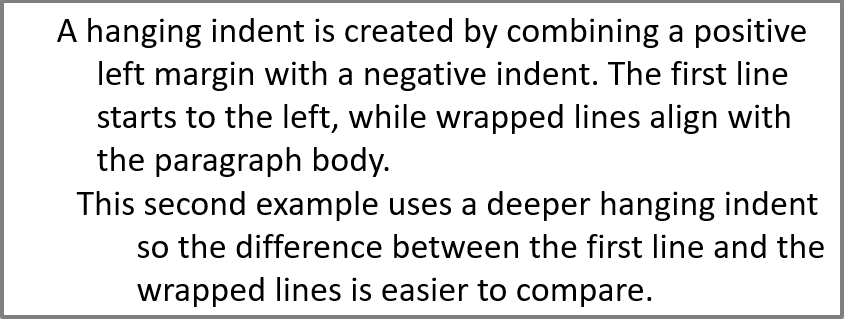
懸掛縮排是在首行位於其餘行左側的段落版面配置。於 Aspose.Slides 中,可使用 ParagraphFormat::setIndent 屬性達成此效果。將 Indent 設為負值,即可使首行相對於段落主體向左移動。
實務上,ParagraphFormat::setMarginLeft 定義段落主體的左側位置,而 ParagraphFormat::setIndent 定義首行相對於該邊距的位置。若要建立懸掛縮排,將正值的 MarginLeft 與負值的 Indent 結合使用。
此版面配置常用於參考文獻、引用、術語表項目等需要讓換行行對齊於段落主體而非首字的情形。
以下 PHP 範例將 ParagraphFormat::setMarginLeft 設為 40 與 60 點,並將 ParagraphFormat::setIndent 設為 -20 與 -30 點。每個段落的首行皆位於換行行左側;第二段落的懸掛縮排更深:
use aspose\slides\FillType;
use aspose\slides\Paragraph;
use aspose\slides\Presentation;
use aspose\slides\SaveFormat;
use aspose\slides\ShapeType;
use aspose\slides\TextAutofitType;

$presentation = new Presentation();
try {
    $slide = $presentation->getSlides()->get_Item(0);

    $shape = $slide->getShapes()->addAutoShape(ShapeType::Rectangle, 50, 50, 420, 220);
    $shape->getFillFormat()->setFillType(FillType::NoFill);
    $shape->getLineFormat()->getFillFormat()->setFillType(FillType::Solid);
    $shape->getLineFormat()->getFillFormat()->getSolidFillColor()->setColor(java("java.awt.Color")->GRAY);

    $textFrame = $shape->getTextFrame();
    $textFrame->getTextFrameFormat()->setAutofitType(TextAutofitType::Shape);
    $textFrame->getParagraphs()->clear();

    $firstParagraph = new Paragraph();
    $firstParagraph->setText("A hanging indent is created by combining a positive left margin with a negative indent. The first line starts to the left, while wrapped lines align with the paragraph body.");
    $firstParagraph->getParagraphFormat()->getDefaultPortionFormat()->getFillFormat()->setFillType(FillType::Solid);
    $firstParagraph->getParagraphFormat()->getDefaultPortionFormat()->getFillFormat()->getSolidFillColor()->setColor(java("java.awt.Color")->BLACK);
    $firstParagraph->getParagraphFormat()->setMarginLeft(40.0);
    $firstParagraph->getParagraphFormat()->setIndent(-20.0);

    $secondParagraph = new Paragraph();
    $secondParagraph->setText("This second example uses a deeper hanging indent so the difference between the first line and the wrapped lines is easier to compare.");
    $secondParagraph->getParagraphFormat()->getDefaultPortionFormat()->getFillFormat()->setFillType(FillType::Solid);
    $secondParagraph->getParagraphFormat()->getDefaultPortionFormat()->getFillFormat()->getSolidFillColor()->setColor(java("java.awt.Color")->BLACK);
    $secondParagraph->getParagraphFormat()->setMarginLeft(60.0);
    $secondParagraph->getParagraphFormat()->setIndent(-30.0);

    $textFrame->getParagraphs()->add($firstParagraph);
    $textFrame->getParagraphs()->add($secondParagraph);

    $presentation->save("hanging_indent.pptx", SaveFormat::Pptx);
} finally {
    $presentation->dispose();
}
結果:
設定段落結尾執行屬性
Paragraph::setEndParagraphPortionFormat 方法控制段落結尾標記的格式。以下範例建立一個 PortionFormat ,將 BasePortionFormat::setFontHeight 設為 48 點,並將 BasePortionFormat::setLatinFont 設為 Times New Roman。接著將此格式套用至第二段落的結尾標記,而保持可見文字部分不變:
use aspose\slides\FontData;
use aspose\slides\Paragraph;
use aspose\slides\Portion;
use aspose\slides\PortionFormat;
use aspose\slides\Presentation;
use aspose\slides\SaveFormat;
use aspose\slides\ShapeType;

$presentation = new Presentation("Test.pptx");
try {
    $slide = $presentation->getSlides()->get_Item(0);

    $shape = $slide->getShapes()->addAutoShape(ShapeType::Rectangle, 10, 10, 200, 250);
    $textFrame = $shape->getTextFrame();
    $textFrame->getParagraphs()->clear();

    $firstParagraph = new Paragraph();
    $firstParagraph->getPortions()->add(new Portion("Sample text"));

    $secondParagraph = new Paragraph();
    $secondParagraph->getPortions()->add(new Portion("Sample text 2"));

    $endParagraphFormat = new PortionFormat();
    $endParagraphFormat->setFontHeight(48);
    $endParagraphFormat->setLatinFont(new FontData("Times New Roman"));
    $secondParagraph->setEndParagraphPortionFormat($endParagraphFormat);

    $textFrame->getParagraphs()->add($firstParagraph);
    $textFrame->getParagraphs()->add($secondParagraph);

    $presentation->save("end_paragraph_format.pptx", SaveFormat::Pptx);
} finally {
    $presentation->dispose();
}
計算已呈現的行數
有關影響自動換行與行尾標點的段落規則,請參閱 Control Line Breaking 與 Control Hanging Punctuation。
使用 Paragraph::getLinesCount 取得段落在文字排版後佔用的行數,包含自動換行。這在檢查簡報範本中文本長度與版面時非常有用。
段落是 TextFrame::getParagraphs 中的一個項目,可能佔用多行已呈現的行數。段落內的顯式換行符會強制產生新行,而不會建立新段落。自動換行則根據可用寬度產生行,但不會在文字中插入顯式換行符。因此,僅計算段落或換行字元並不會得到已呈現的行數。
以下範例建立一個文字形狀,計算其行數,縮小形狀後再以較短的字串取代文字。範例使用 TextFrameFormat::setWrapText 開啟換行,並使用 TextFrameFormat::setAutofitType 停用自動調整大小,使形狀寬度控制換行且不會自動縮小文字或調整形狀大小。每次測量皆使用 Paragraph::getLinesCount。形狀尺寸以點為單位。最後,範例加入另一段落,並將整個文字框的行數相加。
use aspose\slides\NullableBool;
use aspose\slides\Paragraph;
use aspose\slides\Presentation;
use aspose\slides\ShapeType;
use aspose\slides\TextAutofitType;

$presentation = new Presentation();
try {
    $slide = $presentation->getSlides()->get_Item(0);

    $shape = $slide->getShapes()->addAutoShape(ShapeType::Rectangle, 50, 50, 400, 200);
    $textFrame = $shape->getTextFrame();
    $textFrame->getTextFrameFormat()->setWrapText(NullableBool::True);
    $textFrame->getTextFrameFormat()->setAutofitType(TextAutofitType::None);

    $paragraph = $textFrame->getParagraphs()->get_Item(0);
    $paragraph->getParagraphFormat()->getDefaultPortionFormat()->setFontHeight(20);
    $paragraph->setText("This text demonstrates how automatic wrapping changes the number of rendered lines.");
    echo "Original width: " . java_values($paragraph->getLinesCount()) . PHP_EOL;

    $shape->setWidth(150);
    echo "Narrower shape: " . java_values($paragraph->getLinesCount()) . PHP_EOL;

    $paragraph->setText("Short text.");
    echo "Shorter text: " . java_values($paragraph->getLinesCount()) . PHP_EOL;

    $secondParagraph = new Paragraph();
    $secondParagraph->setText("Another paragraph.");
    $secondParagraph->getParagraphFormat()->getDefaultPortionFormat()->setFontHeight(20);
    $textFrame->getParagraphs()->add($secondParagraph);

    $totalLineCount = 0;
    for ($i = 0; $i < java_values($textFrame->getParagraphs()->getCount()); $i++) {
        $currentParagraph = $textFrame->getParagraphs()->get_Item($i);
        $totalLineCount += java_values($currentParagraph->getLinesCount());
    }
    echo "Total lines in the text frame: " . $totalLineCount . PHP_EOL;
} finally {
    $presentation->dispose();
}
以此文字與尺寸測試時,縮小形狀會增加行數,取代為短字串則會減少行數。精確的行數會因字型可用性與替代、字型大小、邊距、縮排、換行與自動調整設定而有所不同;請使用目標環境的字型與版面設定來檢查範本。
僅靠行數無法判斷文字是否溢出容器。可用高度、行高、段落與行間距以及自動調整行為也會影響;即便只有單行文字,若關閉換行功能,仍可能超出可用寬度。
匯入與匯出段落內容
使用 HTML 將文字帶入簡報,或將現有段落匯出以供外部使用。本節亦說明如何將單一段落渲染為影像,包括表格儲存格內的段落。
將 HTML 文字匯入段落
使用 ParagraphCollection::addFromHtml 將 HTML 標記轉換為文字框中的段落與部分。
此 PHP 範例從檔案讀取 HTML,並將標記傳遞給 ParagraphCollection::addFromHtml。它會清除文字框的預設段落,使框架僅包含匯入的內容。矩形形狀在投影片的每一側保留 10 點的邊距:
use aspose\slides\FillType;
use aspose\slides\Presentation;
use aspose\slides\SaveFormat;
use aspose\slides\ShapeType;

$presentation = new Presentation();
try {
    $slide = $presentation->getSlides()->get_Item(0);

    $shapeWidth = java_values($presentation->getSlideSize()->getSize()->getWidth()) - 20;
    $shapeHeight = java_values($presentation->getSlideSize()->getSize()->getHeight()) - 20;
    $shape = $slide->getShapes()->addAutoShape(ShapeType::Rectangle, 10, 10, $shapeWidth, $shapeHeight);
    $shape->getFillFormat()->setFillType(FillType::NoFill);
    $shape->getTextFrame()->getParagraphs()->clear();

    $html = file_get_contents("file.html");
    if ($html !== false) {
        $shape->getTextFrame()->getParagraphs()->addFromHtml($html);
        $presentation->save("html_text.pptx", SaveFormat::Pptx);
    } else {
        echo "The HTML file could not be read.";
    }
} finally {
    $presentation->dispose();
}
將段落文字匯出為 HTML
使用 ParagraphCollection::exportToHtml 將選取的段落範圍匯出為 HTML。當在網站上重複使用簡報文字時,您可能希望保留本地的強調效果,而不帶入簡報的字型、大小或文字方塊樣式。設定 TextToHtmlConversionOptions::setTextInheritanceLimit 以控制匯出程式追蹤格式繼承的深度。
下載 範例簡報 並放置於應用程式的工作目錄。其第一張投影片包含一個文字形狀,文字為「Inherited text; explicit red 18pt」。輸入刻意使用了多層格式:
- 簡報的預設文字樣式提供 Calibri 字型與 28 點大小。
- 文字框的第一層文字樣式提供藍色文字與斜體。
- 段落明確設定為粗體。
- 第二個部分「explicit red 18pt」明確設定為紅色文字與 18 點大小。
以下完整範例將相同的段落匯出三次。它將 TextToHtmlConversionOptions 傳遞給匯出方法,並將每個結果寫入不同的 UTF-8 HTML 檔案:
use aspose\slides\Presentation;
use aspose\slides\TextInheritanceLimit;
use aspose\slides\TextToHtmlConversionOptions;

$presentation = new Presentation("text-inheritance.pptx");
try {
    $shape = $presentation->getSlides()->get_Item(0)->getShapes()->get_Item(0);

    if (java_instanceof($shape, new JavaClass("com.aspose.slides.AutoShape"))) {
        $textFrame = $shape->getTextFrame();
        if (!java_is_null($textFrame)) {
            $paragraphs = $textFrame->getParagraphs();

            $modes = array(TextInheritanceLimit::All, TextInheritanceLimit::TextBox, TextInheritanceLimit::ParagraphOnly);
            $fileNames = array("All.html", "TextBox.html", "ParagraphOnly.html");

            for ($i = 0; $i < count($modes); $i++) {
                $options = new TextToHtmlConversionOptions();
                $options->setTextInheritanceLimit($modes[$i]);

                $html = $paragraphs->exportToHtml(0, $paragraphs->getCount(), $options);
                if (file_put_contents($fileNames[$i], java_values($html)) === false) {
                    echo "The HTML file could not be written." . PHP_EOL;
                }
            }
        } else {
            echo "The first shape does not contain a text frame.";
        }
    } else {
        echo "The first shape is not a text shape.";
    }
} finally {
    $presentation->dispose();
}
產生的 HTML 包含以下 CSS,針對第一部分「Inherited text; 」:
| 輸出 | 第一部分相關的 CSS | 外觀 |
|---|---|---|
All.html |
font-family:'Calibri'; font-size:28pt; color:#0000ff; font-style:italic; font-weight:bold |
藍色、粗體、斜體文字,字型為 28 pt Calibri(若該字型可用)。 |
TextBox.html |
color:#0000ff; font-style:italic; font-weight:bold |
藍色、粗體、斜體文字;字型與大小由頁面或瀏覽器提供。 |
ParagraphOnly.html |
font-weight:bold |
粗體文字;字型、大小、顏色與斜體樣式由頁面或瀏覽器提供。 |
第二部分在所有三個輸出中皆保留 color:#ff0000、font-size:18pt 與 font-weight:bold。在 All 與 TextBox 中仍保留斜體,但在 ParagraphOnly 中不保留。限制繼承因此不會移除明確指定給段落或部分的格式。
在同一瀏覽器中開啟這些檔案以比較結果。於受限模式下,省略的 CSS 屬性會由目標頁面的樣式或瀏覽器預設補足,最終外觀取決於 HTML 的使用環境。
將段落渲染為影像
Paragraph::getImage 直接渲染單一段落,並回傳一個 IImage。使用 IImage::save 可將結果儲存為檔案或串流,無需手動渲染包含的形狀或裁切位圖。
如果段落在其父集合中找不到、沒有有效的渲染邊界,或無法渲染,則 Paragraph::getImage 可能回傳 null。請在儲存前檢查回傳結果,並在使用完畢後釋放影像。
以預設比例渲染段落
此範例使用一個投影片,第一個形狀為包含三個段落的文字方塊。
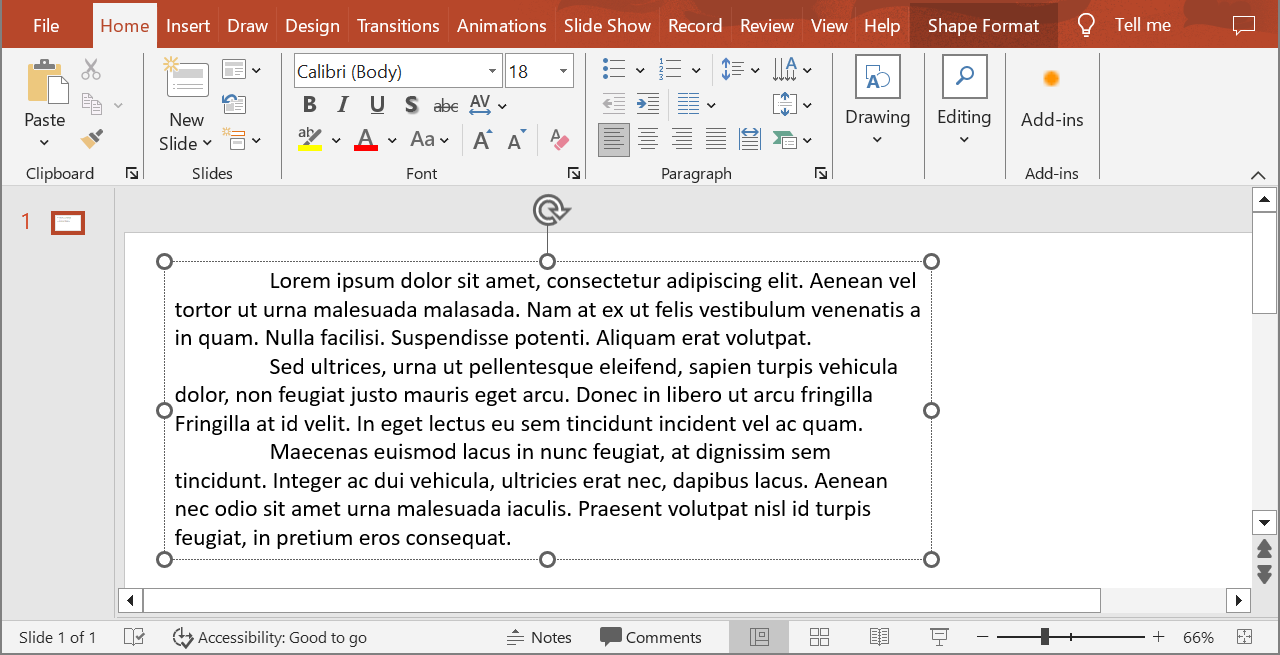
以下範例選取索引為 1 的第二段落,呼叫 Paragraph::getImage(未傳遞比例參數)。它會先確認形狀包含所需段落,且渲染回傳影像後,再呼叫 IImage::save 以 PNG 格式儲存。finally 區塊會在使用後釋放影像。
use aspose\slides\ImageFormat;
use aspose\slides\Presentation;

$presentation = new Presentation("sample.pptx");
try {
    $shape = $presentation->getSlides()->get_Item(0)->getShapes()->get_Item(0);

    if (java_instanceof($shape, new JavaClass("com.aspose.slides.AutoShape"))) {
        $textFrame = $shape->getTextFrame();
        if (!java_is_null($textFrame) && java_values($textFrame->getParagraphs()->getCount()) > 1) {
            $paragraph = $textFrame->getParagraphs()->get_Item(1);
            $paragraphImage = $paragraph->getImage();

            if (!java_is_null($paragraphImage)) {
                try {
                    $paragraphImage->save("paragraph.png", ImageFormat::Png);
                } finally {
                    $paragraphImage->dispose();
                }
            } else {
                echo "The paragraph could not be rendered.";
            }
        } else {
            echo "The expected paragraph was not found.";
        }
    } else {
        echo "The first shape is not a text shape.";
    }
} finally {
    $presentation->dispose();
}
結果:

在表格儲存格中以縮放渲染段落
使用接受 $scaleX 與 $scaleY 參數的 Paragraph::getImage 重載,設定水平與垂直的縮放係數。以下範例建立一個表格,於第一個儲存格中以預設寬高的兩倍渲染段落,並將結果存為 PNG 影像。
use aspose\slides\ImageFormat;
use aspose\slides\Presentation;

$scaleX = 2;
$scaleY = 2;

$presentation = new Presentation();
try {
    $slide = $presentation->getSlides()->get_Item(0);

    $table = $slide->getShapes()->addTable(50, 50, array(300), array(80));
    $paragraph = $table->get_Item(0, 0)->getTextFrame()->getParagraphs()->get_Item(0);
    $paragraph->setText("Text in a table cell");

    $paragraphImage = $paragraph->getImage($scaleX, $scaleY);
    if (!java_is_null($paragraphImage)) {
        try {
            $paragraphImage->save("table_paragraph.png", ImageFormat::Png);
        } finally {
            $paragraphImage->dispose();
        }
    } else {
        echo "The paragraph could not be rendered.";
    }
} finally {
    $presentation->dispose();
}
縮放係數為 1 時保持該軸的預設像素大小。例如,兩個係數皆為 2 時,影像的寬度與高度約為預設尺寸的兩倍,像素數量則為四倍。較大的係數通常能在縮放或高解析度輸出時提供更銳利的文字,但也會增加記憶體使用量與檔案大小。小於 1 的係數會產生較小且細節較少的影像。若想保留段落的長寬比,請使用相同的係數;不同的水平與垂直係數會分別拉伸輸出。
在需要包含形狀填色、邊框或其他視覺上下文的情況下,仍可使用 Shape::getImage 渲染整個形狀。若只需段落圖像,請使用 Paragraph::getImage。
常見問題集
我能完全停用文字框內的換行嗎?
可以。將 TextFrameFormat::setWrapText 設為停用,即可讓行不在文字框邊緣斷行。
如何取得特定段落在投影片上的精確邊界?
使用 Paragraph::getRect 取得段落的外框矩形。Portion::getRect 可取得單一部分的邊界。
段落對齊(左、右、置中或兩端對齊)在哪裡設定?
ParagraphFormat::setAlignment 為段落層級設定,套用於整個段落,與個別部分的格式無關。
若要在每行內垂直對齊不同字型大小的部分,請參閱 Align Fonts Within a Line。
我能為段落的部分設定校對語言嗎?
可以。對個別部分使用 BasePortionFormat::setLanguageId 即可,使同一段落內的文字可包含多種語言。