
Ajouter des équations mathématiques aux présentations PowerPoint en C++
Vue d’ensemble
PowerPoint stocke les équations au format Office Math Markup Language (OMML). Avec Aspose.Slides pour C++, vous pouvez créer le même type de contenu mathématique de façon programmatique : fractions, radicaux, fonctions, limites, opérateurs n‑aires, matrices, tableaux et blocs mathématiques formatés.
In PowerPoint, users normally add equations from Insert > Equation:
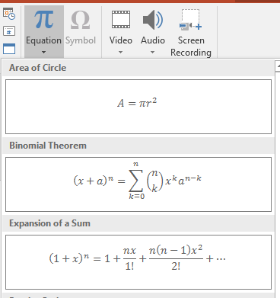
The result is editable math text on the slide:

Aspose.Slides builds that math text through three main objects:
- A math shape, created with AddMathShape, is the shape that contains the equation.
- MathPortion stores math content inside the shape text frame.
- MathParagraph contains one or more MathBlock objects.
La plupart des exemples ci‑dessus utilisent MathematicalText et les méthodes fluides de IMathElement pour garder le code court et lisible.
For MathML export scenarios, see Export Math Equations from Presentations in C++.
Créer une équation
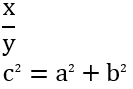
This example creates a math shape and adds the Pythagorean theorem:
auto presentation = System::MakeObject<Presentation>();
auto slide = presentation->get_Slide(0);

auto mathShape = slide->get_Shapes()->AddMathShape(20.0f, 20.0f, 700.0f, 120.0f);
auto mathPortion = System::ExplicitCast<MathPortion>(mathShape->get_TextFrame()->get_Paragraph(0)->get_Portion(0));
auto mathParagraph = mathPortion->get_MathParagraph();

auto equation = System::MakeObject<MathematicalText>(u"c")
        - >SetSuperscript(u"2")
        - >Join(u"=")
        - >Join(System::MakeObject<MathematicalText>(u"a")->SetSuperscript(u"2"))
        - >Join(u"+")
        - >Join(System::MakeObject<MathematicalText>(u"b")->SetSuperscript(u"2"));

mathParagraph->Add(equation);

presentation->Save(u"pythagorean-theorem.pptx", SaveFormat::Pptx);
presentation->Dispose();
AddMathShape crée une forme qui contient déjà un paragraphe mathématique. Accédez au premier MathPortion, récupérez son MathParagraph, et ajoutez des blocs mathématiques ou des éléments mathématiques.
Ajouter des fractions
Utilisez Divide pour créer une fraction. Vous pouvez choisir un style de fraction avec MathFractionTypes.

auto presentation = System::MakeObject<Presentation>();
auto slide = presentation->get_Slide(0);

auto mathShape = slide->get_Shapes()->AddMathShape(20.0f, 20.0f, 700.0f, 100.0f);
auto mathPortion = System::ExplicitCast<MathPortion>(mathShape->get_TextFrame()->get_Paragraph(0)->get_Portion(0));
auto mathParagraph = mathPortion->get_MathParagraph();

auto fraction = System::MakeObject<MathematicalText>(u"1")
        - >Divide(u"x", MathFractionTypes::Skewed);

mathParagraph->Add(System::MakeObject<MathBlock>(fraction));

presentation->Save(u"fraction.pptx", SaveFormat::Pptx);
presentation->Dispose();
Pour une fraction empilée, utilisez MathFractionTypes::Bar :
auto stackedFraction = System::MakeObject<MathematicalText>(u"x + 1")->Divide(u"y - 1", MathFractionTypes::Bar);
Ajouter des radicaux
Utilisez Radical pour créer une racine carrée, une racine cubique ou toute autre racine. L’élément actuel devient la base, et l’argument devient le degré.

auto presentation = System::MakeObject<Presentation>();
auto slide = presentation->get_Slide(0);

auto mathShape = slide->get_Shapes()->AddMathShape(20.0f, 20.0f, 700.0f, 100.0f);
auto mathPortion = System::ExplicitCast<MathPortion>(mathShape->get_TextFrame()->get_Paragraph(0)->get_Portion(0));
auto mathParagraph = mathPortion->get_MathParagraph();

auto radical = System::MakeObject<MathematicalText>(u"x")
        - >Radical(u"n");

mathParagraph->Add(System::MakeObject<MathBlock>(radical));

presentation->Save(u"radical.pptx", SaveFormat::Pptx);
presentation->Dispose();
Ajouter des fonctions et des limites
Utilisez AsArgumentOfFunction ou Function pour les fonctions telles que sin(x), log(x) ou des noms de fonctions personnalisés. Pour les limites, placez lim dans un MathLimit ou utilisez SetLowerLimit.

auto presentation = System::MakeObject<Presentation>();
auto slide = presentation->get_Slide(0);

auto mathShape = slide->get_Shapes()->AddMathShape(20.0f, 20.0f, 700.0f, 100.0f);
auto mathPortion = System::ExplicitCast<MathPortion>(mathShape->get_TextFrame()->get_Paragraph(0)->get_Portion(0));
auto mathParagraph = mathPortion->get_MathParagraph();

auto limit = System::MakeObject<MathematicalText>(u"lim")
        - >SetLowerLimit(u"x→∞")
        - >Function(u"x");

mathParagraph->Add(System::MakeObject<MathBlock>(limit));

presentation->Save(u"functions-and-limits.pptx", SaveFormat::Pptx);
presentation->Dispose();
Pour un nom de fonction personnalisé, faites du nom de la fonction l’élément actuel :
auto customFunction = System::MakeObject<MathematicalText>(u"f")->Function(u"x + 1");
Ajouter des opérateurs n‑aires et des intégrales
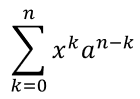
Utilisez Nary pour les sommes, unions, intersections et autres grands opérateurs. Utilisez Integral pour les intégrales. Les deux méthodes vous permettent de définir des limites inférieure et supérieure.
auto presentation = System::MakeObject<Presentation>();
auto slide = presentation->get_Slide(0);

auto mathShape = slide->get_Shapes()->AddMathShape(20.0f, 20.0f, 700.0f, 120.0f);
auto mathPortion = System::ExplicitCast<MathPortion>(mathShape->get_TextFrame()->get_Paragraph(0)->get_Portion(0));
auto mathParagraph = mathPortion->get_MathParagraph();

auto summationBase = System::MakeObject<MathematicalText>(u"x")
        - >SetSuperscript(u"k")
        - >Join(System::MakeObject<MathematicalText>(u"a")->SetSuperscript(u"n-k"));

auto summation = summationBase->Nary(MathNaryOperatorTypes::Summation, u"k=0", u"n");

mathParagraph->Add(System::MakeObject<MathBlock>(summation));

presentation->Save(u"nary-operators.pptx", SaveFormat::Pptx);
presentation->Dispose();
Les opérateurs n‑aires sont destinés aux grands opérateurs avec limites optionnelles. Les opérateurs simples tels que +, - et = sont généralement ajoutés comme MathematicalText et incorporés dans l’expression.
Pour une intégrale, utilisez Integral :
auto integralBase = System::MakeObject<MathematicalText>(u"x")->Join(System::MakeObject<MathematicalText>(u"dx")->ToBox());
auto integral = integralBase->Integral(MathIntegralTypes::Simple, u"0", u"1");
Ajouter des matrices
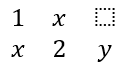
Utilisez MathMatrix pour les lignes et les colonnes. Les matrices n’incluent pas de crochets par défaut, donc encadrez la matrice lorsque vous avez besoin de parenthèses, crochets ou accolades.
auto presentation = System::MakeObject<Presentation>();
auto slide = presentation->get_Slide(0);

auto mathShape = slide->get_Shapes()->AddMathShape(20.0f, 20.0f, 700.0f, 120.0f);
auto mathPortion = System::ExplicitCast<MathPortion>(mathShape->get_TextFrame()->get_Paragraph(0)->get_Portion(0));
auto mathParagraph = mathPortion->get_MathParagraph();

auto matrix = System::MakeObject<MathMatrix>(2, 3);
matrix->idx_set(0, 0, System::MakeObject<MathematicalText>(u"1"));
matrix->idx_set(0, 1, System::MakeObject<MathematicalText>(u"x"));
matrix->idx_set(1, 0, System::MakeObject<MathematicalText>(u"x"));
matrix->idx_set(1, 1, System::MakeObject<MathematicalText>(u"2"));
matrix->idx_set(1, 2, System::MakeObject<MathematicalText>(u"y"));

mathParagraph->Add(System::MakeObject<MathBlock>(matrix));

presentation->Save(u"matrix.pptx", SaveFormat::Pptx);
presentation->Dispose();
Ajouter des tableaux d’équations
Utilisez ToMathArray lorsque vous avez besoin d’équations alignées ou d’une pile verticale d’expressions.

auto presentation = System::MakeObject<Presentation>();
auto slide = presentation->get_Slide(0);

auto mathShape = slide->get_Shapes()->AddMathShape(20.0f, 20.0f, 700.0f, 140.0f);
auto mathPortion = System::ExplicitCast<MathPortion>(mathShape->get_TextFrame()->get_Paragraph(0)->get_Portion(0));
auto mathParagraph = mathPortion->get_MathParagraph();

auto equationArray = System::MakeObject<MathematicalText>(u"x")
        - >Join(u"y")
        - >ToMathArray();

mathParagraph->Add(System::MakeObject<MathBlock>(equationArray));

presentation->Save(u"equation-array.pptx", SaveFormat::Pptx);
presentation->Dispose();
Ajouter des fonctions trigonométriques
Utilisez AsArgumentOfFunction lorsque l’argument est l’élément actuel et que le nom de la fonction est connu.

auto presentation = System::MakeObject<Presentation>();
auto slide = presentation->get_Slide(0);

auto mathShape = slide->get_Shapes()->AddMathShape(20.0f, 20.0f, 700.0f, 100.0f);
auto mathPortion = System::ExplicitCast<MathPortion>(mathShape->get_TextFrame()->get_Paragraph(0)->get_Portion(0));
auto mathParagraph = mathPortion->get_MathParagraph();

auto cosine = System::MakeObject<MathematicalText>(u"2x")
        - >AsArgumentOfFunction(MathFunctionsOfOneArgument::Cos);

mathParagraph->Add(System::MakeObject<MathBlock>(cosine));

presentation->Save(u"trigonometric-function.pptx", SaveFormat::Pptx);
presentation->Dispose();
Ajouter des indices et exposants
Utilisez les assistants d’indice et d’exposant pour les index et les puissances. Lorsque les index doivent apparaître du côté gauche de la base, utilisez SetSubSuperscriptOnTheLeft.

auto presentation = System::MakeObject<Presentation>();
auto slide = presentation->get_Slide(0);

auto mathShape = slide->get_Shapes()->AddMathShape(20.0f, 20.0f, 700.0f, 100.0f);
auto mathPortion = System::ExplicitCast<MathPortion>(mathShape->get_TextFrame()->get_Paragraph(0)->get_Portion(0));
auto mathParagraph = mathPortion->get_MathParagraph();

auto scripts = System::MakeObject<MathematicalText>(u"Y")
        - >SetSubSuperscriptOnTheLeft(u"1", u"n");

mathParagraph->Add(System::MakeObject<MathBlock>(scripts));

presentation->Save(u"subscript-superscript.pptx", SaveFormat::Pptx);
presentation->Dispose();
Ajouter des délimiteurs
Utilisez Enclose pour placer une expression entre délimiteurs. Vous pouvez également définir un caractère séparateur pour les expressions délimitées contenant plusieurs éléments.

auto presentation = System::MakeObject<Presentation>();
auto slide = presentation->get_Slide(0);

auto mathShape = slide->get_Shapes()->AddMathShape(20.0f, 20.0f, 700.0f, 100.0f);
auto mathPortion = System::ExplicitCast<MathPortion>(mathShape->get_TextFrame()->get_Paragraph(0)->get_Portion(0));
auto mathParagraph = mathPortion->get_MathParagraph();

auto delimiter = System::MakeObject<MathematicalText>(u"x")
        - >Join(u"y")
        - >Join(u"z")
        - >Enclose(u'<', u'>', u'|');

mathParagraph->Add(System::MakeObject<MathBlock>(delimiter));

presentation->Save(u"delimiters.pptx", SaveFormat::Pptx);
presentation->Dispose();
Ajouter une boîte bordée
Utilisez ToBorderBox lorsque l’équation elle‑même doit être encadrée.
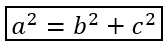
auto presentation = System::MakeObject<Presentation>();
auto slide = presentation->get_Slide(0);

auto mathShape = slide->get_Shapes()->AddMathShape(20.0f, 20.0f, 700.0f, 100.0f);
auto mathPortion = System::ExplicitCast<MathPortion>(mathShape->get_TextFrame()->get_Paragraph(0)->get_Portion(0));
auto mathParagraph = mathPortion->get_MathParagraph();

auto boxedEquation = System::MakeObject<MathematicalText>(u"a")
        - >SetSuperscript(u"2")
        - >Join(u"=")
        - >Join(System::MakeObject<MathematicalText>(u"b")->SetSuperscript(u"2"))
        - >Join(u"+")
        - >Join(System::MakeObject<MathematicalText>(u"c")->SetSuperscript(u"2"))
        - >ToBorderBox();

mathParagraph->Add(System::MakeObject<MathBlock>(boxedEquation));

presentation->Save(u"border-box.pptx", SaveFormat::Pptx);
presentation->Dispose();
Regrouper des termes
Utilisez Group pour placer un caractère de groupement au-dessus ou en dessous d’une expression. Ajoutez une limite pour libeller les termes groupés.

auto presentation = System::MakeObject<Presentation>();
auto slide = presentation->get_Slide(0);

auto mathShape = slide->get_Shapes()->AddMathShape(20.0f, 20.0f, 700.0f, 120.0f);
auto mathPortion = System::ExplicitCast<MathPortion>(mathShape->get_TextFrame()->get_Paragraph(0)->get_Portion(0));
auto mathParagraph = mathPortion->get_MathParagraph();

auto grouped = System::MakeObject<MathematicalText>(u"x + y")
        - >Group(u'\u23DF', MathTopBotPositions::Bottom, MathTopBotPositions::Top)
        - >SetLowerLimit(u"any text");

mathParagraph->Add(System::MakeObject<MathBlock>(grouped));

presentation->Save(u"grouped-terms.pptx", SaveFormat::Pptx);
presentation->Dispose();
Formater les éléments mathématiques
Utilisez les assistants de formatage uniquement lorsqu’ils clarifient la formule. Par exemple, Overbar place une barre au‑dessus d’un élément mathématique.

auto presentation = System::MakeObject<Presentation>();
auto slide = presentation->get_Slide(0);

auto mathShape = slide->get_Shapes()->AddMathShape(20.0f, 20.0f, 700.0f, 100.0f);
auto mathPortion = System::ExplicitCast<MathPortion>(mathShape->get_TextFrame()->get_Paragraph(0)->get_Portion(0));
auto mathParagraph = mathPortion->get_MathParagraph();

auto overbar = System::MakeObject<MathematicalText>(u"ABC")->Overbar();

mathParagraph->Add(System::MakeObject<MathBlock>(overbar));

presentation->Save(u"overbar.pptx", SaveFormat::Pptx);
presentation->Dispose();
Référence rapide
| Tâche | API principale |
|---|---|
| Créer du texte mathématique | MathematicalText |
| Combiner les éléments | IMathElement.Join |
| Créer des fractions | IMathElement.Divide |
| Ajouter un exposant ou un indice | SetSuperscript, SetSubscript |
| Ajouter des fonctions | Function, AsArgumentOfFunction |
| Ajouter des radicaux | IMathElement.Radical |
| Ajouter des limites | SetLowerLimit, SetUpperLimit |
| Ajouter des scripts du côté gauche | SetSubSuperscriptOnTheLeft |
| Ajouter des sommes et des intégrales | Nary, Integral |
| Ajouter des matrices | MathMatrix |
| Ajouter des tableaux d’équations | ToMathArray |
| Ajouter des délimiteurs | Enclose |
| Ajouter des barres et bordures | Overbar, ToBorderBox |
| Regrouper des termes | Group |
FAQ
Puis‑je modifier une équation PowerPoint existante ?
Oui. Ouvrez la présentation, trouvez la forme qui contient un MathPortion, récupérez son MathParagraph et mettez à jour les blocs mathématiques de ce paragraphe.
Les équations sont‑elles enregistrées comme mathématiques PowerPoint modifiables ?
Oui. Lorsque vous enregistrez en PPTX, Aspose.Slides écrit l’équation sous forme de contenu Office mathématique éditable.
Puis‑je exporter les équations vers LaTeX ?
Oui. Obtenez le IMathParagraph de son IMathPortion, puis appelez IMathParagraph::ToLatex pour l’exporter directement. Pour un exemple complet, voir Export Math Equations from Presentations in C++.