
C++ で PowerPoint プレゼンテーションに数式を追加
概要
PowerPoint は数式を Office Math Markup Language (OMML) として保存します。Aspose.Slides for C++ を使用すると、プログラムで同様の数式コンテンツ(分数、根号、関数、極限、N項演算子、行列、配列、書式設定された数式ブロック)を作成できます。
PowerPoint では、通常、挿入 > 数式 から数式を追加します:
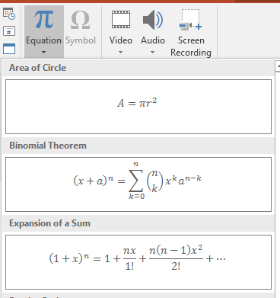
結果として、スライド上に編集可能な数式テキストが表示されます:

Aspose.Slides は、次の 3 つの主要オブジェクトを使用して数式テキストを構築します:
- 数式シェイプは、AddMathShape で作成され、数式を含むシェイプです。
- MathPortion はシェイプのテキストフレーム内に数式コンテンツを格納します。
- MathParagraph は 1 つ以上の MathBlock オブジェクトを含みます。
以下のほとんどの例は、コードを短く読みやすくするために、MathematicalText と IMathElement のフルエントメソッドを使用しています。
MathML エクスポートのシナリオについては、Export Math Equations from Presentations in C++ を参照してください。
数式の作成
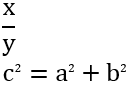
この例では、数式シェイプを作成し、ピタゴラスの定理を追加します:
auto presentation = System::MakeObject<Presentation>();
auto slide = presentation->get_Slide(0);

auto mathShape = slide->get_Shapes()->AddMathShape(20.0f, 20.0f, 700.0f, 120.0f);
auto mathPortion = System::ExplicitCast<MathPortion>(mathShape->get_TextFrame()->get_Paragraph(0)->get_Portion(0));
auto mathParagraph = mathPortion->get_MathParagraph();

auto equation = System::MakeObject<MathematicalText>(u"c")
        - >SetSuperscript(u"2")
        - >Join(u"=")
        - >Join(System::MakeObject<MathematicalText>(u"a")->SetSuperscript(u"2"))
        - >Join(u"+")
        - >Join(System::MakeObject<MathematicalText>(u"b")->SetSuperscript(u"2"));

mathParagraph->Add(equation);

presentation->Save(u"pythagorean-theorem.pptx", SaveFormat::Pptx);
presentation->Dispose();
AddMathShape は、すでに数式段落を含むシェイプを作成します。最初の MathPortion にアクセスし、その MathParagraph を取得して、数式ブロックまたは数式要素を追加します。
分数の追加
Divide を使用して分数を作成します。MathFractionTypes で分数のスタイルを選択できます。

auto presentation = System::MakeObject<Presentation>();
auto slide = presentation->get_Slide(0);

auto mathShape = slide->get_Shapes()->AddMathShape(20.0f, 20.0f, 700.0f, 100.0f);
auto mathPortion = System::ExplicitCast<MathPortion>(mathShape->get_TextFrame()->get_Paragraph(0)->get_Portion(0));
auto mathParagraph = mathPortion->get_MathParagraph();

auto fraction = System::MakeObject<MathematicalText>(u"1")
        - >Divide(u"x", MathFractionTypes::Skewed);

mathParagraph->Add(System::MakeObject<MathBlock>(fraction));

presentation->Save(u"fraction.pptx", SaveFormat::Pptx);
presentation->Dispose();
積み上げ分数の場合は、MathFractionTypes::Bar を使用します:
auto stackedFraction = System::MakeObject<MathematicalText>(u"x + 1")->Divide(u"y - 1", MathFractionTypes::Bar);
根号の追加
Radical を使用して平方根、立方根、またはその他の根号を作成します。現在の要素が基底となり、引数が次数になります。

auto presentation = System::MakeObject<Presentation>();
auto slide = presentation->get_Slide(0);

auto mathShape = slide->get_Shapes()->AddMathShape(20.0f, 20.0f, 700.0f, 100.0f);
auto mathPortion = System::ExplicitCast<MathPortion>(mathShape->get_TextFrame()->get_Paragraph(0)->get_Portion(0));
auto mathParagraph = mathPortion->get_MathParagraph();

auto radical = System::MakeObject<MathematicalText>(u"x")
        - >Radical(u"n");

mathParagraph->Add(System::MakeObject<MathBlock>(radical));

presentation->Save(u"radical.pptx", SaveFormat::Pptx);
presentation->Dispose();
関数と極限の追加
AsArgumentOfFunction または Function を使用して、sin(x)、log(x) などの関数やカスタム関数名を作成します。極限の場合は、MathLimit に lim を入れるか、SetLowerLimit を使用します。

auto presentation = System::MakeObject<Presentation>();
auto slide = presentation->get_Slide(0);

auto mathShape = slide->get_Shapes()->AddMathShape(20.0f, 20.0f, 700.0f, 100.0f);
auto mathPortion = System::ExplicitCast<MathPortion>(mathShape->get_TextFrame()->get_Paragraph(0)->get_Portion(0));
auto mathParagraph = mathPortion->get_MathParagraph();

auto limit = System::MakeObject<MathematicalText>(u"lim")
        - >SetLowerLimit(u"x→∞")
        - >Function(u"x");

mathParagraph->Add(System::MakeObject<MathBlock>(limit));

presentation->Save(u"functions-and-limits.pptx", SaveFormat::Pptx);
presentation->Dispose();
カスタム関数名の場合は、関数名を現在の要素にします:
auto customFunction = System::MakeObject<MathematicalText>(u"f")->Function(u"x + 1");
N 項演算子と積分の追加
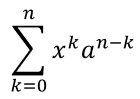
和、合併、交叉などの大きな演算子には Nary を使用します。積分には Integral を使用します。どちらのメソッドも下限と上限を設定できます。
auto presentation = System::MakeObject<Presentation>();
auto slide = presentation->get_Slide(0);

auto mathShape = slide->get_Shapes()->AddMathShape(20.0f, 20.0f, 700.0f, 120.0f);
auto mathPortion = System::ExplicitCast<MathPortion>(mathShape->get_TextFrame()->get_Paragraph(0)->get_Portion(0));
auto mathParagraph = mathPortion->get_MathParagraph();

auto summationBase = System::MakeObject<MathematicalText>(u"x")
        - >SetSuperscript(u"k")
        - >Join(System::MakeObject<MathematicalText>(u"a")->SetSuperscript(u"n-k"));

auto summation = summationBase->Nary(MathNaryOperatorTypes::Summation, u"k=0", u"n");

mathParagraph->Add(System::MakeObject<MathBlock>(summation));

presentation->Save(u"nary-operators.pptx", SaveFormat::Pptx);
presentation->Dispose();
N 項演算子は、オプションの上下限を持つ大きな演算子用です。+、-、= などの単純な演算子は通常、MathematicalText として追加され、式に結合されます。
積分の場合は、Integral を使用します:
auto integralBase = System::MakeObject<MathematicalText>(u"x")->Join(System::MakeObject<MathematicalText>(u"dx")->ToBox());
auto integral = integralBase->Integral(MathIntegralTypes::Simple, u"0", u"1");
行列の追加
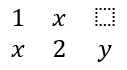
行と列には MathMatrix を使用します。行列はデフォルトで括弧を含まないため、必要に応じて丸括弧、角括弧、波括弧で囲んでください。
auto presentation = System::MakeObject<Presentation>();
auto slide = presentation->get_Slide(0);

auto mathShape = slide->get_Shapes()->AddMathShape(20.0f, 20.0f, 700.0f, 120.0f);
auto mathPortion = System::ExplicitCast<MathPortion>(mathShape->get_TextFrame()->get_Paragraph(0)->get_Portion(0));
auto mathParagraph = mathPortion->get_MathParagraph();

auto matrix = System::MakeObject<MathMatrix>(2, 3);
matrix->idx_set(0, 0, System::MakeObject<MathematicalText>(u"1"));
matrix->idx_set(0, 1, System::MakeObject<MathematicalText>(u"x"));
matrix->idx_set(1, 0, System::MakeObject<MathematicalText>(u"x"));
matrix->idx_set(1, 1, System::MakeObject<MathematicalText>(u"2"));
matrix->idx_set(1, 2, System::MakeObject<MathematicalText>(u"y"));

mathParagraph->Add(System::MakeObject<MathBlock>(matrix));

presentation->Save(u"matrix.pptx", SaveFormat::Pptx);
presentation->Dispose();
数式配列の追加
整列した数式や縦に積み重ねた式が必要な場合は、ToMathArray を使用します。

auto presentation = System::MakeObject<Presentation>();
auto slide = presentation->get_Slide(0);

auto mathShape = slide->get_Shapes()->AddMathShape(20.0f, 20.0f, 700.0f, 140.0f);
auto mathPortion = System::ExplicitCast<MathPortion>(mathShape->get_TextFrame()->get_Paragraph(0)->get_Portion(0));
auto mathParagraph = mathPortion->get_MathParagraph();

auto equationArray = System::MakeObject<MathematicalText>(u"x")
        - >Join(u"y")
        - >ToMathArray();

mathParagraph->Add(System::MakeObject<MathBlock>(equationArray));

presentation->Save(u"equation-array.pptx", SaveFormat::Pptx);
presentation->Dispose();
三角関数の追加
引数が現在の要素で関数名が既知の場合は、AsArgumentOfFunction を使用します。

auto presentation = System::MakeObject<Presentation>();
auto slide = presentation->get_Slide(0);

auto mathShape = slide->get_Shapes()->AddMathShape(20.0f, 20.0f, 700.0f, 100.0f);
auto mathPortion = System::ExplicitCast<MathPortion>(mathShape->get_TextFrame()->get_Paragraph(0)->get_Portion(0));
auto mathParagraph = mathPortion->get_MathParagraph();

auto cosine = System::MakeObject<MathematicalText>(u"2x")
        - >AsArgumentOfFunction(MathFunctionsOfOneArgument::Cos);

mathParagraph->Add(System::MakeObject<MathBlock>(cosine));

presentation->Save(u"trigonometric-function.pptx", SaveFormat::Pptx);
presentation->Dispose();
下付き文字と上付き文字の追加
添字と指数には下付き・上付きヘルパーを使用します。添字を基底の左側に表示する必要がある場合は、SetSubSuperscriptOnTheLeft を使用します。

auto presentation = System::MakeObject<Presentation>();
auto slide = presentation->get_Slide(0);

auto mathShape = slide->get_Shapes()->AddMathShape(20.0f, 20.0f, 700.0f, 100.0f);
auto mathPortion = System::ExplicitCast<MathPortion>(mathShape->get_TextFrame()->get_Paragraph(0)->get_Portion(0));
auto mathParagraph = mathPortion->get_MathParagraph();

auto scripts = System::MakeObject<MathematicalText>(u"Y")
        - >SetSubSuperscriptOnTheLeft(u"1", u"n");

mathParagraph->Add(System::MakeObject<MathBlock>(scripts));

presentation->Save(u"subscript-superscript.pptx", SaveFormat::Pptx);
presentation->Dispose();
区切り文字の追加
式を区切り文字で囲むには Enclose を使用します。複数要素を含む区切り文字式には、区切り文字を設定することもできます。

auto presentation = System::MakeObject<Presentation>();
auto slide = presentation->get_Slide(0);

auto mathShape = slide->get_Shapes()->AddMathShape(20.0f, 20.0f, 700.0f, 100.0f);
auto mathPortion = System::ExplicitCast<MathPortion>(mathShape->get_TextFrame()->get_Paragraph(0)->get_Portion(0));
auto mathParagraph = mathPortion->get_MathParagraph();

auto delimiter = System::MakeObject<MathematicalText>(u"x")
        - >Join(u"y")
        - >Join(u"z")
        - >Enclose(u'<', u'>', u'|');

mathParagraph->Add(System::MakeObject<MathBlock>(delimiter));

presentation->Save(u"delimiters.pptx", SaveFormat::Pptx);
presentation->Dispose();
枠付きボックスの追加
数式自体を枠で囲む場合は ToBorderBox を使用します。
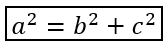
auto presentation = System::MakeObject<Presentation>();
auto slide = presentation->get_Slide(0);

auto mathShape = slide->get_Shapes()->AddMathShape(20.0f, 20.0f, 700.0f, 100.0f);
auto mathPortion = System::ExplicitCast<MathPortion>(mathShape->get_TextFrame()->get_Paragraph(0)->get_Portion(0));
auto mathParagraph = mathPortion->get_MathParagraph();

auto boxedEquation = System::MakeObject<MathematicalText>(u"a")
        - >SetSuperscript(u"2")
        - >Join(u"=")
        - >Join(System::MakeObject<MathematicalText>(u"b")->SetSuperscript(u"2"))
        - >Join(u"+")
        - >Join(System::MakeObject<MathematicalText>(u"c")->SetSuperscript(u"2"))
        - >ToBorderBox();

mathParagraph->Add(System::MakeObject<MathBlock>(boxedEquation));

presentation->Save(u"border-box.pptx", SaveFormat::Pptx);
presentation->Dispose();
項のグループ化
Group を使用して、式の上または下にグルーピング文字を配置します。グループ化された項にラベルを付けるには、リミットを追加します。

auto presentation = System::MakeObject<Presentation>();
auto slide = presentation->get_Slide(0);

auto mathShape = slide->get_Shapes()->AddMathShape(20.0f, 20.0f, 700.0f, 120.0f);
auto mathPortion = System::ExplicitCast<MathPortion>(mathShape->get_TextFrame()->get_Paragraph(0)->get_Portion(0));
auto mathParagraph = mathPortion->get_MathParagraph();

auto grouped = System::MakeObject<MathematicalText>(u"x + y")
        - >Group(u'\u23DF', MathTopBotPositions::Bottom, MathTopBotPositions::Top)
        - >SetLowerLimit(u"any text");

mathParagraph->Add(System::MakeObject<MathBlock>(grouped));

presentation->Save(u"grouped-terms.pptx", SaveFormat::Pptx);
presentation->Dispose();
数式要素の書式設定
書式設定ヘルパーは、式を明確にする場合にのみ使用してください。例として、Overbar は数式要素の上にバーを付けます。

auto presentation = System::MakeObject<Presentation>();
auto slide = presentation->get_Slide(0);

auto mathShape = slide->get_Shapes()->AddMathShape(20.0f, 20.0f, 700.0f, 100.0f);
auto mathPortion = System::ExplicitCast<MathPortion>(mathShape->get_TextFrame()->get_Paragraph(0)->get_Portion(0));
auto mathParagraph = mathPortion->get_MathParagraph();

auto overbar = System::MakeObject<MathematicalText>(u"ABC")->Overbar();

mathParagraph->Add(System::MakeObject<MathBlock>(overbar));

presentation->Save(u"overbar.pptx", SaveFormat::Pptx);
presentation->Dispose();
クイックリファレンス
| タスク | 主な API |
|---|---|
| 数式テキストの作成 | MathematicalText |
| 要素の結合 | IMathElement.Join |
| 分数の作成 | IMathElement.Divide |
| 上付き文字または下付き文字の追加 | SetSuperscript, SetSubscript |
| 関数の追加 | Function, AsArgumentOfFunction |
| 根号の追加 | IMathElement.Radical |
| 極限の追加 | SetLowerLimit, SetUpperLimit |
| 左側添字の追加 | SetSubSuperscriptOnTheLeft |
| 総和と積分の追加 | Nary, Integral |
| 行列の追加 | MathMatrix |
| 数式配列の追加 | ToMathArray |
| 区切り文字の追加 | Enclose |
| バーと枠の追加 | Overbar, ToBorderBox |
| 項のグループ化 | Group |
よくある質問
既存の PowerPoint の数式を編集できますか?
はい。プレゼンテーションを開き、MathPortion を含むシェイプを見つけ、その MathParagraph を取得し、その段落内の数式ブロックを更新します。
数式は編集可能な PowerPoint の数式として保存されますか?
はい。PPTX で保存すると、Aspose.Slides は数式を編集可能な Office 数式コンテンツとして書き込みます。
数式を LaTeX にエクスポートできますか?
はい。数式の IMathParagraph をその IMathPortion から取得し、IMathParagraph::ToLatex を呼び出すことで直接エクスポートできます。完全な例については、Export Math Equations from Presentations in C++ を参照してください。