
Wiskundige vergelijkingen toevoegen aan PowerPoint-presentaties in C++
Overzicht
PowerPoint slaat vergelijkingen op als Office Math Markup Language (OMML). Met Aspose.Slides for C++ kunt u dezelfde soort wiskundige inhoud programmatisch maken: breuken, wortels, functies, limieten, N-aire operatoren, matrices, arrays en opgemaakte wiskundige blokken.
In PowerPoint voegen gebruikers normaal gesproken vergelijkingen toe via Invoegen > Vergelijking:

Het resultaat is bewerkbare wiskundige tekst op de dia:

Aspose.Slides bouwt die wiskundige tekst op via drie hoofdobjecten:
- Een wiskundige vorm, gemaakt met AddMathShape, is de vorm die de vergelijking bevat.
- MathPortion slaat wiskundige inhoud op in het tekstvak van de vorm.
- MathParagraph bevat één of meer MathBlock objecten.
De meeste voorbeelden hieronder gebruiken MathematicalText en de fluente methoden van IMathElement om de code kort en leesbaar te houden.
Voor MathML‑exportscenario’s, zie Exporteer wiskundige vergelijkingen vanuit presentaties in C++.
Een vergelijking maken
Dit voorbeeld maakt een wiskundige vorm en voegt de stelling van Pythagoras toe:

auto presentation = System::MakeObject<Presentation>();
auto slide = presentation->get_Slide(0);

auto mathShape = slide->get_Shapes()->AddMathShape(20.0f, 20.0f, 700.0f, 120.0f);
auto mathPortion = System::ExplicitCast<MathPortion>(mathShape->get_TextFrame()->get_Paragraph(0)->get_Portion(0));
auto mathParagraph = mathPortion->get_MathParagraph();

auto equation = System::MakeObject<MathematicalText>(u"c")
        - >SetSuperscript(u"2")
        - >Join(u"=")
        - >Join(System::MakeObject<MathematicalText>(u"a")->SetSuperscript(u"2"))
        - >Join(u"+")
        - >Join(System::MakeObject<MathematicalText>(u"b")->SetSuperscript(u"2"));

mathParagraph->Add(equation);

presentation->Save(u"pythagorean-theorem.pptx", SaveFormat::Pptx);
presentation->Dispose();
AddMathShape maakt een vorm die al een wiskundige alinea bevat. Toegang tot de eerste MathPortion, haal zijn MathParagraph op, en voeg wiskundige blokken of wiskundige elementen toe.
Breuken toevoegen
Gebruik Divide om een breuk te maken. U kunt een breukstijl kiezen met MathFractionTypes.

auto presentation = System::MakeObject<Presentation>();
auto slide = presentation->get_Slide(0);

auto mathShape = slide->get_Shapes()->AddMathShape(20.0f, 20.0f, 700.0f, 100.0f);
auto mathPortion = System::ExplicitCast<MathPortion>(mathShape->get_TextFrame()->get_Paragraph(0)->get_Portion(0));
auto mathParagraph = mathPortion->get_MathParagraph();

auto fraction = System::MakeObject<MathematicalText>(u"1")
        - >Divide(u"x", MathFractionTypes::Skewed);

mathParagraph->Add(System::MakeObject<MathBlock>(fraction));

presentation->Save(u"fraction.pptx", SaveFormat::Pptx);
presentation->Dispose();
Voor een gestapelde breuk, gebruik MathFractionTypes::Bar:
auto stackedFraction = System::MakeObject<MathematicalText>(u"x + 1")->Divide(u"y - 1", MathFractionTypes::Bar);
Wortels toevoegen
Gebruik Radical om een vierkantswortel, kubuswortel of andere wortel te maken. Het huidige element wordt de basis, en het argument wordt de graad.

auto presentation = System::MakeObject<Presentation>();
auto slide = presentation->get_Slide(0);

auto mathShape = slide->get_Shapes()->AddMathShape(20.0f, 20.0f, 700.0f, 100.0f);
auto mathPortion = System::ExplicitCast<MathPortion>(mathShape->get_TextFrame()->get_Paragraph(0)->get_Portion(0));
auto mathParagraph = mathPortion->get_MathParagraph();

auto radical = System::MakeObject<MathematicalText>(u"x")
        - >Radical(u"n");

mathParagraph->Add(System::MakeObject<MathBlock>(radical));

presentation->Save(u"radical.pptx", SaveFormat::Pptx);
presentation->Dispose();
Functies en limieten toevoegen
Gebruik AsArgumentOfFunction of Function voor functies zoals sin(x), log(x) of aangepaste functienamen. Voor limieten, plaats lim in een MathLimit of gebruik SetLowerLimit.

auto presentation = System::MakeObject<Presentation>();
auto slide = presentation->get_Slide(0);

auto mathShape = slide->get_Shapes()->AddMathShape(20.0f, 20.0f, 700.0f, 100.0f);
auto mathPortion = System::ExplicitCast<MathPortion>(mathShape->get_TextFrame()->get_Paragraph(0)->get_Portion(0));
auto mathParagraph = mathPortion->get_MathParagraph();

auto limit = System::MakeObject<MathematicalText>(u"lim")
        - >SetLowerLimit(u"x→∞")
        - >Function(u"x");

mathParagraph->Add(System::MakeObject<MathBlock>(limit));

presentation->Save(u"functions-and-limits.pptx", SaveFormat::Pptx);
presentation->Dispose();
Voor een aangepaste functienaam, maak de functienaam tot het huidige element:
auto customFunction = System::MakeObject<MathematicalText>(u"f")->Function(u"x + 1");
N-aire operatoren en integralen toevoegen
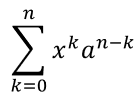
Gebruik Nary voor sommaties, unies, doorsnedes en andere grote operatoren. Gebruik Integral voor integralen. Beide methoden laten u onder- en bovengrenzen instellen.
auto presentation = System::MakeObject<Presentation>();
auto slide = presentation->get_Slide(0);

auto mathShape = slide->get_Shapes()->AddMathShape(20.0f, 20.0f, 700.0f, 120.0f);
auto mathPortion = System::ExplicitCast<MathPortion>(mathShape->get_TextFrame()->get_Paragraph(0)->get_Portion(0));
auto mathParagraph = mathPortion->get_MathParagraph();

auto summationBase = System::MakeObject<MathematicalText>(u"x")
        - >SetSuperscript(u"k")
        - >Join(System::MakeObject<MathematicalText>(u"a")->SetSuperscript(u"n-k"));

auto summation = summationBase->Nary(MathNaryOperatorTypes::Summation, u"k=0", u"n");

mathParagraph->Add(System::MakeObject<MathBlock>(summation));

presentation->Save(u"nary-operators.pptx", SaveFormat::Pptx);
presentation->Dispose();
N-aire operatoren zijn voor grote operatoren met optionele limieten. Simpele operatoren zoals +, - en = worden meestal toegevoegd als MathematicalText en aan de expressie gekoppeld.
Voor een integraal, gebruik Integral:
auto integralBase = System::MakeObject<MathematicalText>(u"x")->Join(System::MakeObject<MathematicalText>(u"dx")->ToBox());
auto integral = integralBase->Integral(MathIntegralTypes::Simple, u"0", u"1");
Matrices toevoegen
Gebruik MathMatrix voor rijen en kolommen. Matrices bevatten standaard geen haakjes, dus zet de matrix tussen haakjes, vierkante haken of accolades wanneer dat nodig is.

auto presentation = System::MakeObject<Presentation>();
auto slide = presentation->get_Slide(0);

auto mathShape = slide->get_Shapes()->AddMathShape(20.0f, 20.0f, 700.0f, 120.0f);
auto mathPortion = System::ExplicitCast<MathPortion>(mathShape->get_TextFrame()->get_Paragraph(0)->get_Portion(0));
auto mathParagraph = mathPortion->get_MathParagraph();

auto matrix = System::MakeObject<MathMatrix>(2, 3);
matrix->idx_set(0, 0, System::MakeObject<MathematicalText>(u"1"));
matrix->idx_set(0, 1, System::MakeObject<MathematicalText>(u"x"));
matrix->idx_set(1, 0, System::MakeObject<MathematicalText>(u"x"));
matrix->idx_set(1, 1, System::MakeObject<MathematicalText>(u"2"));
matrix->idx_set(1, 2, System::MakeObject<MathematicalText>(u"y"));

mathParagraph->Add(System::MakeObject<MathBlock>(matrix));

presentation->Save(u"matrix.pptx", SaveFormat::Pptx);
presentation->Dispose();
Vergelijkingsarrays toevoegen
Gebruik ToMathArray wanneer u uitgelijnde vergelijkingen of een verticale stapel uitdrukkingen nodig heeft.

auto presentation = System::MakeObject<Presentation>();
auto slide = presentation->get_Slide(0);

auto mathShape = slide->get_Shapes()->AddMathShape(20.0f, 20.0f, 700.0f, 140.0f);
auto mathPortion = System::ExplicitCast<MathPortion>(mathShape->get_TextFrame()->get_Paragraph(0)->get_Portion(0));
auto mathParagraph = mathPortion->get_MathParagraph();

auto equationArray = System::MakeObject<MathematicalText>(u"x")
        - >Join(u"y")
        - >ToMathArray();

mathParagraph->Add(System::MakeObject<MathBlock>(equationArray));

presentation->Save(u"equation-array.pptx", SaveFormat::Pptx);
presentation->Dispose();
Trigonometrische functies toevoegen
Gebruik AsArgumentOfFunction wanneer het argument het huidige element is en de functienaam bekend is.

auto presentation = System::MakeObject<Presentation>();
auto slide = presentation->get_Slide(0);

auto mathShape = slide->get_Shapes()->AddMathShape(20.0f, 20.0f, 700.0f, 100.0f);
auto mathPortion = System::ExplicitCast<MathPortion>(mathShape->get_TextFrame()->get_Paragraph(0)->get_Portion(0));
auto mathParagraph = mathPortion->get_MathParagraph();

auto cosine = System::MakeObject<MathematicalText>(u"2x")
        - >AsArgumentOfFunction(MathFunctionsOfOneArgument::Cos);

mathParagraph->Add(System::MakeObject<MathBlock>(cosine));

presentation->Save(u"trigonometric-function.pptx", SaveFormat::Pptx);
presentation->Dispose();
Subscripties en superscripties toevoegen
Gebruik de subscript- en superscript-hulpmiddelen voor indexen en machten. Wanneer de indexen aan de linkerkant van de basis moeten verschijnen, gebruik SetSubSuperscriptOnTheLeft.

auto presentation = System::MakeObject<Presentation>();
auto slide = presentation->get_Slide(0);

auto mathShape = slide->get_Shapes()->AddMathShape(20.0f, 20.0f, 700.0f, 100.0f);
auto mathPortion = System::ExplicitCast<MathPortion>(mathShape->get_TextFrame()->get_Paragraph(0)->get_Portion(0));
auto mathParagraph = mathPortion->get_MathParagraph();

auto scripts = System::MakeObject<MathematicalText>(u"Y")
        - >SetSubSuperscriptOnTheLeft(u"1", u"n");

mathParagraph->Add(System::MakeObject<MathBlock>(scripts));

presentation->Save(u"subscript-superscript.pptx", SaveFormat::Pptx);
presentation->Dispose();
Scheidingstekens toevoegen
Gebruik Enclose om een expressie binnen scheidingstekens te plaatsen. U kunt ook een scheidingsteken instellen voor scheidingsteken‑expressies die meerdere elementen bevatten.

auto presentation = System::MakeObject<Presentation>();
auto slide = presentation->get_Slide(0);

auto mathShape = slide->get_Shapes()->AddMathShape(20.0f, 20.0f, 700.0f, 100.0f);
auto mathPortion = System::ExplicitCast<MathPortion>(mathShape->get_TextFrame()->get_Paragraph(0)->get_Portion(0));
auto mathParagraph = mathPortion->get_MathParagraph();

auto delimiter = System::MakeObject<MathematicalText>(u"x")
        - >Join(u"y")
        - >Join(u"z")
        - >Enclose(u'<', u'>', u'|');

mathParagraph->Add(System::MakeObject<MathBlock>(delimiter));

presentation->Save(u"delimiters.pptx", SaveFormat::Pptx);
presentation->Dispose();
Een randvak toevoegen
Gebruik ToBorderBox wanneer de vergelijking zelf omlijnd moet worden.

auto presentation = System::MakeObject<Presentation>();
auto slide = presentation->get_Slide(0);

auto mathShape = slide->get_Shapes()->AddMathShape(20.0f, 20.0f, 700.0f, 100.0f);
auto mathPortion = System::ExplicitCast<MathPortion>(mathShape->get_TextFrame()->get_Paragraph(0)->get_Portion(0));
auto mathParagraph = mathPortion->get_MathParagraph();

auto boxedEquation = System::MakeObject<MathematicalText>(u"a")
        - >SetSuperscript(u"2")
        - >Join(u"=")
        - >Join(System::MakeObject<MathematicalText>(u"b")->SetSuperscript(u"2"))
        - >Join(u"+")
        - >Join(System::MakeObject<MathematicalText>(u"c")->SetSuperscript(u"2"))
        - >ToBorderBox();

mathParagraph->Add(System::MakeObject<MathBlock>(boxedEquation));

presentation->Save(u"border-box.pptx", SaveFormat::Pptx);
presentation->Dispose();
Termen groeperen
Gebruik Group om een groepeer‑teken boven of onder een expressie te plaatsen. Voeg een limiet toe om de gegroepeerde termen te labelen.

auto presentation = System::MakeObject<Presentation>();
auto slide = presentation->get_Slide(0);

auto mathShape = slide->get_Shapes()->AddMathShape(20.0f, 20.0f, 700.0f, 120.0f);
auto mathPortion = System::ExplicitCast<MathPortion>(mathShape->get_TextFrame()->get_Paragraph(0)->get_Portion(0));
auto mathParagraph = mathPortion->get_MathParagraph();

auto grouped = System::MakeObject<MathematicalText>(u"x + y")
        - >Group(u'\u23DF', MathTopBotPositions::Bottom, MathTopBotPositions::Top)
        - >SetLowerLimit(u"any text");

mathParagraph->Add(System::MakeObject<MathBlock>(grouped));

presentation->Save(u"grouped-terms.pptx", SaveFormat::Pptx);
presentation->Dispose();
Wiskundige elementen formatteren
Gebruik opmaakhulpmiddelen alleen waar ze de formule verduidelijken. Bijvoorbeeld, Overbar plaatst een balk boven een wiskundig element.

auto presentation = System::MakeObject<Presentation>();
auto slide = presentation->get_Slide(0);

auto mathShape = slide->get_Shapes()->AddMathShape(20.0f, 20.0f, 700.0f, 100.0f);
auto mathPortion = System::ExplicitCast<MathPortion>(mathShape->get_TextFrame()->get_Paragraph(0)->get_Portion(0));
auto mathParagraph = mathPortion->get_MathParagraph();

auto overbar = System::MakeObject<MathematicalText>(u"ABC")->Overbar();

mathParagraph->Add(System::MakeObject<MathBlock>(overbar));

presentation->Save(u"overbar.pptx", SaveFormat::Pptx);
presentation->Dispose();
Snelle referentie
| Taak | Hoofd‑API |
|---|---|
| Wiskundige tekst maken | MathematicalText |
| Elementen combineren | IMathElement.Join |
| Breuken maken | IMathElement.Divide |
| Superscript of subscript toevoegen | SetSuperscript, SetSubscript |
| Functies toevoegen | Function, AsArgumentOfFunction |
| Wortels toevoegen | IMathElement.Radical |
| Limieten toevoegen | SetLowerLimit, SetUpperLimit |
| Links‑scripts toevoegen | SetSubSuperscriptOnTheLeft |
| Sommaties en integralen toevoegen | Nary, Integral |
| Matrices toevoegen | MathMatrix |
| Vergelijkingsarrays toevoegen | ToMathArray |
| Scheidingstekens toevoegen | Enclose |
| Strepen en randen toevoegen | Overbar, ToBorderBox |
| Termen groeperen | Group |
FAQ
Kan ik een bestaande PowerPoint‑vergelijking bewerken?
Ja. Open de presentatie, vind de vorm die een MathPortion bevat, haal zijn MathParagraph op, en werk de wiskundige blokken in die alinea bij.
Worden vergelijkingen opgeslagen als bewerkbare PowerPoint‑wiskunde?
Ja. Wanneer u opslaat als PPTX, schrijft Aspose.Slides de vergelijking als bewerkbare Office‑wiskundige inhoud.
Kan ik vergelijkingen exporteren naar LaTeX?
Ja. Haal de IMathParagraph van de vergelijking op via zijn IMathPortion, en roep IMathParagraph::ToLatex aan om deze direct te exporteren. Voor een volledig voorbeeld, zie Exporteer wiskundige vergelijkingen vanuit presentaties in C++.