
Tambahkan Persamaan Matematika ke Presentasi PowerPoint dalam C++
Gambaran Umum
PowerPoint menyimpan persamaan sebagai Office Math Markup Language (OMML). Dengan Aspose.Slides untuk C++, Anda dapat membuat konten matematika yang sama secara programatik: pecahan, radikal, fungsi, limit, operator N-ary, matriks, array, dan blok matematika yang diformat.
Di PowerPoint, pengguna biasanya menambahkan persamaan melalui Insert > Equation:
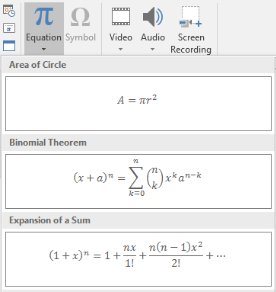
Hasilnya adalah teks matematika yang dapat diedit pada slide:

Aspose.Slides membangun teks matematika tersebut melalui tiga objek utama:
- Sebuah bentuk matematika, dibuat dengan AddMathShape, adalah bentuk yang berisi persamaan.
- MathPortion menyimpan konten matematika di dalam bingkai teks bentuk.
- MathParagraph berisi satu atau lebih objek MathBlock.
Sebagian besar contoh di bawah ini menggunakan MathematicalText dan metode fluent dari IMathElement untuk menjaga kode tetap singkat dan mudah dibaca.
Untuk skenario ekspor MathML, lihat Ekspor Persamaan Matematika dari Presentasi dalam C++.
Buat Persamaan
Contoh ini membuat sebuah bentuk matematika dan menambahkan teorema Pythagoras:
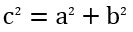
auto presentation = System::MakeObject<Presentation>();
auto slide = presentation->get_Slide(0);

auto mathShape = slide->get_Shapes()->AddMathShape(20.0f, 20.0f, 700.0f, 120.0f);
auto mathPortion = System::ExplicitCast<MathPortion>(mathShape->get_TextFrame()->get_Paragraph(0)->get_Portion(0));
auto mathParagraph = mathPortion->get_MathParagraph();

auto equation = System::MakeObject<MathematicalText>(u"c")
        - >SetSuperscript(u"2")
        - >Join(u"=")
        - >Join(System::MakeObject<MathematicalText>(u"a")->SetSuperscript(u"2"))
        - >Join(u"+")
        - >Join(System::MakeObject<MathematicalText>(u"b")->SetSuperscript(u"2"));

mathParagraph->Add(equation);

presentation->Save(u"pythagorean-theorem.pptx", SaveFormat::Pptx);
presentation->Dispose();
AddMathShape membuat sebuah bentuk yang sudah berisi paragraf matematika. Akses MathPortion pertama, dapatkan MathParagraph‑nya, dan tambahkan blok matematika atau elemen matematika ke dalamnya.
Tambah Pecahan
Gunakan Divide untuk membuat pecahan. Anda dapat memilih gaya pecahan dengan MathFractionTypes.

auto presentation = System::MakeObject<Presentation>();
auto slide = presentation->get_Slide(0);

auto mathShape = slide->get_Shapes()->AddMathShape(20.0f, 20.0f, 700.0f, 100.0f);
auto mathPortion = System::ExplicitCast<MathPortion>(mathShape->get_TextFrame()->get_Paragraph(0)->get_Portion(0));
auto mathParagraph = mathPortion->get_MathParagraph();

auto fraction = System::MakeObject<MathematicalText>(u"1")
        - >Divide(u"x", MathFractionTypes::Skewed);

mathParagraph->Add(System::MakeObject<MathBlock>(fraction));

presentation->Save(u"fraction.pptx", SaveFormat::Pptx);
presentation->Dispose();
Untuk pecahan bertumpuk, gunakan MathFractionTypes::Bar:
auto stackedFraction = System::MakeObject<MathematicalText>(u"x + 1")->Divide(u"y - 1", MathFractionTypes::Bar);
Tambah Radikal
Gunakan Radical untuk membuat akar kuadrat, akar kubik, atau akar lainnya. Elemen saat ini menjadi basis, dan argumen menjadi derajatnya.

auto presentation = System::MakeObject<Presentation>();
auto slide = presentation->get_Slide(0);

auto mathShape = slide->get_Shapes()->AddMathShape(20.0f, 20.0f, 700.0f, 100.0f);
auto mathPortion = System::ExplicitCast<MathPortion>(mathShape->get_TextFrame()->get_Paragraph(0)->get_Portion(0));
auto mathParagraph = mathPortion->get_MathParagraph();

auto radical = System::MakeObject<MathematicalText>(u"x")
        - >Radical(u"n");

mathParagraph->Add(System::MakeObject<MathBlock>(radical));

presentation->Save(u"radical.pptx", SaveFormat::Pptx);
presentation->Dispose();
Tambah Fungsi dan Limit
Gunakan AsArgumentOfFunction atau Function untuk fungsi seperti sin(x), log(x), atau nama fungsi kustom. Untuk limit, letakkan lim dalam MathLimit atau gunakan SetLowerLimit.

auto presentation = System::MakeObject<Presentation>();
auto slide = presentation->get_Slide(0);

auto mathShape = slide->get_Shapes()->AddMathShape(20.0f, 20.0f, 700.0f, 100.0f);
auto mathPortion = System::ExplicitCast<MathPortion>(mathShape->get_TextFrame()->get_Paragraph(0)->get_Portion(0));
auto mathParagraph = mathPortion->get_MathParagraph();

auto limit = System::MakeObject<MathematicalText>(u"lim")
        - >SetLowerLimit(u"x→∞")
        - >Function(u"x");

mathParagraph->Add(System::MakeObject<MathBlock>(limit));

presentation->Save(u"functions-and-limits.pptx", SaveFormat::Pptx);
presentation->Dispose();
Untuk nama fungsi kustom, jadikan nama fungsi sebagai elemen saat ini:
auto customFunction = System::MakeObject<MathematicalText>(u"f")->Function(u"x + 1");
Tambah Operator N-ary dan Integral
Gunakan Nary untuk penjumlahan, union, interseksi, dan operator besar lainnya. Gunakan Integral untuk integral. Kedua metode memungkinkan Anda mengatur limit bawah dan atas.
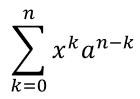
auto presentation = System::MakeObject<Presentation>();
auto slide = presentation->get_Slide(0);

auto mathShape = slide->get_Shapes()->AddMathShape(20.0f, 20.0f, 700.0f, 120.0f);
auto mathPortion = System::ExplicitCast<MathPortion>(mathShape->get_TextFrame()->get_Paragraph(0)->get_Portion(0));
auto mathParagraph = mathPortion->get_MathParagraph();

auto summationBase = System::MakeObject<MathematicalText>(u"x")
        - >SetSuperscript(u"k")
        - >Join(System::MakeObject<MathematicalText>(u"a")->SetSuperscript(u"n-k"));

auto summation = summationBase->Nary(MathNaryOperatorTypes::Summation, u"k=0", u"n");

mathParagraph->Add(System::MakeObject<MathBlock>(summation));

presentation->Save(u"nary-operators.pptx", SaveFormat::Pptx);
presentation->Dispose();
Operator N-ary digunakan untuk operator besar dengan limit opsional. Operator sederhana seperti +, -, dan = biasanya ditambahkan sebagai MathematicalText dan digabungkan ke dalam ekspresi.
Untuk integral, gunakan Integral:
auto integralBase = System::MakeObject<MathematicalText>(u"x")->Join(System::MakeObject<MathematicalText>(u"dx")->ToBox());
auto integral = integralBase->Integral(MathIntegralTypes::Simple, u"0", u"1");
Tambah Matriks
Gunakan MathMatrix untuk baris dan kolom. Matriks tidak menyertakan kurung secara default, jadi lampirkan matriks ketika Anda membutuhkan tanda kurung, kurung siku, atau kurung kurawal.
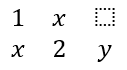
auto presentation = System::MakeObject<Presentation>();
auto slide = presentation->get_Slide(0);

auto mathShape = slide->get_Shapes()->AddMathShape(20.0f, 20.0f, 700.0f, 120.0f);
auto mathPortion = System::ExplicitCast<MathPortion>(mathShape->get_TextFrame()->get_Paragraph(0)->get_Portion(0));
auto mathParagraph = mathPortion->get_MathParagraph();

auto matrix = System::MakeObject<MathMatrix>(2, 3);
matrix->idx_set(0, 0, System::MakeObject<MathematicalText>(u"1"));
matrix->idx_set(0, 1, System::MakeObject<MathematicalText>(u"x"));
matrix->idx_set(1, 0, System::MakeObject<MathematicalText>(u"x"));
matrix->idx_set(1, 1, System::MakeObject<MathematicalText>(u"2"));
matrix->idx_set(1, 2, System::MakeObject<MathematicalText>(u"y"));

mathParagraph->Add(System::MakeObject<MathBlock>(matrix));

presentation->Save(u"matrix.pptx", SaveFormat::Pptx);
presentation->Dispose();
Tambah Array Persamaan
Gunakan ToMathArray ketika Anda membutuhkan persamaan yang diratakan atau susunan vertikal ekspresi.

auto presentation = System::MakeObject<Presentation>();
auto slide = presentation->get_Slide(0);

auto mathShape = slide->get_Shapes()->AddMathShape(20.0f, 20.0f, 700.0f, 140.0f);
auto mathPortion = System::ExplicitCast<MathPortion>(mathShape->get_TextFrame()->get_Paragraph(0)->get_Portion(0));
auto mathParagraph = mathPortion->get_MathParagraph();

auto equationArray = System::MakeObject<MathematicalText>(u"x")
        - >Join(u"y")
        - >ToMathArray();

mathParagraph->Add(System::MakeObject<MathBlock>(equationArray));

presentation->Save(u"equation-array.pptx", SaveFormat::Pptx);
presentation->Dispose();
Tambah Fungsi Trigonometri
Gunakan AsArgumentOfFunction ketika argumen adalah elemen saat ini dan nama fungsi diketahui.

auto presentation = System::MakeObject<Presentation>();
auto slide = presentation->get_Slide(0);

auto mathShape = slide->get_Shapes()->AddMathShape(20.0f, 20.0f, 700.0f, 100.0f);
auto mathPortion = System::ExplicitCast<MathPortion>(mathShape->get_TextFrame()->get_Paragraph(0)->get_Portion(0));
auto mathParagraph = mathPortion->get_MathParagraph();

auto cosine = System::MakeObject<MathematicalText>(u"2x")
        - >AsArgumentOfFunction(MathFunctionsOfOneArgument::Cos);

mathParagraph->Add(System::MakeObject<MathBlock>(cosine));

presentation->Save(u"trigonometric-function.pptx", SaveFormat::Pptx);
presentation->Dispose();
Tambah Subskrip dan Superskrip
Gunakan pembantu subskrip dan superskrip untuk indeks dan pangkat. Ketika indeks harus muncul di sisi kiri basis, gunakan SetSubSuperscriptOnTheLeft.

auto presentation = System::MakeObject<Presentation>();
auto slide = presentation->get_Slide(0);

auto mathShape = slide->get_Shapes()->AddMathShape(20.0f, 20.0f, 700.0f, 100.0f);
auto mathPortion = System::ExplicitCast<MathPortion>(mathShape->get_TextFrame()->get_Paragraph(0)->get_Portion(0));
auto mathParagraph = mathPortion->get_MathParagraph();

auto scripts = System::MakeObject<MathematicalText>(u"Y")
        - >SetSubSuperscriptOnTheLeft(u"1", u"n");

mathParagraph->Add(System::MakeObject<MathBlock>(scripts));

presentation->Save(u"subscript-superscript.pptx", SaveFormat::Pptx);
presentation->Dispose();
Tambah Delimiter
Gunakan Enclose untuk menempatkan ekspresi di dalam delimiter. Anda juga dapat mengatur karakter pemisah untuk ekspresi delimiter yang berisi beberapa elemen.

auto presentation = System::MakeObject<Presentation>();
auto slide = presentation->get_Slide(0);

auto mathShape = slide->get_Shapes()->AddMathShape(20.0f, 20.0f, 700.0f, 100.0f);
auto mathPortion = System::ExplicitCast<MathPortion>(mathShape->get_TextFrame()->get_Paragraph(0)->get_Portion(0));
auto mathParagraph = mathPortion->get_MathParagraph();

auto delimiter = System::MakeObject<MathematicalText>(u"x")
        - >Join(u"y")
        - >Join(u"z")
        - >Enclose(u'<', u'>', u'|');

mathParagraph->Add(System::MakeObject<MathBlock>(delimiter));

presentation->Save(u"delimiters.pptx", SaveFormat::Pptx);
presentation->Dispose();
Tambah Kotak Border
Gunakan ToBorderBox ketika persamaan itu sendiri harus dikelilingi kotak.
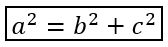
auto presentation = System::MakeObject<Presentation>();
auto slide = presentation->get_Slide(0);

auto mathShape = slide->get_Shapes()->AddMathShape(20.0f, 20.0f, 700.0f, 100.0f);
auto mathPortion = System::ExplicitCast<MathPortion>(mathShape->get_TextFrame()->get_Paragraph(0)->get_Portion(0));
auto mathParagraph = mathPortion->get_MathParagraph();

auto boxedEquation = System::MakeObject<MathematicalText>(u"a")
        - >SetSuperscript(u"2")
        - >Join(u"=")
        - >Join(System::MakeObject<MathematicalText>(u"b")->SetSuperscript(u"2"))
        - >Join(u"+")
        - >Join(System::MakeObject<MathematicalText>(u"c")->SetSuperscript(u"2"))
        - >ToBorderBox();

mathParagraph->Add(System::MakeObject<MathBlock>(boxedEquation));

presentation->Save(u"border-box.pptx", SaveFormat::Pptx);
presentation->Dispose();
Kelompokkan Istilah
Gunakan Group untuk menempatkan karakter pengelompokan di atas atau di bawah sebuah ekspresi. Tambahkan limit untuk memberi label pada istilah yang dikelompokkan.

auto presentation = System::MakeObject<Presentation>();
auto slide = presentation->get_Slide(0);

auto mathShape = slide->get_Shapes()->AddMathShape(20.0f, 20.0f, 700.0f, 120.0f);
auto mathPortion = System::ExplicitCast<MathPortion>(mathShape->get_TextFrame()->get_Paragraph(0)->get_Portion(0));
auto mathParagraph = mathPortion->get_MathParagraph();

auto grouped = System::MakeObject<MathematicalText>(u"x + y")
        - >Group(u'\u23DF', MathTopBotPositions::Bottom, MathTopBotPositions::Top)
        - >SetLowerLimit(u"any text");

mathParagraph->Add(System::MakeObject<MathBlock>(grouped));

presentation->Save(u"grouped-terms.pptx", SaveFormat::Pptx);
presentation->Dispose();
Format Elemen Matematika
Gunakan pembantu pemformatan hanya ketika mereka memperjelas rumus. Misalnya, Overbar menempatkan garis di atas elemen matematika.

auto presentation = System::MakeObject<Presentation>();
auto slide = presentation->get_Slide(0);

auto mathShape = slide->get_Shapes()->AddMathShape(20.0f, 20.0f, 700.0f, 100.0f);
auto mathPortion = System::ExplicitCast<MathPortion>(mathShape->get_TextFrame()->get_Paragraph(0)->get_Portion(0));
auto mathParagraph = mathPortion->get_MathParagraph();

auto overbar = System::MakeObject<MathematicalText>(u"ABC")->Overbar();

mathParagraph->Add(System::MakeObject<MathBlock>(overbar));

presentation->Save(u"overbar.pptx", SaveFormat::Pptx);
presentation->Dispose();
Referensi Cepat
| Task | Main API |
|---|---|
| Buat teks matematika | MathematicalText |
| Gabungkan elemen | IMathElement.Join |
| Buat pecahan | IMathElement.Divide |
| Tambah superskrip atau subskrip | SetSuperscript, SetSubscript |
| Tambah fungsi | Function, AsArgumentOfFunction |
| Tambah radikal | IMathElement.Radical |
| Tambah limit | SetLowerLimit, SetUpperLimit |
| Tambah skrip sisi kiri | SetSubSuperscriptOnTheLeft |
| Tambah penjumlahan dan integral | Nary, Integral |
| Tambah matriks | MathMatrix |
| Tambah array persamaan | ToMathArray |
| Tambah delimiter | Enclose |
| Tambah bar dan border | Overbar, ToBorderBox |
| Kelompokkan istilah | Group |
FAQ
Bisakah saya mengedit persamaan PowerPoint yang ada?
Ya. Buka presentasi, temukan bentuk yang berisi MathPortion, dapatkan MathParagraph‑nya, dan perbarui blok matematika dalam paragraf tersebut.
Apakah persamaan disimpan sebagai matematika PowerPoint yang dapat diedit?
Ya. Saat Anda menyimpan ke PPTX, Aspose.Slides menulis persamaan sebagai konten Office math yang dapat diedit.
Bisakah saya mengekspor persamaan ke LaTeX?
Ya. Dapatkan IMathParagraph dari IMathPortion, dan panggil IMathParagraph::ToLatex untuk mengekspornya secara langsung. Untuk contoh lengkap, lihat Ekspor Persamaan Matematika dari Presentasi dalam C++.