
Kelola Daftar Berpoin dan Bernomor dalam Presentasi Menggunakan Python via Java
Gambaran Umum
Aspose.Slides for Python via Java memungkinkan Anda membuat dan memformat daftar berpoin dan bernomor dalam presentasi PowerPoint dan OpenDocument. Item daftar adalah paragraf yang pengaturan titiknya dikontrol melalui format paragrafnya.
Gunakan metode Paragraph.getParagraphFormat untuk mengakses pengaturan daftar tingkat paragraf. Titik masuk utama adalah ParagraphFormat.getBullet, yang mengembalikan objek BulletFormat. Dengan objek ini, Anda dapat mengatur jenis bullet, simbol, gambar, warna, ukuran, gaya penomoran, dan nomor mulai.
Artikel ini menunjukkan cara:
- membuat daftar berpoin dengan simbol khusus
- membuat bullet gambar
- membuat daftar bertingkat dengan mengatur kedalaman paragraf
- membuat daftar bernomor
- memeriksa dan mengubah pemformatan daftar dalam presentasi yang ada
Membuat Daftar Berpoin
Untuk membuat daftar berpoin, tambahkan objek Paragraph ke dalam TextFrame dan setel BulletFormat.setType ke BulletType.Symbol. Anda kemudian dapat menggunakan BulletFormat.setChar, BulletFormat.getColor, dan BulletFormat.setHeight untuk mengontrol tampilan bullet.
Kode Python berikut menunjukkan cara membuat daftar berpoin pada slide:
import jpype
import asposeslides

if not jpype.isJVMStarted():
    jpype.startJVM()

from asposeslides.api import BulletType, NullableBool, Paragraph, Presentation, SaveFormat, ShapeType
from java.awt import Color

presentation = Presentation()
try:
    slide = presentation.getSlides().get_Item(0)
    auto_shape = slide.getShapes().addAutoShape(ShapeType.Rectangle, 20, 20, 200, 50)

    text_frame = auto_shape.getTextFrame()
    text_frame.getParagraphs().clear()

    bullet_color = Color(205, 92, 92)

    first_paragraph = Paragraph()
    first_paragraph.getParagraphFormat().getBullet().setType(BulletType.Symbol)
    first_paragraph.getParagraphFormat().getBullet().setChar('*')
    first_paragraph.getParagraphFormat().setIndent(15)
    first_paragraph.getParagraphFormat().getBullet().setBulletHardColor(NullableBool.True_)
    first_paragraph.getParagraphFormat().getBullet().getColor().setColor(bullet_color)
    first_paragraph.getParagraphFormat().getBullet().setHeight(100)
    first_paragraph.setText("The first paragraph")
    text_frame.getParagraphs().add(first_paragraph)

    second_paragraph = Paragraph()
    second_paragraph.getParagraphFormat().getBullet().setType(BulletType.Symbol)
    second_paragraph.getParagraphFormat().getBullet().setChar('*')
    second_paragraph.getParagraphFormat().setIndent(15)
    second_paragraph.getParagraphFormat().getBullet().setBulletHardColor(NullableBool.True_)
    second_paragraph.getParagraphFormat().getBullet().getColor().setColor(bullet_color)
    second_paragraph.getParagraphFormat().getBullet().setHeight(100)
    second_paragraph.setText("The second paragraph")
    text_frame.getParagraphs().add(second_paragraph)

    presentation.save("symbol_bullets.pptx", SaveFormat.Pptx)
finally:
    presentation.dispose()
Hasil:

Membuat Daftar Bernomor
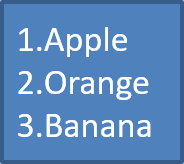
Gunakan daftar bernomor ketika urutan item penting. Setel BulletFormat.setType ke BulletType.Numbered. Anda juga dapat memilih format penomoran dengan BulletFormat.setNumberedBulletStyle atau menggunakan BulletFormat.setNumberedBulletStartWith ketika daftar harus dimulai dengan nilai selain 1.
Kode Python berikut menunjukkan cara membuat daftar bernomor pada slide:
import jpype
import asposeslides

if not jpype.isJVMStarted():
    jpype.startJVM()

from asposeslides.api import BulletType, Paragraph, Presentation, SaveFormat, ShapeType

presentation = Presentation()
try:
    slide = presentation.getSlides().get_Item(0)
    auto_shape = slide.getShapes().addAutoShape(ShapeType.Rectangle, 20, 20, 90, 80)

    text_frame = auto_shape.getTextFrame()
    text_frame.getParagraphs().clear()

    first_paragraph = Paragraph()
    first_paragraph.getParagraphFormat().getBullet().setType(BulletType.Numbered)
    first_paragraph.setText("Apple")
    text_frame.getParagraphs().add(first_paragraph)

    second_paragraph = Paragraph()
    second_paragraph.getParagraphFormat().getBullet().setType(BulletType.Numbered)
    second_paragraph.setText("Orange")
    text_frame.getParagraphs().add(second_paragraph)

    third_paragraph = Paragraph()
    third_paragraph.getParagraphFormat().getBullet().setType(BulletType.Numbered)
    third_paragraph.setText("Banana")
    text_frame.getParagraphs().add(third_paragraph)

    presentation.save("numbered_bullets.pptx", SaveFormat.Pptx)
finally:
    presentation.dispose()
Hasil:
Membuat Bullet Gambar
Aspose.Slides memungkinkan Anda mengganti simbol bullet biasa dengan gambar. Bullet gambar paling cocok dengan gambar sederhana yang tetap terbaca pada ukuran kecil, seperti ikon atau file PNG transparan berukuran kecil.
Note
Jika Anda berencana mengganti simbol bullet biasa dengan gambar, pilih grafik sederhana dengan latar belakang transparan. Gambar semacam itu cocok sebagai simbol bullet khusus.
Perlu diingat bahwa gambar akan diperkecil ke ukuran yang sangat kecil. Karena itu, kami sangat menyarankan memilih gambar yang tetap jelas dan efektif secara visual ketika digunakan sebagai bullet dalam daftar.
Untuk membuat bullet gambar, tambahkan gambar ke Presentation.getImages dan tugaskan objek gambar yang dikembalikan ke BulletFormat.getPicture. Setel BulletFormat.setType ke BulletType.Picture sebelum menugaskan gambar.
Misalkan kita memiliki gambar bernama “image.png”:

Kode Python berikut menunjukkan cara membuat bullet gambar pada slide:
import jpype
import asposeslides

if not jpype.isJVMStarted():
    jpype.startJVM()

from asposeslides.api import BulletType, Images, Paragraph, Presentation, SaveFormat, ShapeType

presentation = Presentation()
try:
    slide = presentation.getSlides().get_Item(0)
    auto_shape = slide.getShapes().addAutoShape(ShapeType.Rectangle, 20, 20, 200, 50)

    text_frame = auto_shape.getTextFrame()
    text_frame.getParagraphs().clear()

    image = Images.fromFile("image.png")
    try:
        bullet_image = presentation.getImages().addImage(image)
    finally:
        image.dispose()

    first_paragraph = Paragraph()
    first_paragraph.getParagraphFormat().getBullet().setType(BulletType.Picture)
    first_paragraph.getParagraphFormat().getBullet().getPicture().setImage(bullet_image)
    first_paragraph.getParagraphFormat().setIndent(15)
    first_paragraph.getParagraphFormat().getBullet().setHeight(100)
    first_paragraph.setText("The first paragraph")
    text_frame.getParagraphs().add(first_paragraph)

    second_paragraph = Paragraph()
    second_paragraph.getParagraphFormat().getBullet().setType(BulletType.Picture)
    second_paragraph.getParagraphFormat().getBullet().getPicture().setImage(bullet_image)
    second_paragraph.getParagraphFormat().setIndent(15)
    second_paragraph.getParagraphFormat().getBullet().setHeight(100)
    second_paragraph.setText("The second paragraph")
    text_frame.getParagraphs().add(second_paragraph)

    presentation.save("picture_bullets.pptx", SaveFormat.Pptx)
finally:
    presentation.dispose()
Hasil:

Membuat Daftar Bertingkat
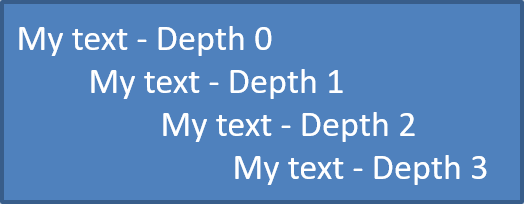
Gunakan ParagraphFormat.setDepth untuk menempatkan item daftar pada level yang berbeda. Level 0 adalah level teratas, level 1 berada di bawahnya, dan seterusnya.
Kode Python berikut menunjukkan cara membuat daftar berpoin bertingkat:
import jpype
import asposeslides

if not jpype.isJVMStarted():
    jpype.startJVM()

from asposeslides.api import Paragraph, Presentation, SaveFormat, ShapeType

presentation = Presentation()
try:
    slide = presentation.getSlides().get_Item(0)
    auto_shape = slide.getShapes().addAutoShape(ShapeType.Rectangle, 20, 20, 260, 110)

    text_frame = auto_shape.getTextFrame()
    text_frame.getParagraphs().clear()

    first_paragraph = Paragraph()
    first_paragraph.getParagraphFormat().setDepth(0)
    first_paragraph.setText("My text - Depth 0")
    text_frame.getParagraphs().add(first_paragraph)

    second_paragraph = Paragraph()
    second_paragraph.getParagraphFormat().setDepth(1)
    second_paragraph.setText("My text - Depth 1")
    text_frame.getParagraphs().add(second_paragraph)

    third_paragraph = Paragraph()
    third_paragraph.getParagraphFormat().setDepth(2)
    third_paragraph.setText("My text - Depth 2")
    text_frame.getParagraphs().add(third_paragraph)

    fourth_paragraph = Paragraph()
    fourth_paragraph.getParagraphFormat().setDepth(3)
    fourth_paragraph.setText("My text - Depth 3")
    text_frame.getParagraphs().add(fourth_paragraph)

    presentation.save("multilevel_bullets.pptx", SaveFormat.Pptx)
finally:
    presentation.dispose()
Hasil:
Mengubah Daftar yang Ada
Untuk mengubah pemformatan daftar dalam presentasi yang ada, akses paragraf target dan perbarui pengaturan ParagraphFormat.getBullet. Properti yang sama yang digunakan untuk membuat daftar dapat digunakan untuk memeriksa atau memodifikasi daftar yang dimuat dari file PPT, PPTX, atau ODP.
Kode Python berikut mengubah paragraf pertama dalam sebuah text frame untuk menggunakan gaya daftar bernomor:
import jpype
import asposeslides

if not jpype.isJVMStarted():
    jpype.startJVM()

from asposeslides.api import BulletType, NumberedBulletStyle, Presentation, SaveFormat

presentation = Presentation("input.pptx")
try:
    slide = presentation.getSlides().get_Item(0)
    auto_shape = slide.getShapes().get_Item(0)
    paragraph = auto_shape.getTextFrame().getParagraphs().get_Item(0)

    paragraph.getParagraphFormat().getBullet().setType(BulletType.Numbered)
    paragraph.getParagraphFormat().getBullet().setNumberedBulletStyle(NumberedBulletStyle.BulletRomanUCPeriod)
    paragraph.getParagraphFormat().getBullet().setNumberedBulletStartWith(1)
    paragraph.getParagraphFormat().setMarginLeft(30)
    paragraph.getParagraphFormat().setIndent(-20)

    presentation.save("updated_list.pptx", SaveFormat.Pptx)
finally:
    presentation.dispose()
FAQ
Apakah daftar berpoin dan bernomor dapat diekspor ke PDF atau gambar?
Ya. Aspose.Slides mempertahankan pemformatan daftar ketika format target mendukung tata letak teks dan fitur bullet yang bersangkutan.
Apakah saya dapat mengedit daftar dalam presentasi yang ada?
Ya. Muat presentasi, akses paragraf target, periksa atau perbarui pengaturan ParagraphFormat.getBullet, dan simpan presentasi.
Apakah daftar dapat berisi teks non-Latin?
Ya. Teks item daftar dapat berisi karakter Unicode, sehingga Anda dapat membuat daftar dalam presentasi multibahasa. Pastikan font yang digunakan dalam presentasi mendukung karakter yang Anda perlukan.