
จัดการรายการแบบหัวข้อและหมายเลขในงานนำเสนอโดยใช้ Python ผ่าน Java
ภาพรวม
Aspose.Slides for Python via Java ให้คุณสร้างและจัดรูปแบบรายการที่มีเครื่องหมายหัวข้อและหมายเลขในงานนำเสนอ PowerPoint และ OpenDocument รายการหนึ่งเป็นย่อหน้าที่ตั้งค่าหัวข้อผ่านรูปแบบย่อหน้า
ใช้เมธอด Paragraph.getParagraphFormat เพื่อเข้าถึงการตั้งค่ารายการระดับย่อหน้า จุดเริ่มต้นหลักคือ ParagraphFormat.getBullet ซึ่งจะคืนค่าออบเจ็กต์ BulletFormat ด้วยออบเจ็กต์นี้ คุณสามารถตั้งค่าชนิดของหัวข้อ สัญลักษณ์ ภาพ สี ขนาด รูปแบบการจัดลำดับเลขและหมายเลขเริ่มต้นได้
บทความนี้จะแสดงวิธี:
- สร้างรายการที่มีหัวข้อแบบสัญลักษณ์กำหนดเอง
- สร้างหัวข้อแบบรูปภาพ
- สร้างรายการหลายระดับโดยตั้งค่าความลึกของย่อหน้า
- สร้างรายการที่มีหมายเลข
- ตรวจสอบและเปลี่ยนรูปแบบรายการในงานนำเสนอที่มีอยู่
สร้างรายการที่มีหัวข้อแบบสัญลักษณ์
เพื่อสร้างรายการที่มีหัวข้อแบบสัญลักษณ์ ให้เพิ่มออบเจ็กต์ Paragraph ไปยัง TextFrame และตั้งค่า BulletFormat.setType เป็น BulletType.Symbol หลังจากนั้นคุณสามารถใช้ BulletFormat.setChar , BulletFormat.getColor และ BulletFormat.setHeight เพื่อควบคุมลักษณะของหัวข้อได้
โค้ด Python ต่อไปนี้แสดงวิธีสร้างรายการที่มีหัวข้อแบบสัญลักษณ์บนสไลด์:
import jpype
import asposeslides

if not jpype.isJVMStarted():
    jpype.startJVM()

from asposeslides.api import BulletType, NullableBool, Paragraph, Presentation, SaveFormat, ShapeType
from java.awt import Color

presentation = Presentation()
try:
    slide = presentation.getSlides().get_Item(0)
    auto_shape = slide.getShapes().addAutoShape(ShapeType.Rectangle, 20, 20, 200, 50)

    text_frame = auto_shape.getTextFrame()
    text_frame.getParagraphs().clear()

    bullet_color = Color(205, 92, 92)

    first_paragraph = Paragraph()
    first_paragraph.getParagraphFormat().getBullet().setType(BulletType.Symbol)
    first_paragraph.getParagraphFormat().getBullet().setChar('*')
    first_paragraph.getParagraphFormat().setIndent(15)
    first_paragraph.getParagraphFormat().getBullet().setBulletHardColor(NullableBool.True_)
    first_paragraph.getParagraphFormat().getBullet().getColor().setColor(bullet_color)
    first_paragraph.getParagraphFormat().getBullet().setHeight(100)
    first_paragraph.setText("The first paragraph")
    text_frame.getParagraphs().add(first_paragraph)

    second_paragraph = Paragraph()
    second_paragraph.getParagraphFormat().getBullet().setType(BulletType.Symbol)
    second_paragraph.getParagraphFormat().getBullet().setChar('*')
    second_paragraph.getParagraphFormat().setIndent(15)
    second_paragraph.getParagraphFormat().getBullet().setBulletHardColor(NullableBool.True_)
    second_paragraph.getParagraphFormat().getBullet().getColor().setColor(bullet_color)
    second_paragraph.getParagraphFormat().getBullet().setHeight(100)
    second_paragraph.setText("The second paragraph")
    text_frame.getParagraphs().add(second_paragraph)

    presentation.save("symbol_bullets.pptx", SaveFormat.Pptx)
finally:
    presentation.dispose()
ผลลัพธ์:

สร้างรายการที่มีหมายเลข
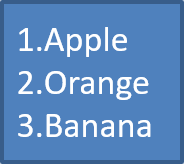
ใช้รายการที่มีหมายเลขเมื่ออันดับของรายการมีความสำคัญ ตั้งค่า BulletFormat.setType เป็น BulletType.Numbered คุณยังสามารถเลือกรูปแบบการจัดลำดับเลขด้วย BulletFormat.setNumberedBulletStyle หรือใช้ BulletFormat.setNumberedBulletStartWith เมื่อรายการควรเริ่มจากค่าที่ไม่ใช่ 1
โค้ด Python ต่อไปนี้แสดงวิธีสร้างรายการที่มีหมายเลขบนสไลด์:
import jpype
import asposeslides

if not jpype.isJVMStarted():
    jpype.startJVM()

from asposeslides.api import BulletType, Paragraph, Presentation, SaveFormat, ShapeType

presentation = Presentation()
try:
    slide = presentation.getSlides().get_Item(0)
    auto_shape = slide.getShapes().addAutoShape(ShapeType.Rectangle, 20, 20, 90, 80)

    text_frame = auto_shape.getTextFrame()
    text_frame.getParagraphs().clear()

    first_paragraph = Paragraph()
    first_paragraph.getParagraphFormat().getBullet().setType(BulletType.Numbered)
    first_paragraph.setText("Apple")
    text_frame.getParagraphs().add(first_paragraph)

    second_paragraph = Paragraph()
    second_paragraph.getParagraphFormat().getBullet().setType(BulletType.Numbered)
    second_paragraph.setText("Orange")
    text_frame.getParagraphs().add(second_paragraph)

    third_paragraph = Paragraph()
    third_paragraph.getParagraphFormat().getBullet().setType(BulletType.Numbered)
    third_paragraph.setText("Banana")
    text_frame.getParagraphs().add(third_paragraph)

    presentation.save("numbered_bullets.pptx", SaveFormat.Pptx)
finally:
    presentation.dispose()
ผลลัพธ์:
สร้างหัวข้อแบบรูปภาพ
Aspose.Slides позволяет вам заменить обычный символ маркера изображением. Picture bullets work best with simple images that remain readable at a small size, such as icons or small transparent PNG files.
Note
หากคุณต้องการแทนที่สัญลักษณ์หัวข้อทั่วไปด้วยภาพ ให้เลือกกราฟิกที่เรียบง่ายและมีพื้นหลังโปร่งแสง ภาพประเภทนี้ทำงานได้ดีเป็นสัญลักษณ์หัวข้อแบบกำหนดเองควรจำไว้ว่า ภาพจะถูกย่อขนาดให้เล็กมาก ดังนั้นเราขอแนะนำให้เลือกภาพที่ยังคงคมชัดและมีประสิทธิภาพในการมองเห็นเมื่อนำไปใช้เป็นหัวข้อในรายการ
เพื่อสร้างหัวข้อแบบรูปภาพ ให้เพิ่มภาพเข้าไปใน Presentation.getImages และกำหนดออบเจ็กต์ภาพที่คืนค่าให้กับ BulletFormat.getPicture ก่อนที่จะกำหนดภาพต้องตั้งค่า BulletFormat.setType เป็น BulletType.Picture
สมมติว่ามีภาพชื่อ “image.png”:

โค้ด Python ต่อไปนี้แสดงวิธีสร้างหัวข้อแบบรูปภาพบนสไลด์:
import jpype
import asposeslides

if not jpype.isJVMStarted():
    jpype.startJVM()

from asposeslides.api import BulletType, Images, Paragraph, Presentation, SaveFormat, ShapeType

presentation = Presentation()
try:
    slide = presentation.getSlides().get_Item(0)
    auto_shape = slide.getShapes().addAutoShape(ShapeType.Rectangle, 20, 20, 200, 50)

    text_frame = auto_shape.getTextFrame()
    text_frame.getParagraphs().clear()

    image = Images.fromFile("image.png")
    try:
        bullet_image = presentation.getImages().addImage(image)
    finally:
        image.dispose()

    first_paragraph = Paragraph()
    first_paragraph.getParagraphFormat().getBullet().setType(BulletType.Picture)
    first_paragraph.getParagraphFormat().getBullet().getPicture().setImage(bullet_image)
    first_paragraph.getParagraphFormat().setIndent(15)
    first_paragraph.getParagraphFormat().getBullet().setHeight(100)
    first_paragraph.setText("The first paragraph")
    text_frame.getParagraphs().add(first_paragraph)

    second_paragraph = Paragraph()
    second_paragraph.getParagraphFormat().getBullet().setType(BulletType.Picture)
    second_paragraph.getParagraphFormat().getBullet().getPicture().setImage(bullet_image)
    second_paragraph.getParagraphFormat().setIndent(15)
    second_paragraph.getParagraphFormat().getBullet().setHeight(100)
    second_paragraph.setText("The second paragraph")
    text_frame.getParagraphs().add(second_paragraph)

    presentation.save("picture_bullets.pptx", SaveFormat.Pptx)
finally:
    presentation.dispose()
ผลลัพธ์:

สร้างรายการหลายระดับ
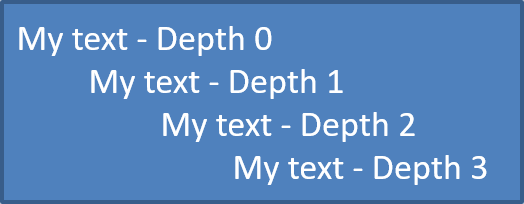
ใช้เมธอด ParagraphFormat.setDepth เพื่อวางรายการที่ระดับต่าง ๆ ระดับ 0 คือระดับบนสุด ระดับ 1 อยู่ด้านในระดับนั้นต่อไป
โค้ด Python ต่อไปนี้แสดงวิธีสร้างรายการที่มีหัวข้อหลายระดับ:
import jpype
import asposeslides

if not jpype.isJVMStarted():
    jpype.startJVM()

from asposeslides.api import Paragraph, Presentation, SaveFormat, ShapeType

presentation = Presentation()
try:
    slide = presentation.getSlides().get_Item(0)
    auto_shape = slide.getShapes().addAutoShape(ShapeType.Rectangle, 20, 20, 260, 110)

    text_frame = auto_shape.getTextFrame()
    text_frame.getParagraphs().clear()

    first_paragraph = Paragraph()
    first_paragraph.getParagraphFormat().setDepth(0)
    first_paragraph.setText("My text - Depth 0")
    text_frame.getParagraphs().add(first_paragraph)

    second_paragraph = Paragraph()
    second_paragraph.getParagraphFormat().setDepth(1)
    second_paragraph.setText("My text - Depth 1")
    text_frame.getParagraphs().add(second_paragraph)

    third_paragraph = Paragraph()
    third_paragraph.getParagraphFormat().setDepth(2)
    third_paragraph.setText("My text - Depth 2")
    text_frame.getParagraphs().add(third_paragraph)

    fourth_paragraph = Paragraph()
    fourth_paragraph.getParagraphFormat().setDepth(3)
    fourth_paragraph.setText("My text - Depth 3")
    text_frame.getParagraphs().add(fourth_paragraph)

    presentation.save("multilevel_bullets.pptx", SaveFormat.Pptx)
finally:
    presentation.dispose()
ผลลัพธ์:
เปลี่ยนรายการที่มีอยู่
เพื่อเปลี่ยนรูปแบบรายการในงานนำเสนอที่มีอยู่ ให้เข้าถึงย่อหน้าที่ต้องการและอัปเดตการตั้งค่า ParagraphFormat.getBullet ของมัน คุณสามารถใช้คุณสมบัติเช่นเดียวกับที่ใช้สร้างรายการเพื่อตรวจสอบหรือแก้ไขรายการที่โหลดจากไฟล์ PPT, PPTX หรือ ODP ได้
โค้ด Python ต่อไปนี้เปลี่ยนย่อหน้าแรกใน TextFrame ให้ใช้สไตล์รายการที่มีหมายเลข:
import jpase
import asposeslides

if not jpype.isJVMStarted():
    jpype.startJVM()

from asposeslides.api import BulletType, NumberedBulletStyle, Presentation, SaveFormat

presentation = Presentation("input.pptx")
try:
    slide = presentation.getSlides().get_Item(0)
    auto_shape = slide.getShapes().get_Item(0)
    paragraph = auto_shape.getTextFrame().getParagraphs().get_Item(0)

    paragraph.getParagraphFormat().getBullet().setType(BulletType.Numbered)
    paragraph.getParagraphFormat().getBullet().setNumberedBulletStyle(NumberedBulletStyle.BulletRomanUCPeriod)
    paragraph.getParagraphFormat().getBullet().setNumberedBulletStartWith(1)
    paragraph.getParagraphFormat().setMarginLeft(30)
    paragraph.getParagraphFormat().setIndent(-20)

    presentation.save("updated_list.pptx", SaveFormat.Pptx)
finally:
    presentation.dispose()
คำถามที่พบบ่อย
รายการที่มีหัวข้อและหมายเลขสามารถส่งออกเป็น PDF หรือรูปภาพได้หรือไม่?
ได้ Aspose.Slides จะรักษารูปแบบรายการเมื่อรูปแบบเป้าหมายสนับสนุนการจัดวางข้อความและคุณลักษณะหัวข้อที่สอดคล้องกัน
ฉันสามารถแก้ไขรายการในงานนำเสนอที่มีอยู่ได้หรือไม่?
ได้ ให้โหลดงานนำเสนอเข้ามา เข้าถึงย่อหน้าที่ต้องการ ตรวจสอบหรืออัปเดตการตั้งค่า ParagraphFormat.getBullet แล้วบันทึกงานนำเสนอ
รายการสามารถมีข้อความที่ไม่ใช่ภาษาละตินได้หรือไม่?
ได้ ข้อความรายการสามารถประกอบด้วยอักขระ Unicode ได้ ดังนั้นคุณสามารถสร้างรายการในงานนำเสนอหลายภาษาได้ เพียงตรวจสอบให้แน่ใจว่าแบบอักษรที่ใช้ในงานนำเสนอสนับสนุนอักขระที่คุณต้องการ