
Tạo và áp dụng hiệu ứng WordArt trong C++
Tổng quan
Hiệu ứng WordArt cho phép bạn tạo kiểu cho văn bản với màu nền, viền, bóng, phản chiếu, ánh hào quang, biến đổi và định dạng 3D. Bài viết này giải thích cách tạo và tùy chỉnh các hiệu ứng này trong bản trình chiếu PowerPoint bằng Aspose.Slides cho C++, mà không cần cài đặt Microsoft Office.
Tạo mẫu WordArt đơn giản và áp dụng nó vào văn bản
Các ví dụ dưới đây xây dựng một kiểu WordArt đơn giản bằng cách đặt văn bản, phông chữ, mẫu nền và viền.
Mỗi ví dụ tạo một bản trình chiếu mới và thêm một hình chữ nhật vào slide đầu tiên; không cần tệp đầu vào. Ví dụ đầu tiên đặt văn bản thành “Aspose.Slides”. Vị trí và kích thước của hình được đo bằng điểm:
#include <DOM/IAutoShape.h>
#include <DOM/IParagraph.h>
#include <DOM/IParagraphCollection.h>
#include <DOM/IPortion.h>
#include <DOM/IPortionCollection.h>
#include <DOM/IShapeCollection.h>
#include <DOM/ISlide.h>
#include <DOM/ITextFrame.h>
#include <DOM/Presentation.h>
#include <DOM/ShapeType.h>

using namespace Aspose::Slides;

auto presentation = System::MakeObject<Presentation>();
auto slide = presentation->get_Slide(0);

auto autoShape = slide->get_Shapes()->AddAutoShape(ShapeType::Rectangle, 20.0f, 20.0f, 400.0f, 200.0f);
auto textFrame = autoShape->get_TextFrame();

auto portion = textFrame->get_Paragraphs()->idx_get(0)->get_Portions()->idx_get(0);
portion->set_Text(u"Aspose.Slides");
Đặt phông chữ thành Arial Black với kích thước 36 điểm để làm nổi bật định dạng:
#include <DOM/Fonts/FontData.h>
#include <DOM/IAutoShape.h>
#include <DOM/IParagraph.h>
#include <DOM/IParagraphCollection.h>
#include <DOM/IPortion.h>
#include <DOM/IPortionCollection.h>
#include <DOM/IPortionFormat.h>
#include <DOM/IShapeCollection.h>
#include <DOM/ISlide.h>
#include <DOM/ITextFrame.h>
#include <DOM/Presentation.h>
#include <DOM/ShapeType.h>

using namespace Aspose::Slides;

auto presentation = System::MakeObject<Presentation>();
auto slide = presentation->get_Slide(0);

auto autoShape = slide->get_Shapes()->AddAutoShape(ShapeType::Rectangle, 20.0f, 20.0f, 400.0f, 200.0f);
auto textFrame = autoShape->get_TextFrame();

auto portion = textFrame->get_Paragraphs()->idx_get(0)->get_Portions()->idx_get(0);
portion->set_Text(u"Aspose.Slides");

auto fontData = System::MakeObject<FontData>(u"Arial Black");
portion->get_PortionFormat()->set_LatinFont(fontData);
portion->get_PortionFormat()->set_FontHeight(36.0f);
Áp dụng mẫu SmallGrid với màu nền trước cam đậm và nền trắng, sau đó thêm viền văn bản đen với độ rộng 1 điểm:
#include <DOM/Fonts/FontData.h>
#include <DOM/FillType.h>
#include <DOM/IAutoShape.h>
#include <DOM/IColorFormat.h>
#include <DOM/IFillFormat.h>
#include <DOM/ILineFillFormat.h>
#include <DOM/ILineFormat.h>
#include <DOM/IParagraph.h>
#include <DOM/IParagraphCollection.h>
#include <DOM/IPortion.h>
#include <DOM/IPortionCollection.h>
#include <DOM/IPortionFormat.h>
#include <DOM/IShapeCollection.h>
#include <DOM/ISlide.h>
#include <DOM/ITextFrame.h>
#include <DOM/IPatternFormat.h>
#include <DOM/PatternStyle.h>
#include <DOM/Presentation.h>
#include <DOM/ShapeType.h>
#include <drawing/color.h>

using namespace Aspose::Slides;
using namespace System::Drawing;

auto presentation = System::MakeObject<Presentation>();
auto slide = presentation->get_Slide(0);

auto autoShape = slide->get_Shapes()->AddAutoShape(ShapeType::Rectangle, 20.0f, 20.0f, 400.0f, 200.0f);
auto textFrame = autoShape->get_TextFrame();

auto portion = textFrame->get_Paragraphs()->idx_get(0)->get_Portions()->idx_get(0);
portion->set_Text(u"Aspose.Slides");

auto fontData = System::MakeObject<FontData>(u"Arial Black");
portion->get_PortionFormat()->set_LatinFont(fontData);
portion->get_PortionFormat()->set_FontHeight(36.0f);

auto fillFormat = portion->get_PortionFormat()->get_FillFormat();
fillFormat->set_FillType(FillType::Pattern);
fillFormat->get_PatternFormat()->get_ForeColor()->set_Color(Color::get_DarkOrange());
fillFormat->get_PatternFormat()->get_BackColor()->set_Color(Color::get_White());
fillFormat->get_PatternFormat()->set_PatternStyle(PatternStyle::SmallGrid);

portion->get_PortionFormat()->get_LineFormat()->set_Width(1);
auto lineFillFormat = portion->get_PortionFormat()->get_LineFormat()->get_FillFormat();
lineFillFormat->set_FillType(FillType::Solid);
lineFillFormat->get_SolidFillColor()->set_Color(Color::get_Black());
Văn bản kết quả:

Áp dụng các hiệu ứng WordArt khác
Các ví dụ dưới đây minh họa cách áp dụng bóng, phản chiếu, hào quang, biến đổi và hiệu ứng 3D cho văn bản.
Áp dụng hiệu ứng bóng ngoài
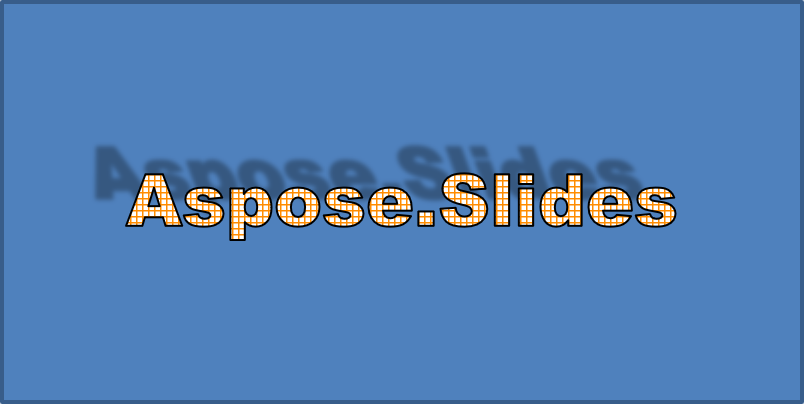
Bóng ngoài tạo độ sâu bằng cách đặt bóng phía sau văn bản. Bạn có thể tùy chỉnh màu, hướng, khoảng cách, bán kính làm mờ, tỉ lệ và độ nghiêng.
Ví dụ này gọi EnableOuterShadowEffect và đặt bóng đen với bán kính làm mờ 4 điểm, hướng 230 độ và khoảng cách 30 điểm. Giá trị tỉ lệ 100 giữ kích thước bóng, trong khi độ nghiêng ngang nghiêng bóng 20 độ. Biến đổi alpha đặt độ trong suốt là 32%:
#include <DOM/Fonts/FontData.h>
#include <DOM/ColorTransformOperation.h>
#include <DOM/Effects/IOuterShadow.h>
#include <DOM/IAutoShape.h>
#include <DOM/IColorFormat.h>
#include <DOM/IColorOperationCollection.h>
#include <DOM/IEffectFormat.h>
#include <DOM/IParagraph.h>
#include <DOM/IParagraphCollection.h>
#include <DOM/IPortion.h>
#include <DOM/IPortionCollection.h>
#include <DOM/IPortionFormat.h>
#include <DOM/IShapeCollection.h>
#include <DOM/ISlide.h>
#include <DOM/ITextFrame.h>
#include <DOM/Presentation.h>
#include <DOM/ShapeType.h>
#include <drawing/color.h>

using namespace Aspose::Slides;
using namespace System::Drawing;

auto presentation = System::MakeObject<Presentation>();
auto slide = presentation->get_Slide(0);

auto autoShape = slide->get_Shapes()->AddAutoShape(ShapeType::Rectangle, 20.0f, 20.0f, 400.0f, 200.0f);
auto textFrame = autoShape->get_TextFrame();

auto portion = textFrame->get_Paragraphs()->idx_get(0)->get_Portions()->idx_get(0);
portion->set_Text(u"Aspose.Slides");

auto fontData = System::MakeObject<FontData>(u"Arial Black");
portion->get_PortionFormat()->set_LatinFont(fontData);
portion->get_PortionFormat()->set_FontHeight(36.0f);

auto effectFormat = portion->get_PortionFormat()->get_EffectFormat();
effectFormat->EnableOuterShadowEffect();

auto outerShadowEffect = effectFormat->get_OuterShadowEffect();
outerShadowEffect->get_ShadowColor()->set_Color(Color::get_Black());
outerShadowEffect->set_ScaleHorizontal(100);
outerShadowEffect->set_ScaleVertical(100);
outerShadowEffect->set_BlurRadius(4);
outerShadowEffect->set_Direction(230.0f);
outerShadowEffect->set_Distance(30);
outerShadowEffect->set_SkewHorizontal(20);
outerShadowEffect->set_SkewVertical(0);
outerShadowEffect->get_ShadowColor()->get_ColorTransform()->Add(ColorTransformOperation::SetAlpha, 0.32f);
Văn bản kết quả:
Note
- Khi bóng ngoài và bóng được thiết lập trước cùng được sử dụng, chỉ bóng ngoài được áp dụng.
- Nếu bóng ngoài và bóng bên trong được sử dụng đồng thời, hiệu ứng phụ thuộc vào phiên bản PowerPoint. Ví dụ, trong PowerPoint 2013, hiệu ứng sẽ gấp đôi, trong khi trong PowerPoint 2007 chỉ bóng ngoài được áp dụng.
Áp dụng hiệu ứng phản chiếu
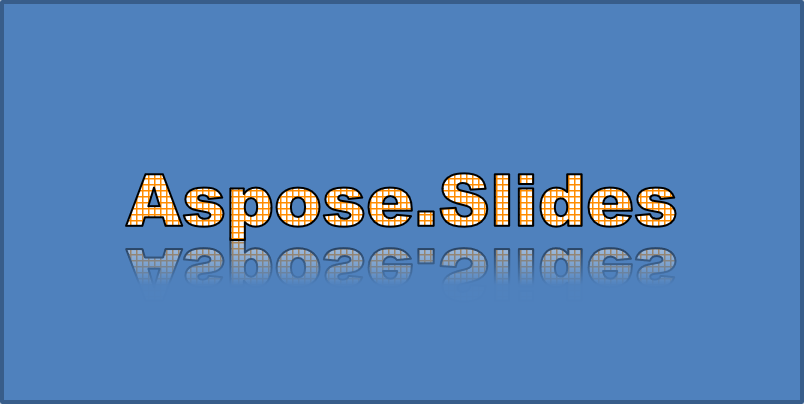
Phản chiếu tạo một bản sao phản chiếu của văn bản. Điều chỉnh vị trí, tỉ lệ, độ mờ và độ trong suốt để kiểm soát giao diện.
Ví dụ này gọi EnableReflectionEffect và lật phản chiếu theo chiều dọc với tỉ lệ -100%. Nó sử dụng bán kính làm mờ 0.5 điểm và khoảng cách 4.72 điểm. Độ trong suốt giảm từ 60% xuống 0.9% giữa các vị trí 0% và 60% dọc theo phản chiếu:
#include <DOM/Fonts/FontData.h>
#include <DOM/Effects/IReflection.h>
#include <DOM/IAutoShape.h>
#include <DOM/IEffectFormat.h>
#include <DOM/IParagraph.h>
#include <DOM/IParagraphCollection.h>
#include <DOM/IPortion.h>
#include <DOM/IPortionCollection.h>
#include <DOM/IPortionFormat.h>
#include <DOM/IShapeCollection.h>
#include <DOM/ISlide.h>
#include <DOM/ITextFrame.h>
#include <DOM/Presentation.h>
#include <DOM/RectangleAlignment.h>
#include <DOM/ShapeType.h>

using namespace Aspose::Slides;

auto presentation = System::MakeObject<Presentation>();
auto slide = presentation->get_Slide(0);

auto autoShape = slide->get_Shapes()->AddAutoShape(ShapeType::Rectangle, 20.0f, 20.0f, 400.0f, 200.0f);
auto textFrame = autoShape->get_TextFrame();

auto portion = textFrame->get_Paragraphs()->idx_get(0)->get_Portions()->idx_get(0);
portion->set_Text(u"Aspose.Slides");

auto fontData = System::MakeObject<FontData>(u"Arial Black");
portion->get_PortionFormat()->set_LatinFont(fontData);
portion->get_PortionFormat()->set_FontHeight(36.0f);

auto effectFormat = portion->get_PortionFormat()->get_EffectFormat();
effectFormat->EnableReflectionEffect();

auto reflectionEffect = effectFormat->get_ReflectionEffect();
reflectionEffect->set_BlurRadius(0.5);
reflectionEffect->set_Distance(4.72);
reflectionEffect->set_StartPosAlpha(0.f);
reflectionEffect->set_EndPosAlpha(60.f);
reflectionEffect->set_Direction(90.0f);
reflectionEffect->set_ScaleHorizontal(100);
reflectionEffect->set_ScaleVertical(-100);
reflectionEffect->set_StartReflectionOpacity(60.f);
reflectionEffect->set_EndReflectionOpacity(0.9f);
reflectionEffect->set_RectangleAlign(RectangleAlignment::BottomLeft);
Văn bản kết quả:
Áp dụng hiệu ứng hào quang
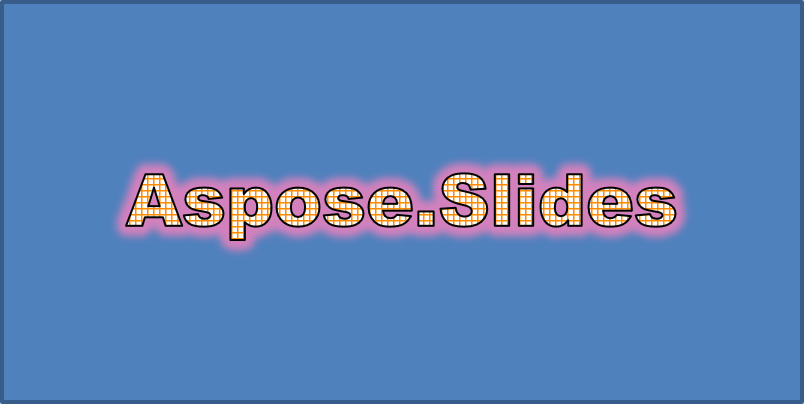
Hào quang thêm một viền màu mềm quanh văn bản. Điều chỉnh màu, độ trong suốt và bán kính để kiểm soát hiệu ứng.
Ví dụ này gọi EnableGlowEffect và áp dụng hào quang đỏ với độ trong suốt 54% và bán kính 7 điểm:
#include <drawing/color.h>
#include <DOM/Fonts/FontData.h>
#include <DOM/ColorTransformOperation.h>
#include <DOM/Effects/IGlow.h>
#include <DOM/IAutoShape.h>
#include <DOM/IColorFormat.h>
#include <DOM/IColorOperationCollection.h>
#include <DOM/IEffectFormat.h>
#include <DOM/IParagraph.h>
#include <DOM/IParagraphCollection.h>
#include <DOM/IPortion.h>
#include <DOM/IPortionCollection.h>
#include <DOM/IPortionFormat.h>
#include <DOM/IShapeCollection.h>
#include <DOM/ISlide.h>
#include <DOM/ITextFrame.h>
#include <DOM/Presentation.h>
#include <DOM/ShapeType.h>

using namespace Aspose::Slides;
using namespace System::Drawing;

auto presentation = System::MakeObject<Presentation>();
auto slide = presentation->get_Slide(0);

auto autoShape = slide->get_Shapes()->AddAutoShape(ShapeType::Rectangle, 20.0f, 20.0f, 400.0f, 200.0f);
auto textFrame = autoShape->get_TextFrame();

auto portion = textFrame->get_Paragraphs()->idx_get(0)->get_Portions()->idx_get(0);
portion->set_Text(u"Aspose.Slides");

auto fontData = System::MakeObject<FontData>(u"Arial Black");
portion->get_PortionFormat()->set_LatinFont(fontData);
portion->get_PortionFormat()->set_FontHeight(36.0f);

auto effectFormat = portion->get_PortionFormat()->get_EffectFormat();
effectFormat->EnableGlowEffect();

auto glowEffect = effectFormat->get_GlowEffect();
glowEffect->get_Color()->set_Color(Color::get_Red());
glowEffect->get_Color()->get_ColorTransform()->Add(ColorTransformOperation::SetAlpha, 0.54f);
glowEffect->set_Radius(7);
Văn bản kết quả:
Áp dụng biến đổi WordArt
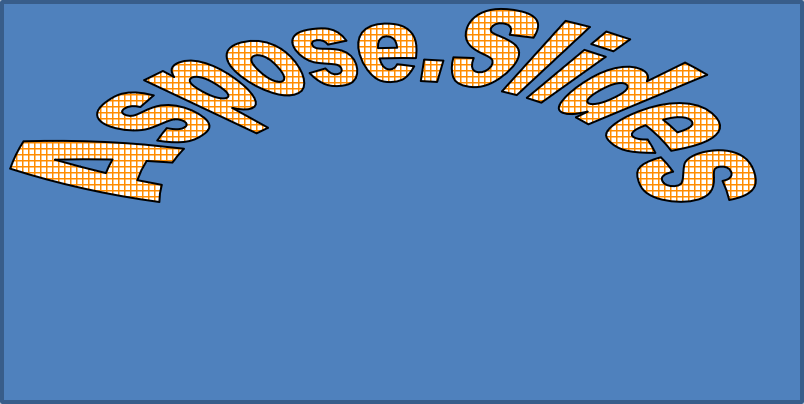
Biến đổi WordArt uốn, kéo dài hoặc làm méo một khối văn bản.
Đặt ITextFrameFormat::set_Transform thành ArchUpPour để cong toàn bộ khung văn bản lên phía trên:
#include <DOM/IAutoShape.h>
#include <DOM/IShapeCollection.h>
#include <DOM/ISlide.h>
#include <DOM/ITextFrame.h>
#include <DOM/ITextFrameFormat.h>
#include <DOM/Presentation.h>
#include <DOM/ShapeType.h>
#include <DOM/TextShapeType.h>

using namespace Aspose::Slides;

auto presentation = System::MakeObject<Presentation>();
auto slide = presentation->get_Slide(0);

auto autoShape = slide->get_Shapes()->AddAutoShape(ShapeType::Rectangle, 20.0f, 20.0f, 400.0f, 200.0f);

auto textFrame = autoShape->get_TextFrame();
textFrame->set_Text(u"Aspose.Slides");
textFrame->get_TextFrameFormat()->set_Transform(TextShapeType::ArchUpPour);
Văn bản kết quả:
Note
Aspose.Slides cho C++ cung cấp một tập hợp các transformation types được định sẵn.Áp dụng hiệu ứng 3D cho hình dạng và văn bản
Bạn có thể áp dụng hiệu ứng 3D cho một hình dạng hoặc cho văn bản của nó. Các cạnh xiên (bevels), đùn (extrusion), ánh sáng và cài đặt camera điều khiển giao diện cuối cùng.
Ví dụ sau sử dụng IThreeDFormat để thêm các cạnh xiên tròn, đùn màu cam và viền đỏ đậm cho hình chữ nhật. Định mức các cạnh, chiều cao đùn, độ rộng viền và độ sâu được đo bằng điểm. Vật liệu nhựa, ánh sáng cân bằng xoay 40 độ quanh trục Z và camera phối cảnh xác định giao diện:
#include <DOM/BevelPresetType.h>
#include <DOM/CameraPresetType.h>
#include <DOM/IAutoShape.h>
#include <DOM/ICamera.h>
#include <DOM/IColorFormat.h>
#include <DOM/ILightRig.h>
#include <DOM/IShapeBevel.h>
#include <DOM/IShapeCollection.h>
#include <DOM/ISlide.h>
#include <DOM/ITextFrame.h>
#include <DOM/IThreeDFormat.h>
#include <DOM/LightRigPresetType.h>
#include <DOM/LightingDirection.h>
#include <DOM/MaterialPresetType.h>
#include <DOM/Presentation.h>
#include <DOM/ShapeType.h>
#include <drawing/color.h>

using namespace Aspose::Slides;
using namespace System::Drawing;

auto presentation = System::MakeObject<Presentation>();
auto slide = presentation->get_Slide(0);

auto autoShape = slide->get_Shapes()->AddAutoShape(ShapeType::Rectangle, 20.0f, 20.0f, 400.0f, 200.0f);
autoShape->get_TextFrame()->set_Text(u"Aspose.Slides");

auto threeDFormat = autoShape->get_ThreeDFormat();

threeDFormat->get_BevelBottom()->set_BevelType(BevelPresetType::Circle);
threeDFormat->get_BevelBottom()->set_Height(10.5);
threeDFormat->get_BevelBottom()->set_Width(10.5);

threeDFormat->get_BevelTop()->set_BevelType(BevelPresetType::Circle);
threeDFormat->get_BevelTop()->set_Height(12.5);
threeDFormat->get_BevelTop()->set_Width(11);

threeDFormat->get_ExtrusionColor()->set_Color(Color::get_Orange());
threeDFormat->set_ExtrusionHeight(6);

threeDFormat->get_ContourColor()->set_Color(Color::get_DarkRed());
threeDFormat->set_ContourWidth(1.5);

threeDFormat->set_Depth(3);

threeDFormat->set_Material(MaterialPresetType::Plastic);

threeDFormat->get_LightRig()->set_Direction(LightingDirection::Top);
threeDFormat->get_LightRig()->set_LightType(LightRigPresetType::Balanced);
threeDFormat->get_LightRig()->SetRotation(0.0f, 0.0f, 40.0f);

threeDFormat->get_Camera()->set_CameraType(CameraPresetType::PerspectiveContrastingRightFacing);
Hiệu ứng hình dạng:
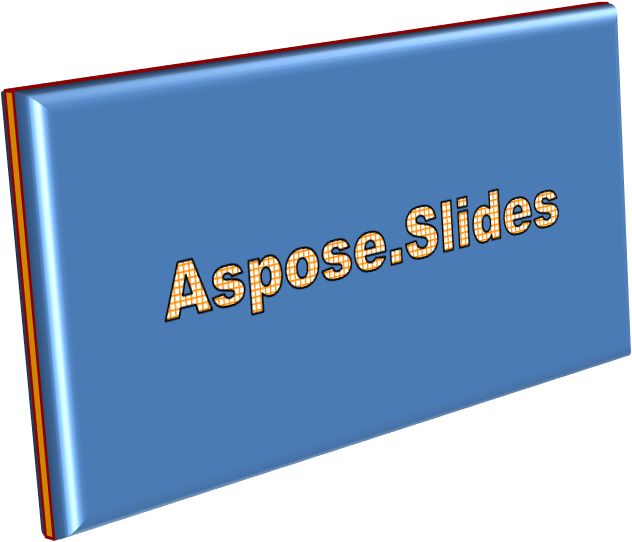
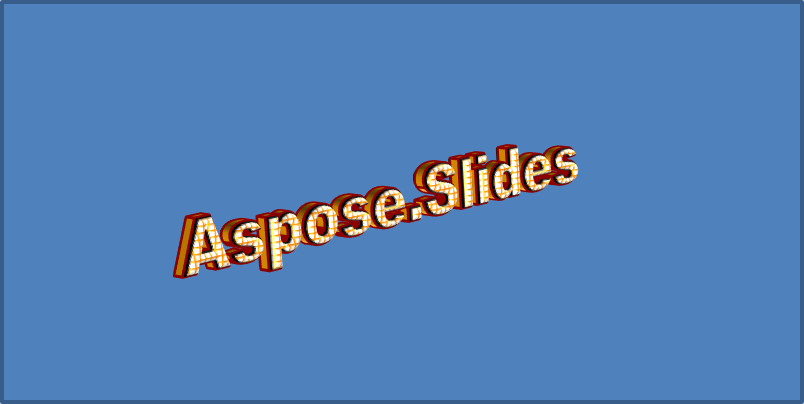
Ví dụ này áp dụng định dạng 3D tương tự cho văn bản thông qua ITextFrameFormat::get_ThreeDFormat. Các cạnh xiên nhỏ hơn tạo hình góc cho các ký tự, trong khi đùn và ánh sáng mang lại độ sâu cho văn bản:
#include <DOM/BevelPresetType.h>
#include <DOM/CameraPresetType.h>
#include <DOM/IAutoShape.h>
#include <DOM/ICamera.h>
#include <DOM/IColorFormat.h>
#include <DOM/ILightRig.h>
#include <DOM/IShapeBevel.h>
#include <DOM/IShapeCollection.h>
#include <DOM/ISlide.h>
#include <DOM/ITextFrame.h>
#include <DOM/ITextFrameFormat.h>
#include <DOM/IThreeDFormat.h>
#include <DOM/LightRigPresetType.h>
#include <DOM/LightingDirection.h>
#include <DOM/MaterialPresetType.h>
#include <DOM/Presentation.h>
#include <DOM/ShapeType.h>
#include <drawing/color.h>

using namespace Aspose::Slides;
using namespace System::Drawing;

auto presentation = System::MakeObject<Presentation>();
auto slide = presentation->get_Slide(0);

auto autoShape = slide->get_Shapes()->AddAutoShape(ShapeType::Rectangle, 20.0f, 20.0f, 400.0f, 200.0f);

auto textFrame = autoShape->get_TextFrame();
textFrame->set_Text(u"Aspose.Slides");

auto threeDFormat = textFrame->get_TextFrameFormat()->get_ThreeDFormat();

threeDFormat->get_BevelBottom()->set_BevelType(BevelPresetType::Circle);
threeDFormat->get_BevelBottom()->set_Height(3.5);
threeDFormat->get_BevelBottom()->set_Width(3.5);

threeDFormat->get_BevelTop()->set_BevelType(BevelPresetType::Circle);
threeDFormat->get_BevelTop()->set_Height(4);
threeDFormat->get_BevelTop()->set_Width(4);

threeDFormat->get_ExtrusionColor()->set_Color(Color::get_Orange());
threeDFormat->set_ExtrusionHeight(6);

threeDFormat->get_ContourColor()->set_Color(Color::get_DarkRed());
threeDFormat->set_ContourWidth(1.5);

threeDFormat->set_Depth(3);

threeDFormat->set_Material(MaterialPresetType::Plastic);

threeDFormat->get_LightRig()->set_Direction(LightingDirection::Top);
threeDFormat->get_LightRig()->set_LightType(LightRigPresetType::Balanced);
threeDFormat->get_LightRig()->SetRotation(0.0f, 0.0f, 40.0f);

threeDFormat->get_Camera()->set_CameraType(CameraPresetType::PerspectiveContrastingRightFacing);
Hiệu ứng văn bản:
Note
Việc áp dụng hiệu ứng 3D cho văn bản hoặc hình dạng của chúng—và sự tương tác giữa các hiệu ứng này—được điều khiển bởi các quy tắc cụ thể. Xét một cảnh bao gồm cả văn bản và hình dạng chứa nó. Một hiệu ứng 3D bao gồm đại diện 3D của đối tượng và cảnh mà nó được đặt trong đó.
- Nếu một cảnh được đặt cho cả hình dạng và văn bản, cảnh của hình dạng được ưu tiên và cảnh của văn bản bị bỏ qua.
- Nếu hình dạng không có cảnh riêng nhưng có đại diện 3D, cảnh của văn bản sẽ được sử dụng.
- Nếu hình dạng không có hiệu ứng 3D nào, nó được coi là phẳng và hiệu ứng 3D chỉ được áp dụng cho văn bản.
Các hành vi này liên quan tới các phương thức IThreeDFormat::get_LightRig và IThreeDFormat::get_Camera.
Để giữ văn bản phẳng và dễ đọc đồng thời giữ định dạng 3D của hình dạng, xem Keep Text Flat on a 3D Shape để so sánh cả hai cài đặt và một ví dụ C++ đầy đủ.
Câu hỏi thường gặp
Tôi có thể sử dụng hiệu ứng WordArt với các phông chữ hoặc ký tự khác nhau (ví dụ: Ả Rập, Trung Quốc) không?
Có, Aspose.Slides cho C++ hỗ trợ Unicode và hoạt động với mọi phông chữ và ký tự chính. Các hiệu ứng WordArt như bóng, nền và viền có thể được áp dụng bất kể ngôn ngữ, dù việc sẵn có của phông chữ và việc hiển thị có thể phụ thuộc vào phông chữ hệ thống.
Tôi có thể áp dụng hiệu ứng WordArt cho các thành phần của slide master không?
Có, bạn có thể áp dụng hiệu ứng WordArt cho các hình dạng trên slide master, bao gồm các trình giữ chỗ tiêu đề, chân trang hoặc văn bản nền. Các thay đổi trên bố cục master sẽ được phản ánh trên tất cả các slide liên quan.
Hiệu ứng WordArt có ảnh hưởng đến kích thước tệp của bản trình chiếu không?
Hơi có. Các hiệu ứng WordArt như bóng, hào quang và nền gradient có thể làm tăng nhẹ kích thước tệp do thêm siêu dữ liệu định dạng, nhưng sự tăng này thường không đáng kể.
Tôi có thể xem trước kết quả của các hiệu ứng WordArt mà không lưu bản trình chiếu không?
Có, bạn có thể render các slide chứa WordArt thành hình ảnh (ví dụ: PNG, JPEG) bằng ISlide::GetImage, hoặc render các hình dạng riêng lẻ bằng IShape::GetImage. Điều này cho phép bạn xem trước kết quả trong bộ nhớ hoặc trên màn hình trước khi lưu hoặc xuất bản trình chiếu đầy đủ.