
Gérer les listes à puces et numérotées dans les présentations avec Python via Java
Vue d’ensemble
Aspose.Slides for Python via Java vous permet de créer et de formater des listes à puces et numérotées dans les présentations PowerPoint et OpenDocument. Un élément de liste est un paragraphe dont les paramètres de puce sont contrôlés via son format de paragraphe.
Utilisez la méthode Paragraph.getParagraphFormat pour accéder aux paramètres de liste au niveau du paragraphe. Le point d’entrée principal est ParagraphFormat.getBullet, qui retourne un objet BulletFormat. Avec cet objet, vous pouvez définir le type de puce, le symbole, l’image, la couleur, la taille, le style de numérotation et le numéro de départ.
Cet article montre comment :
- créer une liste à puces avec un symbole personnalisé
- créer une puce image
- créer une liste multiniveau en définissant la profondeur du paragraphe
- créer une liste numérotée
- inspecter et modifier le formatage des listes dans une présentation existante
Créer une liste à puces
Pour créer une liste à puces, ajoutez des objets Paragraph à un TextFrame et définissez BulletFormat.setType sur BulletType.Symbol. Vous pouvez ensuite utiliser BulletFormat.setChar, BulletFormat.getColor et BulletFormat.setHeight pour contrôler l’apparence de la puce.
Le code Python suivant montre comment créer une liste à puces sur une diapositive :
import jpype
import asposeslides

if not jpype.isJVMStarted():
    jpype.startJVM()

from asposeslides.api import BulletType, NullableBool, Paragraph, Presentation, SaveFormat, ShapeType
from java.awt import Color

presentation = Presentation()
try:
    slide = presentation.getSlides().get_Item(0)
    auto_shape = slide.getShapes().addAutoShape(ShapeType.Rectangle, 20, 20, 200, 50)

    text_frame = auto_shape.getTextFrame()
    text_frame.getParagraphs().clear()

    bullet_color = Color(205, 92, 92)

    first_paragraph = Paragraph()
    first_paragraph.getParagraphFormat().getBullet().setType(BulletType.Symbol)
    first_paragraph.getParagraphFormat().getBullet().setChar('*')
    first_paragraph.getParagraphFormat().setIndent(15)
    first_paragraph.getParagraphFormat().getBullet().setBulletHardColor(NullableBool.True_)
    first_paragraph.getParagraphFormat().getBullet().getColor().setColor(bullet_color)
    first_paragraph.getParagraphFormat().getBullet().setHeight(100)
    first_paragraph.setText("The first paragraph")
    text_frame.getParagraphs().add(first_paragraph)

    second_paragraph = Paragraph()
    second_paragraph.getParagraphFormat().getBullet().setType(BulletType.Symbol)
    second_paragraph.getParagraphFormat().getBullet().setChar('*')
    second_paragraph.getParagraphFormat().setIndent(15)
    second_paragraph.getParagraphFormat().getBullet().setBulletHardColor(NullableBool.True_)
    second_paragraph.getParagraphFormat().getBullet().getColor().setColor(bullet_color)
    second_paragraph.getParagraphFormat().getBullet().setHeight(100)
    second_paragraph.setText("The second paragraph")
    text_frame.getParagraphs().add(second_paragraph)

    presentation.save("symbol_bullets.pptx", SaveFormat.Pptx)
finally:
    presentation.dispose()
Le résultat :

Créer une liste numérotée
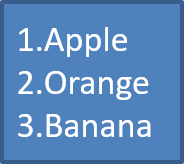
Utilisez des listes numérotées lorsque l’ordre des éléments est important. Définissez BulletFormat.setType sur BulletType.Numbered. Vous pouvez également choisir un format de numérotation avec BulletFormat.setNumberedBulletStyle ou utiliser BulletFormat.setNumberedBulletStartWith lorsque la liste doit commencer à une valeur autre que 1.
Le code Python suivant montre comment créer une liste numérotée sur une diapositive :
import jpype
import asposeslides

if not jpype.isJVMStarted():
    jpype.startJVM()

from asposeslides.api import BulletType, Paragraph, Presentation, SaveFormat, ShapeType

presentation = Presentation()
try:
    slide = presentation.getSlides().get_Item(0)
    auto_shape = slide.getShapes().addAutoShape(ShapeType.Rectangle, 20, 20, 90, 80)

    text_frame = auto_shape.getTextFrame()
    text_frame.getParagraphs().clear()

    first_paragraph = Paragraph()
    first_paragraph.getParagraphFormat().getBullet().setType(BulletType.Numbered)
    first_paragraph.setText("Apple")
    text_frame.getParagraphs().add(first_paragraph)

    second_paragraph = Paragraph()
    second_paragraph.getParagraphFormat().getBullet().setType(BulletType.Numbered)
    second_paragraph.setText("Orange")
    text_frame.getParagraphs().add(second_paragraph)

    third_paragraph = Paragraph()
    third_paragraph.getParagraphFormat().getBullet().setType(BulletType.Numbered)
    third_paragraph.setText("Banana")
    text_frame.getParagraphs().add(third_paragraph)

    presentation.save("numbered_bullets.pptx", SaveFormat.Pptx)
finally:
    presentation.dispose()
Le résultat :
Créer une puce image
Aspose.Slides vous permet de remplacer un symbole de puce standard par une image. Les puces image fonctionnent mieux avec des images simples qui restent lisibles à petite taille, comme des icônes ou de petits fichiers PNG transparents.
Note
Si vous prévoyez de remplacer un symbole de puce standard par une image, choisissez un graphique simple avec un arrière‑plan transparent. De telles images fonctionnent bien comme symboles de puce personnalisés.
Gardez à l’esprit que l’image sera réduite à une taille très petite. Pour cette raison, nous recommandons vivement de sélectionner une image qui reste claire et visuellement efficace lorsqu’elle est utilisée comme puce dans une liste.
Pour créer une puce image, ajoutez une image à Presentation.getImages et affectez l’objet image renvoyé à BulletFormat.getPicture. Définissez BulletFormat.setType sur BulletType.Picture avant d’affecter l’image.
Supposons que nous ayons une image nommée “image.png” :

Le code Python suivant montre comment créer des puces image sur une diapositive :
import jpype
import asposeslides

if not jpype.isJVMStarted():
    jpype.startJVM()

from asposeslides.api import BulletType, Images, Paragraph, Presentation, SaveFormat, ShapeType

presentation = Presentation()
try:
    slide = presentation.getSlides().get_Item(0)
    auto_shape = slide.getShapes().addAutoShape(ShapeType.Rectangle, 20, 20, 200, 50)

    text_frame = auto_shape.getTextFrame()
    text_frame.getParagraphs().clear()

    image = Images.fromFile("image.png")
    try:
        bullet_image = presentation.getImages().addImage(image)
    finally:
        image.dispose()

    first_paragraph = Paragraph()
    first_paragraph.getParagraphFormat().getBullet().setType(BulletType.Picture)
    first_paragraph.getParagraphFormat().getBullet().getPicture().setImage(bullet_image)
    first_paragraph.getParagraphFormat().setIndent(15)
    first_paragraph.getParagraphFormat().getBullet().setHeight(100)
    first_paragraph.setText("The first paragraph")
    text_frame.getParagraphs().add(first_paragraph)

    second_paragraph = Paragraph()
    second_paragraph.getParagraphFormat().getBullet().setType(BulletType.Picture)
    second_paragraph.getParagraphFormat().getBullet().getPicture().setImage(bullet_image)
    second_paragraph.getParagraphFormat().setIndent(15)
    second_paragraph.getParagraphFormat().getBullet().setHeight(100)
    second_paragraph.setText("The second paragraph")
    text_frame.getParagraphs().add(second_paragraph)

    presentation.save("picture_bullets.pptx", SaveFormat.Pptx)
finally:
    presentation.dispose()
Le résultat :

Créer une liste multiniveau
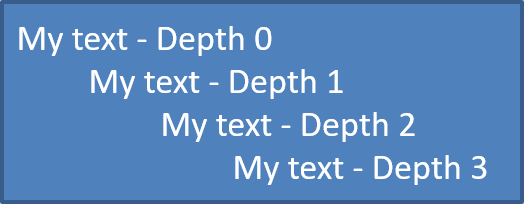
Utilisez ParagraphFormat.setDepth pour placer les éléments de liste à différents niveaux. Le niveau 0 est le niveau supérieur, le niveau 1 est imbriqué en dessous, etc.
Le code Python suivant montre comment créer une liste à puces multiniveau :
import jpype
import asposeslides

if not jpype.isJVMStarted():
    jpype.startJVM()

from asposeslides.api import Paragraph, Presentation, SaveFormat, ShapeType

presentation = Presentation()
try:
    slide = presentation.getSlides().get_Item(0)
    auto_shape = slide.getShapes().addAutoShape(ShapeType.Rectangle, 20, 20, 260, 110)

    text_frame = auto_shape.getTextFrame()
    text_frame.getParagraphs().clear()

    first_paragraph = Paragraph()
    first_paragraph.getParagraphFormat().setDepth(0)
    first_paragraph.setText("My text - Depth 0")
    text_frame.getParagraphs().add(first_paragraph)

    second_paragraph = Paragraph()
    second_paragraph.getParagraphFormat().setDepth(1)
    second_paragraph.setText("My text - Depth 1")
    text_frame.getParagraphs().add(second_paragraph)

    third_paragraph = Paragraph()
    third_paragraph.getParagraphFormat().setDepth(2)
    third_paragraph.setText("My text - Depth 2")
    text_frame.getParagraphs().add(third_paragraph)

    fourth_paragraph = Paragraph()
    fourth_paragraph.getParagraphFormat().setDepth(3)
    fourth_paragraph.setText("My text - Depth 3")
    text_frame.getParagraphs().add(fourth_paragraph)

    presentation.save("multilevel_bullets.pptx", SaveFormat.Pptx)
finally:
    presentation.dispose()
Le résultat :
Modifier une liste existante
Pour modifier le formatage d’une liste dans une présentation existante, accédez au paragraphe cible et mettez à jour ses paramètres ParagraphFormat.getBullet. Les mêmes propriétés utilisées pour créer des listes peuvent être employées pour inspecter ou modifier des listes chargées depuis un fichier PPT, PPTX ou ODP.
import jpype
import asposeslides

if not jpype.isJVMStarted():
    jpype.startJVM()

from asposeslides.api import BulletType, NumberedBulletStyle, Presentation, SaveFormat

presentation = Presentation("input.pptx")
try:
    slide = presentation.getSlides().get_Item(0)
    auto_shape = slide.getShapes().get_Item(0)
    paragraph = auto_shape.getTextFrame().getParagraphs().get_Item(0)

    paragraph.getParagraphFormat().getBullet().setType(BulletType.Numbered)
    paragraph.getParagraphFormat().getBullet().setNumberedBulletStyle(NumberedBulletStyle.BulletRomanUCPeriod)
    paragraph.getParagraphFormat().getBullet().setNumberedBulletStartWith(1)
    paragraph.getParagraphFormat().setMarginLeft(30)
    paragraph.getParagraphFormat().setIndent(-20)

    presentation.save("updated_list.pptx", SaveFormat.Pptx)
finally:
    presentation.dispose()
FAQ
Les listes à puces et numérotées peuvent‑elles être exportées vers PDF ou des images ?
Oui. Aspose.Slides conserve le formatage des listes lorsque le format de destination prend en charge la mise en page du texte et les fonctionnalités de puces correspondantes.
Puis‑je modifier les listes dans des présentations existantes ?
Oui. Chargez la présentation, accédez au paragraphe cible, inspectez ou mettez à jour ses paramètres ParagraphFormat.getBullet et enregistrez la présentation.
Les listes peuvent‑elles contenir du texte non latin ?
Oui. Le texte des éléments de liste peut contenir des caractères Unicode, vous permettant de créer des listes dans des présentations multilingues. Assurez‑vous que les polices utilisées dans la présentation prennent en charge les caractères requis.