
Gestionar listas con viñetas y numeradas en presentaciones usando Python a través de Java
Visión general
Aspose.Slides para Python a través de Java le permite crear y dar formato a listas con viñetas y numeradas en presentaciones PowerPoint y OpenDocument. Un elemento de lista es un párrafo cuyas configuraciones de viñeta se controlan mediante su formato de párrafo.
Utilice el método Paragraph.getParagraphFormat para acceder a la configuración de listas a nivel de párrafo. El punto de entrada principal es ParagraphFormat.getBullet, que devuelve un objeto BulletFormat. Con este objeto, puede establecer el tipo de viñeta, símbolo, imagen, color, tamaño, estilo de numeración y número inicial.
Este artículo muestra cómo:
- crear una lista con viñetas con un símbolo personalizado
- crear una viñeta con imagen
- crear una lista multinivel estableciendo la profundidad del párrafo
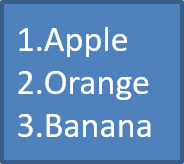
- crear una lista numerada
- inspeccionar y cambiar el formato de la lista en una presentación existente
Crear una lista con viñetas
Para crear una lista con viñetas, agregue objetos Paragraph a un TextFrame y establezca BulletFormat.setType a BulletType.Symbol. Luego puede usar BulletFormat.setChar, BulletFormat.getColor y BulletFormat.setHeight para controlar la apariencia de la viñeta.
El siguiente código Python demuestra cómo crear una lista con viñetas en una diapositiva:
import jpype
import asposeslides

if not jpype.isJVMStarted():
    jpype.startJVM()

from asposeslides.api import BulletType, NullableBool, Paragraph, Presentation, SaveFormat, ShapeType
from java.awt import Color

presentation = Presentation()
try:
    slide = presentation.getSlides().get_Item(0)
    auto_shape = slide.getShapes().addAutoShape(ShapeType.Rectangle, 20, 20, 200, 50)

    text_frame = auto_shape.getTextFrame()
    text_frame.getParagraphs().clear()

    bullet_color = Color(205, 92, 92)

    first_paragraph = Paragraph()
    first_paragraph.getParagraphFormat().getBullet().setType(BulletType.Symbol)
    first_paragraph.getParagraphFormat().getBullet().setChar('*')
    first_paragraph.getParagraphFormat().setIndent(15)
    first_paragraph.getParagraphFormat().getBullet().setBulletHardColor(NullableBool.True_)
    first_paragraph.getParagraphFormat().getBullet().getColor().setColor(bullet_color)
    first_paragraph.getParagraphFormat().getBullet().setHeight(100)
    first_paragraph.setText("The first paragraph")
    text_frame.getParagraphs().add(first_paragraph)

    second_paragraph = Paragraph()
    second_paragraph.getParagraphFormat().getBullet().setType(BulletType.Symbol)
    second_paragraph.getParagraphFormat().getBullet().setChar('*')
    second_paragraph.getParagraphFormat().setIndent(15)
    second_paragraph.getParagraphFormat().getBullet().setBulletHardColor(NullableBool.True_)
    second_paragraph.getParagraphFormat().getBullet().getColor().setColor(bullet_color)
    second_paragraph.getParagraphFormat().getBullet().setHeight(100)
    second_paragraph.setText("The second paragraph")
    text_frame.getParagraphs().add(second_paragraph)

    presentation.save("symbol_bullets.pptx", SaveFormat.Pptx)
finally:
    presentation.dispose()
El resultado:

Crear una lista numerada
Utilice listas numeradas cuando el orden de los elementos sea importante. Establezca BulletFormat.setType a BulletType.Numbered. También puede elegir un formato de numeración con BulletFormat.setNumberedBulletStyle o usar BulletFormat.setNumberedBulletStartWith cuando la lista deba iniciar con un valor distinto de 1.
El siguiente código Python muestra cómo crear una lista numerada en una diapositiva:
import jpype
import asposeslides

if not jpype.isJVMStarted():
    jpype.startJVM()

from asposeslides.api import BulletType, Paragraph, Presentation, SaveFormat, ShapeType

presentation = Presentation()
try:
    slide = presentation.getSlides().get_Item(0)
    auto_shape = slide.getShapes().addAutoShape(ShapeType.Rectangle, 20, 20, 90, 80)

    text_frame = auto_shape.getTextFrame()
    text_frame.getParagraphs().clear()

    first_paragraph = Paragraph()
    first_paragraph.getParagraphFormat().getBullet().setType(BulletType.Numbered)
    first_paragraph.setText("Apple")
    text_frame.getParagraphs().add(first_paragraph)

    second_paragraph = Paragraph()
    second_paragraph.getParagraphFormat().getBullet().setType(BulletType.Numbered)
    second_paragraph.setText("Orange")
    text_frame.getParagraphs().add(second_paragraph)

    third_paragraph = Paragraph()
    third_paragraph.getParagraphFormat().getBullet().setType(BulletType.Numbered)
    third_paragraph.setText("Banana")
    text_frame.getParagraphs().add(third_paragraph)

    presentation.save("numbered_bullets.pptx", SaveFormat.Pptx)
finally:
    presentation.dispose()
El resultado:
Crear una viñeta con imagen
Aspose.Slides permite sustituir un símbolo de viñeta normal por una imagen. Las viñetas con imagen funcionan mejor con imágenes sencillas que sigan siendo legibles a un tamaño pequeño, como iconos o archivos PNG transparentes de dimensiones reducidas.
Note
Si planea sustituir un símbolo de viñeta normal por una imagen, elija un gráfico sencillo con fondo transparente. Ese tipo de imágenes funciona bien como símbolos de viñeta personalizados.
Tenga en cuenta que la imagen se reducirá a un tamaño muy pequeño. Por esa razón, recomendamos encarecidamente seleccionar una imagen que siga siendo clara y visualmente eficaz cuando se use como viñeta en una lista.
Para crear una viñeta con imagen, añada una imagen a Presentation.getImages y asigne el objeto de imagen devuelto a BulletFormat.getPicture. Establezca BulletFormat.setType a BulletType.Picture antes de asignar la imagen.
Supongamos que tenemos una imagen llamada “image.png”:

El siguiente código Python muestra cómo crear viñetas con imagen en una diapositiva:
import jpype
import asposeslides

if not jpype.isJVMStarted():
    jpype.startJVM()

from asposeslides.api import BulletType, Images, Paragraph, Presentation, SaveFormat, ShapeType

presentation = Presentation()
try:
    slide = presentation.getSlides().get_Item(0)
    auto_shape = slide.getShapes().addAutoShape(ShapeType.Rectangle, 20, 20, 200, 50)

    text_frame = auto_shape.getTextFrame()
    text_frame.getParagraphs().clear()

    image = Images.fromFile("image.png")
    try:
        bullet_image = presentation.getImages().addImage(image)
    finally:
        image.dispose()

    first_paragraph = Paragraph()
    first_paragraph.getParagraphFormat().getBullet().setType(BulletType.Picture)
    first_paragraph.getParagraphFormat().getBullet().getPicture().setImage(bullet_image)
    first_paragraph.getParagraphFormat().setIndent(15)
    first_paragraph.getParagraphFormat().getBullet().setHeight(100)
    first_paragraph.setText("The first paragraph")
    text_frame.getParagraphs().add(first_paragraph)

    second_paragraph = Paragraph()
    second_paragraph.getParagraphFormat().getBullet().setType(BulletType.Picture)
    second_paragraph.getParagraphFormat().getBullet().getPicture().setImage(bullet_image)
    second_paragraph.getParagraphFormat().setIndent(15)
    second_paragraph.getParagraphFormat().getBullet().setHeight(100)
    second_paragraph.setText("The second paragraph")
    text_frame.getParagraphs().add(second_paragraph)

    presentation.save("picture_bullets.pptx", SaveFormat.Pptx)
finally:
    presentation.dispose()
El resultado:

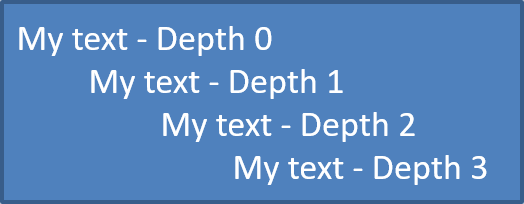
Crear una lista multinivel
Utilice ParagraphFormat.setDepth para colocar los elementos de la lista en diferentes niveles. El nivel 0 es el nivel superior, el nivel 1 está anidado debajo de él, y así sucesivamente.
El siguiente código Python muestra cómo crear una lista con viñetas multinivel:
import jpype
import asposeslides

if not jpype.isJVMStarted():
    jpype.startJVM()

from asposeslides.api import Paragraph, Presentation, SaveFormat, ShapeType

presentation = Presentation()
try:
    slide = presentation.getSlides().get_Item(0)
    auto_shape = slide.getShapes().addAutoShape(ShapeType.Rectangle, 20, 20, 260, 110)

    text_frame = auto_shape.getTextFrame()
    text_frame.getParagraphs().clear()

    first_paragraph = Paragraph()
    first_paragraph.getParagraphFormat().setDepth(0)
    first_paragraph.setText("My text - Depth 0")
    text_frame.getParagraphs().add(first_paragraph)

    second_paragraph = Paragraph()
    second_paragraph.getParagraphFormat().setDepth(1)
    second_paragraph.setText("My text - Depth 1")
    text_frame.getParagraphs().add(second_paragraph)

    third_paragraph = Paragraph()
    third_paragraph.getParagraphFormat().setDepth(2)
    third_paragraph.setText("My text - Depth 2")
    text_frame.getParagraphs().add(third_paragraph)

    fourth_paragraph = Paragraph()
    fourth_paragraph.getParagraphFormat().setDepth(3)
    fourth_paragraph.setText("My text - Depth 3")
    text_frame.getParagraphs().add(fourth_paragraph)

    presentation.save("multilevel_bullets.pptx", SaveFormat.Pptx)
finally:
    presentation.dispose()
El resultado:
Cambiar una lista existente
Para modificar el formato de una lista en una presentación existente, acceda al párrafo objetivo y actualice sus configuraciones de ParagraphFormat.getBullet. Las mismas propiedades que se utilizan para crear listas pueden usarse para inspeccionar o modificar listas cargadas desde un archivo PPT, PPTX o ODP.
El siguiente código Python cambia el primer párrafo en un marco de texto para usar un estilo de lista numerada:
import jpype
import asposeslides

if not jpype.isJVMStarted():
    jpype.startJVM()

from asposeslides.api import BulletType, NumberedBulletStyle, Presentation, SaveFormat

presentation = Presentation("input.pptx")
try:
    slide = presentation.getSlides().get_Item(0)
    auto_shape = slide.getShapes().get_Item(0)
    paragraph = auto_shape.getTextFrame().getParagraphs().get_Item(0)

    paragraph.getParagraphFormat().getBullet().setType(BulletType.Numbered)
    paragraph.getParagraphFormat().getBullet().setNumberedBulletStyle(NumberedBulletStyle.BulletRomanUCPeriod)
    paragraph.getParagraphFormat().getBullet().setNumberedBulletStartWith(1)
    paragraph.getParagraphFormat().setMarginLeft(30)
    paragraph.getParagraphFormat().setIndent(-20)

    presentation.save("updated_list.pptx", SaveFormat.Pptx)
finally:
    presentation.dispose()
Preguntas frecuentes
¿Se pueden exportar listas con viñetas y numeradas a PDF o imágenes?
Sí. Aspose.Slides conserva el formato de las listas cuando el formato de destino admite la disposición de texto y las características de viñetas correspondientes.
¿Puedo editar listas en presentaciones existentes?
Sí. Cargue la presentación, acceda al párrafo objetivo, inspeccione o actualice sus configuraciones de ParagraphFormat.getBullet y guarde la presentación.
¿Las listas pueden contener texto no latino?
Sí. El texto de los elementos de la lista puede contener caracteres Unicode, por lo que puede crear listas en presentaciones multilingües. Asegúrese de que las fuentes usadas en la presentación admitan los caracteres que necesita.