
Gestire elenchi puntati e numerati nelle presentazioni con Python via Java
Panoramica
Aspose.Slides per Python tramite Java consente di creare e formattare elenchi puntati e numerati in presentazioni PowerPoint e OpenDocument. Un elemento di elenco è un paragrafo le cui impostazioni di bullet sono controllate tramite il formato del paragrafo.
Usa il metodo Paragraph.getParagraphFormat per accedere alle impostazioni di elenco a livello di paragrafo. Il punto di ingresso principale è ParagraphFormat.getBullet, che restituisce un oggetto BulletFormat. Con questo oggetto puoi impostare il tipo di bullet, il simbolo, l’immagine, il colore, le dimensioni, lo stile di numerazione e il numero iniziale.
Questo articolo mostra come:
- creare un elenco puntato con un simbolo personalizzato
- creare un bullet immagine
- creare un elenco multilevel impostando la profondità del paragrafo
- creare un elenco numerato
- esaminare e modificare la formattazione dell’elenco in una presentazione esistente
Creare un Elenco Puntato
Per creare un elenco puntato, aggiungi oggetti Paragraph a un TextFrame e imposta BulletFormat.setType su BulletType.Symbol. Puoi quindi utilizzare BulletFormat.setChar, BulletFormat.getColor e BulletFormat.setHeight per controllare l’aspetto del bullet.
Il seguente codice Python dimostra come creare un elenco puntato su una diapositiva:
import jpype
import asposeslides

if not jpype.isJVMStarted():
    jpype.startJVM()

from asposeslides.api import BulletType, NullableBool, Paragraph, Presentation, SaveFormat, ShapeType
from java.awt import Color

presentation = Presentation()
try:
    slide = presentation.getSlides().get_Item(0)
    auto_shape = slide.getShapes().addAutoShape(ShapeType.Rectangle, 20, 20, 200, 50)

    text_frame = auto_shape.getTextFrame()
    text_frame.getParagraphs().clear()

    bullet_color = Color(205, 92, 92)

    first_paragraph = Paragraph()
    first_paragraph.getParagraphFormat().getBullet().setType(BulletType.Symbol)
    first_paragraph.getParagraphFormat().getBullet().setChar('*')
    first_paragraph.getParagraphFormat().setIndent(15)
    first_paragraph.getParagraphFormat().getBullet().setBulletHardColor(NullableBool.True_)
    first_paragraph.getParagraphFormat().getBullet().getColor().setColor(bullet_color)
    first_paragraph.getParagraphFormat().getBullet().setHeight(100)
    first_paragraph.setText("The first paragraph")
    text_frame.getParagraphs().add(first_paragraph)

    second_paragraph = Paragraph()
    second_paragraph.getParagraphFormat().getBullet().setType(BulletType.Symbol)
    second_paragraph.getParagraphFormat().getBullet().setChar('*')
    second_paragraph.getParagraphFormat().setIndent(15)
    second_paragraph.getParagraphFormat().getBullet().setBulletHardColor(NullableBool.True_)
    second_paragraph.getParagraphFormat().getBullet().getColor().setColor(bullet_color)
    second_paragraph.getParagraphFormat().getBullet().setHeight(100)
    second_paragraph.setText("The second paragraph")
    text_frame.getParagraphs().add(second_paragraph)

    presentation.save("symbol_bullets.pptx", SaveFormat.Pptx)
finally:
    presentation.dispose()
Il risultato:

Creare un Elenco Numerato
Usa gli elenchi numerati quando l’ordine degli elementi è importante. Imposta BulletFormat.setType su BulletType.Numbered. Puoi anche scegliere un formato di numerazione con BulletFormat.setNumberedBulletStyle o usare BulletFormat.setNumberedBulletStartWith quando l’elenco deve iniziare da un valore diverso da 1.
Il seguente codice Python mostra come creare un elenco numerato su una diapositiva:
import jpype
import asposeslides

if not jpype.isJVMStarted():
    jpype.startJVM()

from asposeslides.api import BulletType, Paragraph, Presentation, SaveFormat, ShapeType

presentation = Presentation()
try:
    slide = presentation.getSlides().get_Item(0)
    auto_shape = slide.getShapes().addAutoShape(ShapeType.Rectangle, 20, 20, 90, 80)

    text_frame = auto_shape.getTextFrame()
    text_frame.getParagraphs().clear()

    first_paragraph = Paragraph()
    first_paragraph.getParagraphFormat().getBullet().setType(BulletType.Numbered)
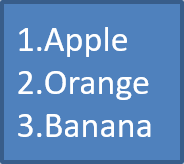
    first_paragraph.setText("Apple")
    text_frame.getParagraphs().add(first_paragraph)

    second_paragraph = Paragraph()
    second_paragraph.getParagraphFormat().getBullet().setType(BulletType.Numbered)
    second_paragraph.setText("Orange")
    text_frame.getParagraphs().add(second_paragraph)

    third_paragraph = Paragraph()
    third_paragraph.getParagraphFormat().getBullet().setType(BulletType.Numbered)
    third_paragraph.setText("Banana")
    text_frame.getParagraphs().add(third_paragraph)

    presentation.save("numbered_bullets.pptx", SaveFormat.Pptx)
finally:
    presentation.dispose()
Il risultato:
Creare un Bullet Immagine
Aspose.Slides permette di sostituire un simbolo bullet tradizionale con un’immagine. I bullet immagine funzionano meglio con immagini semplici che rimangono leggibili in dimensioni ridotte, come icone o piccoli file PNG trasparenti.
Nota
Se prevedi di sostituire un simbolo bullet tradizionale con un’immagine, scegli una grafica semplice con sfondo trasparente. Tale immagine funziona bene come simbolo bullet personalizzato.
Tieni presente che l’immagine verrà ridimensionata a una dimensione molto piccola. Per questo motivo, consigliamo vivamente di scegliere un’immagine che rimanga chiara ed efficace visualmente quando utilizzata come bullet in un elenco.
Per creare un bullet immagine, aggiungi un’immagine a Presentation.getImages e assegna l’oggetto immagine restituito a BulletFormat.getPicture. Imposta BulletFormat.setType su BulletType.Picture prima di assegnare l’immagine.
Supponiamo di avere un’immagine chiamata “image.png”:

Il seguente codice Python mostra come creare bullet immagine su una diapositiva:
import jpype
import asposeslides

if not jpype.isJVMStarted():
    jpype.startJVM()

from asposeslides.api import BulletType, Images, Paragraph, Presentation, SaveFormat, ShapeType

presentation = Presentation()
try:
    slide = presentation.getSlides().get_Item(0)
    auto_shape = slide.getShapes().addAutoShape(ShapeType.Rectangle, 20, 20, 200, 50)

    text_frame = auto_shape.getTextFrame()
    text_frame.getParagraphs().clear()

    image = Images.fromFile("image.png")
    try:
        bullet_image = presentation.getImages().addImage(image)
    finally:
        image.dispose()

    first_paragraph = Paragraph()
    first_paragraph.getParagraphFormat().getBullet().setType(BulletType.Picture)
    first_paragraph.getParagraphFormat().getBullet().getPicture().setImage(bullet_image)
    first_paragraph.getParagraphFormat().setIndent(15)
    first_paragraph.getParagraphFormat().getBullet().setHeight(100)
    first_paragraph.setText("The first paragraph")
    text_frame.getParagraphs().add(first_paragraph)

    second_paragraph = Paragraph()
    second_paragraph.getParagraphFormat().getBullet().setType(BulletType.Picture)
    second_paragraph.getParagraphFormat().getBullet().getPicture().setImage(bullet_image)
    second_paragraph.getParagraphFormat().setIndent(15)
    second_paragraph.getParagraphFormat().getBullet().setHeight(100)
    second_paragraph.setText("The second paragraph")
    text_frame.getParagraphs().add(second_paragraph)

    presentation.save("picture_bullets.pptx", SaveFormat.Pptx)
finally:
    presentation.dispose()
Il risultato:

Creare un Elenco Multilivello
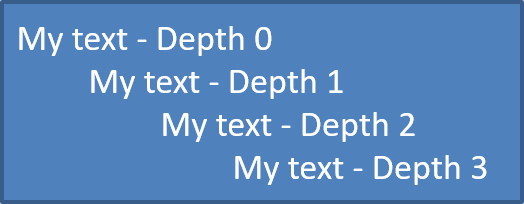
Usa ParagraphFormat.setDepth per posizionare gli elementi dell’elenco a diversi livelli. Il livello 0 è quello superiore, il livello 1 è annidato sotto di esso, e così via.
Il seguente codice Python mostra come creare un elenco puntato multilevel:
import jpype
import asposeslides

if not jpype.isJVMStarted():
    jpype.startJVM()

from asposeslides.api import Paragraph, Presentation, SaveFormat, ShapeType

presentation = Presentation()
try:
    slide = presentation.getSlides().get_Item(0)
    auto_shape = slide.getShapes().addAutoShape(ShapeType.Rectangle, 20, 20, 260, 110)

    text_frame = auto_shape.getTextFrame()
    text_frame.getParagraphs().clear()

    first_paragraph = Paragraph()
    first_paragraph.getParagraphFormat().setDepth(0)
    first_paragraph.setText("My text - Depth 0")
    text_frame.getParagraphs().add(first_paragraph)

    second_paragraph = Paragraph()
    second_paragraph.getParagraphFormat().setDepth(1)
    second_paragraph.setText("My text - Depth 1")
    text_frame.getParagraphs().add(second_paragraph)

    third_paragraph = Paragraph()
    third_paragraph.getParagraphFormat().setDepth(2)
    third_paragraph.setText("My text - Depth 2")
    text_frame.getParagraphs().add(third_paragraph)

    fourth_paragraph = Paragraph()
    fourth_paragraph.getParagraphFormat().setDepth(3)
    fourth_paragraph.setText("My text - Depth 3")
    text_frame.getParagraphs().add(fourth_paragraph)

    presentation.save("multilevel_bullets.pptx", SaveFormat.Pptx)
finally:
    presentation.dispose()
Il risultato:
Modificare un Elenco Esistente
Per modificare la formattazione dell’elenco in una presentazione esistente, accedi al paragrafo di destinazione e aggiorna le impostazioni di ParagraphFormat.getBullet. Le stesse proprietà usate per creare gli elenchi possono essere utilizzate per ispezionare o modificare gli elenchi caricati da un file PPT, PPTX o ODP.
Il seguente codice Python modifica il primo paragrafo in un frame di testo per utilizzare uno stile di elenco numerato:
import jpype
import asposeslides

if not jpype.isJVMStarted():
    jpype.startJVM()

from asposeslides.api import BulletType, NumberedBulletStyle, Presentation, SaveFormat

presentation = Presentation("input.pptx")
try:
    slide = presentation.getSlides().get_Item(0)
    auto_shape = slide.getShapes().get_Item(0)
    paragraph = auto_shape.getTextFrame().getParagraphs().get_Item(0)

    paragraph.getParagraphFormat().getBullet().setType(BulletType.Numbered)
    paragraph.getParagraphFormat().getBullet().setNumberedBulletStyle(NumberedBulletStyle.BulletRomanUCPeriod)
    paragraph.getParagraphFormat().getBullet().setNumberedBulletStartWith(1)
    paragraph.getParagraphFormat().setMarginLeft(30)
    paragraph.getParagraphFormat().setIndent(-20)

    presentation.save("updated_list.pptx", SaveFormat.Pptx)
finally:
    presentation.dispose()
FAQ
È possibile esportare elenchi puntati e numerati in PDF o immagini?
Sì. Aspose.Slides preserva la formattazione degli elenchi quando il formato di destinazione supporta la disposizione del testo e le funzionalità di bullet corrispondenti.
Posso modificare gli elenchi nelle presentazioni esistenti?
Sì. Carica la presentazione, accedi al paragrafo desiderato, ispeziona o aggiorna le sue impostazioni di ParagraphFormat.getBullet e salva la presentazione.
Gli elenchi possono contenere testo non latino?
Sì. Il testo degli elementi dell’elenco può contenere caratteri Unicode, così puoi creare elenchi in presentazioni multilingue. Assicurati che i caratteri utilizzati nella presentazione siano supportati dai font impiegati.