
Gerenciar Listas com Marcadores e Numeradas em Apresentações Usando Python via Java
Visão geral
Aspose.Slides for Python via Java permite que você crie e formate listas com marcadores e numeradas em apresentações PowerPoint e OpenDocument. Um item de lista é um parágrafo cujas configurações de marcador são controladas por meio do seu formato de parágrafo.
Use o Paragraph.getParagraphFormat para acessar as configurações de lista ao nível do parágrafo. O ponto de entrada principal é ParagraphFormat.getBullet, que devolve um objeto BulletFormat. Com esse objeto, você pode definir o tipo de marcador, símbolo, imagem, cor, tamanho, estilo de numeração e número inicial.
Este artigo mostra como:
- criar uma lista com marcadores usando um símbolo personalizado
- criar um marcador de imagem
- criar uma lista de vários níveis definindo a profundidade do parágrafo
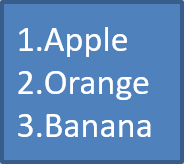
- criar uma lista numerada
- inspecionar e alterar a formatação de lista em uma apresentação existente
Criar uma lista com marcadores
Para criar uma lista com marcadores, adicione objetos Paragraph a um TextFrame e defina BulletFormat.setType para BulletType.Symbol. Você pode então usar BulletFormat.setChar, BulletFormat.getColor e BulletFormat.setHeight para controlar a aparência do marcador.
O código Python a seguir demonstra como criar uma lista com marcadores em um slide:
import jpype
import asposeslides

if not jpype.isJVMStarted():
    jpype.startJVM()

from asposeslides.api import BulletType, NullableBool, Paragraph, Presentation, SaveFormat, ShapeType
from java.awt import Color

presentation = Presentation()
try:
    slide = presentation.getSlides().get_Item(0)
    auto_shape = slide.getShapes().addAutoShape(ShapeType.Rectangle, 20, 20, 200, 50)

    text_frame = auto_shape.getTextFrame()
    text_frame.getParagraphs().clear()

    bullet_color = Color(205, 92, 92)

    first_paragraph = Paragraph()
    first_paragraph.getParagraphFormat().getBullet().setType(BulletType.Symbol)
    first_paragraph.getParagraphFormat().getBullet().setChar('*')
    first_paragraph.getParagraphFormat().setIndent(15)
    first_paragraph.getParagraphFormat().getBullet().setBulletHardColor(NullableBool.True_)
    first_paragraph.getParagraphFormat().getBullet().getColor().setColor(bullet_color)
    first_paragraph.getParagraphFormat().getBullet().setHeight(100)
    first_paragraph.setText("The first paragraph")
    text_frame.getParagraphs().add(first_paragraph)

    second_paragraph = Paragraph()
    second_paragraph.getParagraphFormat().getBullet().setType(BulletType.Symbol)
    second_paragraph.getParagraphFormat().getBullet().setChar('*')
    second_paragraph.getParagraphFormat().setIndent(15)
    second_paragraph.getParagraphFormat().getBullet().setBulletHardColor(NullableBool.True_)
    second_paragraph.getParagraphFormat().getBullet().getColor().setColor(bullet_color)
    second_paragraph.getParagraphFormat().getBullet().setHeight(100)
    second_paragraph.setText("The second paragraph")
    text_frame.getParagraphs().add(second_paragraph)

    presentation.save("symbol_bullets.pptx", SaveFormat.Pptx)
finally:
    presentation.dispose()
O resultado:

Criar uma lista numerada
Use listas numeradas quando a ordem dos itens for importante. Defina BulletFormat.setType para BulletType.Numbered. Você também pode escolher um formato de numeração com BulletFormat.setNumberedBulletStyle ou usar BulletFormat.setNumberedBulletStartWith quando a lista deve iniciar em um valor diferente de 1.
O código Python a seguir mostra como criar uma lista numerada em um slide:
import jpype
import asposeslides

if not jpype.isJVMStarted():
    jpype.startJVM()

from asposeslides.api import BulletType, Paragraph, Presentation, SaveFormat, ShapeType

presentation = Presentation()
try:
    slide = presentation.getSlides().get_Item(0)
    auto_shape = slide.getShapes().addAutoShape(ShapeType.Rectangle, 20, 20, 90, 80)

    text_frame = auto_shape.getTextFrame()
    text_frame.getParagraphs().clear()

    first_paragraph = Paragraph()
    first_paragraph.getParagraphFormat().getBullet().setType(BulletType.Numbered)
    first_paragraph.setText("Apple")
    text_frame.getParagraphs().add(first_paragraph)

    second_paragraph = Paragraph()
    second_paragraph.getParagraphFormat().getBullet().setType(BulletType.Numbered)
    second_paragraph.setText("Orange")
    text_frame.getParagraphs().add(second_paragraph)

    third_paragraph = Paragraph()
    third_paragraph.getParagraphFormat().getBullet().setType(BulletType.Numbered)
    third_paragraph.setText("Banana")
    text_frame.getParagraphs().add(third_paragraph)

    presentation.save("numbered_bullets.pptx", SaveFormat.Pptx)
finally:
    presentation.dispose()
O resultado:
Criar um marcador de imagem
Aspose.Slides permite que você substitua um símbolo de marcador tradicional por uma imagem. Marcadores de imagem funcionam melhor com imagens simples que permanecem legíveis em tamanho pequeno, como ícones ou arquivos PNG transparentes pequenos.
Note
Se você planeja substituir um símbolo de marcador tradicional por uma imagem, escolha um gráfico simples com fundo transparente. Essas imagens funcionam bem como símbolos de marcador personalizados.
Tenha em mente que a imagem será reduzida a um tamanho muito pequeno. Por esse motivo, recomendamos fortemente escolher uma imagem que continue clara e visualmente eficaz quando usada como marcador em uma lista.
Para criar um marcador de imagem, adicione uma imagem a Presentation.getImages e atribua o objeto de imagem retornado a BulletFormat.getPicture. Defina BulletFormat.setType para BulletType.Picture antes de atribuir a imagem.
Suponha que tenhamos uma imagem chamada “image.png”:

O código Python a seguir mostra como criar marcadores de imagem em um slide:
import jpype
import asposeslides

if not jpype.isJVMStarted():
    jpype.startJVM()

from asposeslides.api import BulletType, Images, Paragraph, Presentation, SaveFormat, ShapeType

presentation = Presentation()
try:
    slide = presentation.getSlides().get_Item(0)
    auto_shape = slide.getShapes().addAutoShape(ShapeType.Rectangle, 20, 20, 200, 50)

    text_frame = auto_shape.getTextFrame()
    text_frame.getParagraphs().clear()

    image = Images.fromFile("image.png")
    try:
        bullet_image = presentation.getImages().addImage(image)
    finally:
        image.dispose()

    first_paragraph = Paragraph()
    first_paragraph.getParagraphFormat().getBullet().setType(BulletType.Picture)
    first_paragraph.getParagraphFormat().getBullet().getPicture().setImage(bullet_image)
    first_paragraph.getParagraphFormat().setIndent(15)
    first_paragraph.getParagraphFormat().getBullet().setHeight(100)
    first_paragraph.setText("The first paragraph")
    text_frame.getParagraphs().add(first_paragraph)

    second_paragraph = Paragraph()
    second_paragraph.getParagraphFormat().getBullet().setType(BulletType.Picture)
    second_paragraph.getParagraphFormat().getBullet().getPicture().setImage(bullet_image)
    second_paragraph.getParagraphFormat().setIndent(15)
    second_paragraph.getParagraphFormat().getBullet().setHeight(100)
    second_paragraph.setText("The second paragraph")
    text_frame.getParagraphs().add(second_paragraph)

    presentation.save("picture_bullets.pptx", SaveFormat.Pptx)
finally:
    presentation.dispose()
O resultado:

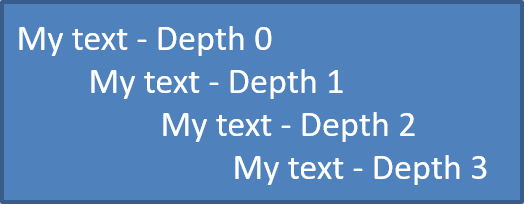
Criar uma lista de vários níveis
Use ParagraphFormat.setDepth para posicionar itens de lista em diferentes níveis. O nível 0 é o nível superior, o nível 1 está aninhado abaixo dele e assim sucessivamente.
O código Python a seguir mostra como criar uma lista de marcadores de vários níveis:
import jpype
import asposeslides

if not jpype.isJVMStarted():
    jpype.startJVM()

from asposeslides.api import Paragraph, Presentation, SaveFormat, ShapeType

presentation = Presentation()
try:
    slide = presentation.getSlides().get_Item(0)
    auto_shape = slide.getShapes().addAutoShape(ShapeType.Rectangle, 20, 20, 260, 110)

    text_frame = auto_shape.getTextFrame()
    text_frame.getParagraphs().clear()

    first_paragraph = Paragraph()
    first_paragraph.getParagraphFormat().setDepth(0)
    first_paragraph.setText("My text - Depth 0")
    text_frame.getParagraphs().add(first_paragraph)

    second_paragraph = Paragraph()
    second_paragraph.getParagraphFormat().setDepth(1)
    second_paragraph.setText("My text - Depth 1")
    text_frame.getParagraphs().add(second_paragraph)

    third_paragraph = Paragraph()
    third_paragraph.getParagraphFormat().setDepth(2)
    third_paragraph.setText("My text - Depth 2")
    text_frame.getParagraphs().add(third_paragraph)

    fourth_paragraph = Paragraph()
    fourth_paragraph.getParagraphFormat().setDepth(3)
    fourth_paragraph.setText("My text - Depth 3")
    text_frame.getParagraphs().add(fourth_paragraph)

    presentation.save("multilevel_bullets.pptx", SaveFormat.Pptx)
finally:
    presentation.dispose()
O resultado:
Alterar uma lista existente
Para alterar a formatação de lista em uma apresentação existente, acesse o parágrafo alvo e atualize suas configurações de ParagraphFormat.getBullet. As mesmas propriedades usadas para criar listas podem ser usadas para inspecionar ou modificar listas carregadas de um arquivo PPT, PPTX ou ODP.
O código Python a seguir altera o primeiro parágrafo em um quadro de texto para usar um estilo de lista numerada:
import jpype
import asposeslides

if not jpype.isJVMStarted():
    jpype.startJVM()

from asposeslides.api import BulletType, NumberedBulletStyle, Presentation, SaveFormat

presentation = Presentation("input.pptx")
try:
    slide = presentation.getSlides().get_Item(0)
    auto_shape = slide.getShapes().get_Item(0)
    paragraph = auto_shape.getTextFrame().getParagraphs().get_Item(0)

    paragraph.getParagraphFormat().getBullet().setType(BulletType.Numbered)
    paragraph.getParagraphFormat().getBullet().setNumberedBulletStyle(NumberedBulletStyle.BulletRomanUCPeriod)
    paragraph.getParagraphFormat().getBullet().setNumberedBulletStartWith(1)
    paragraph.getParagraphFormat().setMarginLeft(30)
    paragraph.getParagraphFormat().setIndent(-20)

    presentation.save("updated_list.pptx", SaveFormat.Pptx)
finally:
    presentation.dispose()
FAQ
É possível exportar listas com marcadores e numeradas para PDF ou imagens?
Sim. Aspose.Slides preserva a formatação da lista quando o formato de destino suporta o layout de texto e os recursos de marcador correspondentes.
Posso editar listas em apresentações existentes?
Sim. Carregue a apresentação, acesse o parágrafo alvo, inspecione ou atualize suas configurações de ParagraphFormat.getBullet e salve a apresentação.
As listas podem conter texto não‑latino?
Sim. O texto dos itens de lista pode conter caracteres Unicode, permitindo criar listas em apresentações multilingues. Certifique‑se de que as fontes usadas na apresentação suportam os caracteres necessários.