
Zarządzanie listami wypunktowanymi i numerowanymi w prezentacjach przy użyciu Pythona via Java
Przegląd
Aspose.Slides for Python via Java umożliwia tworzenie i formatowanie list wypunktowanych oraz numerowanych w prezentacjach PowerPoint i OpenDocument. Element listy to akapit, którego ustawienia wypunktowania są kontrolowane przez format akapitu.
Użyj metody Paragraph.getParagraphFormat aby uzyskać dostęp do ustawień listy na poziomie akapitu. Głównym punktem wejścia jest ParagraphFormat.getBullet, które zwraca obiekt BulletFormat. Za pomocą tego obiektu możesz ustawić typ wypunktowania, symbol, obraz, kolor, rozmiar, styl numeracji oraz liczbę początkową.
Ten artykuł pokazuje, jak:
- utworzyć listę wypunktowaną z niestandardowym symbolem
- utworzyć wypunktowanie obrazu
- utworzyć listę wielopoziomową przez ustawienie głębokości akapitu
- utworzyć listę numerowaną
- sprawdzić i zmienić formatowanie listy w istniejącej prezentacji
Utwórz listę wypunktowaną
Aby utworzyć listę wypunktowaną, dodaj obiekty Paragraph do TextFrame i ustaw BulletFormat.setType na BulletType.Symbol. Następnie możesz użyć BulletFormat.setChar, BulletFormat.getColor oraz BulletFormat.setHeight, aby kontrolować wygląd wypunktowania.
Poniższy kod Python demonstruje, jak utworzyć listę wypunktowaną na slajdzie:
import jpype
import asposeslides

if not jpype.isJVMStarted():
    jpype.startJVM()

from asposeslides.api import BulletType, NullableBool, Paragraph, Presentation, SaveFormat, ShapeType
from java.awt import Color

presentation = Presentation()
try:
    slide = presentation.getSlides().get_Item(0)
    auto_shape = slide.getShapes().addAutoShape(ShapeType.Rectangle, 20, 20, 200, 50)

    text_frame = auto_shape.getTextFrame()
    text_frame.getParagraphs().clear()

    bullet_color = Color(205, 92, 92)

    first_paragraph = Paragraph()
    first_paragraph.getParagraphFormat().getBullet().setType(BulletType.Symbol)
    first_paragraph.getParagraphFormat().getBullet().setChar('*')
    first_paragraph.getParagraphFormat().setIndent(15)
    first_paragraph.getParagraphFormat().getBullet().setBulletHardColor(NullableBool.True_)
    first_paragraph.getParagraphFormat().getBullet().getColor().setColor(bullet_color)
    first_paragraph.getParagraphFormat().getBullet().setHeight(100)
    first_paragraph.setText("The first paragraph")
    text_frame.getParagraphs().add(first_paragraph)

    second_paragraph = Paragraph()
    second_paragraph.getParagraphFormat().getBullet().setType(BulletType.Symbol)
    second_paragraph.getParagraphFormat().getBullet().setChar('*')
    second_paragraph.getParagraphFormat().setIndent(15)
    second_paragraph.getParagraphFormat().getBullet().setBulletHardColor(NullableBool.True_)
    second_paragraph.getParagraphFormat().getBullet().getColor().setColor(bullet_color)
    second_paragraph.getParagraphFormat().getBullet().setHeight(100)
    second_paragraph.setText("The second paragraph")
    text_frame.getParagraphs().add(second_paragraph)

    presentation.save("symbol_bullets.pptx", SaveFormat.Pptx)
finally:
    presentation.dispose()
Wynik:

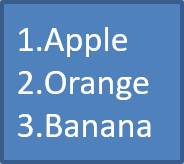
Utwórz listę numerowaną
Używaj list numerowanych, gdy kolejność elementów ma znaczenie. Ustaw BulletFormat.setType na BulletType.Numbered. Możesz także wybrać format numeracji za pomocą BulletFormat.setNumberedBulletStyle lub użyć BulletFormat.setNumberedBulletStartWith, gdy lista ma zaczynać się od wartości innej niż 1.
Poniższy kod Python pokazuje, jak utworzyć listę numerowaną na slajdzie:
import jpype
import asposeslides

if not jpype.isJVMStarted():
    jpype.startJVM()

from asposeslides.api import BulletType, Paragraph, Presentation, SaveFormat, ShapeType

presentation = Presentation()
try:
    slide = presentation.getSlides().get_Item(0)
    auto_shape = slide.getShapes().addAutoShape(ShapeType.Rectangle, 20, 20, 90, 80)

    text_frame = auto_shape.getTextFrame()
    text_frame.getParagraphs().clear()

    first_paragraph = Paragraph()
    first_paragraph.getParagraphFormat().getBullet().setType(BulletType.Numbered)
    first_paragraph.setText("Apple")
    text_frame.getParagraphs().add(first_paragraph)

    second_paragraph = Paragraph()
    second_paragraph.getParagraphFormat().getBullet().setType(BulletType.Numbered)
    second_paragraph.setText("Orange")
    text_frame.getParagraphs().add(second_paragraph)

    third_paragraph = Paragraph()
    third_paragraph.getParagraphFormat().getBullet().setType(BulletType.Numbered)
    third_paragraph.setText("Banana")
    text_frame.getParagraphs().add(third_paragraph)

    presentation.save("numbered_bullets.pptx", SaveFormat.Pptx)
finally:
    presentation.dispose()
Wynik:
Utwórz wypunktowanie obrazkiem
Aspose.Slides pozwala zamienić standardowy symbol wypunktowania na obraz. Wypunktowanie obrazkiem najlepiej sprawdza się przy prostych obrazach, które pozostają czytelne w małym rozmiarze, takich jak ikony lub małe pliki PNG z przezroczystością.
Uwaga
Jeśli planujesz zamienić standardowy symbol wypunktowania na obraz, wybierz prostą grafikę z przezroczystym tłem. Takie obrazy dobrze sprawdzają się jako niestandardowe symbole wypunktowania.
Pamiętaj, że obraz zostanie skalowany do bardzo małego rozmiaru. Z tego powodu zdecydowanie zalecamy wybranie obrazu, który pozostaje wyraźny i wizualnie skuteczny, gdy jest używany jako wypunktowanie w liście.
Aby utworzyć wypunktowanie obrazkiem, dodaj obraz do Presentation.getImages i przypisz zwrócony obiekt obrazu do BulletFormat.getPicture. Przed przypisaniem obrazu ustaw BulletFormat.setType na BulletType.Picture.
Załóżmy, że mamy obraz o nazwie “image.png”:

import jpype
import asposeslides

if not jpype.isJVMStarted():
    jpype.startJVM()

from asposeslides.api import BulletType, Images, Paragraph, Presentation, SaveFormat, ShapeType

presentation = Presentation()
try:
    slide = presentation.getSlides().get_Item(0)
    auto_shape = slide.getShapes().addAutoShape(ShapeType.Rectangle, 20, 20, 200, 50)

    text_frame = auto_shape.getTextFrame()
    text_frame.getParagraphs().clear()

    image = Images.fromFile("image.png")
    try:
        bullet_image = presentation.getImages().addImage(image)
    finally:
        image.dispose()

    first_paragraph = Paragraph()
    first_paragraph.getParagraphFormat().getBullet().setType(BulletType.Picture)
    first_paragraph.getParagraphFormat().getBullet().getPicture().setImage(bullet_image)
    first_paragraph.getParagraphFormat().setIndent(15)
    first_paragraph.getParagraphFormat().getBullet().setHeight(100)
    first_paragraph.setText("The first paragraph")
    text_frame.getParagraphs().add(first_paragraph)

    second_paragraph = Paragraph()
    second_paragraph.getParagraphFormat().getBullet().setType(BulletType.Picture)
    second_paragraph.getParagraphFormat().getBullet().getPicture().setImage(bullet_image)
    second_paragraph.getParagraphFormat().setIndent(15)
    second_paragraph.getParagraphFormat().getBullet().setHeight(100)
    second_paragraph.setText("The second paragraph")
    text_frame.getParagraphs().add(second_paragraph)

    presentation.save("picture_bullets.pptx", SaveFormat.Pptx)
finally:
    presentation.dispose()
Wynik:

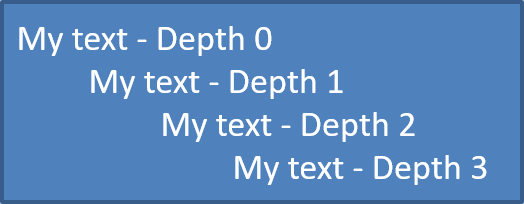
Utwórz listę wielopoziomową
Użyj ParagraphFormat.setDepth, aby umieścić elementy listy na różnych poziomach. Poziom 0 to poziom najwyższy, poziom 1 jest zagnieżdżony pod nim, i tak dalej.
Poniższy kod Python pokazuje, jak utworzyć wielopoziomową listę wypunktowaną:
import jpype
import asposeslides

if not jpype.isJVMStarted():
    jpype.startJVM()

from asposeslides.api import Paragraph, Presentation, SaveFormat, ShapeType

presentation = Presentation()
try:
    slide = presentation.getSlides().get_Item(0)
    auto_shape = slide.getShapes().addAutoShape(ShapeType.Rectangle, 20, 20, 260, 110)

    text_frame = auto_shape.getTextFrame()
    text_frame.getParagraphs().clear()

    first_paragraph = Paragraph()
    first_paragraph.getParagraphFormat().setDepth(0)
    first_paragraph.setText("My text - Depth 0")
    text_frame.getParagraphs().add(first_paragraph)

    second_paragraph = Paragraph()
    second_paragraph.getParagraphFormat().setDepth(1)
    second_paragraph.setText("My text - Depth 1")
    text_frame.getParagraphs().add(second_paragraph)

    third_paragraph = Paragraph()
    third_paragraph.getParagraphFormat().setDepth(2)
    third_paragraph.setText("My text - Depth 2")
    text_frame.getParagraphs().add(third_paragraph)

    fourth_paragraph = Paragraph()
    fourth_paragraph.getParagraphFormat().setDepth(3)
    fourth_paragraph.setText("My text - Depth 3")
    text_frame.getParagraphs().add(fourth_paragraph)

    presentation.save("multilevel_bullets.pptx", SaveFormat.Pptx)
finally:
    presentation.dispose()
Wynik:
Zmień istniejącą listę
Aby zmienić formatowanie listy w istniejącej prezentacji, uzyskaj dostęp do docelowego akapitu i zaktualizuj jego ustawienia ParagraphFormat.getBullet. Te same właściwości użyte do tworzenia list mogą być użyte do sprawdzenia lub modyfikacji list załadowanych z pliku PPT, PPTX lub ODP.
Poniższy kod Python zmienia pierwszy akapit w ramce tekstowej, aby używał stylu listy numerowanej:
import jpype
import asposeslides

if not jpype.isJVMStarted():
    jpype.startJVM()

from asposeslides.api import BulletType, NumberedBulletStyle, Presentation, SaveFormat

presentation = Presentation("input.pptx")
try:
    slide = presentation.getSlides().get_Item(0)
    auto_shape = slide.getShapes().get_Item(0)
    paragraph = auto_shape.getTextFrame().getParagraphs().get_Item(0)

    paragraph.getParagraphFormat().getBullet().setType(BulletType.Numbered)
    paragraph.getParagraphFormat().getBullet().setNumberedBulletStyle(NumberedBulletStyle.BulletRomanUCPeriod)
    paragraph.getParagraphFormat().getBullet().setNumberedBulletStartWith(1)
    paragraph.getParagraphFormat().setMarginLeft(30)
    paragraph.getParagraphFormat().setIndent(-20)

    presentation.save("updated_list.pptx", SaveFormat.Pptx)
finally:
    presentation.dispose()
FAQ
Czy listy wypunktowane i numerowane można wyeksportować do PDF lub obrazów?
Tak. Aspose.Slides zachowuje formatowanie list, gdy format docelowy obsługuje odpowiednie układy tekstu i funkcje wypunktowania.
Czy mogę edytować listy w istniejących prezentacjach?
Tak. Załaduj prezentację, uzyskaj dostęp do docelowego akapitu, sprawdź lub zaktualizuj jego ustawienia ParagraphFormat.getBullet, i zapisz prezentację.
Czy listy mogą zawierać tekst niełaciński?
Tak. Tekst elementu listy może zawierać znaki Unicode, więc możesz tworzyć listy w wielojęzycznych prezentacjach. Upewnij się, że czcionki użyte w prezentacji obsługują potrzebne znaki.