
Python via Java를 사용하여 프레젠테이션에서 글머리표 및 번호 매기기 목록 관리
개요
Aspose.Slides for Python via Java를 사용하면 PowerPoint 및 OpenDocument 프레젠테이션에서 글머리표와 번호 매기기 목록을 생성하고 서식 지정할 수 있습니다. 목록 항목은 글머리표 설정이 단락 형식을 통해 제어되는 단락입니다.
단락 수준의 목록 설정에 접근하려면 Paragraph.getParagraphFormat 메서드를 사용하십시오. 주요 진입점은 ParagraphFormat.getBullet이며, 이는 BulletFormat 객체를 반환합니다. 이 객체를 사용하여 글머리표 유형, 기호, 그림, 색상, 크기, 번호 매기기 스타일 및 시작 번호를 설정할 수 있습니다.
이 문서에서는 다음과 같이 보여 줍니다:
- 사용자 정의 기호로 글머리표 목록 만들기
- 그림 글머리표 만들기
- 단락 깊이를 설정하여 다단계 목록 만들기
- 번호 매기기 목록 만들기
- 기존 프레젠테이션에서 목록 서식을 검사하고 변경하기
- 단락 텍스트와 함께 실제 목록 마커 및 번호 읽기
글머리표 목록 만들기
글머리표 목록을 만들려면 Paragraph 객체를 TextFrame에 추가하고 BulletFormat.setType을 BulletType.Symbol으로 설정합니다. 그런 다음 BulletFormat.setChar, BulletFormat.getColor, 및 BulletFormat.setHeight를 사용하여 글머리표 모양을 제어할 수 있습니다.
다음 Python 코드는 슬라이드에 글머리표 목록을 만드는 방법을 보여 줍니다:
import jpype
import asposeslides

if not jpype.isJVMStarted():
    jpype.startJVM()

from asposeslides.api import BulletType, NullableBool, Paragraph, Presentation, SaveFormat, ShapeType
from java.awt import Color

presentation = Presentation()
try:
    slide = presentation.getSlides().get_Item(0)

    auto_shape = slide.getShapes().addAutoShape(ShapeType.Rectangle, 20, 20, 200, 50)

    text_frame = auto_shape.getTextFrame()
    text_frame.getParagraphs().clear()

    bullet_color = Color(205, 92, 92)

    first_paragraph = Paragraph()
    first_paragraph.getParagraphFormat().getBullet().setType(BulletType.Symbol)
    first_paragraph.getParagraphFormat().getBullet().setChar('*')
    first_paragraph.getParagraphFormat().setIndent(15)
    first_paragraph.getParagraphFormat().getBullet().setBulletHardColor(NullableBool.True_)
    first_paragraph.getParagraphFormat().getBullet().getColor().setColor(bullet_color)
    first_paragraph.getParagraphFormat().getBullet().setHeight(100)
    first_paragraph.setText("The first paragraph")
    text_frame.getParagraphs().add(first_paragraph)

    second_paragraph = Paragraph()
    second_paragraph.getParagraphFormat().getBullet().setType(BulletType.Symbol)
    second_paragraph.getParagraphFormat().getBullet().setChar('*')
    second_paragraph.getParagraphFormat().setIndent(15)
    second_paragraph.getParagraphFormat().getBullet().setBulletHardColor(NullableBool.True_)
    second_paragraph.getParagraphFormat().getBullet().getColor().setColor(bullet_color)
    second_paragraph.getParagraphFormat().getBullet().setHeight(100)
    second_paragraph.setText("The second paragraph")
    text_frame.getParagraphs().add(second_paragraph)

    presentation.save("symbol_bullets.pptx", SaveFormat.Pptx)
finally:
    presentation.dispose()
결과:

번호 매기기 목록 만들기
항목 순서가 중요할 때 번호 매기기 목록을 사용합니다. BulletFormat.setType을 BulletType.Numbered로 설정합니다. 또한 BulletFormat.setNumberedBulletStyle을 사용하여 번호 매기기 형식을 선택하거나, 목록을 1이 아닌 다른 값에서 시작하도록 하려면 BulletFormat.setNumberedBulletStartWith을 사용할 수 있습니다.
다음 Python 코드는 슬라이드에 번호 매기기 목록을 만드는 방법을 보여 줍니다:
import jpype
import asposeslides

if not jpype.isJVMStarted():
    jpype.startJVM()

from asposeslides.api import BulletType, Paragraph, Presentation, SaveFormat, ShapeType

presentation = Presentation()
try:
    slide = presentation.getSlides().get_Item(0)

    auto_shape = slide.getShapes().addAutoShape(ShapeType.Rectangle, 20, 20, 90, 80)

    text_frame = auto_shape.getTextFrame()
    text_frame.getParagraphs().clear()

    first_paragraph = Paragraph()
    first_paragraph.getParagraphFormat().getBullet().setType(BulletType.Numbered)
    first_paragraph.setText("Apple")
    text_frame.getParagraphs().add(first_paragraph)

    second_paragraph = Paragraph()
    second_paragraph.getParagraphFormat().getBullet().setType(BulletType.Numbered)
    second_paragraph.setText("Orange")
    text_frame.getParagraphs().add(second_paragraph)

    third_paragraph = Paragraph()
    third_paragraph.getParagraphFormat().getBullet().setType(BulletType.Numbered)
    third_paragraph.setText("Banana")
    text_frame.getParagraphs().add(third_paragraph)

    presentation.save("numbered_bullets.pptx", SaveFormat.Pptx)
finally:
    presentation.dispose()
결과:
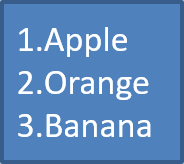
그림 글머리표 만들기
Aspose.Slides를 사용하면 일반 글머리표 기호를 이미지로 교체할 수 있습니다. 그림 글머리표는 아이콘이나 작은 투명 PNG 파일처럼 작은 크기에서도 읽기 쉬운 단순한 이미지와 가장 잘 어울립니다.
Note
정규 글머리표 기호를 이미지로 교체하려는 경우, 투명 배경을 가진 단순한 그래픽을 선택하십시오. 이러한 이미지는 사용자 정의 글머리표 기호로 잘 작동합니다.
이미지는 매우 작은 크기로 축소됩니다. 따라서 목록에서 글머리표로 사용할 때도 선명하고 시각적으로 효과적인 이미지를 선택하는 것이 강력히 권장됩니다.
그림 글머리표를 만들려면 이미지를 Presentation.getImages에 추가하고 반환된 이미지 객체를 BulletFormat.getPicture에 할당합니다. 이미지를 할당하기 전에 BulletFormat.setType을 BulletType.Picture으로 설정하십시오.
이미지 파일 이름이 “image.png"라고 가정해 보겠습니다:

다음 Python 코드는 슬라이드에 그림 글머리표를 만드는 방법을 보여 줍니다:
import jpype
import asposeslides

if not jpime.isJVMStarted():
    jpime.startJVM()

from asposeslides.api import BulletType, Images, Paragraph, Presentation, SaveFormat, ShapeType

presentation = Presentation()
try:
    slide = presentation.getSlides().get_Item(0)

    auto_shape = slide.getShapes().addAutoShape(ShapeType.Rectangle, 20, 20, 200, 50)

    text_frame = auto_shape.getTextFrame()
    text_frame.getParagraphs().clear()

    image = Images.fromFile("image.png")
    try:
        bullet_image = presentation.getImages().addImage(image)
    finally:
        image.dispose()

    first_paragraph = Paragraph()
    first_paragraph.getParagraphFormat().getBullet().setType(BulletType.Picture)
    first_paragraph.getParagraphFormat().getBullet().getPicture().setImage(bullet_image)
    first_paragraph.getParagraphFormat().setIndent(15)
    first_paragraph.getParagraphFormat().getBullet().setHeight(100)
    first_paragraph.setText("The first paragraph")
    text_frame.getParagraphs().add(first_paragraph)

    second_paragraph = Paragraph()
    second_paragraph.getParagraphFormat().getBullet().setType(BulletType.Picture)
    second_paragraph.getParagraphFormat().getBullet().getPicture().setImage(bullet_image)
    second_paragraph.getParagraphFormat().setIndent(15)
    second_paragraph.getParagraphFormat().getBullet().setHeight(100)
    second_paragraph.setText("The second paragraph")
    text_frame.getParagraphs().add(second_paragraph)

    presentation.save("picture_bullets.pptx", SaveFormat.Pptx)
finally:
    presentation.dispose()
결과:

다단계 목록 만들기
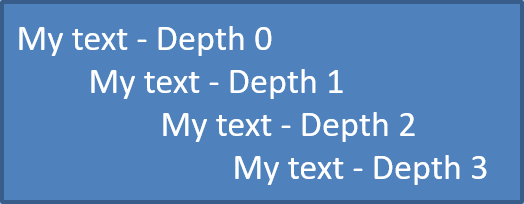
ParagraphFormat.setDepth를 사용하여 목록 항목을 서로 다른 수준에 배치합니다. 레벨 0은 최상위 수준이며, 레벨 1은 그 아래에 중첩되고, 이와 같이 이어집니다.
다음 Python 코드는 다단계 글머리표 목록을 만드는 방법을 보여 줍니다:
import jpype
import asposeslides

if not jpype.isJVMStarted():
    jpype.startJVM()

from asposeslides.api import Paragraph, Presentation, SaveFormat, ShapeType

presentation = Presentation()
try:
    slide = presentation.getSlides().get_Item(0)

    auto_shape = slide.getShapes().addAutoShape(ShapeType.Rectangle, 20, 20, 260, 110)

    text_frame = auto_shape.getTextFrame()
    text_frame.getParagraphs().clear()

    first_paragraph = Paragraph()
    first_paragraph.getParagraphFormat().setDepth(0)
    first_paragraph.setText("My text - Depth 0")
    text_frame.getParagraphs().add(first_paragraph)

    second_paragraph = Paragraph()
    second_paragraph.getParagraphFormat().setDepth(1)
    second_paragraph.setText("My text - Depth 1")
    text_frame.getParagraphs().add(second_paragraph)

    third_paragraph = Paragraph()
    third_paragraph.getParagraphFormat().setDepth(2)
    third_paragraph.setText("My text - Depth 2")
    text_frame.getParagraphs().add(third_paragraph)

    fourth_paragraph = Paragraph()
    fourth_paragraph.getParagraphFormat().setDepth(3)
    fourth_paragraph.setText("My text - Depth 3")
    text_frame.getParagraphs().add(fourth_paragraph)

    presentation.save("multilevel_bullets.pptx", SaveFormat.Pptx)
finally:
    presentation.dispose()
결과:
기존 목록 변경하기
기존 프레젠테이션에서 목록 서식을 변경하려면 대상 단락에 접근하고 해당 ParagraphFormat.getBullet 설정을 업데이트합니다. 목록을 만들 때 사용한 동일한 속성을 사용하여 PPT, PPTX 또는 ODP 파일에서 로드된 목록을 검사하거나 수정할 수 있습니다.
다음 Python 코드는 텍스트 프레임의 첫 번째 단락을 번호 매기기 목록 스타일로 변경합니다:
import jpype
import asposeslides

if not jpype.isJVMStarted():
    jpype.startJVM()

from asposeslides.api import BulletType, NumberedBulletStyle, Presentation, SaveFormat

presentation = Presentation("input.pptx")
try:
    slide = presentation.getSlides().get_Item(0)

    auto_shape = slide.getShapes().get_Item(0)

    paragraph = auto_shape.getTextFrame().getParagraphs().get_Item(0)
    paragraph.getParagraphFormat().getBullet().setType(BulletType.Numbered)
    paragraph.getParagraphFormat().getBullet().setNumberedBulletStyle(NumberedBulletStyle.BulletRomanUCPeriod)
    paragraph.getParagraphFormat().getBullet().setNumberedBulletStartWith(1)
    paragraph.getParagraphFormat().setMarginLeft(30)
    paragraph.getParagraphFormat().setIndent(-20)

    presentation.save("updated_list.pptx", SaveFormat.Pptx)
finally:
    presentation.dispose()
실제 글머리표 값 읽기
프레젠테이션 콘텐츠를 추출할 때, 목록 마커를 단락 텍스트와 함께 유지합니다. ParagraphFormat.getEffective를 호출하고 getBullet에 접근하여 실제 적용된 글머리표 형식을 얻습니다. getActualBulletValue를 읽기 전에 getType을 확인하십시오.
번호 매기기 목록의 경우 다음 세 값을 구분합니다:
getNumberedBulletStyle는 형식을 결정합니다. 예를 들어, 점(.)이 뒤따르는 아라비아 숫자나 소문자 알파벳이 뒤따르는 경우가 있습니다.getNumberedBulletStartWith는 일련의 번호 매기기 단락에 대한 시작 번호를 지정합니다.getActualBulletValue는 특정 단락에 대한 서식이 적용된 마커를 반환합니다. 예를 들어, 시작 번호가 5인 목록의 두 번째 항목은6.을 반환합니다.
getDepth를 각 단락에 보존하여 중첩 수준을 유지하십시오. 실제 마커는 전체 계층 구조를 인코딩하지 않습니다: 중첩된 항목은 6.c.와 같은 결합 레이블 대신 c.를 반환할 수 있습니다.
다음 독립 실행형 예제는 목록을 생성하고 프레젠테이션에 저장한 뒤, 프레젠테이션을 다시 로드하여 각 단락의 텍스트, 깊이, 글머리표 유형 및 실제 값을 보고합니다. 작은 파란색 그림 마커는 인라인 SVG에서 생성됩니다.
import jpype
import asposeslides

if not jpype.isJVMStarted():
    jpype.startJVM()

from asposeslides.api import BulletType, FillType, NullableBool, NumberedBulletStyle, Paragraph, Presentation, SaveFormat, ShapeType, SlideSizeScaleType, SvgImage
from java.awt import Color

presentation = Presentation()
try:
    presentation.getSlideSize().setSize(720, 440, SlideSizeScaleType.DoNotScale)
    slide = presentation.getSlides().get_Item(0)

    shape = slide.getShapes().addAutoShape(ShapeType.Rectangle, 30, 20, 660, 400)
    shape.getFillFormat().setFillType(FillType.NoFill)
    shape.getLineFormat().getFillFormat().setFillType(FillType.NoFill)

    text_frame = shape.getTextFrame()
    text_frame.getParagraphs().clear()

    # 외부 이미지 파일 없이 그림 마커를 생성합니다.
    svg = SvgImage("<svg xmlns='http://www.w3.org/2000/svg' width='16' height='16'><rect width='16' height='16' rx='4' fill='#0078D4'/></svg>")
    bullet_image = presentation.getImages().addImage(svg)

    def add_paragraph(text, depth, bullet_type, start, style):
        paragraph = Paragraph()
        paragraph.setText(text)

        paragraph_format = paragraph.getParagraphFormat()
        paragraph_format.setDepth(depth)
        paragraph_format.setMarginLeft(30 + depth * 40)
        paragraph_format.setIndent(-28)
        paragraph_format.setSpaceAfter(8)
        paragraph_format.getDefaultPortionFormat().setFontHeight(22)
        paragraph_format.getDefaultPortionFormat().getFillFormat().setFillType(FillType.Solid)
        paragraph_format.getDefaultPortionFormat().getFillFormat().getSolidFillColor().setColor(Color.BLACK)
        paragraph_format.getBullet().setType(bullet_type)
        paragraph_format.getBullet().setBulletHardColor(NullableBool.True_)
        paragraph_format.getBullet().getColor().setColor(Color.BLACK)
        if bullet_type == BulletType.Numbered:
            paragraph_format.getBullet().setNumberedBulletStyle(style)
            paragraph_format.getBullet().setNumberedBulletStartWith(start)
        elif bullet_type == BulletType.Symbol:
            paragraph_format.getBullet().setChar('\u2022')
        elif bullet_type == BulletType.Picture:
            paragraph_format.getBullet().getPicture().setImage(bullet_image)

        text_frame.getParagraphs().add(paragraph)

    add_paragraph("First item", 0, BulletType.Numbered, 5, NumberedBulletStyle.BulletArabicPeriod)
    add_paragraph("Second item", 0, BulletType.Numbered, 5, NumberedBulletStyle.BulletArabicPeriod)
    add_paragraph("Nested item", 1, BulletType.Numbered, 3, NumberedBulletStyle.BulletAlphaLCPeriod)
    add_paragraph("Next nested item", 1, BulletType.Numbered, 3, NumberedBulletStyle.BulletAlphaLCPeriod)
    add_paragraph("Deep item", 2, BulletType.Numbered, 4, NumberedBulletStyle.BulletRomanLCPeriod)
    add_paragraph("Back to top level", 0, BulletType.Numbered, 5, NumberedBulletStyle.BulletArabicPeriod)
    add_paragraph("Symbol marker", 0, BulletType.Symbol, 1, NumberedBulletStyle.BulletArabicPeriod)
    add_paragraph("No bullet", 0, BulletType.None_, 1, NumberedBulletStyle.BulletArabicPeriod)
    add_paragraph("Picture marker", 0, BulletType.Picture, 1, NumberedBulletStyle.BulletArabicPeriod)
    presentation.save("actual_bullet_values.pptx", SaveFormat.Pptx)
finally:
    presentation.dispose()

loaded_presentation = Presentation("actual_bullet_values.pptx")
try:
    loaded_shape = loaded_presentation.getSlides().get_Item(0).getShapes().get_Item(0)
    type_names = {
        BulletType.Numbered: "Numbered",
        BulletType.Symbol: "Symbol",
        BulletType.None_: "None",
        BulletType.Picture: "Picture",
    }
    print("Text | Depth | Type | Actual value")
    for paragraph in loaded_shape.getTextFrame().getParagraphs():
        bullet = paragraph.getParagraphFormat().getEffective().getBullet()
        bullet_type = bullet.getType()
        if bullet_type in (BulletType.Numbered, BulletType.Symbol):
            marker = bullet.getActualBulletValue()
        elif bullet_type == BulletType.None_:
            marker = f"{bullet.getActualBulletValue()} (no bullet)"
        elif bullet_type == BulletType.Picture:
            marker = f"{bullet.getActualBulletValue()} (image required)"
        else:
            marker = "unsupported bullet type"
        type_name = type_names.get(bullet_type, "Unknown")
        print(f"{paragraph.getText()} | {paragraph.getParagraphFormat().getDepth()} | {type_name} | {marker}")
finally:
    loaded_presentation.dispose()
소스 목록은 아래에 표시됩니다.
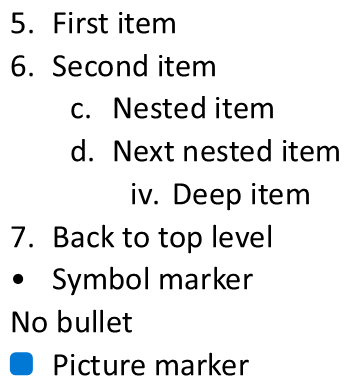
보고서는 PowerPoint에 표시된 마커와 일치합니다:
Text | Depth | Type | Actual value
First item | 0 | Numbered | 5.
Second item | 0 | Numbered | 6.
Nested item | 1 | Numbered | c.
Next nested item | 1 | Numbered | d.
Deep item | 2 | Numbered | iv.
Back to top level | 0 | Numbered | 7.
Symbol marker | 0 | Symbol | •
No bullet | 0 | None | None (no bullet)
Picture marker | 0 | Picture | None (image required)
BulletType.None_ 및 BulletType.Picture에 대해 getActualBulletValue는 빈 문자열이 아니라 None(Java null)을 반환합니다. 이러한 유형은 별도로 처리하십시오: 전자는 마커가 없고, 후자는 글머리표 이미지를 별도로 추출해야 합니다. 그림 글머리표는 텍스트 마커만 추출해서는 재현할 수 없습니다.
FAQ
글머리표 및 번호 매기기 목록을 PDF 또는 이미지로 내보낼 수 있나요?
예. Aspose.Slides는 대상 형식이 해당 텍스트 레이아웃 및 글머리표 기능을 지원하는 경우 목록 서식을 유지합니다.
기존 프레젠테이션에서 목록을 편집할 수 있나요?
예. 프레젠테이션을 로드하고, 대상 단락에 접근하여 ParagraphFormat.getBullet 설정을 검사하거나 업데이트한 다음 프레젠테이션을 저장하면 됩니다.
목록에 비라틴 문자 텍스트를 포함시킬 수 있나요?
예. 목록 항목 텍스트는 유니코드 문자를 포함할 수 있으므로 다국어 프레젠테이션에서 목록을 만들 수 있습니다. 프레젠테이션에 사용된 글꼴이 필요한 문자를 지원하는지 확인하십시오.