
Python via Java का उपयोग करके प्रस्तुतियों में बुलेटेड और क्रमांकित सूचियों का प्रबंधन
समीक्षा
Aspose.Slides for Python via Java आपको PowerPoint और OpenDocument प्रस्तुतियों में बुलेटेड और क्रमांकित सूचियाँ बनाने और स्वरूपित करने देता है। एक सूची आइटम वह पैराग्राफ है जिसकी बुलेट सेटिंग्स उसके पैराग्राफ फ़ॉर्मेट के द्वारा नियंत्रित होती हैं।
पैराग्राफ‑स्तर की सूची सेटिंग्स तक पहुँचने के लिए Paragraph.getParagraphFormat मेथड का उपयोग करें। मुख्य एंट्री पॉइंट है ParagraphFormat.getBullet, जो एक BulletFormat ऑब्जेक्ट लौटाता है। इस ऑब्जेक्ट के साथ आप बुलेट प्रकार, प्रतीक, चित्र, रंग, आकार, क्रमांक शैली और प्रारंभिक संख्या सेट कर सकते हैं।
यह लेख दिखाता है कि कैसे:
- कस्टम प्रतीक के साथ बुलेटेड सूची बनाएं
- चित्र बुलेट बनाएं
- पैराग्राफ की गहराई सेट करके बहु‑स्तरीय सूची बनाएं
- क्रमांकित सूची बनाएं
- मौजूदा प्रस्तुति में सूची स्वरूपण को देखें और बदलें
बुलेटेड सूची बनाएं
बुलेटेड सूची बनाने के लिए, एक TextFrame में Paragraph ऑब्जेक्ट जोड़ें और BulletFormat.setType को BulletType.Symbol पर सेट करें। फिर आप बुलेट की उपस्थिति को नियंत्रित करने के लिए BulletFormat.setChar, BulletFormat.getColor और BulletFormat.setHeight का उपयोग कर सकते हैं।
निम्नलिखित Python कोड एक स्लाइड पर बुलेटेड सूची बनाने का प्रदर्शन करता है:
import jpype
import asposeslides

if not jpype.isJVMStarted():
    jpype.startJVM()

from asposeslides.api import BulletType, NullableBool, Paragraph, Presentation, SaveFormat, ShapeType
from java.awt import Color

presentation = Presentation()
try:
    slide = presentation.getSlides().get_Item(0)
    auto_shape = slide.getShapes().addAutoShape(ShapeType.Rectangle, 20, 20, 200, 50)

    text_frame = auto_shape.getTextFrame()
    text_frame.getParagraphs().clear()

    bullet_color = Color(205, 92, 92)

    first_paragraph = Paragraph()
    first_paragraph.getParagraphFormat().getBullet().setType(BulletType.Symbol)
    first_paragraph.getParagraphFormat().getBullet().setChar('*')
    first_paragraph.getParagraphFormat().setIndent(15)
    first_paragraph.getParagraphFormat().getBullet().setBulletHardColor(NullableBool.True_)
    first_paragraph.getParagraphFormat().getBullet().getColor().setColor(bullet_color)
    first_paragraph.getParagraphFormat().getBullet().setHeight(100)
    first_paragraph.setText("The first paragraph")
    text_frame.getParagraphs().add(first_paragraph)

    second_paragraph = Paragraph()
    second_paragraph.getParagraphFormat().getBullet().setType(BulletType.Symbol)
    second_paragraph.getParagraphFormat().getBullet().setChar('*')
    second_paragraph.getParagraphFormat().setIndent(15)
    second_paragraph.getParagraphFormat().getBullet().setBulletHardColor(NullableBool.True_)
    second_paragraph.getParagraphFormat().getBullet().getColor().setColor(bullet_color)
    second_paragraph.getParagraphFormat().getBullet().setHeight(100)
    second_paragraph.setText("The second paragraph")
    text_frame.getParagraphs().add(second_paragraph)

    presentation.save("symbol_bullets.pptx", SaveFormat.Pptx)
finally:
    presentation.dispose()
परिणाम:

क्रमांकित सूची बनाएं
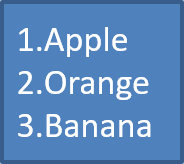
जब आइटमों का क्रम महत्वपूर्ण हो, तो क्रमांकित सूचियों का उपयोग करें। BulletFormat.setType को BulletType.Numbered पर सेट करें। आप BulletFormat.setNumberedBulletStyle के साथ क्रमांक फ़ॉर्मेट चुन सकते हैं या सूची को 1 के अलावा किसी अन्य मान से शुरू करने के लिए BulletFormat.setNumberedBulletStartWith का प्रयोग कर सकते हैं।
निम्नलिखित Python कोड एक स्लाइड पर क्रमांकित सूची बनाने को दर्शाता है:
import jpype
import asposeslides

if not jpype.isJVMStarted():
    jpype.startJVM()

from asposeslides.api import BulletType, Paragraph, Presentation, SaveFormat, ShapeType

presentation = Presentation()
try:
    slide = presentation.getSlides().get_Item(0)
    auto_shape = slide.getShapes().addAutoShape(ShapeType.Rectangle, 20, 20, 90, 80)

    text_frame = auto_shape.getTextFrame()
    text_frame.getParagraphs().clear()

    first_paragraph = Paragraph()
    first_paragraph.getParagraphFormat().getBullet().setType(BulletType.Numbered)
    first_paragraph.setText("Apple")
    text_frame.getParagraphs().add(first_paragraph)

    second_paragraph = Paragraph()
    second_paragraph.getParagraphFormat().getBullet().setType(BulletType.Numbered)
    second_paragraph.setText("Orange")
    text_frame.getParagraphs().add(second_paragraph)

    third_paragraph = Paragraph()
    third_paragraph.getParagraphFormat().getBullet().setType(BulletType.Numbered)
    third_paragraph.setText("Banana")
    text_frame.getParagraphs().add(third_paragraph)

    presentation.save("numbered_bullets.pptx", SaveFormat.Pptx)
finally:
    presentation.dispose()
परिणाम:
चित्र बुलेट बनाएं
Aspose.Slides आपको सामान्य बुलेट प्रतीक को एक छवि से बदलने की अनुमति देता है। चित्र बुलेट सरल छवियों के साथ सबसे अच्छा काम करता है जो छोटे आकार में भी पठनीय रहती हैं, जैसे कि आइकॉन या छोटे पारदर्शी PNG फ़ाइलें।
Note
यदि आप एक सामान्य बुलेट प्रतीक को छवि से बदलने की योजना बना रहे हैं, तो पारदर्शी पृष्ठभूमि वाली सरल ग्राफिक चुनें। ऐसी छवियां कस्टम बुलेट प्रतीकों के रूप में अच्छी तरह काम करती हैं।
ध्यान रखें कि छवि को बहुत छोटे आकार में स्केल किया जाएगा। इसलिए, हम दृढ़ता से सलाह देते हैं कि आप ऐसी छवि चुनें जो सूची में बुलेट के रूप में उपयोग करने पर भी स्पष्ट और दृश्य रूप से प्रभावी रहे।
चित्र बुलेट बनाने के लिए, Presentation.getImages में एक छवि जोड़ें और लौटाए गए चित्र ऑब्जेक्ट को BulletFormat.getPicture को असाइन करें। असाइन करने से पहले BulletFormat.setType को BulletType.Picture पर सेट करें।
मान लीजिए हमारे पास “image.png” नाम की एक छवि है:

निम्नलिखित Python कोड स्लाइड पर चित्र बुलेट बनाने को दर्शाता है:
import jpype
import asposeslides

if not jpype.isJVMStarted():
    jpype.startJVM()

from asposeslides.api import BulletType, Images, Paragraph, Presentation, SaveFormat, ShapeType

presentation = Presentation()
try:
    slide = presentation.getSlides().get_Item(0)
    auto_shape = slide.getShapes().addAutoShape(ShapeType.Rectangle, 20, 20, 200, 50)

    text_frame = auto_shape.getTextFrame()
    text_frame.getParagraphs().clear()

    image = Images.fromFile("image.png")
    try:
        bullet_image = presentation.getImages().addImage(image)
    finally:
        image.dispose()

    first_paragraph = Paragraph()
    first_paragraph.getParagraphFormat().getBullet().setType(BulletType.Picture)
    first_paragraph.getParagraphFormat().getBullet().getPicture().setImage(bullet_image)
    first_paragraph.getParagraphFormat().setIndent(15)
    first_paragraph.getParagraphFormat().getBullet().setHeight(100)
    first_paragraph.setText("The first paragraph")
    text_frame.getParagraphs().add(first_paragraph)

    second_paragraph = Paragraph()
    second_paragraph.getParagraphFormat().getBullet().setType(BulletType.Picture)
    second_paragraph.getParagraphFormat().getBullet().getPicture().setImage(bullet_image)
    second_paragraph.getParagraphFormat().setIndent(15)
    second_paragraph.getParagraphFormat().getBullet().setHeight(100)
    second_paragraph.setText("The second paragraph")
    text_frame.getParagraphs().add(second_paragraph)

    presentation.save("picture_bullets.pptx", SaveFormat.Pptx)
finally:
    presentation.dispose()
परिणाम:

बहु‑स्तरीय सूची बनाएं
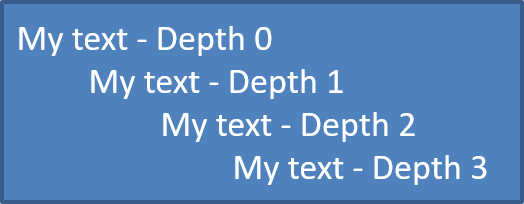
सूची आइटमों को विभिन्न स्तरों पर रखने के लिए ParagraphFormat.setDepth का उपयोग करें। स्तर 0 शीर्ष स्तर है, स्तर 1 उसके नीचे नेस्टेड है, और इसी प्रकार आगे।
निम्नलिखित Python कोड बहु‑स्तरीय बुलेटेड सूची बनाने को दर्शाता है:
import jpype
import asposeslides

if not jpype.isJVMStarted():
    jpype.startJVM()

from asposeslides.api import Paragraph, Presentation, SaveFormat, ShapeType

presentation = Presentation()
try:
    slide = presentation.getSlides().get_Item(0)
    auto_shape = slide.getShapes().addAutoShape(ShapeType.Rectangle, 20, 20, 260, 110)

    text_frame = auto_shape.getTextFrame()
    text_frame.getParagraphs().clear()

    first_paragraph = Paragraph()
    first_paragraph.getParagraphFormat().setDepth(0)
    first_paragraph.setText("My text - Depth 0")
    text_frame.getParagraphs().add(first_paragraph)

    second_paragraph = Paragraph()
    second_paragraph.getParagraphFormat().setDepth(1)
    second_paragraph.setText("My text - Depth 1")
    text_frame.getParagraphs().add(second_paragraph)

    third_paragraph = Paragraph()
    third_paragraph.getParagraphFormat().setDepth(2)
    third_paragraph.setText("My text - Depth 2")
    text_frame.getParagraphs().add(third_paragraph)

    fourth_paragraph = Paragraph()
    fourth_paragraph.getParagraphFormat().setDepth(3)
    fourth_paragraph.setText("My text - Depth 3")
    text_frame.getParagraphs().add(fourth_paragraph)

    presentation.save("multilevel_bullets.pptx", SaveFormat.Pptx)
finally:
    presentation.dispose()
परिणाम:
मौजूदा सूची को बदलें
मौजूदा प्रस्तुति में सूची स्वरूपण बदलने के लिए, लक्ष्य पैराग्राफ तक पहुँचें और उसके ParagraphFormat.getBullet सेटिंग्स को अपडेट करें। सूची बनाने के लिए उपयोग की गई वही प्रॉपर्टीज़ PPT, PPTX या ODP फ़ाइल से लोड की गई सूचियों को निरीक्षण या संशोधित करने के लिए इस्तेमाल की जा सकती हैं।
निम्नलिखित Python कोड टेक्स्ट फ्रेम में पहले पैराग्राफ को क्रमांकित सूची शैली में बदलता है:
import jpype
import asposeslides

if not jpype.isJVMStarted():
    jpype.startJVM()

from asposeslides.api import BulletType, NumberedBulletStyle, Presentation, SaveFormat

presentation = Presentation("input.pptx")
try:
    slide = presentation.getSlides().get_Item(0)
    auto_shape = slide.getShapes().get_Item(0)
    paragraph = auto_shape.getTextFrame().getParagraphs().get_Item(0)

    paragraph.getParagraphFormat().getBullet().setType(BulletType.Numbered)
    paragraph.getParagraphFormat().getBullet().setNumberedBulletStyle(NumberedBulletStyle.BulletRomanUCPeriod)
    paragraph.getParagraphFormat().getBullet().setNumberedBulletStartWith(1)
    paragraph.getParagraphFormat().setMarginLeft(30)
    paragraph.getParagraphFormat().setIndent(-20)

    presentation.save("updated_list.pptx", SaveFormat.Pptx)
finally:
    presentation.dispose()
FAQ
क्या बुलेटेड और क्रमांकित सूचियों को PDF या छवियों में निर्यात किया जा सकता है?
हां। Aspose.Slides उन लक्षित फ़ॉर्मेट्स में सूची स्वरूपण को बनाए रखता है जो संबंधित टेक्स्ट लेआउट और बुलेट सुविधाओं का समर्थन करते हैं।
क्या मैं मौजूदा प्रस्तुतियों में सूचियों को संपादित कर सकता हूँ?
हां। प्रस्तुति लोड करें, लक्ष्य पैराग्राफ तक पहुँचें, उसके ParagraphFormat.getBullet सेटिंग्स को निरीक्षण या अपडेट करें, और प्रस्तुति को सहेजें।
क्या सूचियों में गैर‑लैटिन टेक्स्ट हो सकता है?
हां। सूची आइटम का टेक्स्ट Unicode वर्ण रख सकता है, इसलिए आप बहुभाषी प्रस्तुतियों में सूचियाँ बना सकते हैं। सुनिश्चित करें कि प्रस्तुति में उपयोग किए गए फ़ॉन्ट उन अक्षरों का समर्थन करते हैं जिनकी आपको आवश्यकता है।