
ใช้การเคลื่อนไหวของรูปร่างในงานนำเสนอด้วย C++
ภาพรวม
เพื่อทำงานกับพฤติกรรมแต่ละรายการภายในเอฟเฟ็กต์หรือแก้ไขส่วนของเส้นทางการเคลื่อนไหว ให้ดูที่ Custom Animation.
Aspose.Slides for C++ แทนการเคลื่อนไหวของสไลด์เป็นเอฟเฟ็กต์ในไทม์ไลน์ของสไลด์ เอฟเฟ็กต์จะมีรูปทรงเป้าหมาย, ประเภทและชนิดย่อยของการเคลื่อนไหว, ตัวทำให้เริ่ม, การตั้งค่าเวลา, และคุณสมบัติเสริมเช่น เสียงหรือพฤติกรรมหลังการเคลื่อนไหว.
ไทม์ไลน์ประกอบด้วยลำดับสองประเภท:
- ลำดับหลัก เล่นเมื่อสไลด์ดำเนินต่อไป.
- ลำดับโต้ตอบ เริ่มเมื่อรูปทรงตัวทำให้เริ่มถูกคลิก.
เพราะกล่องข้อความ, รูปภาพ, แผนภูมิ, ตาราง, และวัตถุสไลด์อื่น ๆ ใช้งาน IShape, คุณจึงใช้เมธอดเดียวกัน ISequence::AddEffect สำหรับเนื้อหาสไลด์ส่วนใหญ่ เอฟเฟ็กต์ที่ใช้ได้ถูกระบุใน enumeration EffectType.
เพิ่มการเคลื่อนไหวให้รูปร่าง
เพื่อเพิ่มการเคลื่อนไหว, ดึงลำดับหลักของสไลด์และเรียก ISequence::AddEffect พร้อมกับรูปทรงเป้าหมาย, ประเภทเอฟเฟ็กต์, ชนิดย่อย, และตัวทำให้เริ่ม. สำหรับเอฟเฟ็กต์ที่เริ่มเมื่อรูปทรงอื่นถูกคลิก, สร้างลำดับโต้ตอบที่ตัวทำให้เริ่มคือรูปทรงนั้น.
ตัวอย่างต่อไปนี้สร้างการเคลื่อนไหวทั้งสองแบบและบันทึกผลลัพธ์เป็น shape-animations.pptx.
#include <DOM/Animation/EffectSubtype.h>
#include <DOM/Animation/EffectTriggerType.h>
#include <DOM/Animation/EffectType.h>
#include <DOM/Animation/IEffect.h>
#include <DOM/Animation/ISequence.h>
#include <DOM/Animation/ISequenceCollection.h>
#include <DOM/Animation/ITiming.h>
#include <DOM/IAnimationTimeLine.h>
#include <DOM/IAutoShape.h>
#include <DOM/IShapeCollection.h>
#include <DOM/ISlide.h>
#include <DOM/ISlideCollection.h>
#include <DOM/ITextFrame.h>
#include <DOM/Presentation.h>
#include <DOM/ShapeType.h>
#include <Export/SaveFormat.h>

using namespace Aspose::Slides;
using namespace Aspose::Slides::Animation;
using namespace Aspose::Slides::Export;
using namespace System;

auto presentation = MakeObject<Presentation>();
auto slide = presentation->get_Slide(0);

auto targetShape = slide->get_Shapes()->AddAutoShape(ShapeType::RoundCornerRectangle, 120.0f, 100.0f, 320.0f, 80.0f);
targetShape->get_TextFrame()->set_Text(u"Click to animate this shape");

auto mainSequence = slide->get_Timeline()->get_MainSequence();
auto entranceEffect = mainSequence->AddEffect(targetShape, EffectType::Fade, EffectSubtype::None, EffectTriggerType::OnClick);
entranceEffect->get_Timing()->set_Duration(1.5f);

auto triggerShape = slide->get_Shapes()->AddAutoShape(ShapeType::Bevel, 20.0f, 20.0f, 100.0f, 40.0f);
triggerShape->get_TextFrame()->set_Text(u"Move");

auto interactiveSequence = slide->get_Timeline()->get_InteractiveSequences()->Add(triggerShape);
interactiveSequence->AddEffect(targetShape, EffectType::PathFootball, EffectSubtype::None, EffectTriggerType::OnClick);

presentation->Save(u"shape-animations.pptx", SaveFormat::Pptx);
presentation->Dispose();
ตัวทำให้เริ่มควบคุมว่าเอฟเฟ็กต์เริ่มเมื่อใด:
- EffectTriggerType::OnClick รอการคลิกในลำดับหลัก, หรือการคลิกบนรูปทรงตัวทำให้เริ่มในลำดับโต้ตอบ.
- EffectTriggerType::WithPrevious เริ่มพร้อมกับเอฟเฟ็กต์ก่อนหน้า.
- EffectTriggerType::AfterPrevious เริ่มเมื่อเอฟเฟ็กต์ก่อนหน้าจบลง.
เพื่อให้รูปภาพ, แผนภูมิ, หรือรูปทรงประเภทอื่นเคลื่อนไหว, ส่งออบเจ็กต์นั้นไปยัง ISequence::AddEffect แทน targetShape. สำหรับตัวเลือกการจัดกลุ่มเฉพาะแผนภูมิ, ดูที่ Animated Charts.
อ่านการเคลื่อนไหวของรูปร่าง
ใช้ ISequence::GetEffectsByShape เมื่อคุณทราบรูปทรงเป้าหมาย. เพื่อตรวจสอบทุกเอฟเฟ็กต์, ให้ทำการวนลูปรายการของลำดับหลักและลำดับโต้ตอบทุกลำดับ. การวนลูปช่วยหลีกเลี่ยงการสันนิษฐานว่าลำดับมีเอฟเฟ็กต์ที่ตำแหน่งดัชนี 0.
ตัวอย่างต่อไปนี้สร้างรูปร่างพร้อมเอฟเฟ็กต์ในลำดับหลักและลำดับโต้ตอบ, ดึงเอฟเฟ็กต์ที่เป้าหมายที่รูปร่างนั้น, แล้วจึงวนลูปรายการลำดับทั้งหมดบนสไลด์.
#include <DOM/Animation/EffectSubtype.h>
#include <DOM/Animation/EffectTriggerType.h>
#include <DOM/Animation/EffectType.h>
#include <DOM/Animation/IEffect.h>
#include <DOM/Animation/ISequence.h>
#include <DOM/Animation/ISequenceCollection.h>
#include <DOM/Animation/ITiming.h>
#include <DOM/IAnimationTimeLine.h>
#include <DOM/IAutoShape.h>
#include <DOM/IShape.h>
#include <DOM/IShapeCollection.h>
#include <DOM/ISlide.h>
#include <DOM/ISlideCollection.h>
#include <DOM/ITextFrame.h>
#include <DOM/Presentation.h>
#include <DOM/ShapeType.h>
#include <system/console.h>
#include <system/string.h>

using namespace Aspose::Slides;
using namespace Aspose::Slides::Animation;
using namespace System;

auto printSequence = [](const String& label, const SharedPtr<ISequence>& sequence)
{
    Console::WriteLine(String::Format(u"  {0}: {1} effect(s)", label, sequence->get_Count()));

    for (const auto& effect : sequence)
    {
        auto targetName = effect->get_TargetShape() == nullptr ? u"unknown" : effect->get_TargetShape()->get_Name();
        auto effectDescription = String::Format(u"{0} {1}; target: {2}; trigger: {3}", effect->get_Type(), effect->get_Subtype(), targetName, effect->get_Timing()->get_TriggerType());
        Console::WriteLine(u"    " + effectDescription);
    }
};

auto presentation = MakeObject<Presentation>();
auto slide = presentation->get_Slide(0);
auto targetShape = slide->get_Shapes()->AddAutoShape(ShapeType::Rectangle, 120.0f, 100.0f, 320.0f, 80.0f);
targetShape->get_TextFrame()->set_Text(u"Animated shape");

auto mainSequence = slide->get_Timeline()->get_MainSequence();
mainSequence->AddEffect(targetShape, EffectType::Fade, EffectSubtype::None, EffectTriggerType::OnClick);

auto triggerShape = slide->get_Shapes()->AddAutoShape(ShapeType::Bevel, 20.0f, 20.0f, 100.0f, 40.0f);
triggerShape->get_TextFrame()->set_Text(u"Move");

auto interactiveSequence = slide->get_Timeline()->get_InteractiveSequences()->Add(triggerShape);
interactiveSequence->AddEffect(targetShape, EffectType::PathFootball, EffectSubtype::None, EffectTriggerType::OnClick);

auto targetEffects = mainSequence->GetEffectsByShape(targetShape);
Console::WriteLine(String::Format(u"The main sequence contains {0} effect(s) for {1}.", targetEffects->get_Length(), targetShape->get_Name()));

printSequence(u"Main sequence", mainSequence);

int32_t interactiveIndex = 1;
for (const auto& sequence : slide->get_Timeline()->get_InteractiveSequences())
{
    auto triggerName = sequence->get_TriggerShape() == nullptr ? u"unknown" : sequence->get_TriggerShape()->get_Name();
    auto sequenceLabel = String::Format(u"Interactive sequence {0}, trigger: {1}", interactiveIndex, triggerName);
    printSequence(sequenceLabel, sequence);
    interactiveIndex++;
}

presentation->Dispose();
หากคุณต้องการเอฟเฟ็กต์เพียงรูปร่างเดียว, ให้ระบุรูปร่างโดยชื่อ, ชนิด placeholder, หรือคุณสมบัติคงที่อื่น; จากนั้นเรียก ISequence::GetEffectsByShape. อย่าสันนิษฐานว่า IShapeCollection::idx_get ที่ตำแหน่งดัชนี 0 เป็นออบเจ็กต์ที่ต้องการเสมอ.
ทำงานกับเอฟเฟ็กต์ Placeholder ที่สืบทอด
Placeholder บนสไลด์ปกติสามารถสืบทอดพฤติกรรมการเคลื่อนไหวจาก Placeholder ที่สอดคล้องบนสไลด์เลเอาต์และสไลด์มาสเตอร์ได้. IShape::GetBasePlaceholder จะคืนค่า Placeholder พาเรนต์นั้น, หรือ nullptr หากไม่มีพาเรนต์.
ในตัวอย่างการนำเสนอด้านล่าง, ส่วนท้ายมี Random Bars บนสไลด์ปกติ, Split บนสไลด์เลเอาต์, และ Fly In บนสไลด์มาสเตอร์.
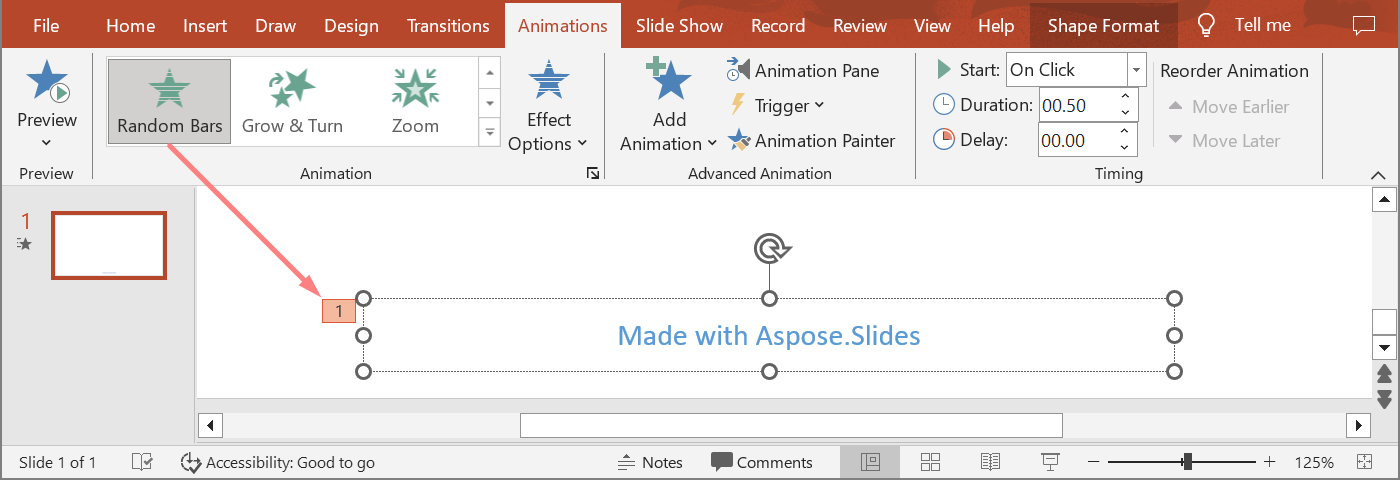
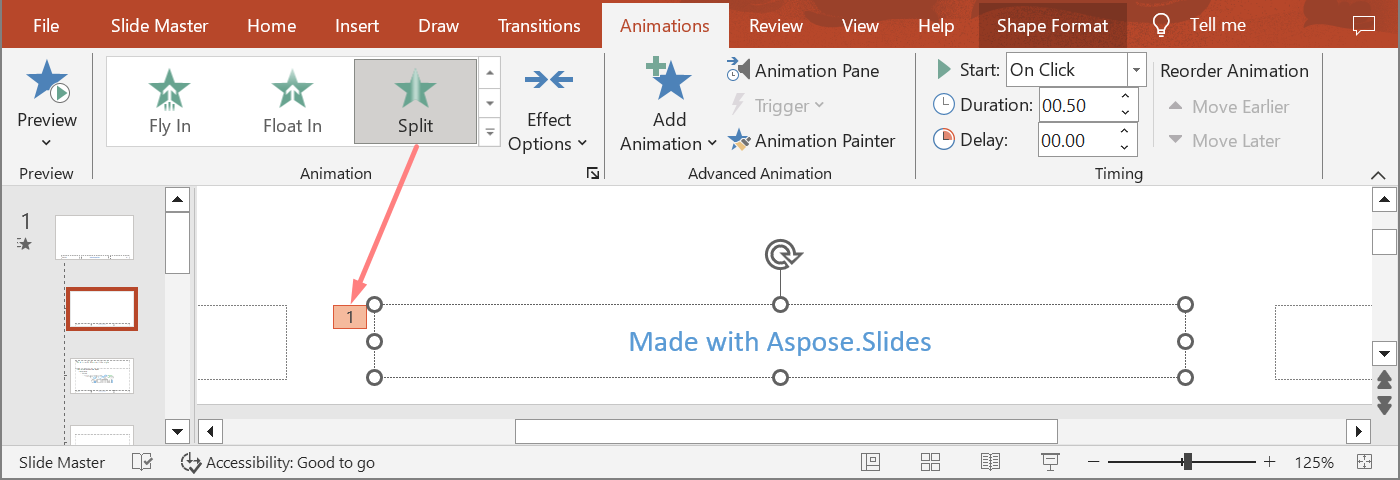
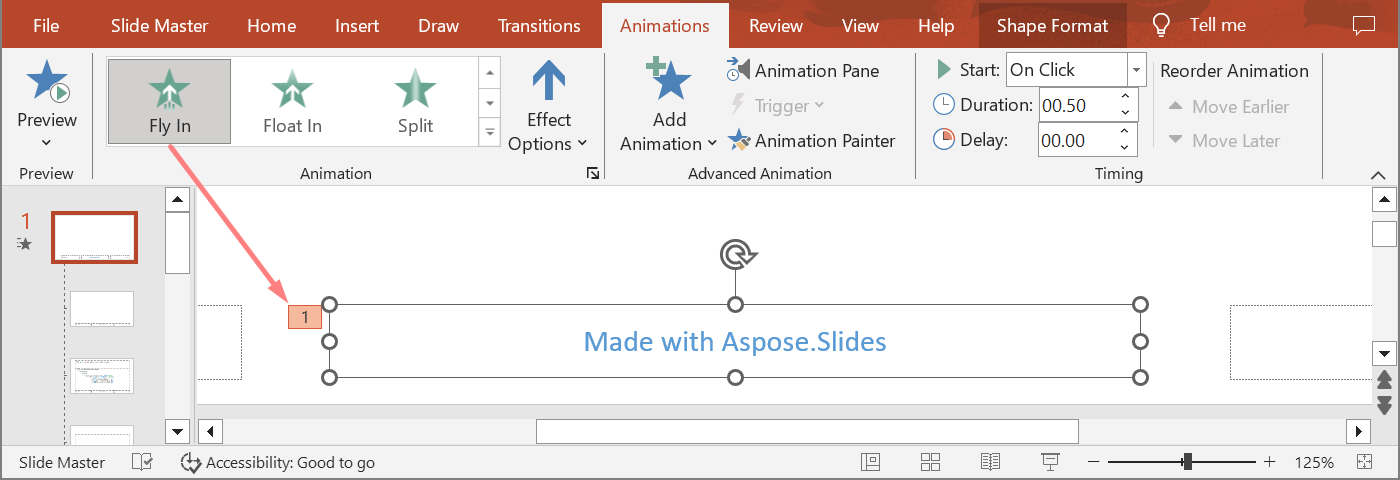
ตัวอย่างต่อไปนี้สร้างลำดับขั้นของ placeholder ด้วยตนเอง. มันเพิ่มเอฟเฟ็กต์ให้กับ master placeholder, layout placeholder, และ placeholder ที่สอดคล้องบนสไลด์ปกติ. ทุกครั้งที่เรียก IShape::GetBasePlaceholder จะตรวจสอบก่อนใช้รูปทรงที่คืนค่า.
#include <DOM/Animation/EffectSubtype.h>
#include <DOM/Animation/EffectTriggerType.h>
#include <DOM/Animation/EffectType.h>
#include <DOM/Animation/IEffect.h>
#include <DOM/Animation/ISequence.h>
#include <DOM/IAnimationTimeLine.h>
#include <DOM/IAutoShape.h>
#include <DOM/IGlobalLayoutSlideCollection.h>
#include <DOM/ILayoutPlaceholderManager.h>
#include <DOM/ILayoutSlide.h>
#include <DOM/IMasterSlide.h>
#include <DOM/IShape.h>
#include <DOM/IShapeCollection.h>
#include <DOM/ISlide.h>
#include <DOM/ISlideCollection.h>
#include <DOM/Presentation.h>
#include <DOM/SlideLayoutType.h>
#include <Export/SaveFormat.h>
#include <system/array.h>
#include <system/console.h>
#include <system/exceptions.h>
#include <system/string.h>

using namespace Aspose::Slides;
using namespace Aspose::Slides::Animation;
using namespace Aspose::Slides::Export;
using namespace System;

auto findPlaceholderWithBase = [](const SharedPtr<ISlide>& slide) -> SharedPtr<IShape>
{
    for (const auto& shape : slide->get_Shapes())
    {
        if (shape->GetBasePlaceholder() != nullptr)
            return shape;
    }

    return nullptr;
};

auto printEffects = [](const String& source, const ArrayPtr<SharedPtr<IEffect>>& effects)
{
    Console::WriteLine(String::Format(u"{0}: {1} effect(s)", source, effects->get_Length()));

    for (const auto& effect : effects)
        Console::WriteLine(String::Format(u"  {0} {1}", effect->get_Type(), effect->get_Subtype()));
};

auto presentation = MakeObject<Presentation>();
auto layoutSlide = presentation->get_LayoutSlides()->GetByType(SlideLayoutType::Blank);
auto layoutPlaceholder = layoutSlide->get_PlaceholderManager()->AddTextPlaceholder(100.0f, 100.0f, 400.0f, 80.0f);
layoutSlide->get_Timeline()->get_MainSequence()->AddEffect(layoutPlaceholder, EffectType::Split, EffectSubtype::VerticalIn, EffectTriggerType::OnClick);

auto masterPlaceholder = layoutPlaceholder->GetBasePlaceholder();
if (masterPlaceholder != nullptr)
{
    auto masterSequence = layoutSlide->get_MasterSlide()->get_Timeline()->get_MainSequence();
    masterSequence->AddEffect(masterPlaceholder, EffectType::Fly, EffectSubtype::Bottom, EffectTriggerType::OnClick);
}

auto slide = presentation->get_Slides()->AddEmptySlide(layoutSlide);
auto slidePlaceholder = findPlaceholderWithBase(slide);

if (slidePlaceholder == nullptr)
    throw InvalidOperationException(u"The slide does not contain a placeholder linked to its layout slide.");

slide->get_Timeline()->get_MainSequence()->AddEffect(slidePlaceholder, EffectType::RandomBars, EffectSubtype::Horizontal, EffectTriggerType::OnClick);
printEffects(u"Normal slide", slide->get_Timeline()->get_MainSequence()->GetEffectsByShape(slidePlaceholder));

auto baseLayoutPlaceholder = slidePlaceholder->GetBasePlaceholder();
if (baseLayoutPlaceholder != nullptr)
{
    printEffects(u"Layout slide", layoutSlide->get_Timeline()->get_MainSequence()->GetEffectsByShape(baseLayoutPlaceholder));

    auto baseMasterPlaceholder = baseLayoutPlaceholder->GetBasePlaceholder();
    if (baseMasterPlaceholder != nullptr)
        printEffects(u"Master slide", layoutSlide->get_MasterSlide()->get_Timeline()->get_MainSequence()->GetEffectsByShape(baseMasterPlaceholder));
}

presentation->Save(u"placeholder-animations.pptx", SaveFormat::Pptx);
presentation->Dispose();
เปลี่ยนการกำหนดเวลาแอนิเมชั่น
ไดอะล็อก Timing ของ PowerPoint ถูกแมปกับเมธอดของ ITiming.
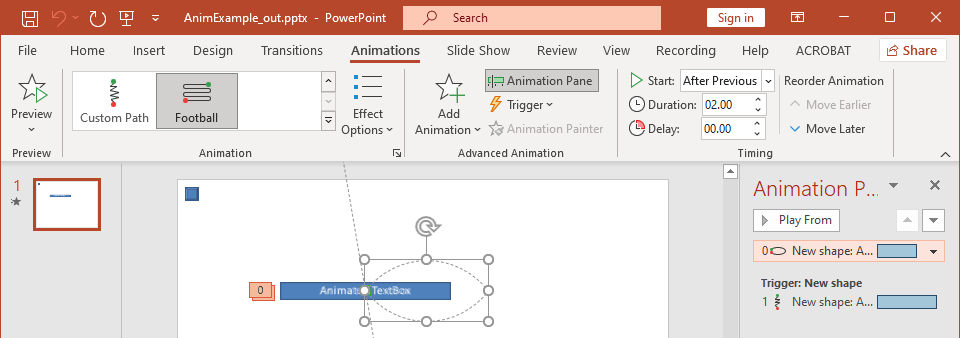
- Start ถูกแมปกับ ITiming::set_TriggerType.
- Duration ถูกแมปกับ ITiming::set_Duration, หน่วยเป็นวินาที.
- Delay ถูกแมปกับ ITiming::set_TriggerDelayTime, หน่วยเป็นวินาที.
- Repeat ถูกแมปกับ ITiming::set_RepeatCount, ITiming::set_RepeatUntilNextClick, หรือ ITiming::set_RepeatUntilEndSlide.
- Rewind when done playing ถูกแมปกับ ITiming::set_Rewind.
ตัวอย่างอิสระนี้เพิ่มเอฟเฟ็กต์, เปลี่ยนการกำหนดเวลาผ่านออบเจ็กต์ที่คืนค่าจาก ISequence::AddEffect, และบันทึกผลลัพธ์. การเก็บอ้างอิงของ IEffect ที่คืนค่าช่วยหลีกเลี่ยงการอ้างอิงดัชนีคอลเลกชันที่ไม่จำเป็น.
#include <DOM/Animation/EffectSubtype.h>
#include <DOM/Animation/EffectTriggerType.h>
#include <DOM/Animation/EffectType.h>
#include <DOM/Animation/IEffect.h>
#include <DOM/Animation/ISequence.h>
#include <DOM/Animation/ITiming.h>
#include <DOM/IAnimationTimeLine.h>
#include <DOM/IAutoShape.h>
#include <DOM/IShapeCollection.h>
#include <DOM/ISlide.h>
#include <DOM/ISlideCollection.h>
#include <DOM/ITextFrame.h>
#include <DOM/Presentation.h>
#include <DOM/ShapeType.h>
#include <Export/SaveFormat.h>

using namespace Aspose::Slides;
using namespace Aspose::Slides::Animation;
using namespace Aspose::Slides::Export;
using namespace System;

auto presentation = MakeObject<Presentation>();
auto slide = presentation->get_Slide(0);
auto shape = slide->get_Shapes()->AddAutoShape(ShapeType::Rectangle, 120.0f, 100.0f, 320.0f, 80.0f);
shape->get_TextFrame()->set_Text(u"Timed animation");

auto effect = slide->get_Timeline()->get_MainSequence()->AddEffect(shape, EffectType::Fade, EffectSubtype::None, EffectTriggerType::OnClick);
effect->get_Timing()->set_TriggerType(EffectTriggerType::OnClick);
effect->get_Timing()->set_Duration(2.0f);
effect->get_Timing()->set_TriggerDelayTime(0.5f);
effect->get_Timing()->set_RepeatUntilNextClick(false);
effect->get_Timing()->set_RepeatUntilEndSlide(false);
effect->get_Timing()->set_RepeatCount(2.0f);
effect->get_Timing()->set_Rewind(true);

presentation->Save(u"shape-animation-timing.pptx", SaveFormat::Pptx);
presentation->Dispose();
ใช้โหมดการทำซ้ำหนึ่งแบบอย่างตั้งใจ. การผสมการทำซ้ำจำนวนกับแฟล็ก “until” อาจทำให้ผลลัพธ์สับสนในโปรแกรมชมต่าง ๆ. เมื่อเปลี่ยนโหมดการทำซ้ำ, เรียก ITiming::set_RepeatUntilNextClick และ ITiming::set_RepeatUntilEndSlide ก่อน ITiming::set_RepeatCount, เพราะการตั้งค่าใด ๆ จะเปลี่ยนโหมดการทำซ้ำที่ใช้งานอยู่.
เพิ่มและดึงเสียงของแอนิเมชัน
เอฟเฟ็กต์การเคลื่อนไหวสามารถอ้างอิงไฟล์เสียงที่ฝังไว้ผ่าน IEffect::set_Sound. IEffect::set_StopPreviousSound สั่งให้เอฟเฟ็กต์หยุดเสียงที่เริ่มโดยเอฟเฟ็กต์ก่อนหน้า.
เพิ่มเสียงให้กับเอฟเฟ็กต์
ตัวอย่างต่อไปนี้คาดว่าไฟล์เสียงท้องถิ่นชื่อ animation-sound.wav. มันสร้างสองเอฟเฟ็กต์, ฝังไฟล์นั้นเป็นเสียงให้กับเอฟเฟ็กต์แรก, และกำหนดค่าเอฟเฟ็กต์ที่สองให้หยุดเสียง. ใช้ออบเจ็กต์ที่คืนค่าจาก ISequence::AddEffect, ดังนั้นไม่ต้องระบุดัชนีลำดับ.
#include <DOM/Animation/EffectSubtype.h>
#include <DOM/Animation/EffectTriggerType.h>
#include <DOM/Animation/EffectType.h>
#include <DOM/Animation/IEffect.h>
#include <DOM/Animation/ISequence.h>
#include <DOM/IAnimationTimeLine.h>
#include <DOM/IAudio.h>
#include <DOM/IAudioCollection.h>
#include <DOM/IAutoShape.h>
#include <DOM/IShapeCollection.h>
#include <DOM/ISlide.h>
#include <DOM/ISlideCollection.h>
#include <DOM/ITextFrame.h>
#include <DOM/Presentation.h>
#include <DOM/ShapeType.h>
#include <Export/SaveFormat.h>
#include <system/io/file.h>

using namespace Aspose::Slides;
using namespace Aspose::Slides::Animation;
using namespace Aspose::Slides::Export;
using namespace System;
using namespace System::IO;

auto presentation = MakeObject<Presentation>();
auto slide = presentation->get_Slide(0);
auto firstShape = slide->get_Shapes()->AddAutoShape(ShapeType::Rectangle, 80.0f, 100.0f, 240.0f, 80.0f);
auto secondShape = slide->get_Shapes()->AddAutoShape(ShapeType::Rectangle, 400.0f, 100.0f, 240.0f, 80.0f);
firstShape->get_TextFrame()->set_Text(u"Starts sound");
secondShape->get_TextFrame()->set_Text(u"Stops sound");

auto sequence = slide->get_Timeline()->get_MainSequence();
auto firstEffect = sequence->AddEffect(firstShape, EffectType::Fade, EffectSubtype::None, EffectTriggerType::OnClick);
auto secondEffect = sequence->AddEffect(secondShape, EffectType::Fade, EffectSubtype::None, EffectTriggerType::OnClick);

auto audioData = File::ReadAllBytes(u"animation-sound.wav");
auto effectSound = presentation->get_Audios()->AddAudio(audioData);
firstEffect->set_Sound(effectSound);
secondEffect->set_StopPreviousSound(true);

presentation->Save(u"shape-animation-sound.pptx", SaveFormat::Pptx);
presentation->Dispose();
ดึงเสียงเอฟเฟ็กต์ที่ฝังไว้
ตัวอย่างต่อไปนี้คาดว่ามีการนำเสนอท้องถิ่นชื่อ presentation-with-animation-sounds.pptx. มันสแกนทั้งลำดับหลักและลำดับโต้ตอบและเขียนเสียงเอฟเฟ็กต์ที่ฝังไว้ทั้งหมดไปยังไดเรกทอรี extracted-animation-sounds. ส่วนขยายไฟล์จะถูกเลือกจาก MIME type ของเสียงที่ให้โดย IAudio::get_ContentType.
#include <DOM/Animation/IEffect.h>
#include <DOM/Animation/ISequence.h>
#include <DOM/Animation/ISequenceCollection.h>
#include <DOM/IAnimationTimeLine.h>
#include <DOM/IAudio.h>
#include <DOM/ISlide.h>
#include <DOM/ISlideCollection.h>
#include <DOM/Presentation.h>
#include <system/console.h>
#include <system/io/directory.h>
#include <system/io/file.h>
#include <system/io/path.h>
#include <system/string.h>

using namespace Aspose::Slides;
using namespace Aspose::Slides::Animation;
using namespace System;
using namespace System::IO;

auto getAudioExtension = [](const String& contentType)
{
    auto normalizedType = String::IsNullOrEmpty(contentType) ? String::Empty : contentType.ToLowerInvariant();

    if (normalizedType == u"audio/mpeg")
        return String(u".mp3");

    if (normalizedType == u"audio/mp4")
        return String(u".m4a");

    if (normalizedType == u"audio/ogg")
        return String(u".ogg");

    if (normalizedType == u"audio/wav" || normalizedType == u"audio/x-wav")
        return String(u".wav");

    return String(u".bin");
};

auto saveSounds = [&getAudioExtension](const SharedPtr<ISequence>& sequence, const String& outputDirectory, int32_t& soundIndex)
{
    for (const auto& effect : sequence)
    {
        if (effect->get_Sound() == nullptr)
            continue;

        auto extension = getAudioExtension(effect->get_Sound()->get_ContentType());
        auto outputPath = Path::Combine(outputDirectory, String::Format(u"effect-sound-{0}{1}", soundIndex, extension));
        File::WriteAllBytes(outputPath, effect->get_Sound()->get_BinaryData());
        soundIndex++;
    }
};

auto inputPath = String(u"presentation-with-animation-sounds.pptx");
auto outputDirectory = String(u"extracted-animation-sounds");

Directory::CreateDirectory_(outputDirectory);

auto presentation = MakeObject<Presentation>(inputPath);
int32_t soundIndex = 1;

for (const auto& slide : presentation->get_Slides())
{
    saveSounds(slide->get_Timeline()->get_MainSequence(), outputDirectory, soundIndex);

    for (const auto& sequence : slide->get_Timeline()->get_InteractiveSequences())
        saveSounds(sequence, outputDirectory, soundIndex);
}

Console::WriteLine(String::Format(u"Extracted {0} sound file(s) to {1}.", soundIndex - 1, Path::GetFullPath(outputDirectory)));
presentation->Dispose();
สำหรับออบเจ็กต์เสียงขนาดใหญ่, ใช้ IAudio::GetStream แล้วคัดลอกสตรีมไปยังไฟล์แทนการโหลดออบเจ็กต์ทั้งหมดเข้าสู่อาเรย์ไบต์.
ตั้งค่าพฤติกรรมหลังการเคลื่อนไหว
ตัวเลือก After animation ควบคุมสิ่งที่จะเกิดขึ้นกับรูปร่างหลังจากเอฟเฟ็กต์เสร็จสิ้น.
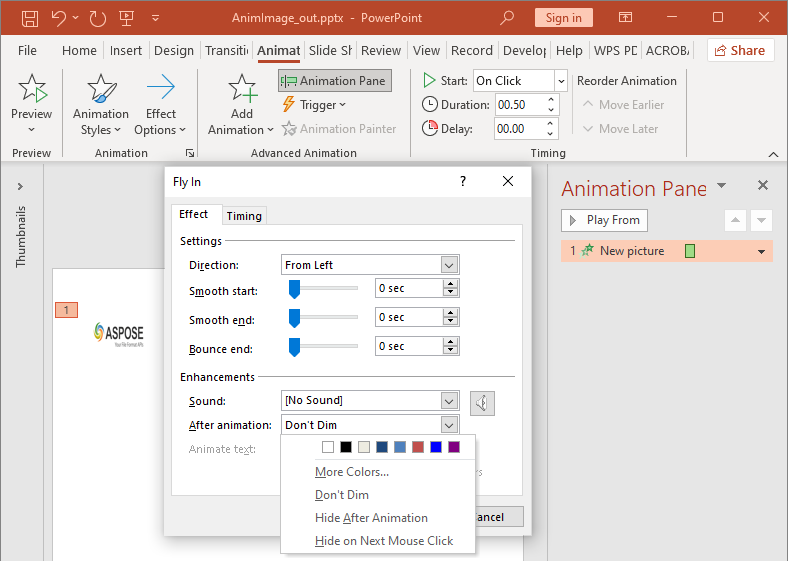
enumeration AfterAnimationType รองรับการปล่อยให้รูปร่างคงที่, เปลี่ยนสี, ซ่อนหลังการเคลื่อนไหว, หรือซ่อนเมื่อคลิกครั้งต่อไป. เมื่อประเภทเป็น AfterAnimationType::Color, เรียก IEffect::get_AfterAnimationColor เพื่อกำหนดสีด้วย.
ตัวอย่างอิสระนี้สร้างเอฟเฟ็กต์, ตั้งค่าพฤติกรรมหลังการเคลื่อนไหวผ่านออบเจ็กต์เอฟเฟ็กต์ที่คืนค่า, และบันทึกผลลัพธ์.
#include <DOM/Animation/AfterAnimationType.h>
#include <DOM/Animation/EffectSubtype.h>
#include <DOM/Animation/EffectTriggerType.h>
#include <DOM/Animation/EffectType.h>
#include <DOM/Animation/IEffect.h>
#include <DOM/Animation/ISequence.h>
#include <DOM/IAnimationTimeLine.h>
#include <DOM/IAutoShape.h>
#include <DOM/IColorFormat.h>
#include <DOM/IShapeCollection.h>
#include <DOM/ISlide.h>
#include <DOM/ISlideCollection.h>
#include <DOM/ITextFrame.h>
#include <DOM/Presentation.h>
#include <DOM/ShapeType.h>
#include <Export/SaveFormat.h>
#include <drawing/color.h>

using namespace Aspose::Slides;
using namespace Aspose::Slides::Animation;
using namespace Aspose::Slides::Export;
using namespace System;
using namespace System::Drawing;

auto presentation = MakeObject<Presentation>();
auto slide = presentation->get_Slide(0);
auto shape = slide->get_Shapes()->AddAutoShape(ShapeType::Rectangle, 120.0f, 100.0f, 320.0f, 80.0f);
shape->get_TextFrame()->set_Text(u"Dim after animation");

auto effect = slide->get_Timeline()->get_MainSequence()->AddEffect(shape, EffectType::Fade, EffectSubtype::None, EffectTriggerType::OnClick);
effect->set_AfterAnimationType(AfterAnimationType::Color);
effect->get_AfterAnimationColor()->set_Color(Color::get_LightGray());

presentation->Save(u"shape-animation-after-effect.pptx", SaveFormat::Pptx);
presentation->Dispose();
การเปลี่ยนประเภทจาก AfterAnimationType::Color จะลบการตั้งค่าสีหลังการเคลื่อนไหว.
เคลื่อนไหวข้อความ
การเคลื่อนไหวข้อความมีการควบคุมสองอย่างที่เกี่ยวข้อง:
- ITextAnimation::set_BuildType ควบคุมว่าข้อความย่อหน้าปรากฏพร้อมกันหรือทีละย่อหน้า.
- IEffect::set_AnimateTextType ควบคุมว่าข้อความปรากฏทั้งหมดพร้อมกัน, ทีละคำ, หรือทีละอักขระ. IEffect::set_DelayBetweenTextParts กำหนดความหน่วงระหว่างคำหรืออักขระ. ค่าบวกเป็นเปอร์เซ็นต์ของระยะเวลาเอฟเฟ็กต์; ค่าลบเป็นเวลาหน่วงวินาที.
ตัวอย่างอิสระต่อไปนี้เคลื่อนไหวคำในกล่องข้อความ. BuildType::AsOneObject ปิดการสร้างทีละย่อหน้าเพื่อให้การตั้งค่าคำใช้กับกรอบข้อความทั้งหมด.
#include <DOM/Animation/AnimateTextType.h>
#include <DOM/Animation/BuildType.h>
#include <DOM/Animation/EffectSubtype.h>
#include <DOM/Animation/EffectTriggerType.h>
#include <DOM/Animation/EffectType.h>
#include <DOM/Animation/IEffect.h>
#include <DOM/Animation/ISequence.h>
#include <DOM/Animation/ITextAnimation.h>
#include <DOM/IAnimationTimeLine.h>
#include <DOM/IAutoShape.h>
#include <DOM/IShapeCollection.h>
#include <DOM/ISlide.h>
#include <DOM/ISlideCollection.h>
#include <DOM/ITextFrame.h>
#include <DOM/Presentation.h>
#include <DOM/ShapeType.h>
#include <Export/SaveFormat.h>

using namespace Aspose::Slides;
using namespace Aspose::Slides::Animation;
using namespace Aspose::Slides::Export;
using namespace System;

auto presentation = MakeObject<Presentation>();
auto slide = presentation->get_Slide(0);
auto textBox = slide->get_Shapes()->AddAutoShape(ShapeType::Rectangle, 80.0f, 80.0f, 560.0f, 100.0f);
textBox->get_TextFrame()->set_Text(u"Aspose.Slides animates this sentence word by word.");

auto effect = slide->get_Timeline()->get_MainSequence()->AddEffect(textBox, EffectType::Fade, EffectSubtype::None, EffectTriggerType::OnClick);
effect->get_TextAnimation()->set_BuildType(BuildType::AsOneObject);
effect->set_AnimateTextType(AnimateTextType::ByWord);
effect->set_DelayBetweenTextParts(20.0f);

presentation->Save(u"animated-text.pptx", SaveFormat::Pptx);
presentation->Dispose();
เพื่อสร้างกล่องข้อความทีละย่อหน้า, ใช้ ITextAnimation::set_BuildType พร้อม BuildType::ByLevelParagraphs1 หรือระดับย่อหน้าอื่น. เพื่อกำหนดเอฟเฟ็กต์ให้กับย่อหน้าเดียวที่มีเอฟเฟ็กต์ของตนเอง, ใช้ overload ของ ISequence::AddEffect ที่รับ IParagraph. ดูที่ Animated Text สำหรับตัวอย่างระดับย่อหน้า.
การส่งออกและหมายเหตุเรื่องความเข้ากันได้
- การบันทึกเป็น PPT หรือ PPTX จะรักษาโมเดลแอนิเมชั่นไว้, แต่การเล่นสุดท้ายจะถูกควบคุมโดยโปรแกรมแสดงสไลด์.
- PDF และภาพนิ่งไม่เล่นแอนิเมชั่น. ใช้ HTML5 export, GIF เคลื่อนไหว, หรือ video conversion เมื่อผลลัพธ์ต้องแสดงการเคลื่อนไหว.
- สำหรับ HTML5, เปิดใช้งาน Html5Options::set_AnimateShapes และเมื่อต้องการ, Html5Options::set_AnimateTransitions.
- การเรนเดอร์วิดีโอสนับสนุนเอฟเฟ็กต์การเข้า, เน้น, ออก, และเส้นทางการเคลื่อนไหวทั่วไปหลายประเภท, แต่ไม่สนับสนุนเอฟเฟ็กต์ PowerPoint ทุกแบบ. ตรวจสอบ supported animations and effects ปัจจุบันและทดสอบการนำเสนอที่สำคัญกับเวอร์ชัน Aspose.Slides ที่คุณใช้.
- เอฟเฟ็กต์กำหนดเองขั้นสูงและเอฟเฟ็กต์ที่นำเข้าจากรูปแบบการนำเสนออื่นอาจถูกเก็บไว้ในไฟล์แต่แสดงผลแตกต่างกันใน PowerPoint, HTML5, หรือวิดีโอ. ควรตรวจสอบผลลัพธ์ที่ส่งออกแทนการพึ่งพาชื่อเอฟเฟ็กต์อย่างเดียว.
คำถามที่พบบ่อย
ทำไมแอนิเมชั่นจึงปรากฏใน PowerPoint แต่ไม่แสดงใน PDF?
PDF เป็นรูปแบบคงที่, ดังนั้นแอนิเมชั่นและการเปลี่ยนสไลด์ไม่ทำงาน. ให้ส่งออกเป็น HTML5, GIF เคลื่อนไหว, หรือวิดีโอเมื่อจำเป็นต้องคงการเคลื่อนไหว.
ทำไมเอฟเฟ็กต์ถึงแสดงผลแตกต่างในวิดีโอ?
การส่งออกเป็นวิดีโอเรนเดอร์แอนิเมชั่นแทนการเก็บพฤติกรรมดั้งเดิมของ PowerPoint. เอฟเฟ็กต์ขั้นสูงบางอย่างอาจไม่รองรับหรือถูกประมาณค่า. ตรวจสอบตารางเอฟเฟ็กต์ที่รองรับและทดสอบการนำเสนอจริงก่อนใช้งานจริง.
การย้ายรูปร่างไปข้างหน้าหรือถอยหลังทำให้ลำดับการเคลื่อนไหวเปลี่ยนหรือไม่?
ไม่. การจัดลำดับ z-order ของรูปร่างควบคุมการทับซ้อน, ส่วนลำดับของลำดับและตัวทำให้เริ่มควบคุมการเล่นแอนิเมชั่น. ให้เปลี่ยนไทม์ไลน์หากต้องการลำดับการเล่นที่ต่างออกไป.